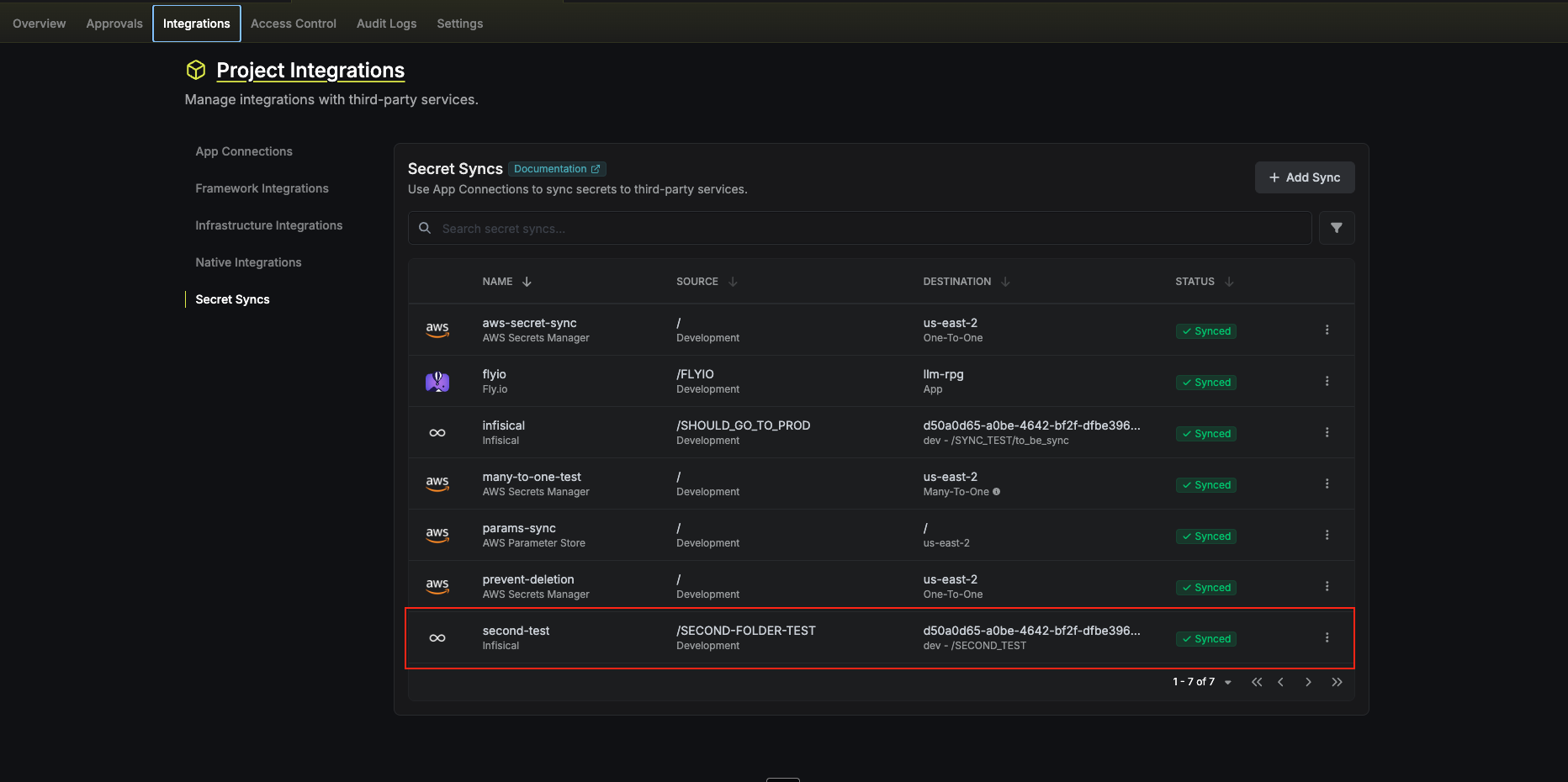
Setup Infisical connection in Infisical
- Infisical UI
- API
1
Navigate to the remote Infisical instance
Open the remote Infisical instance (the one you want to sync secrets to) and navigate to Organization > Access Control > Machine Identities.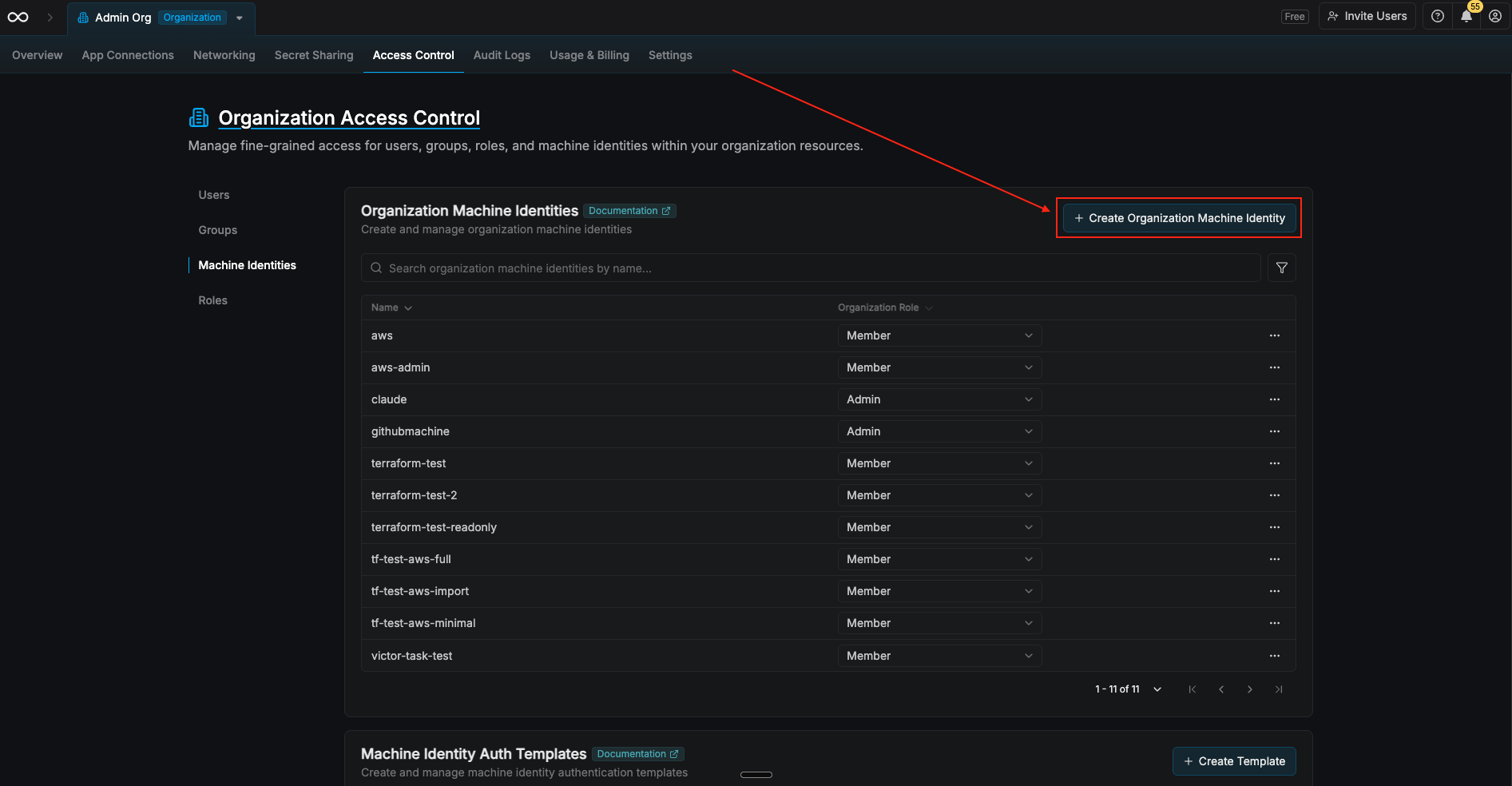
2
Create a Machine Identity
Create a new Machine Identity. Give it a descriptive name (e.g., 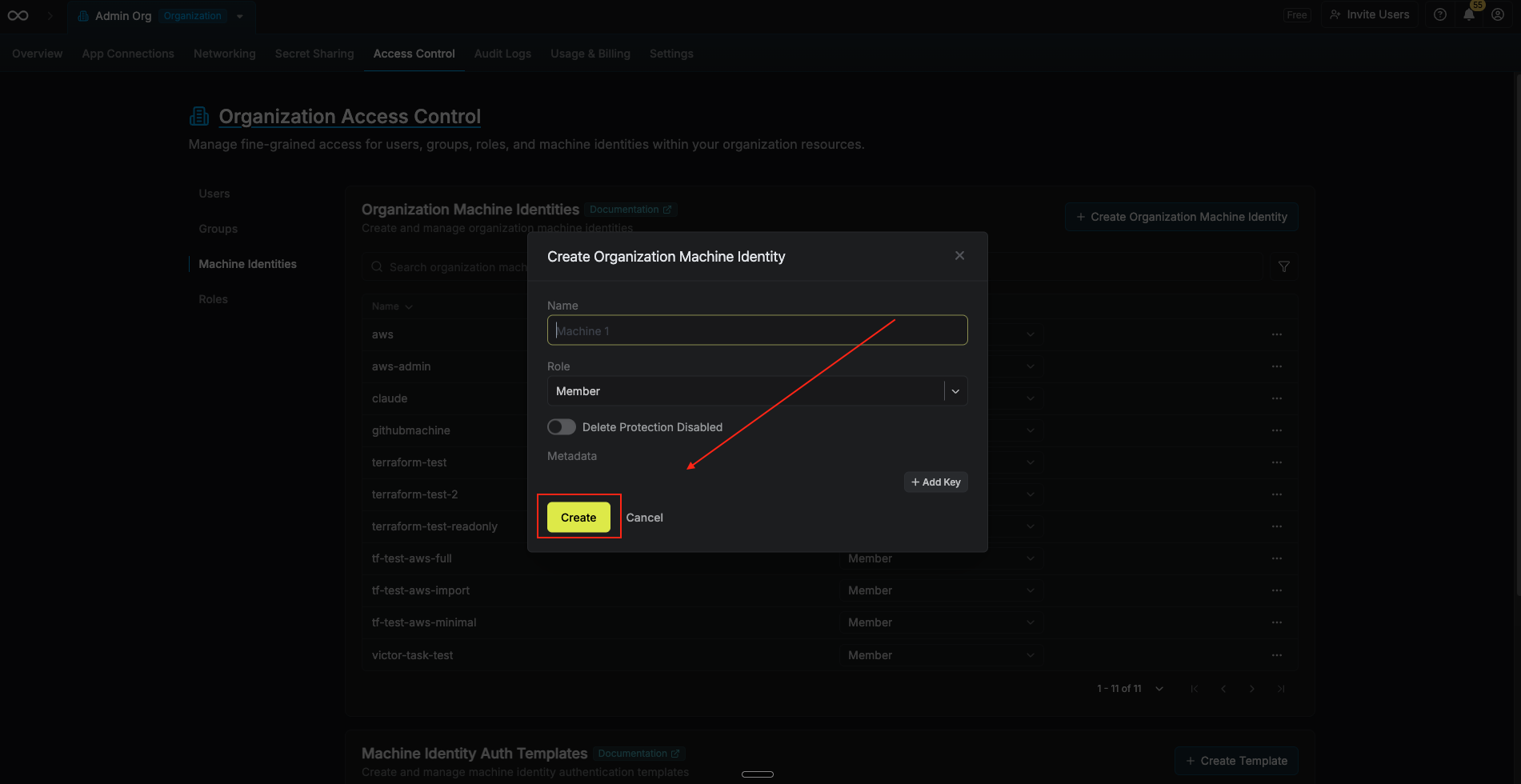
infisical-sync-identity).3
Configure Universal Auth
Select Universal Auth as the authentication method and create the identity.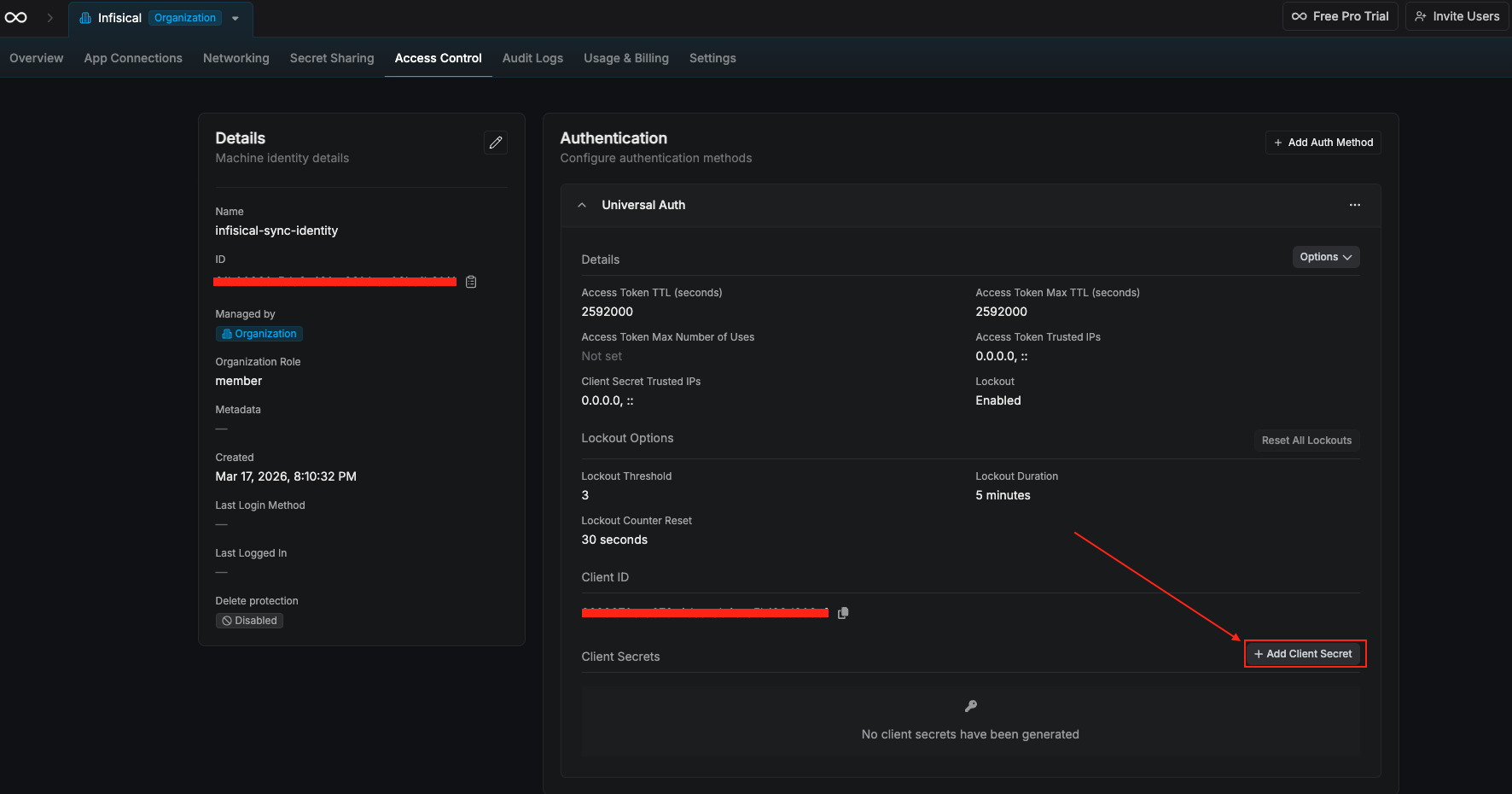
4
Copy the Client ID and create a Client Secret
Copy the Client ID. Then select Create Client Secret and copy the generated secret. Store both values in a secure location — the secret won’t be shown again.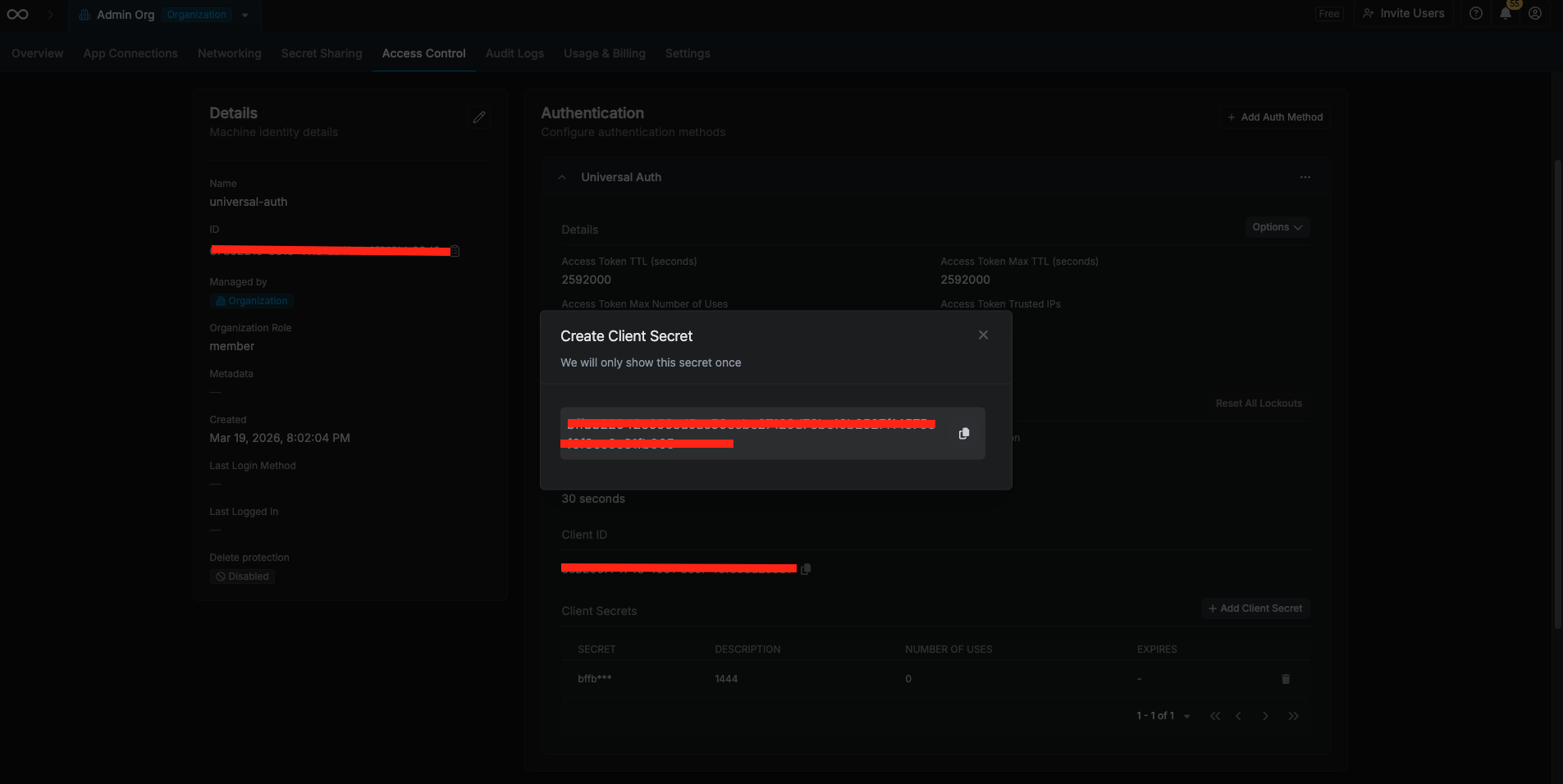
5
Add the Machine Identity to the target project
Navigate to the project on the remote instance that you want to sync secrets to. Under Access Control > Machine Identities, add the Machine Identity you created and grant it a role with write permission on secrets (e.g. Member or a custom role with secret write access).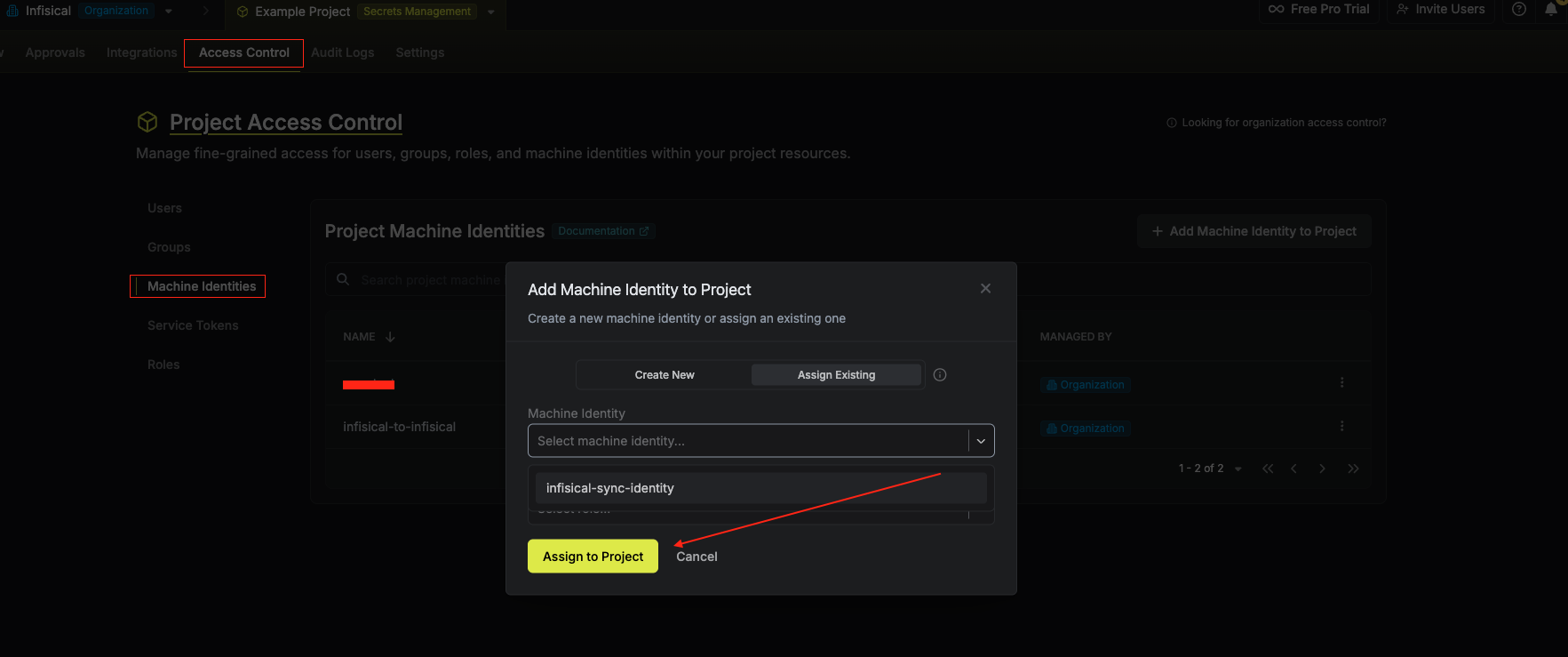
6
Navigate to App Connections in Infisical
Switch back to your source Infisical instance. Go to Integrations > App Connections in your organization and select Add Connection.
7
Select the Infisical Connection option
Choose the Infisical option from the connection list.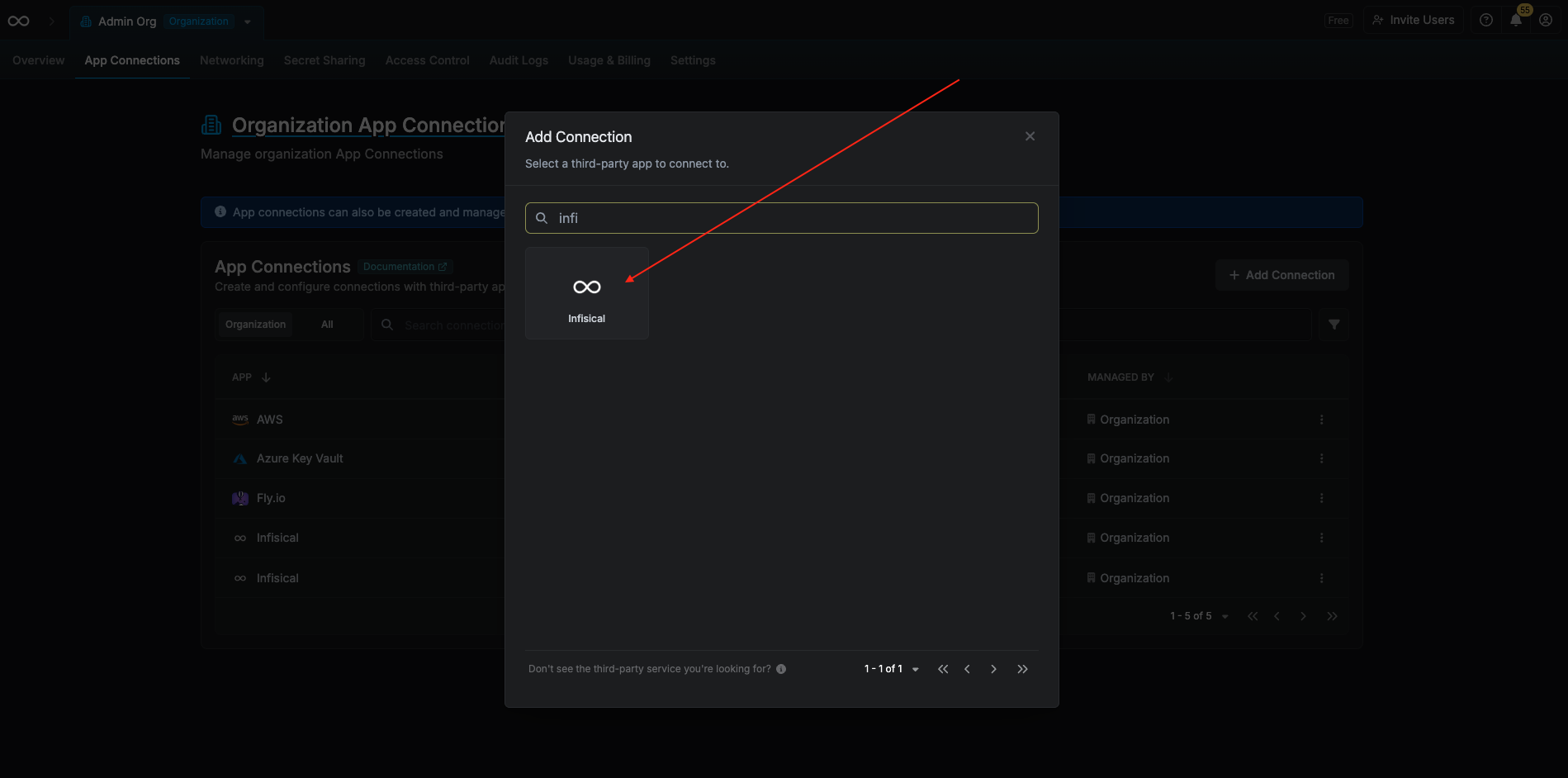
8
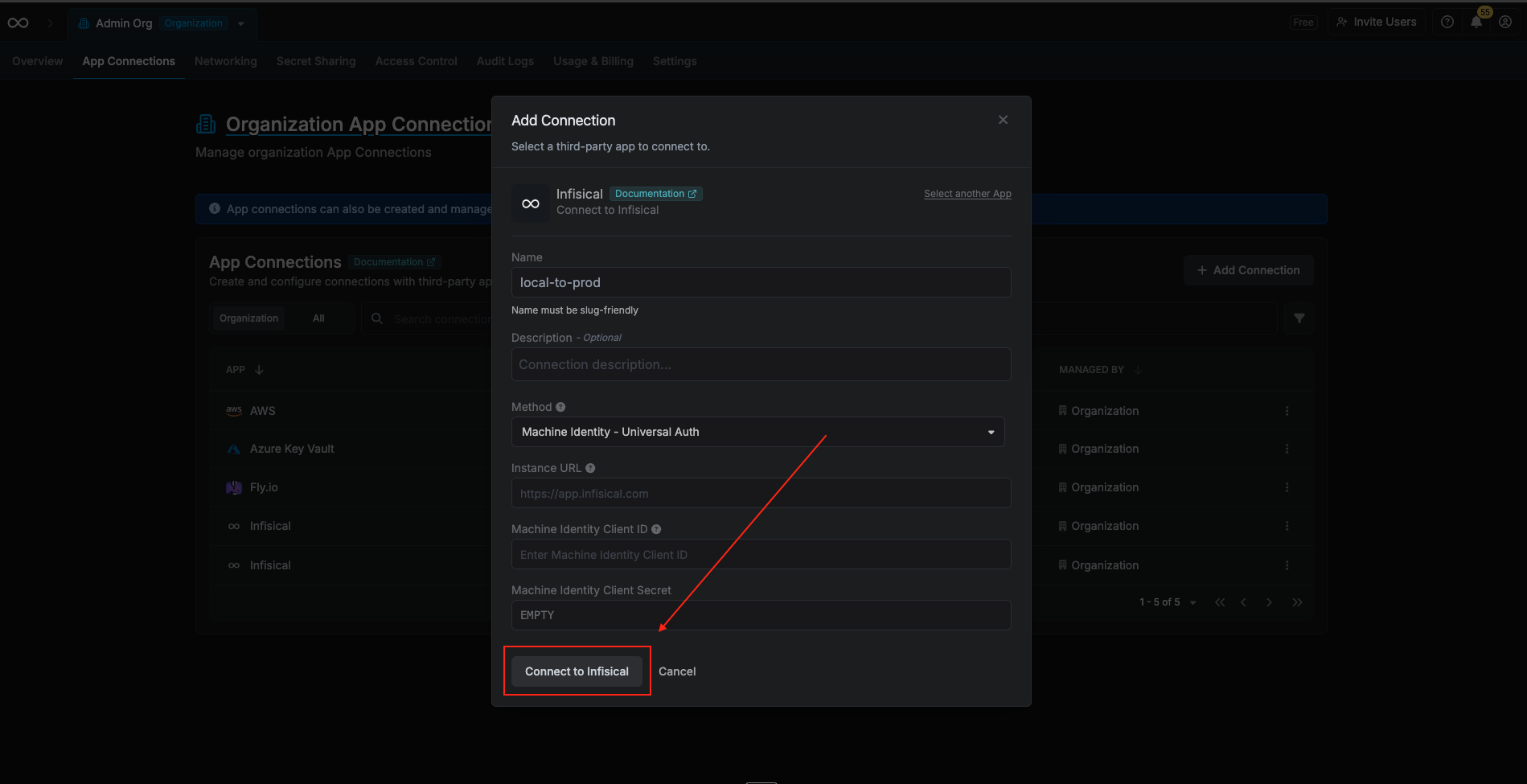
Fill in the connection form
Complete the connection form with the following details:
-
Instance URL: The base URL of the remote Infisical instance (e.g.,
https://infisical.example.com). - Machine Identity Client ID: The Client ID copied in a previous step.
-
Machine Identity Client Secret: The Client Secret copied in a previous step.
9
Connection Created
Your Infisical Connection is now available for use in Secret Syncs.