

Microsoft Intune is an enterprise App Connection and requires a paid plan.
- A Microsoft Entra ID tenant with Microsoft Intune enabled.
Setup Azure application
1
Register an application in Microsoft Entra ID
Navigate to Microsoft Entra ID and open App registrations, then create a new registration.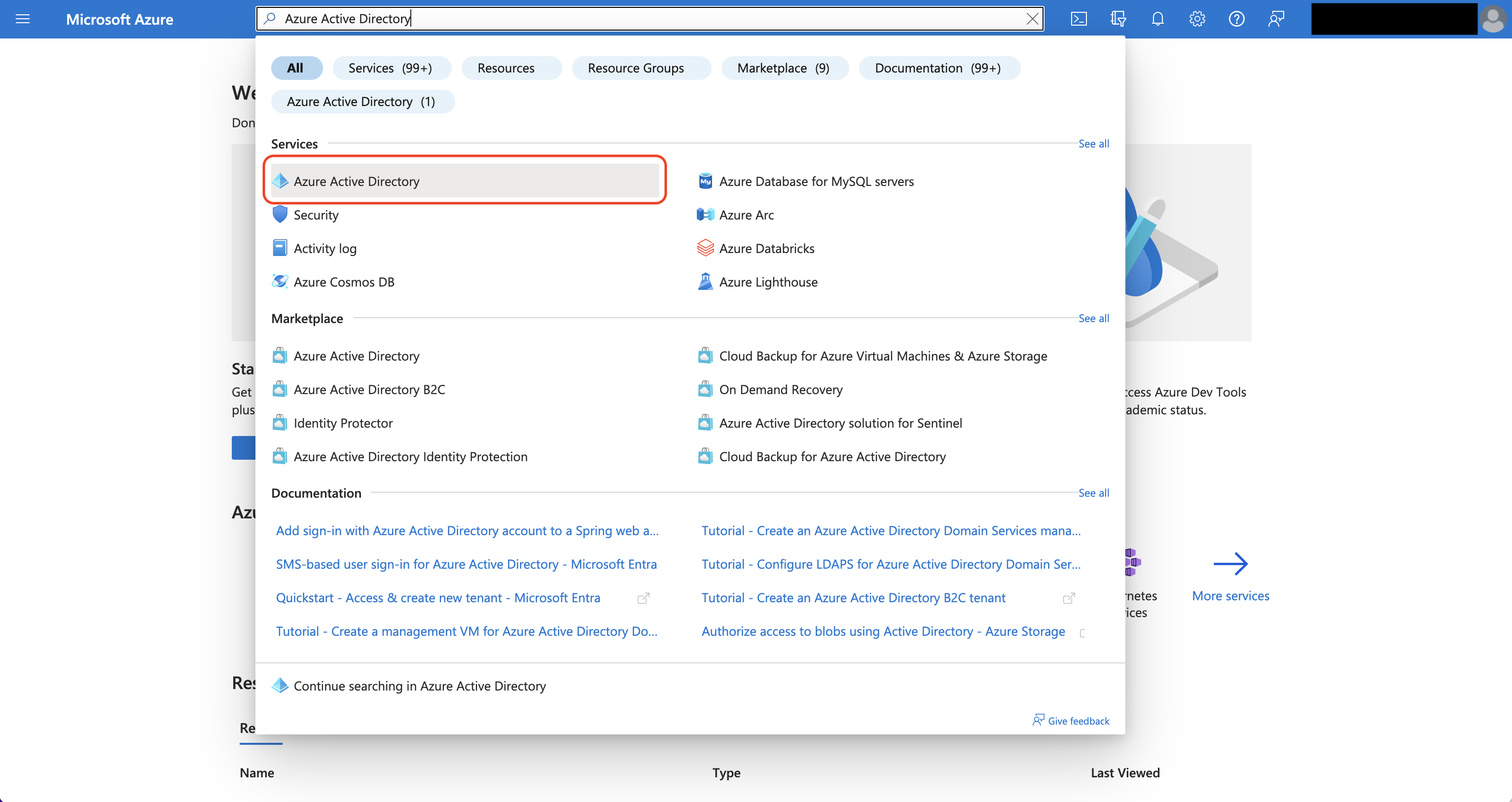
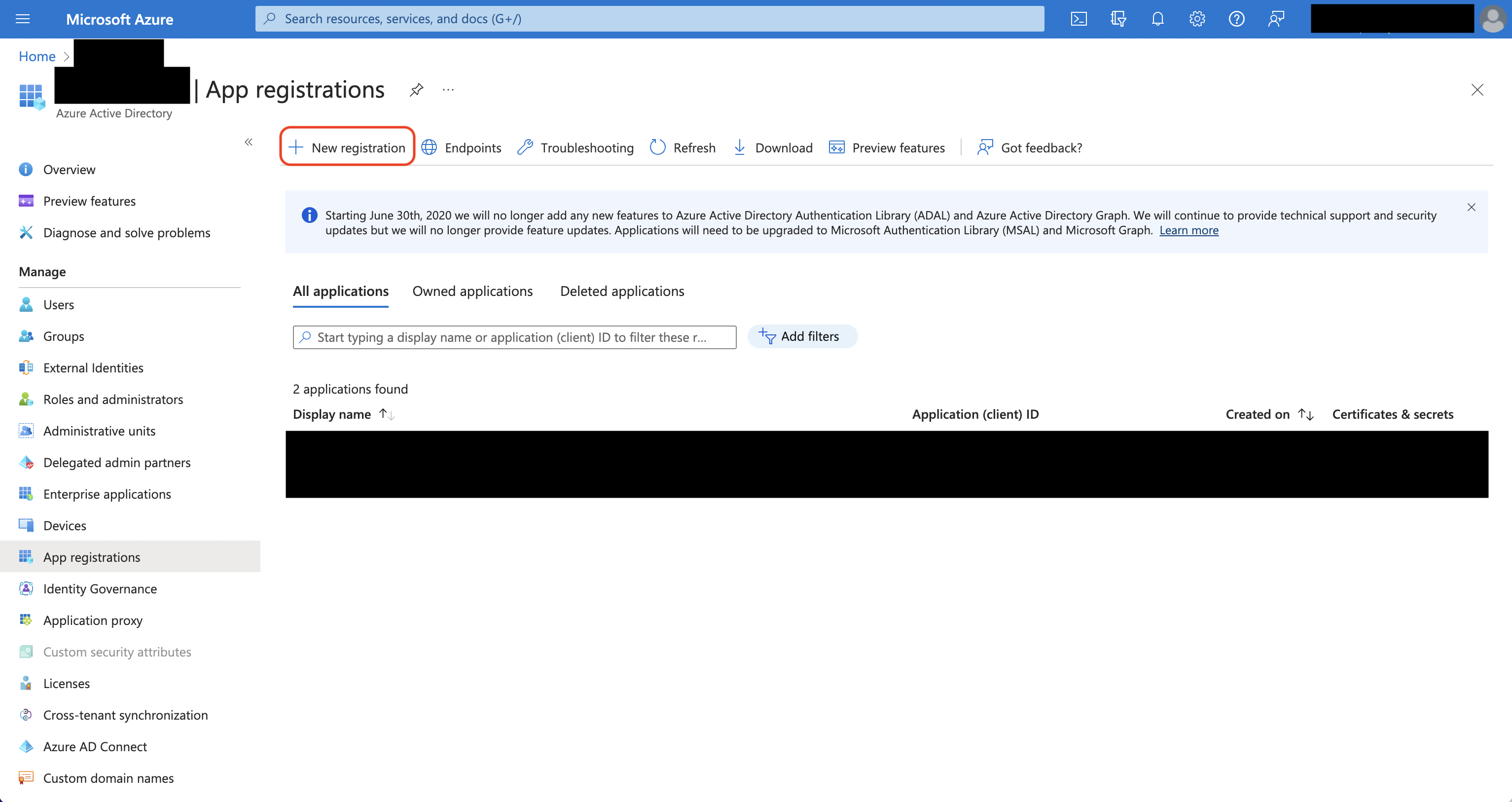
Azure Active Directory is now Microsoft Entra ID.
2
Assign API permissions to the application
Set the API permissions of your Azure application to include the following Application permissions, then grant admin consent: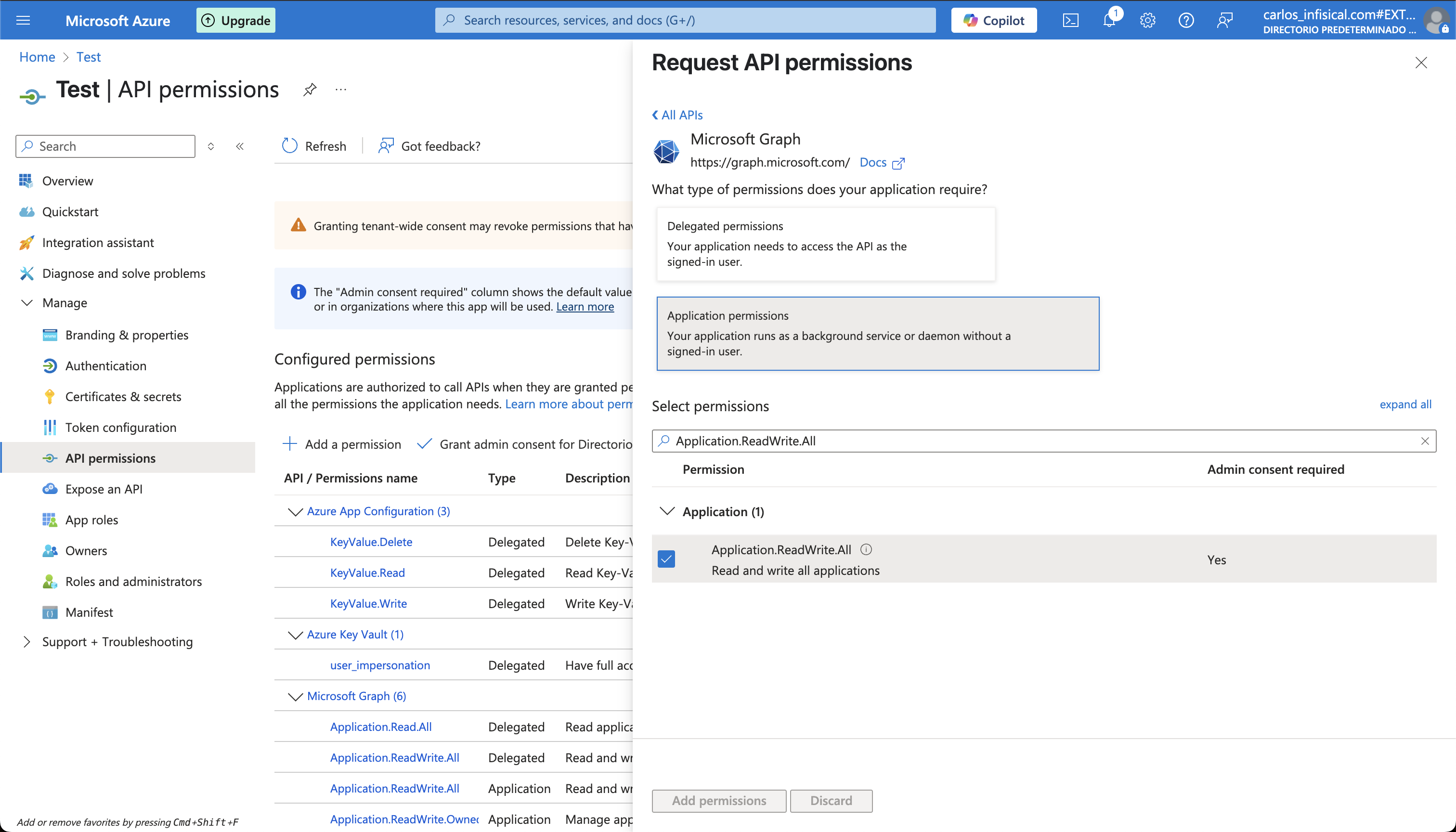
- Microsoft Graph
Application.Read.All
- Microsoft Intune
scep_challenge_provider
Application.Read.All lets Infisical discover the Intune SCEP validation endpoint, and scep_challenge_provider lets it validate challenges and report issuance outcomes.3
Collect the application credentials
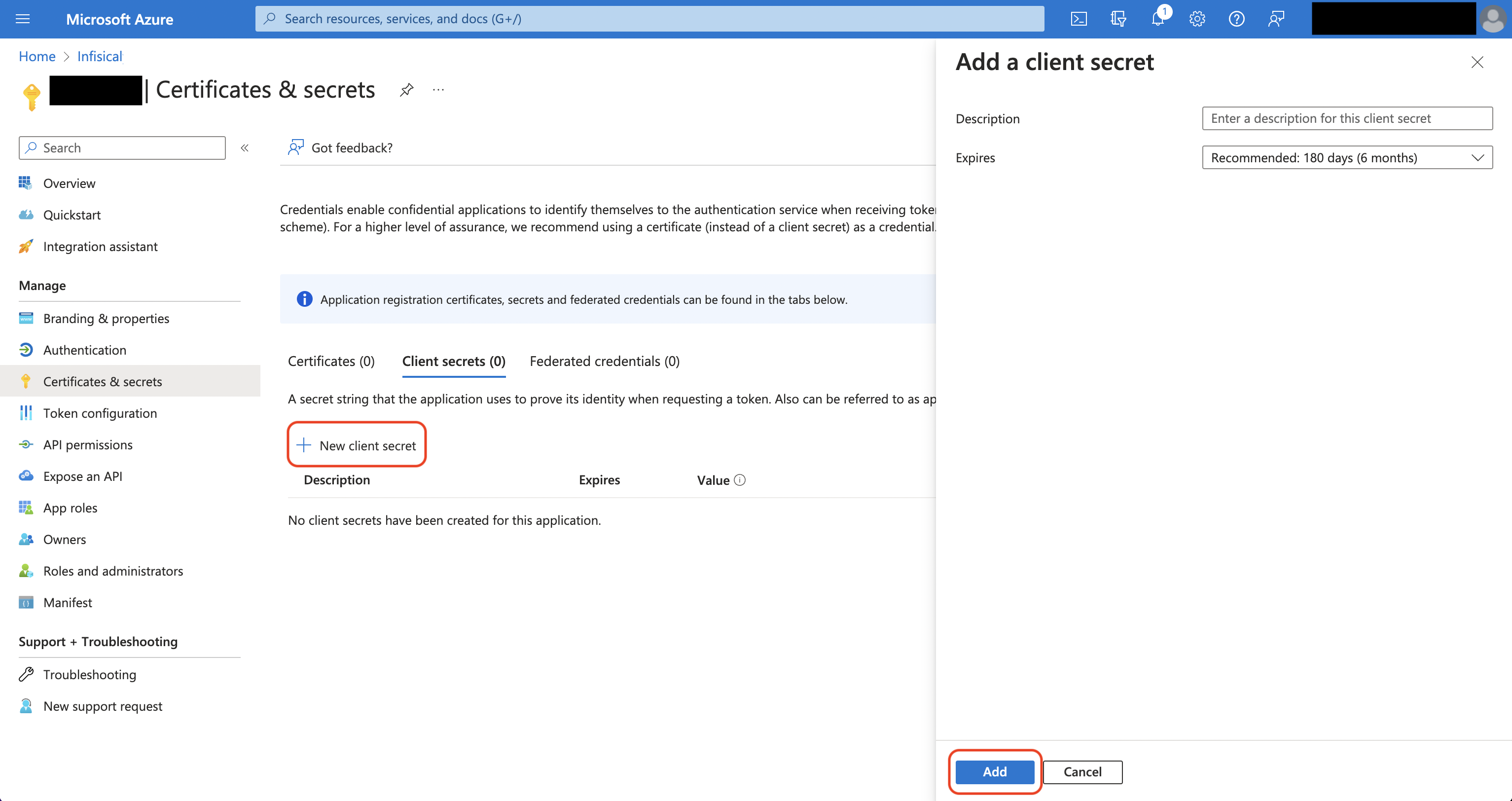
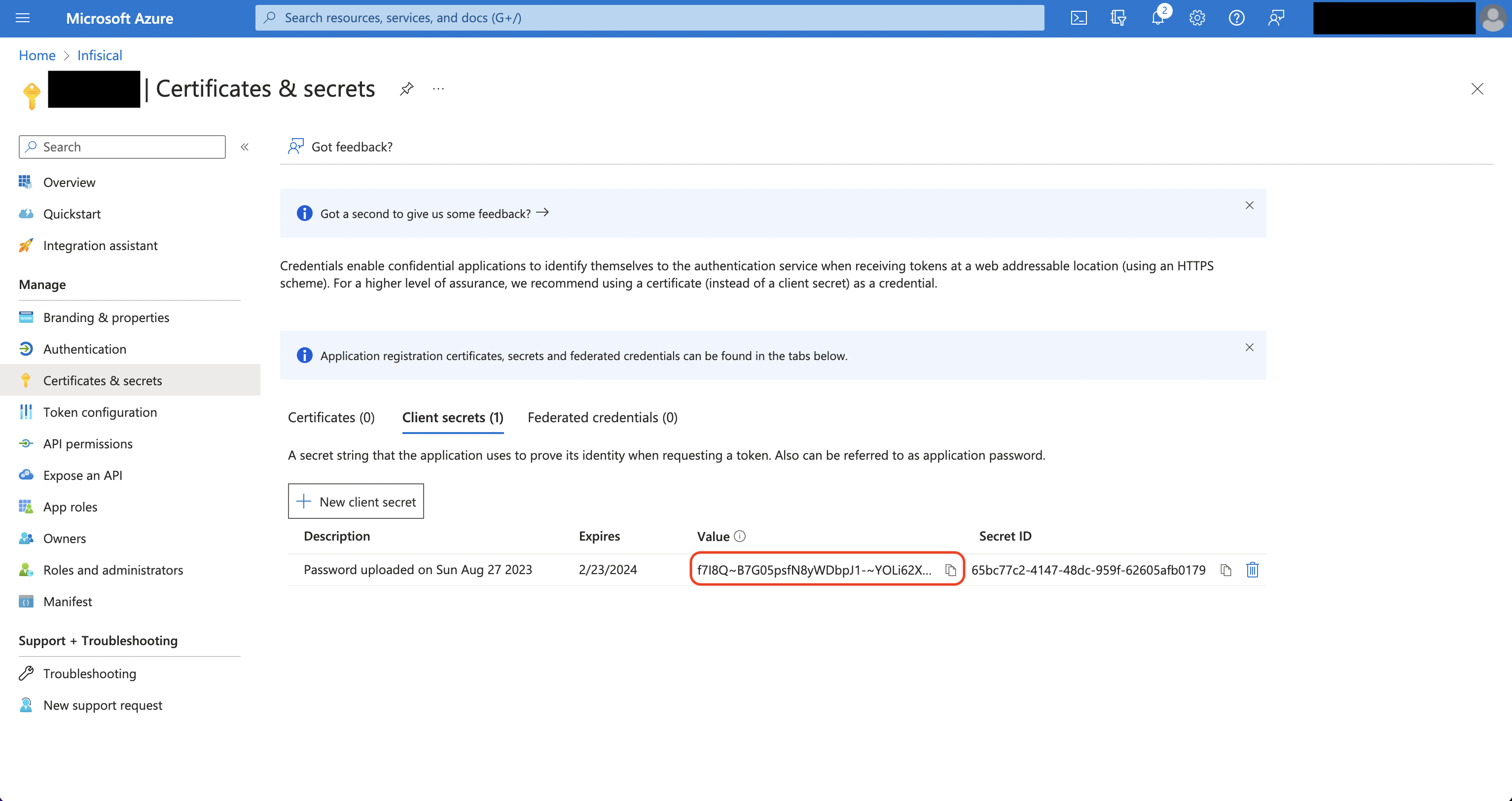
Obtain the Directory (Tenant) ID and Application (Client) ID from the application’s Overview page, then generate a Client Secret under Certificates & secrets.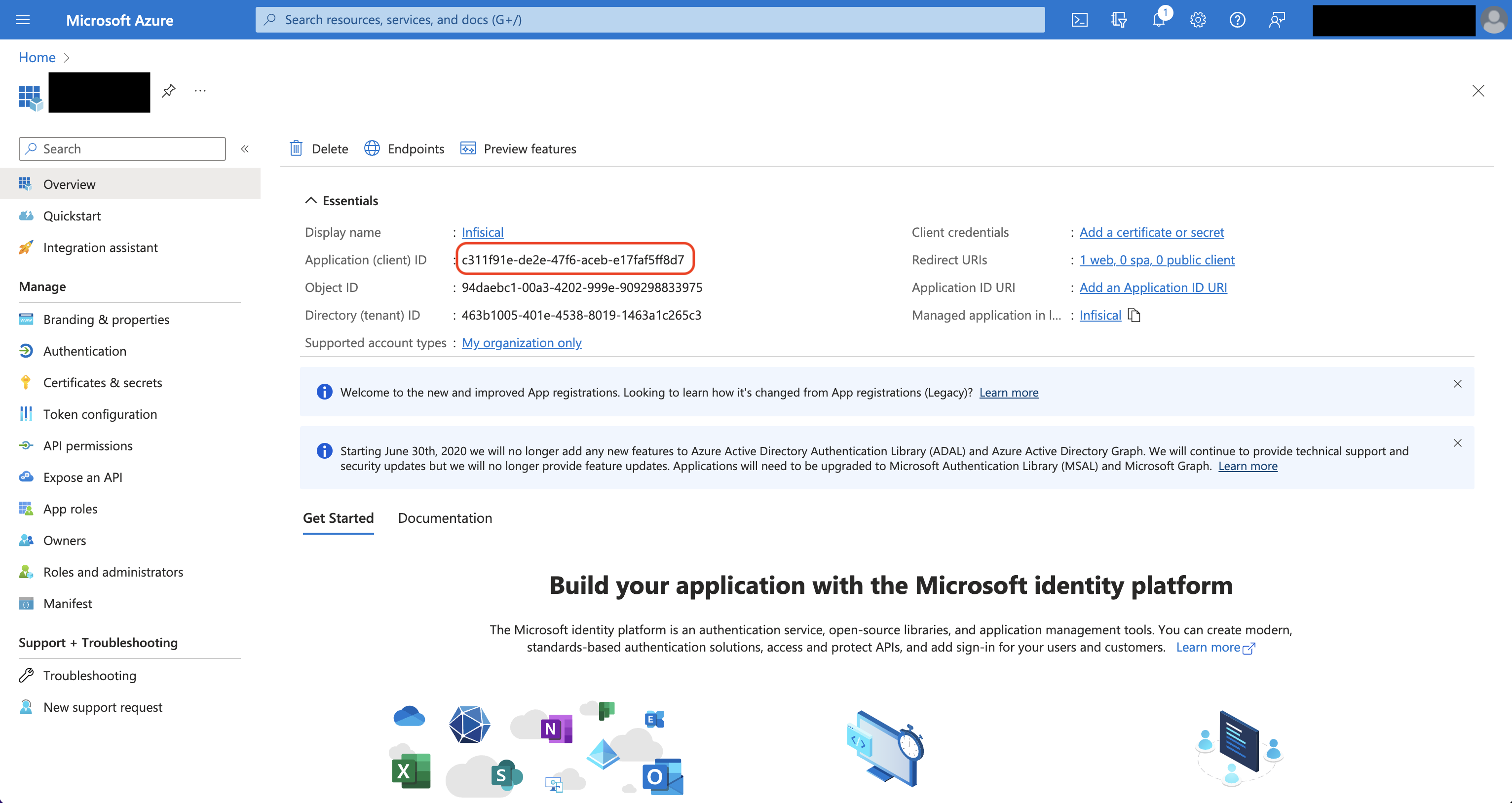
Setup Microsoft Intune connection in Infisical
- Infisical UI
- API
1
Navigate to App Connections
In Certificate Manager, navigate to the App Connections tab on the Settings page.
2
Add Connection
Select the Microsoft Intune option from the connection options modal.
3
Create Connection
Fill in the following fields with the credentials from your Azure App Registration:
- Tenant ID: The Directory (Tenant) ID of your Microsoft Entra ID tenant.
- Client ID: The Application (Client) ID of your registered application.
- Client Secret: A client secret generated for your registered application.
4
Connection Created
Your Microsoft Intune Connection is now available for use as the validation connection on a SCEP enrollment method.