Prerequisites
- A running LiteLLM proxy that Infisical can reach over the network, along with its base URL (e.g.
https://litellm.example.com). - A management-capable API key for that proxy. Infisical uses this key to create, list, and delete keys on your behalf, so it must be the proxy master key or an admin/management key with key-management permissions. A standard virtual key limited to model completions won’t work.
Create LiteLLM connection in Infisical
- Infisical UI
- API
1
Create a user and issue a scoped key in LiteLLM
We recommend creating a dedicated user and issuing a scoped key for Infisical to manage your API keys, rather than using the master key directly. This restricts Infisical’s access to only the routes it needs.First, create a user with the Then issue a scoped key for that user:Use the generated key as your API Key and your instance address as the Instance URL when creating the connection below.
proxy_admin role. This role is required so the key can delete keys it did not issue:Create user
Issue scoped key
The
/models, /v2/team/list, and /user/list routes are optional. They are only used to populate the user, team, and model dropdowns in the Infisical UI when configuring a rotation.2
Navigate to App Connections
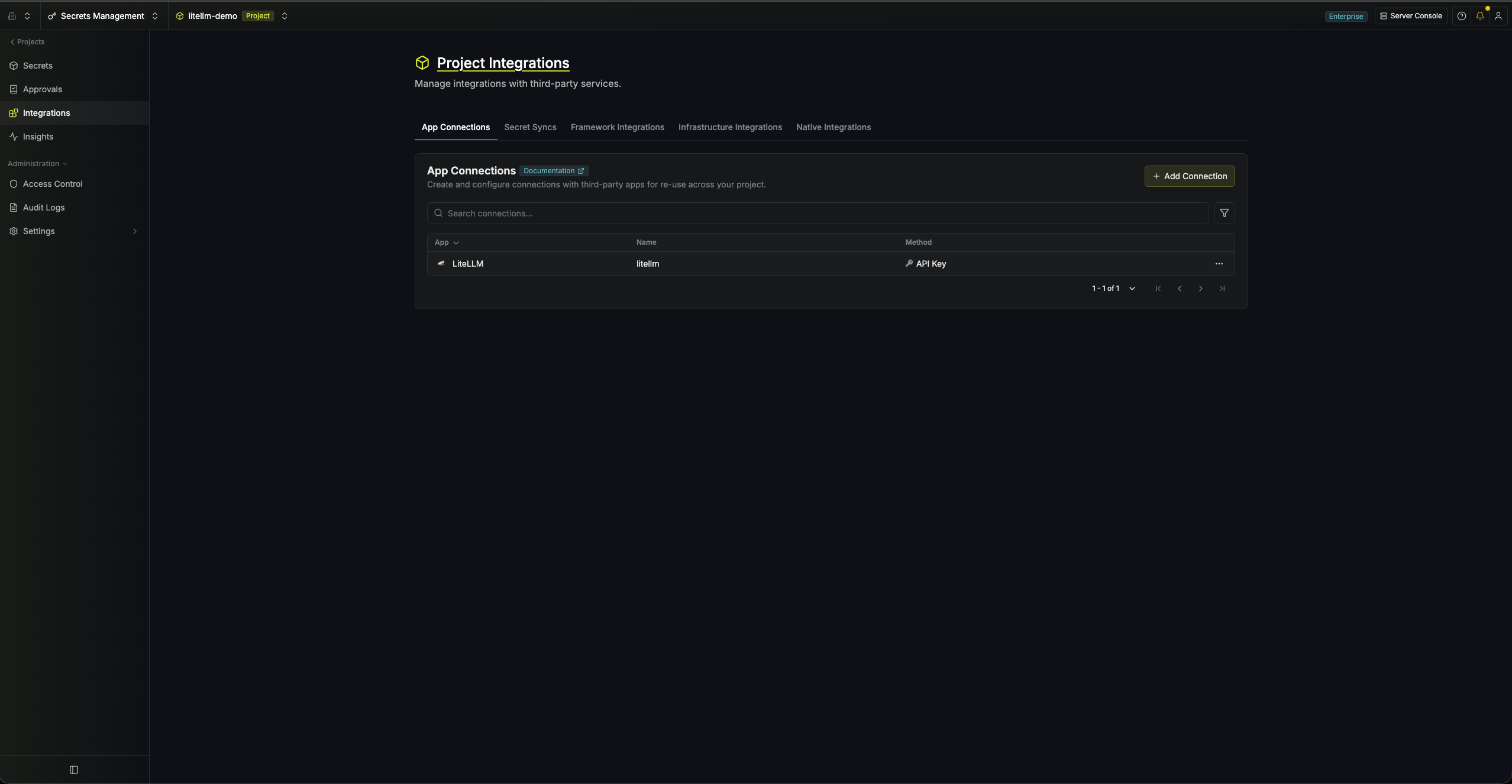
In your Infisical dashboard, go to Integrations → App Connections, either in your organization or in a project.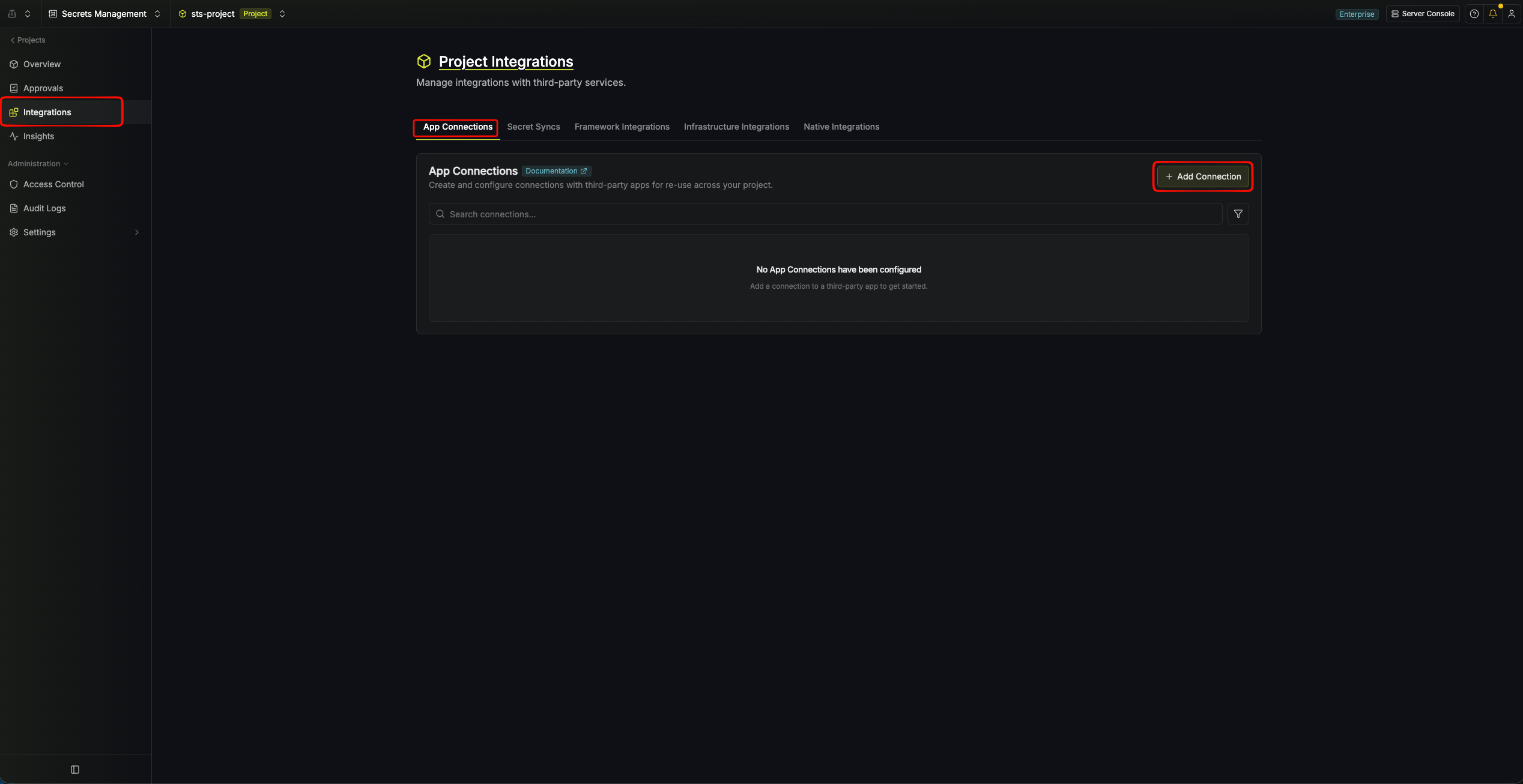
3
Select LiteLLM Connection
Click Add Connection and choose LiteLLM from the list of available connections.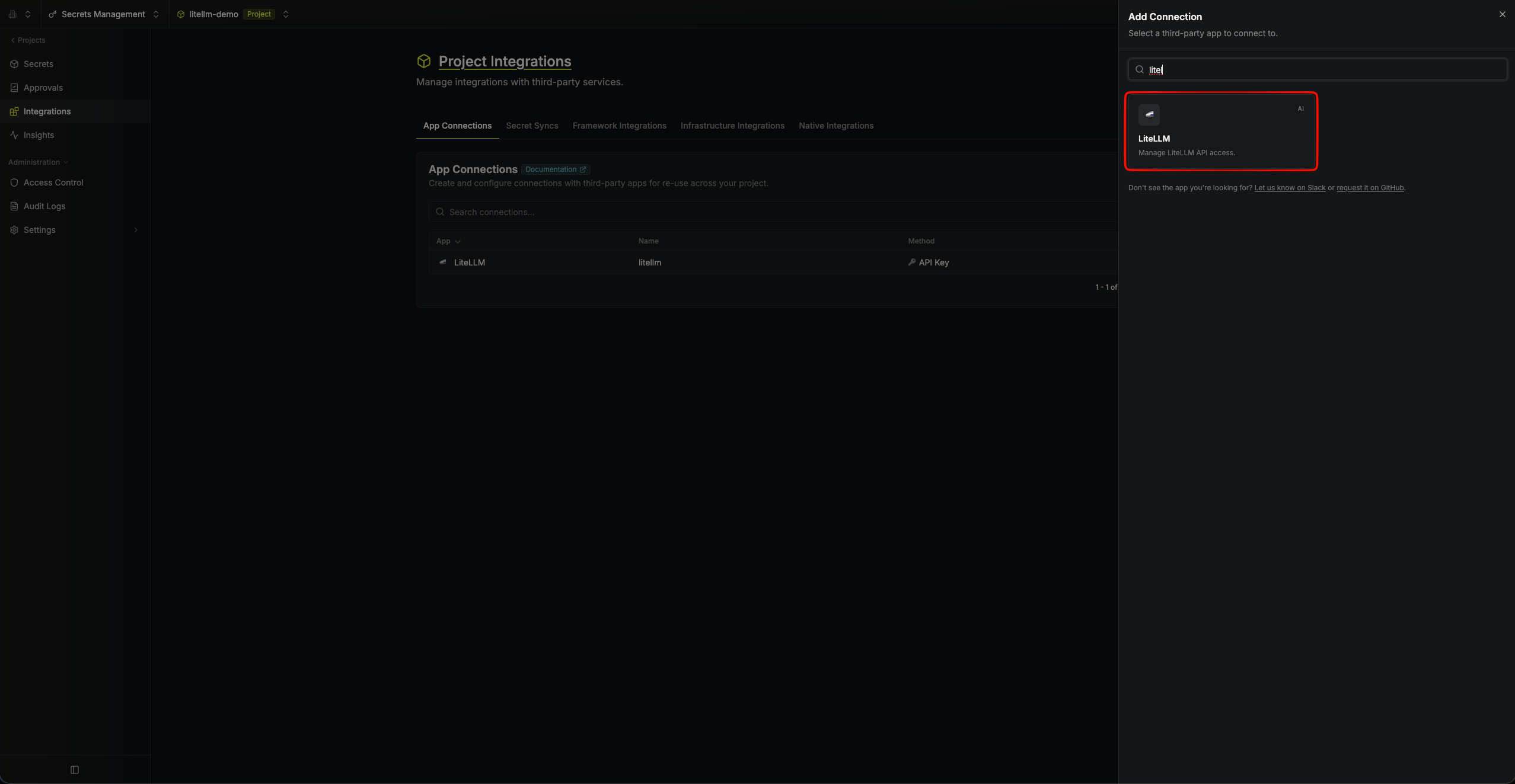
4
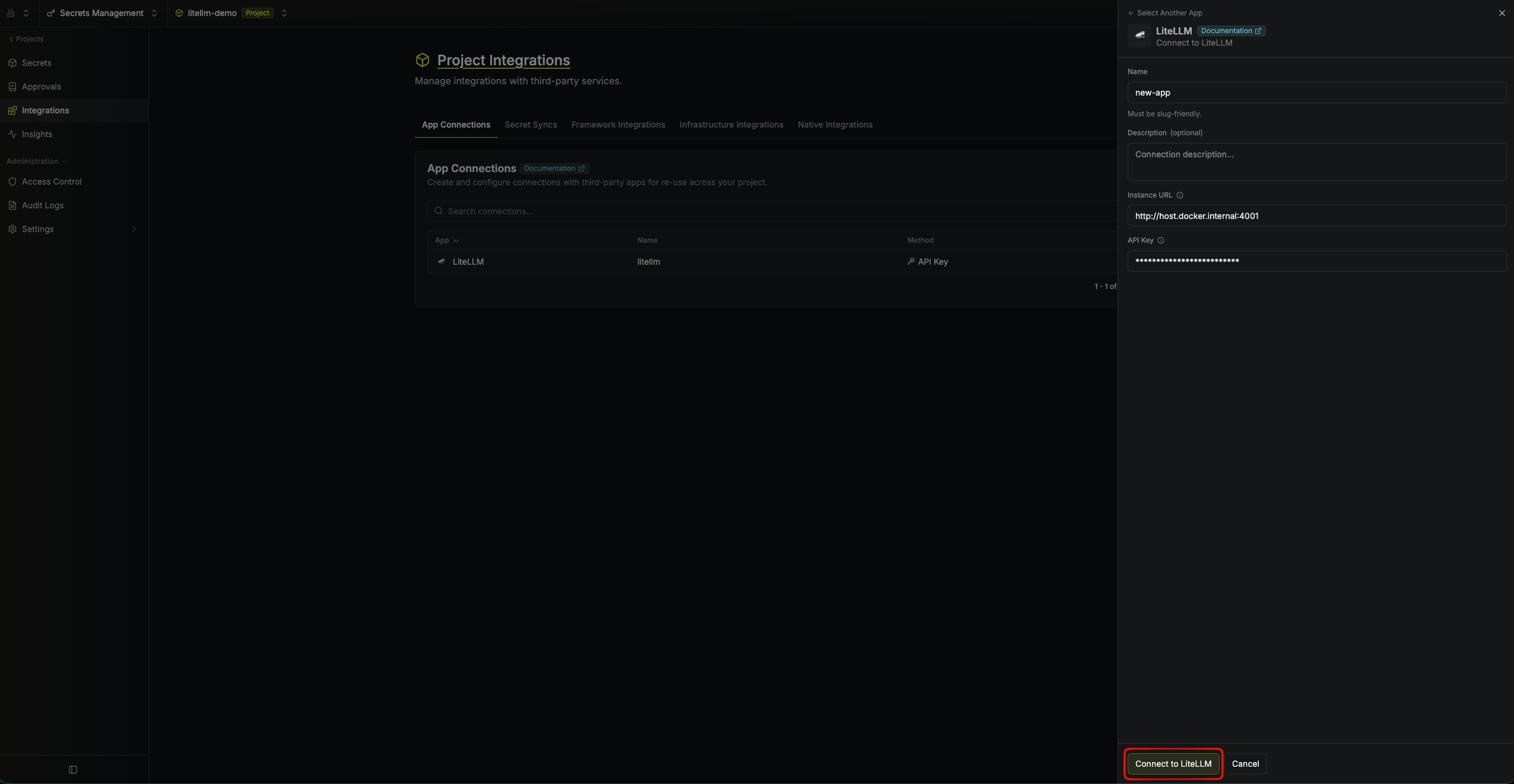
Fill out Connection Form
Complete the form with:
-
A name for the connection (e.g.
litellm-prod) - An optional description
-
Your LiteLLM Instance URL (e.g.
https://litellm.example.com) -
Your LiteLLM API Key (a management-capable key, as described above)
5
Connection Created
After clicking Connect to LiteLLM, Infisical validates the credentials against your LiteLLM instance. Your LiteLLM Connection is then ready to use for LiteLLM API Key Secret Rotation.