Prerequisites
You’ll need the following information to establish an SMB connection:- Host - The hostname or IP address of the Windows server where the local accounts to be managed reside. This must be a member server or standalone machine, not a Domain Controller.
- Port - The SMB port (default is 445)
- Username - A Windows administrator account with permissions to manage local accounts on the target machine
- Password - The password for the administrator account
- Domain (optional) - The Windows domain name if using domain credentials to authenticate. When provided, Infisical authenticates as a domain user (e.g.,
MYDOMAIN\Administrator) to manage local accounts on the target machine. This allows domain administrators to rotate local account passwords on domain-joined member servers.
Windows Server requirements
- SMB3 Support - This connection uses SMB3 with encryption enabled for secure communication with Windows servers.
- Firewall Configuration - The server must be accessible from Infisical or from the Infisical Gateway if using it.
Open firewall on Windows Defender for SMB connection
Open firewall on Windows Defender for SMB connection
Run the following PowerShell command as Administrator on the Windows server to allow inbound SMB connections:To verify the rule was created:
Setup SMB connection in Infisical
- Infisical UI
- API
1
Navigate to App Connections
Navigate to the App Connections tab in your Organization Settings.
2
Select SMB Connection
Select the + Add Connection button and select SMB from the available options.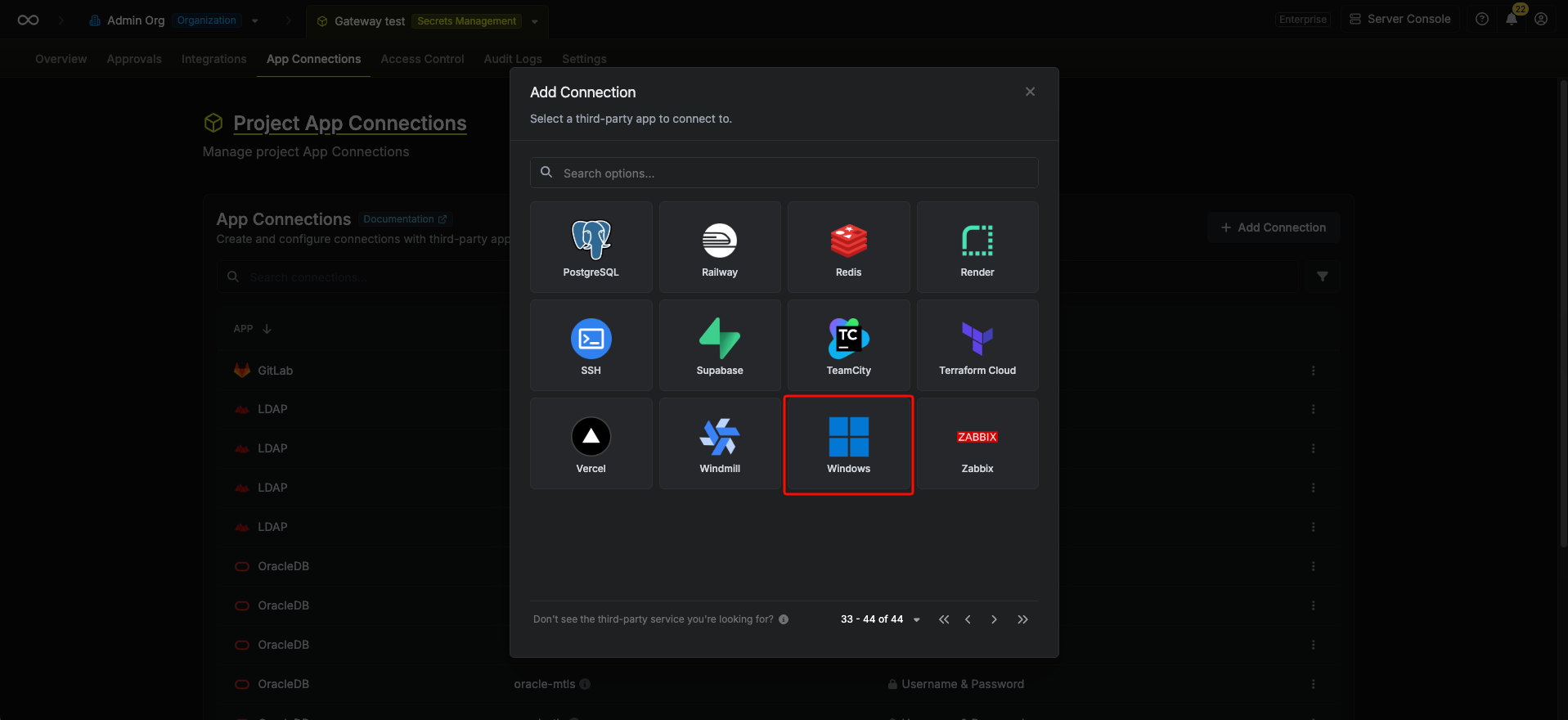
3
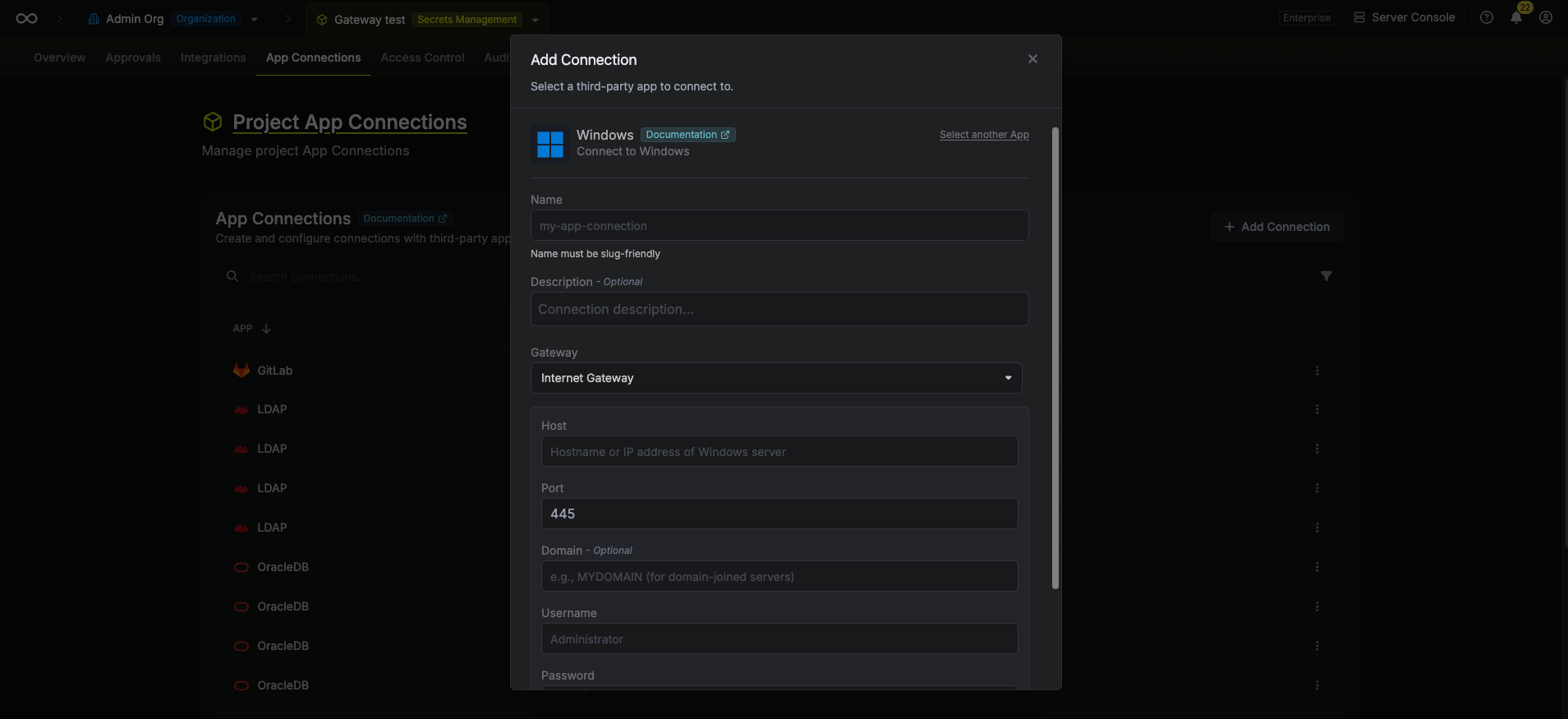
Fill out the SMB Connection Modal
Complete the SMB Connection form by entering:
- A descriptive name for the connection
- An optional description for future reference
- The Windows server host (hostname or IP address)
- The SMB port (default is 445)
- The domain name (optional, for domain-joined servers)
- The administrator username
-
The administrator password
4
Connection Created
After clicking Create, your SMB Connection is established and ready to use with your Infisical project.