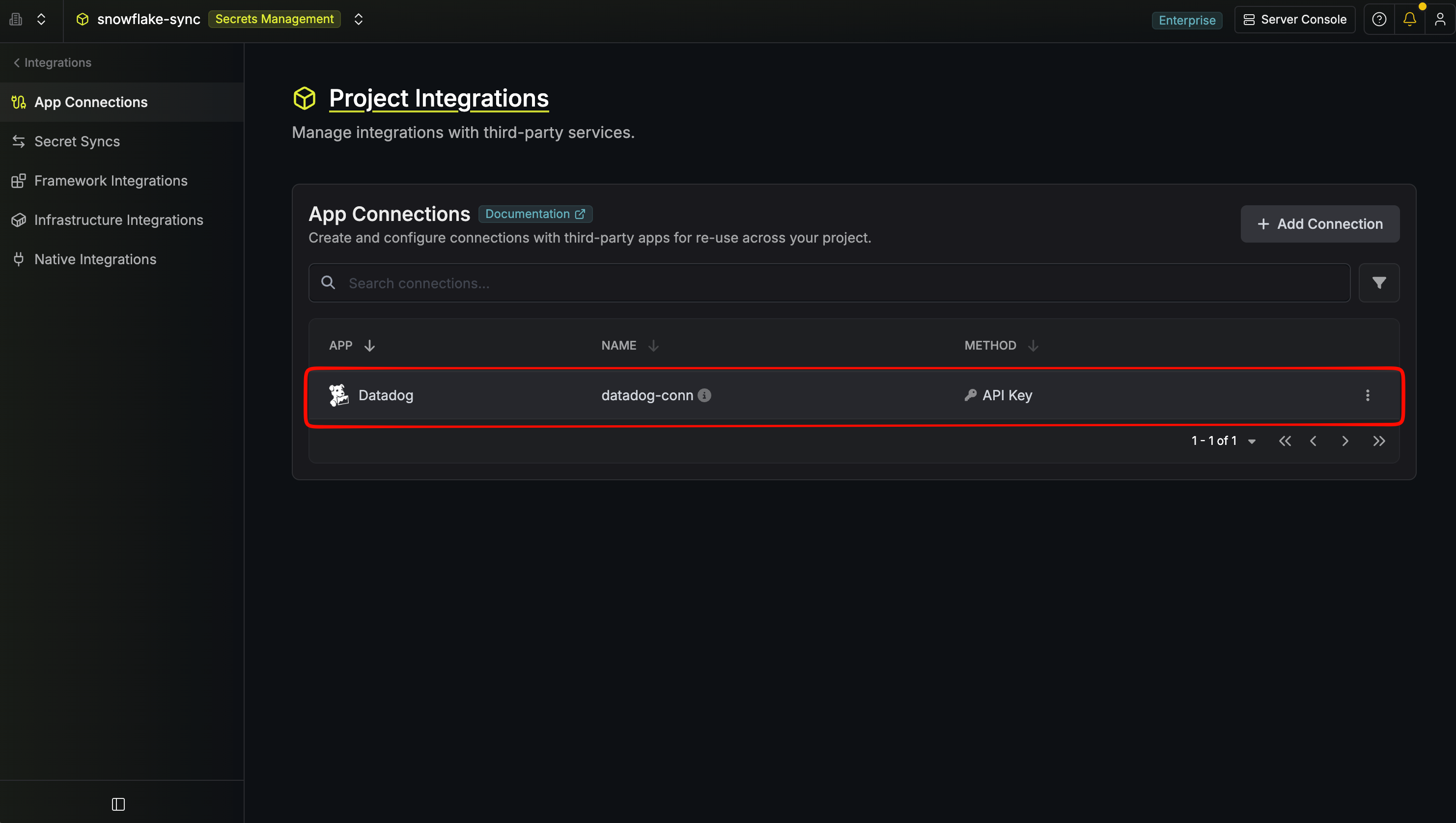
- Service Access Token (recommended): a Datadog Service Access Token issued on a Service Account and sent as a bearer token (
Authorization: Bearer <token>). - Application Keys: a Datadog API Key paired with a Service Account Application Key.
We recommend the Service Access Token method. Tokens are scoped, can be given an expiration, and are bound to a dedicated Service Account, so the credentials Infisical uses can be rotated and revoked independently of any individual user. The Application Keys method remains available for existing setups.
Create Datadog credentials
- Service Access Token (Recommended)
- Application Keys
1
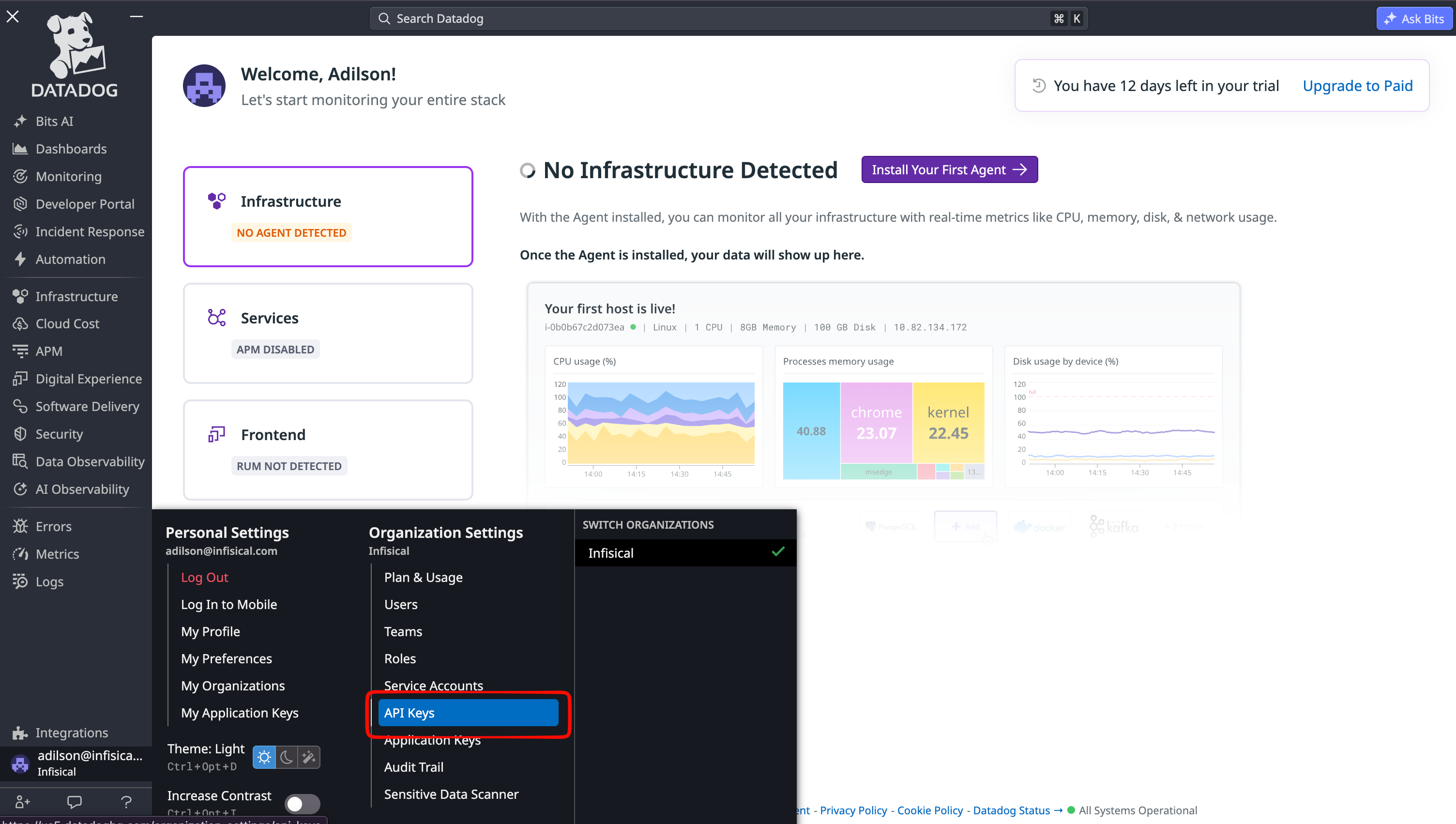
Open Organization Settings
From your Datadog dashboard, hover the bottom left where it says Integrations. This will open a window with Organization Settings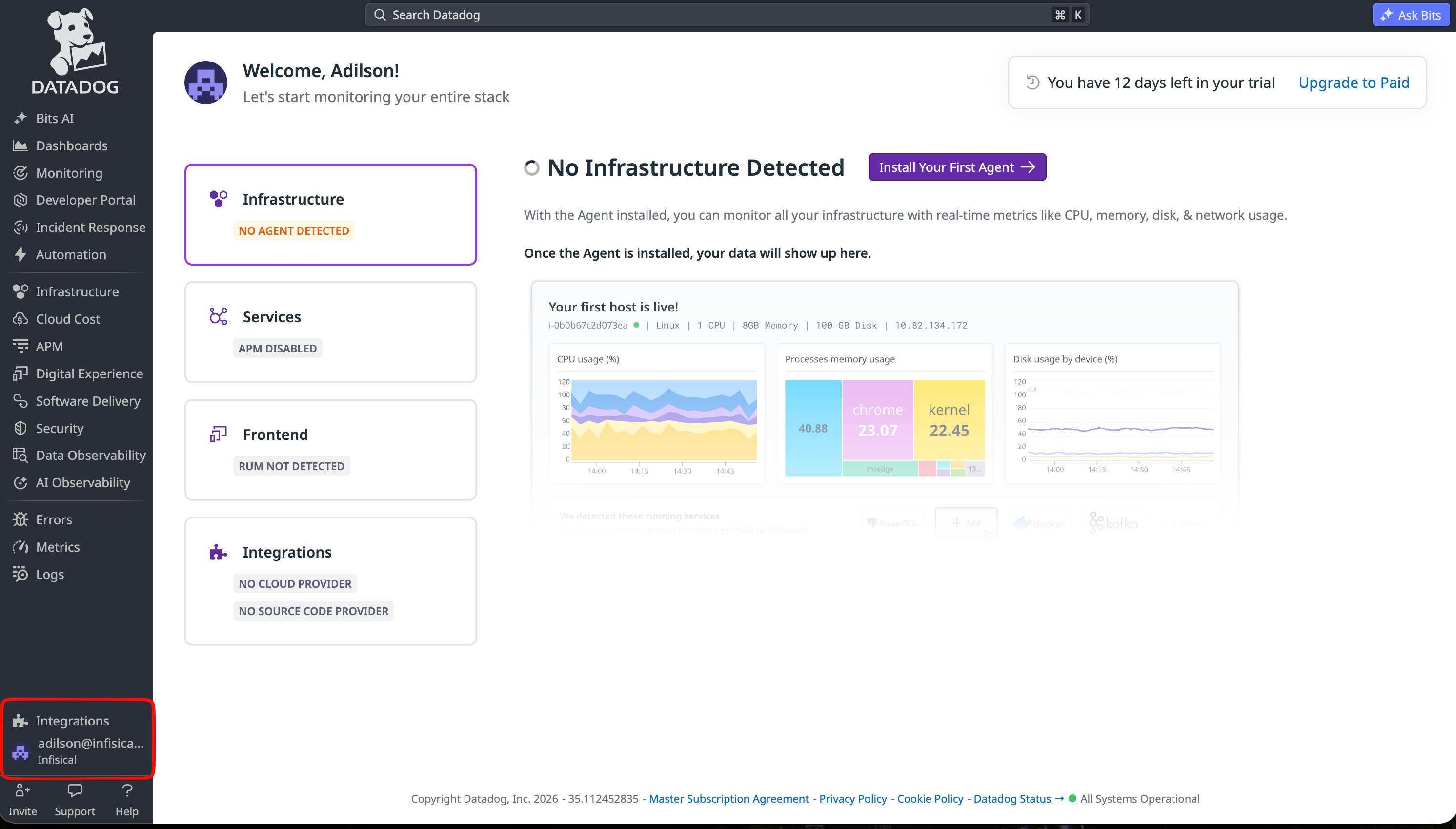
2
Navigate to Service Accounts
In Organization Settings, open the Service Accounts section from the left sidebar.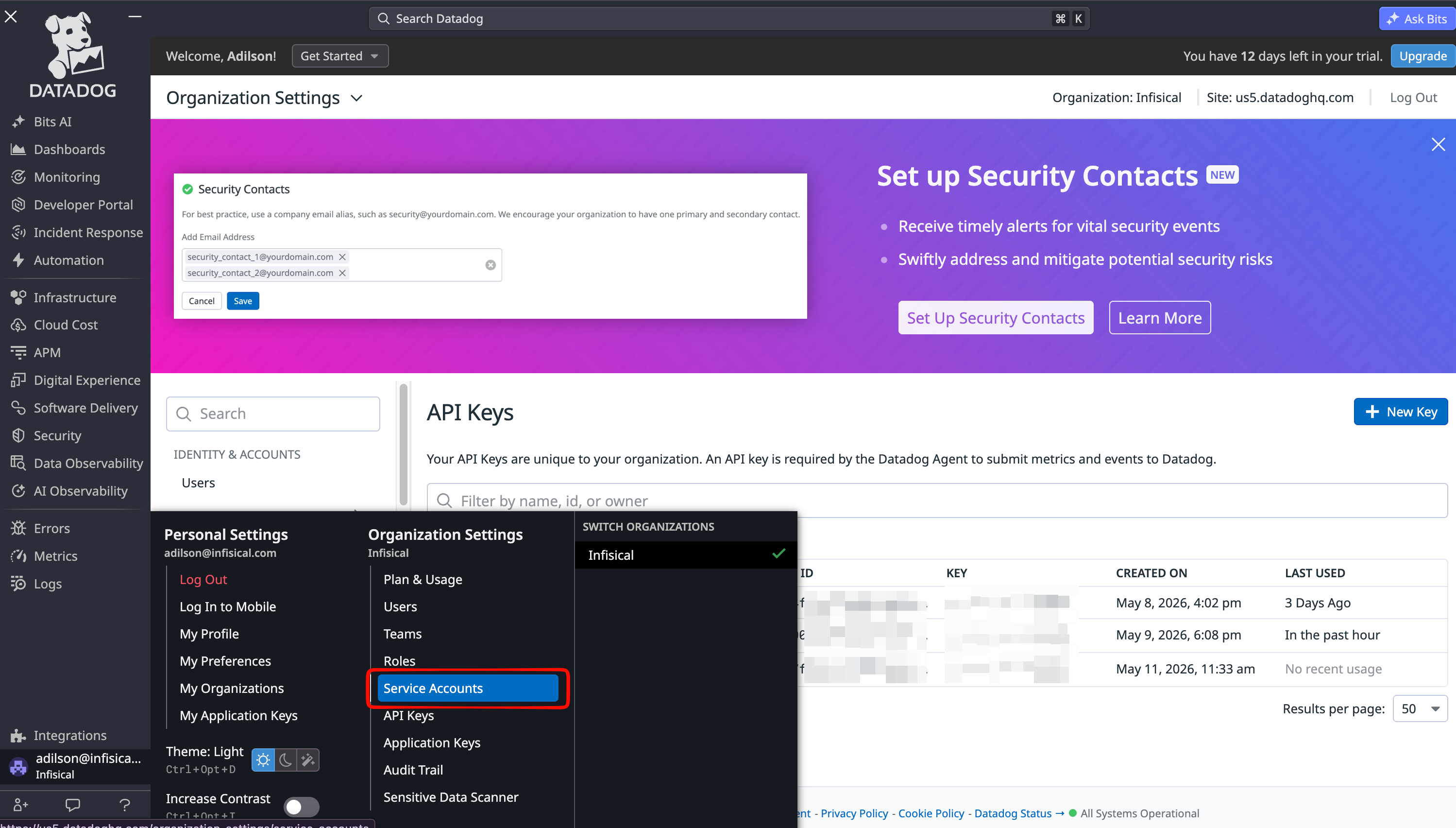
3
Create a New Service Account
On the Service Accounts page, click New Service Account.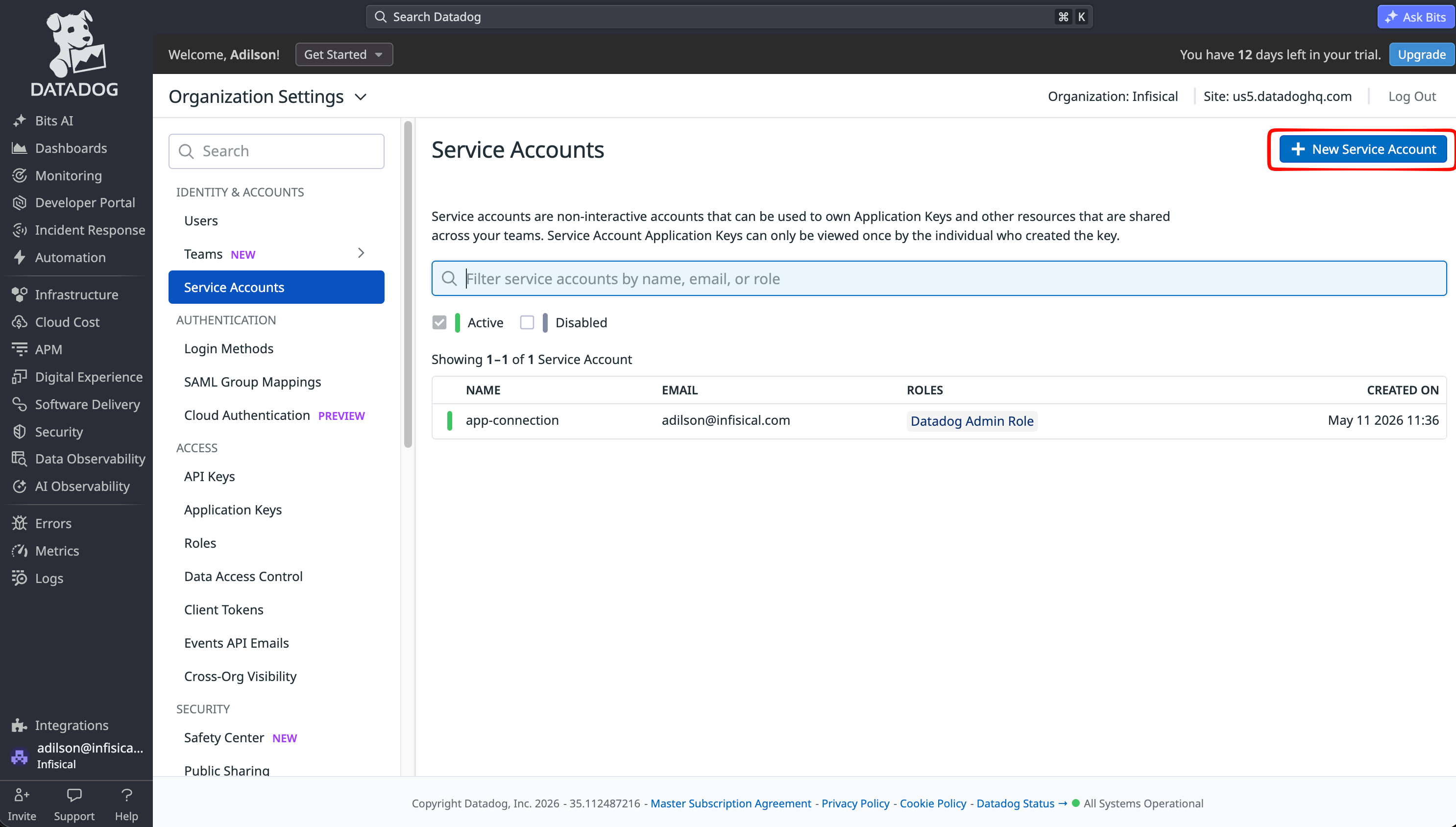
4
Create the Service Account
Provide a name, email, and select a role for the Service Account, then click Create Service Account.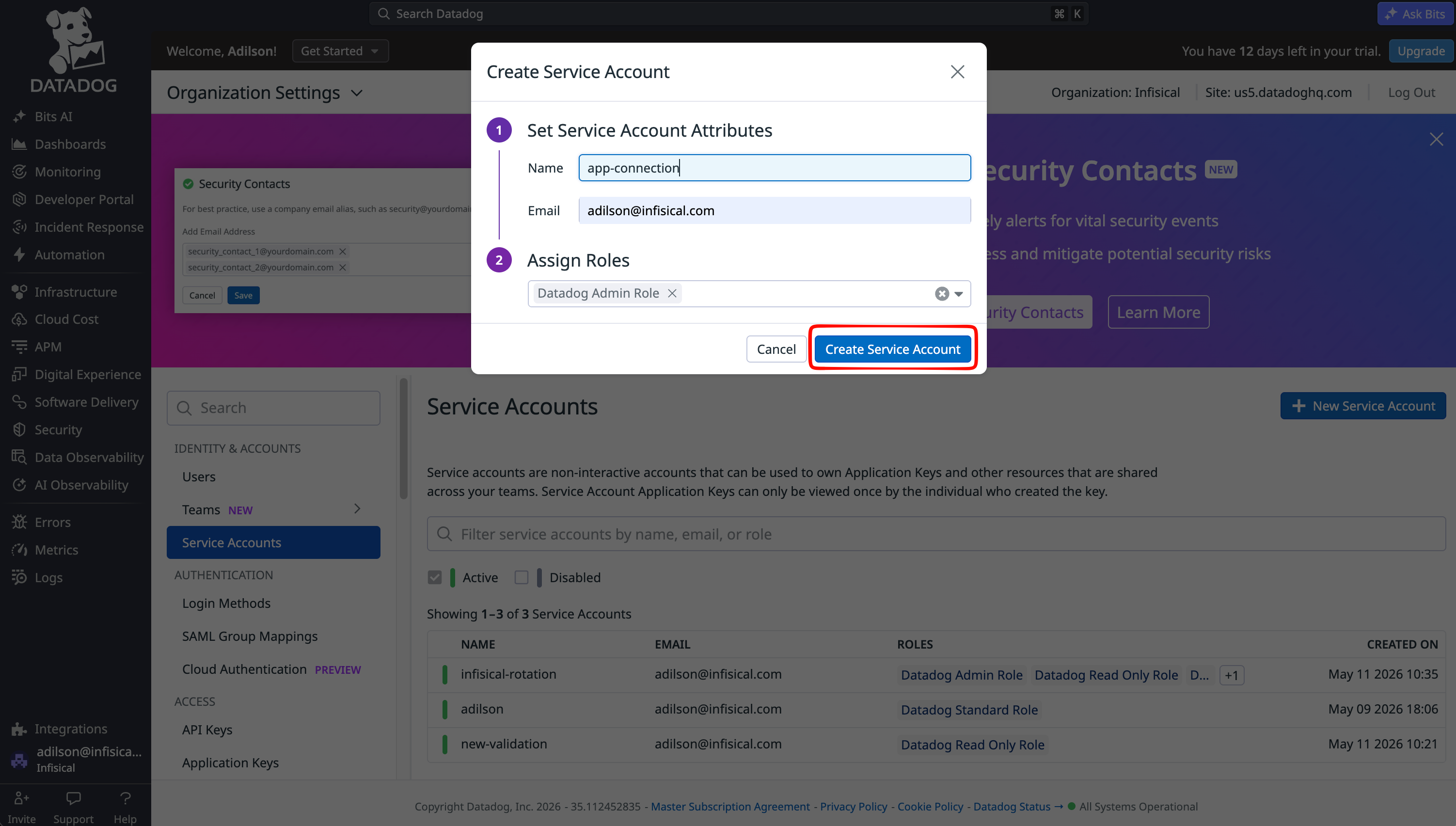
The Service Account’s role determines which resources Infisical can access. Make sure it has access to the resources you want Infisical to manage. For secret rotation, it is required to have the
Datadog Admin Role as a base so the token can be scoped.5
Open the New Service Account
Once created, click the Service Account in the list to open its details, where you can manage its Access Tokens.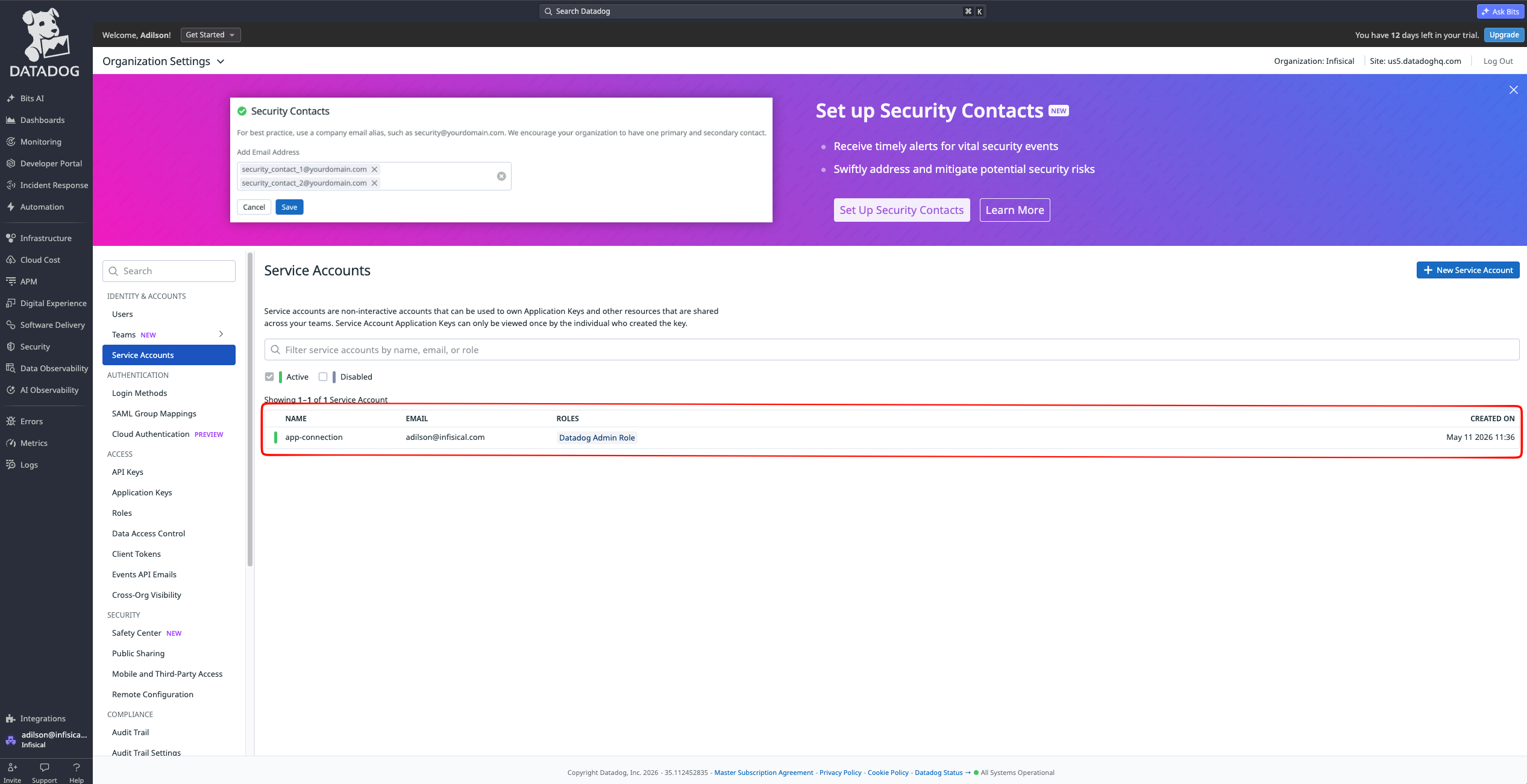
6
Create an Access Token
In the Service Account’s details panel, find the Access Tokens section and click + New Token.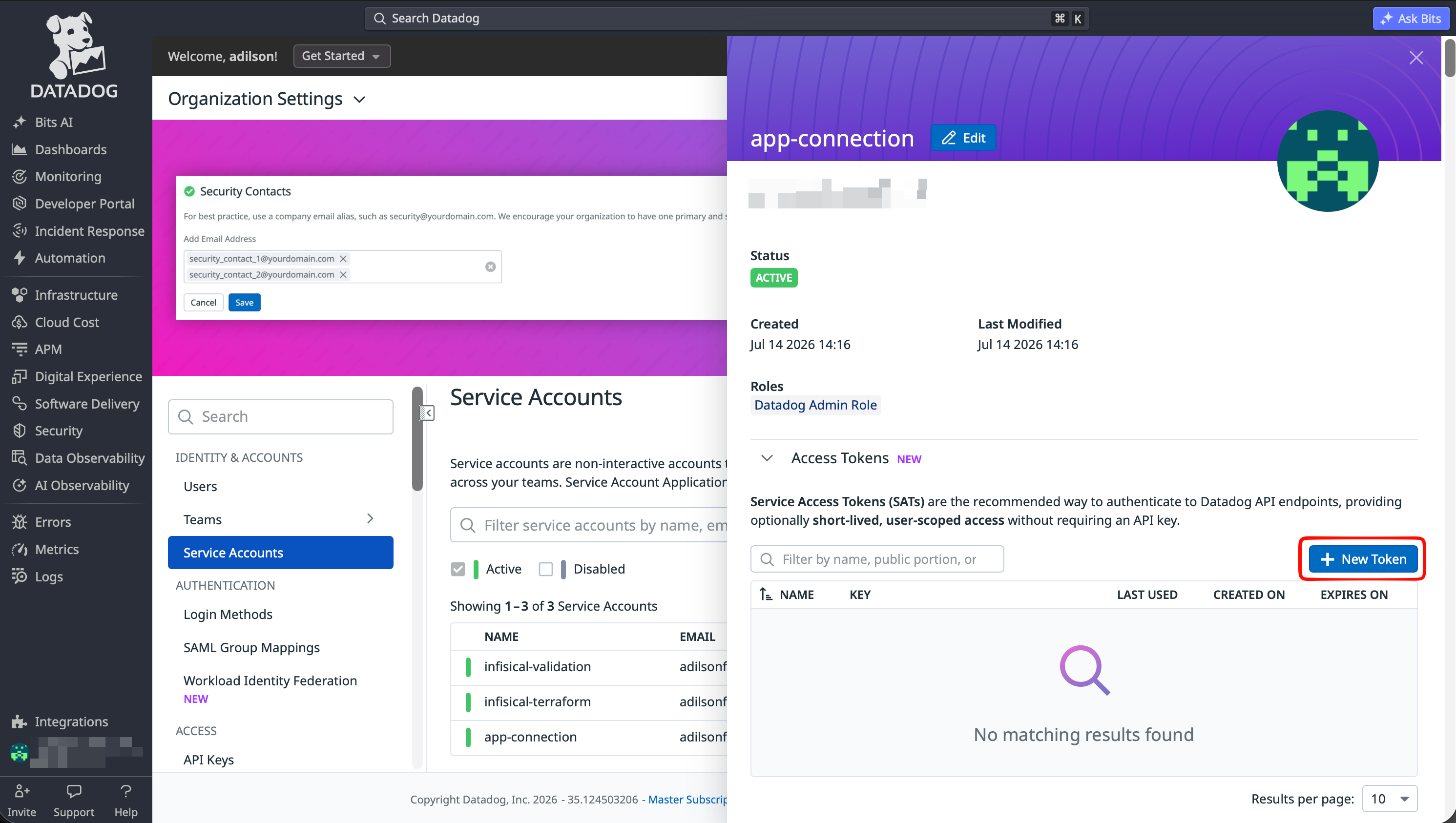
7
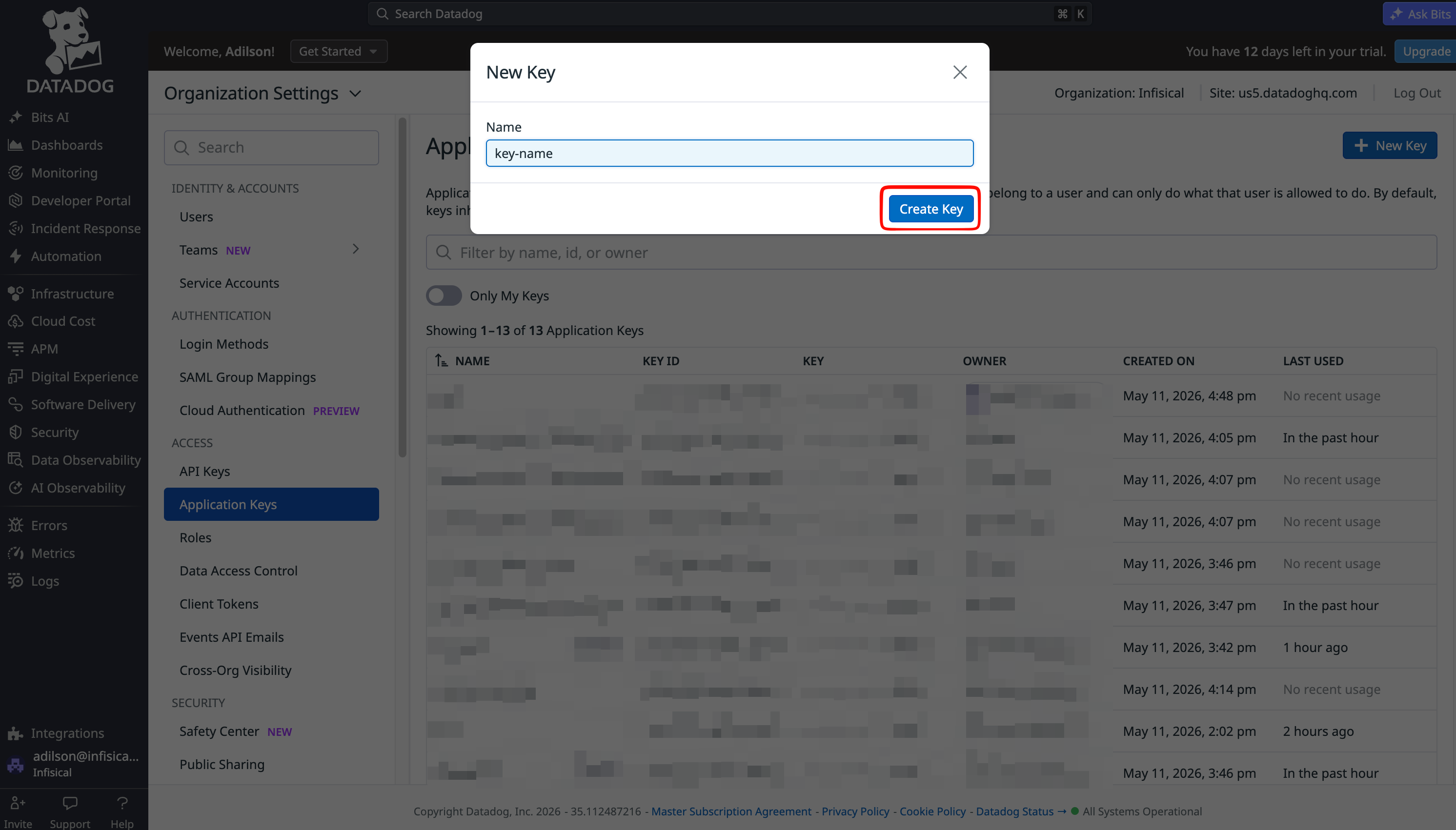
Name the Access Token
Enter a descriptive Name for the token (e.g. 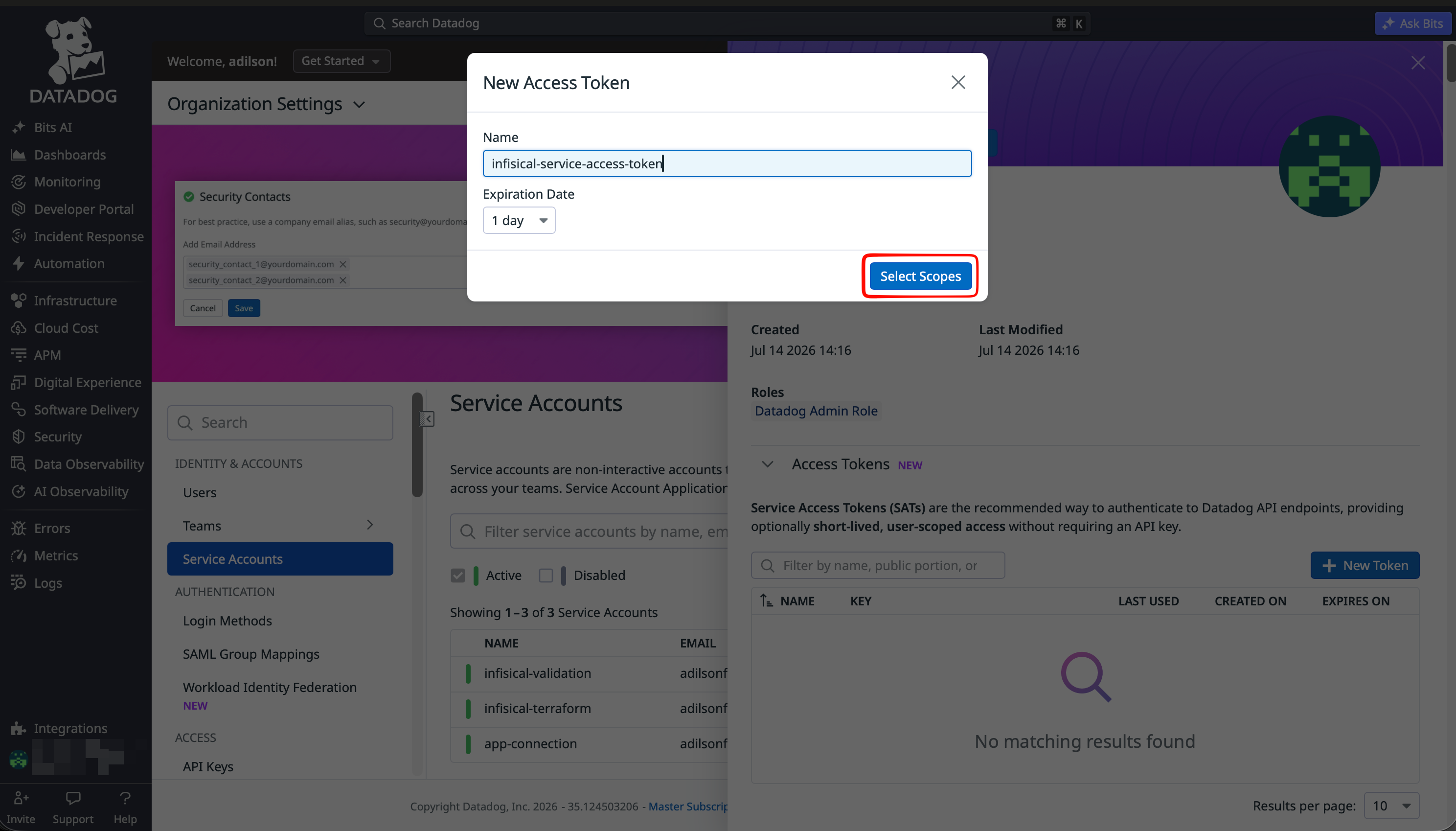
infisical-connection) and choose an Expiration Date (1 day, 1 month, 1 year, Never, or Custom).8
Configure Access Token Scopes
Click Select Scopes to define what the token can access. Grant only the permissions your workflow requires, then click Save.
- Application Key Rotation
- API Key Rotation
For Datadog Application Key Secret Rotation, the token needs scopes to read users and manage Service Account Application Keys. Set 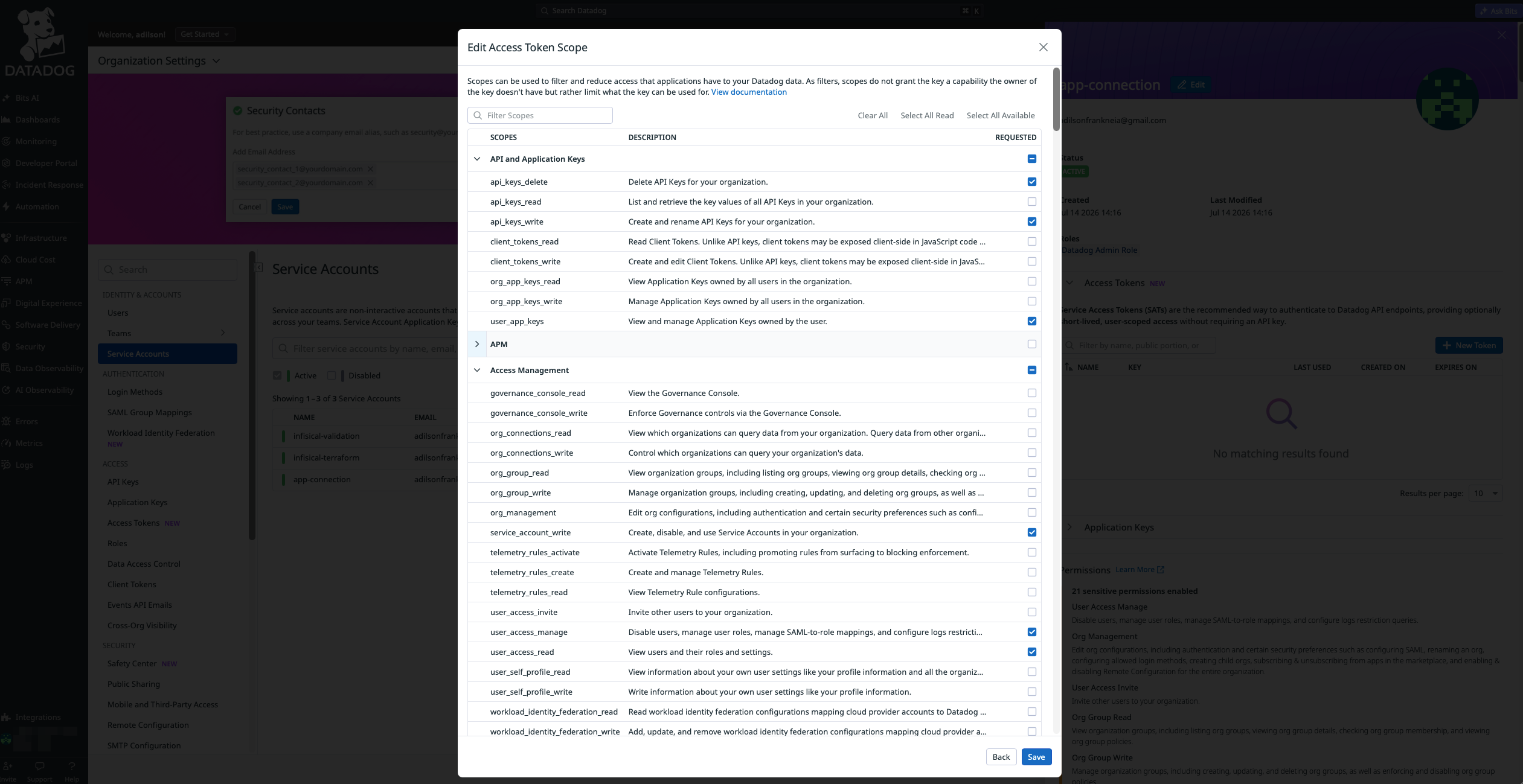
user_app_keys under API and Application Keys and service_account_write, user_access_manage, and user_access_read under Access Management.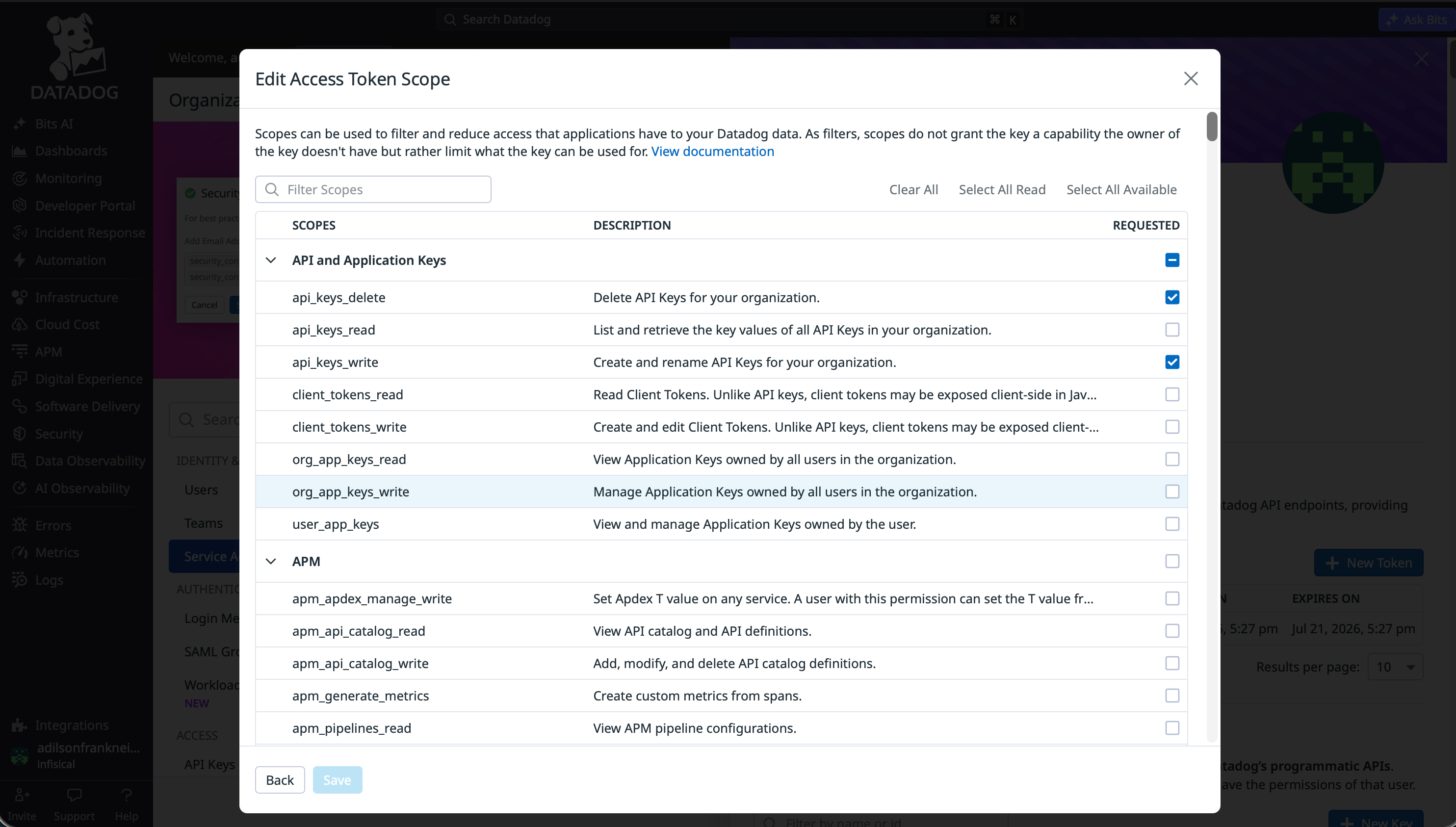
9
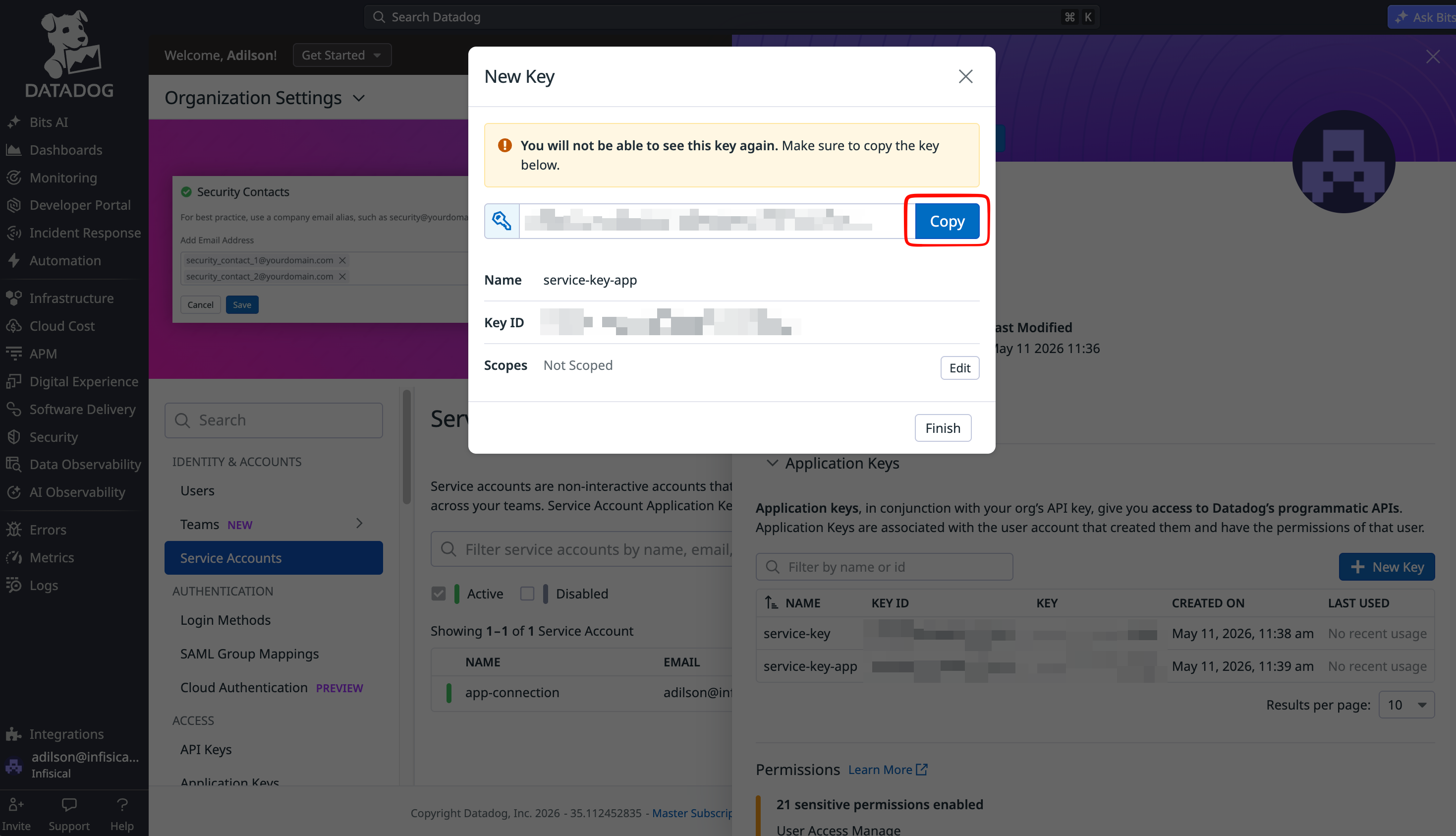
Copy the Access Token Value
Datadog displays the token secret only once at creation time. Copy the token value and store it somewhere safe. You will need it when creating the Infisical connection.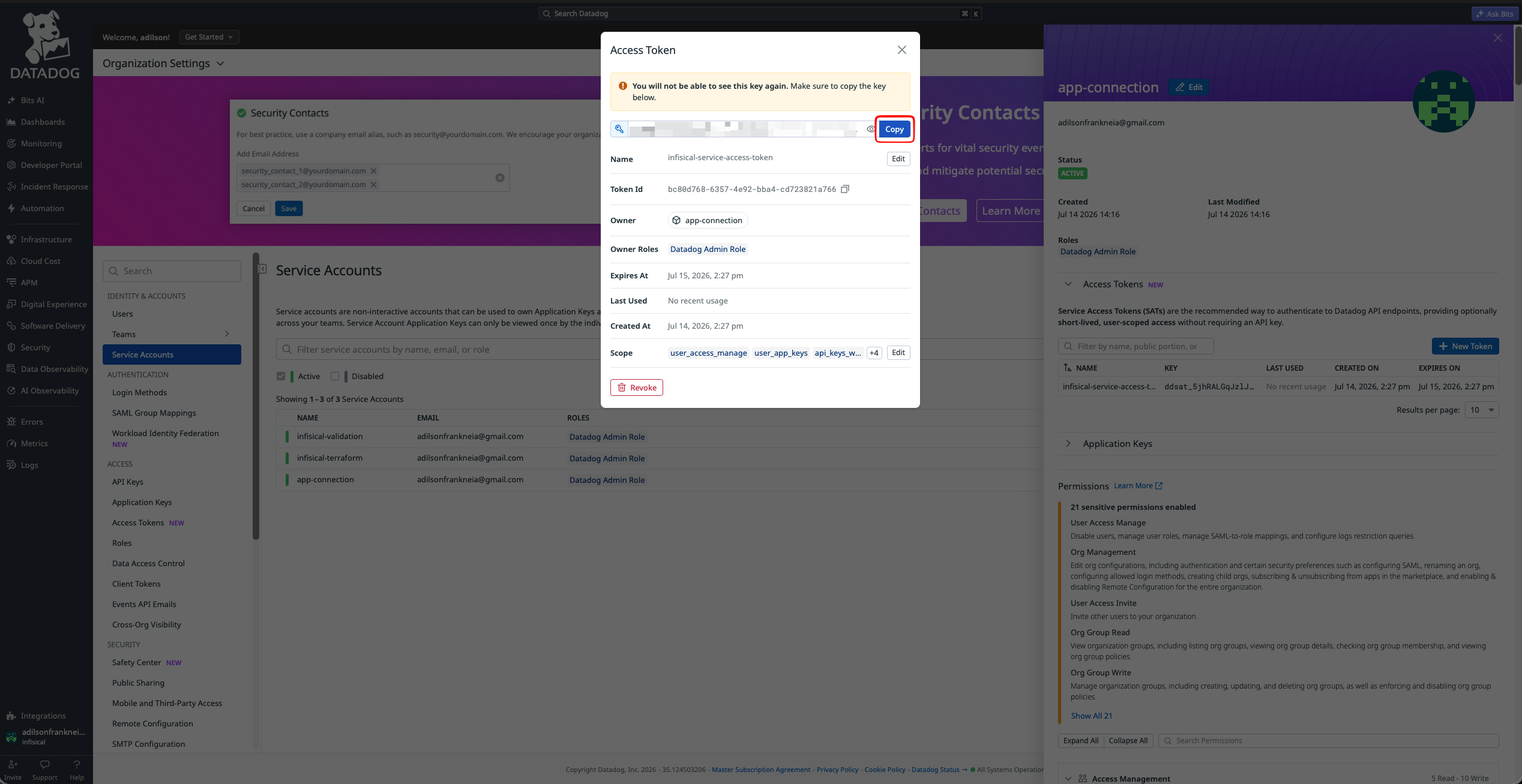
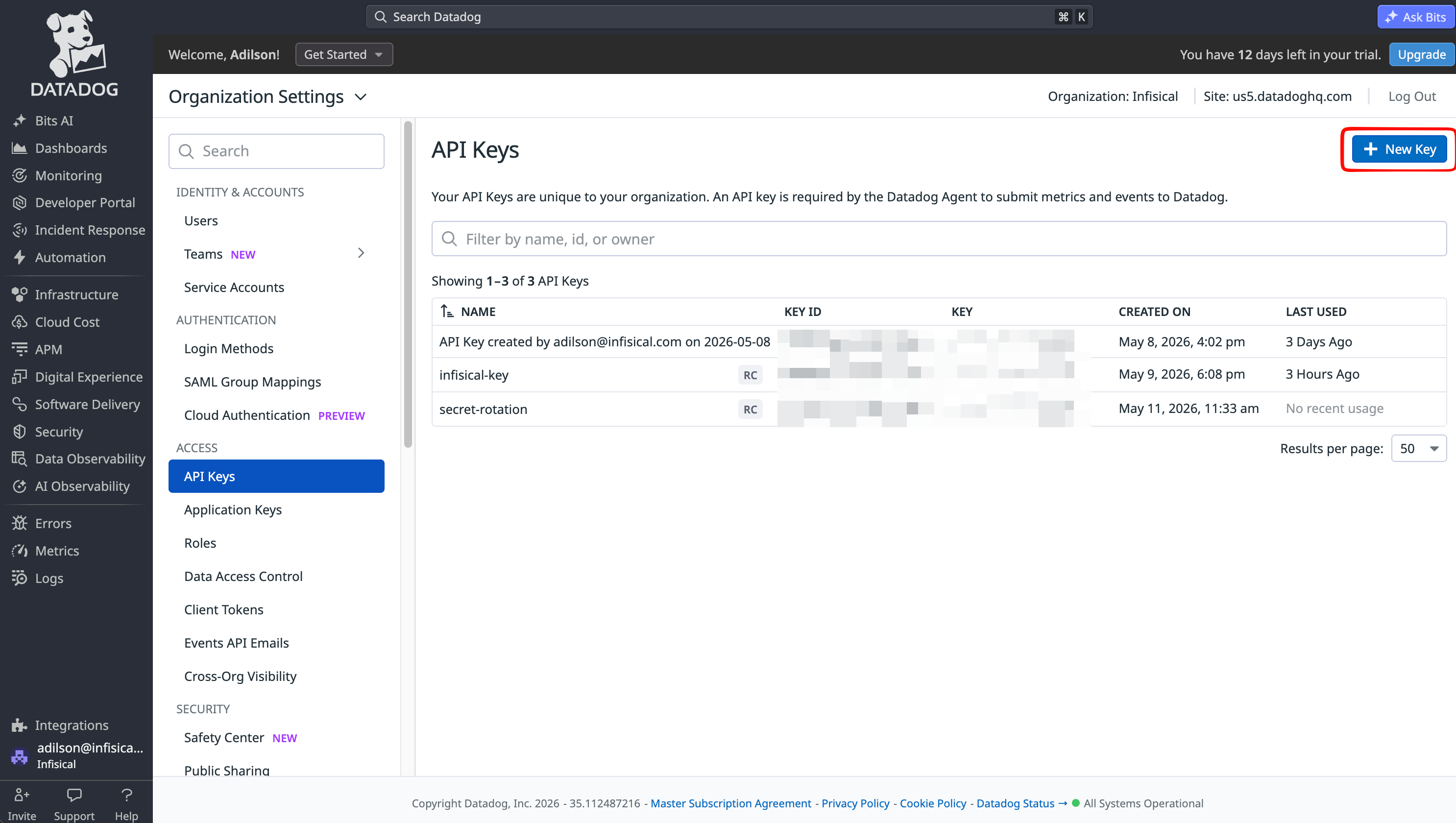
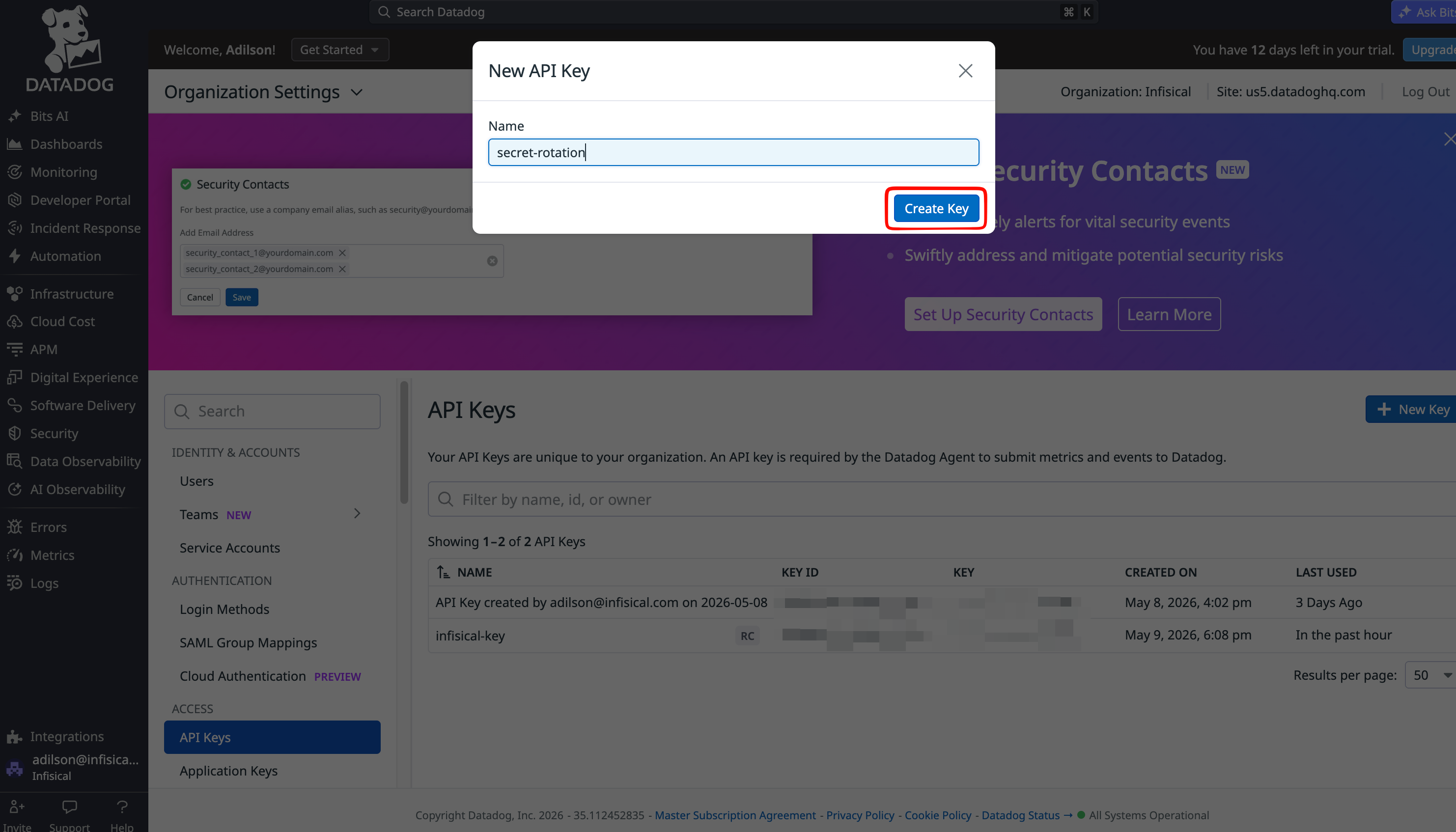
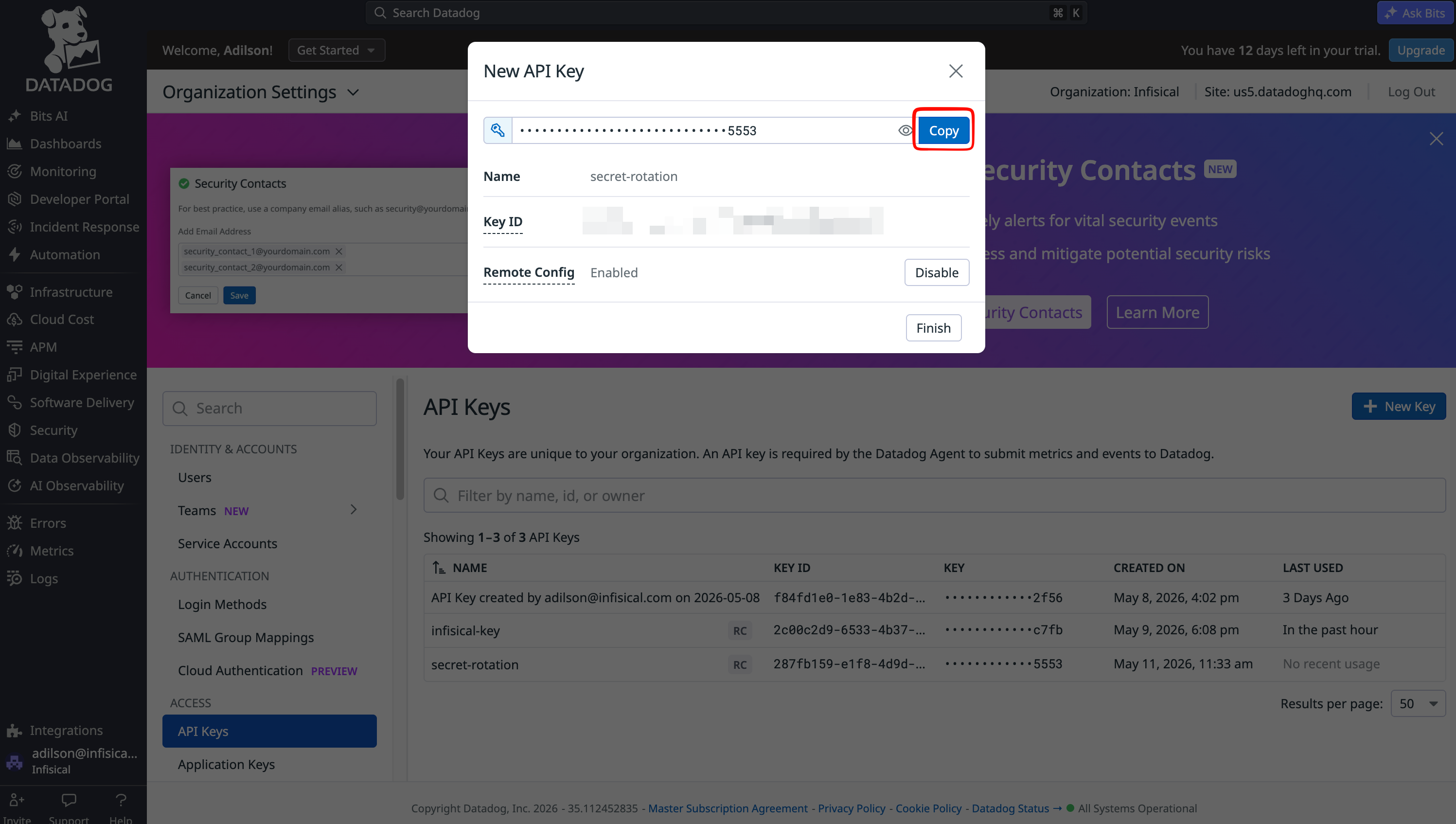
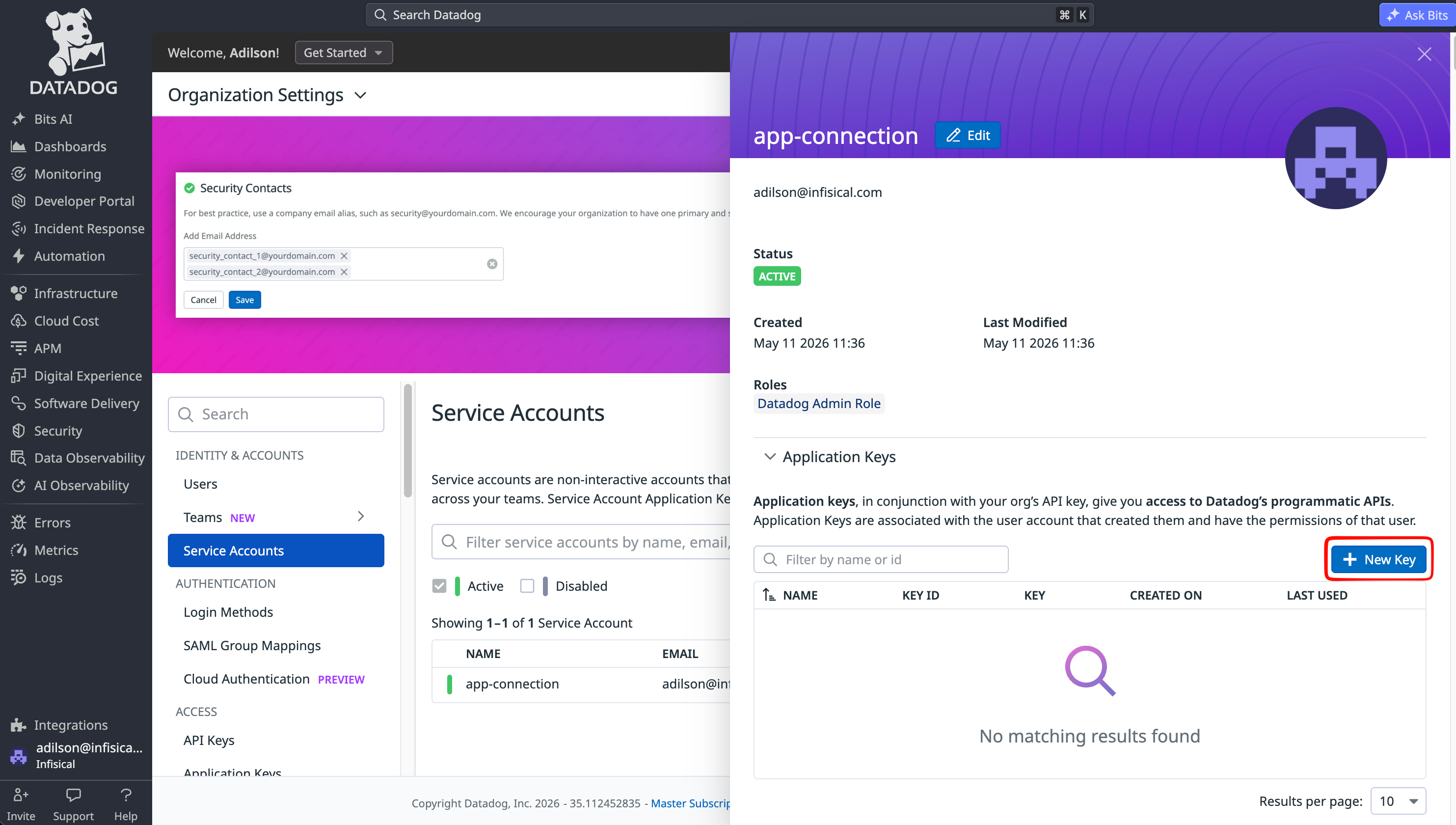
Create Datadog connection in Infisical
- Infisical UI
- API
1
Navigate to App Connections
In your Infisical dashboard, navigate to the Integrations tab in the desired project, then select App Connections.
2
Select Datadog Connection
Select Add Connection, then select Datadog from the list of available connections.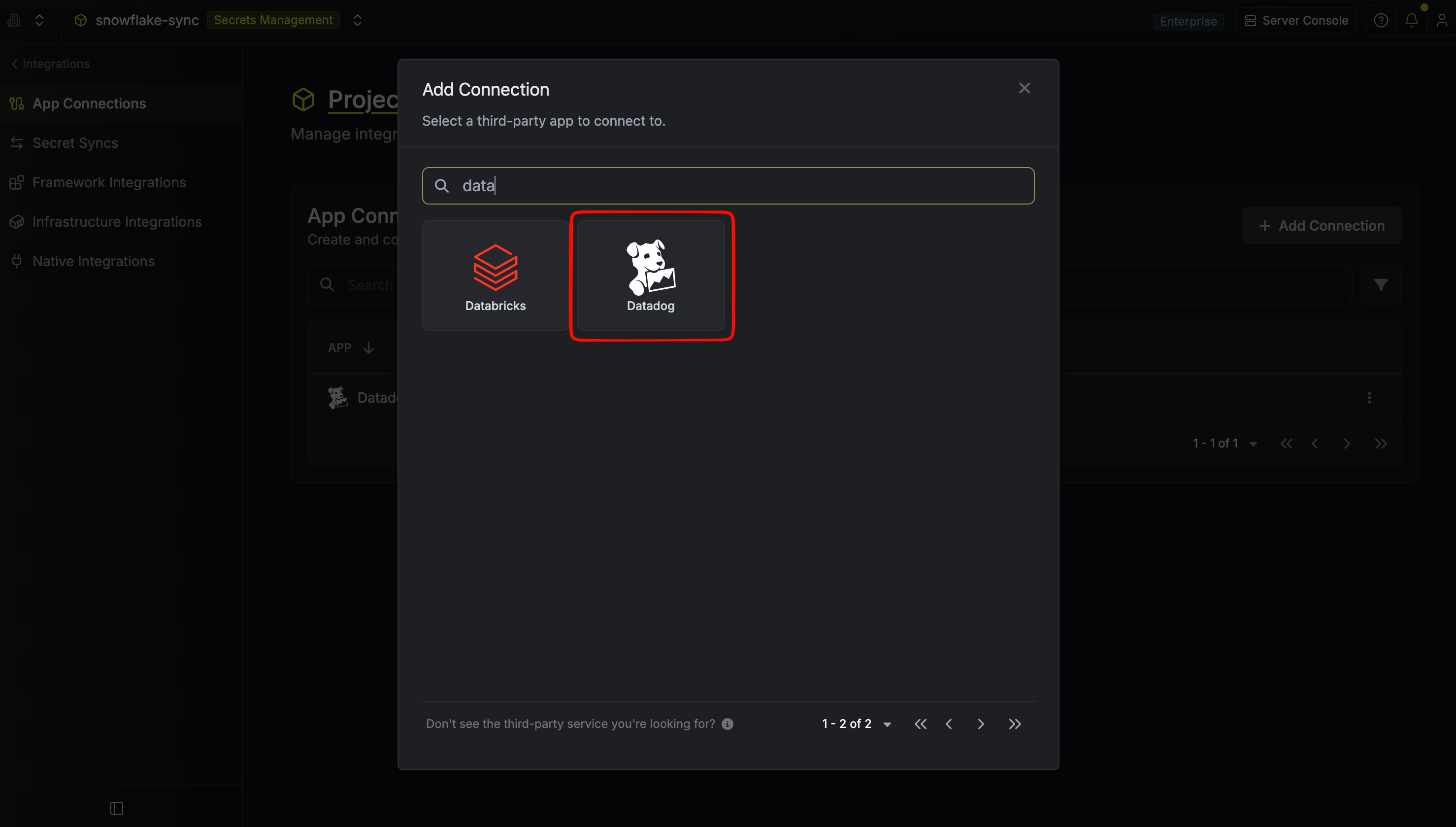
3
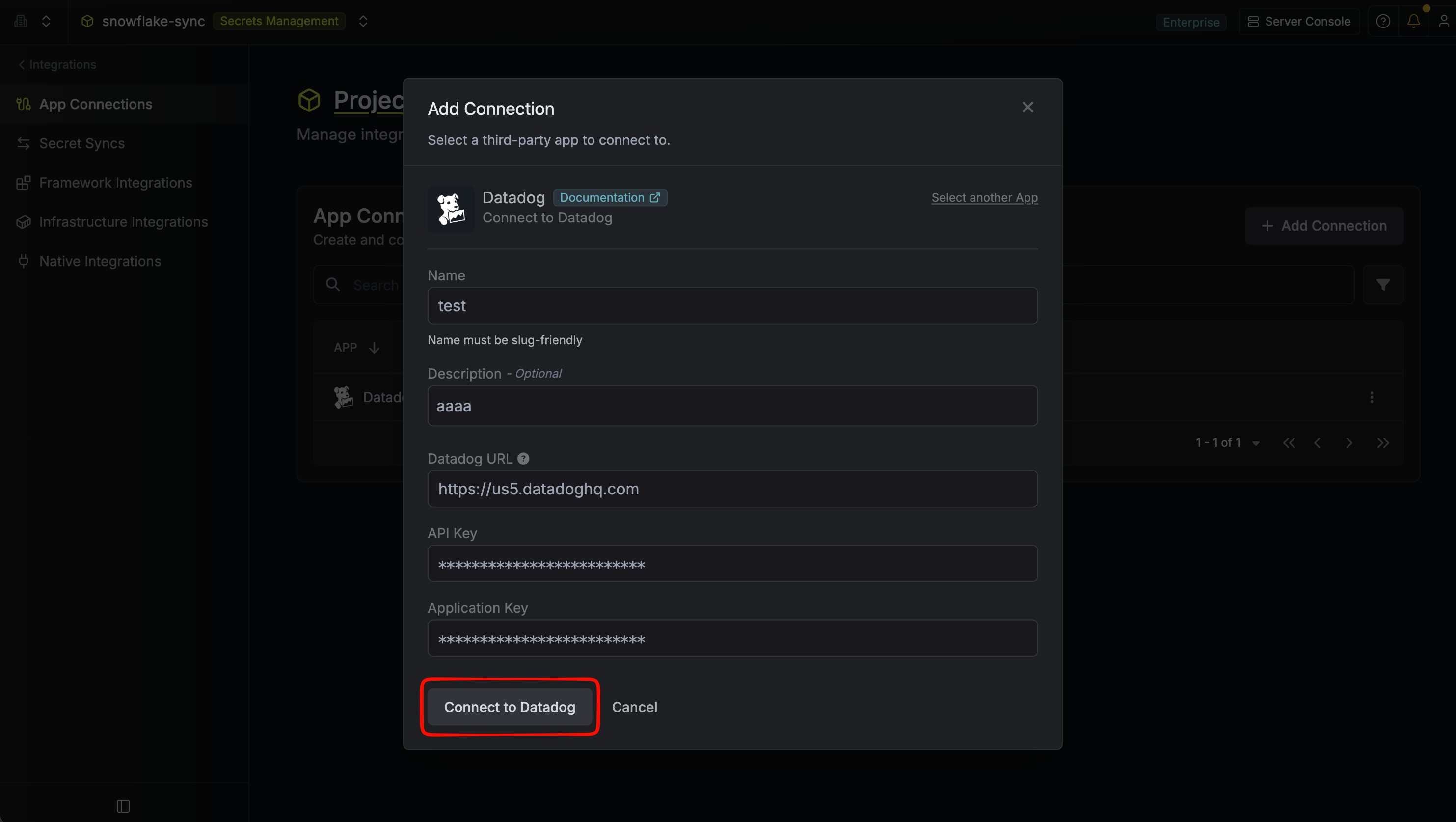
Fill out the Datadog Connection Modal
Complete the Datadog Connection form by entering:
- A descriptive name for the connection
- An optional description for future reference
- The Method you want to use to authenticate (Service Access Token, recommended, or Application Keys)
-
The Datadog URL for your region (e.g.
https://api.datadoghq.com,https://api.us5.datadoghq.com, orhttps://api.ddog-gov.com) - If using Service Access Token: the Datadog Service Access Token
-
If using Application Keys: the API Key and the Service Account Application Key from the earlier steps
4
Connection Created
After clicking Create, your Datadog Connection is established and ready to use with your Infisical project.