Create a Northflank API token
1
Create an API Role
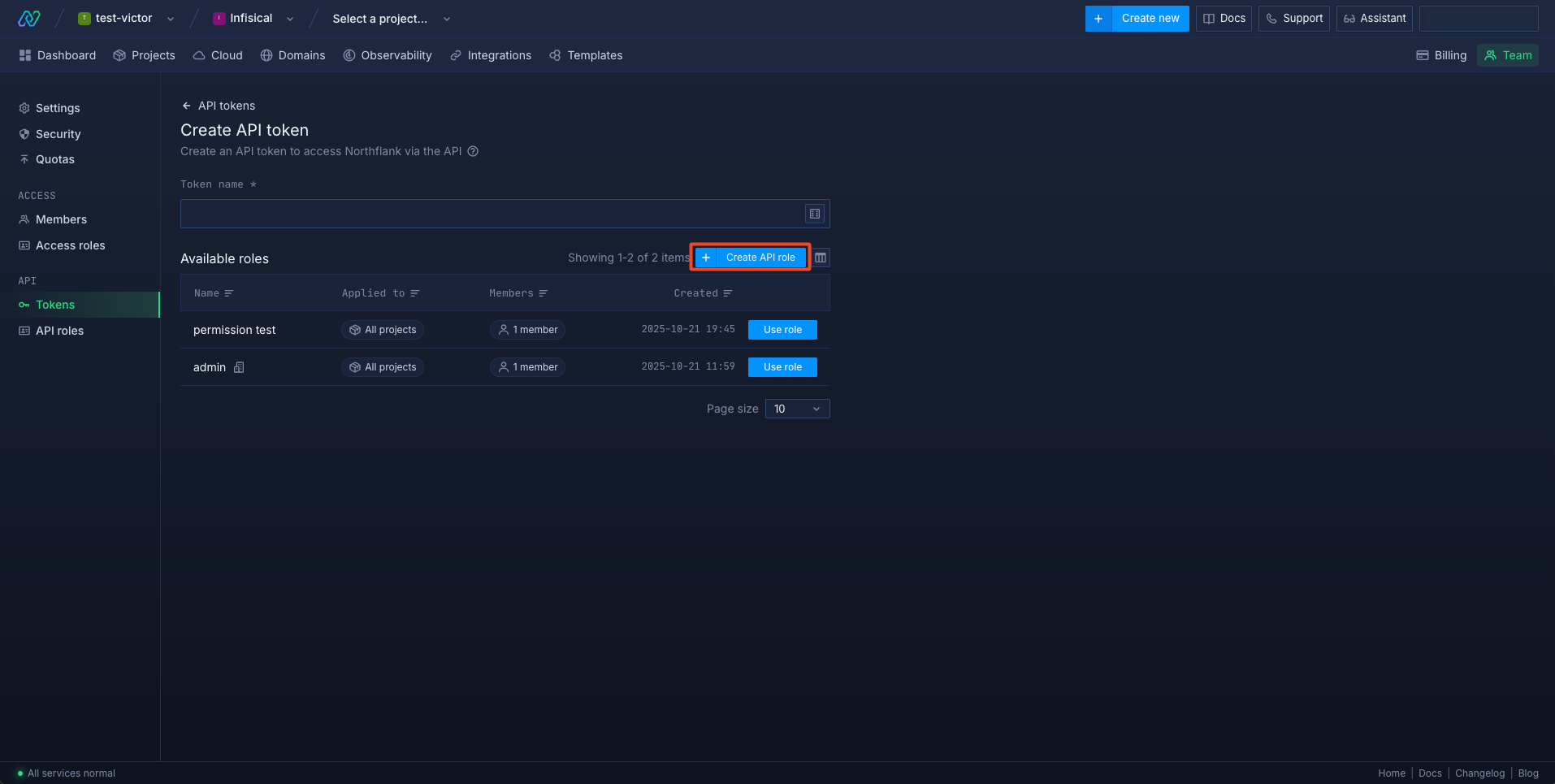
Navigate to your team page and select Create token.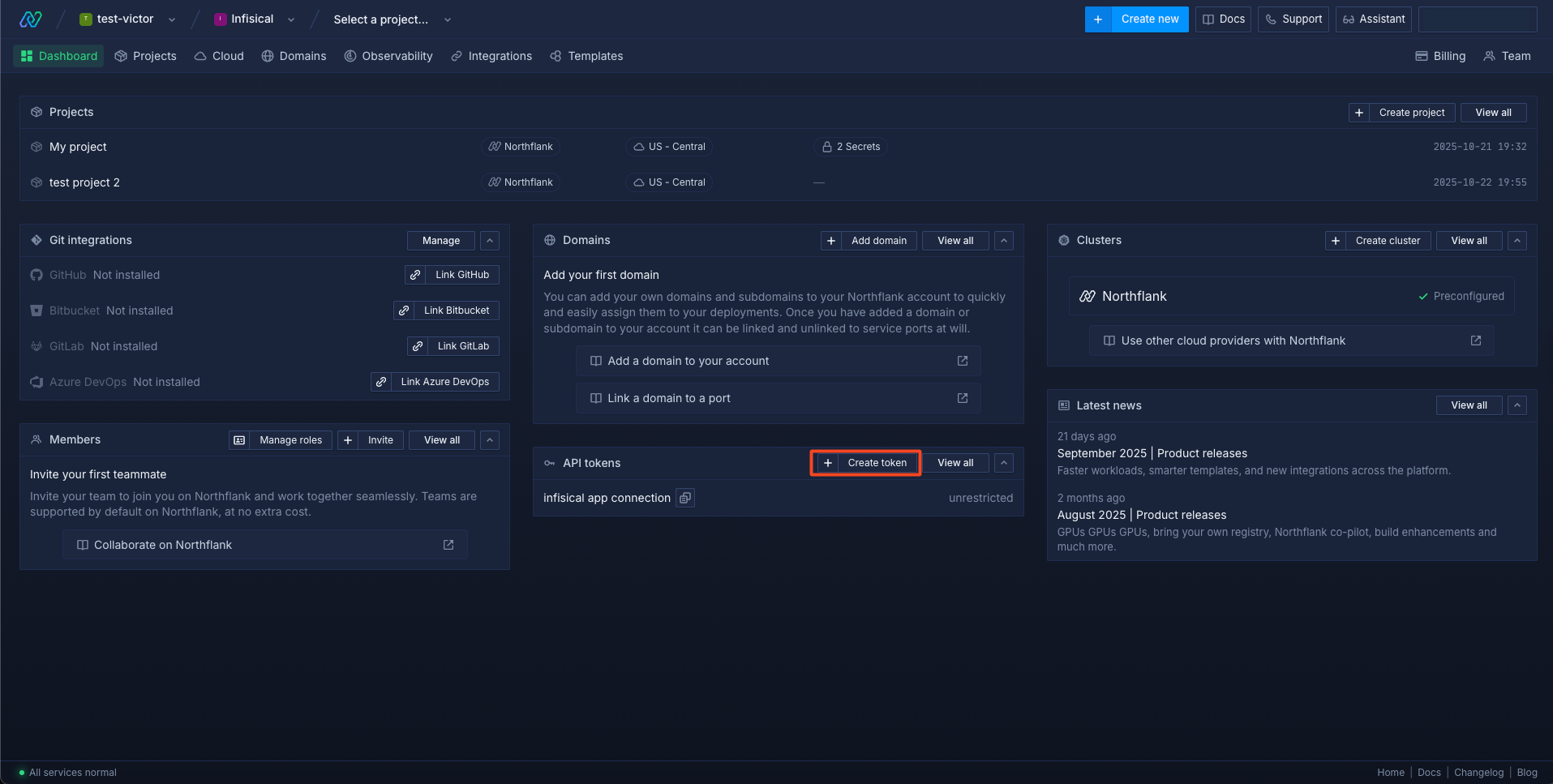 Click on Create API role.
 Select all the projects you want this role to have access to, or leave this unchecked if you want to give access to all projects.
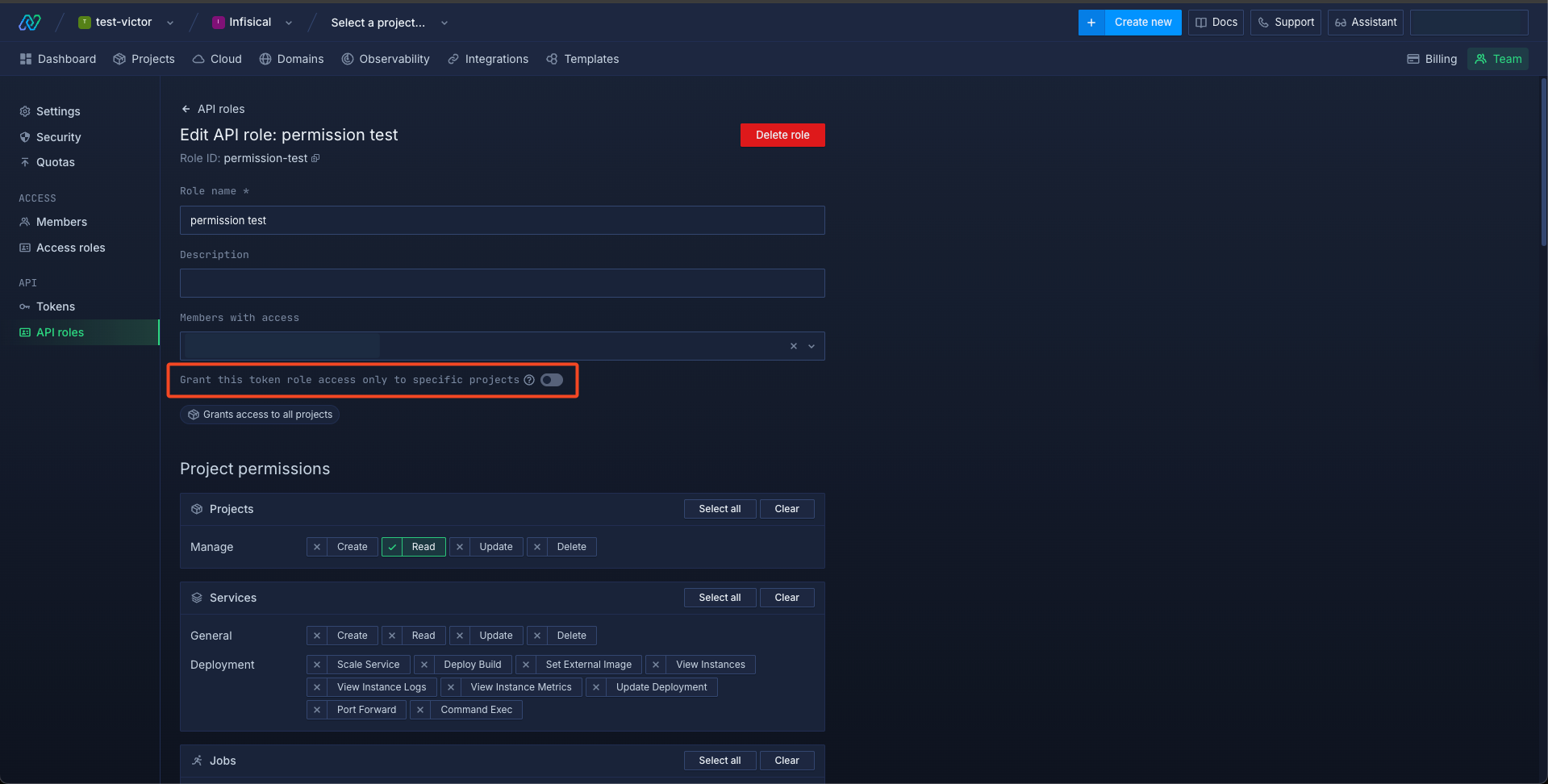 Add the Projects -> Manage -> Read permission.
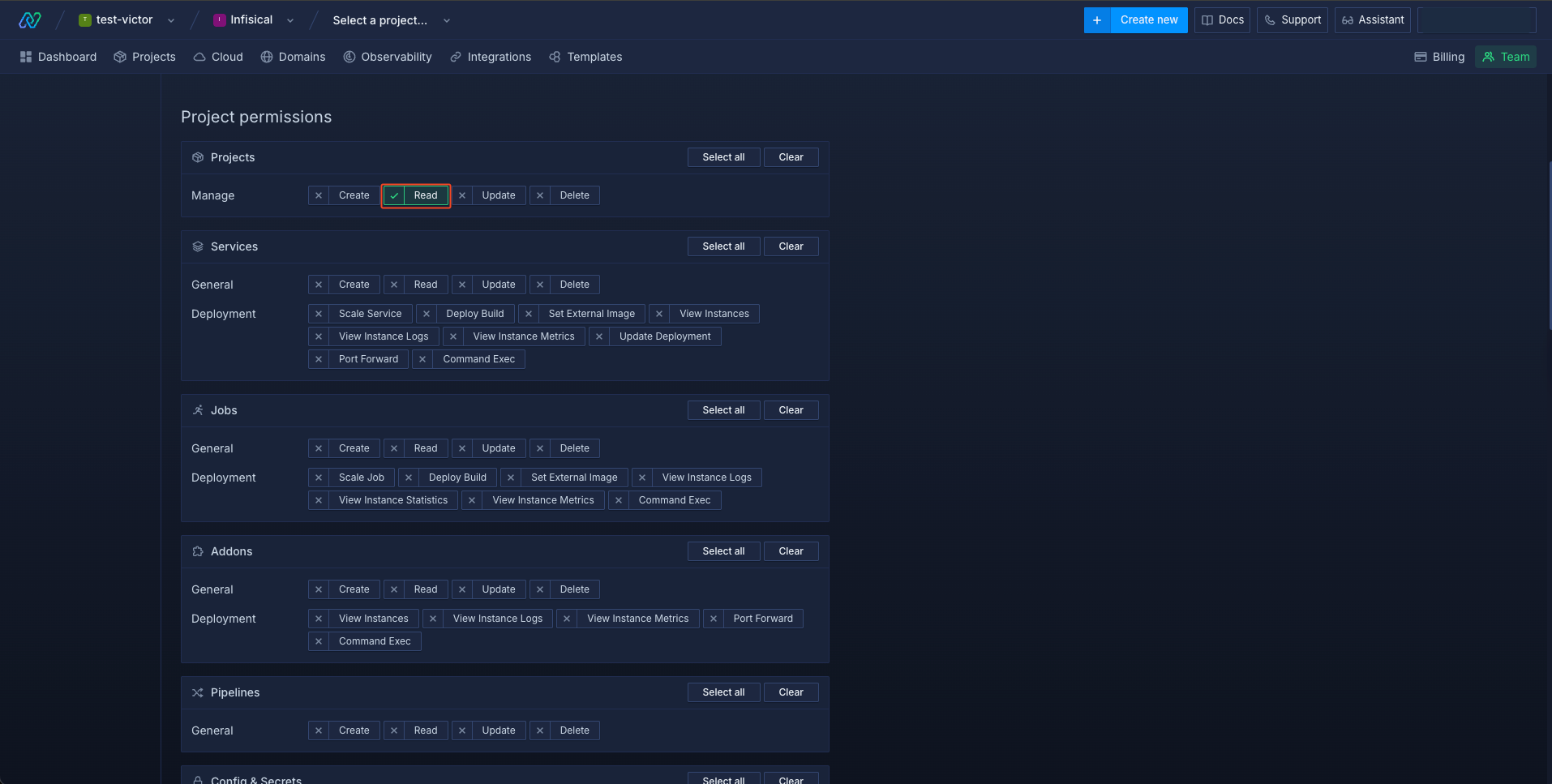 Add the Config & Secrets -> Secret Groups -> List, Update, Read Keys, and Read Values permissions.
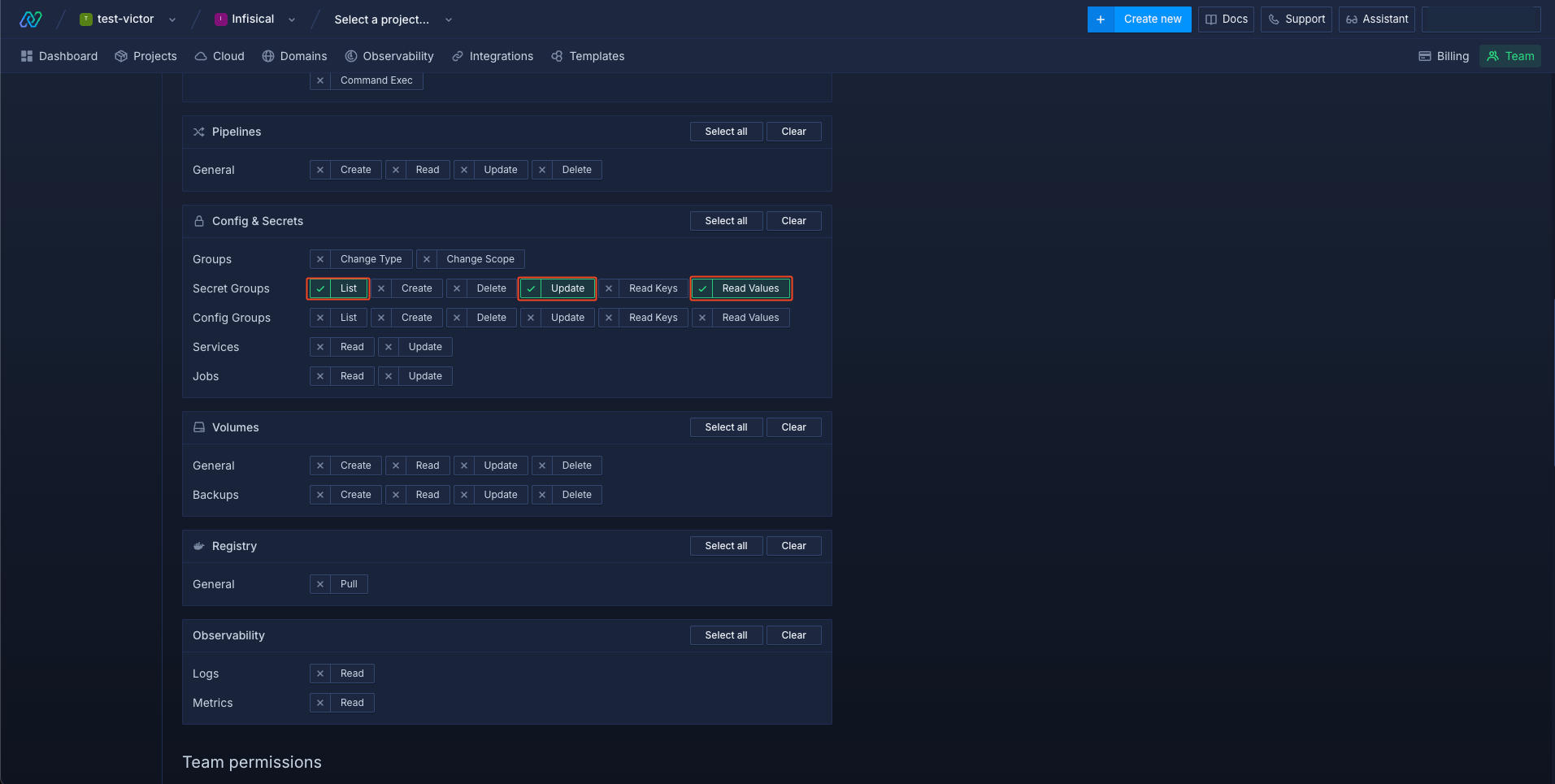 Scroll to the bottom and save the API role.
Click on Create API role.Select all the projects you want this role to have access to, or leave this unchecked if you want to give access to all projects.Add the Projects -> Manage -> Read permission.Add the Config & Secrets -> Secret Groups -> List, Update, Read Keys, and Read Values permissions.Scroll to the bottom and save the API role.2
Create an API Token
Select the API -> Tokens menu on the left and then select the Create API token button.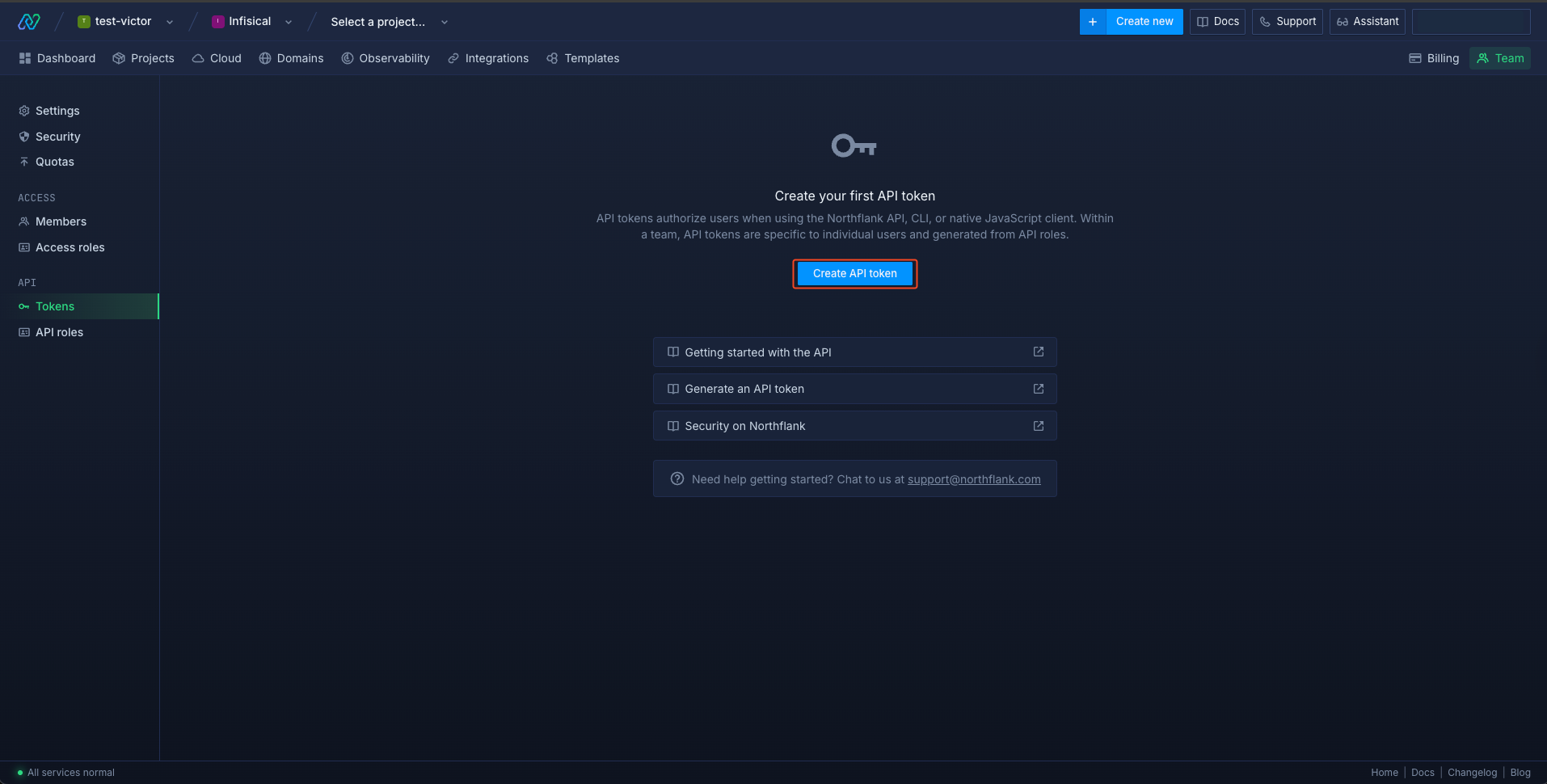 Give a name to the API token and click the Use role button for the new API role you just created.
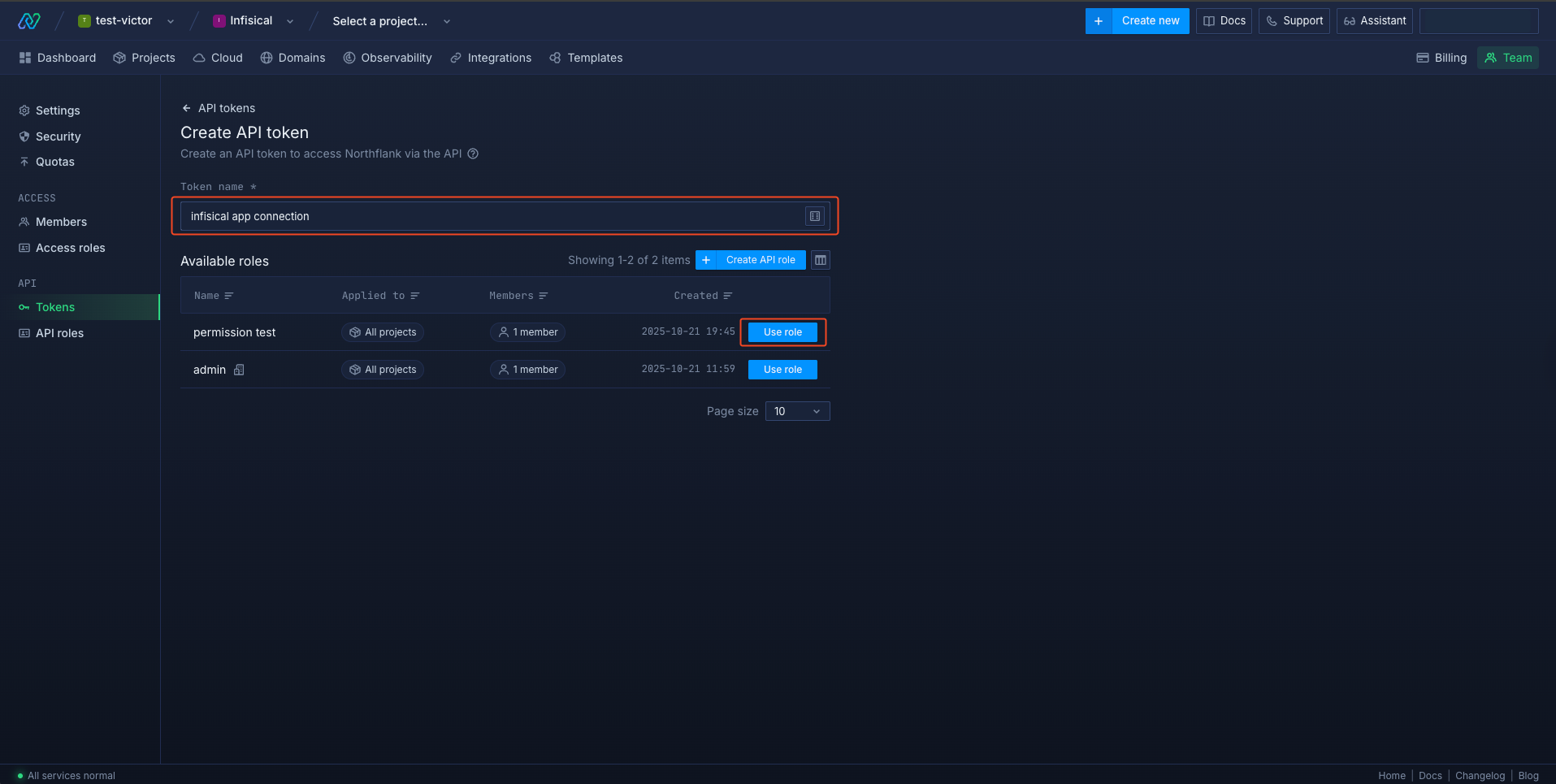 Click the View API token icon to view and copy your token.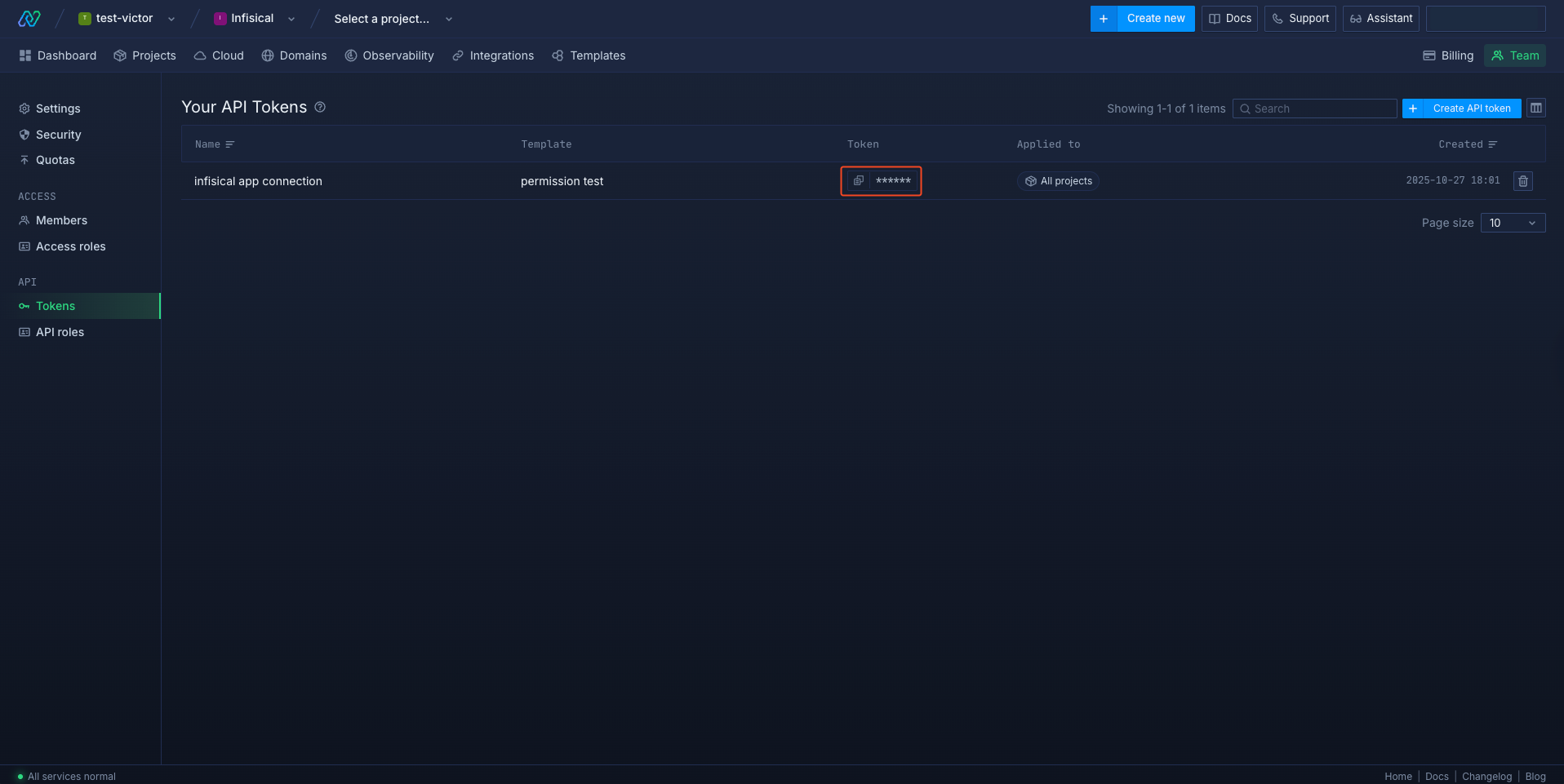
Give a name to the API token and click the Use role button for the new API role you just created.Click the View API token icon to view and copy your token.Create a Northflank connection in Infisical
- Infisical UI
- API
1
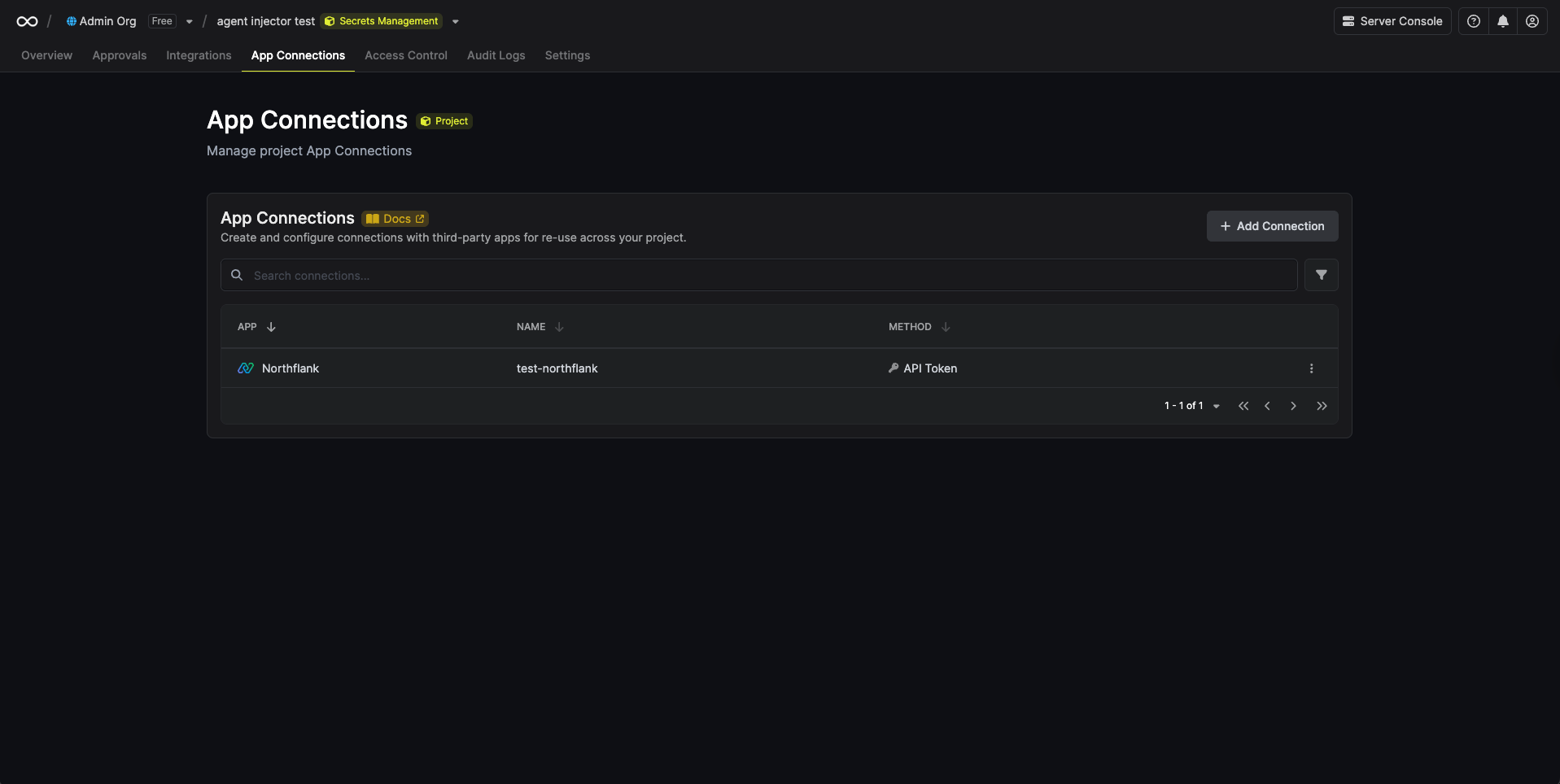
Navigate to App Connections
In your Infisical dashboard, navigate to the Integrations tab in the desired project, then select App Connections.
2
Select Northflank Connection
Click + Add Connection and choose Northflank Connection from the list of integrations.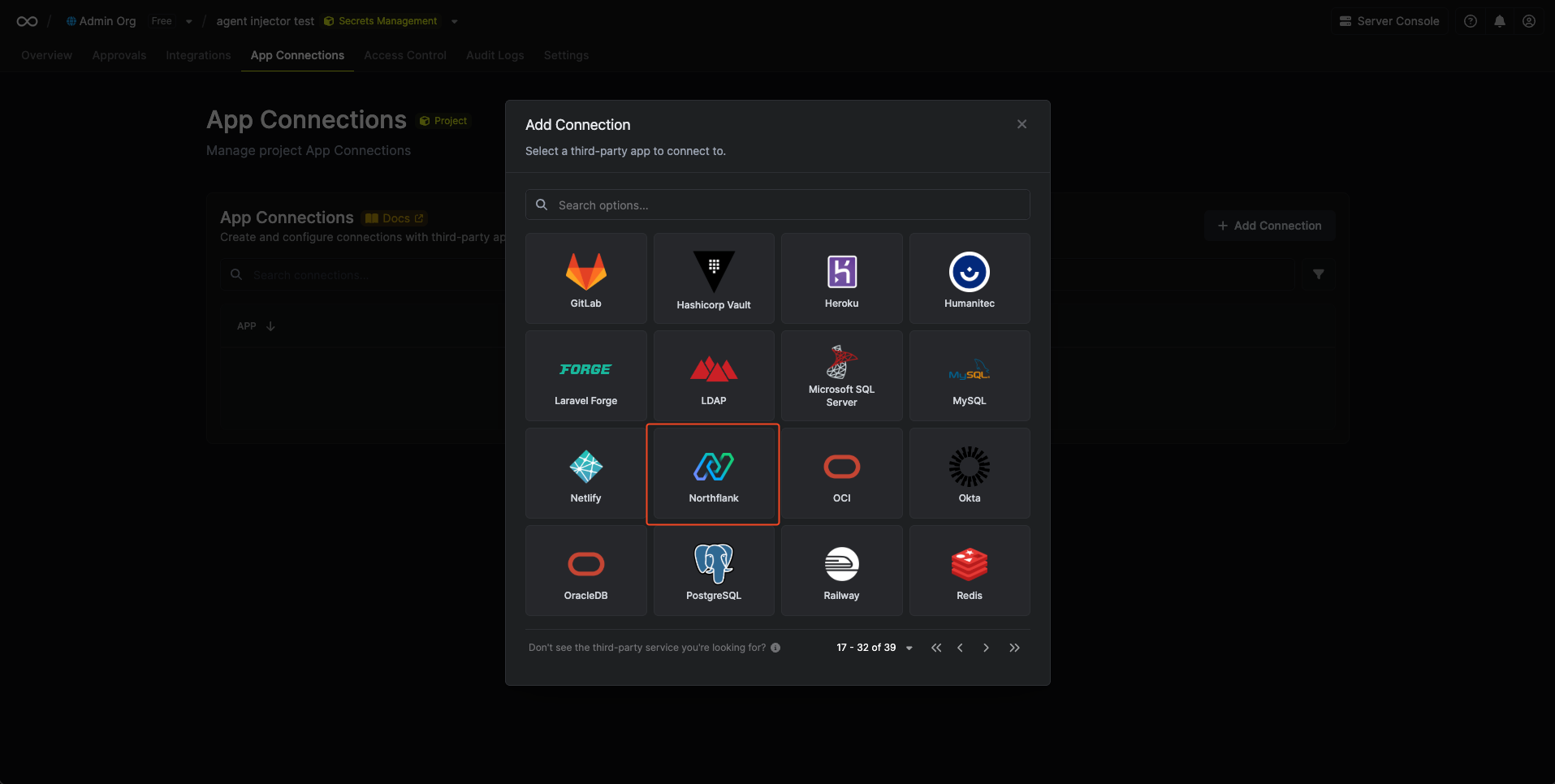
3
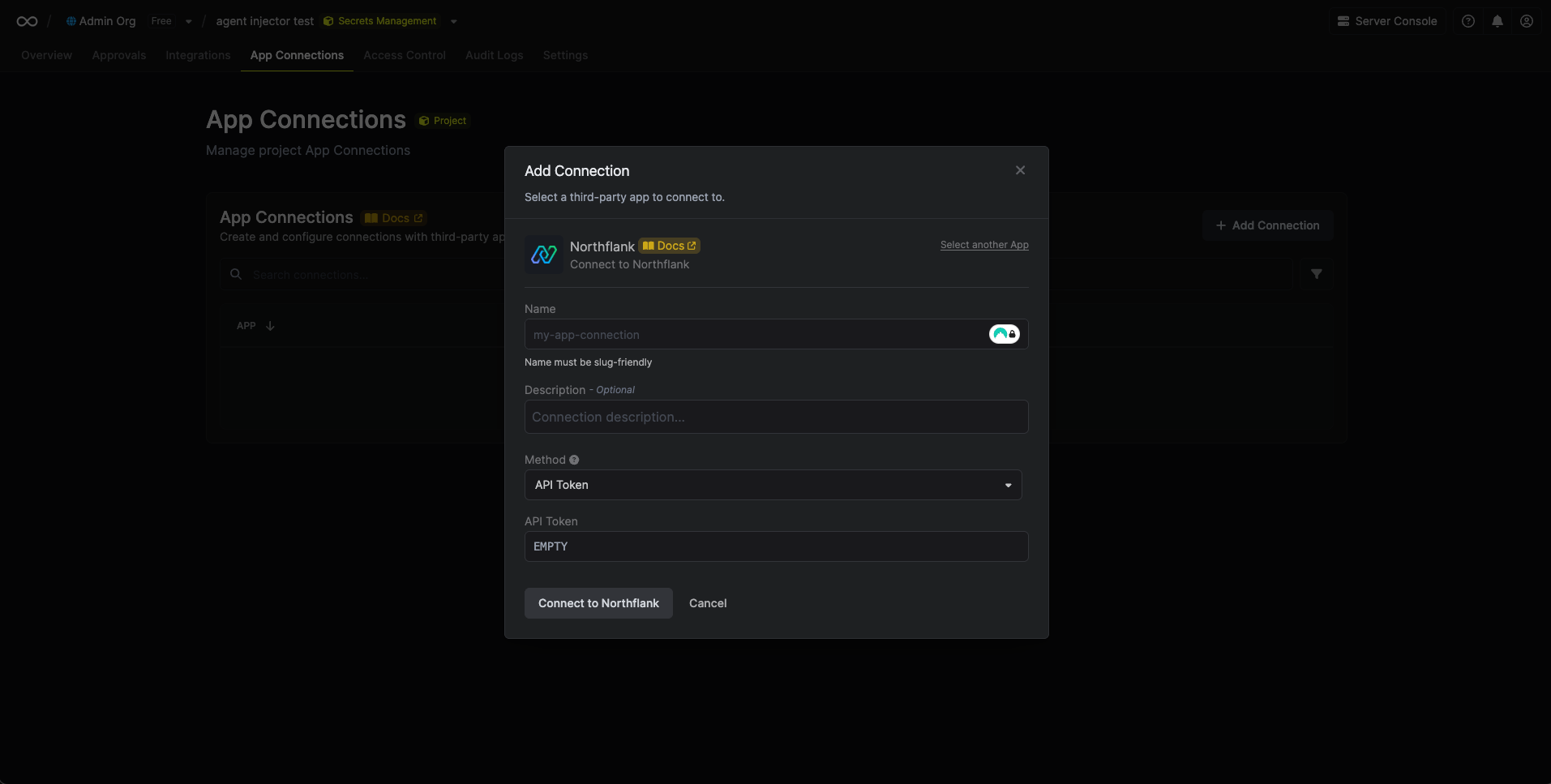
Fill out the Northflank Connection form
Complete the form by providing:
- A descriptive name for the connection
- An optional description
-
The API Token from the previous step
4
Connection created
After submitting the form, your Northflank Connection will be successfully created and ready to use with your Infisical project.