- Set up an Azure account with an existing Azure Entra ID tenant.
- Register an App Registration in Azure with the necessary Microsoft Graph API permissions for your use case.
Required Azure Permissions
Required Azure Permissions
The permissions required for your Azure Entra ID Connection depend on what you intend to use it for.For SCIM Token Secret Sync:Your App Registration must have the following Microsoft Graph API Application permissions:
-
Application.ReadWrite.All— Required to read and update synchronization secrets (SCIM tokens) on enterprise application service principals. -
Synchronization.ReadWrite.All— Required to list synchronization jobs on service principals and to write SCIM provisioning tokens.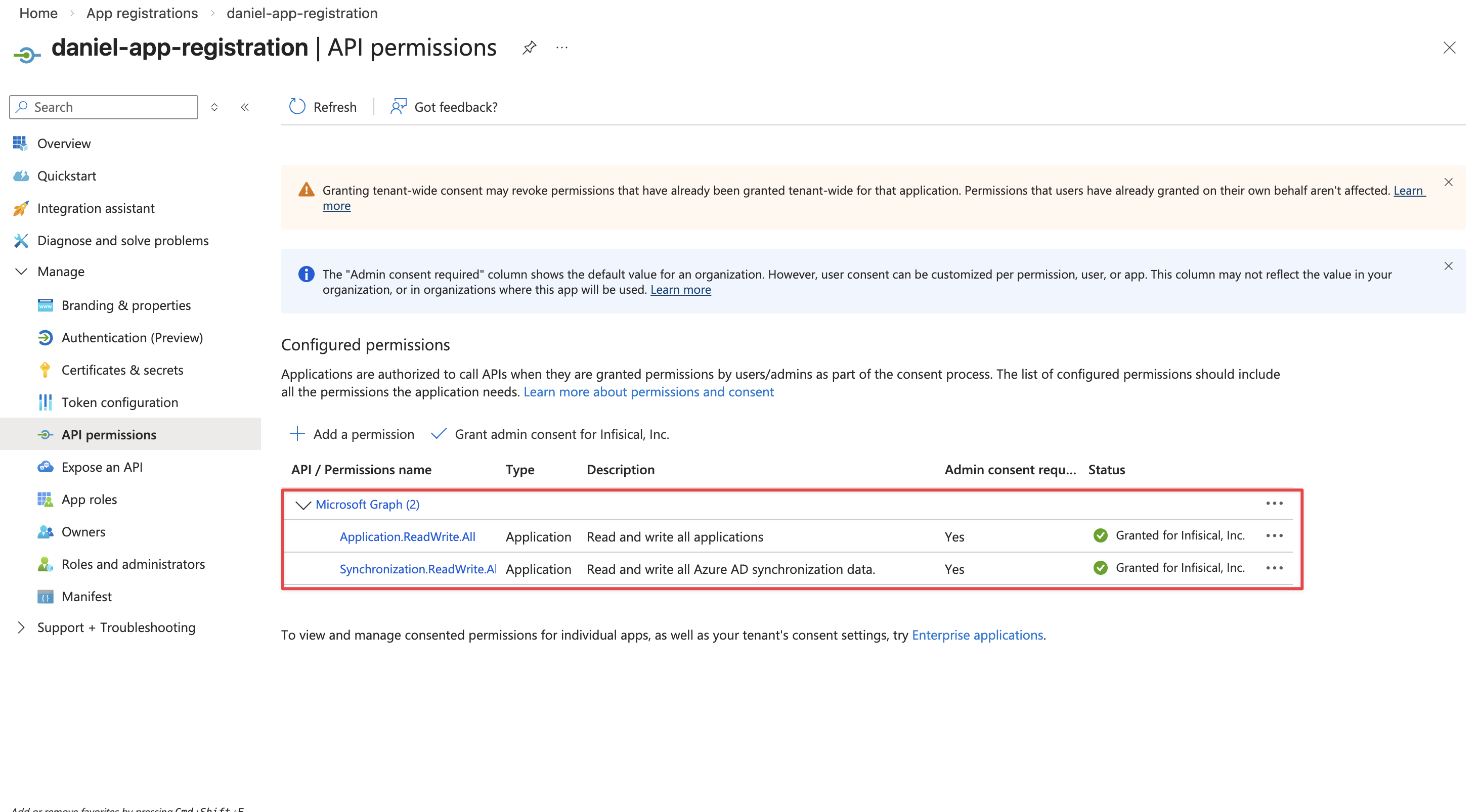
After adding the permission, an admin must Grant admin consent for the permission to take effect.
If you want to configure automatic client secret rotation for this App Connection, you also need to grant either
Application.ReadWrite.OwnedBy or Application.ReadWrite.All permissions.Setup Azure Entra ID connection in Infisical
- Infisical UI
- API
1
Navigate to App Connections
Go to Integrations in your organization, then select App Connections and select Add Connection.
2
Add Connection
Select the Azure Entra ID option from the connection options modal.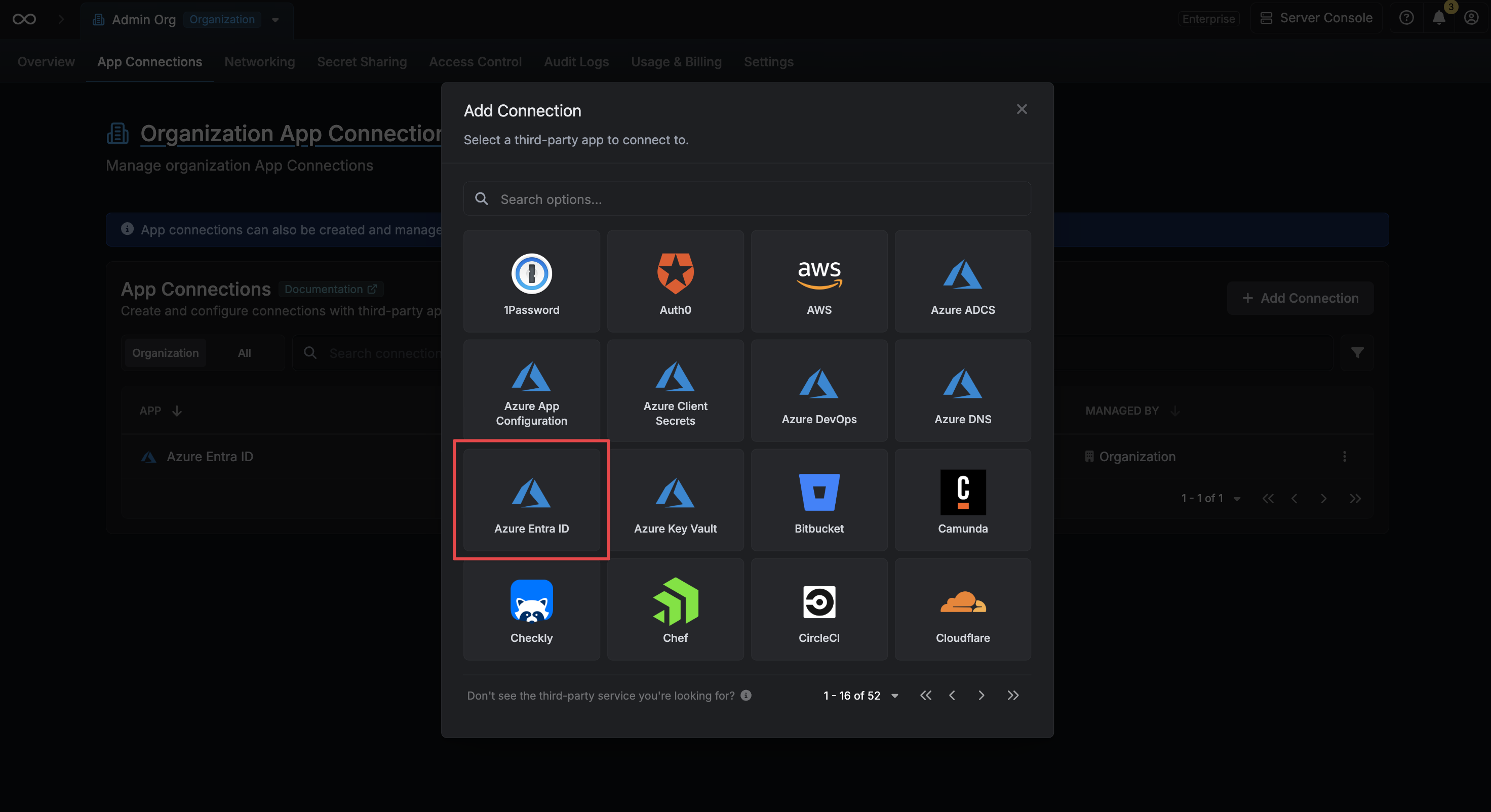
3
Create Connection
Fill in the following fields with the credentials from your Azure App Registration: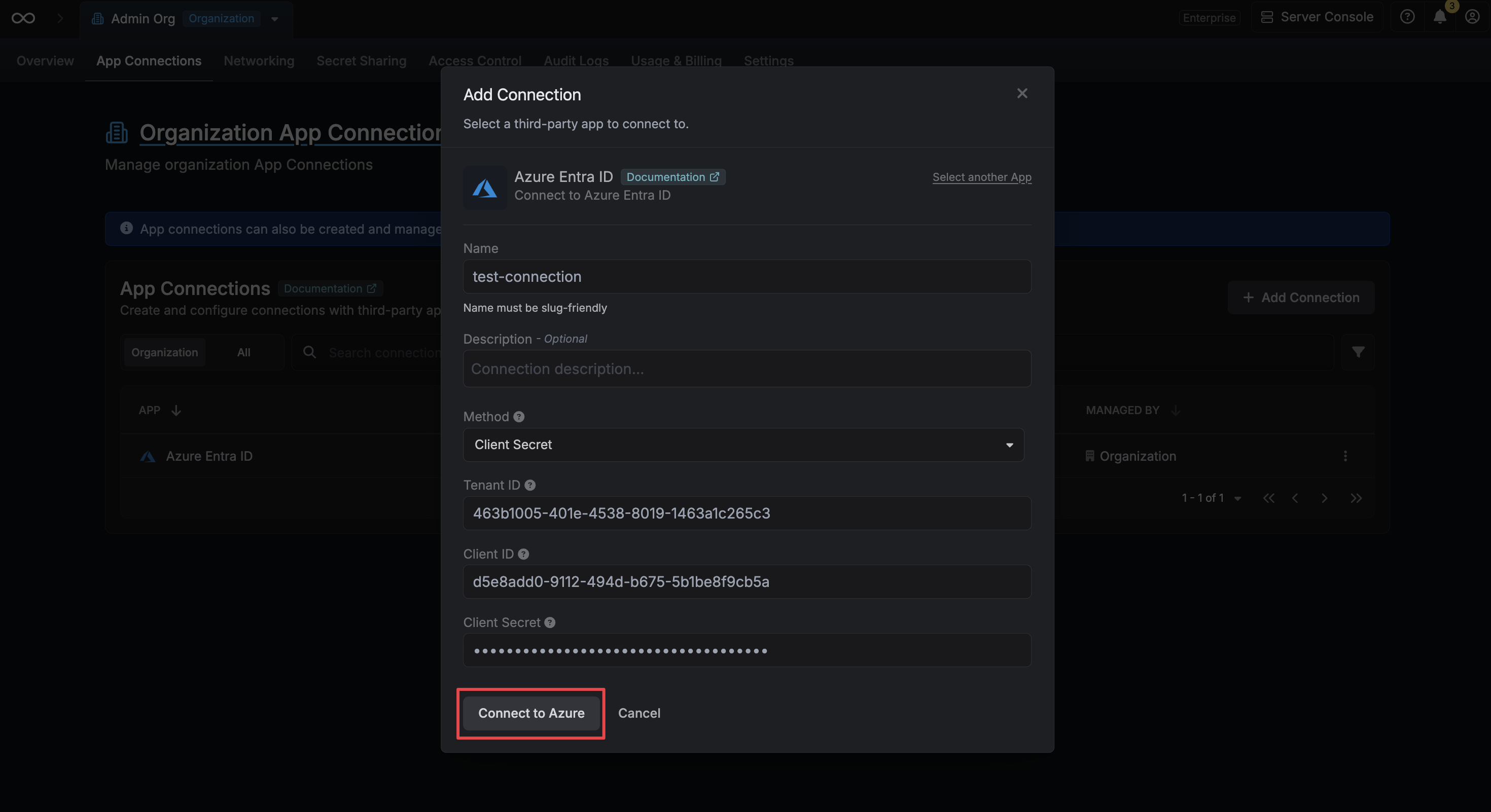
- Tenant ID: The Directory (Tenant) ID of your Azure Entra ID tenant.
- Client ID: The Application (Client) ID of your registered application.
- Client Secret: A client secret generated for your registered application.
4
Connection Created
Your Azure Entra ID Connection is now available for use with features such as the Azure Entra ID SCIM Secret Sync.
Automatic credential rotation
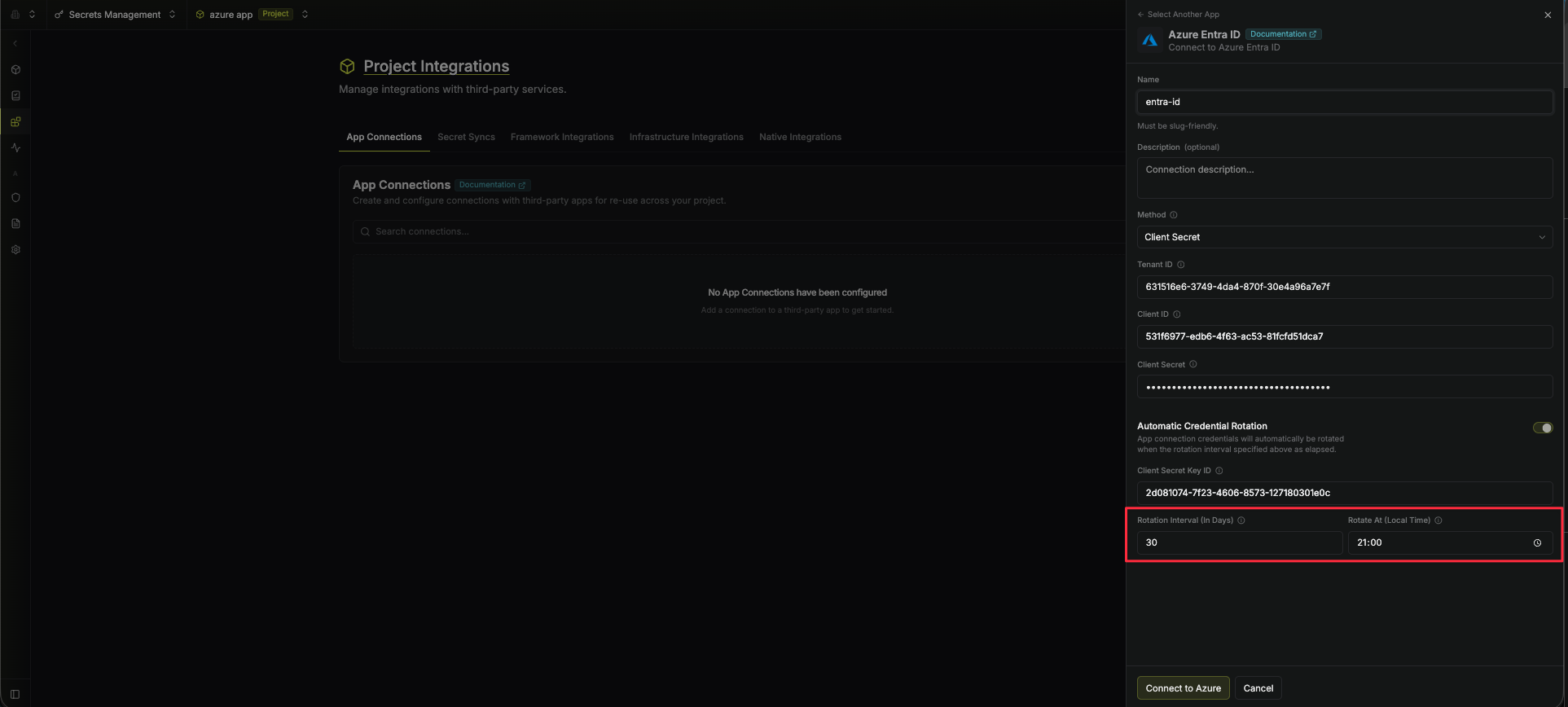
Infisical can automatically rotate the Client Secret of your Azure application on a recurring schedule. When enabled, Infisical will immediately generate a new Client Secret on connection creation and revoke the original one, ensuring that no external party retains access using the credentials you provided.1
Locate the Key ID of your Client Secret
Before enabling rotation, you’ll need the Key ID of the Client Secret you’re using to authenticate. Navigate to your App Registration in the Azure Portal, then go to Certificates & secrets. Copy the Secret ID (Key ID) of the secret you’re providing to Infisical.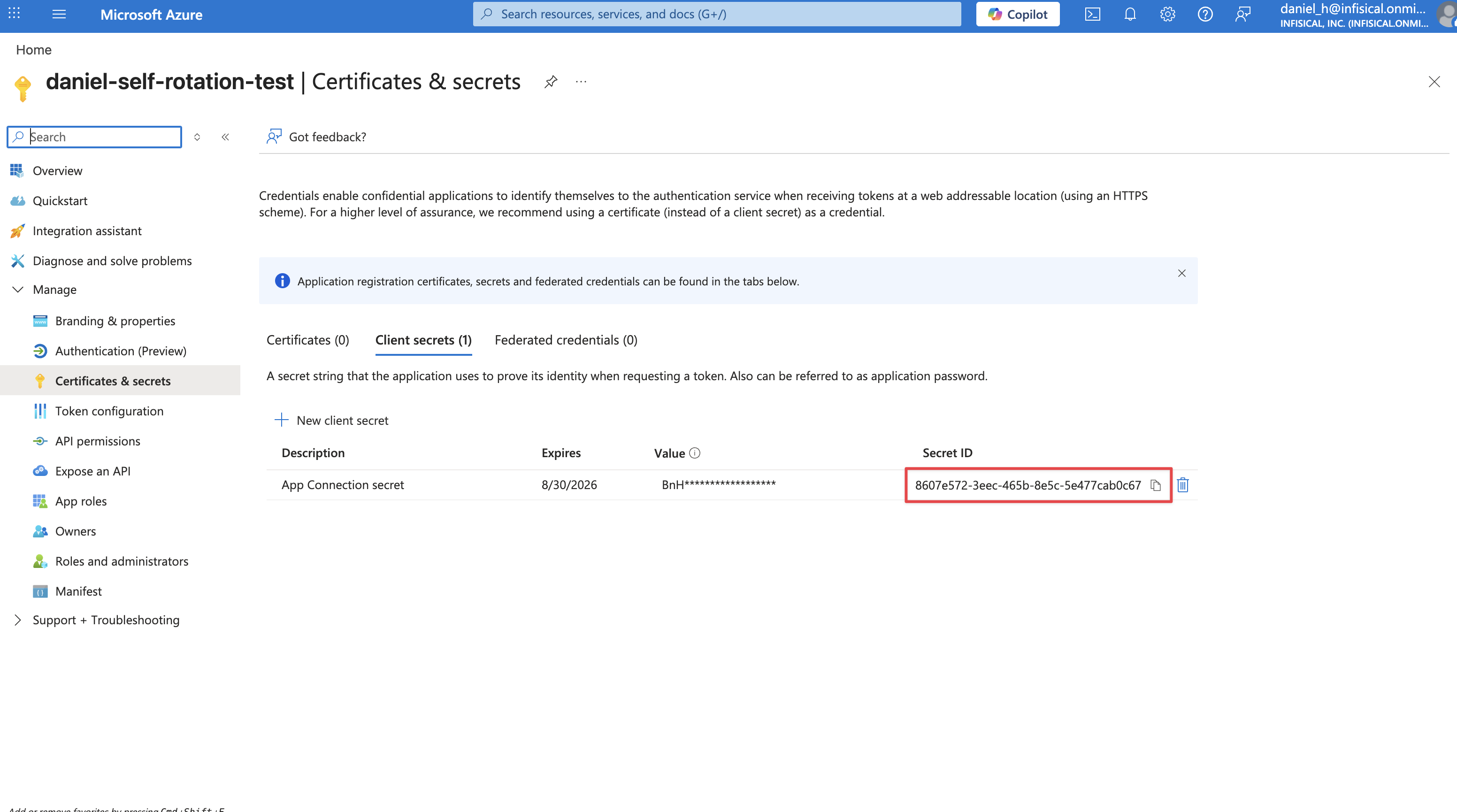
2
Enable Automatic Credential Rotation
When creating or editing your connection, toggle on the Automatic Credential Rotation switch.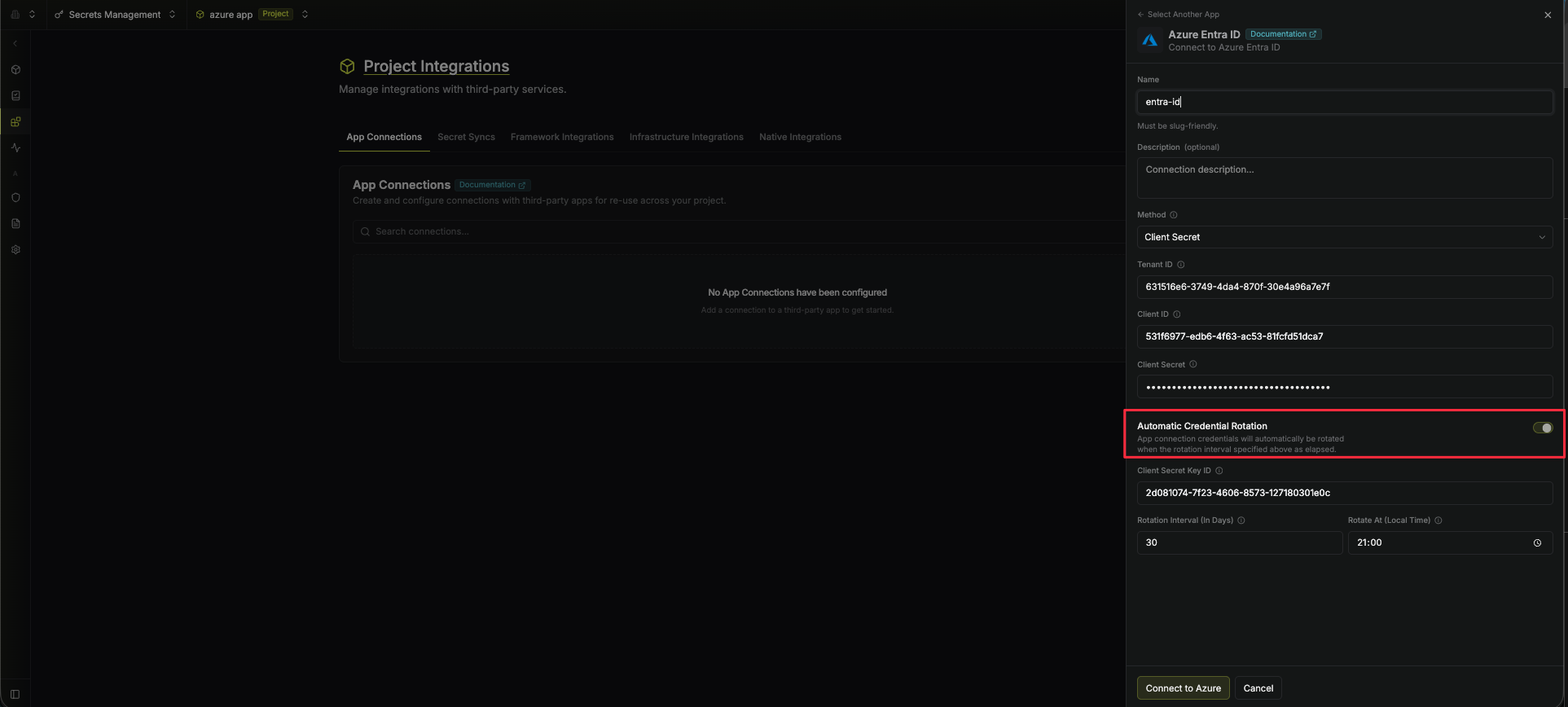
3
Provide the Client Secret Key ID
Enter the Key ID you copied in the previous step into the Client Secret Key ID field. Infisical uses this to revoke your original secret after generating a new one.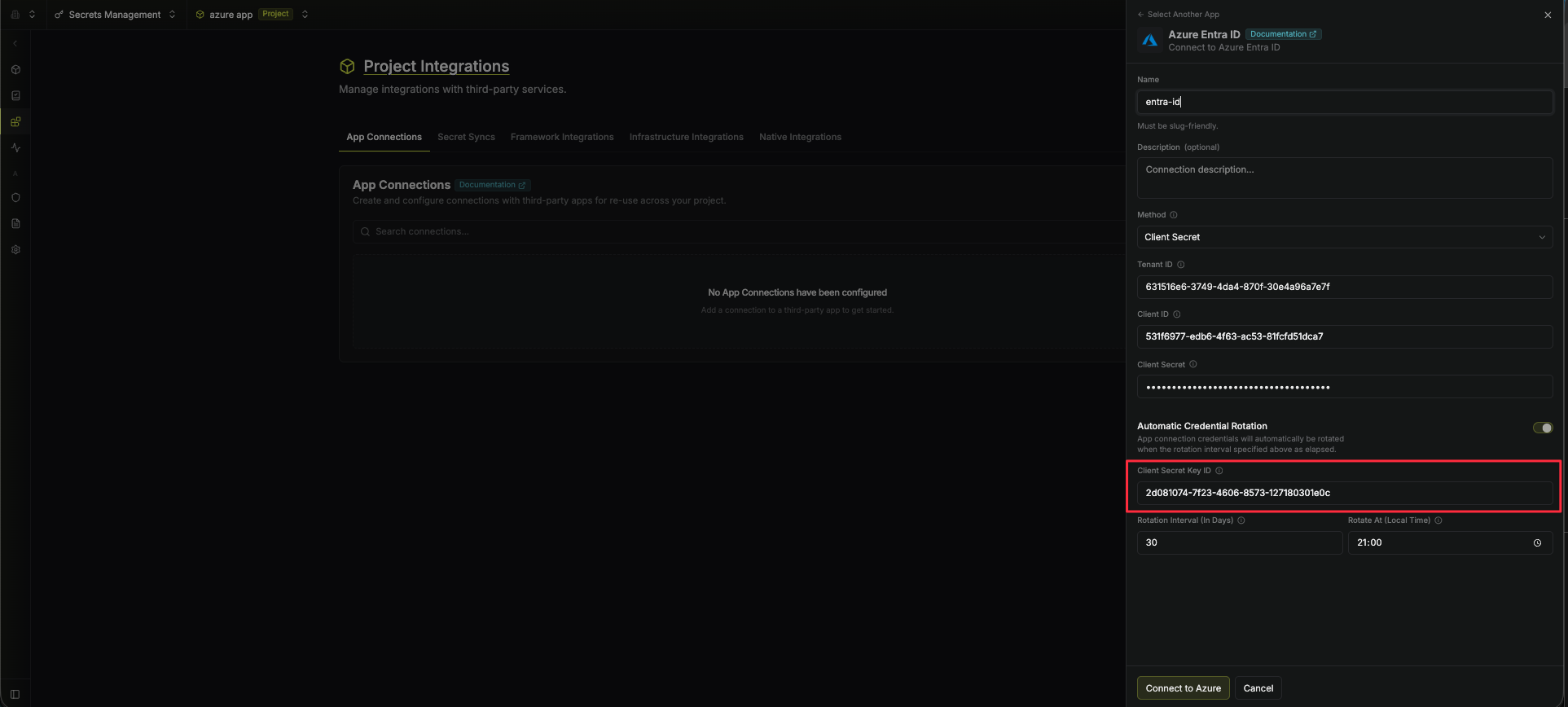
4
Configure the Rotation Schedule
Set the Rotation Interval (in days) to define how often the credential should be rotated, and set Rotate At to the local time of day at which the rotation should occur.
- Rotation Interval - How many days between each rotation.
-
Rotate At - The local time of day at which the rotation will be triggered.