Create an API key in Spacelift
1
Navigate to Organization Settings
Select your profile name and select Organization Settings at the bottom left side of the Spacelift dashboard.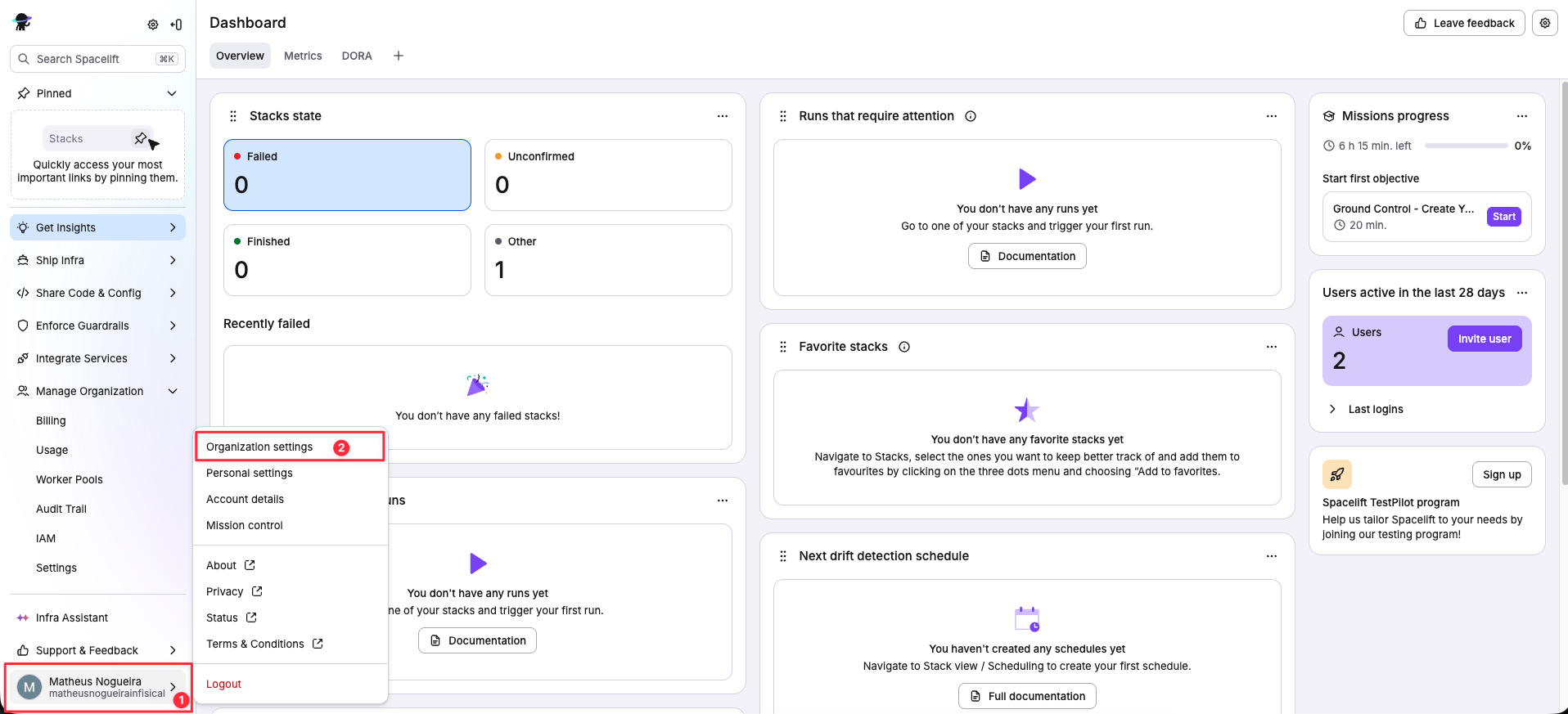
2
Open API Keys
Select API Keys under the identity management section.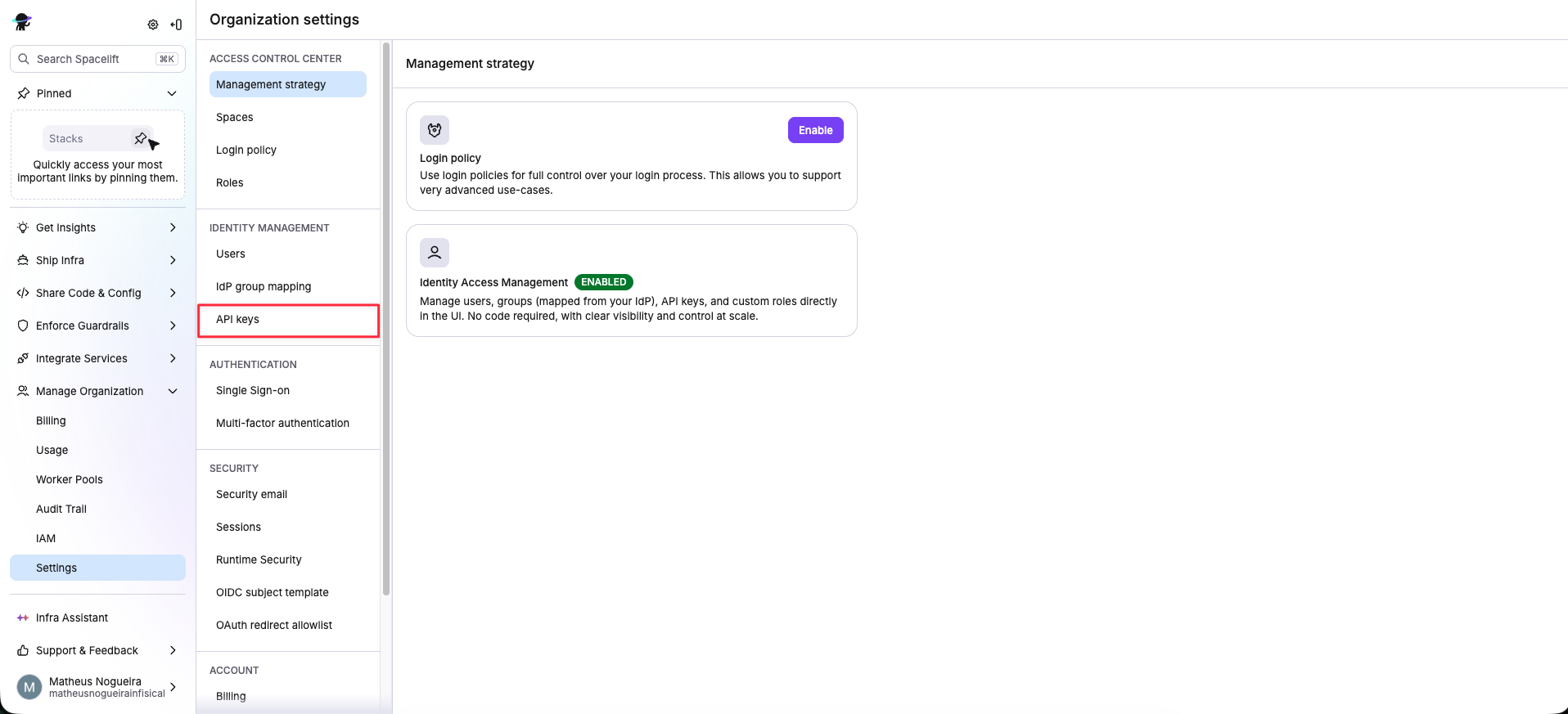
3
Create API Key
Select Create API Key.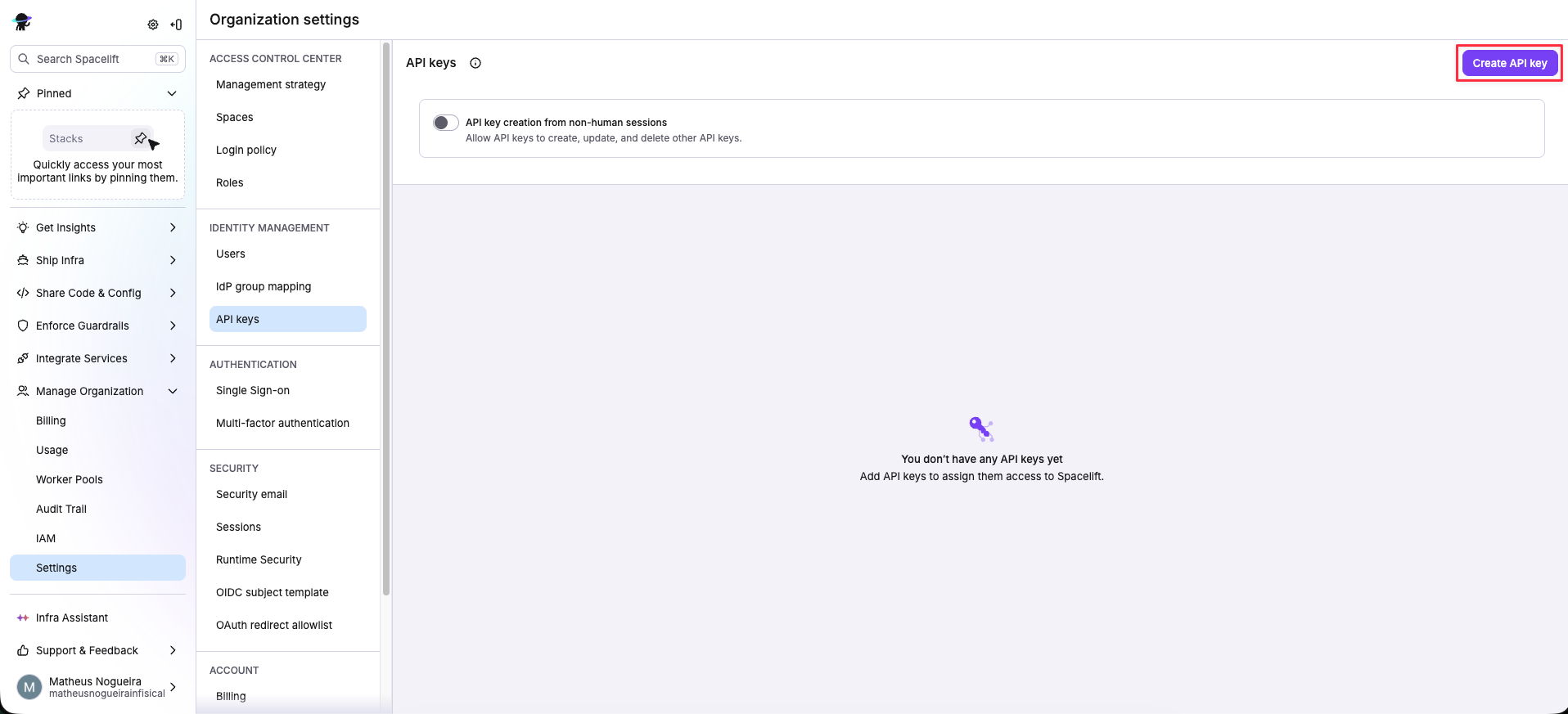
4
Set a Name
Set a name for the API key, choose the type Secret and select Continue.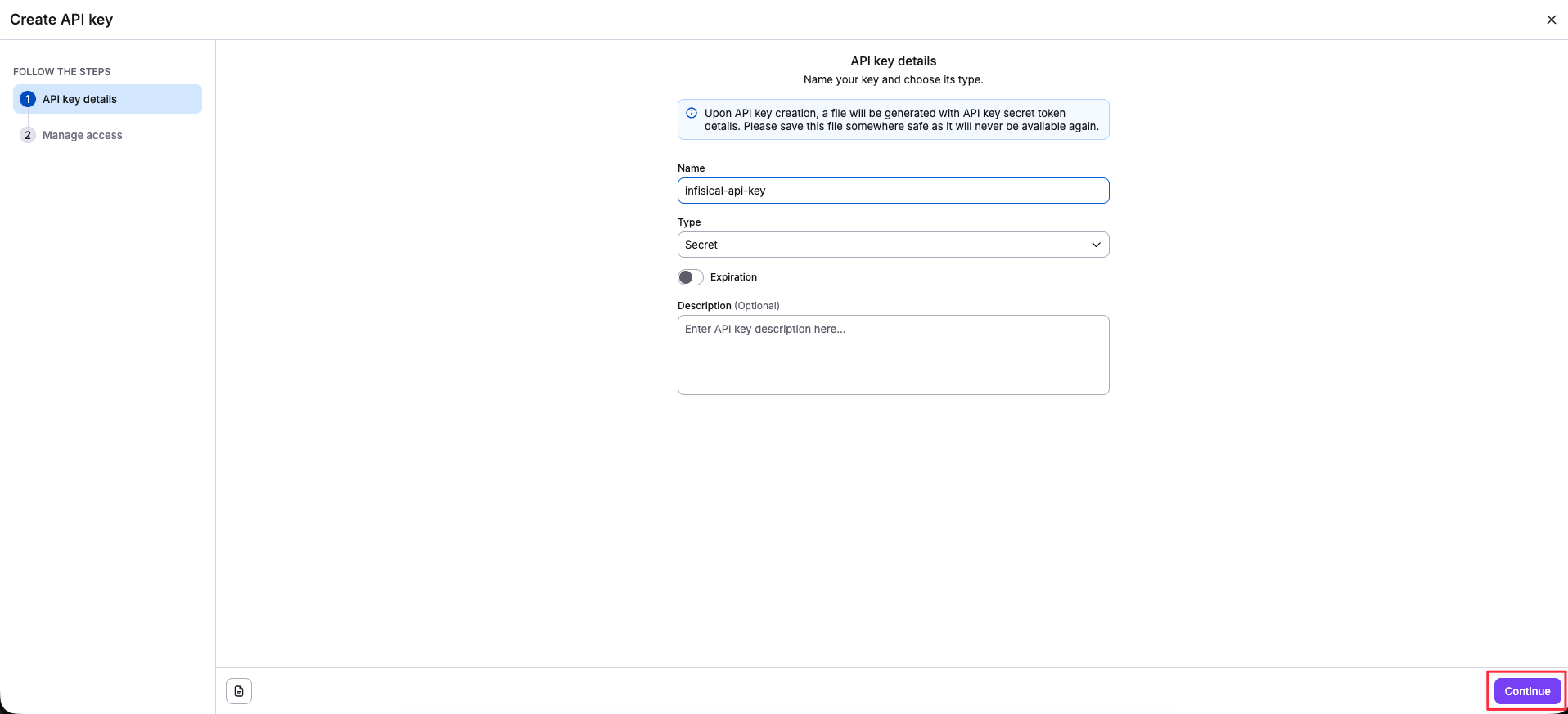
5
Configure Roles, Space, and Create
Select the Space admin role (or a custom role with at least Space reader, Space writer, and Context update permissions), choose the Space that will be managed by this credential, then select Add and Create API Key. A file will be downloaded containing your credentials.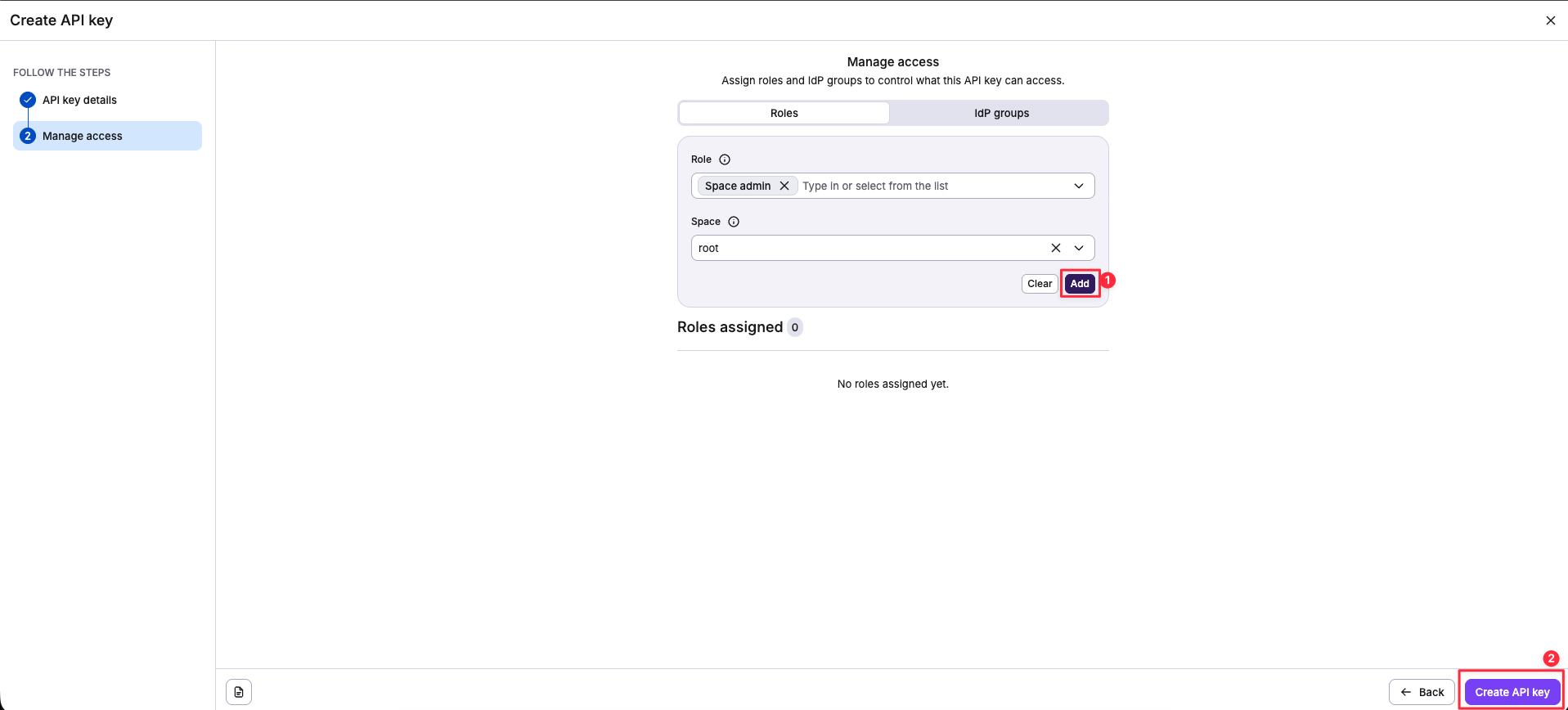
6
Extract Credentials
Open the downloaded file and extract the
api_key_id and api_key_secret values.Setup Spacelift connection in Infisical
1
Navigate to App Connections
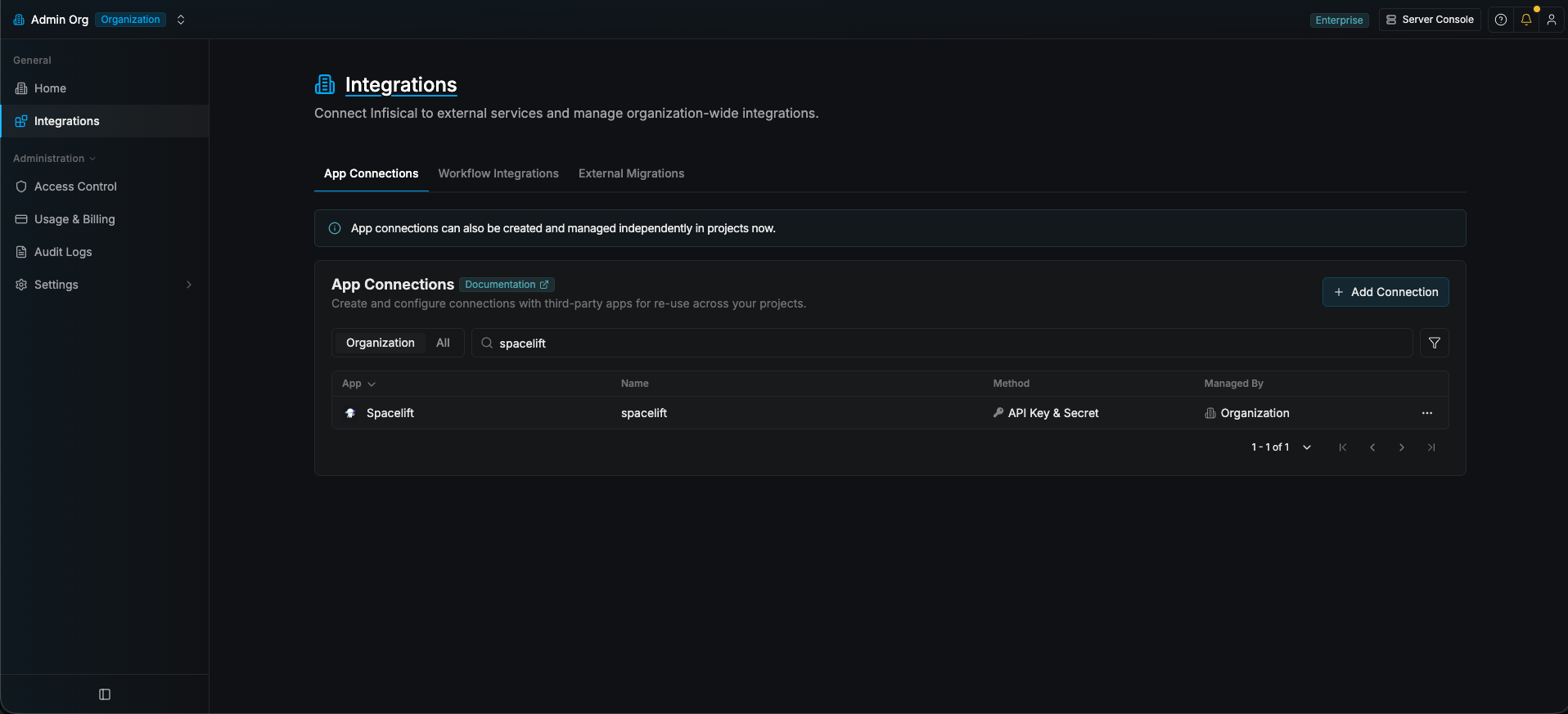
Navigate to the Integrations tab in the desired project, then select App Connections.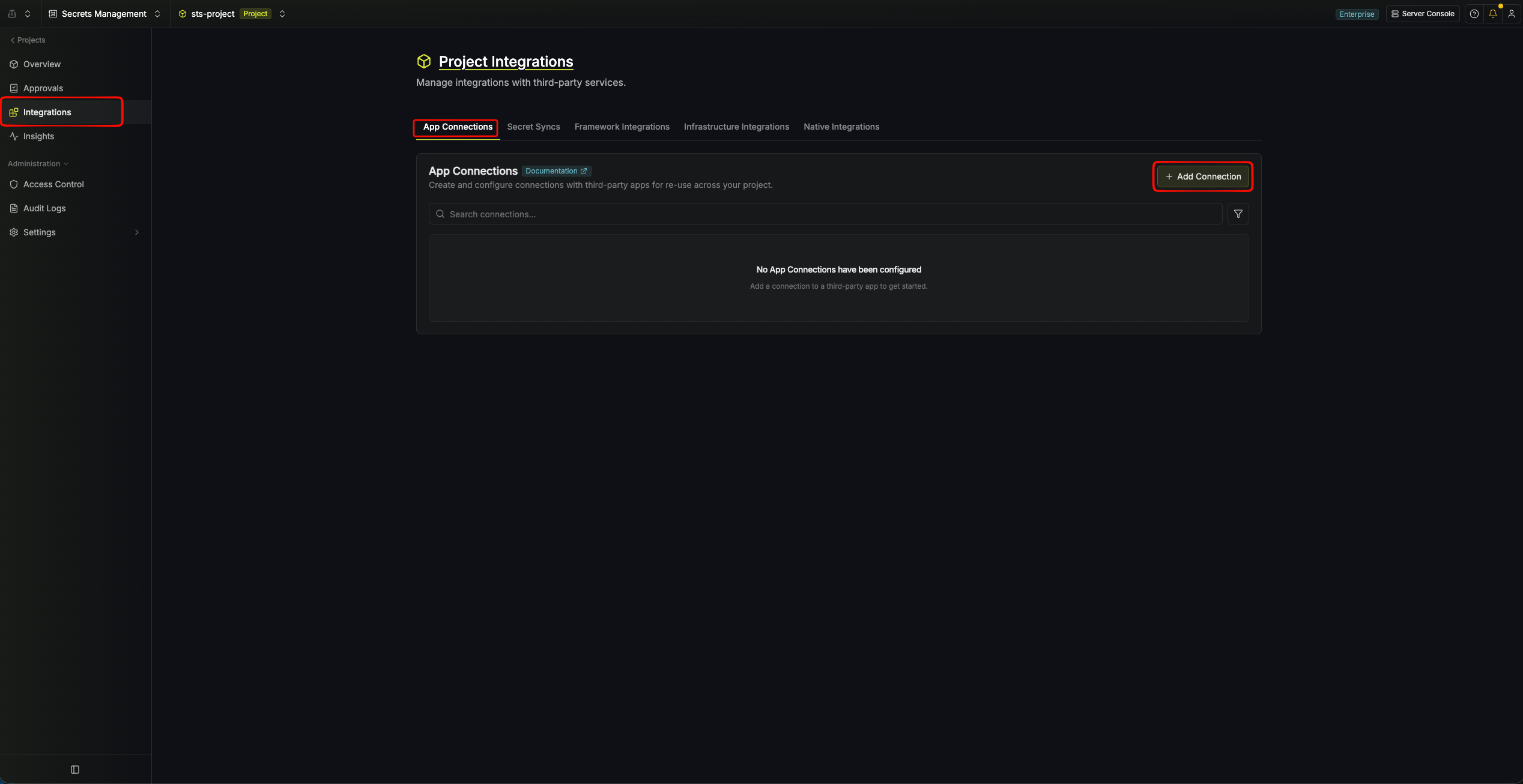
2
Add Connection
Select the Spacelift Connection option from the connection options modal.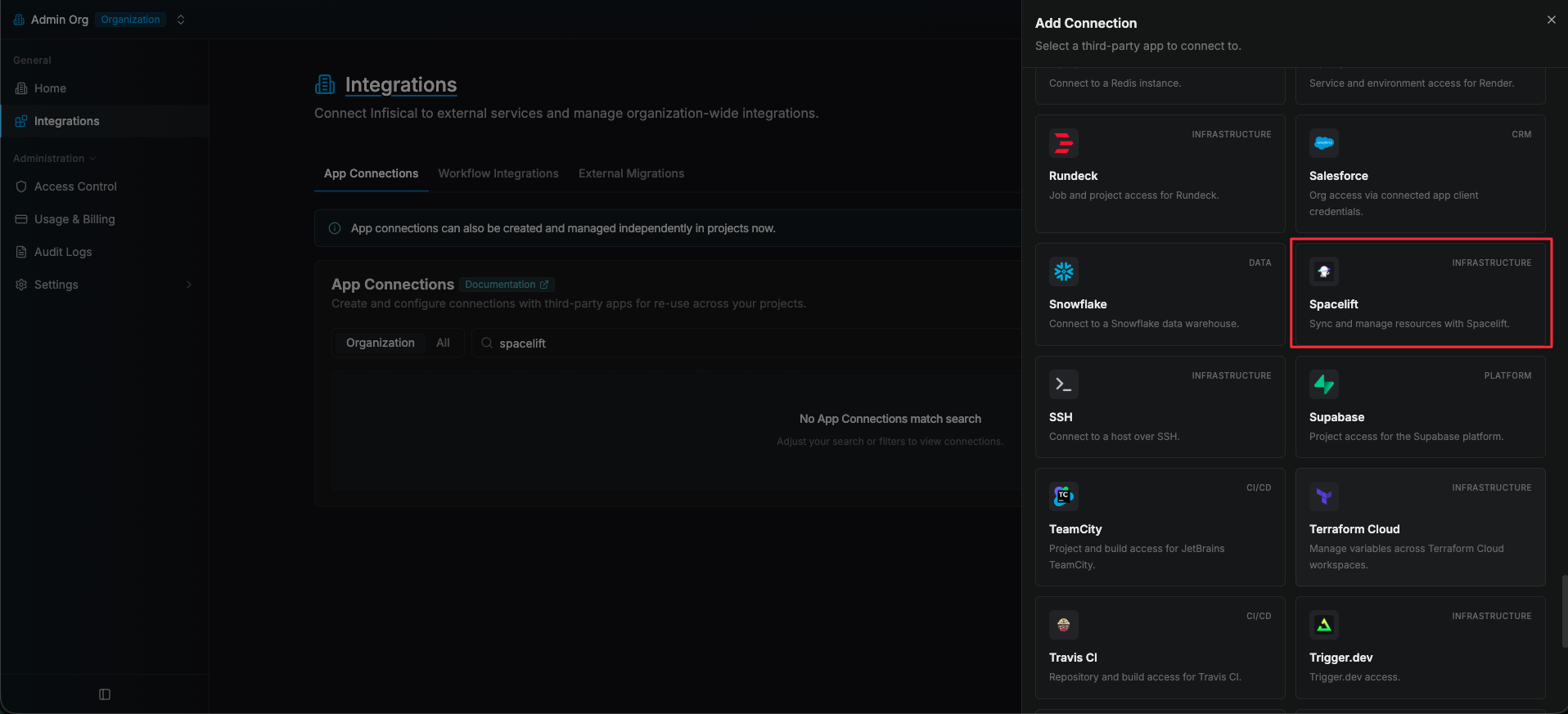
3
Input Credentials
Enter your Spacelift API URL, API Key ID, and API Key Secret in the provided fields and
select Connect to Spacelift to establish the connection.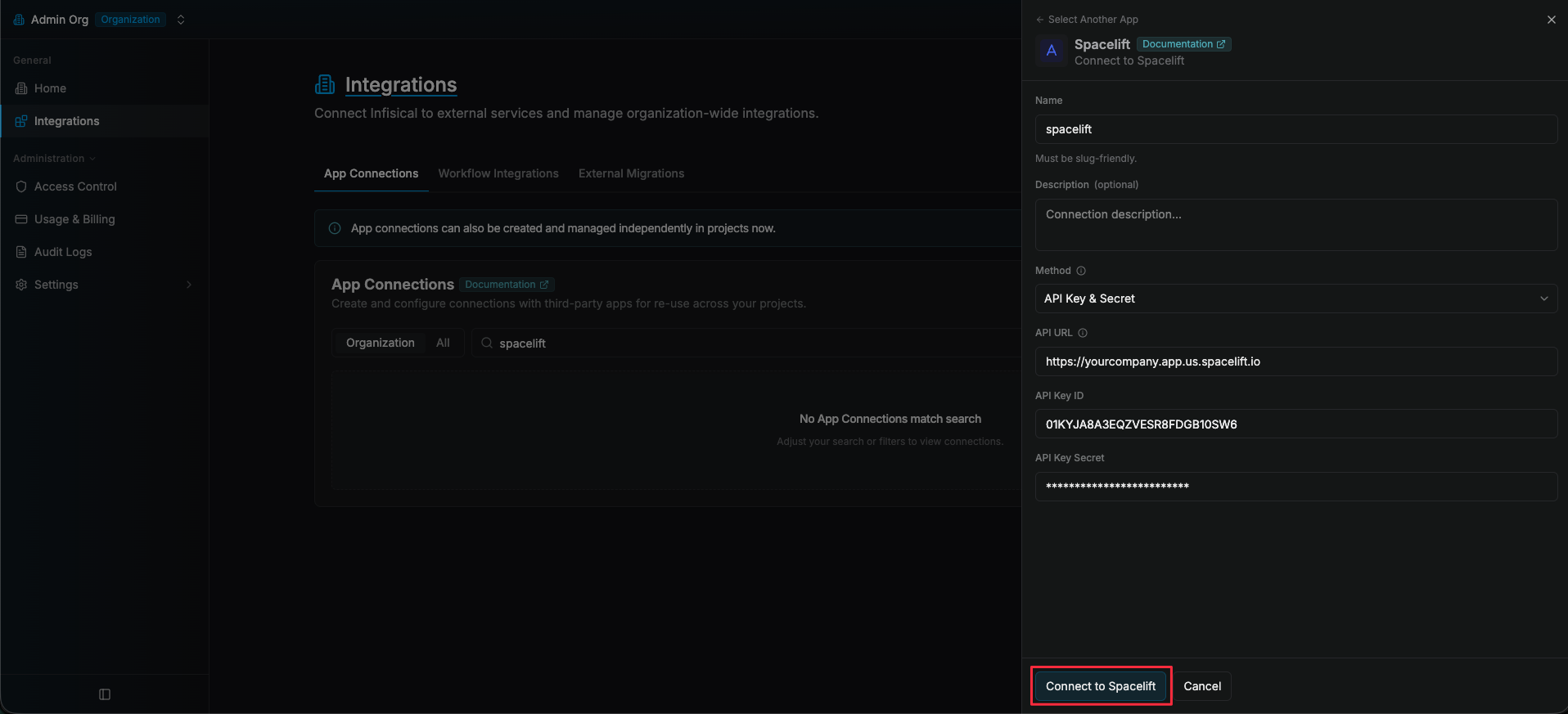
The API URL is the base URL of your Spacelift account (e.g.,
https://myorgname.app.us.spacelift.io/).4
Connection Created
Your Spacelift Connection is now available for use in your Infisical projects.