

This guide only authenticates Infisical with HPE iLO. Once the app connection is ready, you can use it to set up integrations.
Prerequisites
- An HPE iLO that Infisical can reach over HTTPS, either directly or through a Gateway
- An iLO local account with at least the Login privilege, for Infisical to sign in with
Step 1: Create the app connection
1
In the sidebar, select Integrations, then open the App Connections tab.
2
Select Add Connection and choose HPE iLO.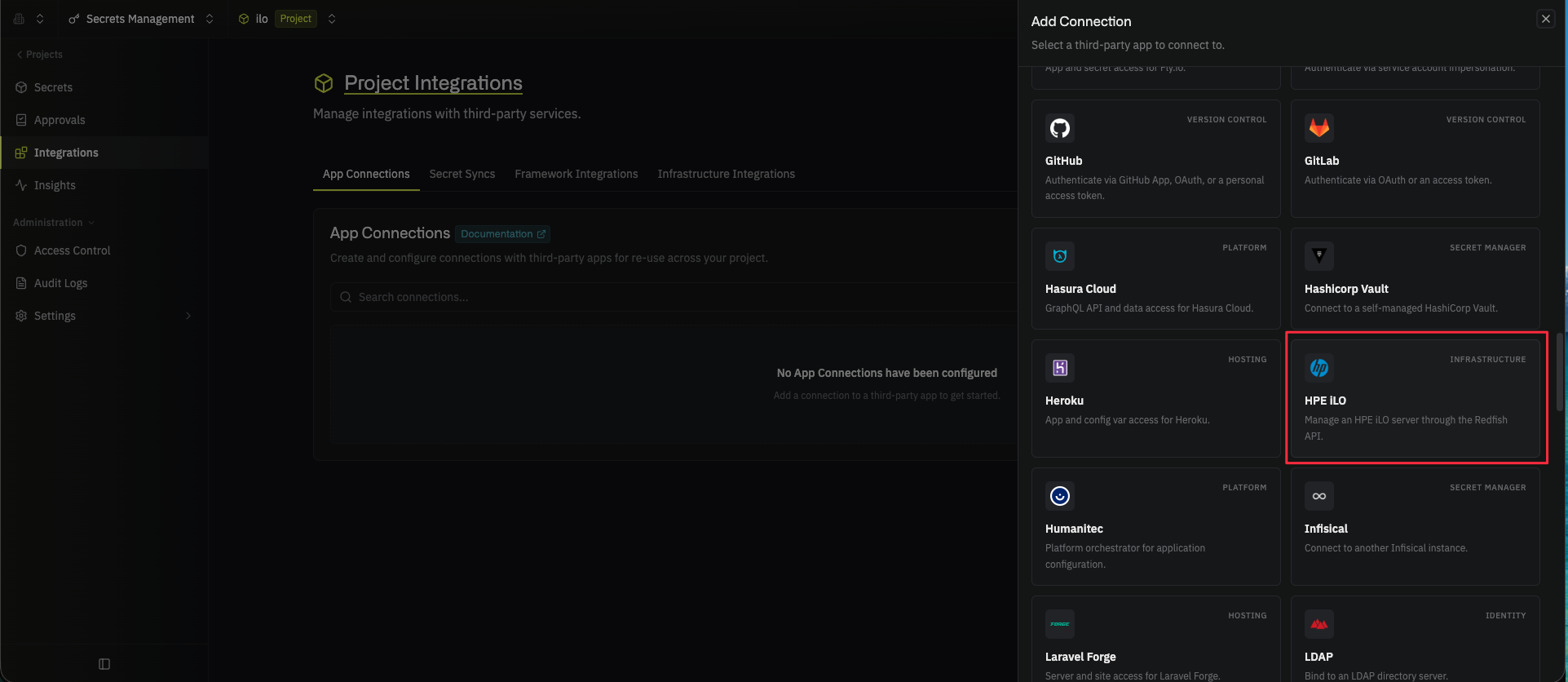
3
Fill out the form’s fields: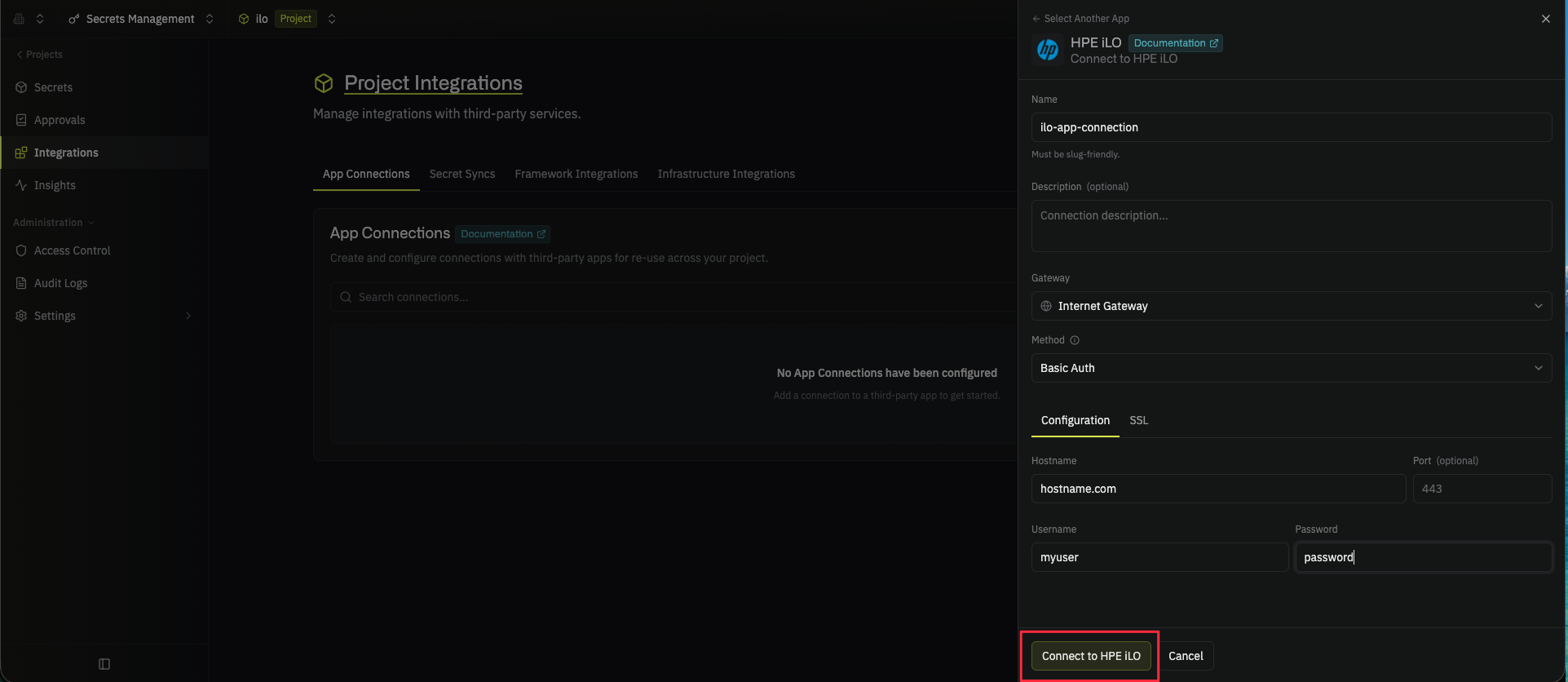
- Name: A descriptive name for the connection
- Description (optional): A note for future reference
- Gateway (optional): The Gateway Infisical connects through, if Infisical can’t reach the iLO directly
- Hostname: The hostname or IP address of the iLO, without
https://or a port (for example,ilo.example.com) - Port (optional): The HTTPS port of the iLO (defaults to
443) - Username: The login name of the iLO local account Infisical signs in with
- Password: The password of the iLO account
- SSL Certificate (optional): On the SSL tab, the CA certificate in PEM format that signed the iLO’s TLS certificate
- Reject Unauthorized: On the SSL tab, whether Infisical refuses to connect when it can’t verify the iLO’s TLS certificate (on by default; for a self-signed certificate, enter its CA certificate in SSL Certificate instead of turning this off)
Your HPE iLO app connection is ready to use.
Step 2: Configure integrations
Now that your HPE iLO app connection is configured, you can use it to set up the following integrations:HP iLO local account rotation
Rotate the password of an iLO local account on a schedule.