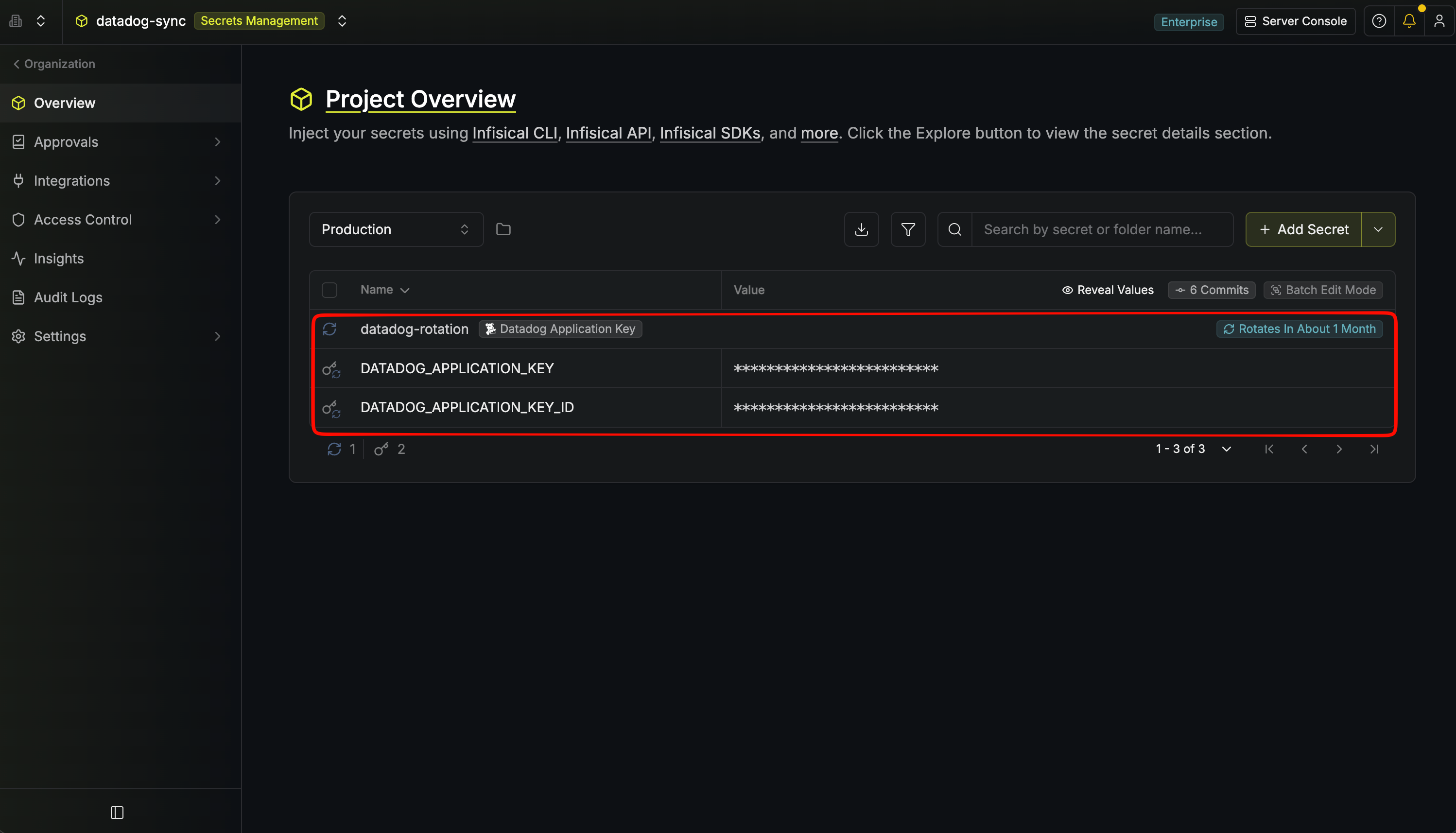
Rotation Type: Dual-PhaseThis rotation maintains two active credential sets with overlapping validity, ensuring zero-downtime during rotation cycles.
Prerequisites
- Create a Datadog Connection with an API Key and a Service Account Application Key.
- The Application Key used by the connection must have scopes that allow it to list users, and create and delete Application Keys on the target Service Account. For this use case,
you need to set
user_app_keysunder API and Application Keys andservice_account_write,user_access_manageanduser_access_readunder Access Management
Create a Datadog application key rotation in Infisical
- Infisical UI
- API
-
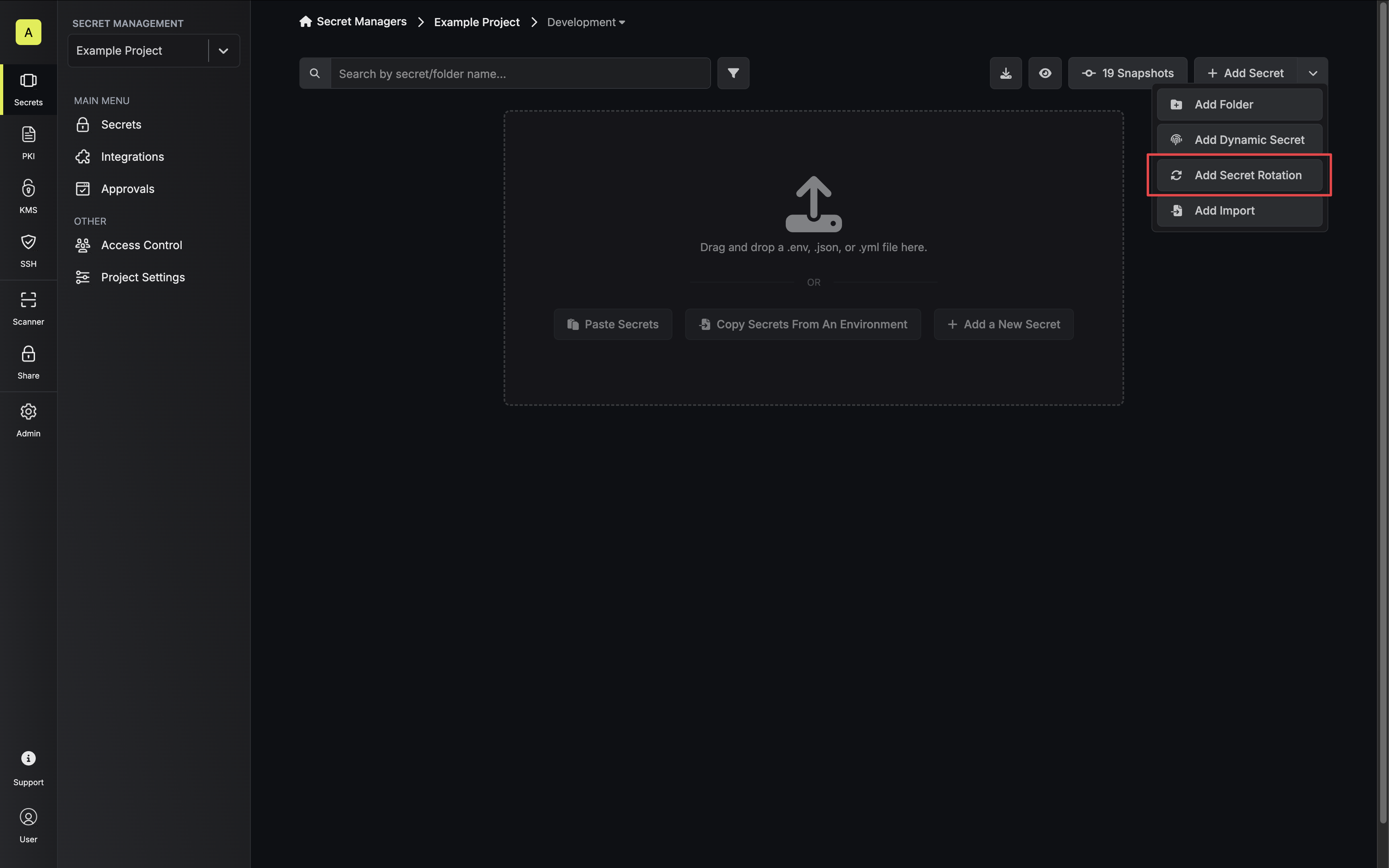
Navigate to your Secrets Manager Project’s Dashboard and select Add Secret Rotation from the actions dropdown.
-
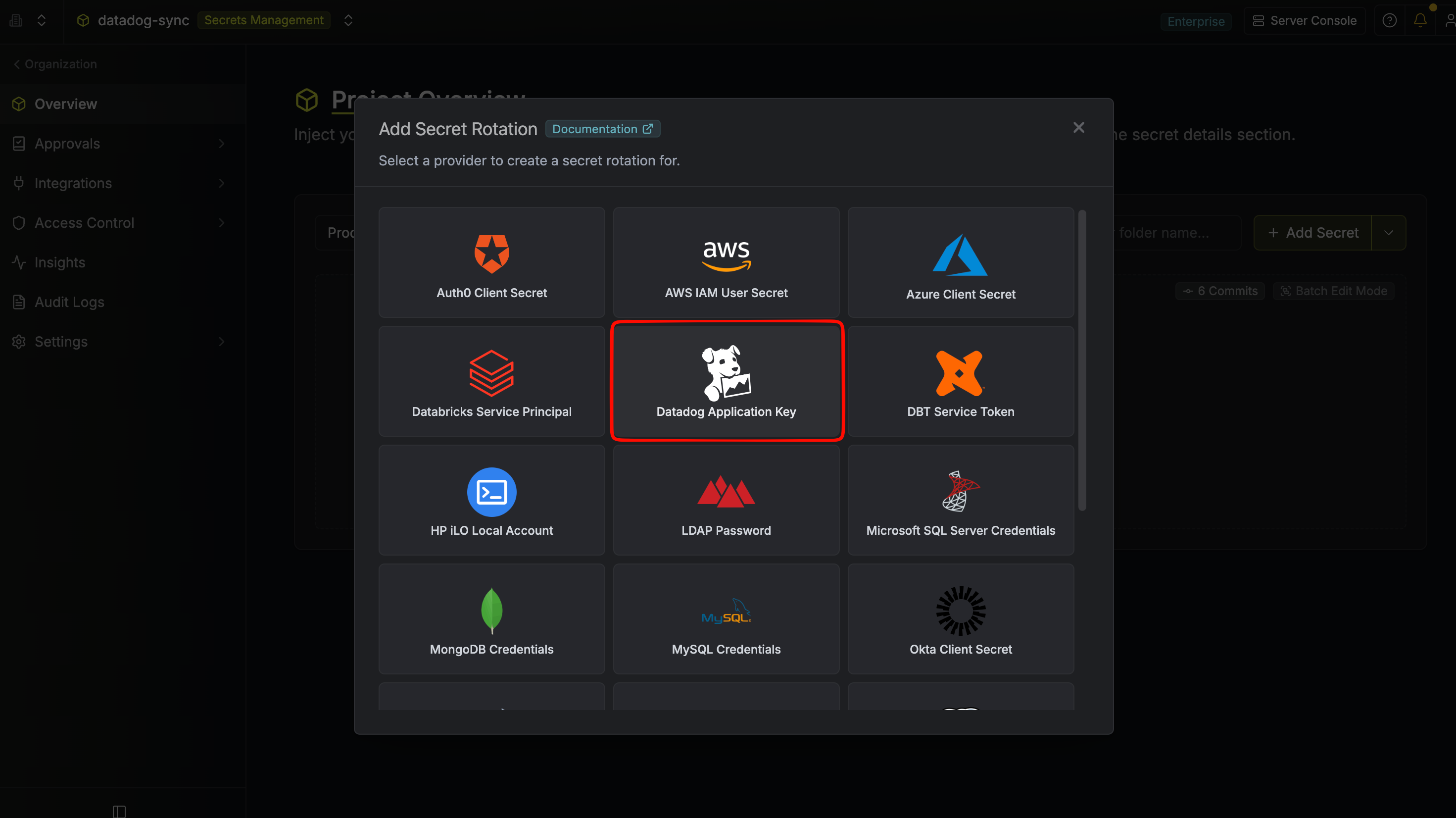
Select the Datadog Application Key option.
-
Configure the rotation behavior, then click Next.
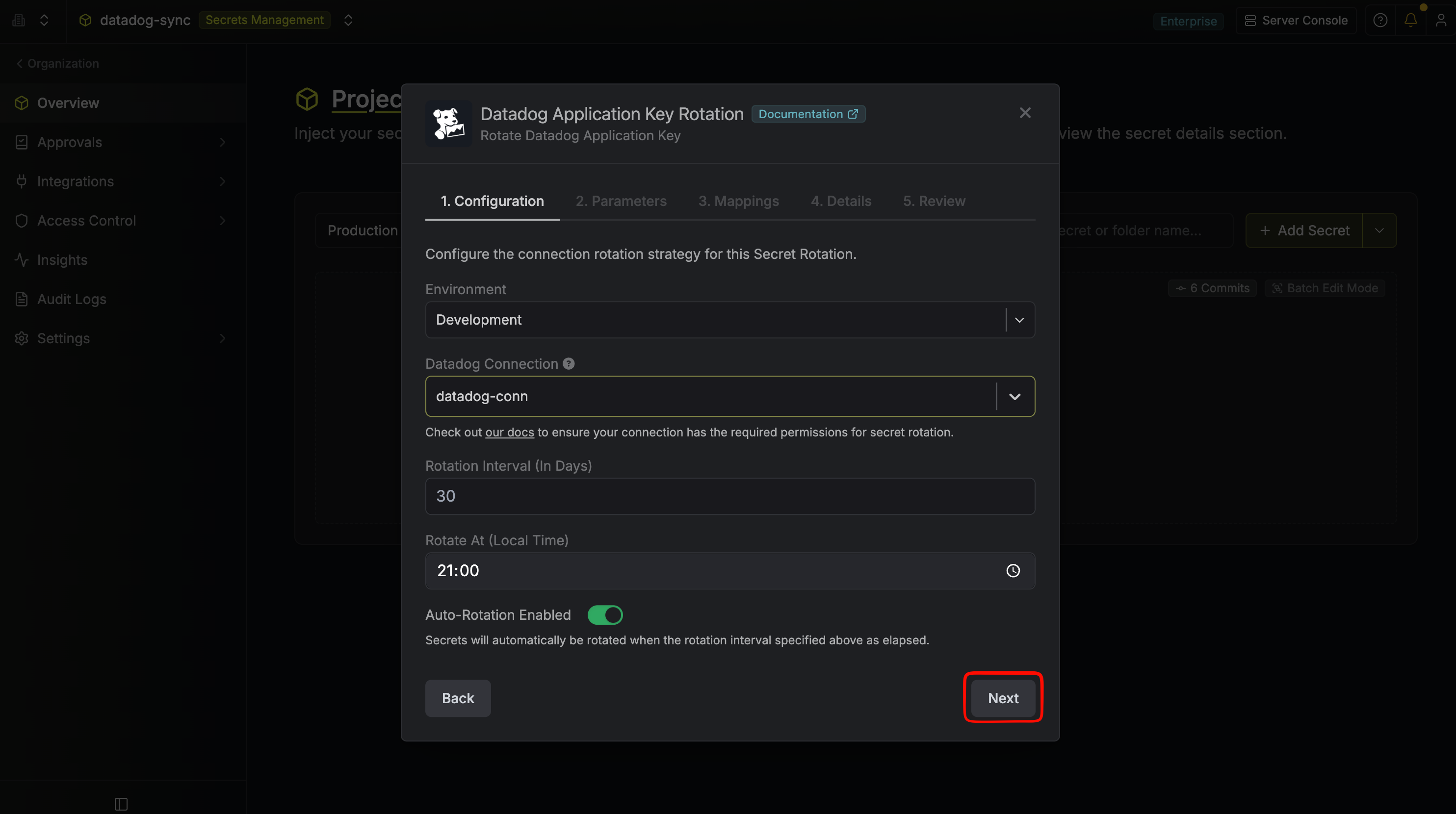
- Datadog Connection - the connection that will perform the rotation of the Service Account’s Application Key.
- Rotation Interval - the interval, in days, that once elapsed will trigger a rotation.
- Rotate At - the local time of day when rotation should occur once the interval has elapsed.
- Auto-Rotation Enabled - whether secrets should automatically be rotated once the rotation interval has elapsed. Disable this option to manually rotate secrets or pause secret rotation.
-
Select the Datadog Service Account whose Application Key you want to rotate. Then click Next.
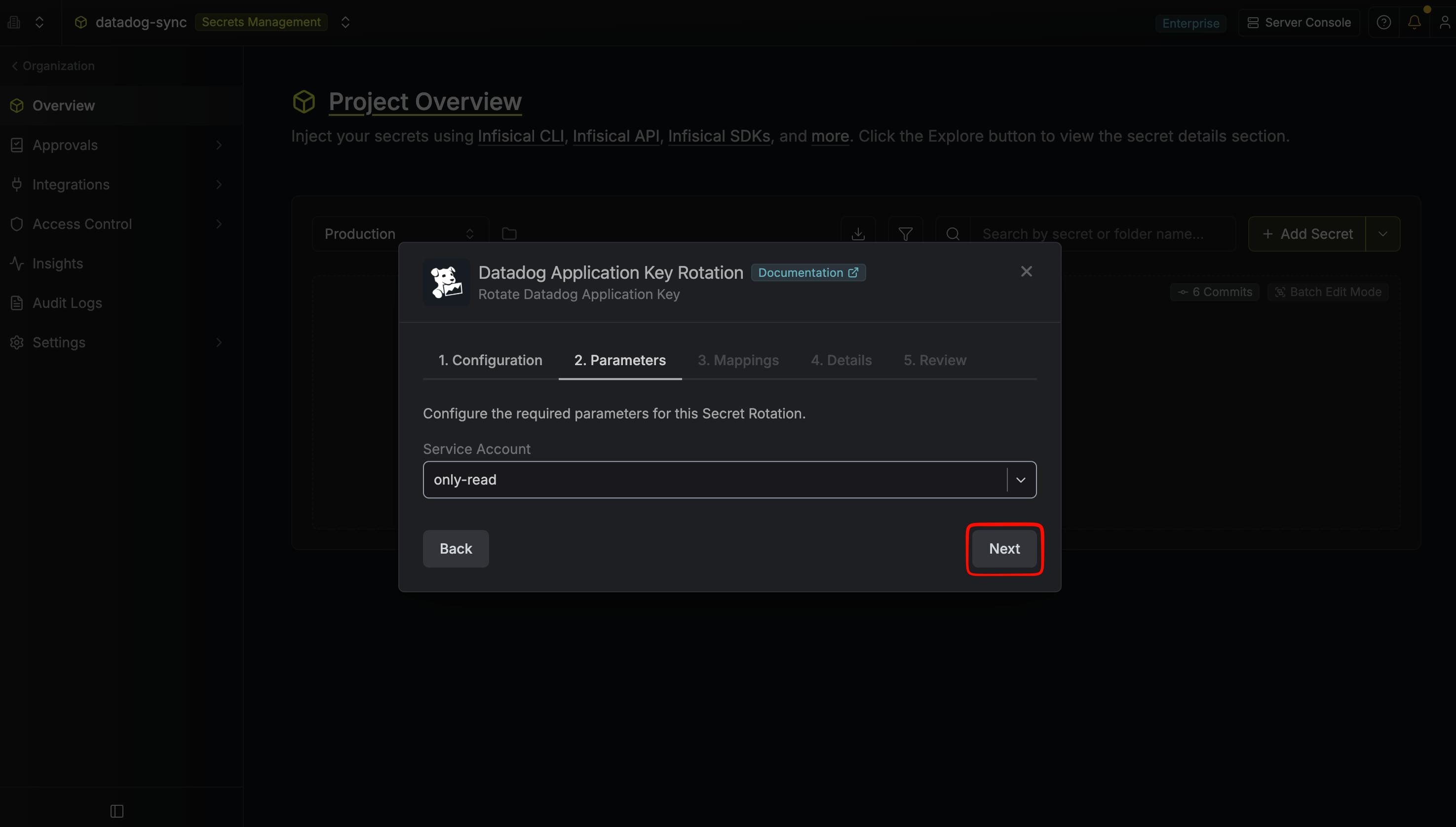
- Service Account - the Datadog Service Account that will own the rotated Application Keys. Only non-disabled Service Accounts visible to the connection are listed.
Service account role: The Datadog Service Account whose Application Keys are rotated must have at least the Datadog Standard Role assigned.
-
Specify the secret names that the rotated credentials should be mapped to. Then click Next.
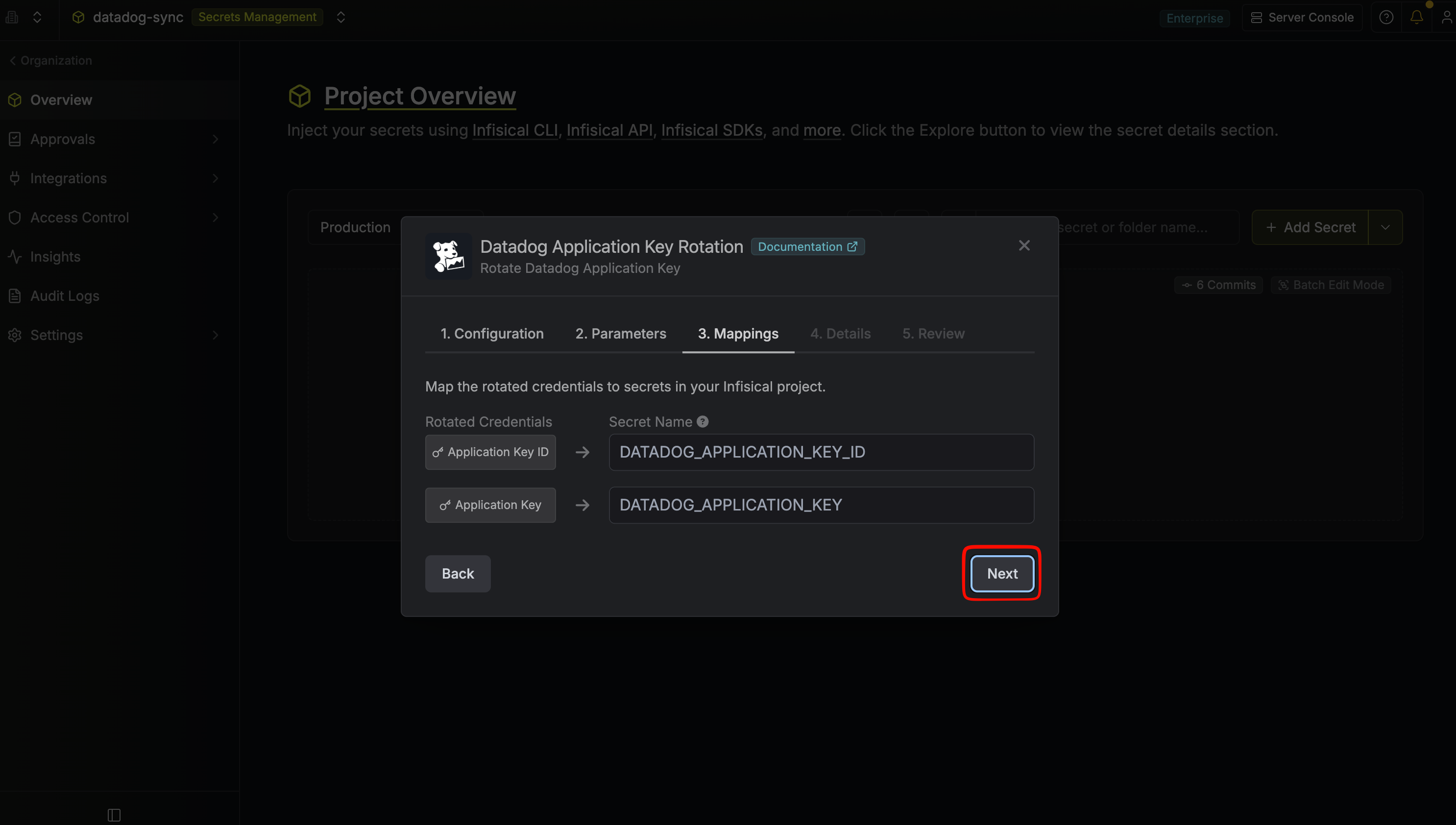
- Application Key ID - the name of the secret that the Datadog Application Key ID will be mapped to.
- Application Key - the name of the secret that the rotated Datadog Application Key value will be mapped to.
-
Give your rotation a name and description (optional). Then click Next.
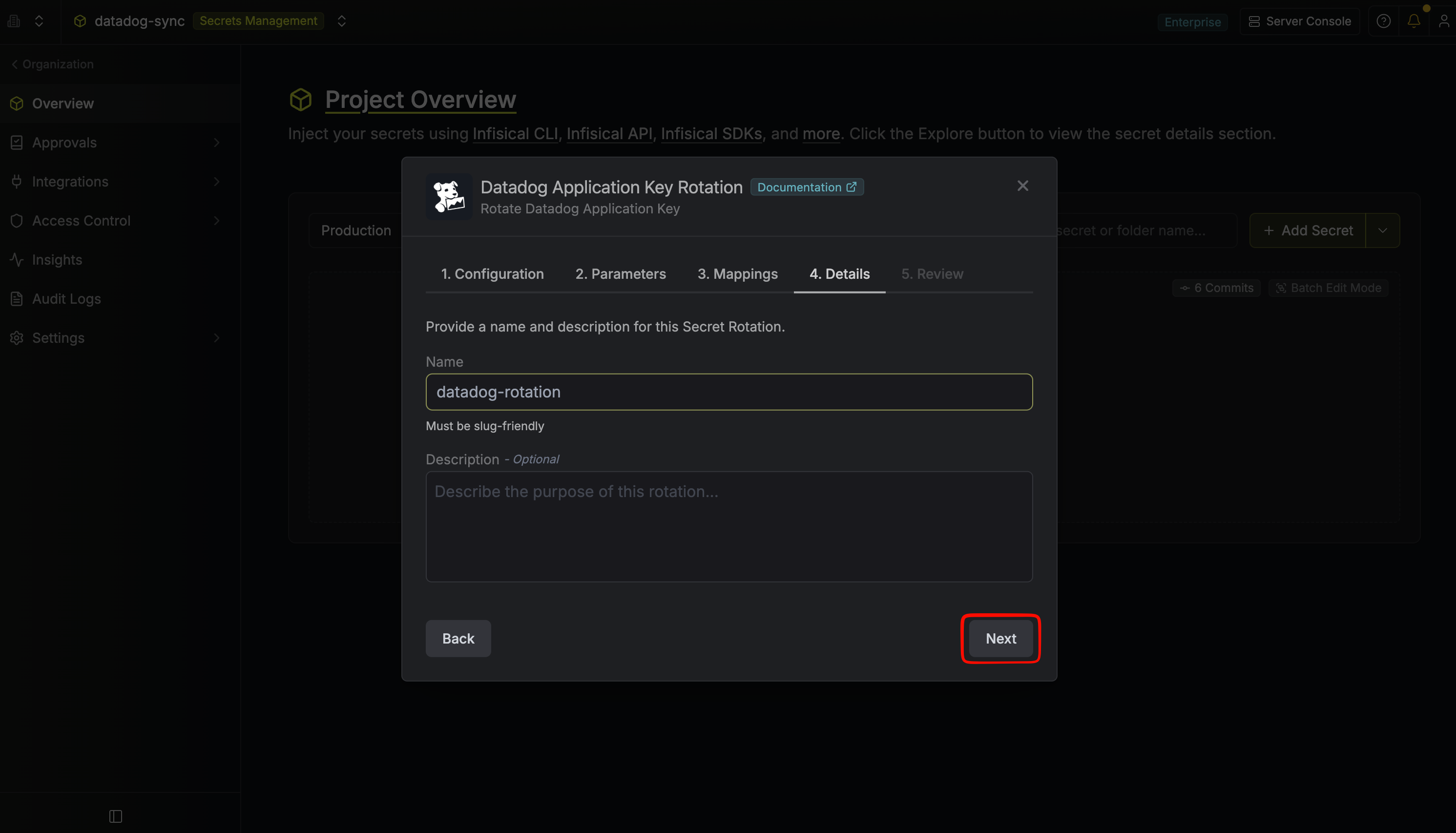
- Name - the name of the secret rotation configuration. Must be slug-friendly.
- Description (optional) - a description of this rotation configuration.
-
Review your configuration, then click Create Secret Rotation.
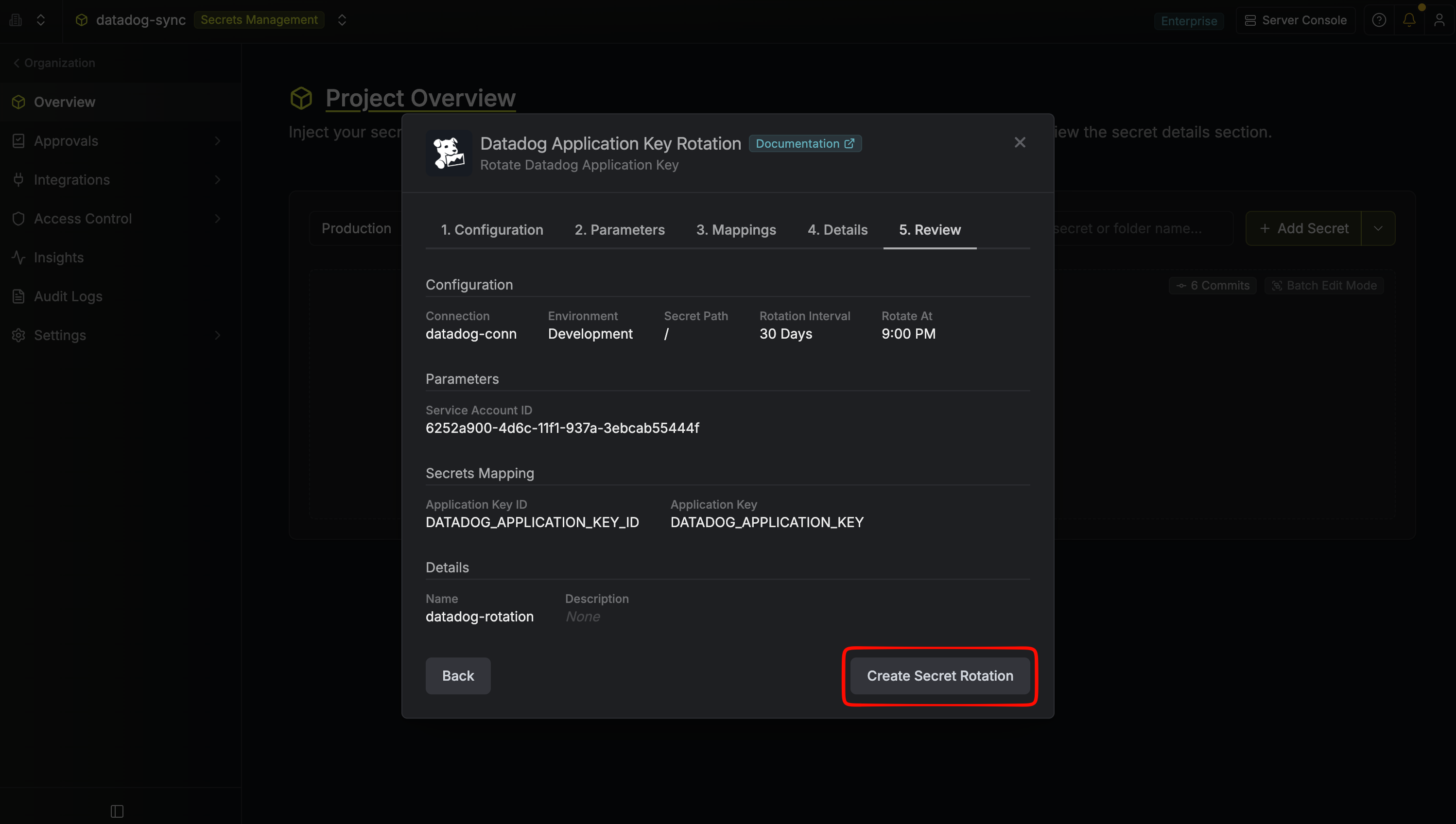
-
Your Datadog Application Key credentials are now available for use via the mapped secrets.