

This guide only authenticates Infisical with Daytona. Once the app connection is ready, you can use it to set up integrations.
Prerequisites
- A Daytona account with access to create API keys in the organization you want to sync secrets to
Step 1: Create a Daytona API key
Infisical authenticates to Daytona with an API key that can manage secrets in your organization. Daytona API keys belong to exactly one organization, so the key you use decides which organization Infisical writes secrets to.1
In the Daytona dashboard, go to API Keys in the sidebar, then select Create Key.
2
Give the key a name. Under Permissions, select Restricted, then set Secrets to Manage (or Full Access).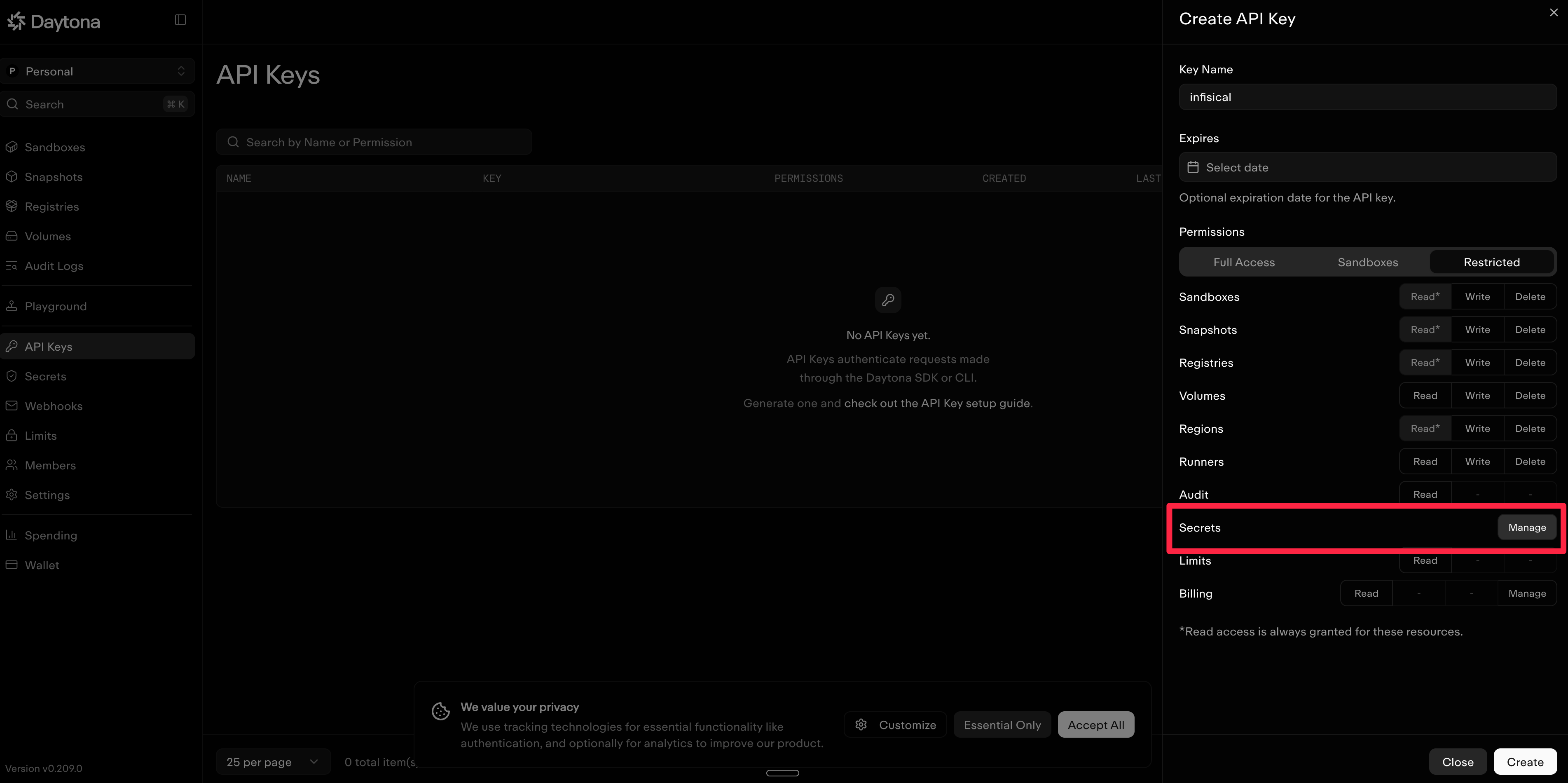
Infisical needs this permission to create, update, and delete secrets. If the key doesn’t have it, Infisical rejects the key when you create the connection.
3
Select Create, then copy the key. Daytona shows the key only once, and you need it to create the connection in Infisical.
Step 2: Create the app connection
Next, create the app connection in Infisical.1
In the sidebar, select Organization Settings, then open the App Connections tab.
2
Select + Add Connection and choose Daytona Connection.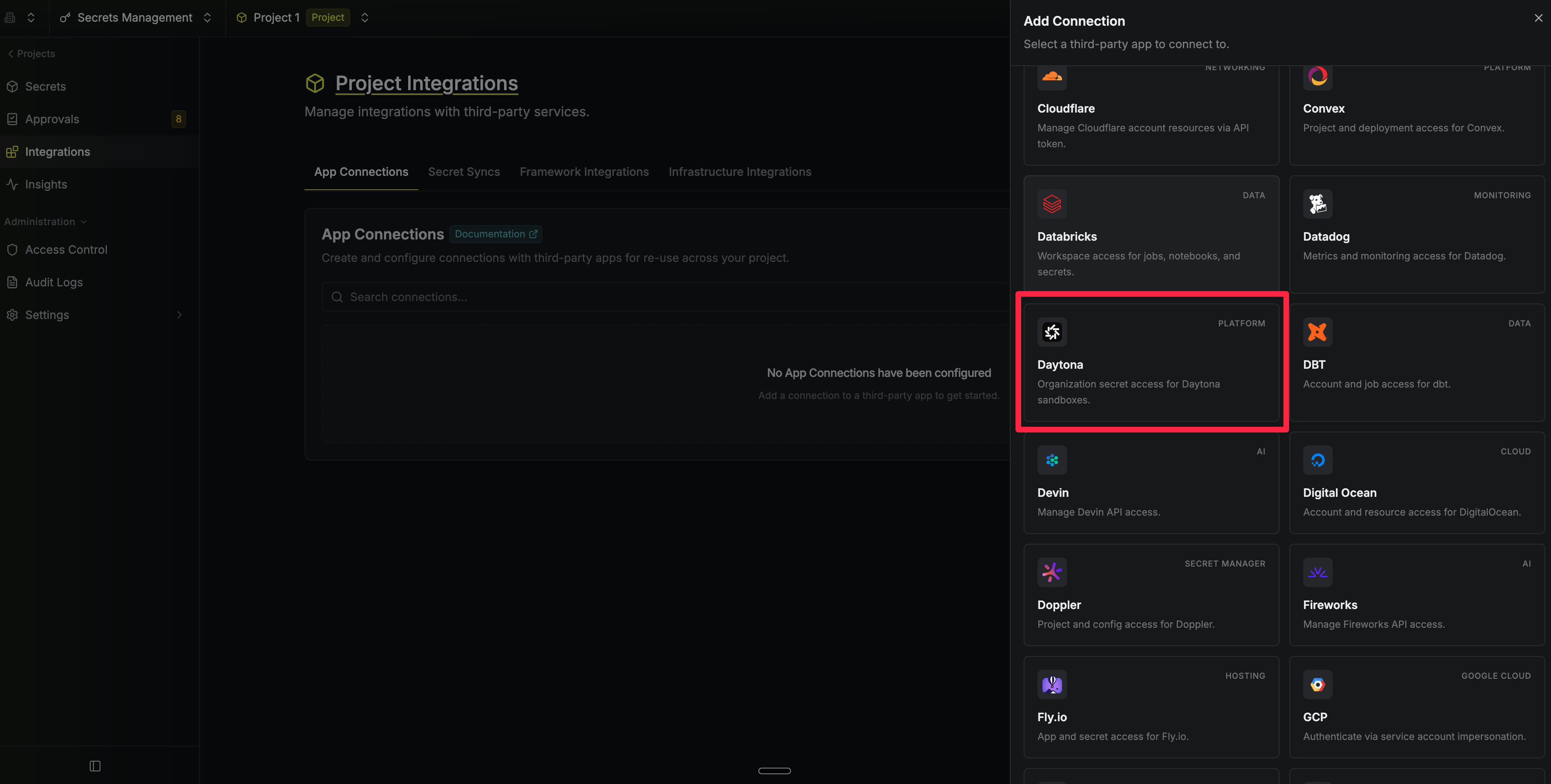
3
Fill out the form’s fields: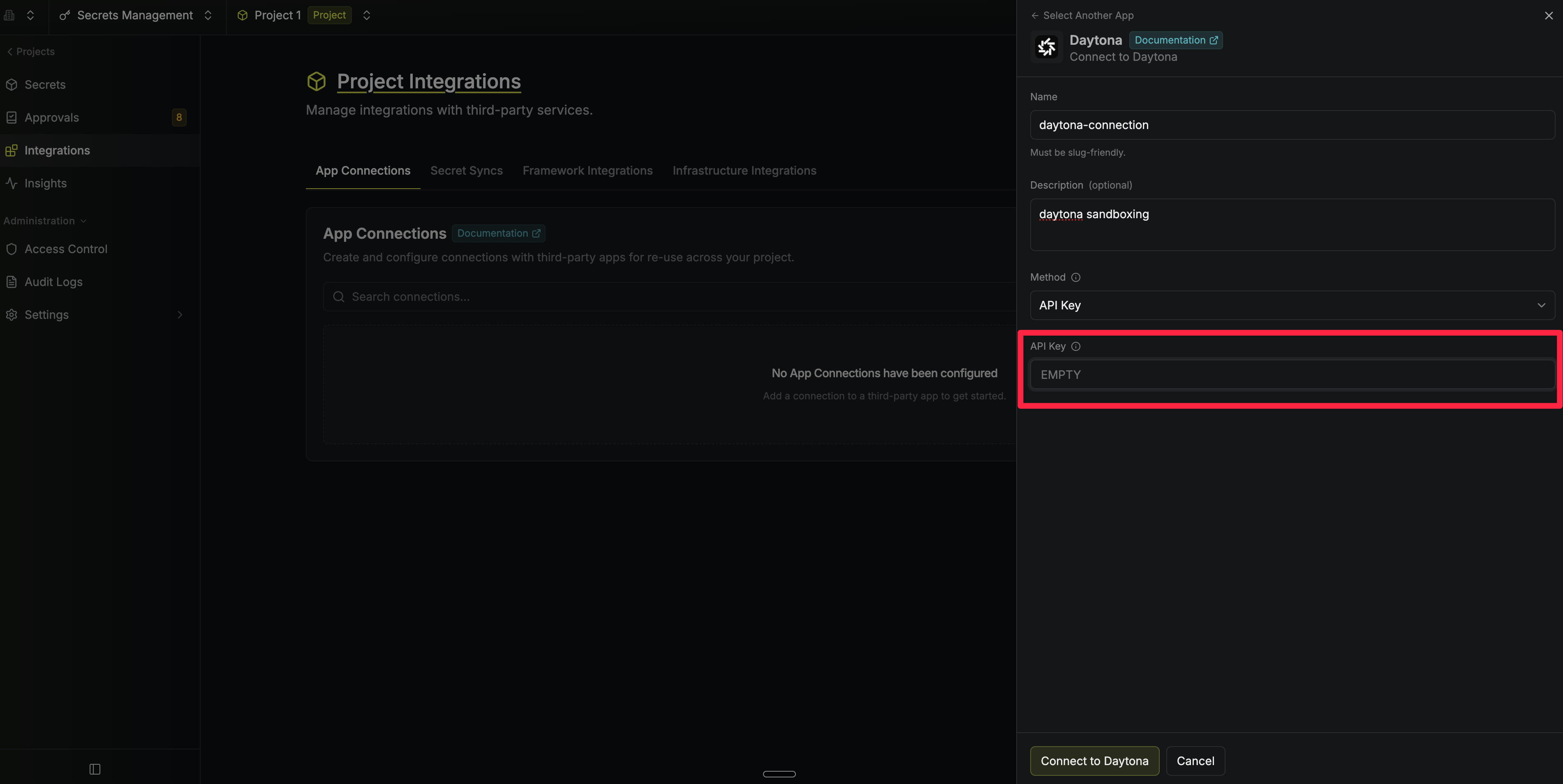
- Name: A descriptive name for the connection, such as
daytona-prod - Description (optional): A note for future reference
- Method: API Key (selected by default)
- API Key: The key you copied when you created the Daytona API key
Your Daytona app connection is ready to use.
Step 3: Configure integrations
Now that your Daytona app connection is configured, you can use it to set up the following integrations:Daytona Secret Sync
Sync secrets from Infisical to a Daytona organization.