

This guide only authenticates Infisical with Portainer. Once the app connection is ready, you can use it to set up integrations.
Prerequisites
- Portainer Community Edition 2.39 or later, or Business Edition 2.42 or later
- A Portainer user whose permissions cover the environments and stacks you want to sync to
- If your Portainer instance isn’t reachable from the internet, a Gateway with network access to it
Step 1: Generate a Portainer API token
Infisical needs an access token to call the Portainer API on your behalf.1
Log in to your Portainer instance, select the user icon in the top-right corner, then select My account.
2
Scroll to the Access tokens section and select Add access token.
3
Enter a Description that identifies the token, such as
infisical, then select Add access token.An access token inherits the permissions of the user that created it, so create it as a user who can read the environments and update the stacks you plan to sync to.
4
Copy the token and store it securely. Portainer shows it only once.
Step 2: Create the app connection
Next, create the app connection in Infisical.1
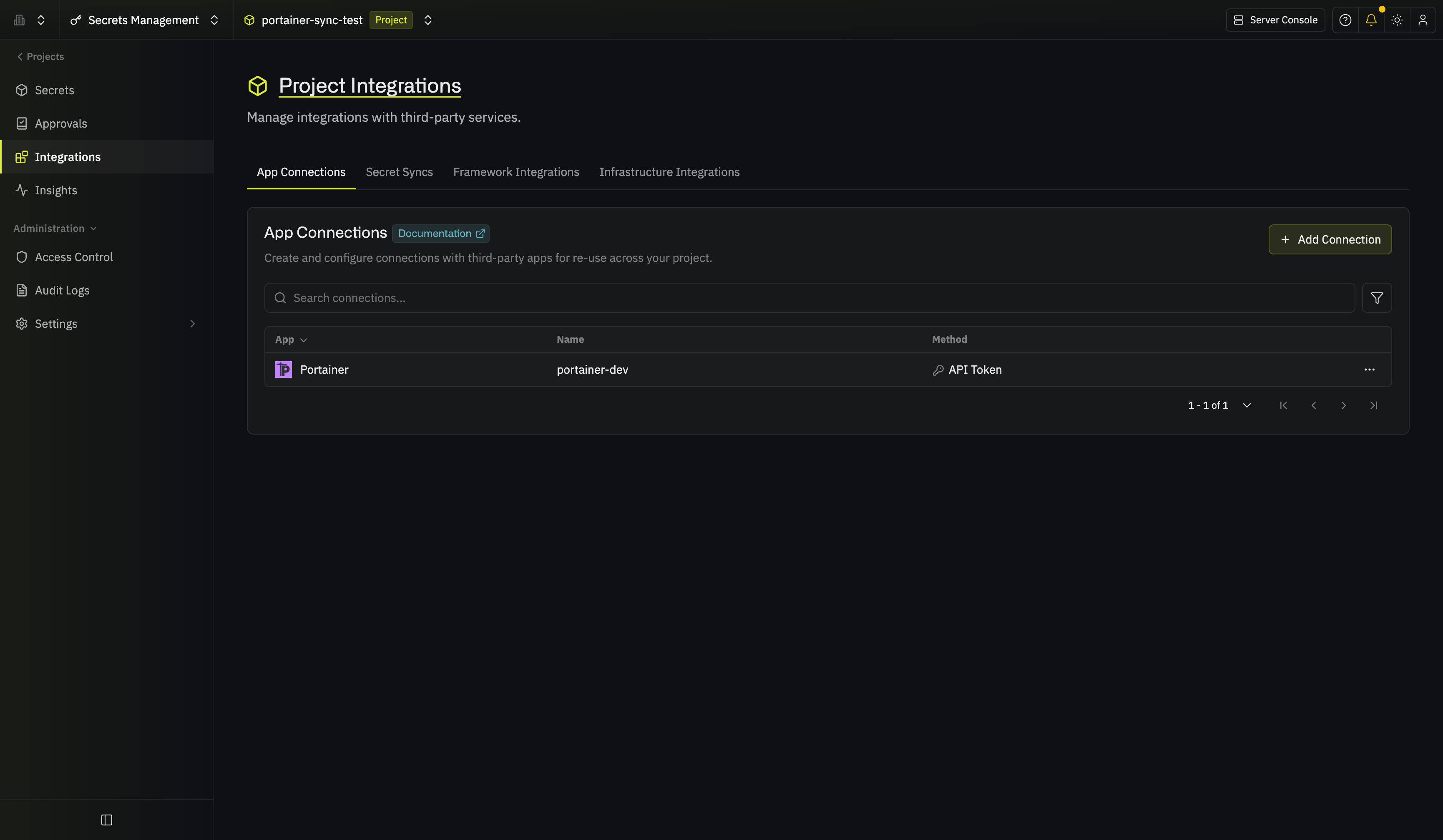
In the sidebar, select Integrations, then open the App Connections tab.
2
Select Add Connection and choose Portainer.
3
Fill out the form’s fields:
- Name: A descriptive name for the connection; it must be slug-friendly
- Description (optional): A note for future reference
- Gateway: The Gateway or Gateway pool to route requests through if your Portainer instance isn’t reachable from the internet; otherwise leave it as Internet Gateway
- Method: API Token, the only method the connection supports
- Portainer Instance URL: The URL of your Portainer instance, such as
https://portainer.example.com - Portainer API Token: The token you copied when generating a Portainer API token
Your Portainer app connection is ready to use.
Step 3: Configure integrations
Now that your Portainer app connection is configured, you can use it to set up the following integration:Portainer Secret Sync
Sync secrets from Infisical to the environment variables of a Portainer stack.