

How it works
When you create an SSH dynamic secret, Infisical generates an internal CA key pair. Target hosts are configured to trust this CA. When a lease is requested, Infisical generates an ephemeral key pair, signs the public key with the CA, and returns the private key and signed certificate. The certificate expires when the lease TTL ends so no manual key rotation or revocation is required.Set up dynamic secrets with SSH
1
Open Secret Overview Dashboard
Open the Secret Overview dashboard and select the environment in which you would like to add a dynamic secret.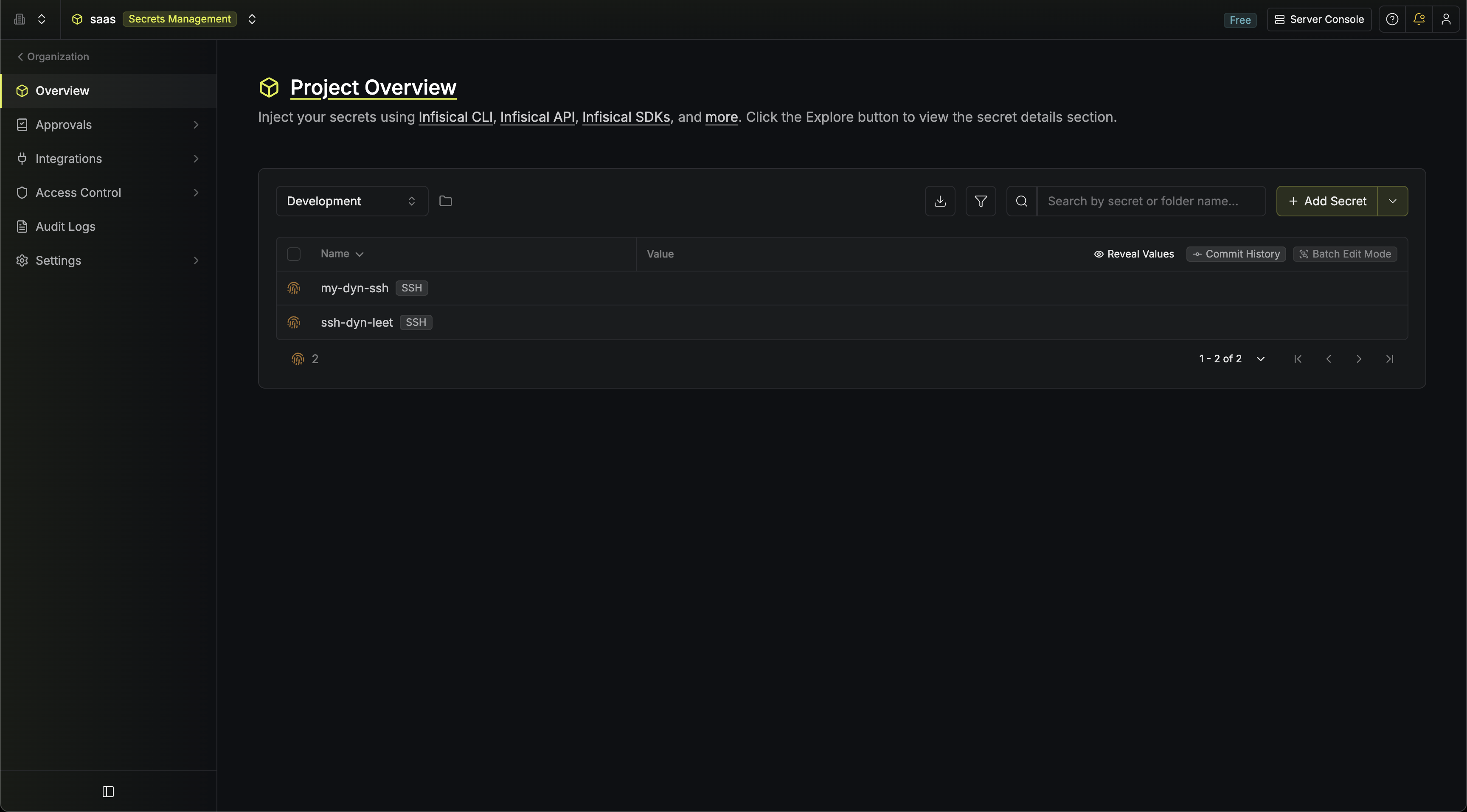
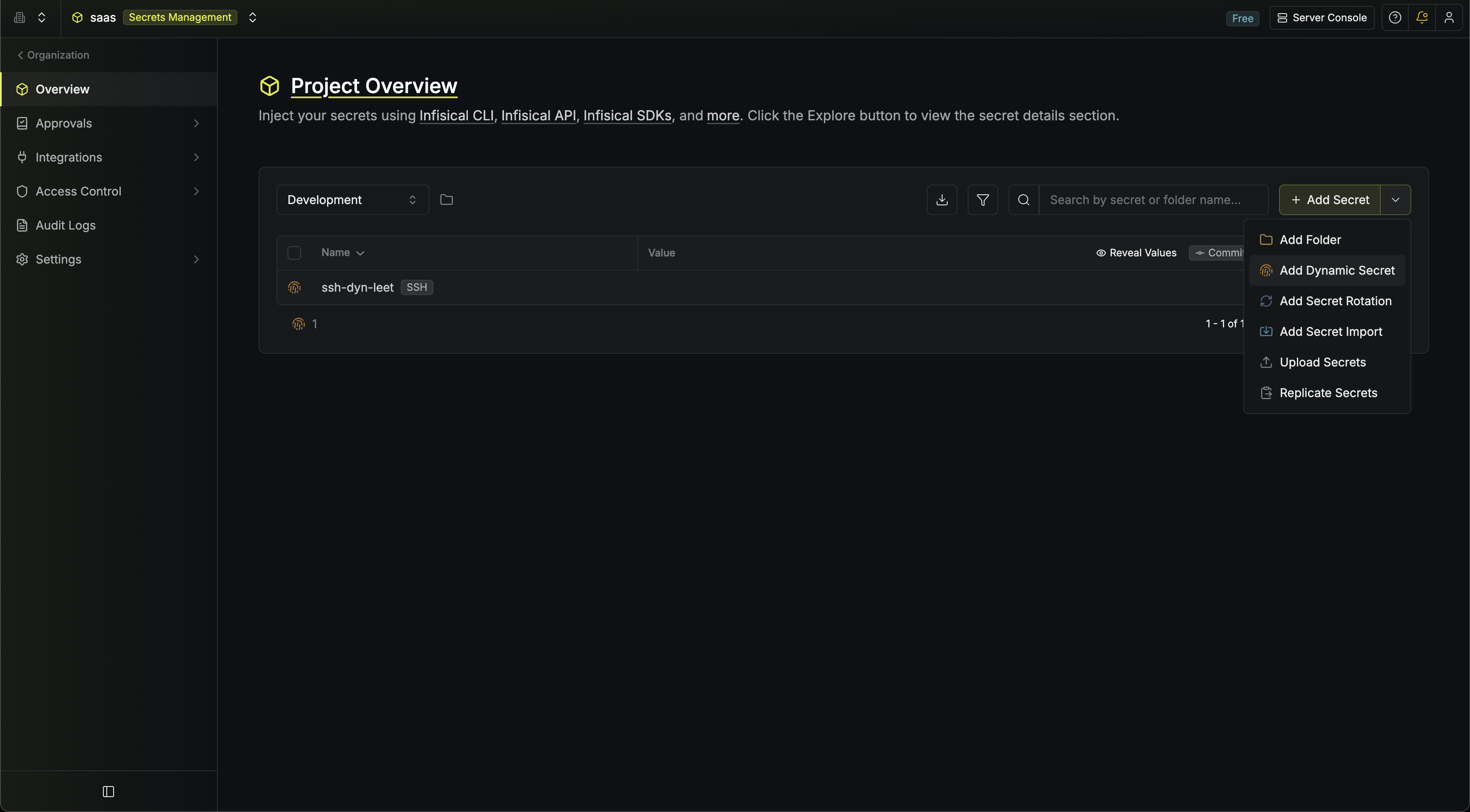
2
Click on the 'Add Dynamic Secret' button
3
Select 'SSH'
Select SSH from the dynamic secret type list.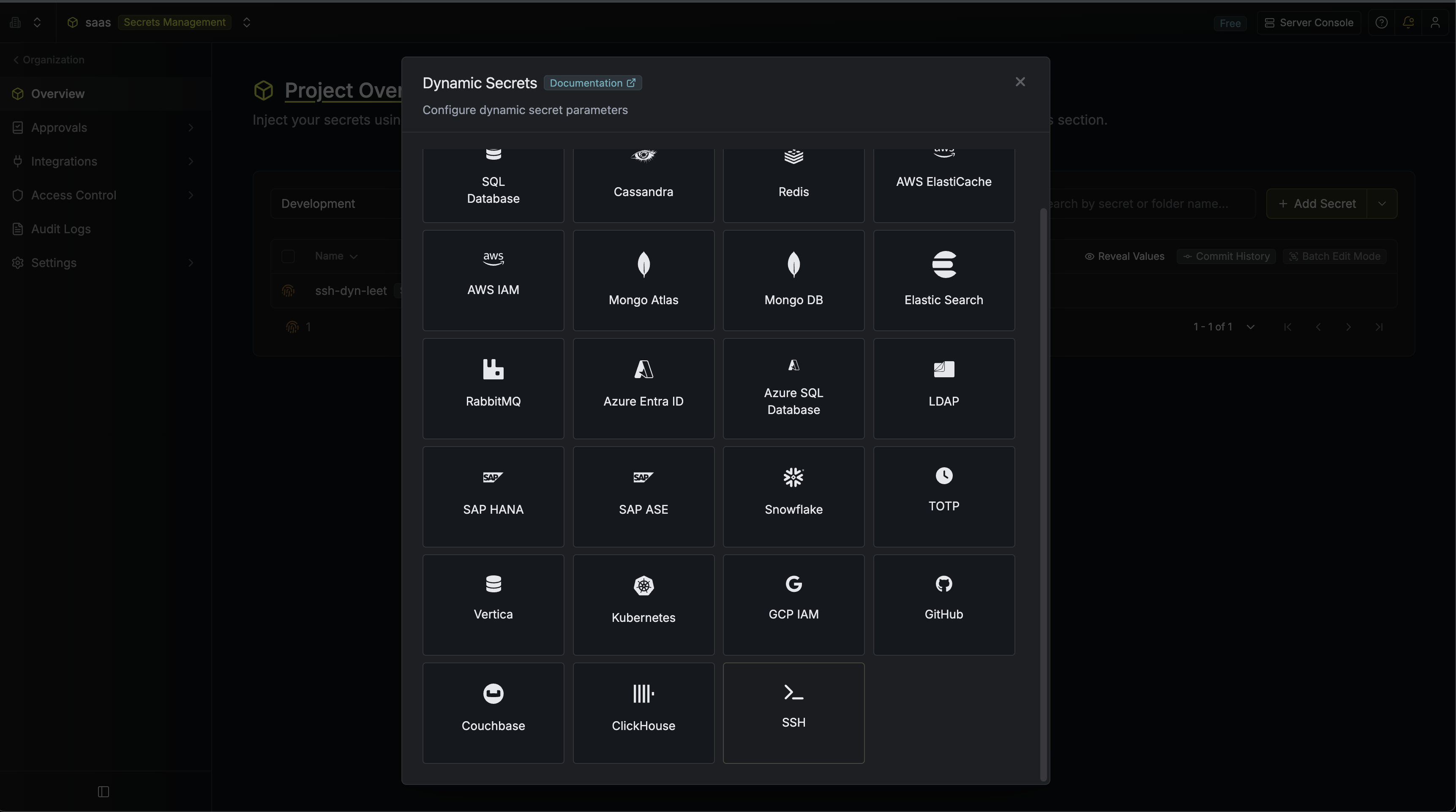
4
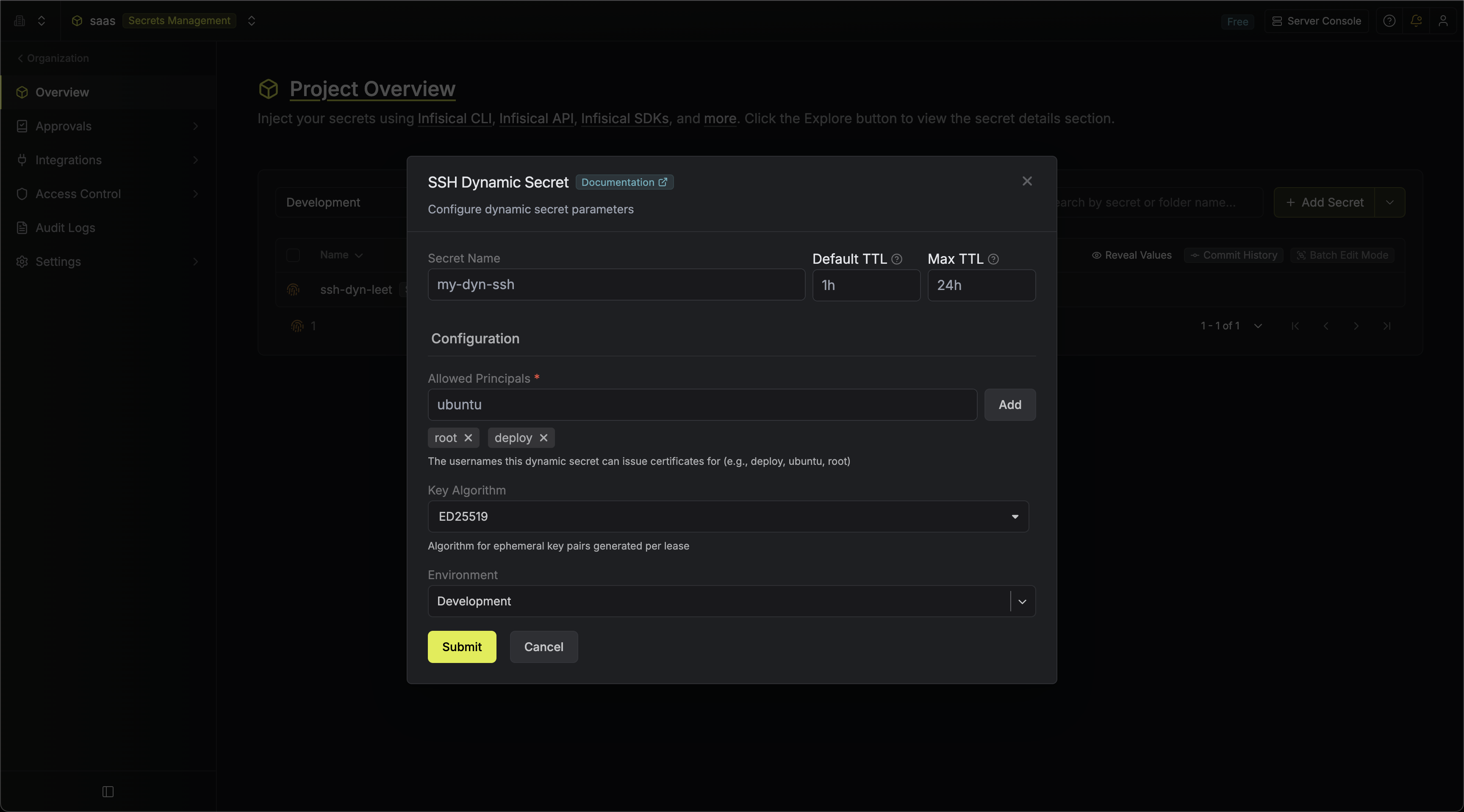
Provide the inputs for dynamic secret parameters
string
required
Name by which you want the secret to be referenced
string
required
Default time-to-live for a generated certificate (e.g.
1h, 8h, up to 7d)string
required
Maximum time-to-live for a generated certificate (e.g.
24h, up to 7d)list
required
The usernames this dynamic secret can issue certificates for (e.g.
ubuntu, deploy, root). When creating a lease, the requester selects a subset of these principals.string
required
Algorithm for the ephemeral key pairs generated per lease. Supported options: ED25519 (default, recommended), RSA 2048, RSA 4096, ECDSA P-256, ECDSA P-384.
string
required
Algorithm for the internal CA key pair that signs lease certificates. Supported options: ED25519 (default, recommended), RSA 2048, RSA 4096, ECDSA P-256, ECDSA P-384. Changing this after creation generates a new CA, so hosts that trust the previous CA must be set up again.
5
Click 'Submit'
After submitting the form, a Certificate Authentication Setup modal will appear with two options for configuring target hosts to trust the CA:
-
Automated setup: A
curl | sudo bashcommand that installs the CA certificate, configuresTrustedUserCAKeysinsshd_config, and restarts the SSH service. -
Manual setup: The raw CA public key, which you can reveal and copy to install manually on target hosts.
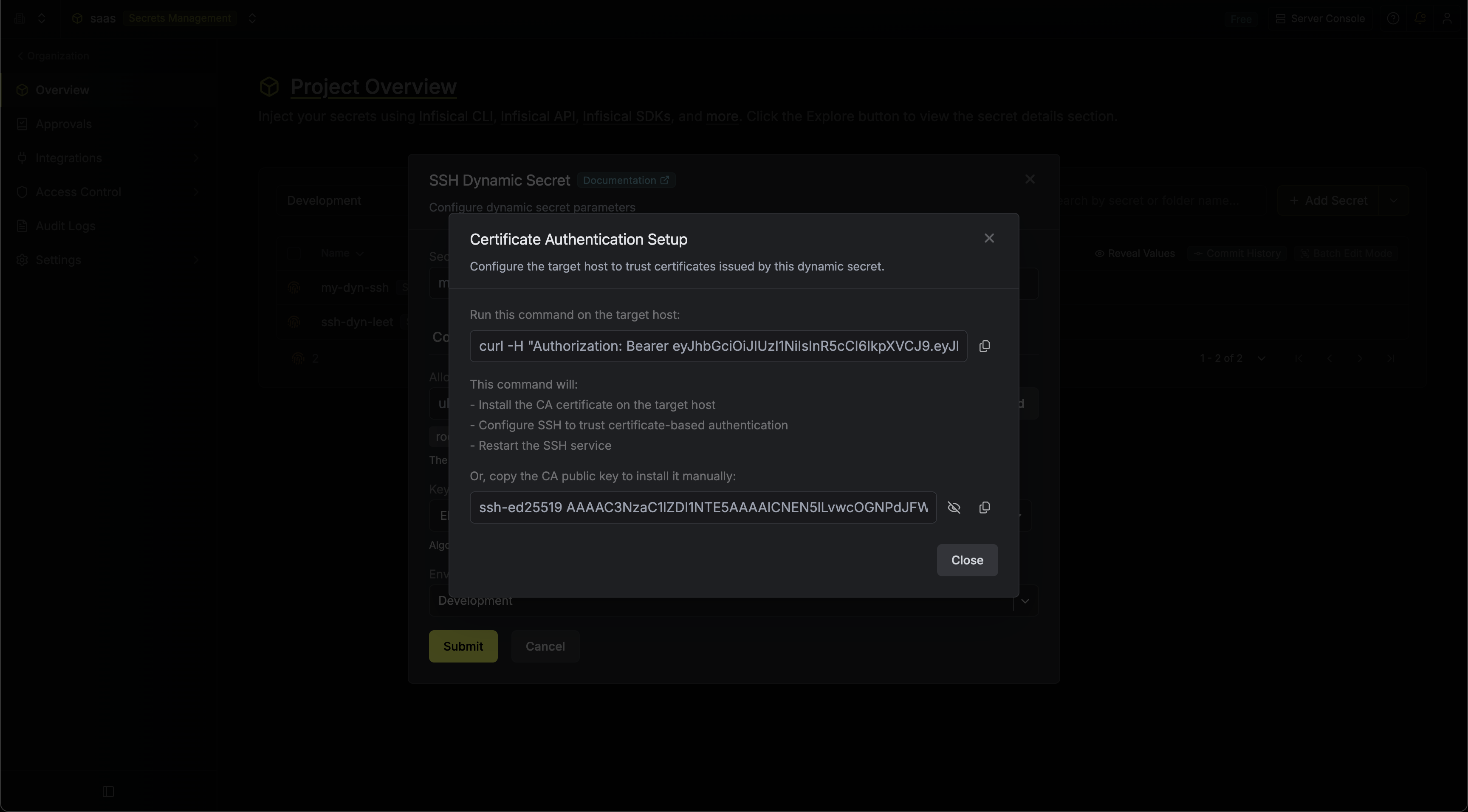
You must configure your target SSH servers to trust the CA before certificate-based authentication will work. This only needs to be done once per host.
6
Configure target hosts
Option A — Automated setupRun the provided command on each target host:This script will:This returns a JSON response:
- Write the CA public key to
/etc/ssh/infisical_ca.pub - Add
TrustedUserCAKeys /etc/ssh/infisical_ca.pubto/etc/ssh/sshd_config - Validate the SSH configuration and restart the SSH service
- Copy the CA public key (available via the eye icon in the setup modal or the edit form)
- Save it to
/etc/ssh/infisical_ca.pubon the target host - Add the following line to
/etc/ssh/sshd_config: - Restart the SSH service
{ "caPublicKey": "ssh-ed25519 AAAA..." }7
Generate dynamic secrets
Once you’ve configured the dynamic secret and set up target hosts, you’re ready to generate on-demand credentials.
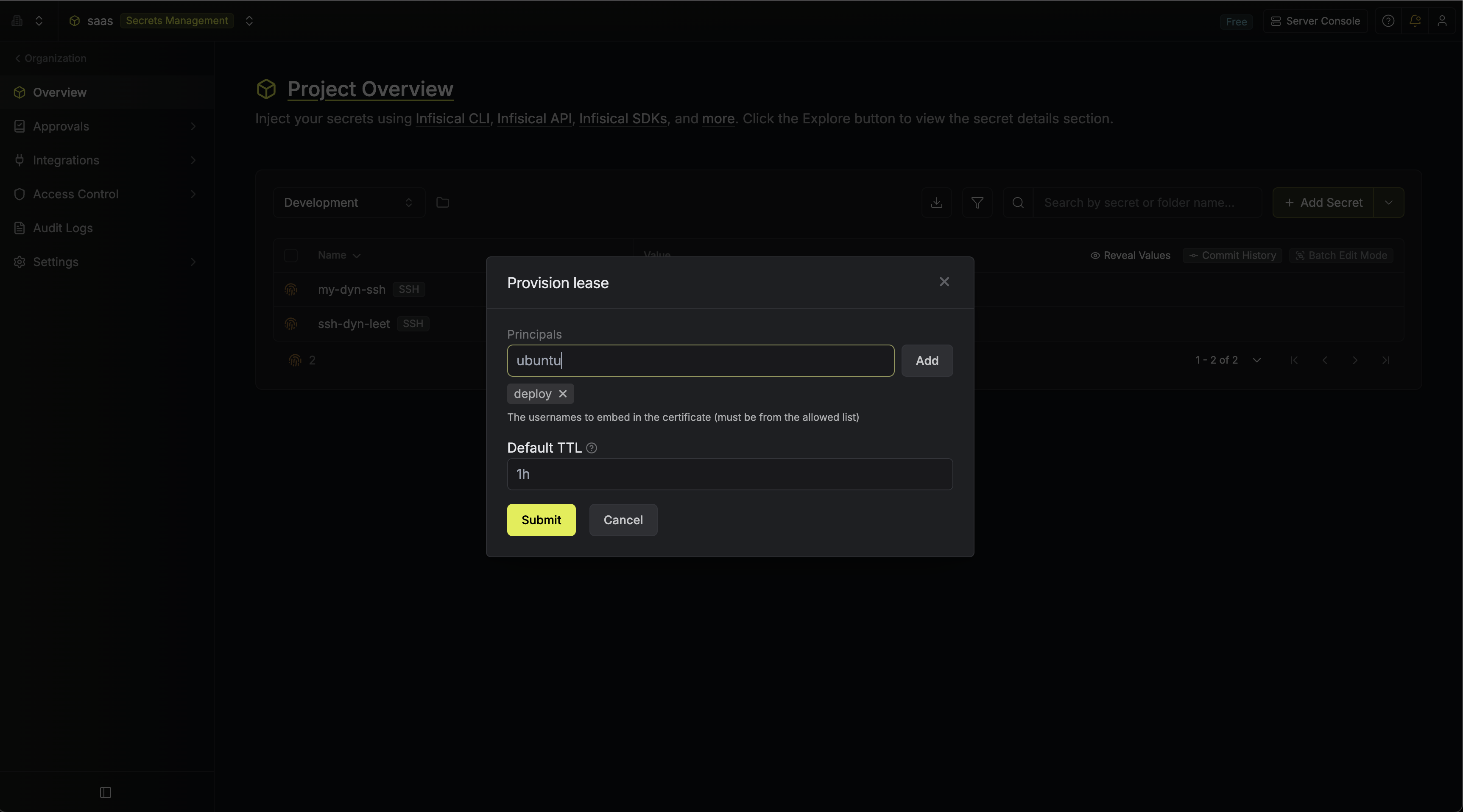
To do this, simply select the Generate button which appears when hovering over the dynamic secret item.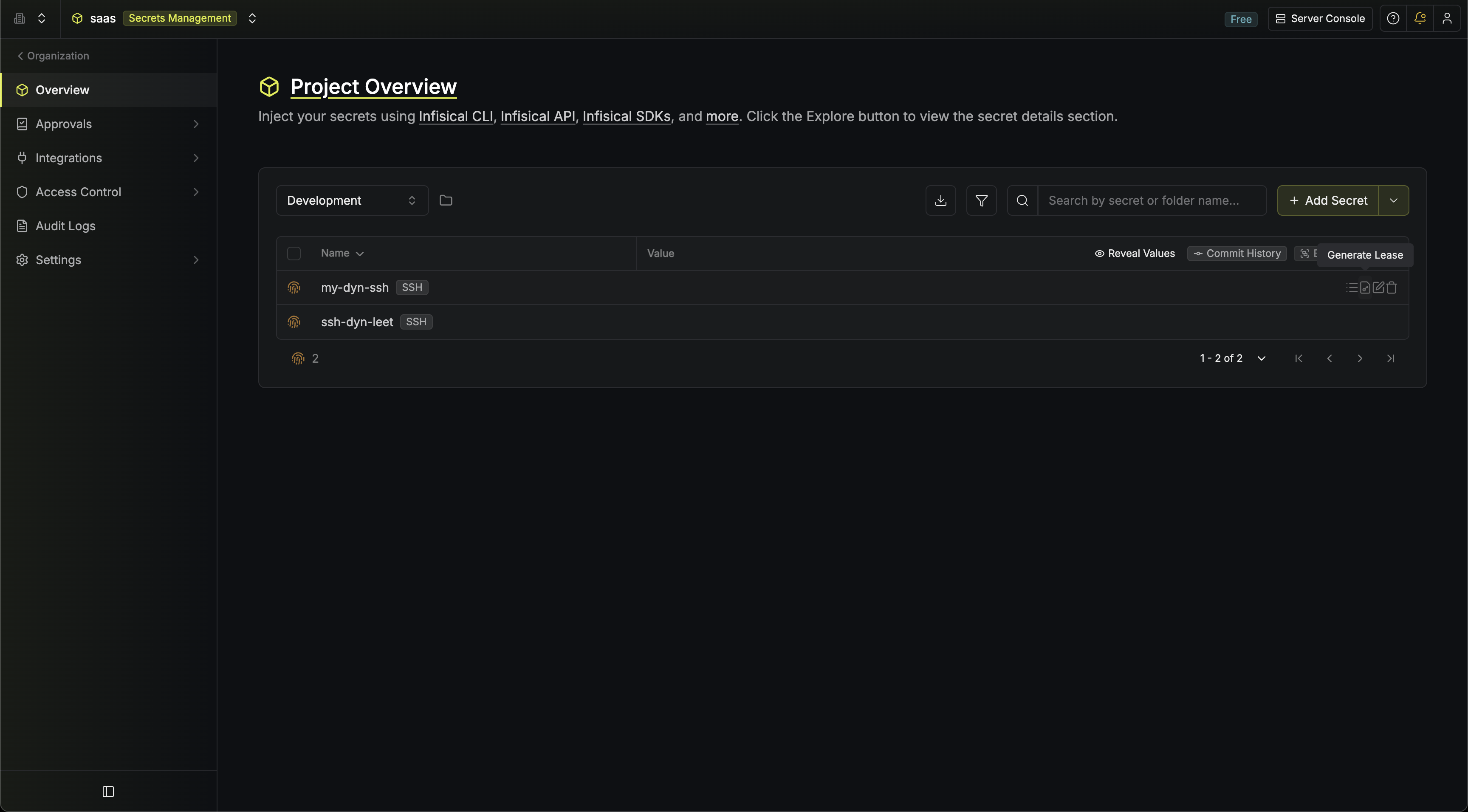 When generating a lease, you will need to provide:
 Once you click Submit, a new lease will be generated containing: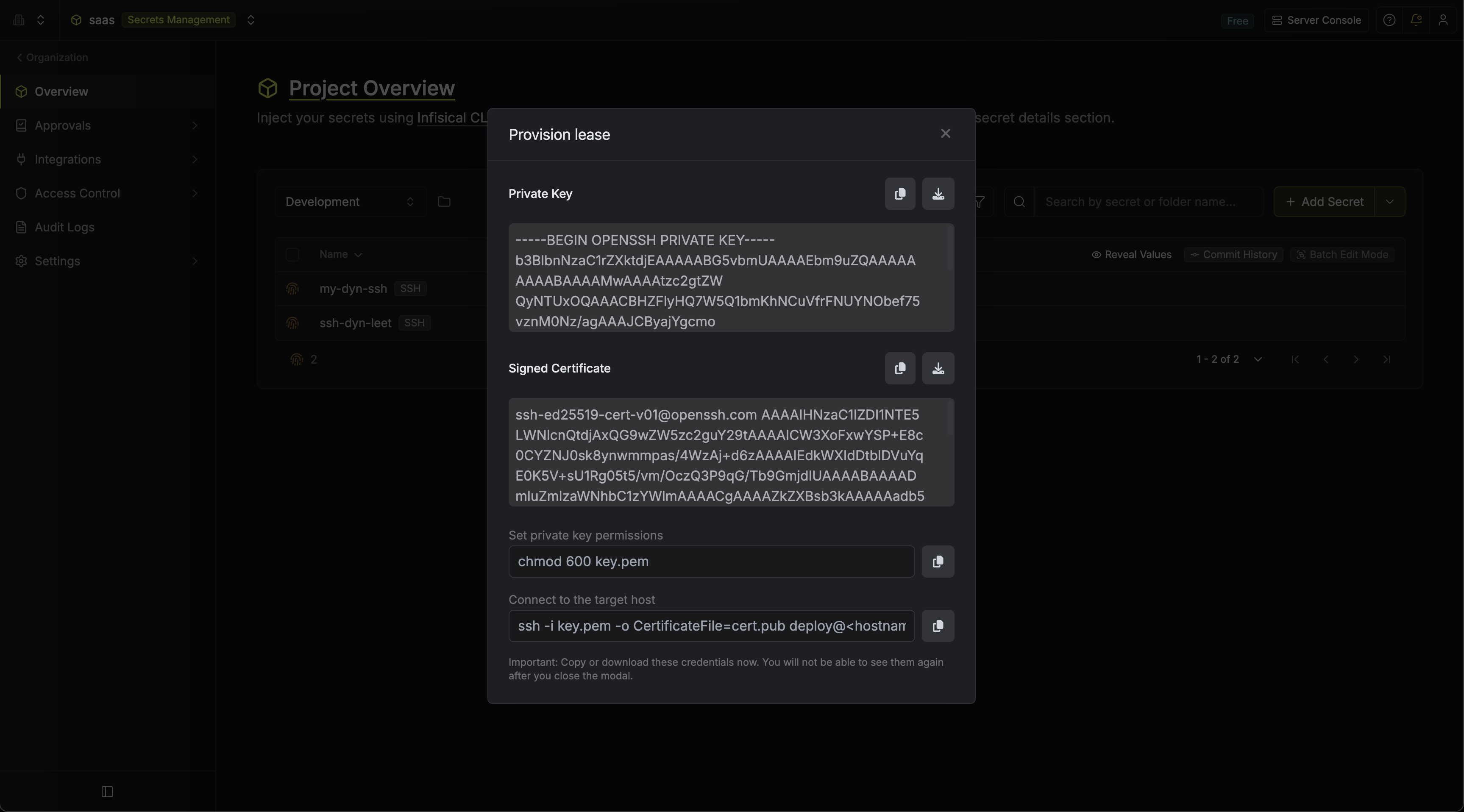
When generating a lease, you will need to provide:string
required
How long the certificate should be valid for. Must be within the Max TTL configured on the dynamic secret.
list
required
One or more usernames (from the allowed principals) that the certificate should be valid for.
Once you click Submit, a new lease will be generated containing:- Private Key — the ephemeral SSH private key (downloadable as
key.pem) - Signed Certificate — the SSH certificate signed by the CA (downloadable as
cert.pub)
8
Use the certificate to connect
After downloading Replace
key.pem (private key) and cert.pub (signed certificate), set the correct permissions and connect:<principal> with one of the principals included in the certificate and <hostname> with the target host address.Generate via CLI
You can also create SSH dynamic secret leases using the CLI:--principals flag is required for SSH dynamic secrets and accepts a comma-separated list. The requested principals must be a subset of the allowed principals configured on the dynamic secret.
For more details, see the CLI dynamic secrets documentation.
Audit or revoke leases
Once you have created one or more leases, you’ll be able to access them by selecting the respective dynamic secret item on the dashboard.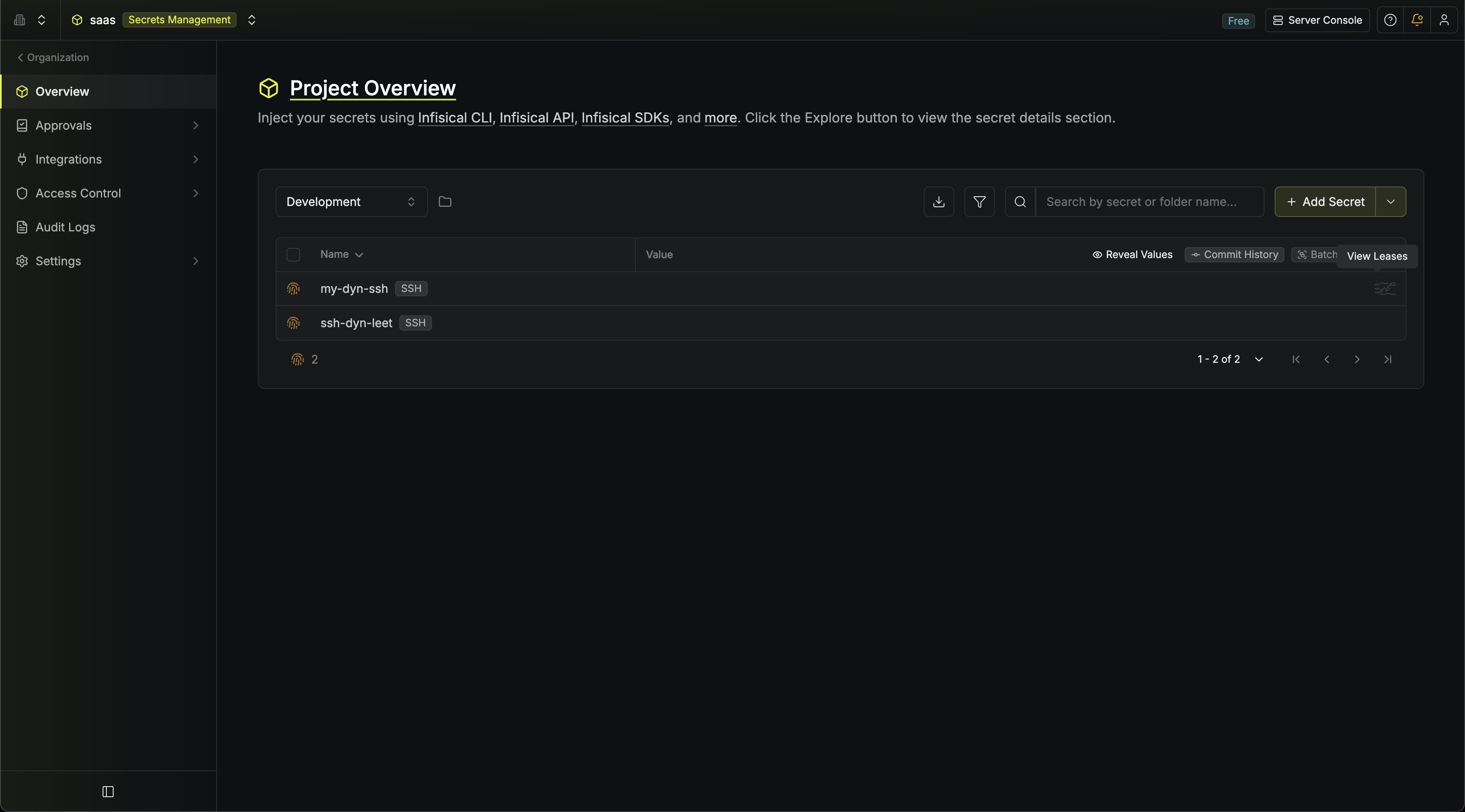 This will allow you to see the expiration time of the lease or delete the lease before its set time to live.
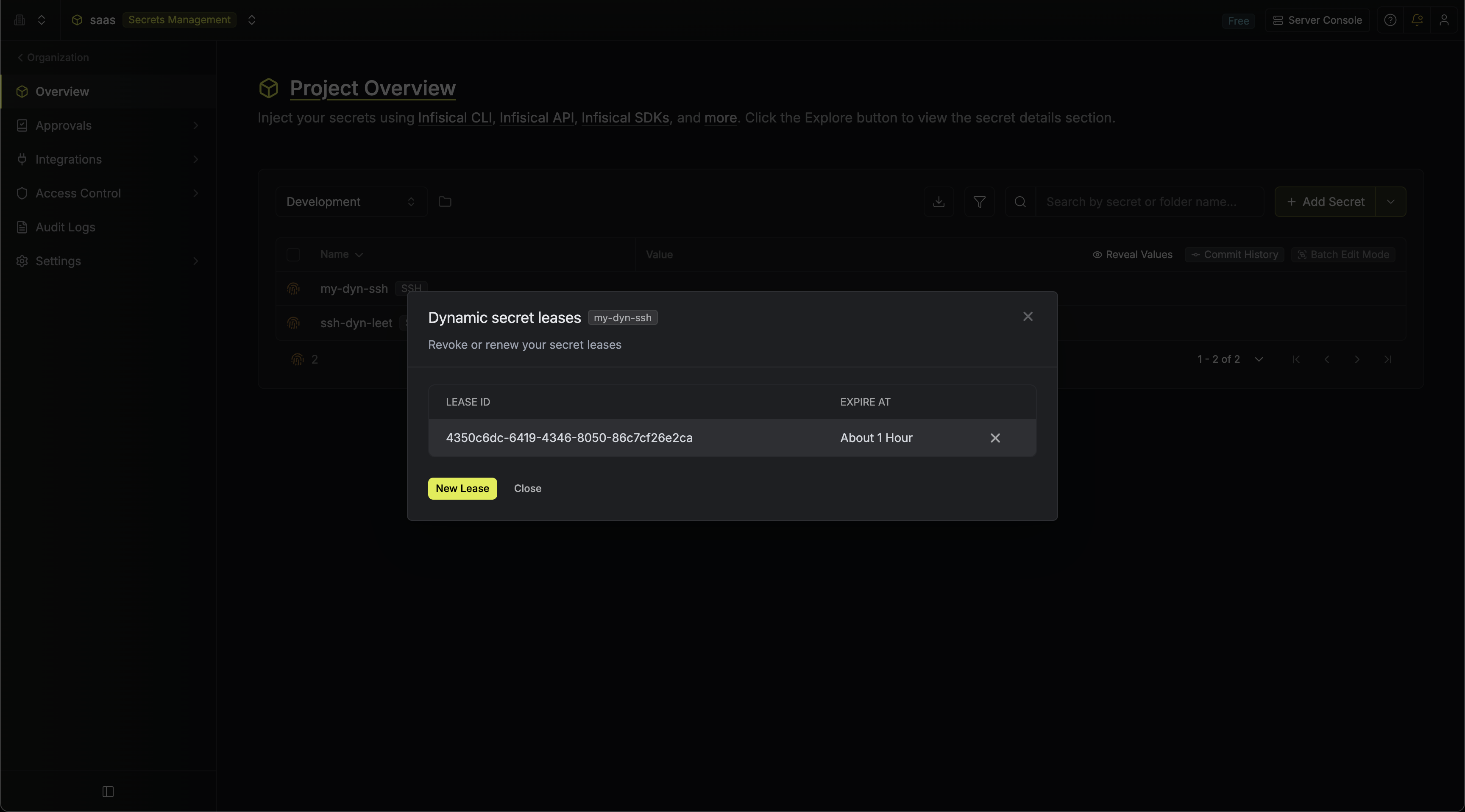
SSH certificates are time-bound and expire automatically. Revoking a lease in
Infisical removes the record, but the certificate remains valid until its TTL
expires.
Edit dynamic secret
To update the configuration of an existing SSH dynamic secret (principals, key algorithm, CA key algorithm, TTL, or to access the CA setup options), select the dynamic secret item and then Edit.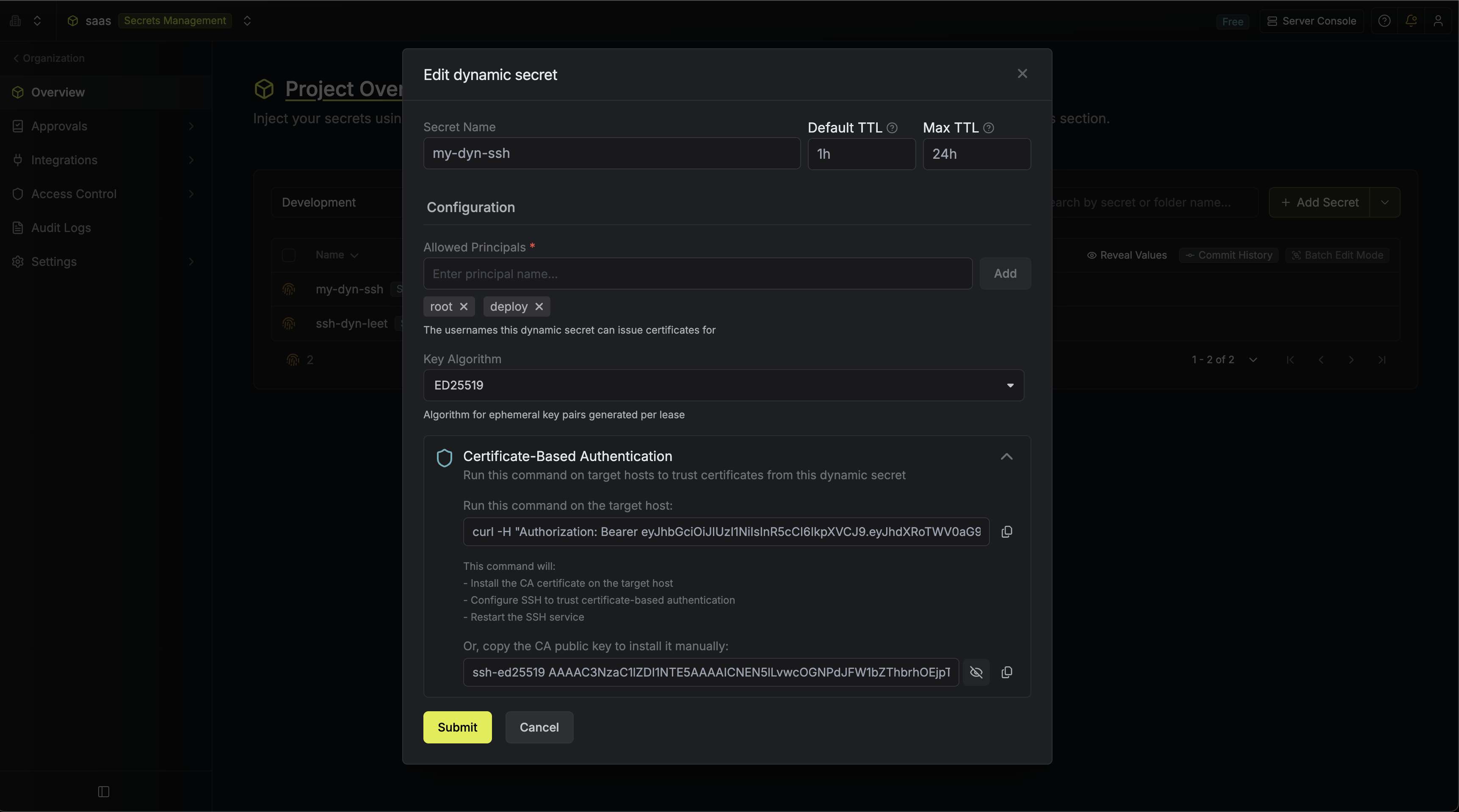
Renew leases
SSH certificate leases can’t be renewed because the certificate validity is
baked in at signing time. To get a new certificate, create a new lease.