

Prerequisites
- A MemoryDB cluster with an ACL attached. If your cluster is still on the default
open-accessACL, attach a real ACL before configuring the dynamic secret — Infisical will refuse to add users to a cluster with no ACL. - An AWS IAM user for Infisical to use, with an access key ID and secret access key. Attach the following policy:
memorydb:DescribeClustersdoesn’t support resource-level scoping, so it must be"Resource": "*".- The
user/inf-*pattern matches theinf-username prefix Infisical applies to every generated user. memorydb:UpdateACLis granted on both the user ARN and the ACL ARN because AWS evaluates the action against every resource it touches in a single call (the ACL plus each user being added or removed).- If you’d like to pin the ACL more tightly, replace
acl/*withacl/<your-acl-name>.
New leases may take a short while to become usable while MemoryDB propagates the user across the cluster’s shards. We recommend a retry strategy when first connecting with newly-issued credentials.
Set up dynamic secrets with AWS MemoryDB
1
Open Secret Overview Dashboard
Open the Secret Overview dashboard and select the environment in which you would like to add a dynamic secret.
2
Click on the 'Add Dynamic Secret' button

3
Select AWS MemoryDB
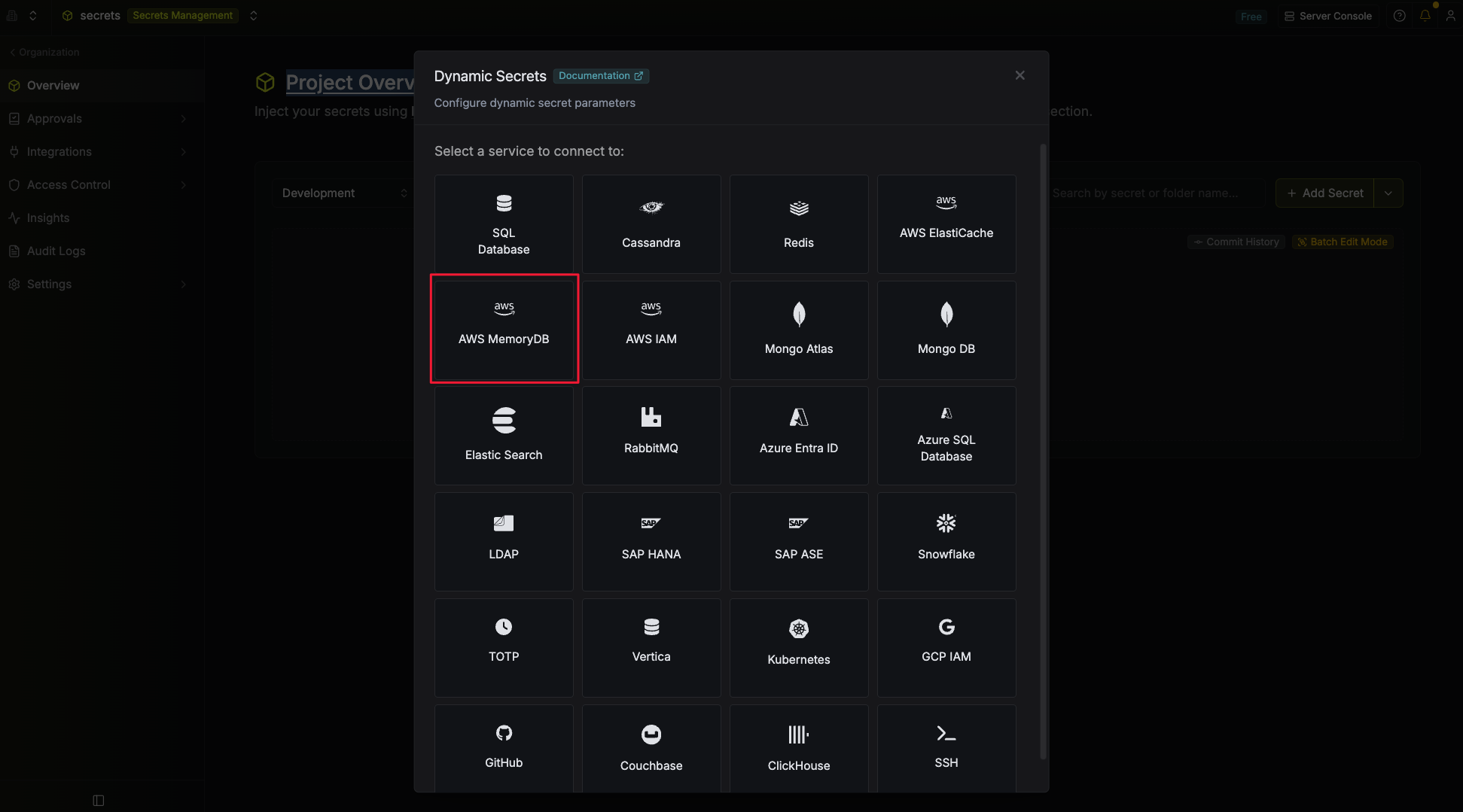
4
Provide the inputs for dynamic secret parameters
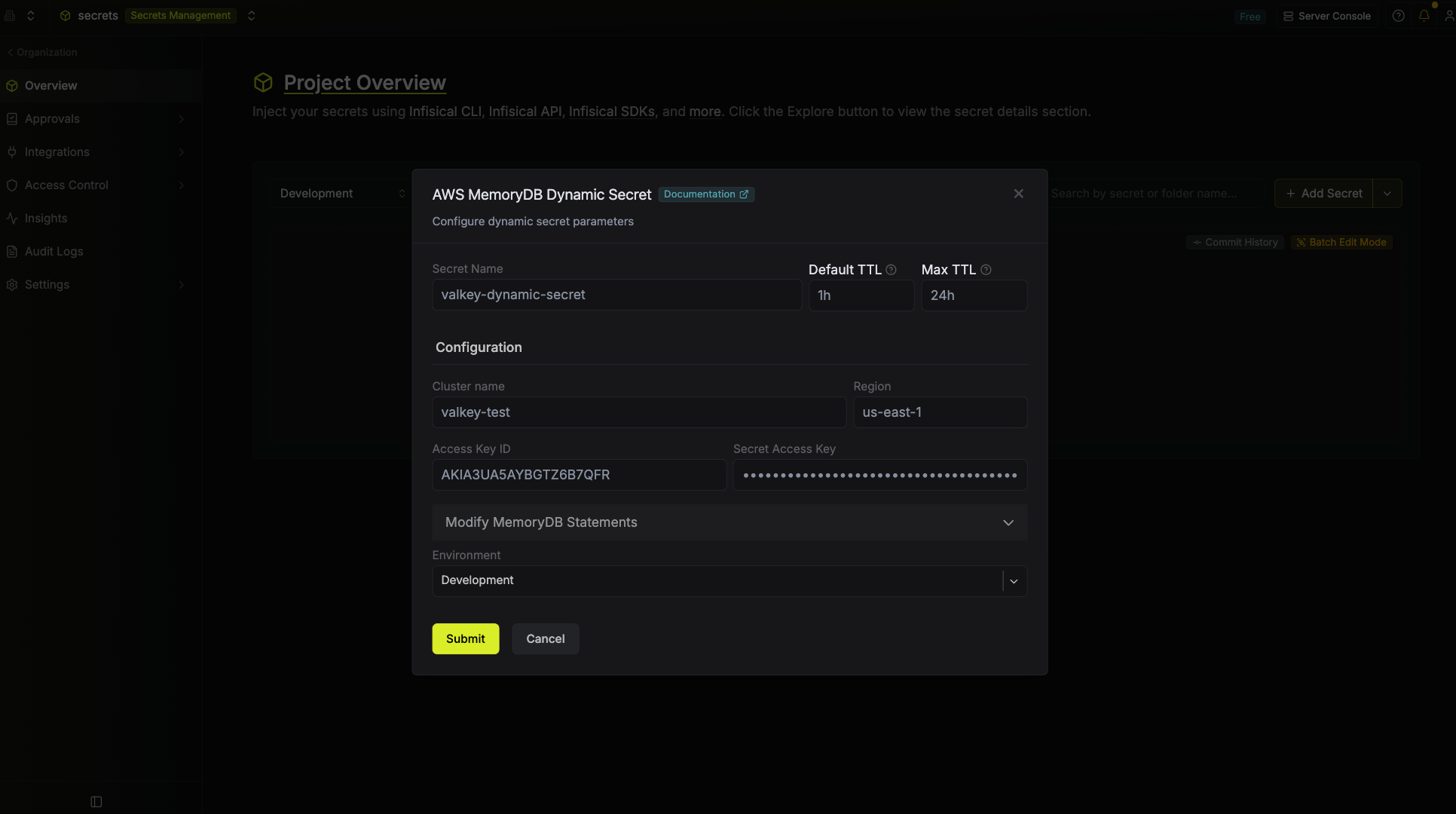
string
required
Name by which you want the secret to be referenced.
string
required
Default time-to-live for a generated secret (this can be changed after the secret is created).
string
required
Maximum time-to-live for a generated secret.
string
required
The name of the MemoryDB cluster Infisical should provision users for.
string
required
The AWS region the MemoryDB cluster lives in (e.g.
us-east-1).string
required
Access key ID of the AWS IAM user from the prerequisites.
string
required
Secret access key of the AWS IAM user from the prerequisites.
5
(Optional) Modify MemoryDB Statements
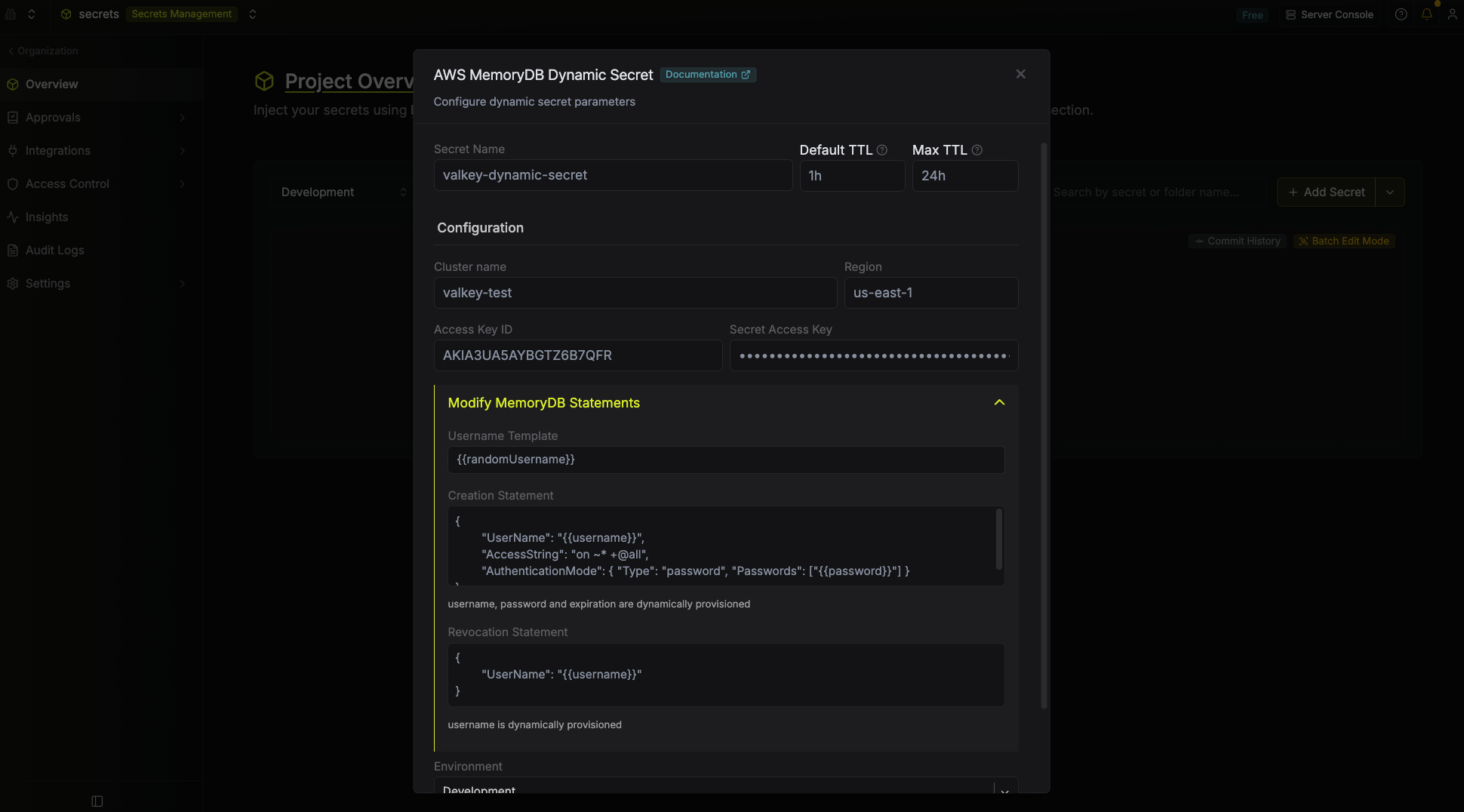
string
default:"{{randomUsername}}"
Specifies a template for generating usernames. This field allows customization of how usernames are automatically created.Allowed template variables are:
{{randomUsername}}: Random username string.{{unixTimestamp}}: Current Unix timestamp at the time of lease creation.{{identity.name}}: Name of the identity that is generating the lease.{{dynamicSecret.name}}: Name of the associated dynamic secret.{{dynamicSecret.type}}: Type of the associated dynamic secret.{{random N}}: Random string of N characters.
truncate: Truncates a string to a specified length.replace: Replaces a substring with another value.uppercase: Converts a string to uppercase.lowercase: Converts a string to lowercase.
string
A JSON payload passed to MemoryDB’s
CreateUser API. {{username}} and {{password}} are substituted with Infisical-generated values at lease time. Use the AccessString field to scope each lease’s permissions.Default:string
A JSON payload passed to MemoryDB’s
DeleteUser API. {{username}} is substituted at revoke time.Default:6
Click Submit
Infisical will verify it can reach the cluster with the provided credentials and validate the statements.
7
Generate dynamic secrets
Once configured, select 
 Specify a TTL within the configured Max TTL.
 The generated username and password are shown once on lease creation.
Generate on the dynamic secret row (or New Lease in the lease list) to provision a lease.Specify a TTL within the configured Max TTL.The generated username and password are shown once on lease creation.Audit or revoke leases
Select any dynamic secret on the dashboard to see active leases, their expiration times, and revoke them early if needed.
Renew leases
SelectRenew on an active lease to extend its TTL.
