

Prerequisites
- You need an active IBM API Connect subscription with a running instance.
- You need at least one organization, catalog, and application already configured in your IBM API Connect instance.
Create an API key in IBM API Connect
1
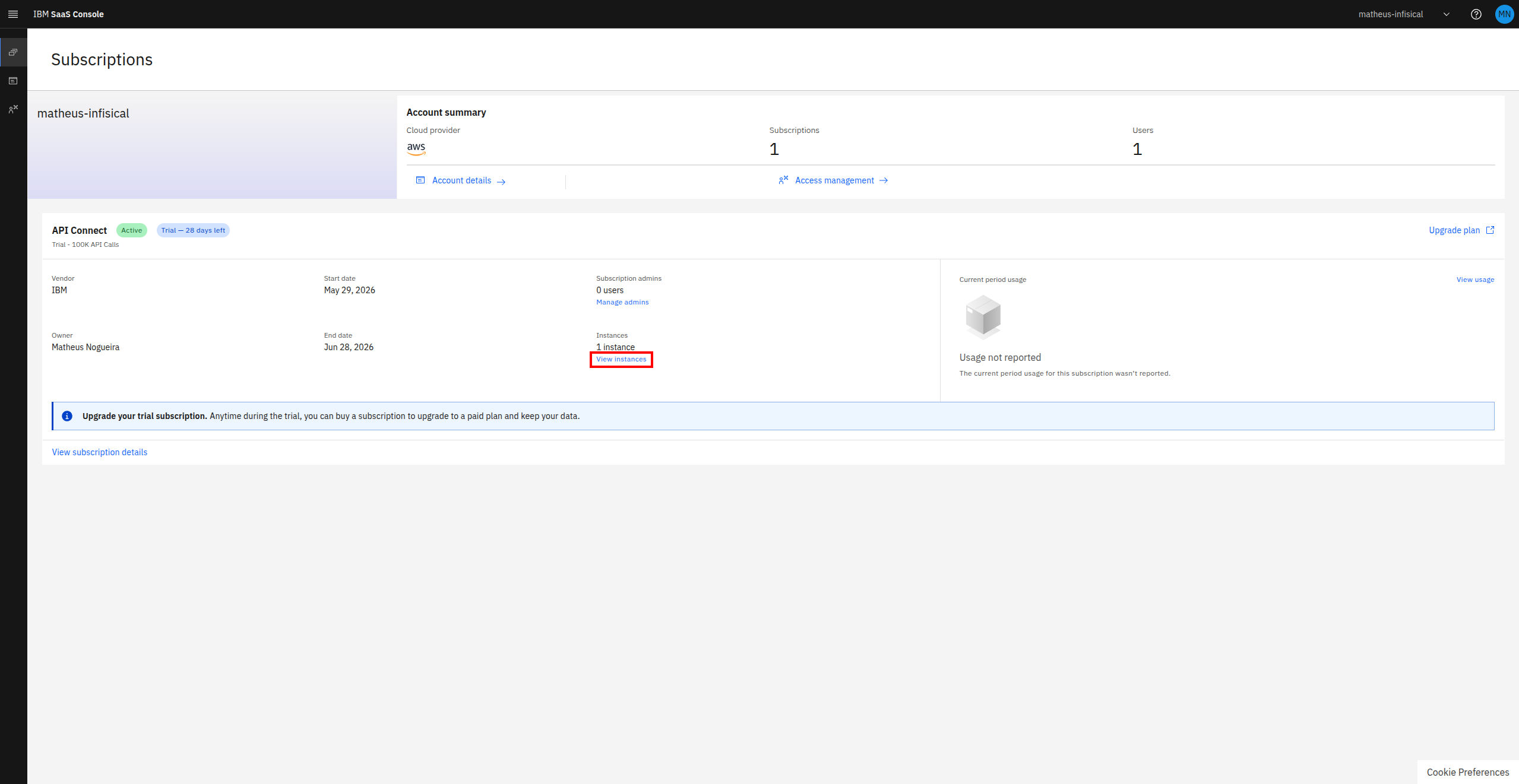
Navigate to the Subscriptions page in the IBM SaaS Console and click 'View instances' under your API Connect subscription.
2
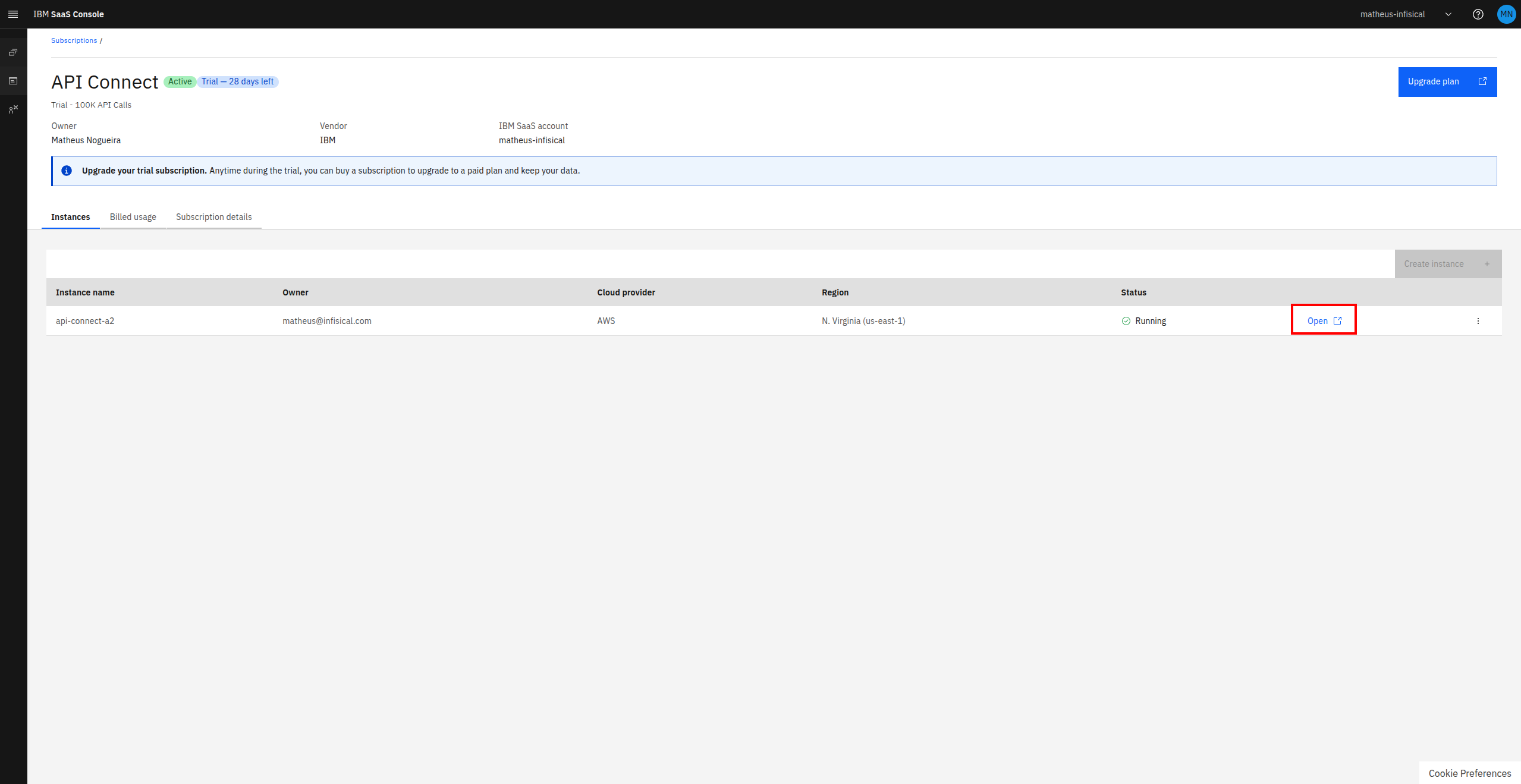
Click 'Open' to open your API Connect instance.
3
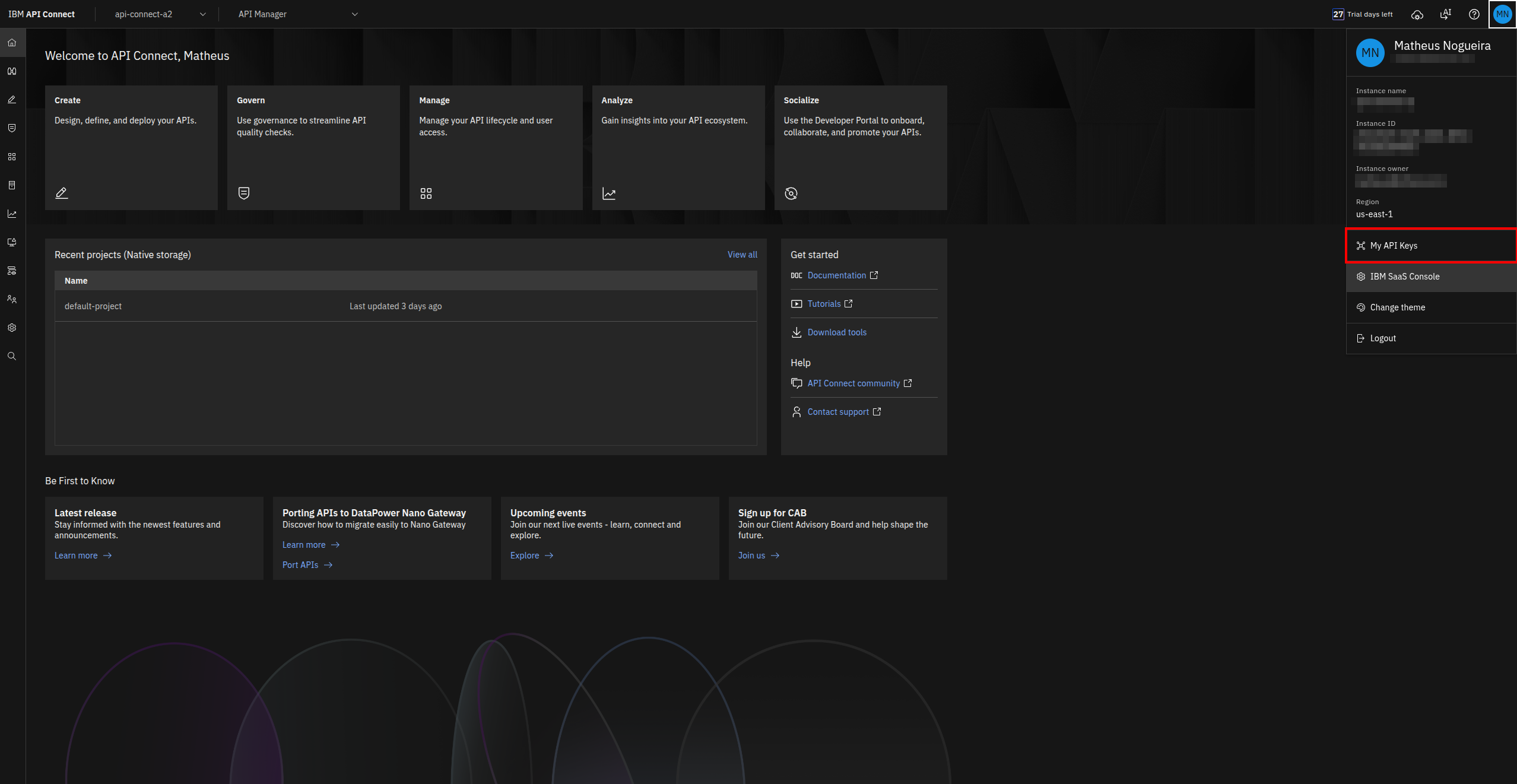
Once inside the API Connect dashboard, click on your profile icon in the top-right corner and select 'My API Keys'.
4
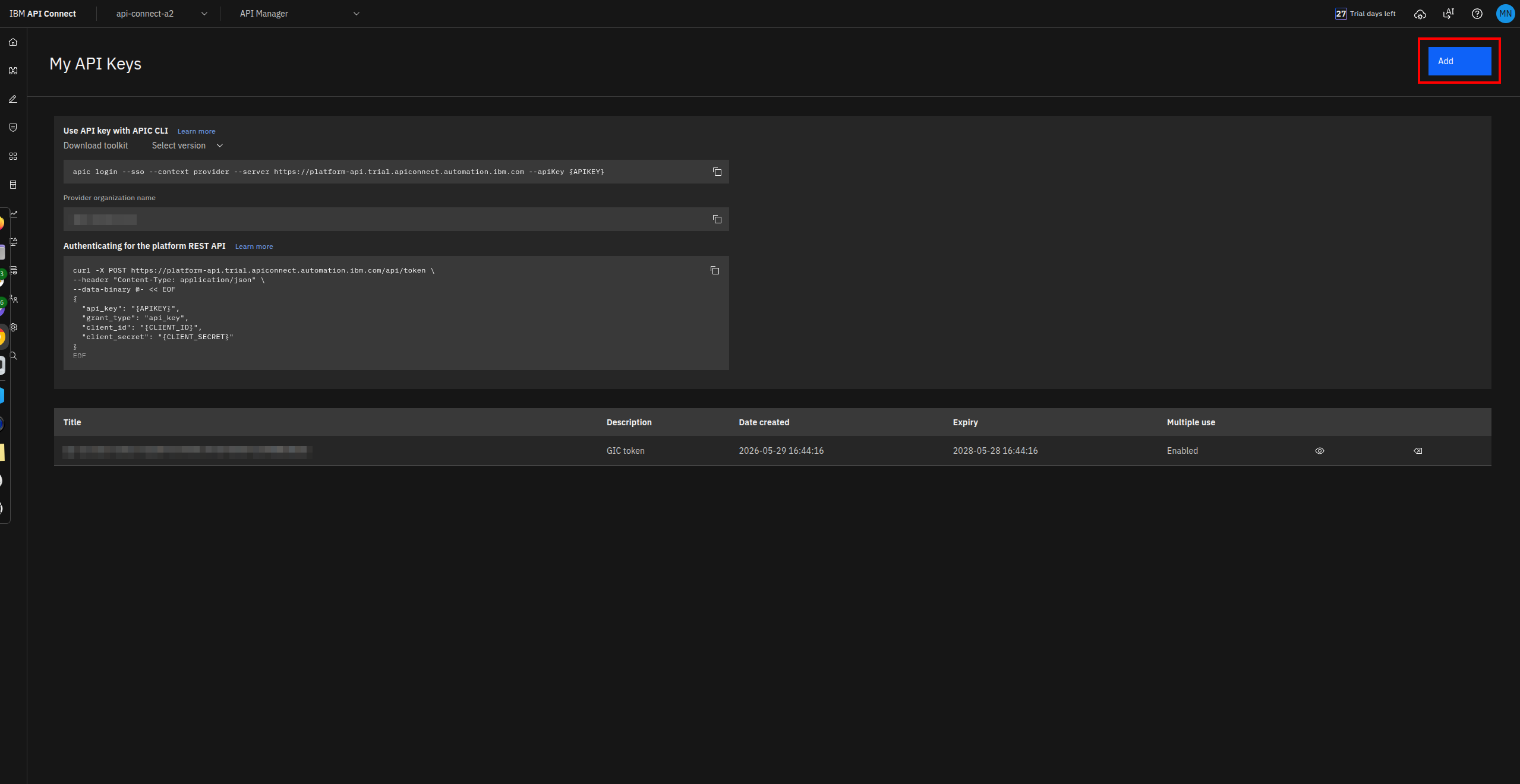
Click the 'Add' button to create a new API key.
5
Fill in the API key details and click 'Create'.
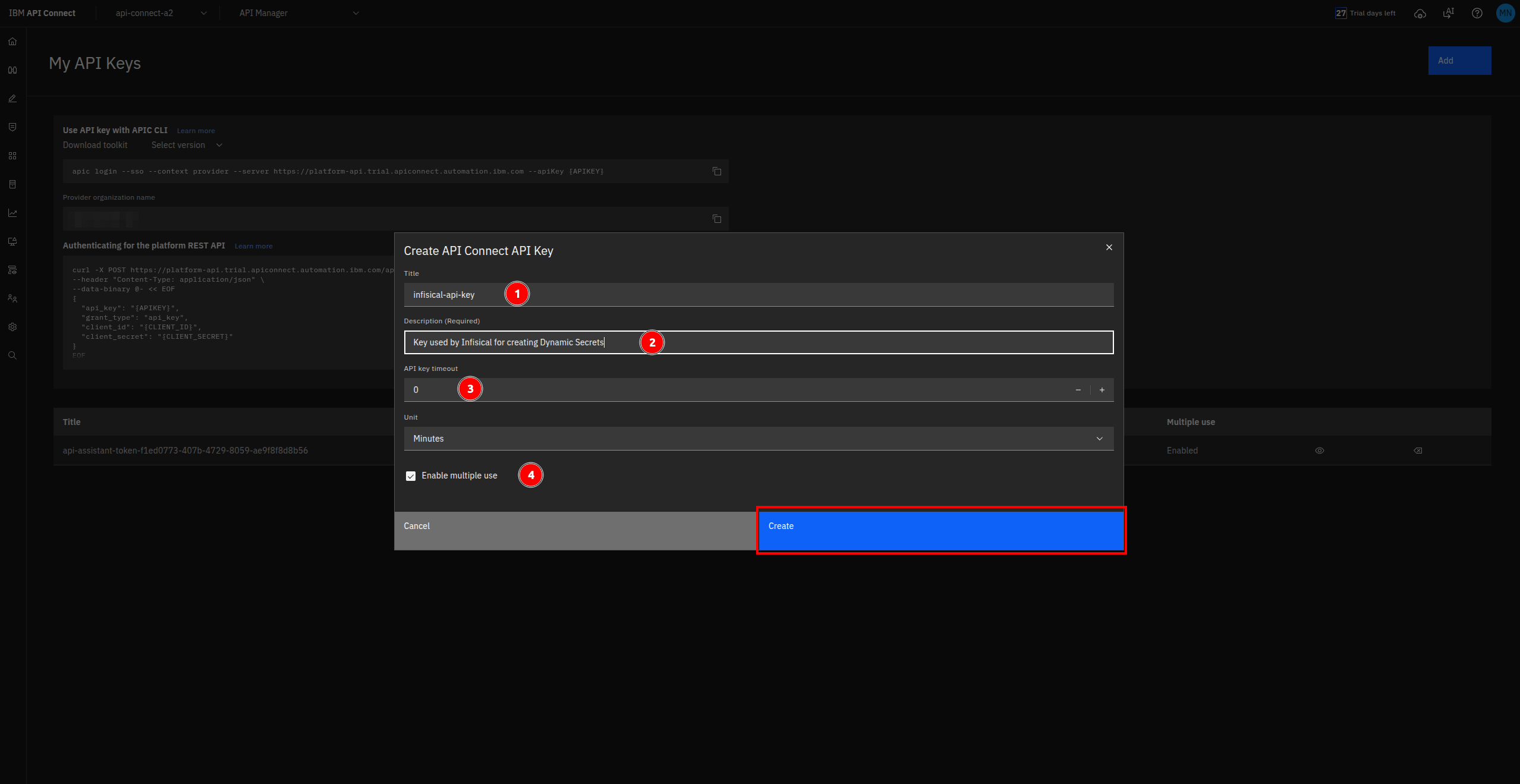
- Title — Give the API key a descriptive name (e.g.
infisical-api-key). - Description — Add a description for the key (e.g.
Key used by Infisical for creating Dynamic Secrets). - API key timeout — Set the timeout to
0to disable expiration, or configure it based on your needs. - Enable multiple use — Check this box to allow the API key to be used multiple times.
6
Collect the Instance URL, Client ID, and Client Secret from the 'My API Keys' page.
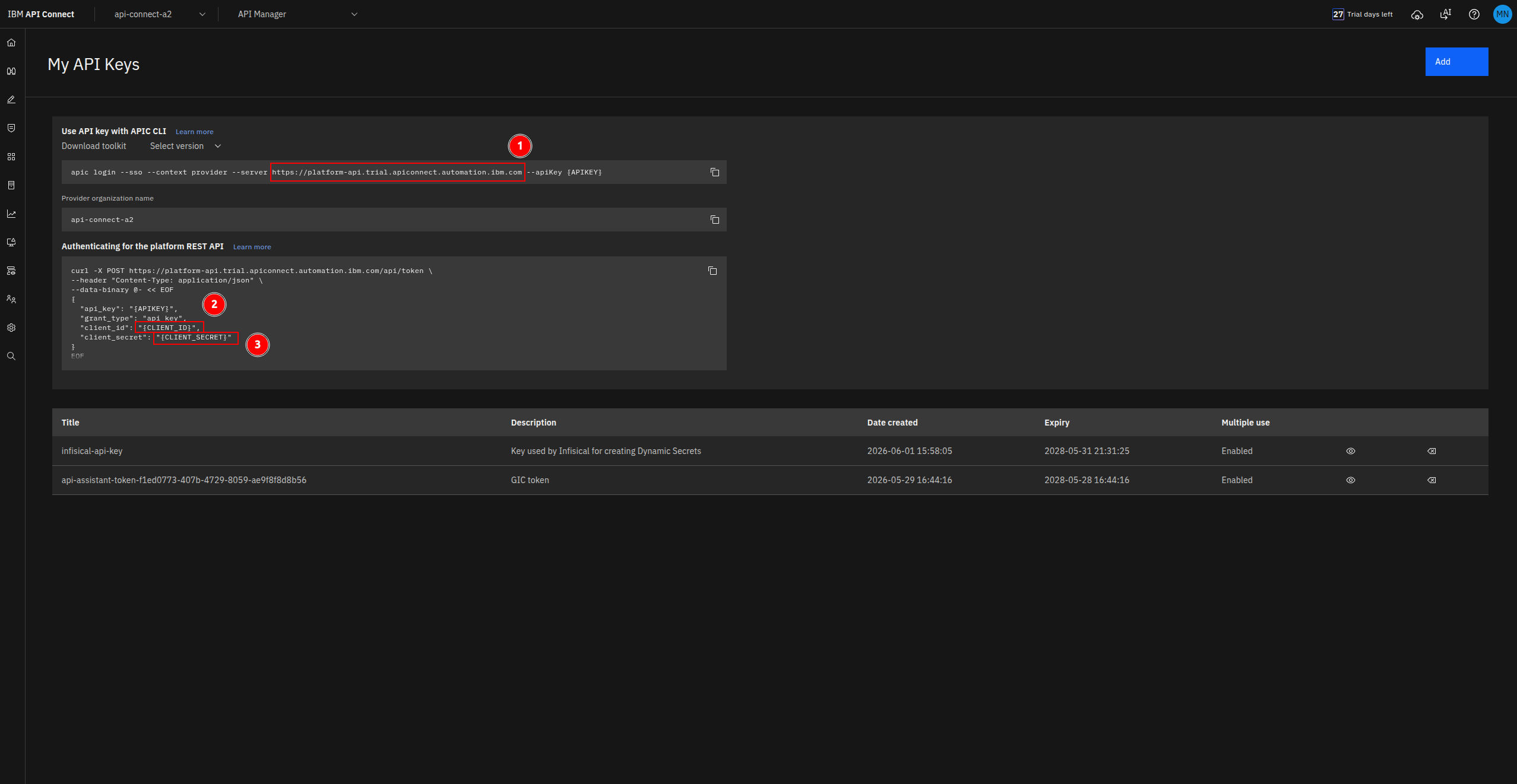
- Instance URL — Copy the server URL shown in the CLI command (e.g.
https://platform-api.trial.apiconnect.automation.ibm.com). - Client ID — Found in the
client_idfield of the “Authenticating for the platform REST API” curl snippet. - Client Secret — Found in the
client_secretfield of the same curl snippet.
Set up dynamic secrets with IBM API Connect
1
Open Secret Overview Dashboard
Open the Secret Overview dashboard and select the environment in which you would like to add a dynamic secret.
2
Click on the 'Add Dynamic Secret' button

3
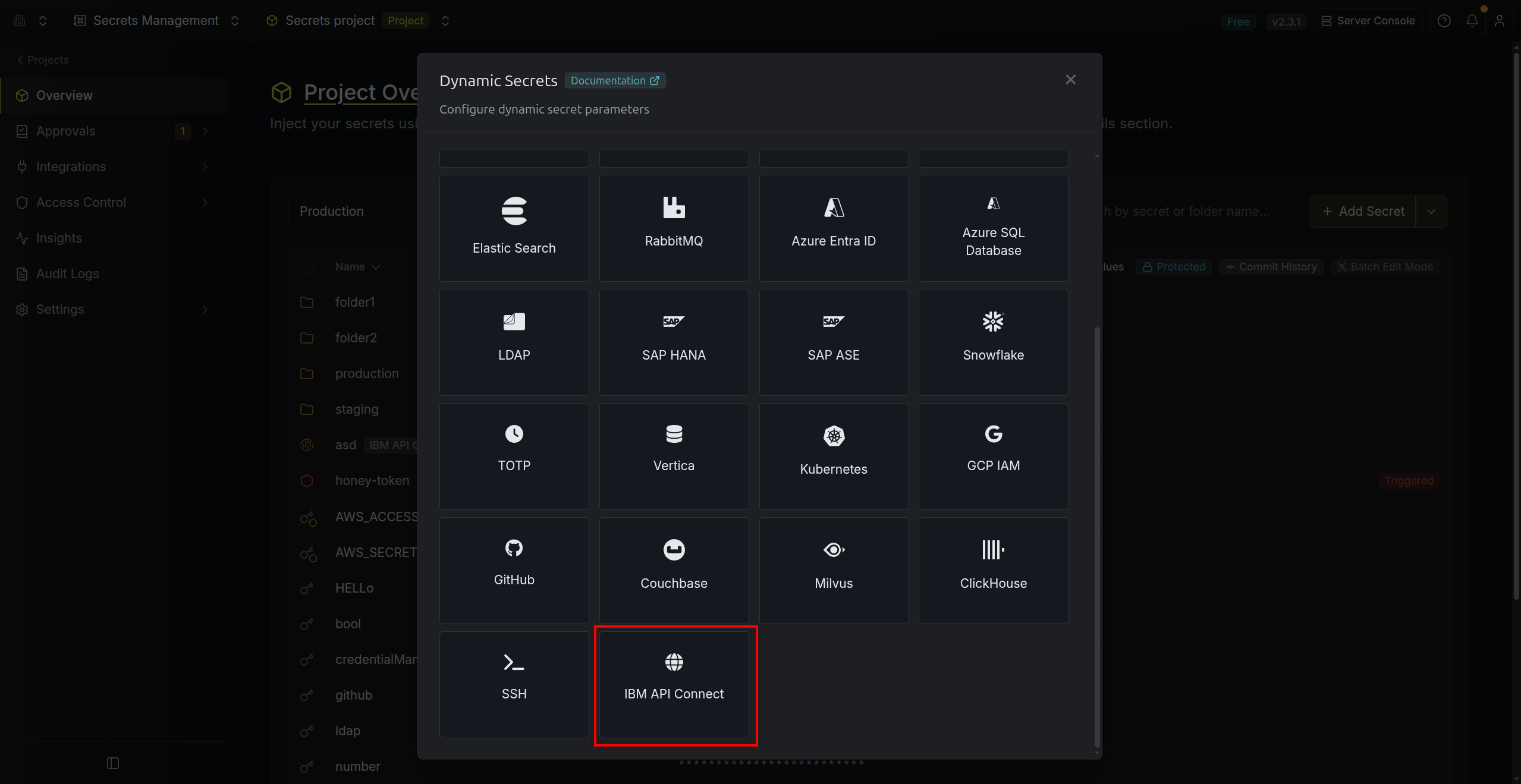
Select IBM API Connect
4
Provide the inputs for dynamic secret parameters
string
required
Name by which you want the secret to be referenced
string
required
Default time-to-live for a generated secret (it is possible to modify this value after a secret is generated)
string
required
Maximum time-to-live for a generated secret
string
required
The URL of your IBM API Connect platform API (e.g.
https://platform-api.trial.apiconnect.automation.ibm.com).string
required
The IBM API Connect API key you created in the previous steps. This will be used to authenticate and provision dynamic secret leases.
string
required
The client ID used for authenticating with the IBM API Connect platform REST API.
string
required
The client secret used for authenticating with the IBM API Connect platform REST API.
string
required
The IBM API Connect organization under which the application credentials will be created.
string
required
The catalog that owns the application for which credentials will be created.
string
required
The application for which dynamic credentials will be generated. Each lease creates a new credential pair on this application.
5
Click Submit
After submitting the form, you’ll see a dynamic secret created in the dashboard.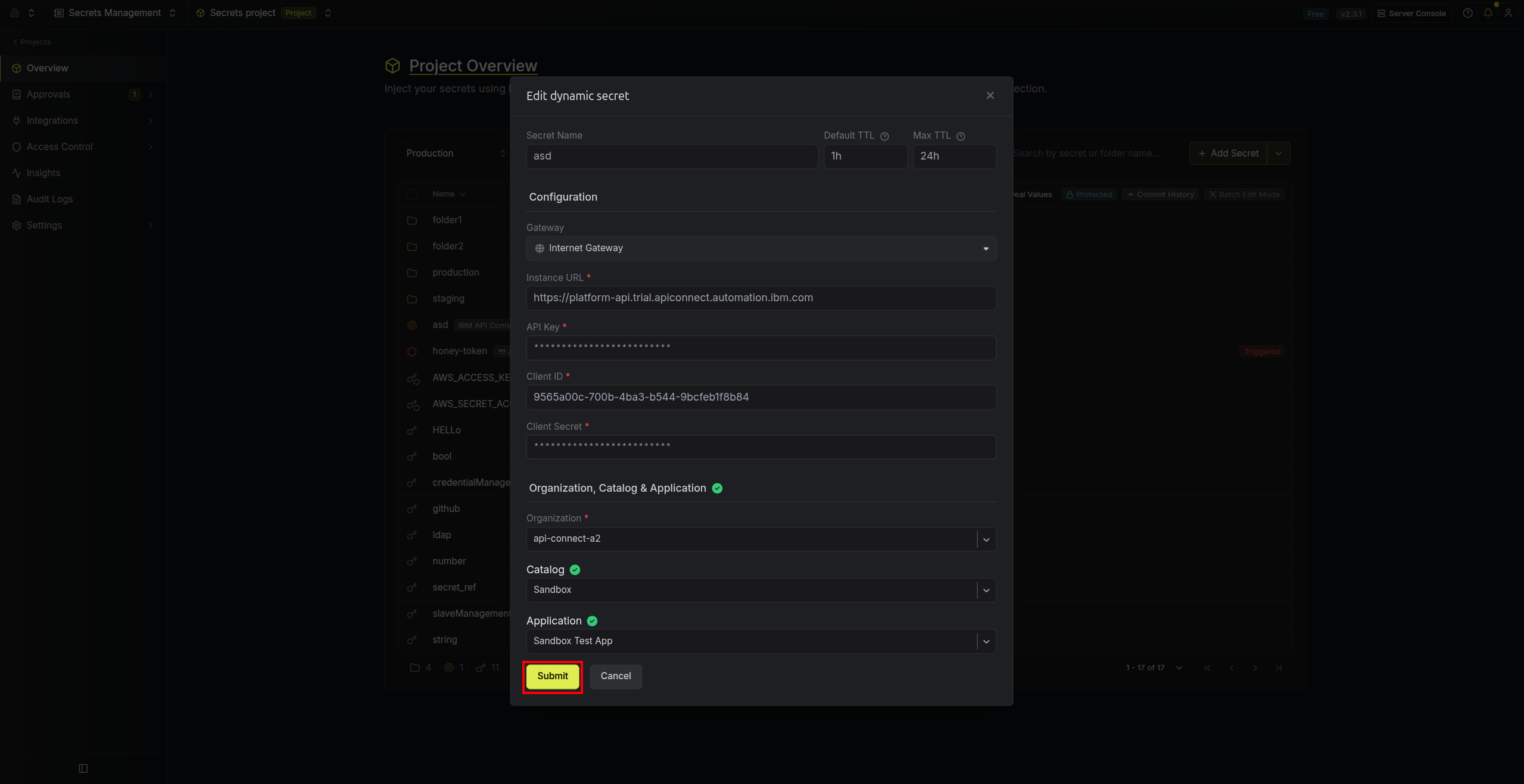
6
Generate dynamic secrets
Once you’ve successfully configured the dynamic secret, you’re ready to generate on-demand credentials.
To do this, simply select the ‘Generate’ button which appears when hovering over the dynamic secret item.
Alternatively, you can initiate the creation of a new lease by selecting ‘New Lease’ from the dynamic secret lease list section.
 When generating these secrets, it’s important to specify a Time-to-Live (TTL) duration. This will dictate how long the credentials are valid for.
 Once you click the
When generating these secrets, it’s important to specify a Time-to-Live (TTL) duration. This will dictate how long the credentials are valid for.Once you click the Submit button, a new secret lease will be generated and you will be presented with the generated Client ID and Client Secret.Audit or revoke leases
Once you have created one or more leases, you’ll be able to access them by selecting the respective dynamic secret item on the dashboard. This will allow you to see the expiration time of the lease or revoke a lease before its time to live expires. When a lease is revoked (either manually or by TTL expiration), Infisical will delete the corresponding application credential from IBM API Connect.
Renew leases
To extend the life of the generated dynamic secret leases past its initial time to live, simply select the Renew button as illustrated below.