

Prerequisites
- Ensure that authentication and RBAC are enabled on your Milvus instance by setting
common.security.authorizationEnabled=true. - Have an admin user (defaults to
root/Milvus) available to manage users, roles, and privileges via the Milvus REST API.
Set up dynamic secrets with Milvus
1
Open Secret Overview Dashboard
Open the Secret Overview dashboard and select the environment in which you would like to add a dynamic secret.
2
Click on the 'Add Dynamic Secret' button

3
Select Milvus
Choose Milvus from the list of available dynamic secret providers.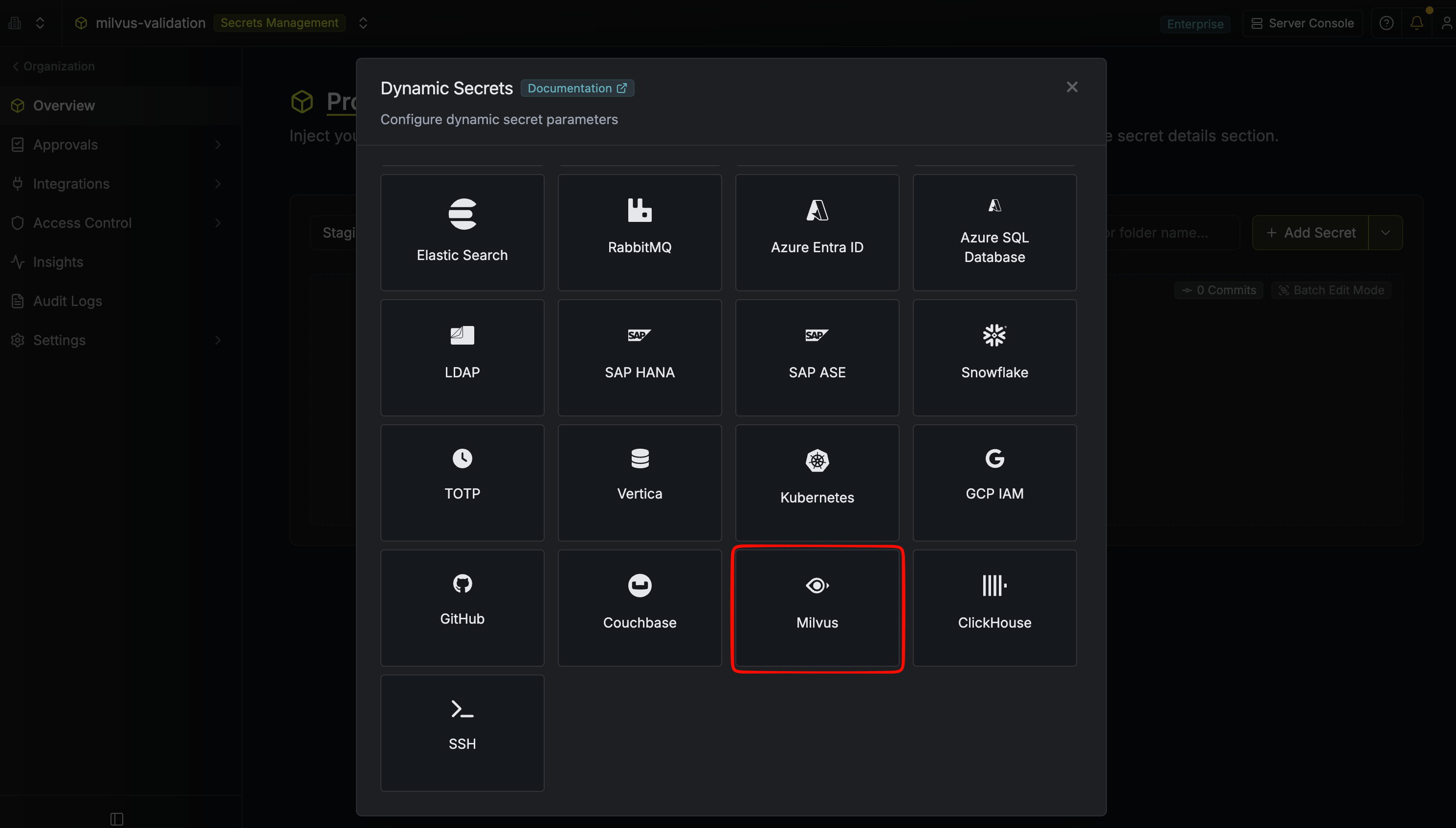
4
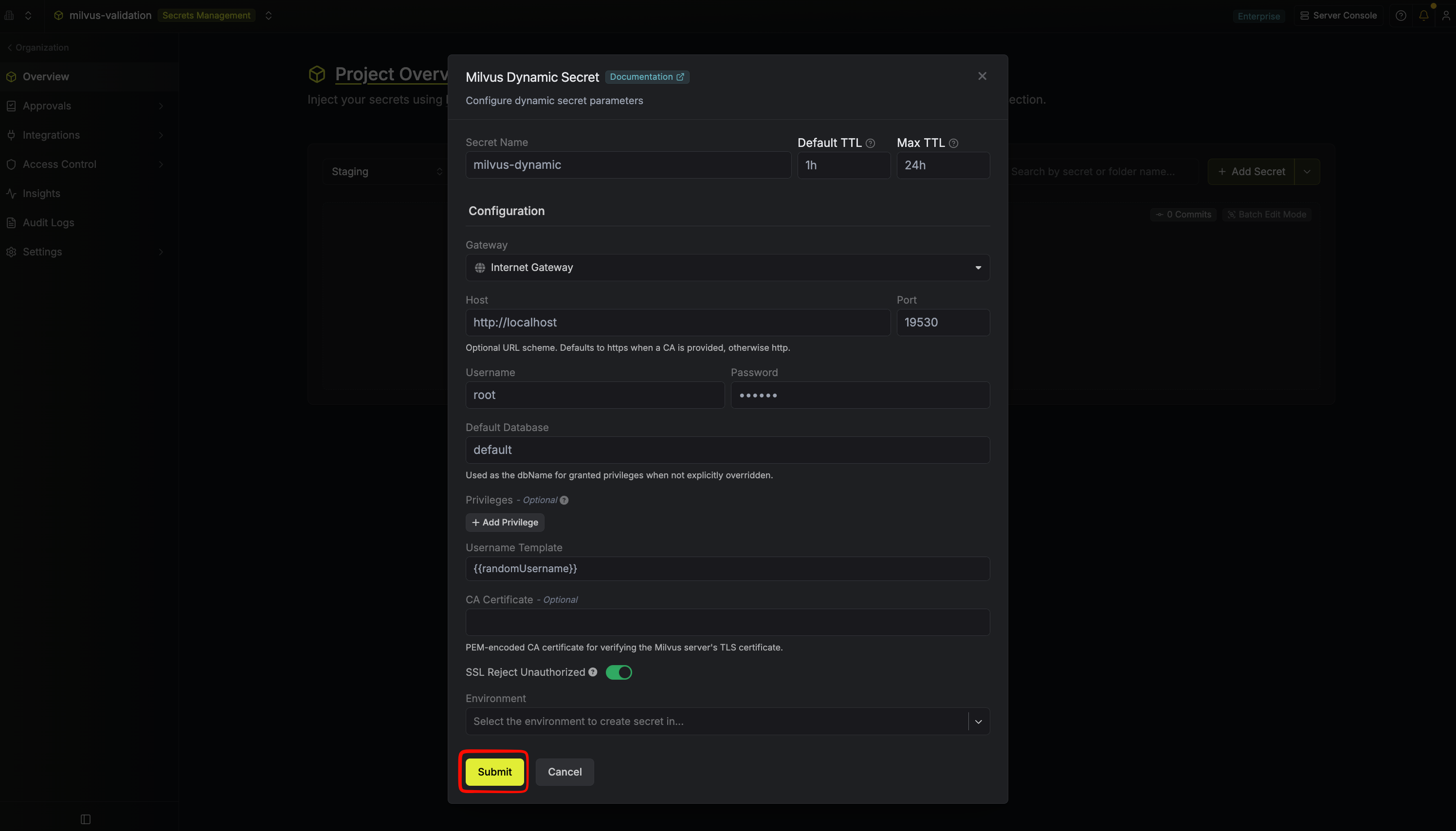
Provide the inputs for dynamic secret parameters
string
required
Name by which you want the secret to be referenced
string
required
Default time-to-live for a generated secret (it is possible to modify this value after a secret is generated)
string
required
Maximum time-to-live for a generated secret.
string
required
Your Milvus endpoint. Include the URL scheme (
http:// or https://). Example: http://localhost. If the scheme is omitted, http:// is assumed.number
required
The port your Milvus REST API listens on. Defaults to
19530.string
required
The admin username used to manage users, roles, and privileges (e.g.
root).string
required
The password for the admin user.
string
required
Default Milvus database used as the
dbName for granted privileges when not explicitly overridden per privilege. Defaults to default.array
Privileges granted to an ephemeral role bound to the lease user. Leave empty to create a user with only the built-in
public role.Each privilege entry has:Object Type— Milvus object type (Collection,Database,Global,Cluster, orUser).Object Name— Name of the target object (e.g. a collection name) or*to apply to all.Privilege— Milvus privilege name or built-in privilege group (e.g.Search,Query,COLL_RO,DB_Admin). See the Milvus privilege reference for the full list.DB Name— Optional override for the target database. Falls back to the provider’s Default Database when blank.
- Read-only on all collections:
{ Object Type: Collection, Object Name: *, Privilege: COLL_RO } - Full database admin:
{ Object Type: Database, Object Name: *, Privilege: DB_Admin } - Search on a specific collection:
{ Object Type: Collection, Object Name: my_collection, Privilege: Search }
string
default:"{{randomUsername}}"
Specifies a template for generating usernames. This field allows customization of how usernames are automatically created.Allowed template variables are:
{{randomUsername}}: Random username string.{{unixTimestamp}}: Current Unix timestamp at the time of lease creation.{{identity.name}}: Name of the identity that is generating the lease.{{dynamicSecret.name}}: Name of the associated dynamic secret.{{dynamicSecret.type}}: Type of the associated dynamic secret.{{random N}}: Random string of N characters.
truncate: Truncates a string to a specified length.replace: Replaces a substring with another value.uppercase: Converts a string to uppercase.lowercase: Converts a string to lowercase.
string
A gateway may be required if your Milvus instance is not publicly accessible (e.g. in a private VPC). Select a configured gateway to route traffic through it.
string
Optional PEM-encoded CA certificate for verifying the Milvus server’s TLS certificate. Required when Milvus uses a self-signed or private CA. Providing a CA also enables HTTPS automatically.
boolean
default:"true"
If enabled, the server certificate will be verified against the list of supplied CAs. Disable this option if you are using a self-signed certificate.
5
Click Submit
After submitting the form, you’ll see the Milvus dynamic secret created in the dashboard.
Infisical validates the connection by calling the Milvus
/v2/vectordb/users/describe endpoint. If validation fails, double-check the host, port, and admin credentials.6
Generate dynamic secrets
Once configured, select  Once you click the
Generate (or New Lease) on the dynamic secret to issue an on-demand credential.Each lease creates a Milvus user with a random username and password. When you configure privileges, Infisical also creates an ephemeral role per lease, grants the configured privileges to it, and assigns the role to the user. On revoke, the user and role are deleted together.Once you click the Submit button, a new secret lease will be generated and the credentials from it will be shown to you.Audit or revoke leases
Once you have created one or more leases, you can access them by selecting the dynamic secret item on the dashboard. From there you can view the expiration time or revoke a lease early.
Renew leases
To extend the life of a generated lease, select the Renew button.