

Secret Insights is a paid feature.On Infisical Cloud it’s available on the Pro and Enterprise plans. If you’re self-hosting Infisical, contact [email protected] to acquire a license.
- Organization-level insights cover every Secrets Management project in the organization, rank projects by their outstanding issues, and find secrets that share a value across projects
- Project-level insights cover one project in more detail, with upcoming rotations and reminders, stale secrets, and access patterns for that project
Open organization insights
In your organization, go to Secrets Management > Insights.To view the page, your organization role needs the Read permission under Secrets Management Insights. The built-in Admin role has it. To grant it to another role, see organization role-based access controls.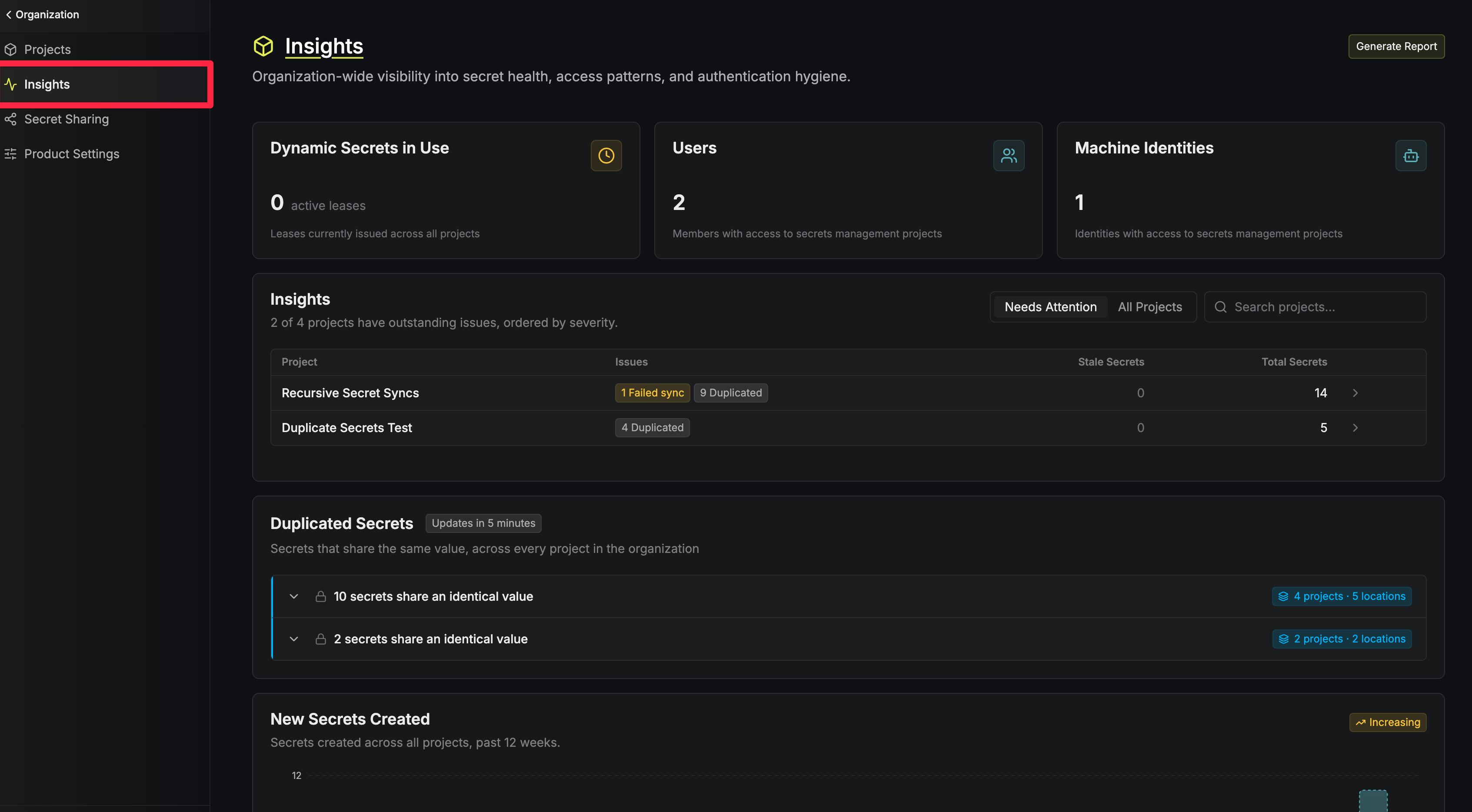
Summary
The three cards at the top of the page count:- Dynamic Secrets in Use: dynamic secret leases currently issued across all projects
- Users: members with access to Secrets Management projects
- Machine Identities: machine identities with access to Secrets Management projects
Projects with issues
The Insights card lists the organization’s Secrets Management projects, ordered by how serious their issues are. Each row shows the project’s issues, its number of stale secrets (secrets not modified in more than 90 days), and its total number of secrets.The issues, from most to least serious, are:- Failed rotations: secret rotations currently in a failed state
- Failed syncs: secret syncs currently in a failed state
- Orphaned leases: dynamic secret leases that Infisical failed to revoke, so the credential may still exist in the external system
- Duplicated: secrets that share a value with another secret in the same project

Duplicated secrets across projects
The Duplicated Secrets card groups secrets that share the same value, across every project in the organization. Each group shows how many secrets share the value and how many projects and locations (an environment and path) they’re stored in. Groups that span more than one project are marked with the number of projects.Expand a group to see each secret’s project, key, environment, and path. To open a secret, hover over its row and select the arrow icon. If you aren’t a member of a secret’s project, the arrow icon is disabled.Infisical finds duplicates by comparing hashes of secret values, the same hashes secret value search uses, so it never compares plain text values.To see the card, you need the Search All Secret Values permission under Secrets Management Insights, because the card shows secrets in projects you might not be a member of. The built-in Admin role has it.If your organization was created before secret value search was released, the card shows an Enable button until someone turns it on.Viewing the card is recorded in the organization’s audit logs as a View Org Secrets Duplication Insights event.Secret activity
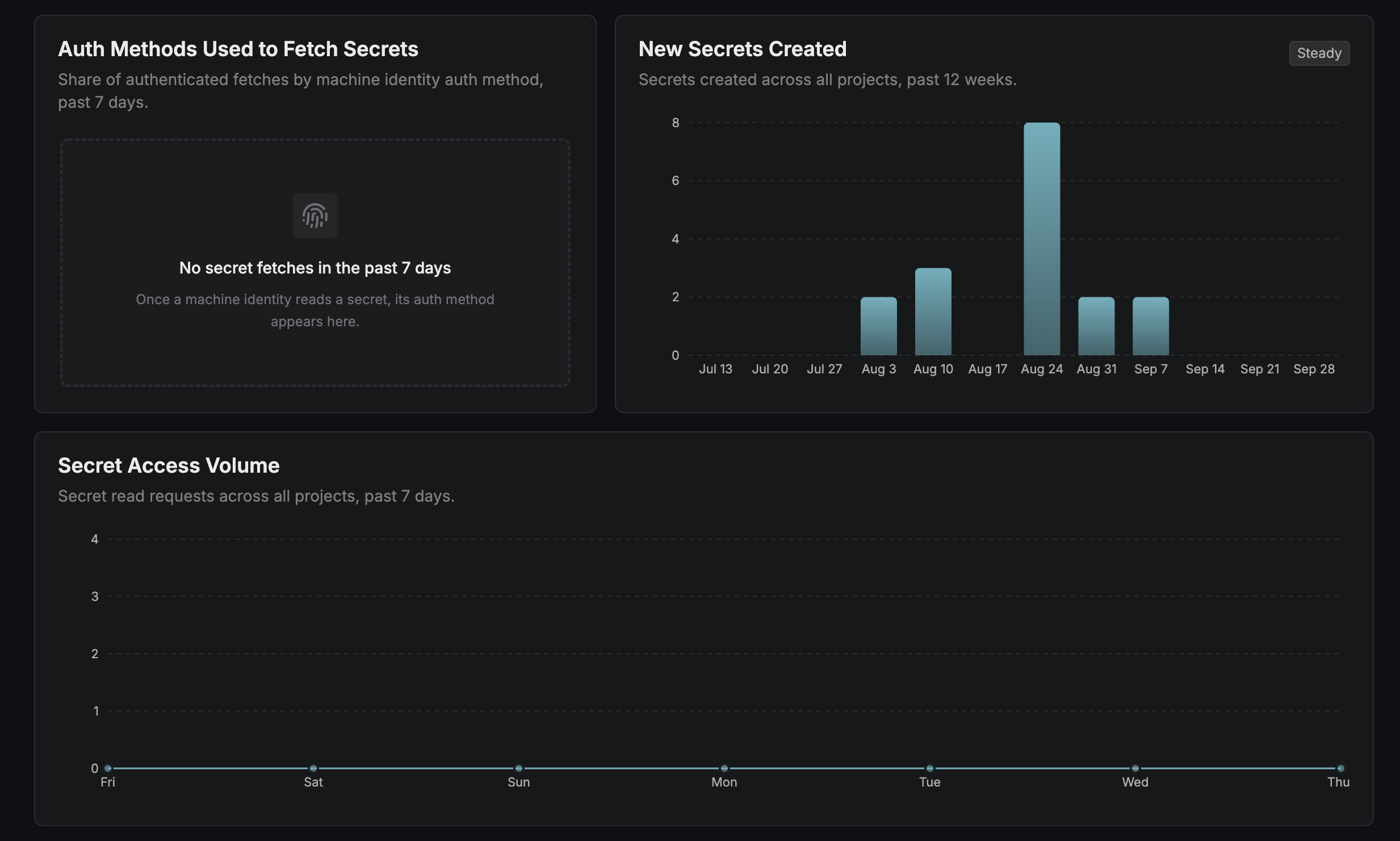
The remaining cards show how secrets are created and read across all projects:- Auth Methods Used to Fetch Secrets: the share of secret fetches made with each machine identity authentication method over the past 7 days
- New Secrets Created: the number of secrets created each week over the past 12 weeks, with a badge that says whether the trend is increasing, decreasing, or steady
- Secret Access Volume: the number of secret read requests each day over the past 7 days, with the busiest day called out
Generate an organization report
An organization report is a snapshot of the organization’s insights, emailed as CSV attachments (one file per report type). The header of the Insights page shows when the last report was sent.To generate an organization report:1
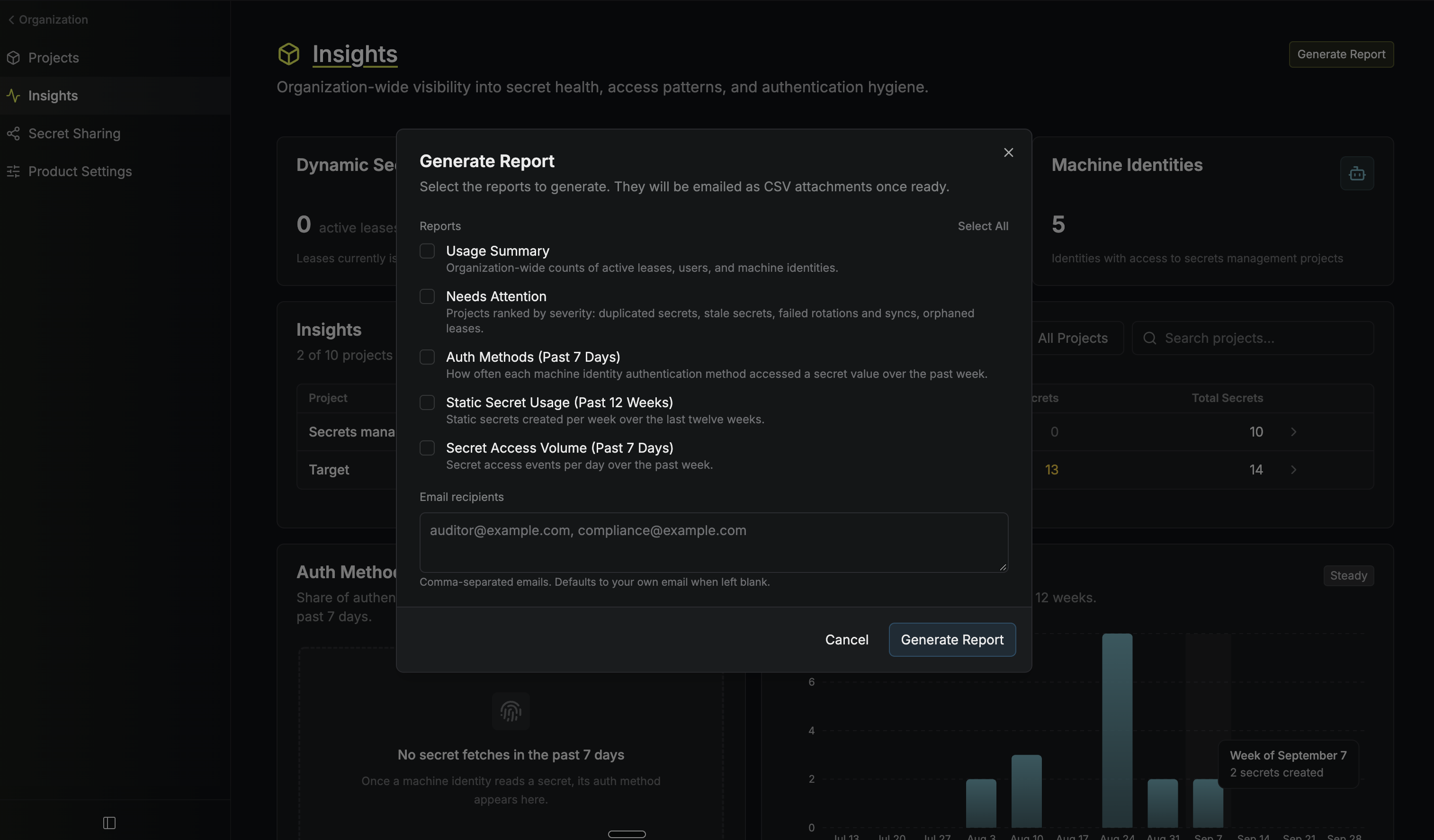
On the Insights page, select Generate Report.
2
Under Reports, select one or more report types:
- Usage Summary: organization-wide counts of active leases, users, and machine identities
- Needs Attention: projects ranked by their issues
- Auth Methods (Past 7 Days): how often each machine identity authentication method was used to read a secret value
- Static Secret Usage (Past 12 Weeks): the number of static secrets created each week
- Secret Access Volume (Past 7 Days): the number of secret access events each day
3
Optionally, enter comma-separated Email recipients. If you leave it blank, the report is sent to your own email.
4
Select Generate Report.
 Generating a report requires the Generate Report permission under Secrets Management Insights. An organization can have one report generating at a time, so Generate Report is disabled until the current report finishes.