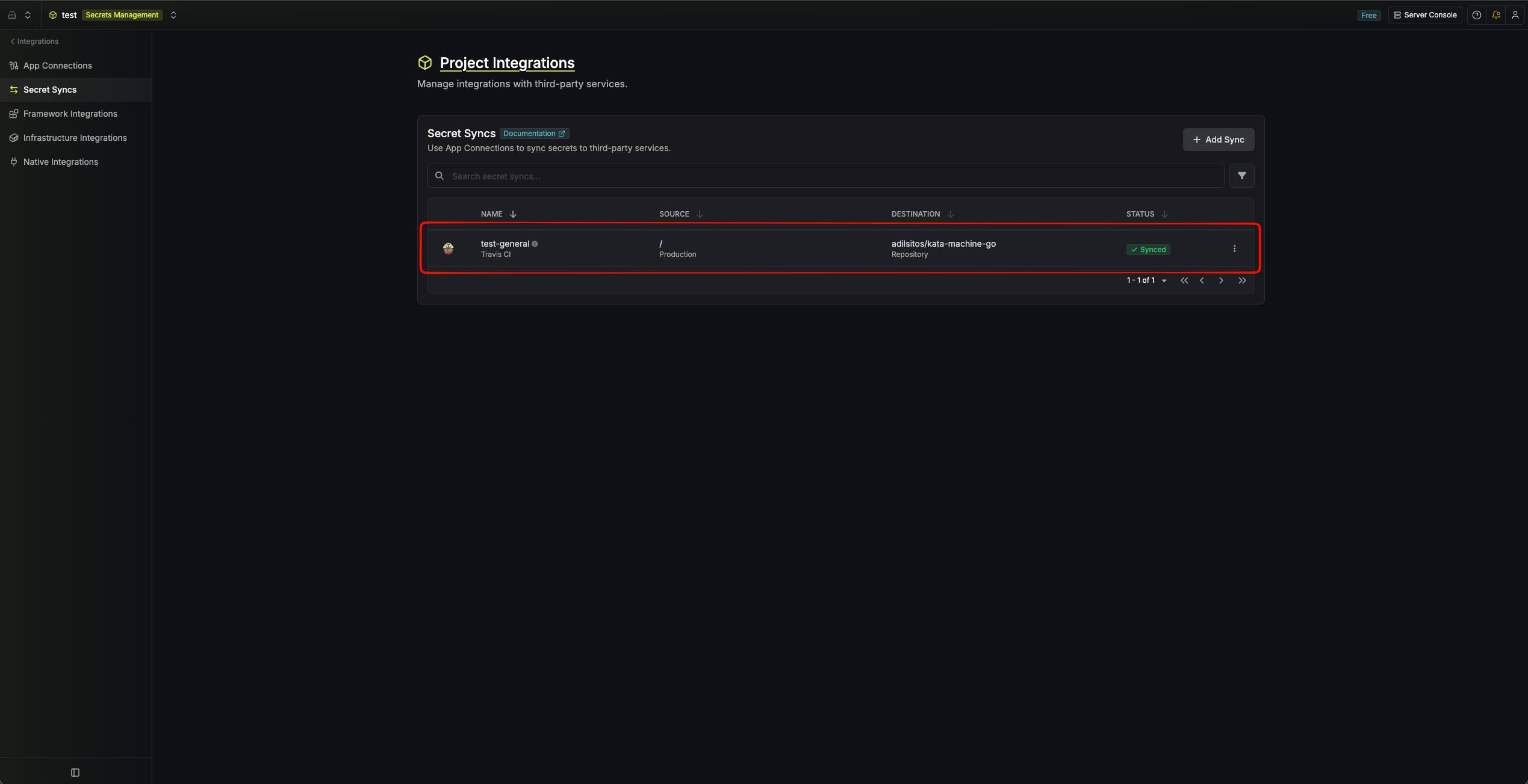
account_env_vars) aren’t managed by this sync, only repository-scoped environment variables are.
account_env_vars aren’t exposed by the Travis CI API for listing or creation, so Infisical can’t sync them.- Set up and add secrets to Infisical Cloud
- Create a Travis CI Connection
- Infisical UI
- API
1
Add Sync
Navigate to Project > Integrations and select the Secret Syncs tab. Select the Add Sync button.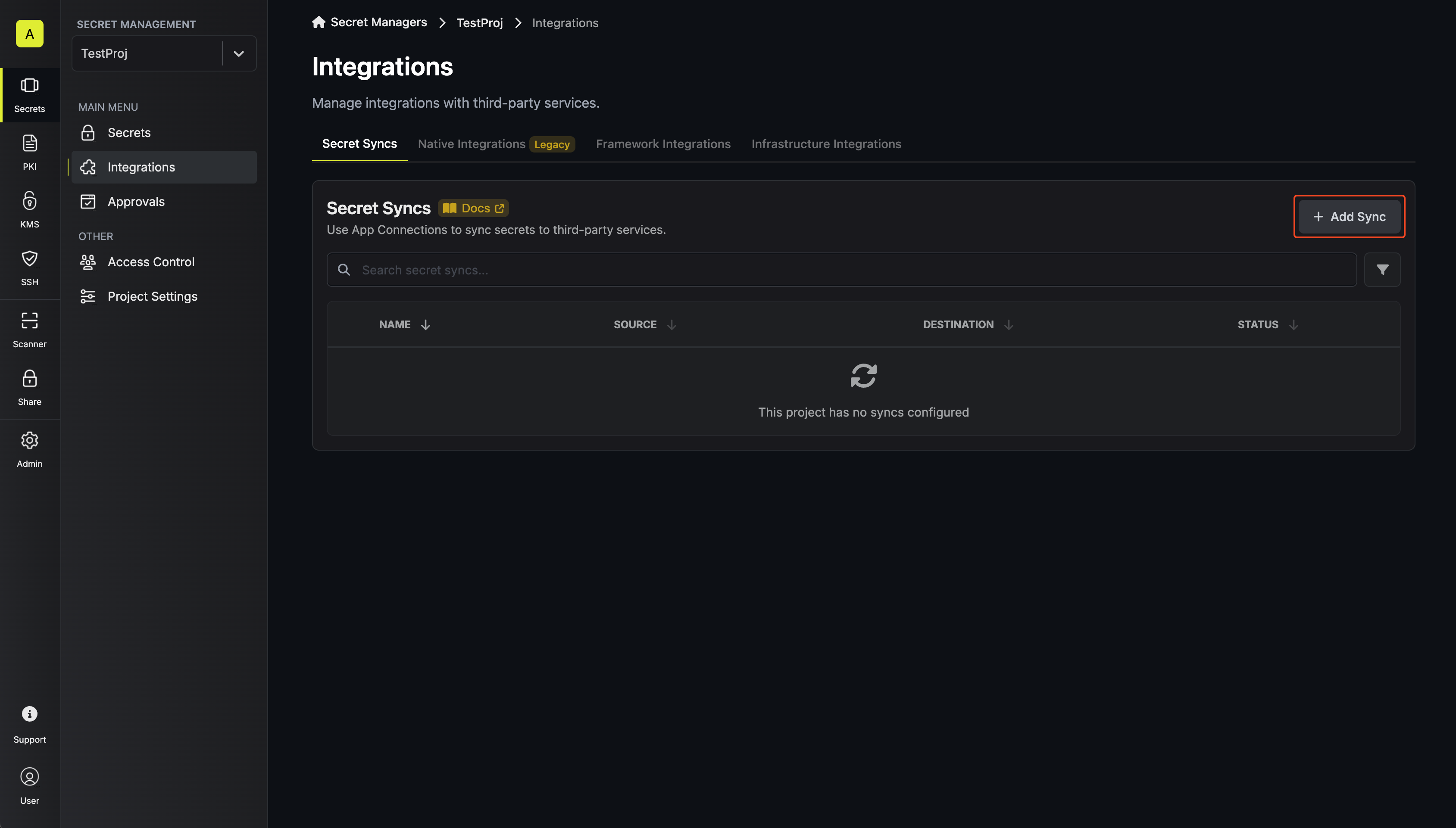
2
Select 'Travis CI'
Select the Travis CI option from the list of destinations.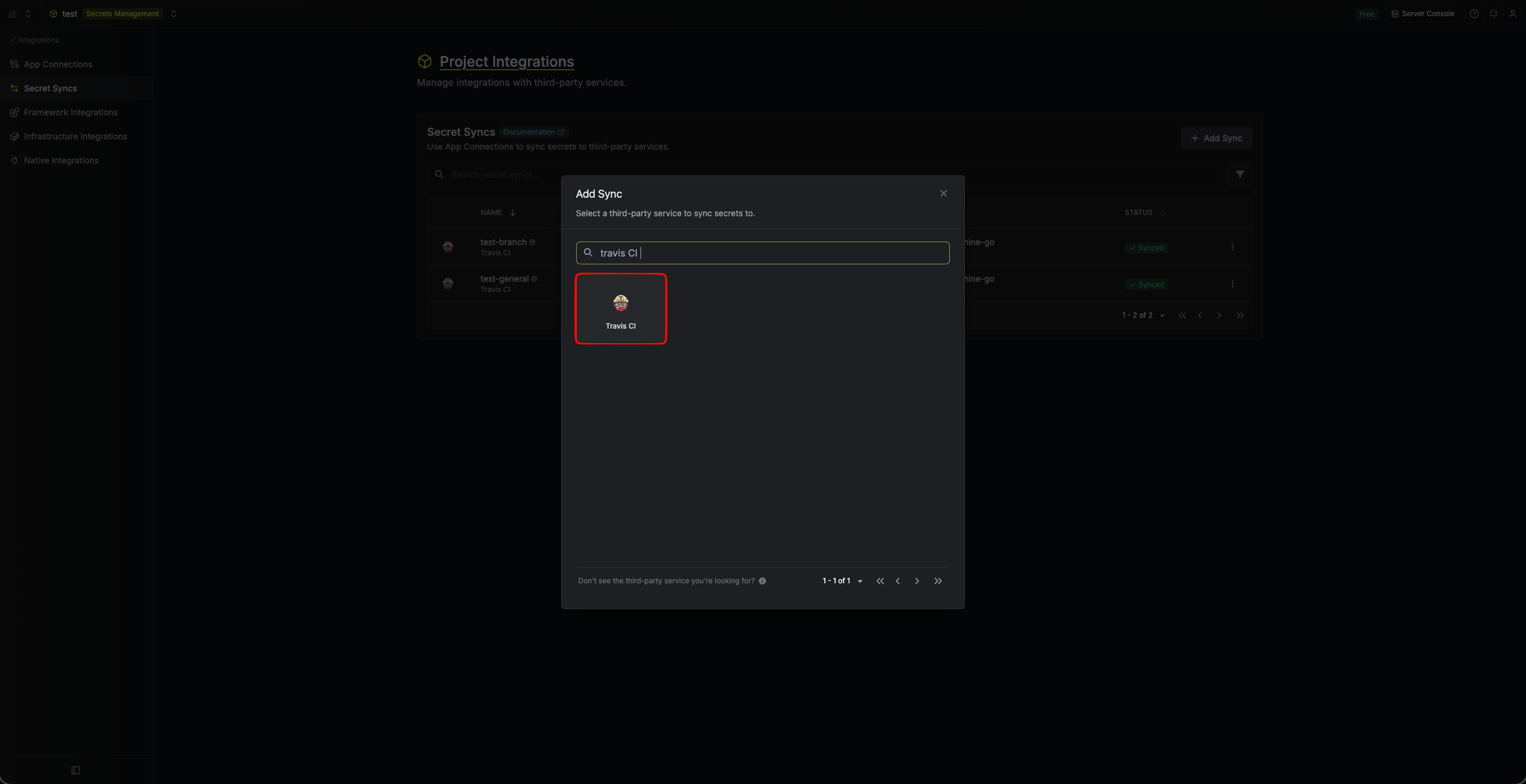
3
Configure source
Configure the Source from where secrets should be retrieved, then click Next.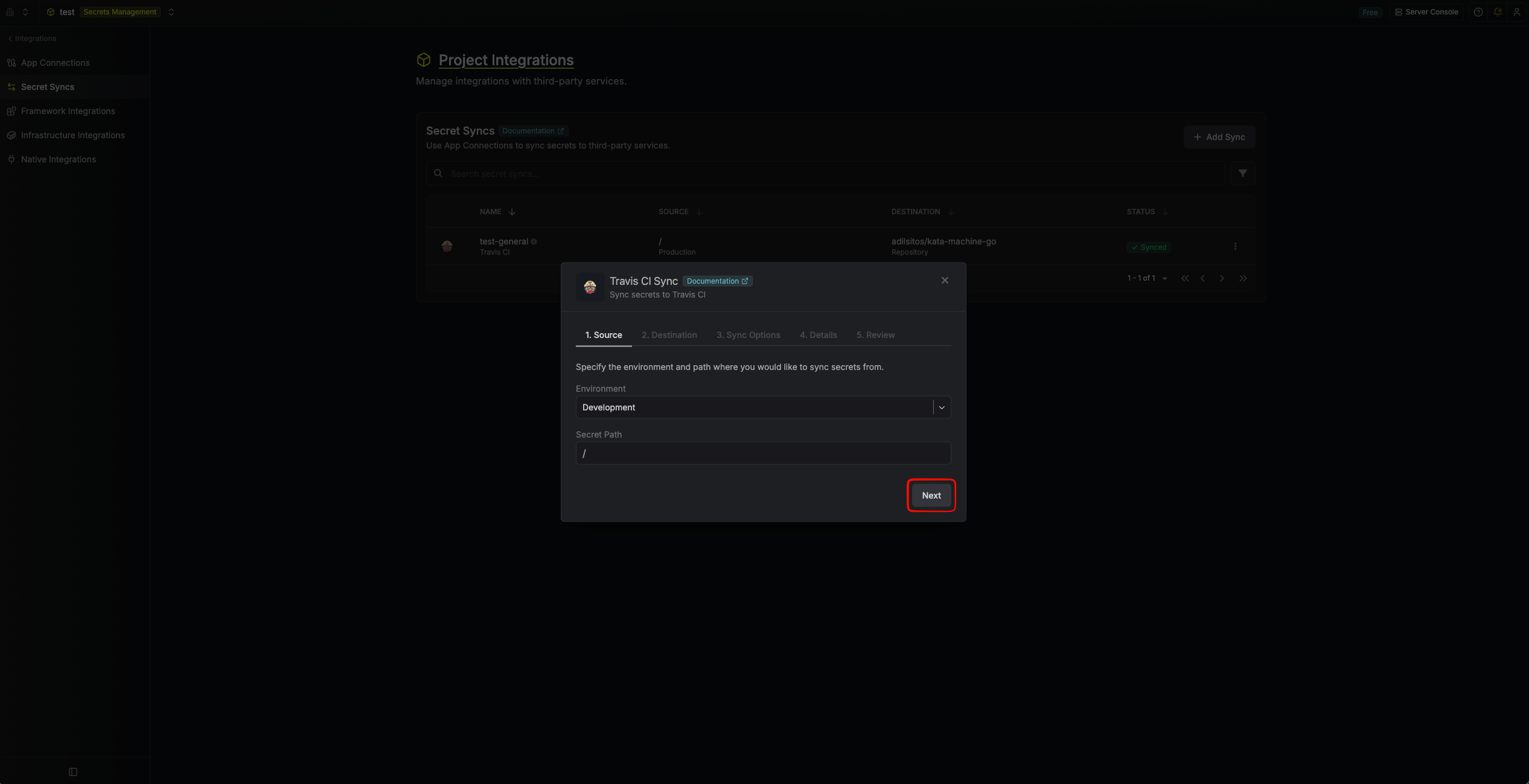
- Environment: The project environment to retrieve secrets from.
- Secret Path: The folder path to retrieve secrets from.
4
Configure destination
Configure the Destination to where secrets should be deployed, then click Next.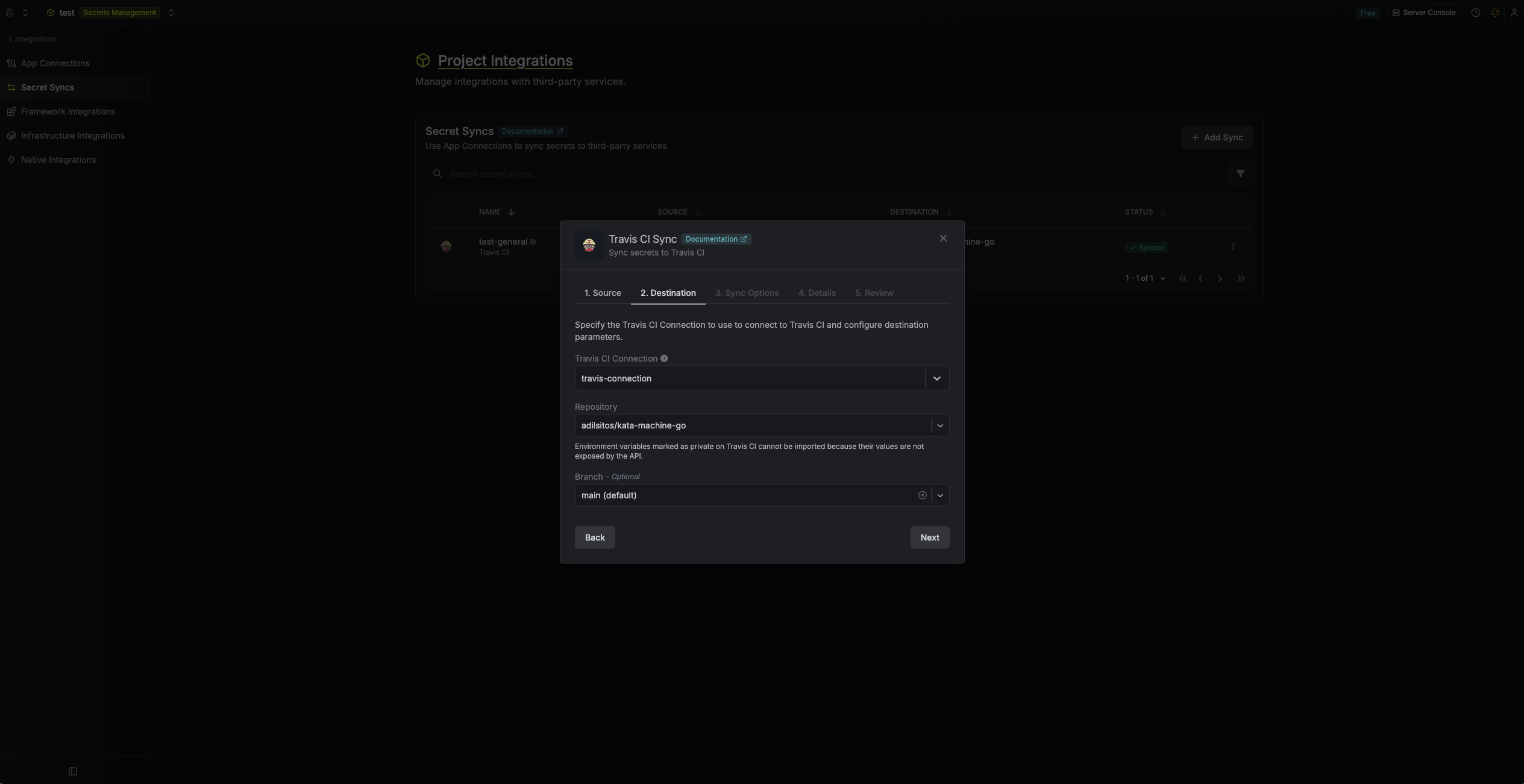
- Travis CI Connection: The Travis CI Connection to authenticate with.
- Repository: The Travis CI repository to sync secrets to.
- Branch Optional: The branch that synced environment variables will be scoped to on Travis CI. If left empty, the sync will manage environment variables that aren’t scoped to any branch (i.e. repository-level variables).
5
Configure Sync Options
Configure the Sync Options to specify how secrets should be synced, then click Next.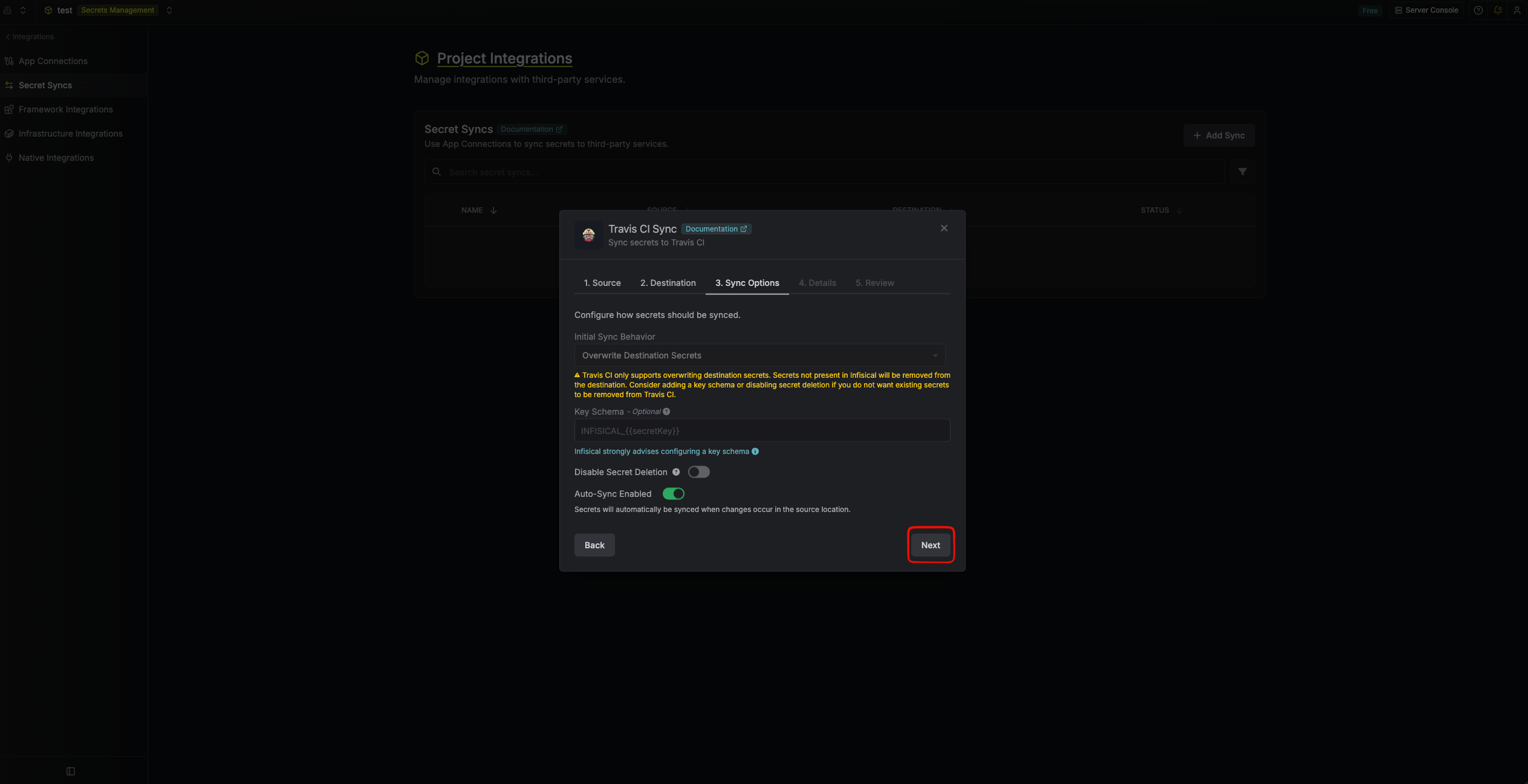
- Initial Sync Behavior: Determines how Infisical should resolve the initial sync.
- Overwrite Destination Secrets: Removes any environment variables at the destination not present in Infisical.
Travis CI does not support importing secrets.
- Key Schema: Template that determines how secret names are transformed when syncing, using
{{secretKey}}as a placeholder for the original secret name and{{environment}}for the environment.
We highly recommend using a Key Schema to ensure that Infisical only manages the specific keys you intend, keeping everything else untouched.
- Auto-Sync Enabled: If enabled, secrets will automatically be synced when changes occur at the source location. Disable to enforce manual syncing only.
- Disable Secret Deletion: If enabled, Infisical will not remove environment variables from Travis CI during a sync. Enable this option if you intend to manage some environment variables manually outside of Infisical.
6
Configure details
Configure the Details of your Travis CI Sync, then click Next.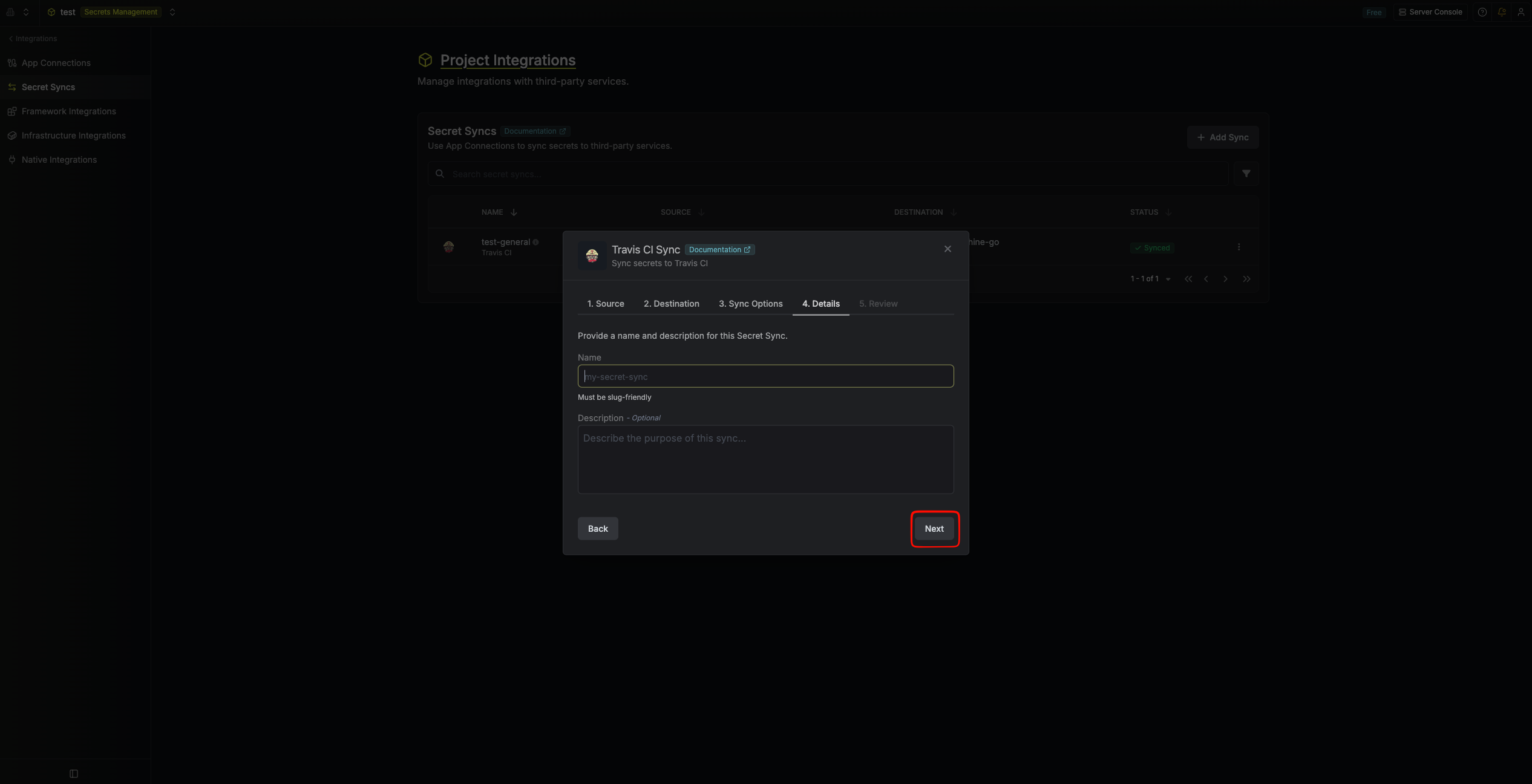
- Name: The name of your sync. Must be slug-friendly.
- Description: An optional description for your sync.
7
Review configuration
Review your Travis CI Sync configuration, then click Create Sync.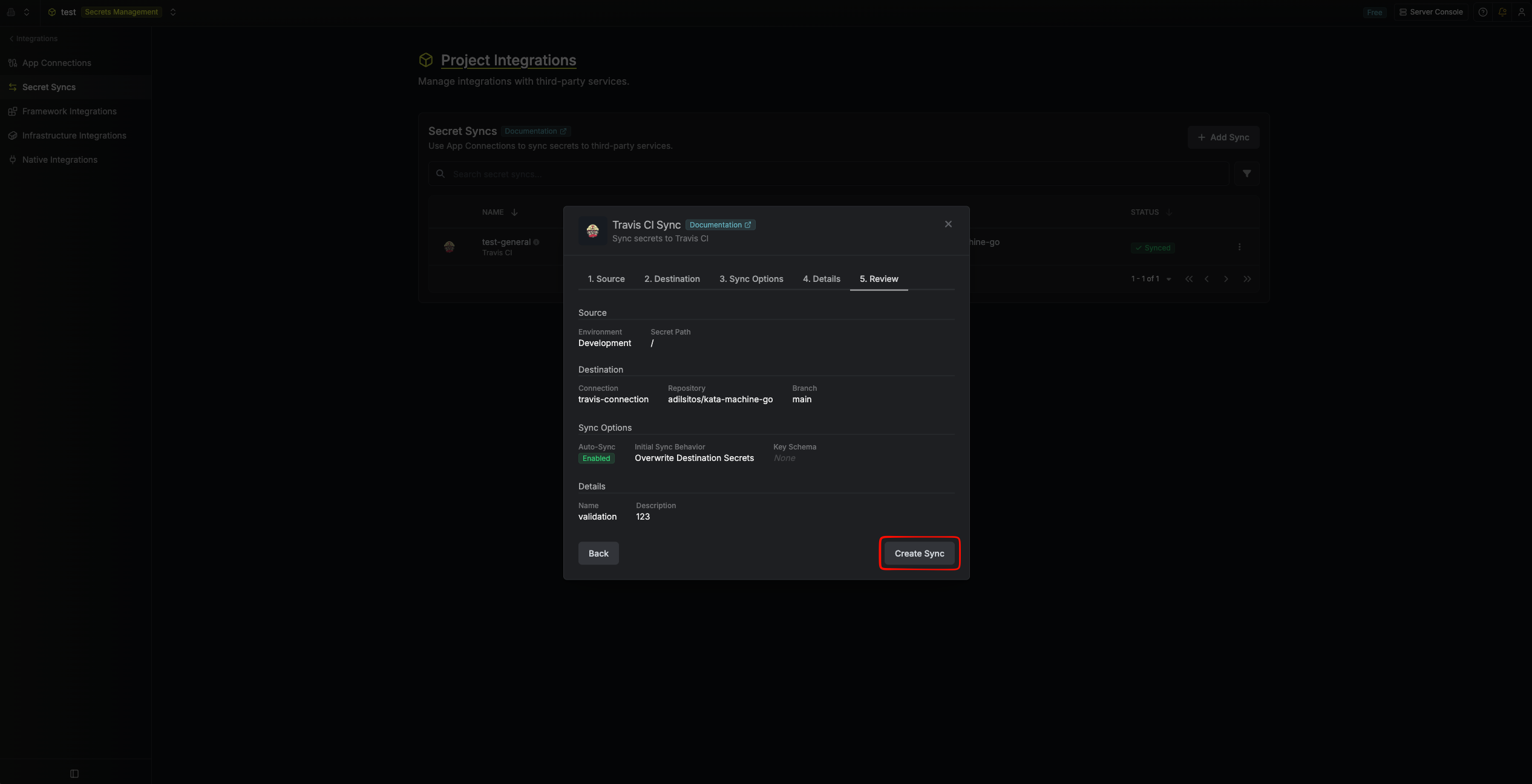
8
Sync created
If enabled, your Travis CI Sync will begin pushing your Infisical secrets to the configured repository (and branch, if scoped).