

withCredentials step. Each Infisical secret becomes a Secret text credential whose ID is the secret’s name, unless you customize key names to add a prefix or suffix.
If you’d rather have pipelines fetch secrets from Infisical when they run, without storing copies in Jenkins, use the Jenkins plugin instead.
The Jenkins Secret Sync requires a Jenkins app connection. This guide walks you through creating a project-scoped app connection.
Prerequisites
- A project with secrets configured
- A Jenkins user with the following permissions:
- Overall/Read
- Credentials/View, Credentials/Create, Credentials/Update, and Credentials/Delete, either across Jenkins or on the folder you plan to sync to
- Job/Read on the folder you plan to sync to and on every folder that contains it
- An API token for that user
- The Credentials Binding plugin, which adds the
withCredentialsstep (Jenkins installs it with the suggested plugins) - To sync to a folder, the Folders plugin (also installed with the suggested plugins)
- If your Jenkins instance isn’t reachable from the internet, a Gateway with network access to it
Step 1: Set up the sync in Infisical
1
In your project, go to Integrations and open the Secret Syncs tab. Select + Add Sync.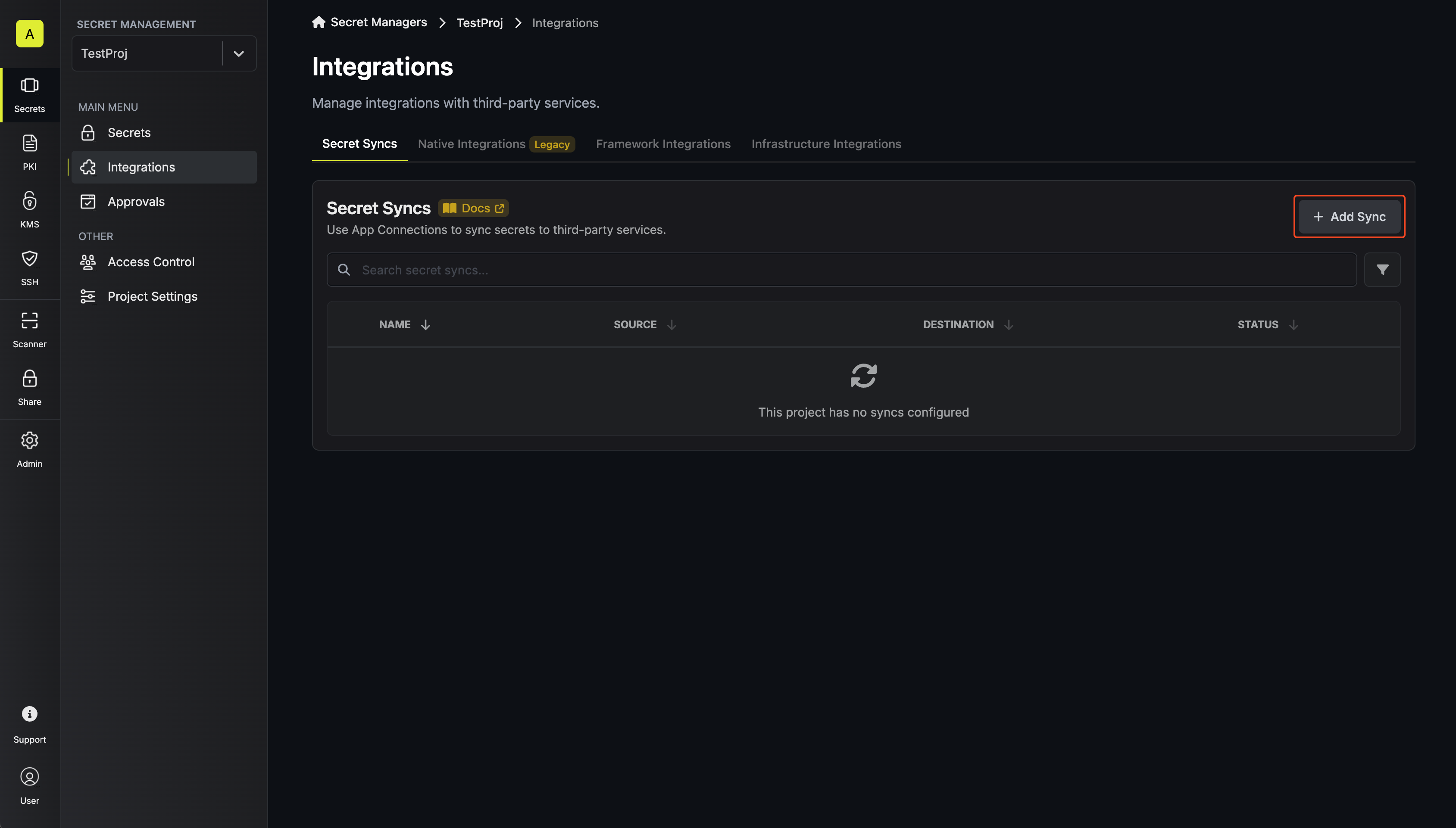 Then, select the Jenkins sync.
2
Under Source, choose which secrets to sync from Infisical:Then select Continue.
- Environment: The project environment to retrieve secrets from
- Secret Path: The folder path to retrieve secrets from
- Include secrets from all subfolders: Also syncs the secrets in every folder beneath the path
Jenkins credential IDs can only contain letters, numbers, underscores (
_), hyphens (-), and periods (.). If a secret’s name contains any other character, such as a space or a slash added when you customize key names, the sync fails with an error that names the secret.3
Under Destination, create or select the Jenkins app connection the sync will use, then choose where the credentials go in Jenkins.
- Create a new app connection
- Use an existing connection
Under Jenkins Connection, select Create Connection in the dropdown, then fill in:
- Name: A descriptive name for the connection; it must be slug-friendly
- Description (optional): A note for future reference
- Gateway: The Gateway or Gateway pool to route requests through if your Jenkins instance isn’t reachable from the internet; otherwise leave it as Internet Gateway
- Method: API Token, the only method the connection supports
- Jenkins Instance URL: The URL of your Jenkins instance, including the path Jenkins is served under if it has one, such as
https://ci.example.com/jenkins - Jenkins Username: The username of the Jenkins user that owns the API token
- Jenkins API Token: The token you copied when generating a Jenkins API token
This creates a connection scoped to the current project. To share the connection across other projects, create it at the organization level first, then select it here.
- Scope: Global writes the credentials to Jenkins’s global credentials, which every job can use; Folder writes them to one folder’s credentials, which only the jobs in that folder and its subfolders can use
- Folder: The folder that receives the credentials (only shown when Scope is Folder)
4
Under Initial Sync Behavior, select Overwrite Destination Secrets, then select Continue.
Jenkins never returns a credential’s secret through its API, so this sync can’t import existing Jenkins credentials into Infisical. Overwrite Destination Secrets is the only option.
5
Under Sync Options, choose how secrets are synced:
- Prevent secret deletion: When enabled, Infisical adds and updates credentials in Jenkins but never deletes them; enable this if you manage some Secret text credentials outside of Infisical
- Auto-sync on changes: When enabled, secrets sync to Jenkins automatically as the source changes; turn it off to sync manually only
- Customize key names: Adds a prefix or suffix to every credential ID, using
{{secretKey}}for the original name and{{environment}}for the environment slug
6
Give the sync a Name and an optional Description. The name must be slug-friendly.Then select Continue.
7
Review your Jenkins Sync configuration, then select Create Sync.
The sync is created. If Auto-sync on changes is enabled, it begins syncing secrets to Jenkins right away.
Step 2: Use the credentials in a pipeline
Each synced secret appears in Jenkins as a Secret text credential with the descriptionManaged by Infisical. To read one in a pipeline, bind it to an environment variable with the withCredentials step:
DB_PASSWORD in credentialsId with the credential’s ID. Inside the block, the secret is available as the environment variable you name in variable.
FAQ
Does the sync change credentials that aren't Secret text?
Does the sync change credentials that aren't Secret text?
No. The sync never updates or deletes credentials of other types, such as usernames with passwords or SSH keys. If one of them has the same ID as a secret the sync writes, the sync fails with an error that names the secret. To fix the error, rename the secret in Infisical or customize key names.
Next steps
Jenkins
Create an organization-level Jenkins connection to share across projects.
Secret syncs
Learn how secret syncs work and how to manage them.