- Create a DigitalOcean Connection
- Infisical UI
- API
1
Add Sync
Navigate to Project > Integrations and select the Secret Syncs tab. Select the Add Sync button.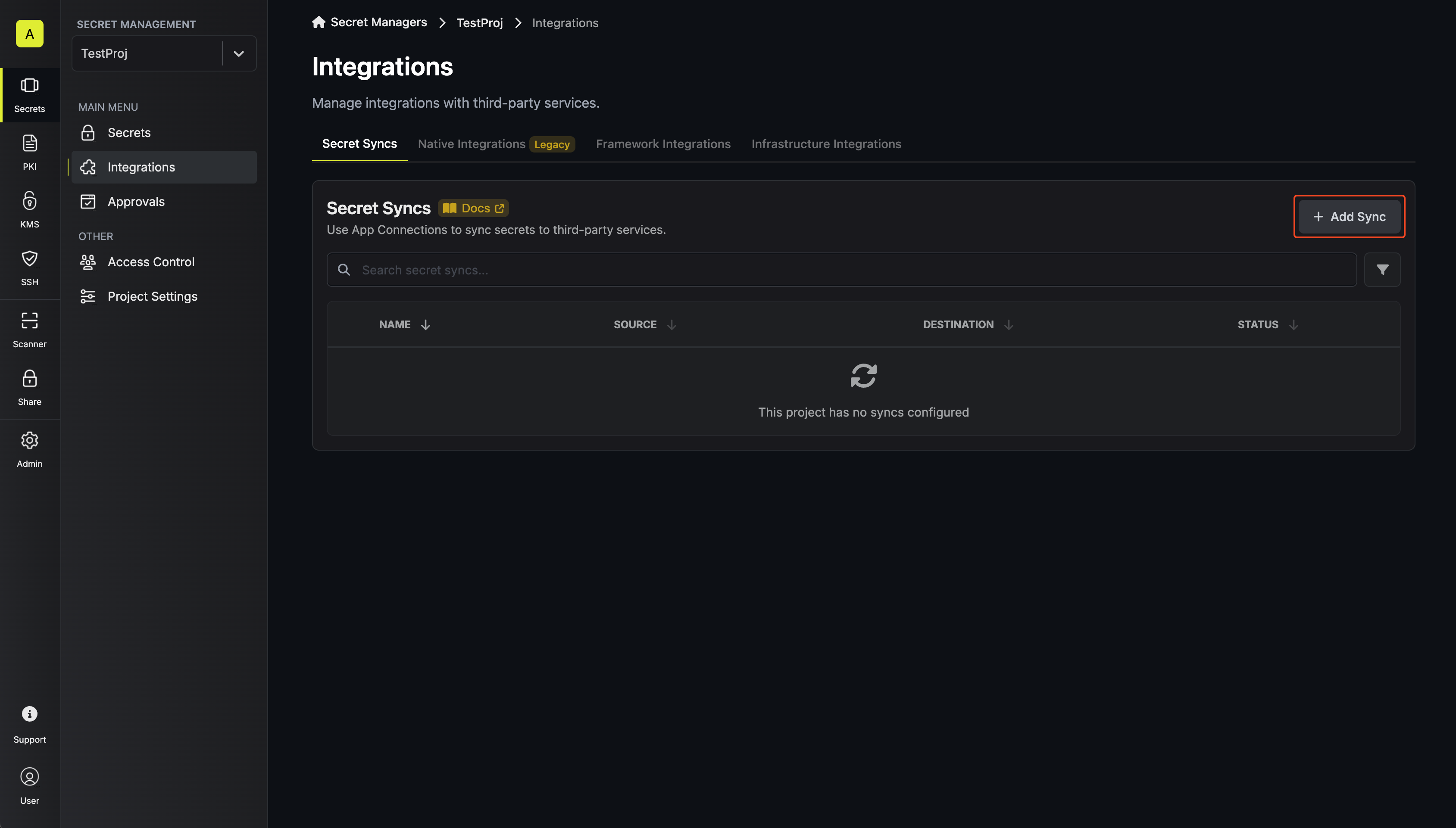
2
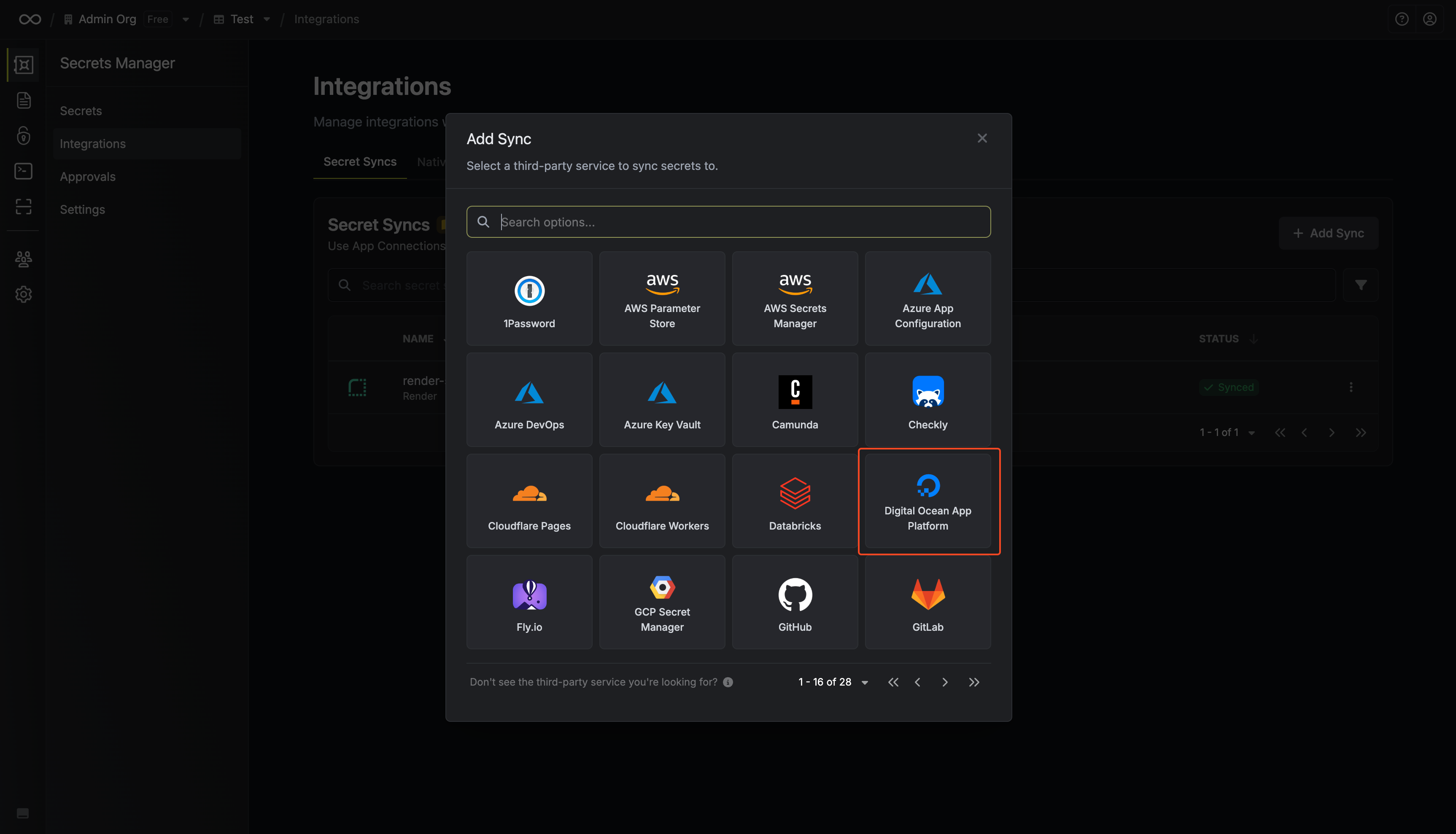
Select 'DigitalOcean App Platform'
3
Configure source
Configure the Source from where secrets should be retrieved, then click Next.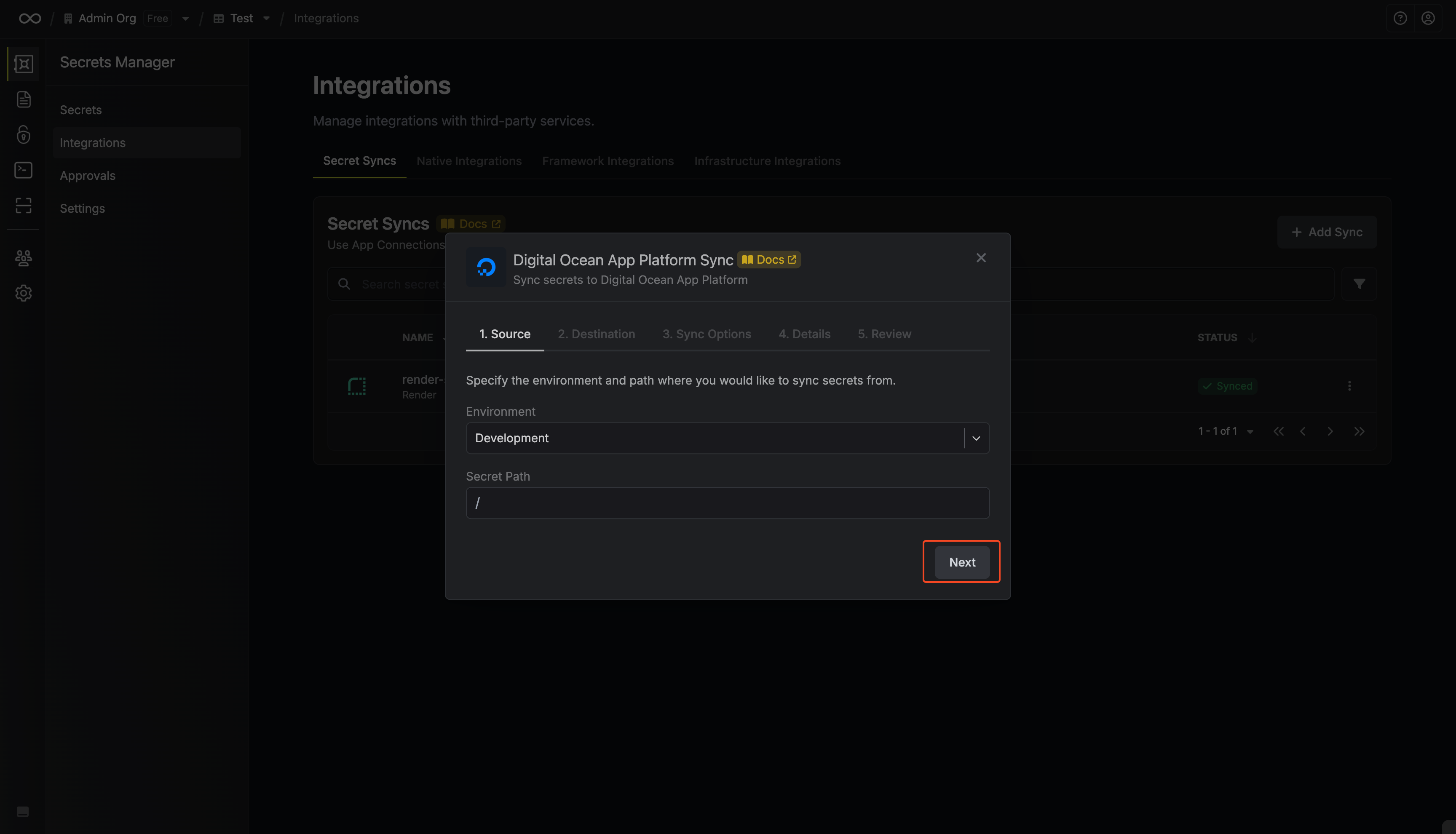
- Environment: The project environment to retrieve secrets from.
- Secret Path: The folder path to retrieve secrets from.
4
Configure destination
Configure the Destination to where secrets should be deployed, then click Next.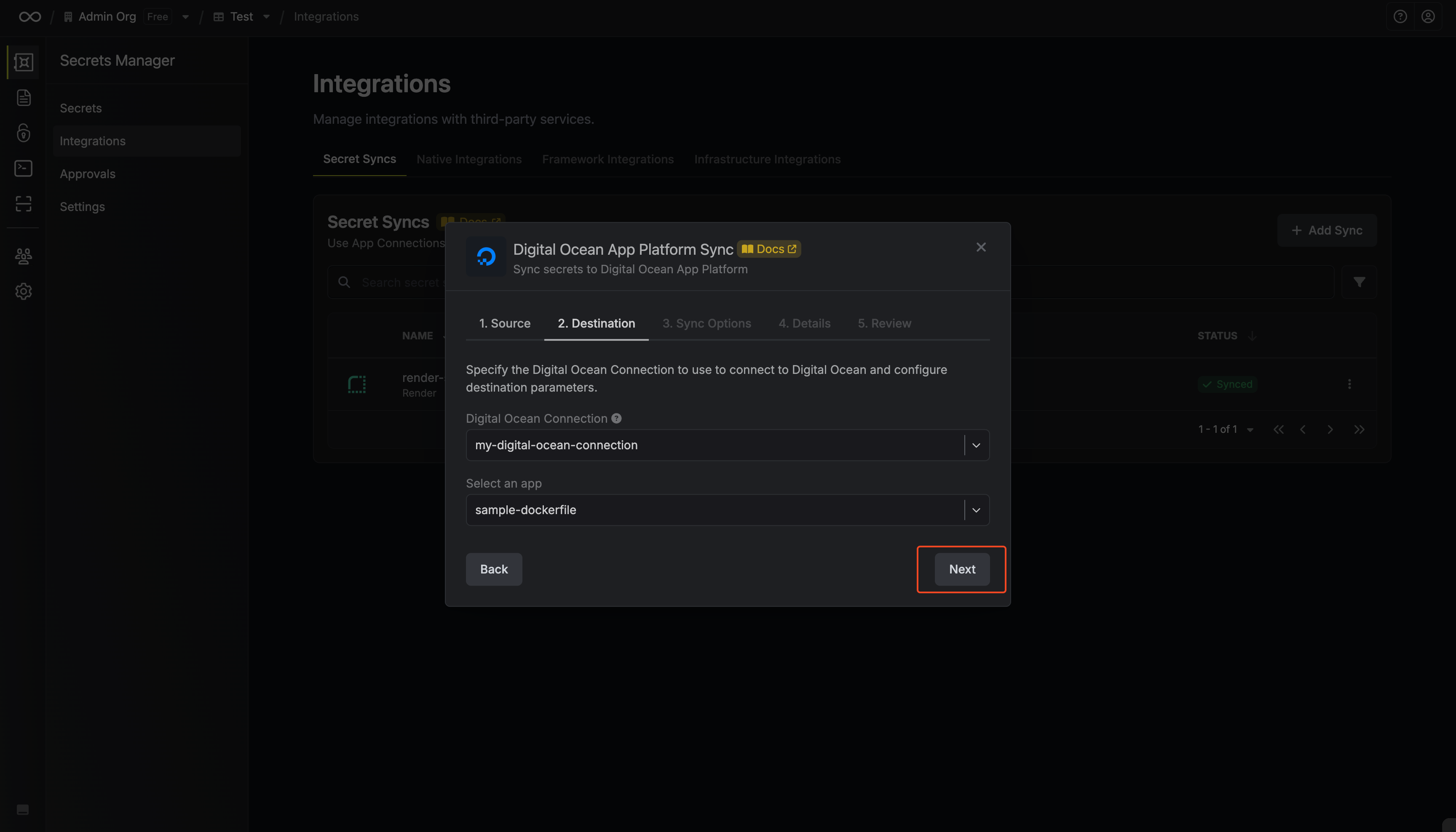
- DigitalOcean Connection: The DigitalOcean Connection to authenticate with.
- App: The App Platform app to sync secrets to.
5
Configure Sync Options
Configure the Sync Options to specify how secrets should be synced, then click Next.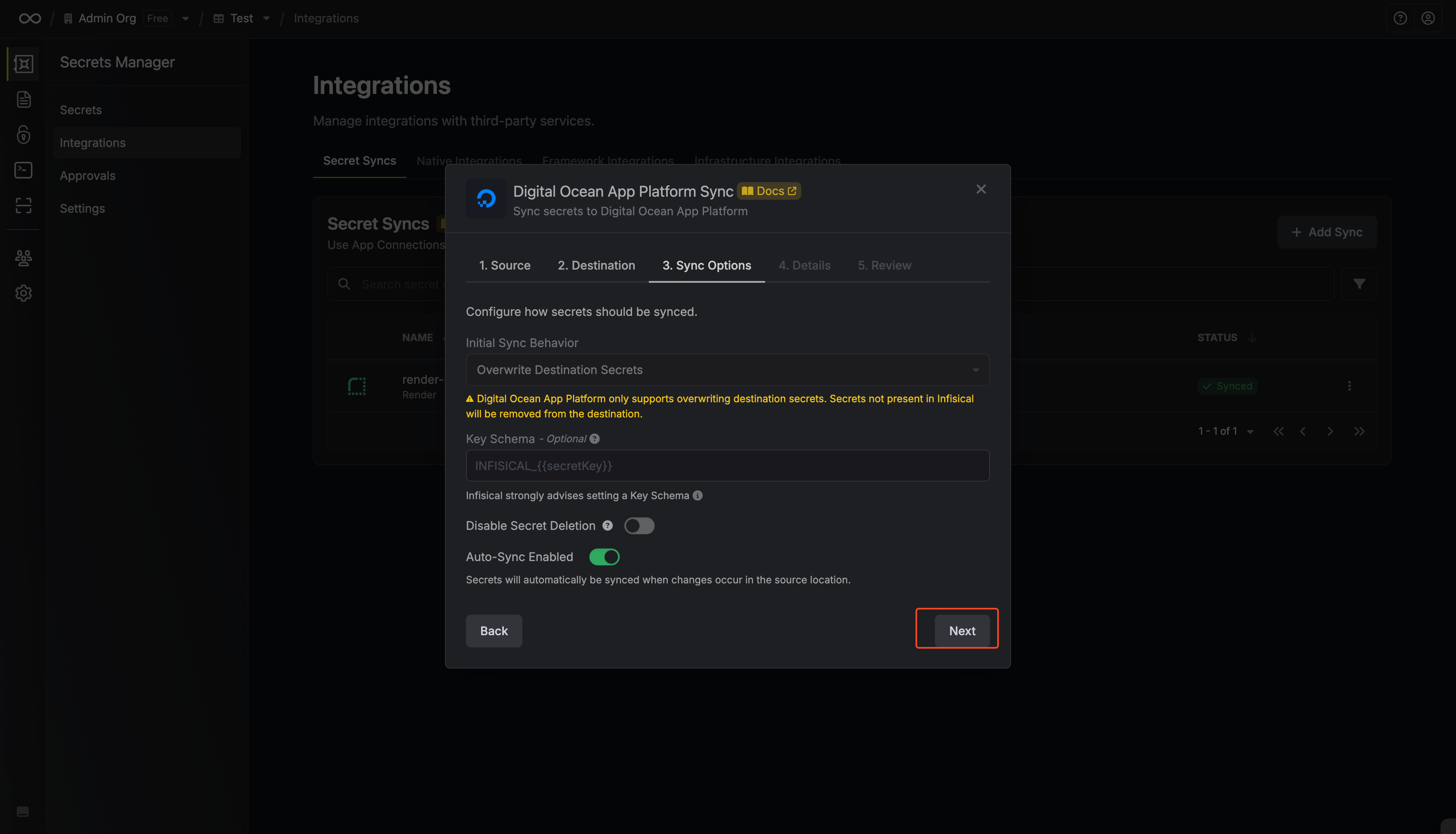
- Initial Sync Behavior: Determines how Infisical should resolve the initial sync.
- Overwrite Destination Secrets: Removes any secrets at the destination endpoint not present in Infisical.
DigitalOcean App Platform does not support importing secrets.
- Key Schema: Template that determines how secret names are transformed when syncing, using
{{secretKey}}as a placeholder for the original secret name and{{environment}}for the environment.
We highly recommend using a Key Schema to ensure that Infisical only manages the specific keys you intend, keeping everything else untouched.
DigitalOcean only accepts environment variable names that contain letters, digits, and underscores and don’t start with a digit. Infisical checks each secret name after applying the Key Schema and if any name contains a hyphen or another character DigitalOcean rejects, the sync fails without changing the app and lists the invalid names. Rename those secrets or change the Key Schema, then sync again.
- Auto-Sync Enabled: If enabled, secrets will automatically be synced from the source location when changes occur. Disable to enforce manual syncing only.
If a deployment is running or pending for the app, the sync fails without changing the app. Wait for the deployment to finish, then sync again.
- Disable Secret Deletion: If enabled, Infisical will not remove secrets from the sync destination. Enable this option if you intend to manage some secrets manually outside of Infisical.
6
Configure details
Configure the Details of your DigitalOcean Sync, then click Next.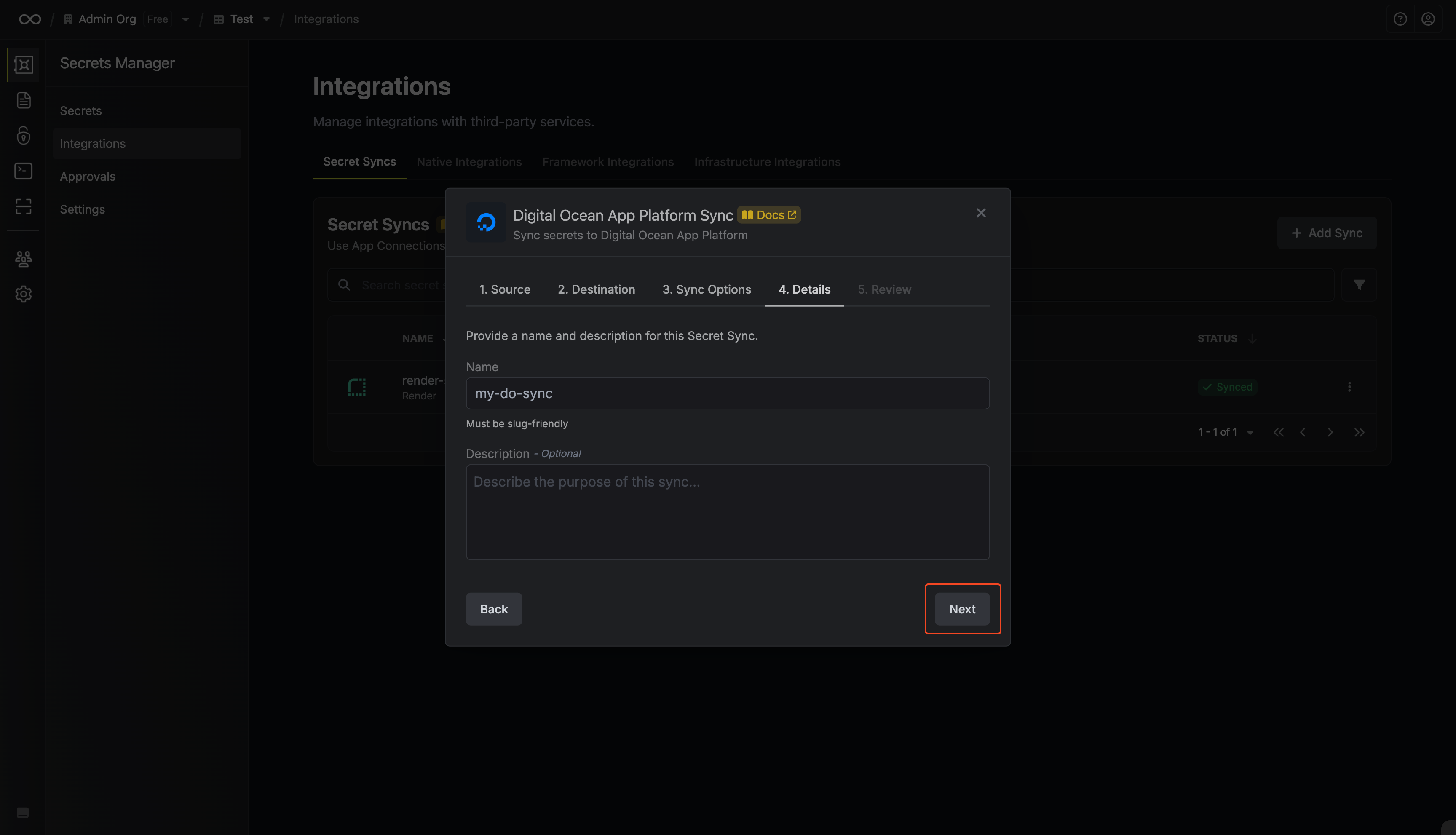
- Name: The name of your sync. Must be slug-friendly.
- Description: An optional description for your sync.
7
Review configuration
Review your DigitalOcean Sync configuration, then click Create Sync.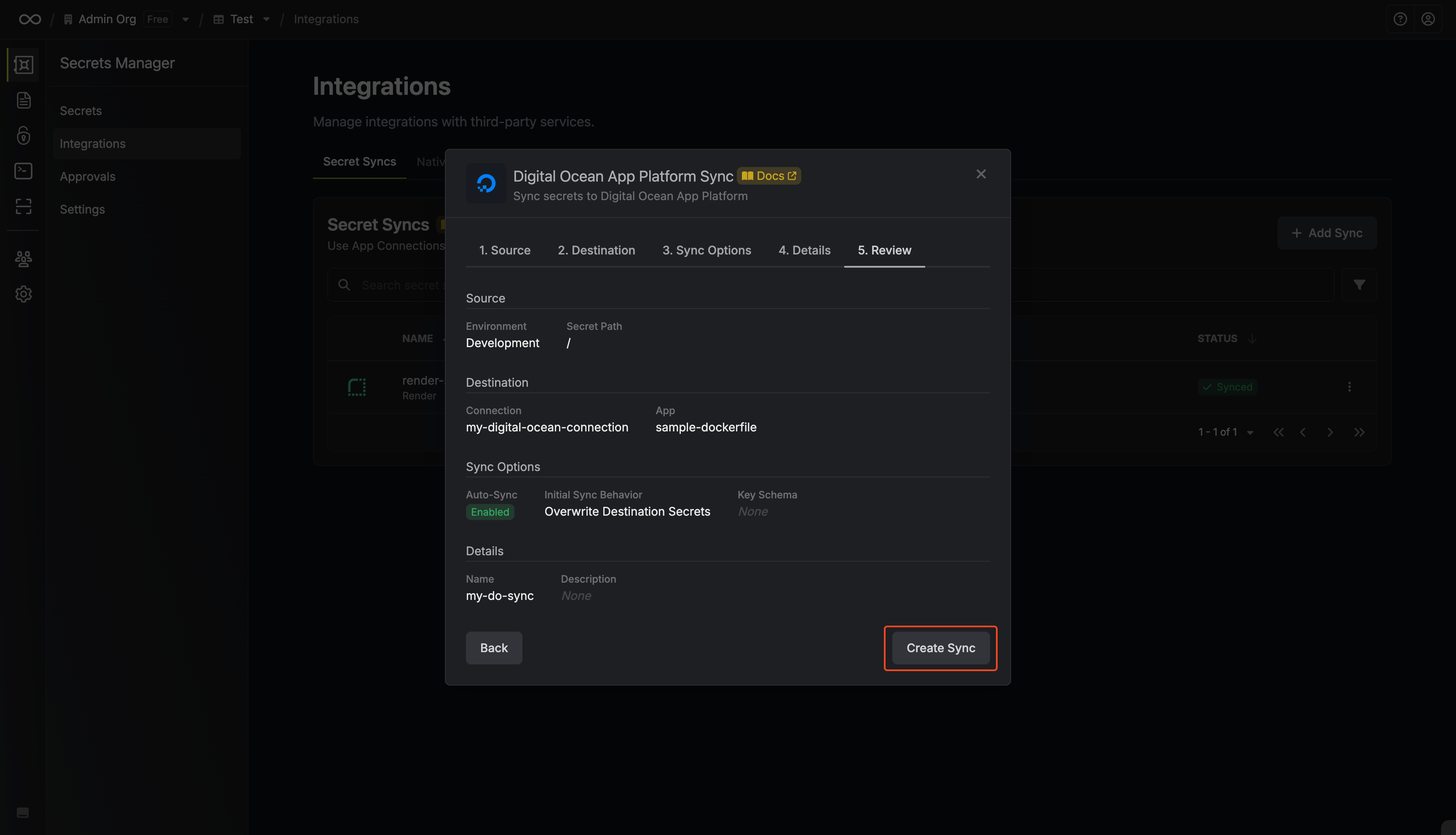
8
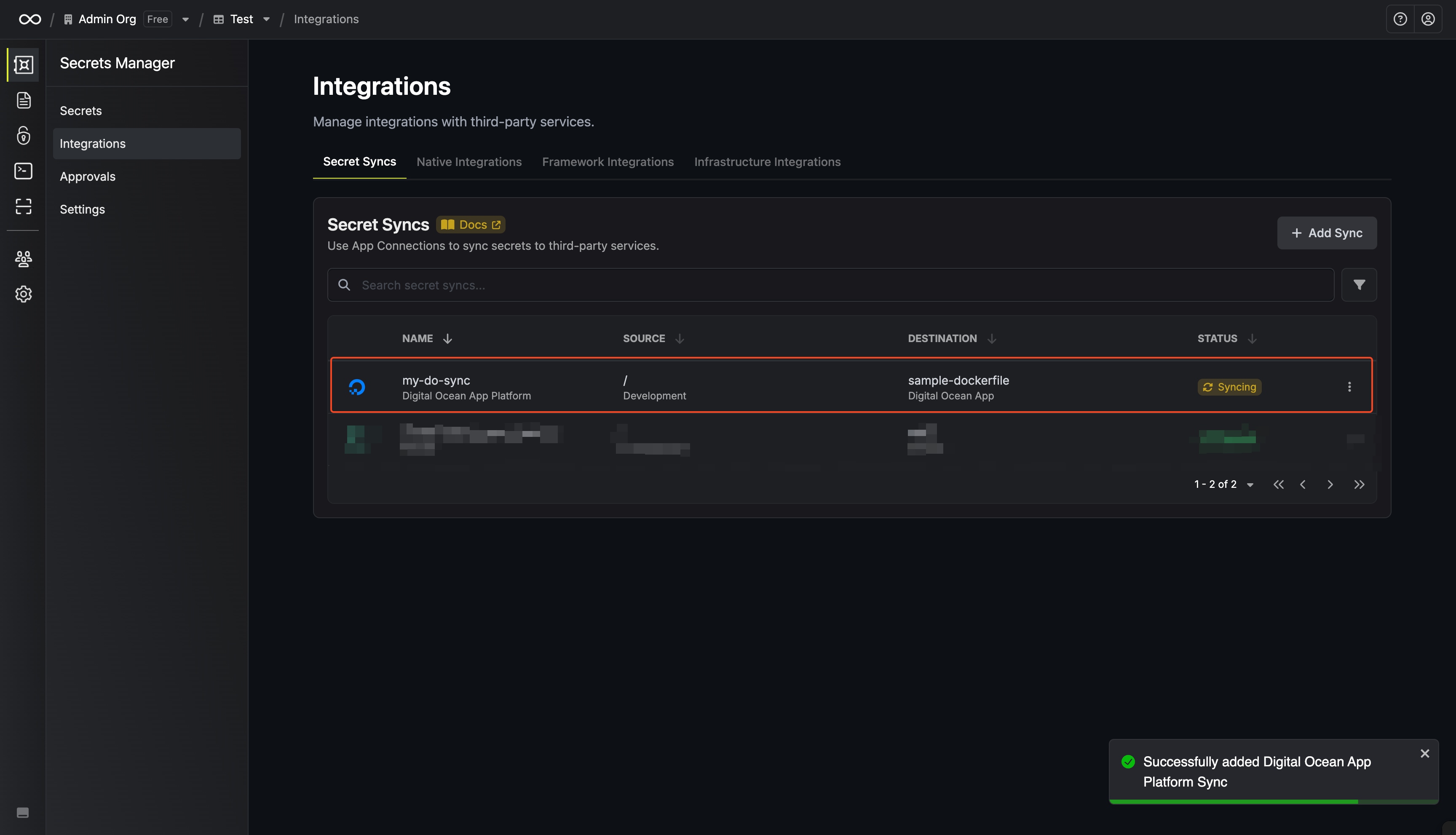
Sync created
If enabled, your DigitalOcean Sync will begin syncing your secrets to the destination endpoint.