

Why secret syncs
A Native Integration bundled the credential and the destination into a single object. Each one stored its own copy of your provider credentials, scoped to one project, and each provider supported a different subset of options depending on when it was written. That made behavior hard to predict: whether Infisical would delete a secret in your destination, or whether you could prefix your keys, depended on which provider you had picked. The differences that matter most in day-to-day use: Key Schemas. Native Integrations let you add a prefix or a suffix to your secret names, and nothing more. A Key Schema is a full template, so you decide exactly how keys are named in the destination. It also scopes what Infisical manages: any secret in the destination that doesn’t match the schema is left alone, so a sync can share a destination with secrets managed elsewhere. App Connections. A Native Integration’s credentials belonged to one project. Rotating a token meant re-authorizing every project that used it. An App Connection can be created at the organization level or inside a project, reused by every sync that needs it, and has its own permissions and credential rotation. Deleting secrets in the destination. Native Integrations could only remove secrets from GitHub, so for every other provider a secret deleted in Infisical stayed behind in the destination. Secret Syncs can remove secrets from every destination: turn Disable secret deletion off to let deletions through, and leave it on when you manage some destination secrets by hand. Private networks. Native Integrations could only reach destinations Infisical could contact directly. Secret Syncs can route through an Infisical Gateway, a lightweight service you deploy inside your network that opens an outbound tunnel. Syncs can then reach self-hosted or private destinations, such as GitHub Enterprise Server, HashiCorp Vault, or a private Azure Key Vault endpoint, without opening inbound firewall rules.How to migrate
A Secret Sync and a Native Integration can point at the same destination and write the same values from the same source. Create the sync to match your current setup, confirm it works, then remove the Native Integration. The walkthrough below uses GitHub as the example. The same approach applies to every service.1
Record your current configuration
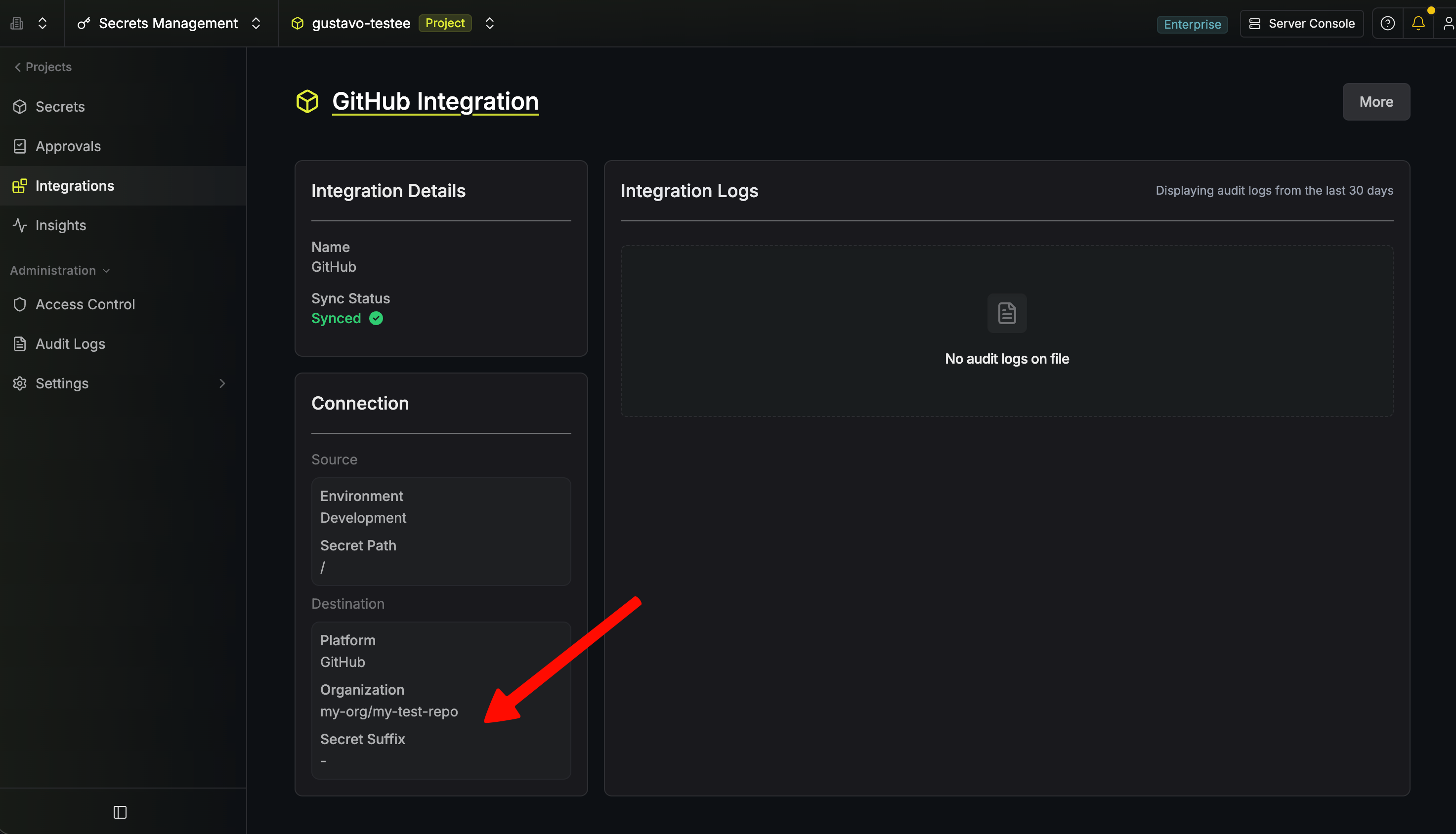
Open your GitHub Native Integration and note what it targets, so you can match it exactly:
- The Environment and Secret Path it syncs from.
- The organization, repository, or repository environment it writes to.
- Its visibility, if it writes to an organization. The detail page notes this below the destination, for example “Syncing to all private repositories in the organization”.
- Any value in Secret Suffix.
-
Whether you enabled Delete secrets in GitHub that are not in Infisical when you created
the integration. The detail page does not show this setting, so check with whoever set the
integration up if you are unsure.
2
Create a GitHub Connection
Follow GitHub Connection to create the connection.You only need to do this once per organization. Every GitHub Secret Sync you create from
here on can reuse the same connection, in any project.
3
Start a new GitHub Sync
Navigate to Project > Integrations, select the Secret Syncs tab, click
Add Sync, and choose GitHub.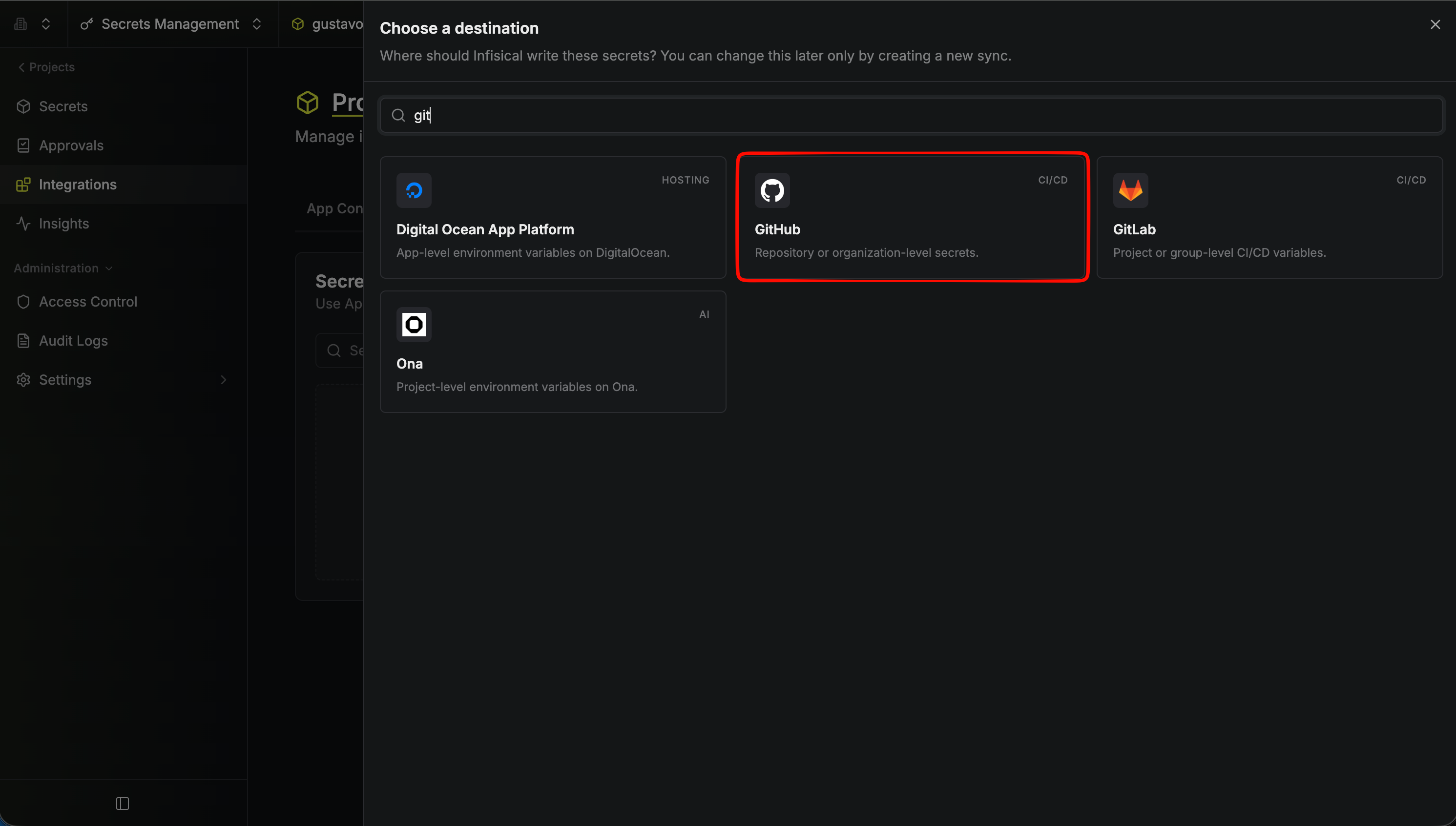 For the Source, enter the same Environment and Secret Path you recorded in
step 1. Matching the source is what makes the two run in parallel: both send the same
secrets to the same place.
For the Source, enter the same Environment and Secret Path you recorded in
step 1. Matching the source is what makes the two run in parallel: both send the same
secrets to the same place.
For the Source, enter the same Environment and Secret Path you recorded in
step 1. Matching the source is what makes the two run in parallel: both send the same
secrets to the same place.4
Match the destination
Select the GitHub Connection you created in step 2, set the Scope to the same scope
your Native Integration used, then fill in the same organization, repository, or repository
environment. If you are syncing to an organization, set the same Visibility.The scope names are the same three options, so this is a direct mapping. See
GitHub Sync for the full field reference.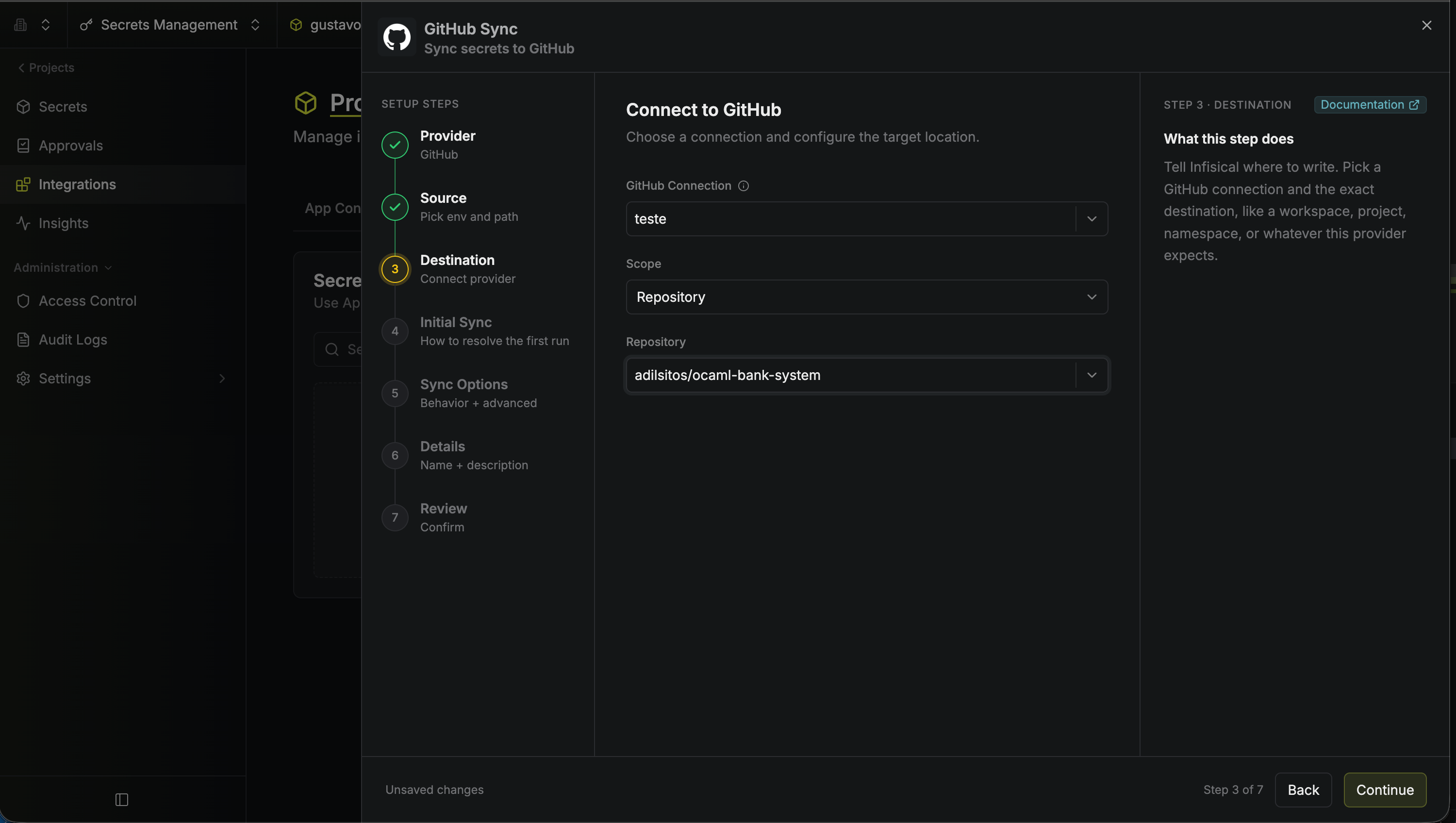
5
Choose the initial sync behavior
GitHub does not let Infisical read secrets back, so Overwrite Destination Secrets is the
only available option. Click Continue.
6
Configure the sync options
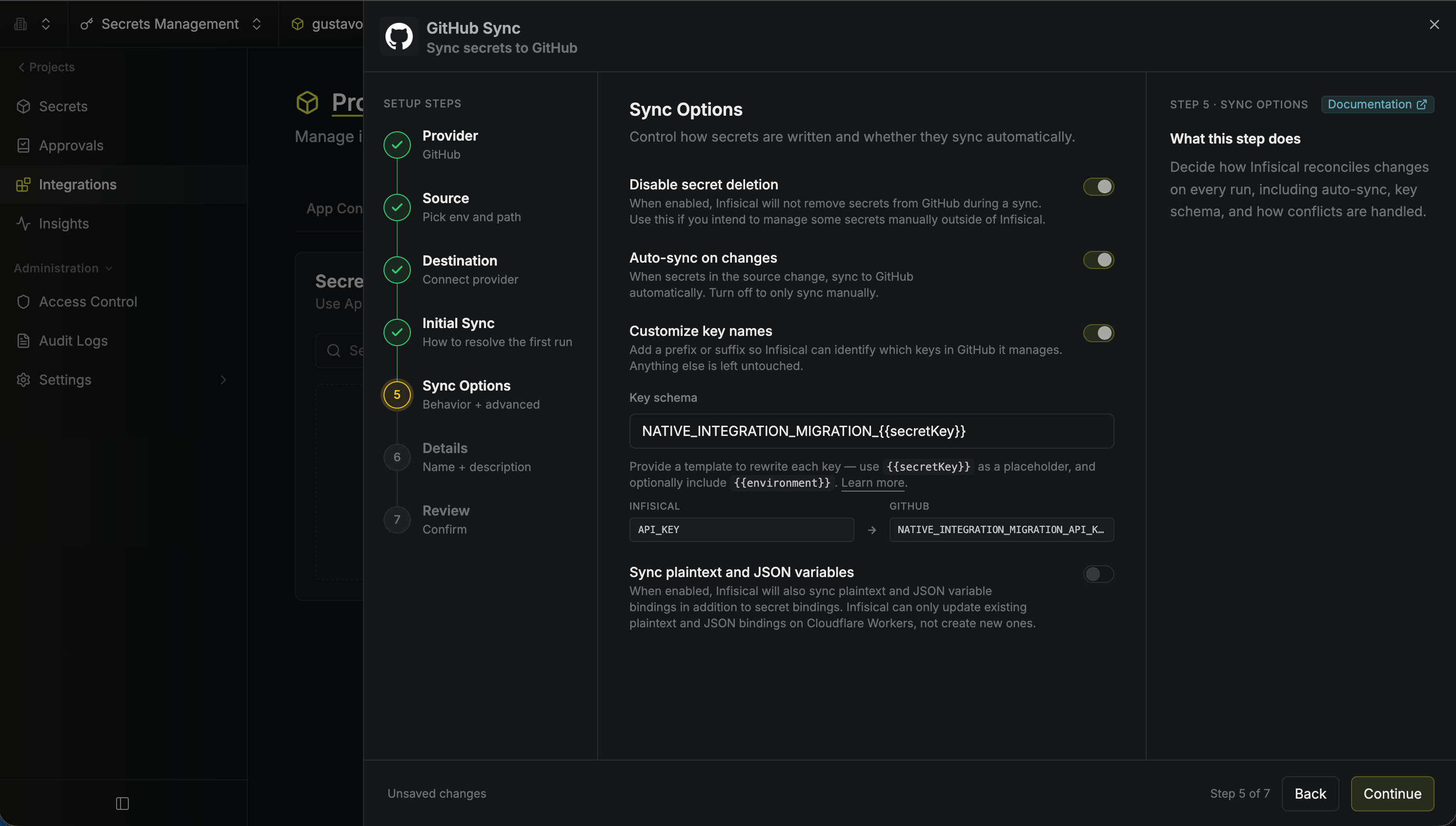
- Disable secret deletion: Leave this on.
- Auto-sync on changes: Leave this on, so the sync picks up changes the same way your Native Integration did.
- Customize key names: Turn this on and set a Key schema that reproduces the names
your Native Integration wrote. Use
{{secretKey}}on its own to keep names unchanged, or mirror an existing suffix as{{secretKey}}_PROD. Matching the names is what makes the sync overwrite the same GitHub secrets rather than create a second set alongside them.
7
Name and create the sync
Enter a name for the sync, review the configuration, and click Create Sync. If
Auto-sync on changes is enabled, the sync runs immediately.
8
Verify the sync
Confirm the sync reports a successful status, then open your repository’s secrets in GitHub
and check that the values are present and current. Change a secret in Infisical and confirm
the change reaches GitHub.
9
Remove the Native Integration
Once you are confident the sync is doing the job, delete the Native Integration.
Migrating other services
The recipe is the same for every service: create the App Connection, create a Secret Sync with the same source and destination, match the secret naming with a Key Schema, enable Disable secret deletion, verify, then remove the Native Integration. See the Secret Syncs section for the field reference for your destination. Some destinations can read secrets back; GitHub can’t. For those, Initial Sync Behavior lets you pull what is already in the destination into Infisical before anything is overwritten, choosing whether Infisical or the destination wins on a conflict. If your Native Integration has drifted from Infisical, importing first is the safer starting point.If you need help planning a migration, or the service you use isn’t yet
available as a Secret Sync, contact us at [email protected].