

Prerequisites
- A project with secrets configured
- A Cloudflare app connection whose API token has the Secrets Store permissions
- A store in your Cloudflare account (Cloudflare creates it the first time a Super Administrator or Secrets Store Admin opens Secrets Store in the Cloudflare dashboard)
Set up the sync in Infisical
1
In your project, go to Integrations and open the Secret Syncs tab. Select + Add Sync.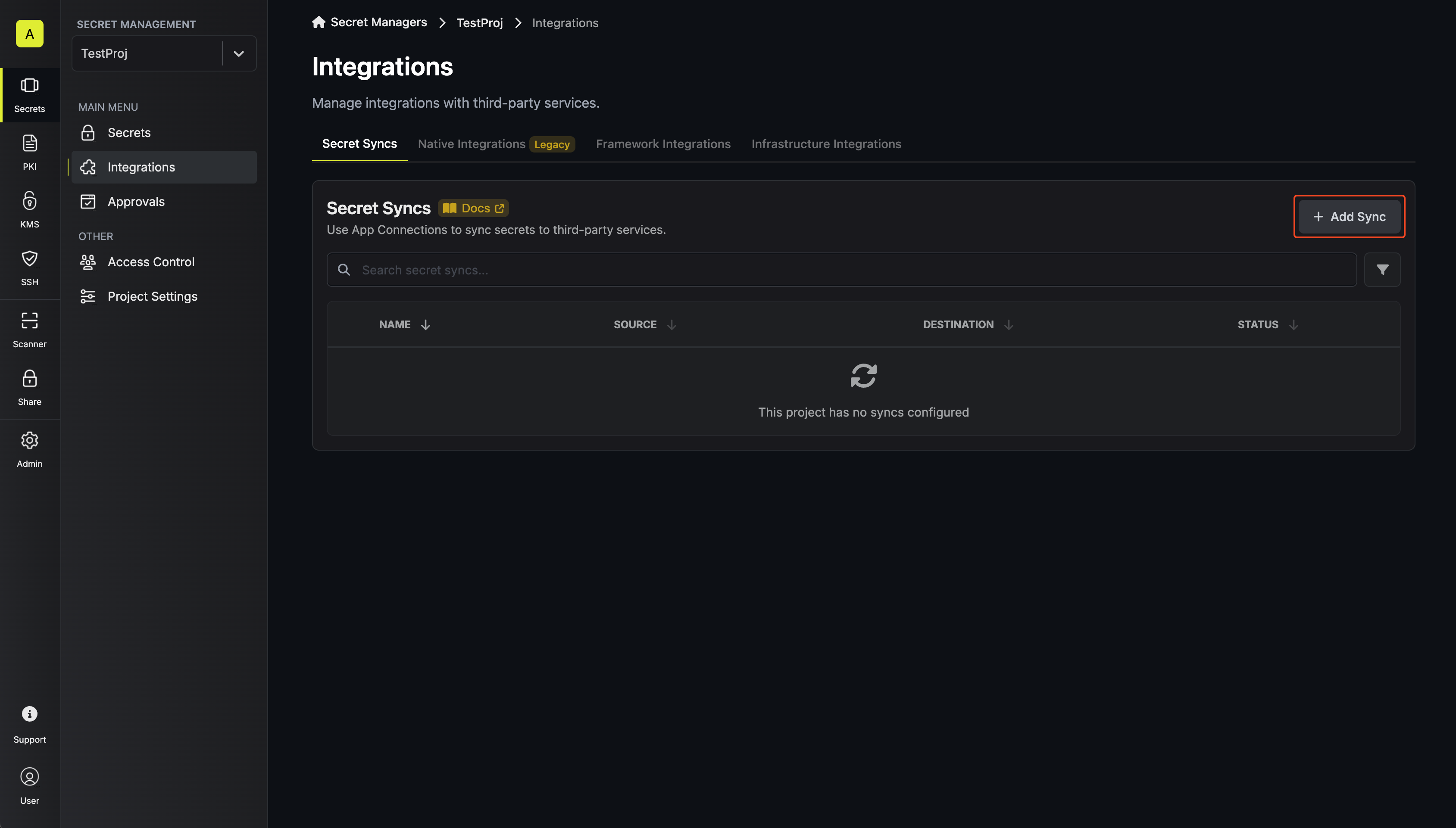 Then, select the Cloudflare Secrets Store sync.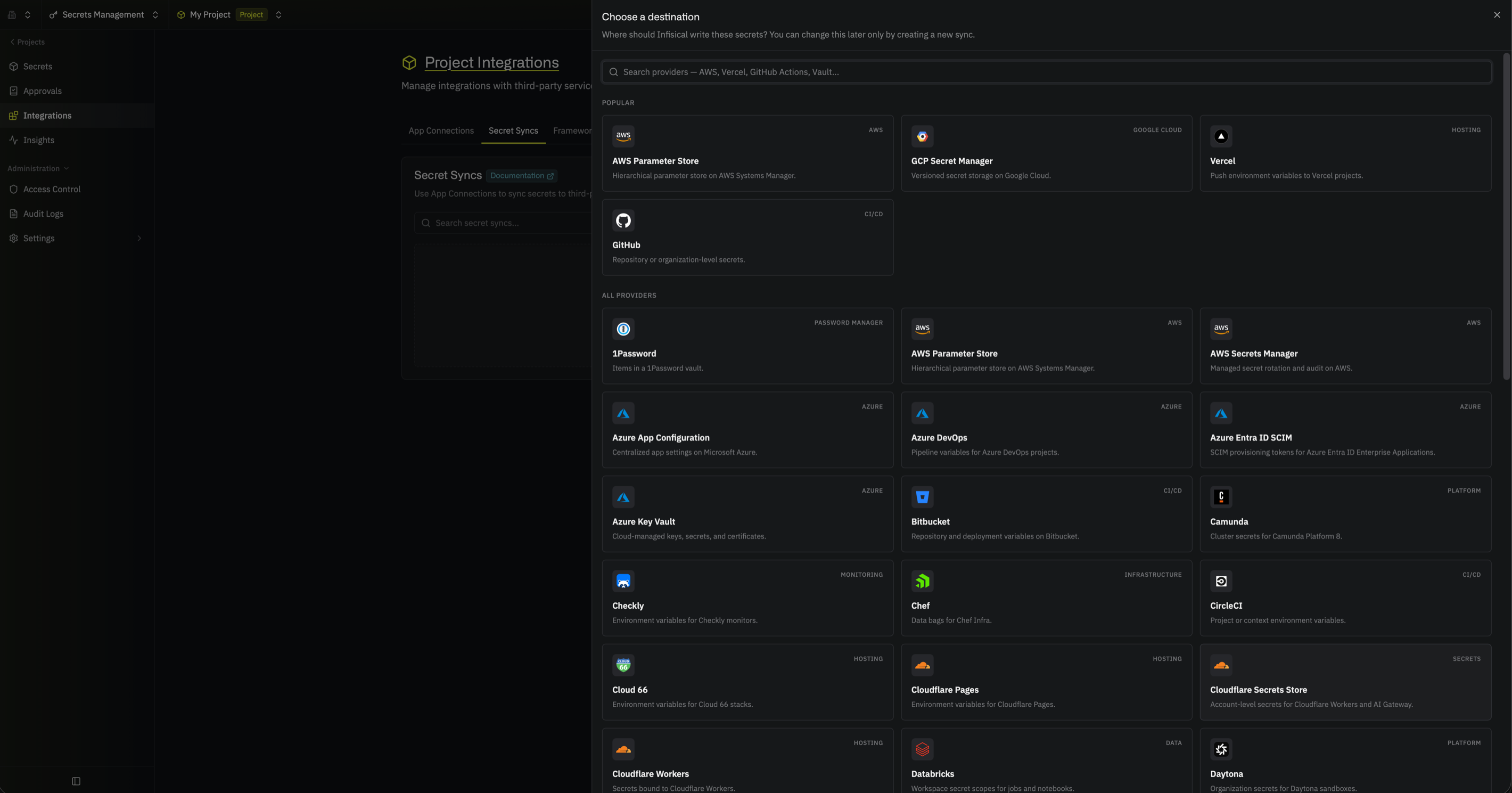
Then, select the Cloudflare Secrets Store sync.2
Under Source, choose which secrets to sync from Infisical:Then select Continue.
- Environment: The project environment to retrieve secrets from
- Secret Path: The folder path to retrieve secrets from
- Include secrets from all subfolders: Also syncs the secrets in every folder beneath the path (secret names must be unique across all of them)
Secrets Store secret names can contain only letters, digits, hyphens, and underscores, and so can the prefix or suffix you add when you customize key names. If any secret at this path has a name Cloudflare rejects, the sync fails without writing any secrets, and the error names each rejected key.
3
Under Destination, select the Cloudflare app connection the sync will use, then choose where secrets go in Cloudflare. To create a connection here, select Create Connection in the Cloudflare Connection dropdown and fill in the fields described in the Cloudflare app connection guide.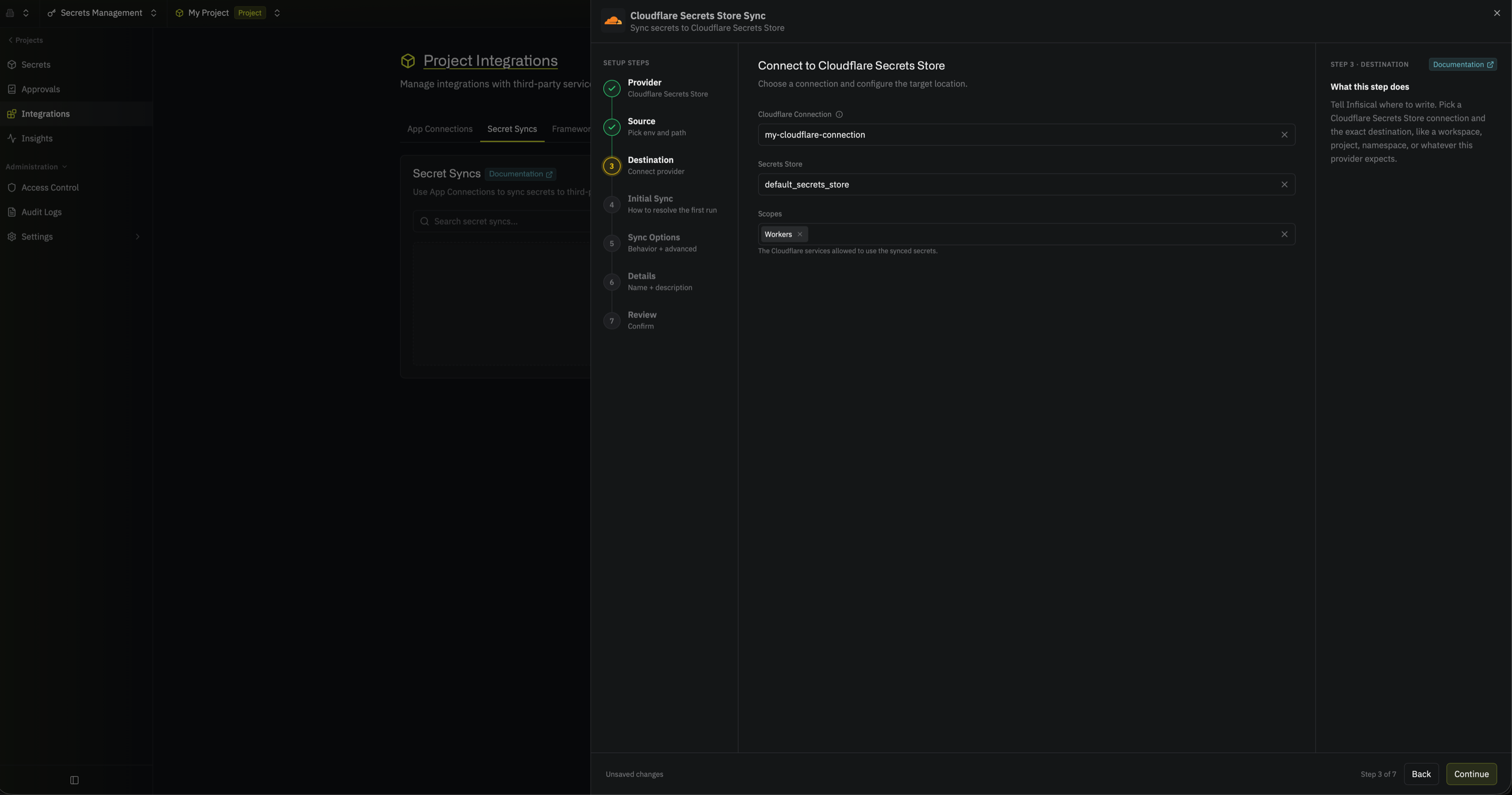 Then select Continue.
- Secrets Store: The store to sync secrets to
- Scopes: The Cloudflare products allowed to use the synced secrets: Workers, AI Gateway, or Containers (defaults to Workers)
Infisical applies these scopes every time it syncs, so if you remove a scope from the sync, every secret the sync manages loses that scope.
Then select Continue.4
Under Initial Sync Behavior, select Overwrite Cloudflare Secrets Store, then select Continue.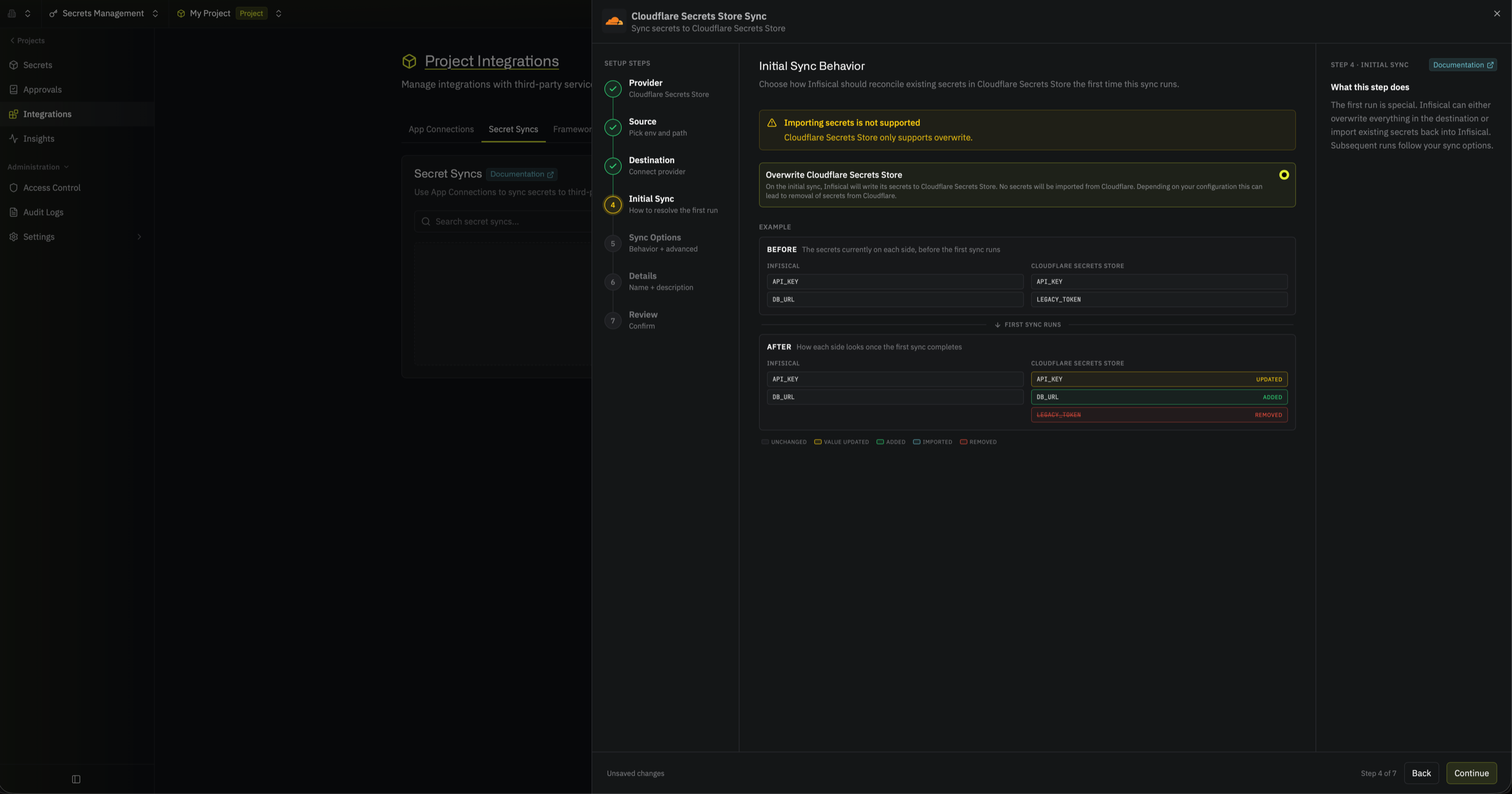
Cloudflare never returns a secret’s value, so this sync can’t import existing Secrets Store secrets into Infisical. Overwrite Cloudflare Secrets Store is the only option.
5
Under Sync Options, choose how secrets are synced: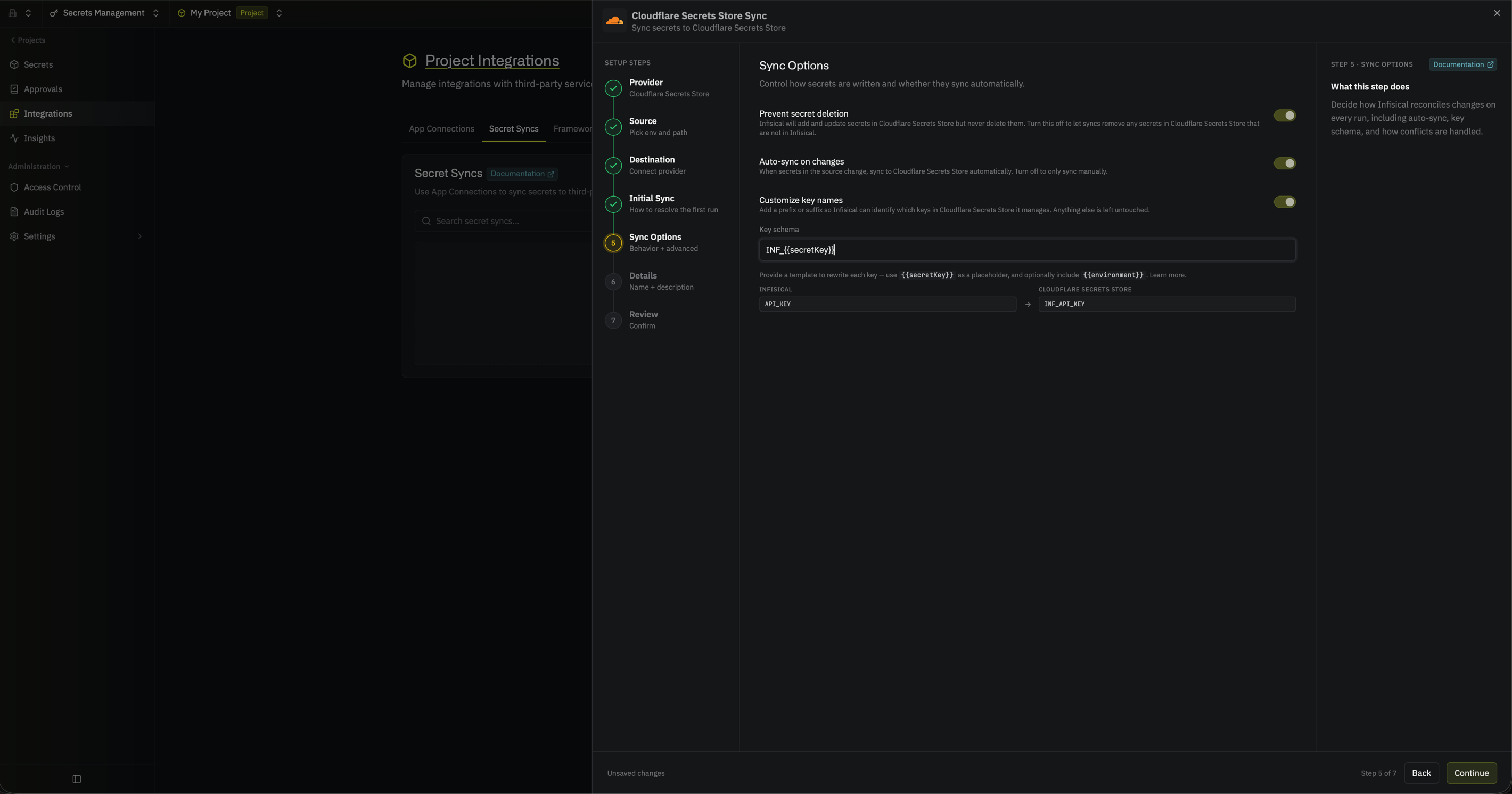 Then select Continue.
- Prevent secret deletion: When enabled, Infisical adds and updates secrets in Cloudflare but never deletes them; enable this if you manage some Secrets Store secrets outside of Infisical
- Auto-sync on changes: When enabled, secrets sync to Cloudflare automatically as the source changes; turn it off to sync manually only
- Customize key names: Adds a prefix or suffix to every synced name, using
{{secretKey}}for the original name and{{environment}}for the environment slug
Then select Continue.6
Give the sync a Name and an optional Description. The name must be slug-friendly.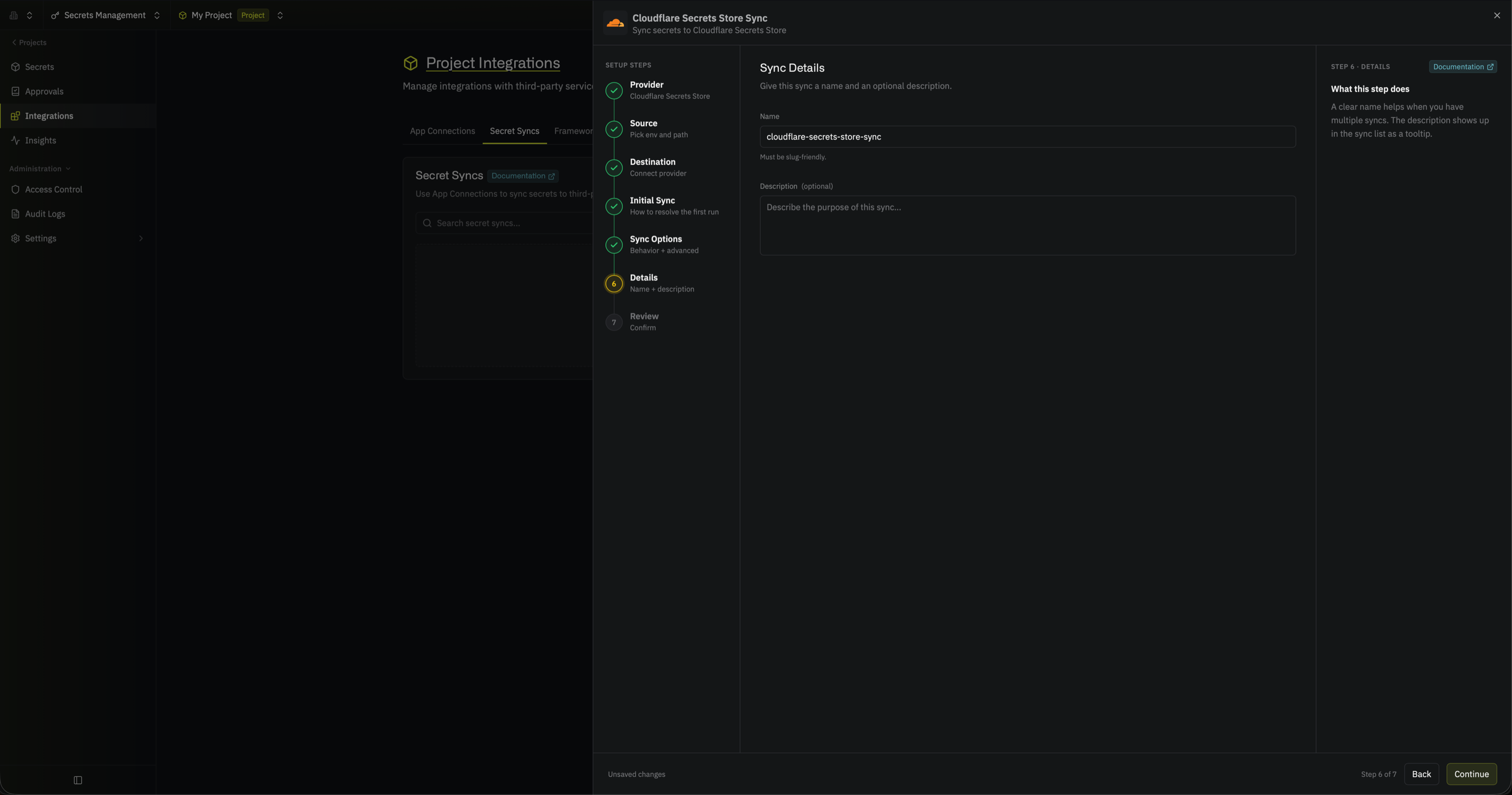 Then select Continue.
Then select Continue.7
Review your Cloudflare Secrets Store Sync configuration, then select Create Sync.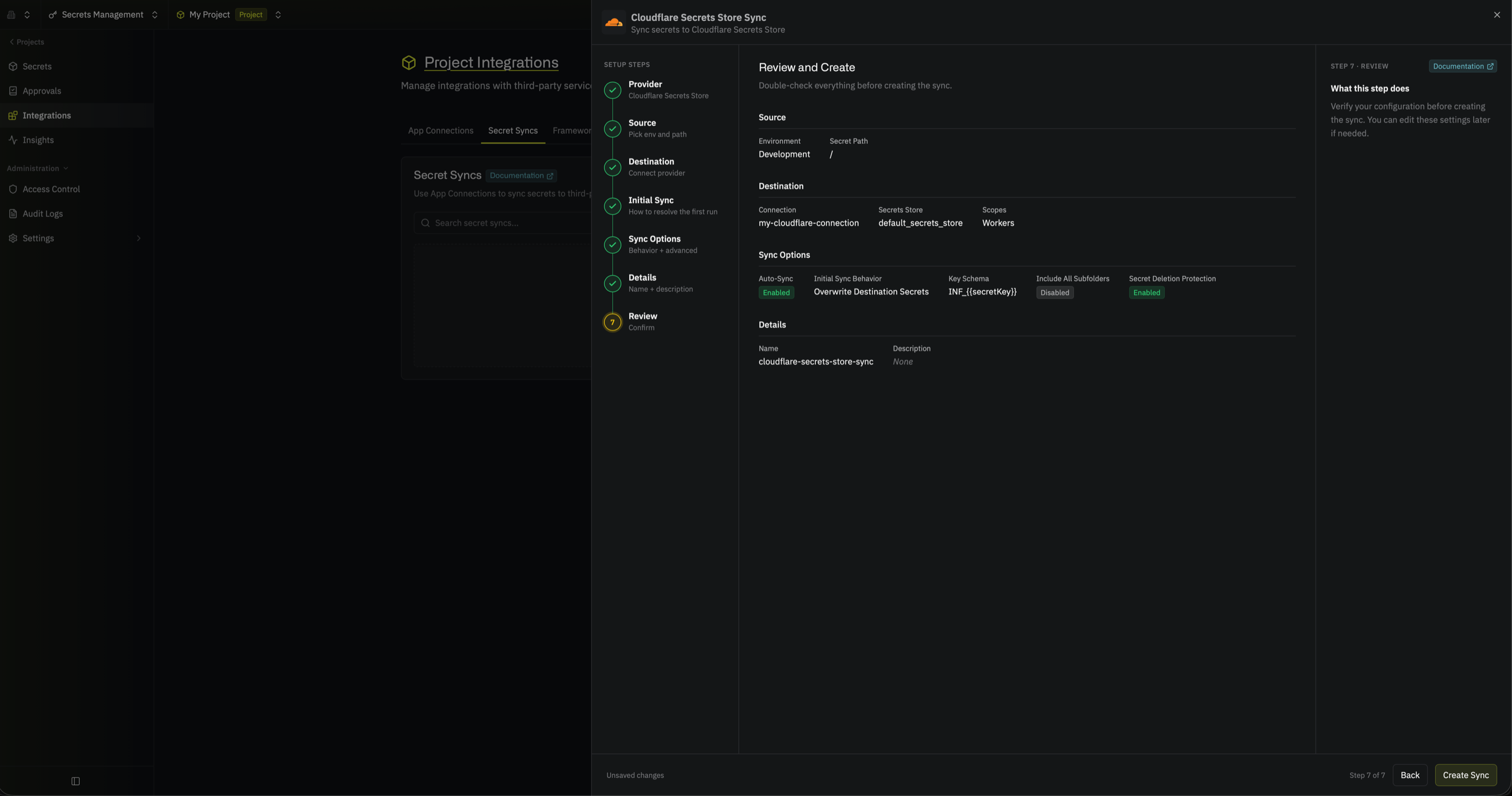
The sync is created. If Auto-sync on changes is enabled, it begins syncing secrets to your Secrets Store right away.
FAQ
How many secrets can a sync write?
How many secrets can a sync write?
While Secrets Store is in open beta, a Cloudflare account can hold 100 Secrets Store secrets in total, including secrets that other syncs and tools created. Before writing anything, the sync checks whether its new secrets fit. If they don’t fit, the sync fails without writing any secrets. Secrets that the sync removes are deleted only after the new secrets are created, so they still count toward the limit during that sync.
What happens when I rename a secret in Infisical?
What happens when I rename a secret in Infisical?
Cloudflare can’t rename a secret, so the sync creates a secret with the new name. If Prevent secret deletion is off, the sync then deletes the secret with the old name. Update the
secret_name in any Worker binding that used the old name.Next steps
Cloudflare
Manage the API token and permissions the sync uses.
Secret syncs overview
Learn how syncs run, how key schemas work, and how to sync subfolders.