

Prerequisites
Step 1: Add the sync
1
In your project, select Integrations from the sidebar, open the Secret Syncs tab, and select + Add Sync.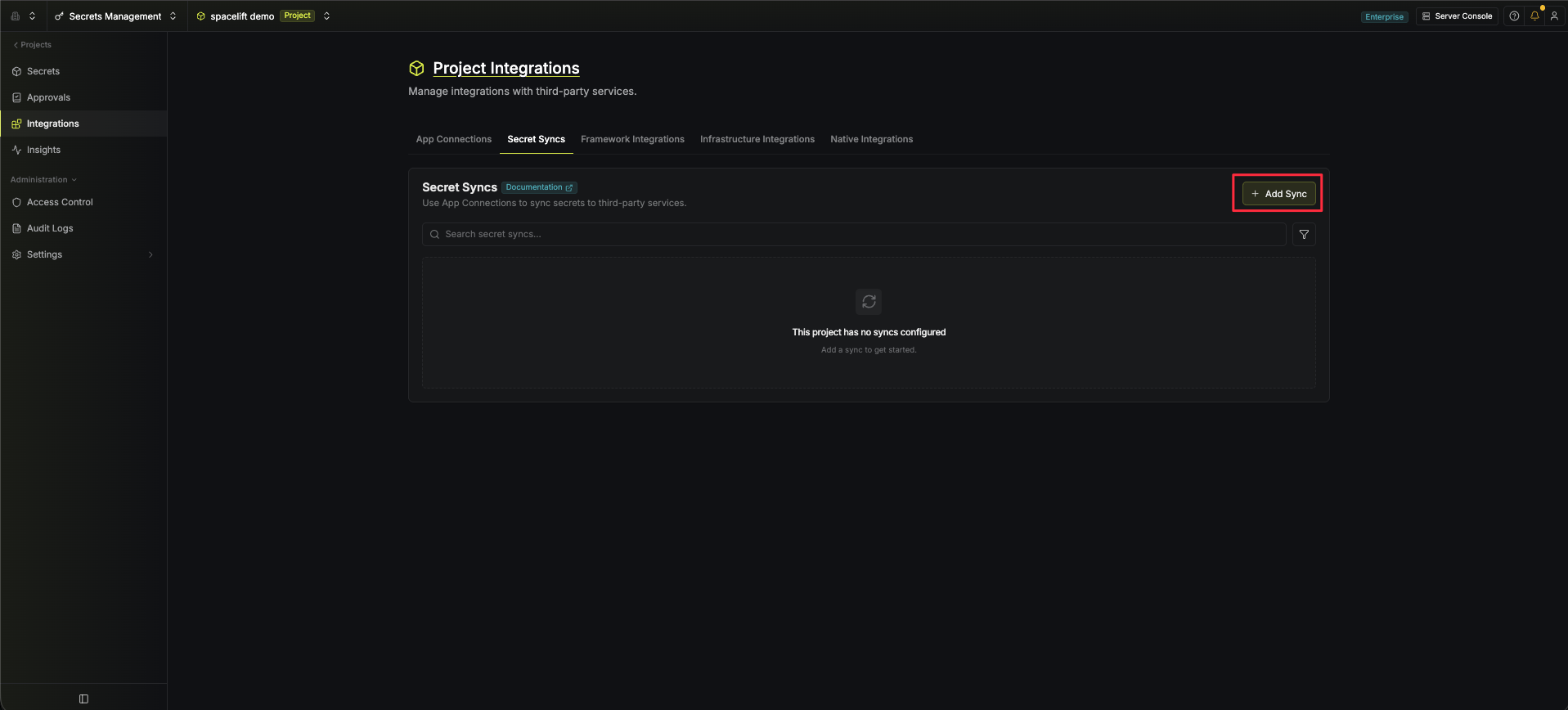
2
Select Spacelift from the list of available secret syncs.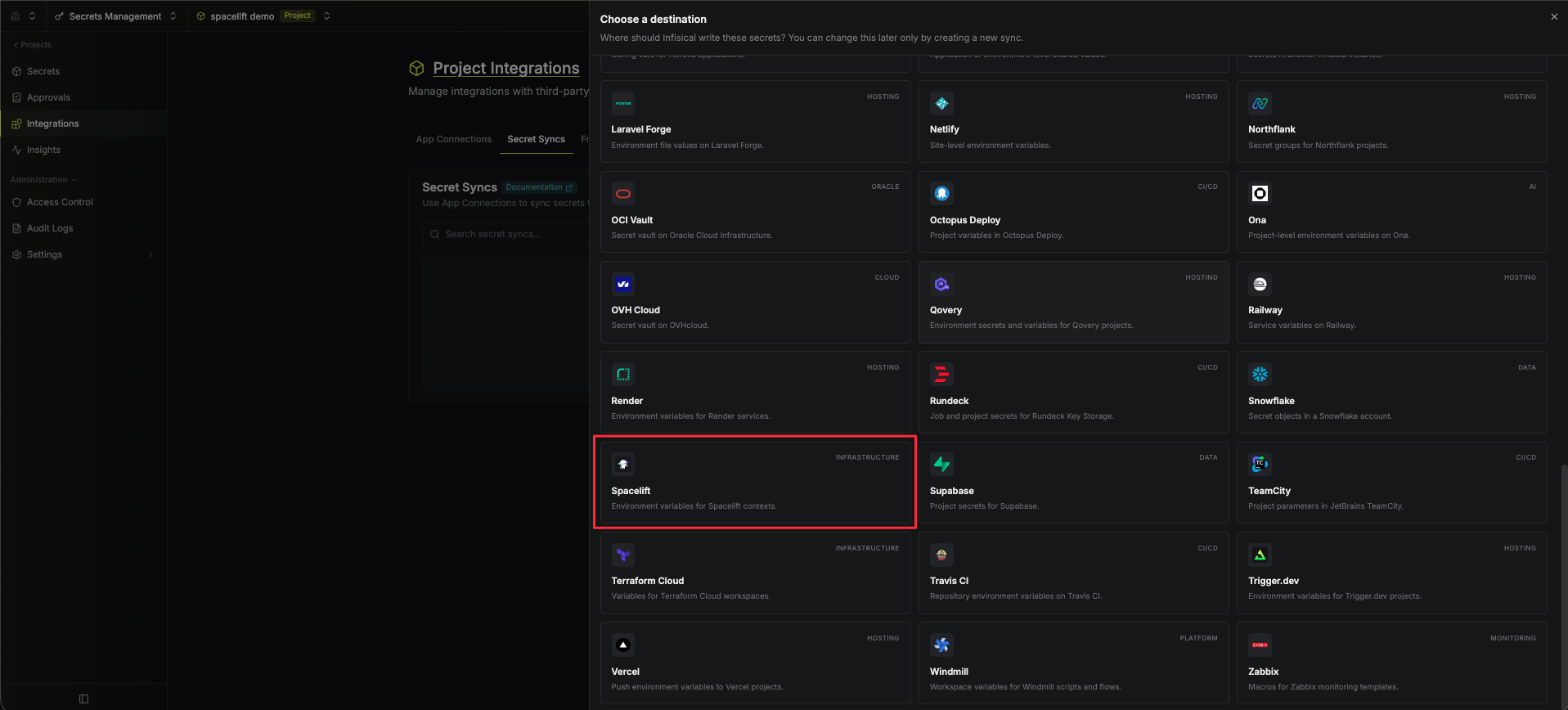
Step 2: Configure the sync
Selecting Spacelift opens the setup wizard. Follow the steps to configure each section.Source
Choose where secrets are retrieved from, then select Continue.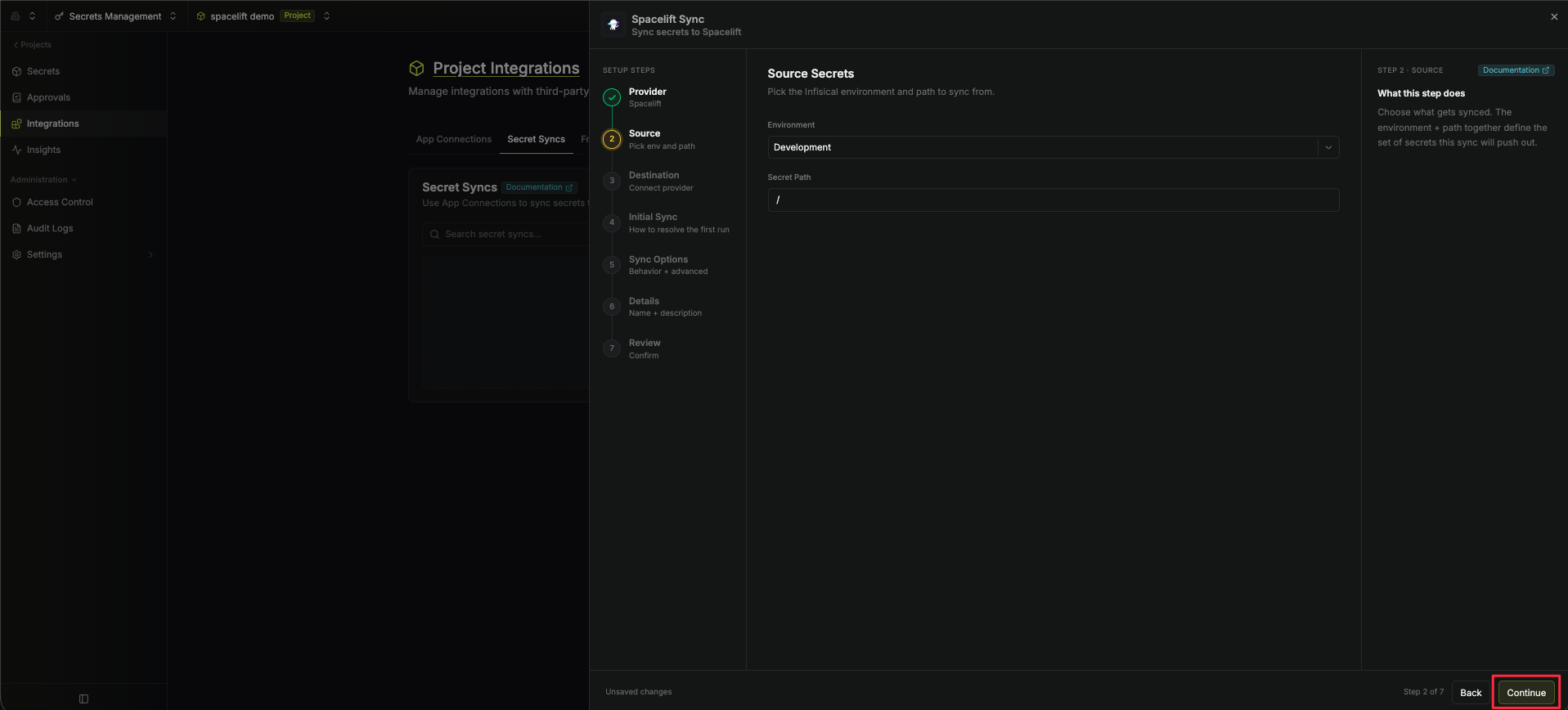
- Environment: The project environment to retrieve secrets from.
- Secret Path: The folder path to retrieve secrets from.
Destination
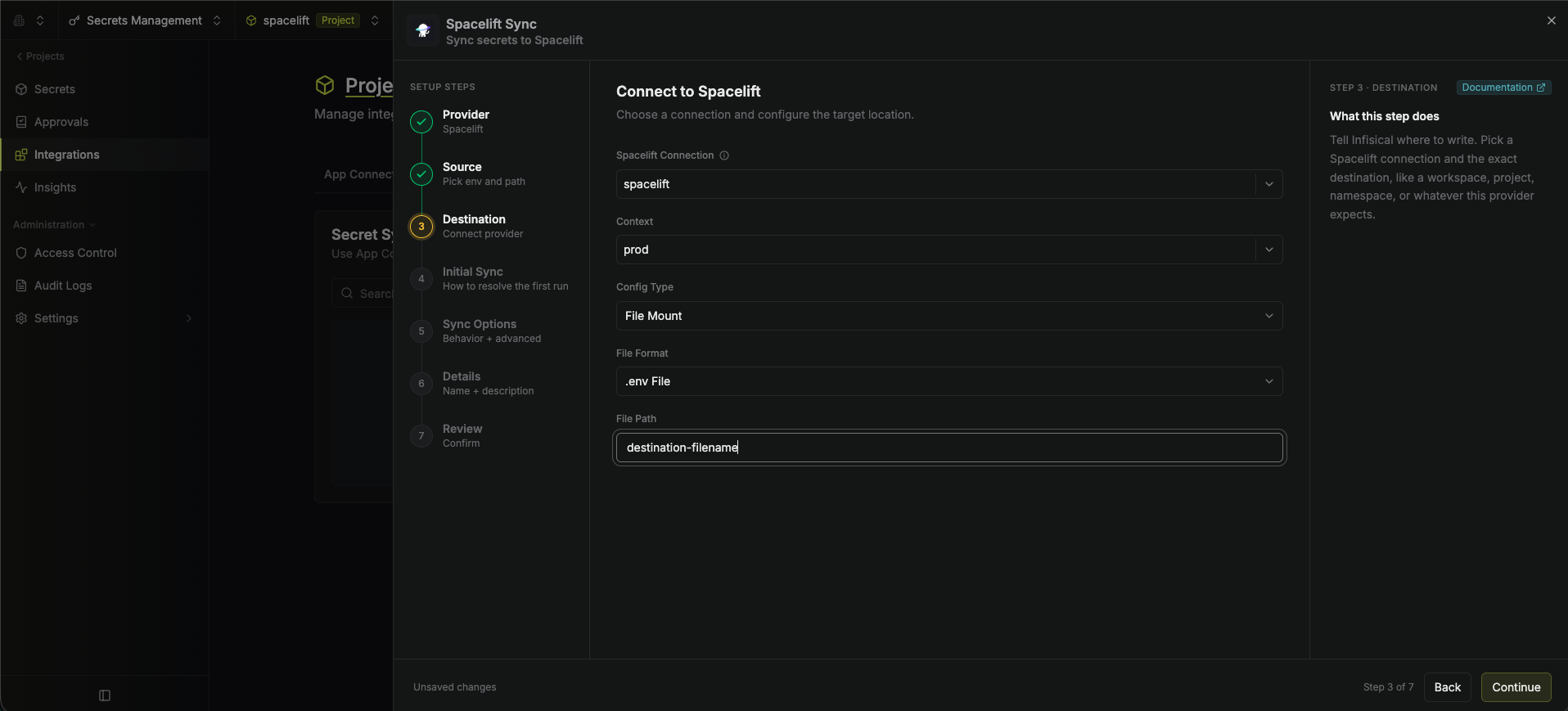
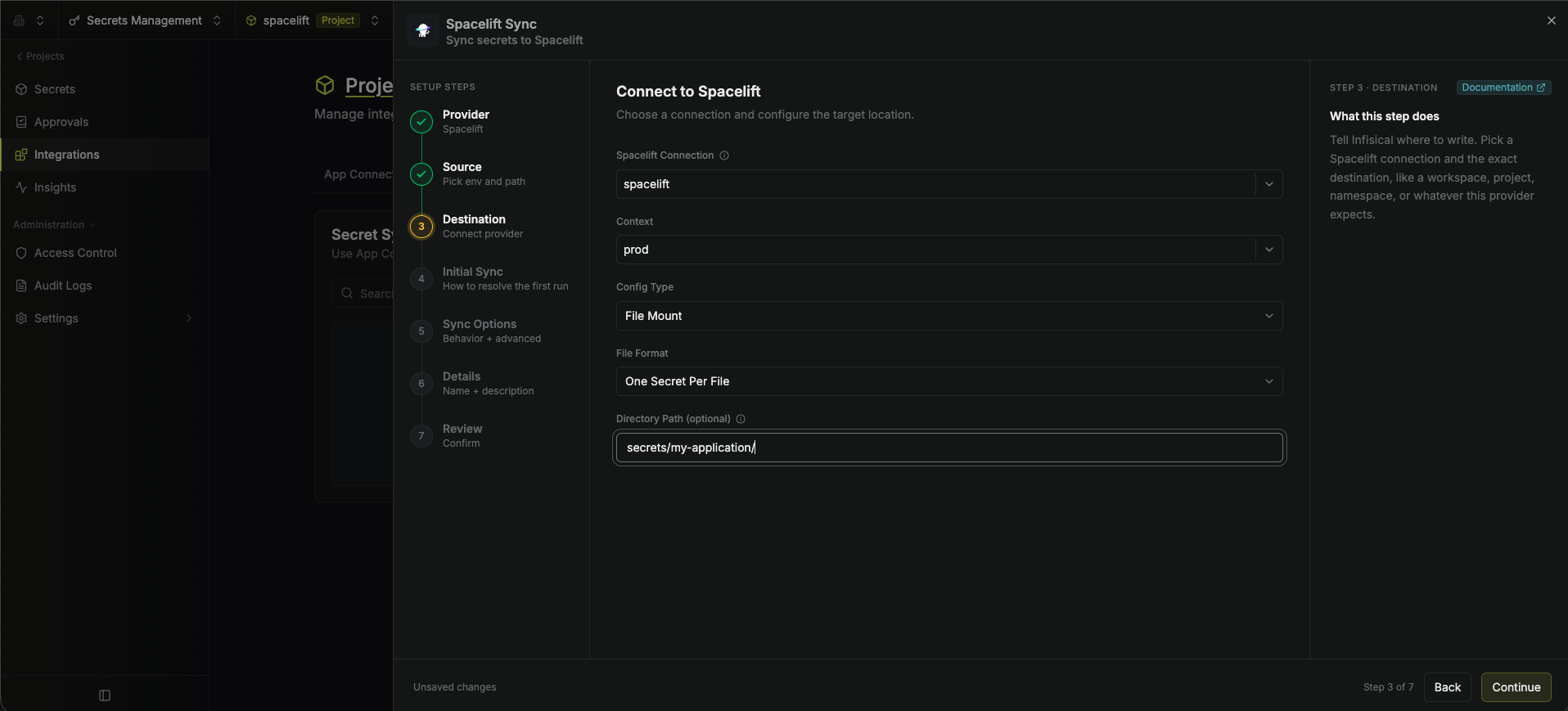
Choose the connection and the target location in Spacelift, then select Continue.
- Spacelift Connection: Select the app connection to use for authentication.
- Context: Select the Spacelift context that will receive the synced secrets.
- Config Type: Select Environment Variables or File Mount. Selecting File Mount reveals a File Format field with two choices: .env File and One Secret Per File.
a-zA-Z0-9_ are removed, and a key that begins with a digit gets a leading underscore. A key left empty by this adjustment is skipped.- Environment Variables
- .env File
- One Secret Per File
Each secret is synced as an individual environment variable in the Spacelift context (default).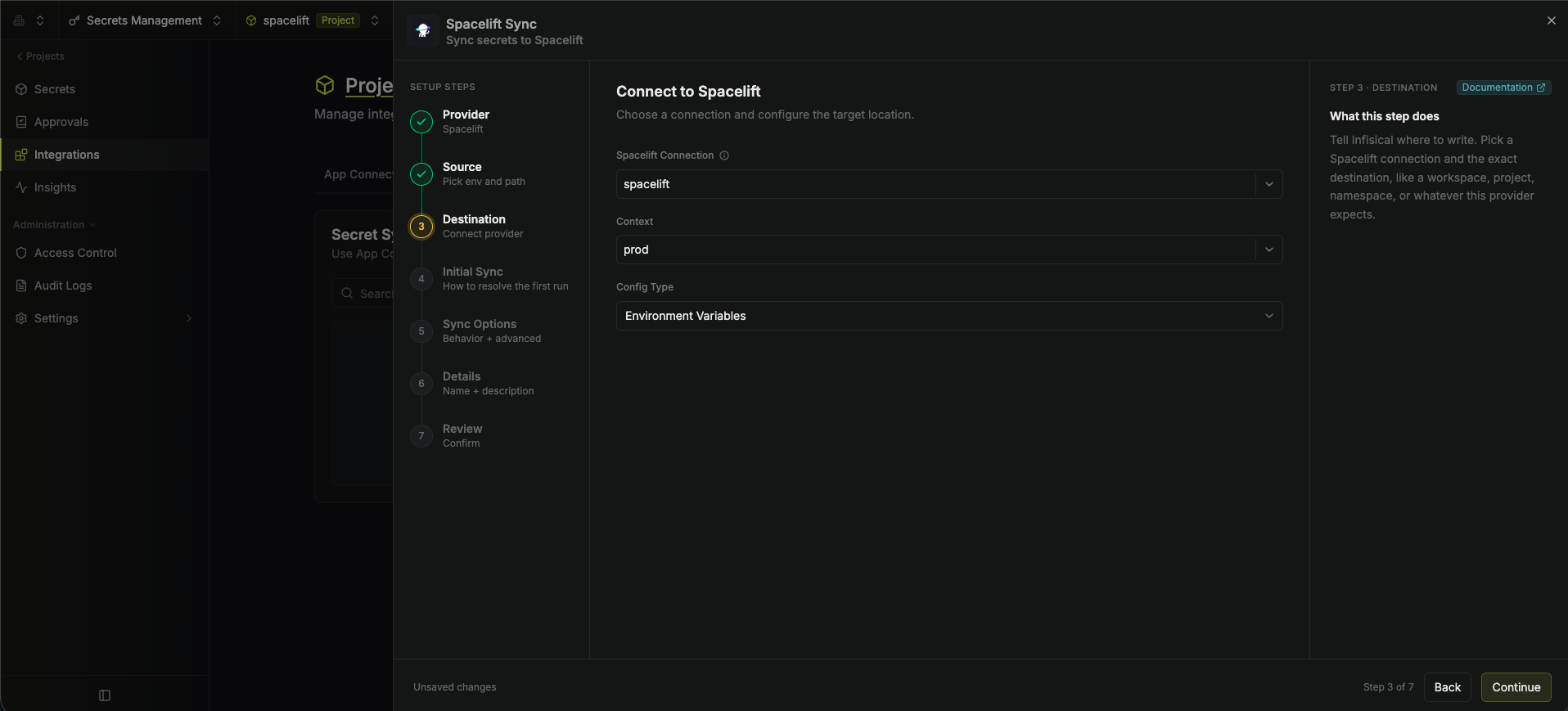
Initial Sync
Choose how Infisical resolves the first run, then select Continue.Spacelift offers only Overwrite Spacelift. Spacelift doesn’t expose the values of secrets once they’re written, so Infisical can’t import the secrets that already exist in a context.
If Disable secret deletion is turned off in Sync Options, the first run removes environment variables that exist in Spacelift but not in Infisical. Because of this, we recommend leaving deletion protection enabled or setting a key schema to protect your other environment variables.
Sync Options
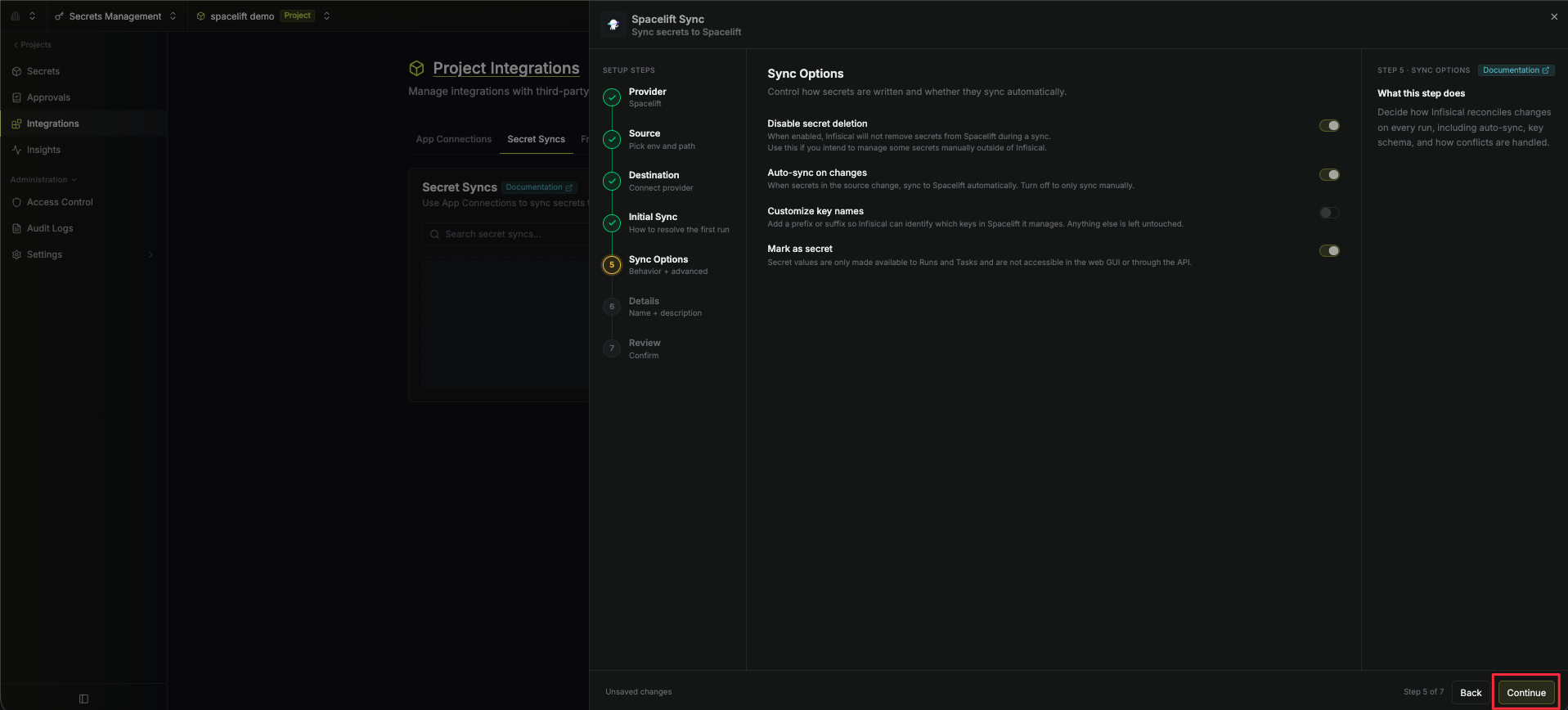
Choose how secrets are written on every run, then select Continue.
- Disable secret deletion: Enabled by default. While enabled, Infisical never removes secrets from the context. Turn this off only if you want Infisical to remove secrets it doesn’t manage.
- Auto-sync on changes: Enabled by default. Syncs to Spacelift automatically when secrets in the source change. Turn it off to sync manually only.
-
Customize key names: Turn this on to reveal a Key schema field, a template that rewrites each key. Use
{{secretKey}}for the original secret name and{{environment}}for the environment.We highly recommend using a key schema to ensure that Infisical only manages the specific keys you intend, keeping everything else in the context untouched. -
Mark as secret: Marks the synced values as secrets in Spacelift. Secret values are then only available to Runs and Tasks, and aren’t accessible in the web GUI or through the API.
Details
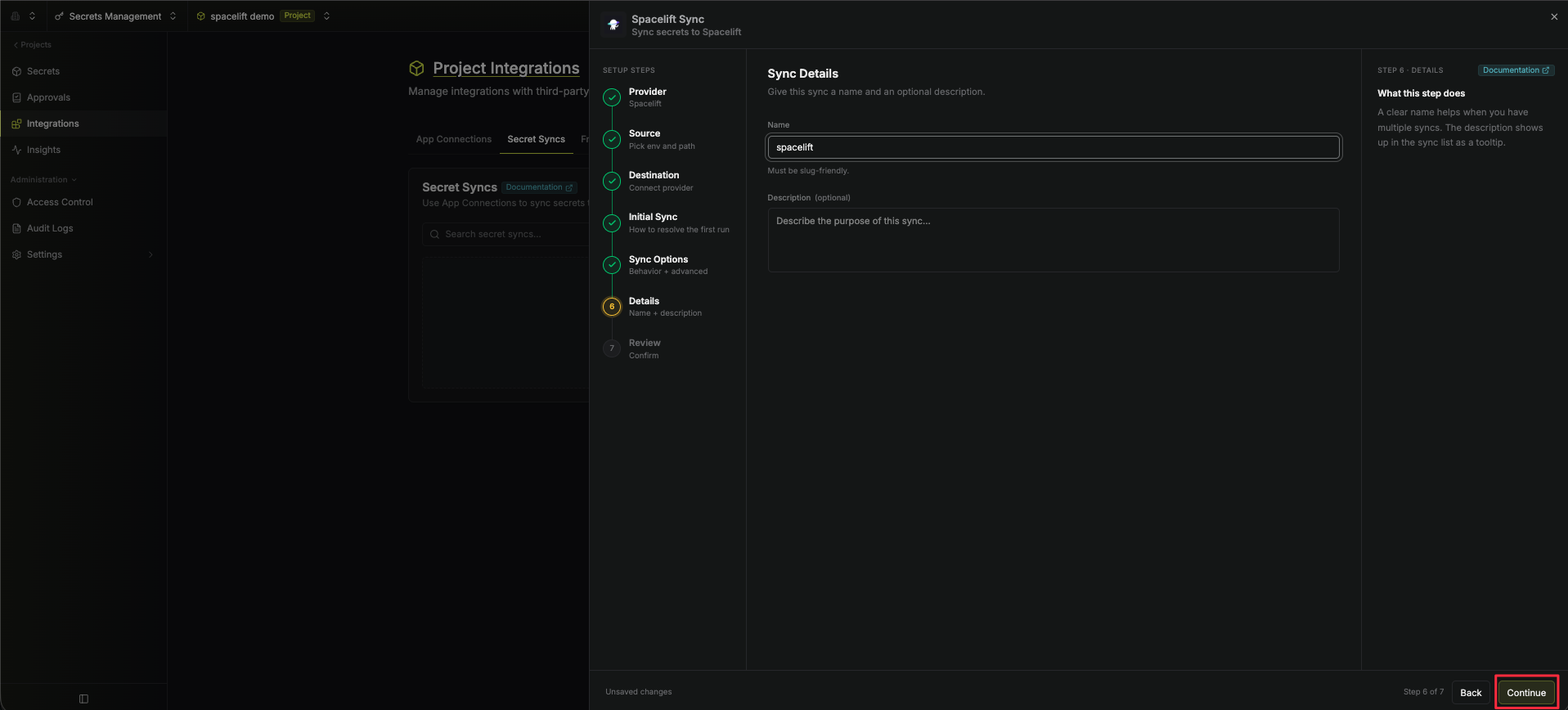
Name the sync, then select Continue.
- Name: A slug-friendly name for the sync.
-
Description (optional): A description for the sync.
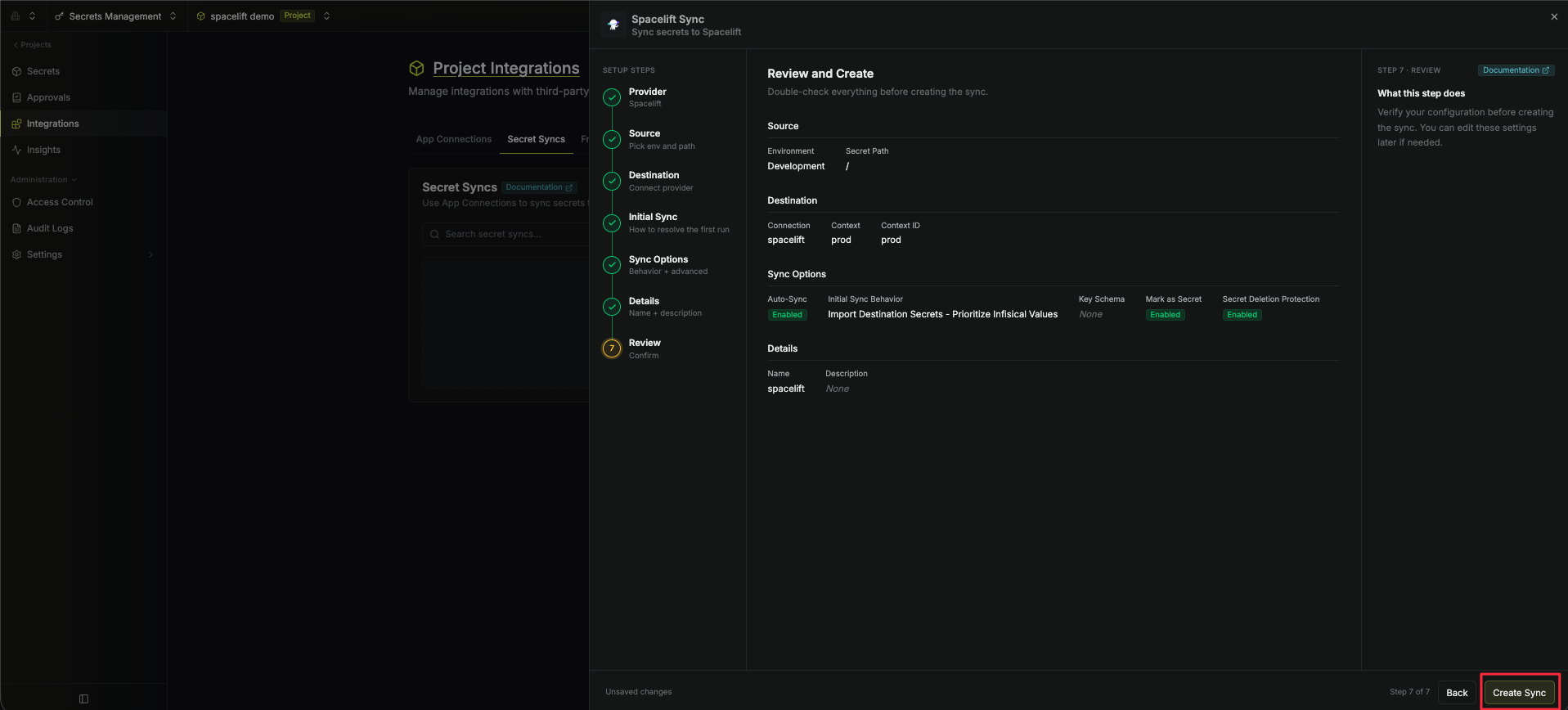
Your Spacelift Sync is created. If auto-sync is enabled, it begins syncing your secrets to the selected context right away.