- Create a Qovery Connection
- Infisical UI
- API
1
Add Sync
Navigate to Project > Integrations and select the Secret Syncs tab. Select the Add Sync button.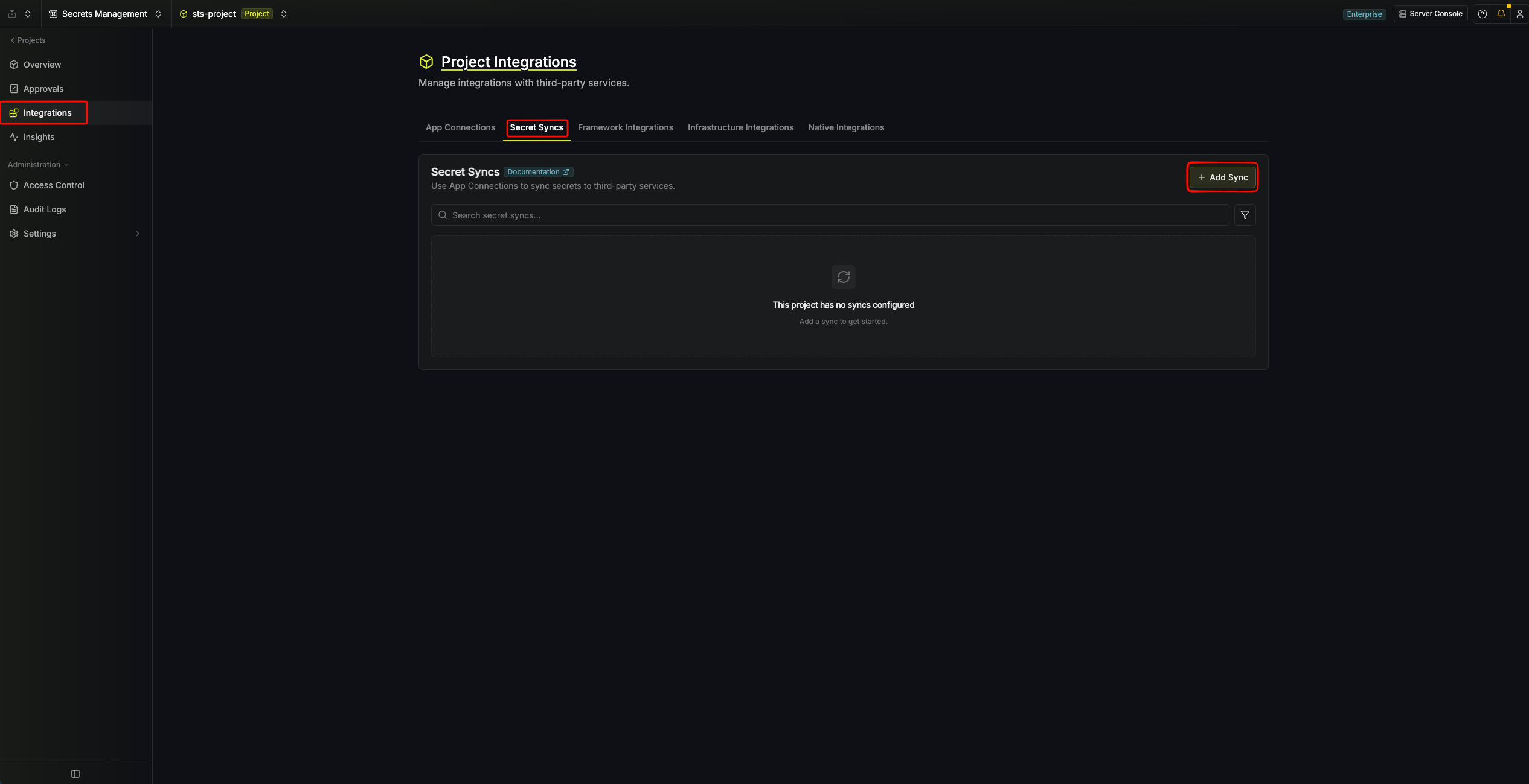
2
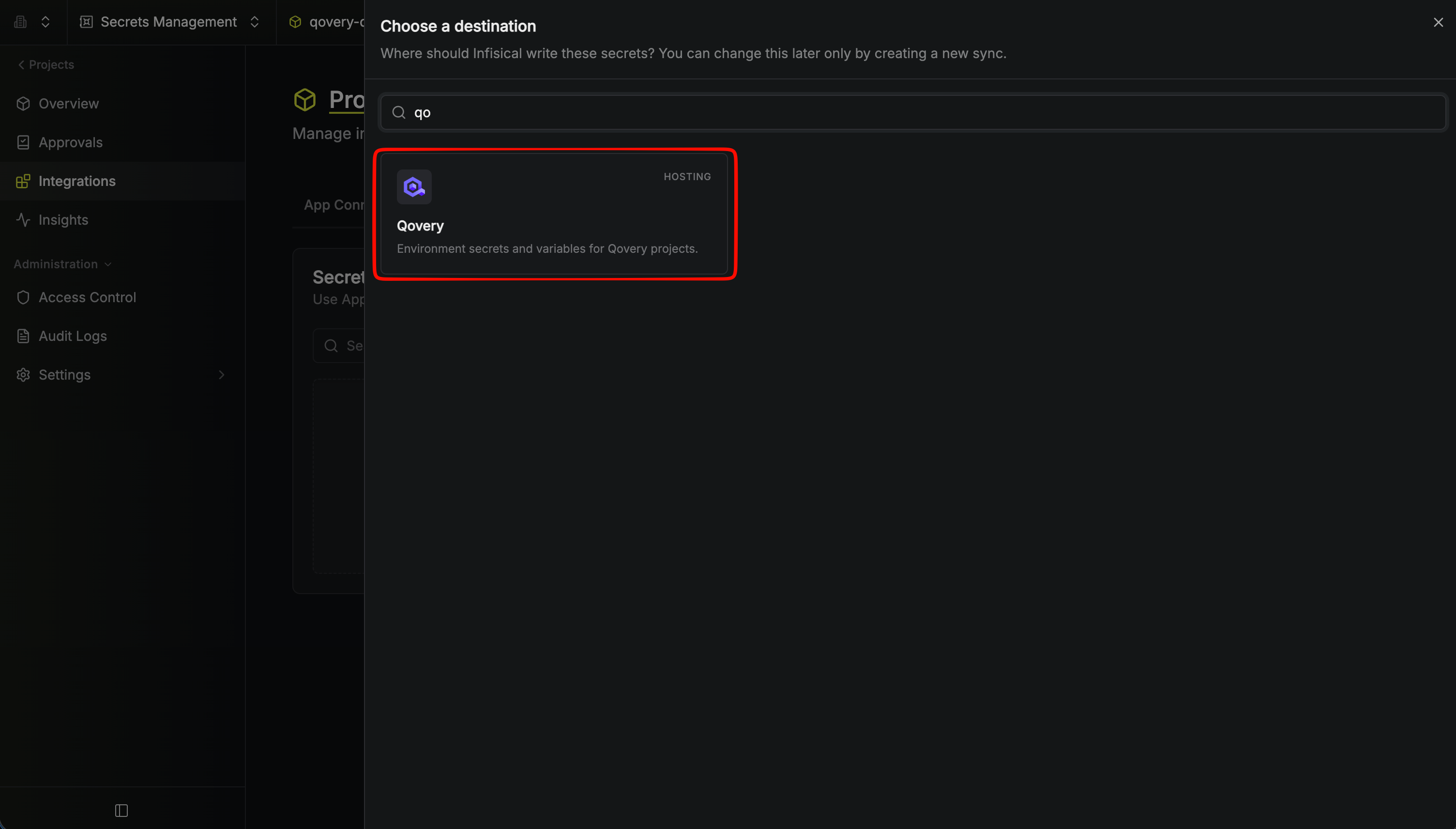
Select 'Qovery'
3
Configure source
Configure the Source from where secrets should be retrieved, then click Continue.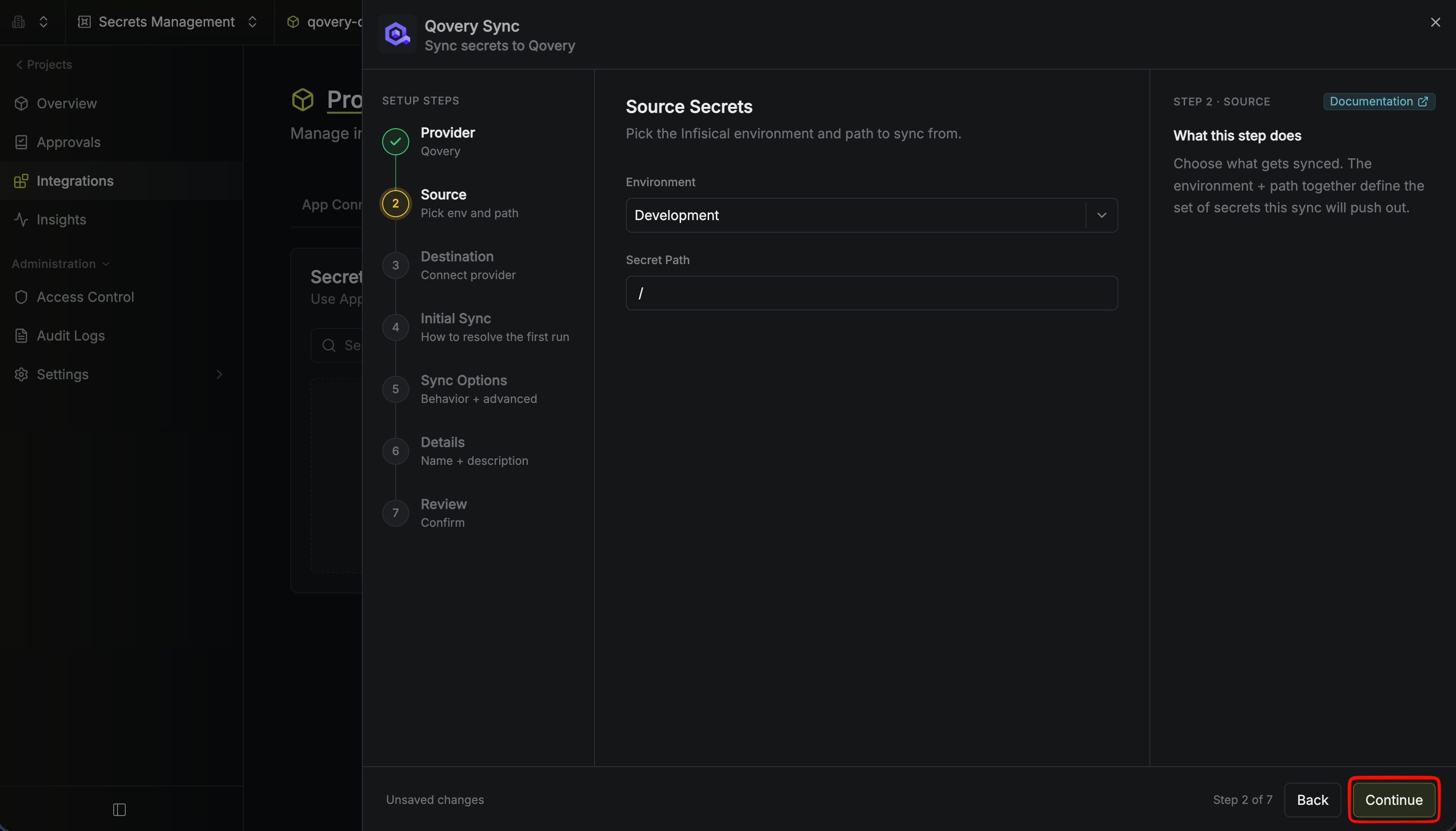
- Environment: The project environment to retrieve secrets from.
- Secret Path: The folder path to retrieve secrets from.
4
Configure destination
Configure the Destination to where secrets should be deployed, then click Continue.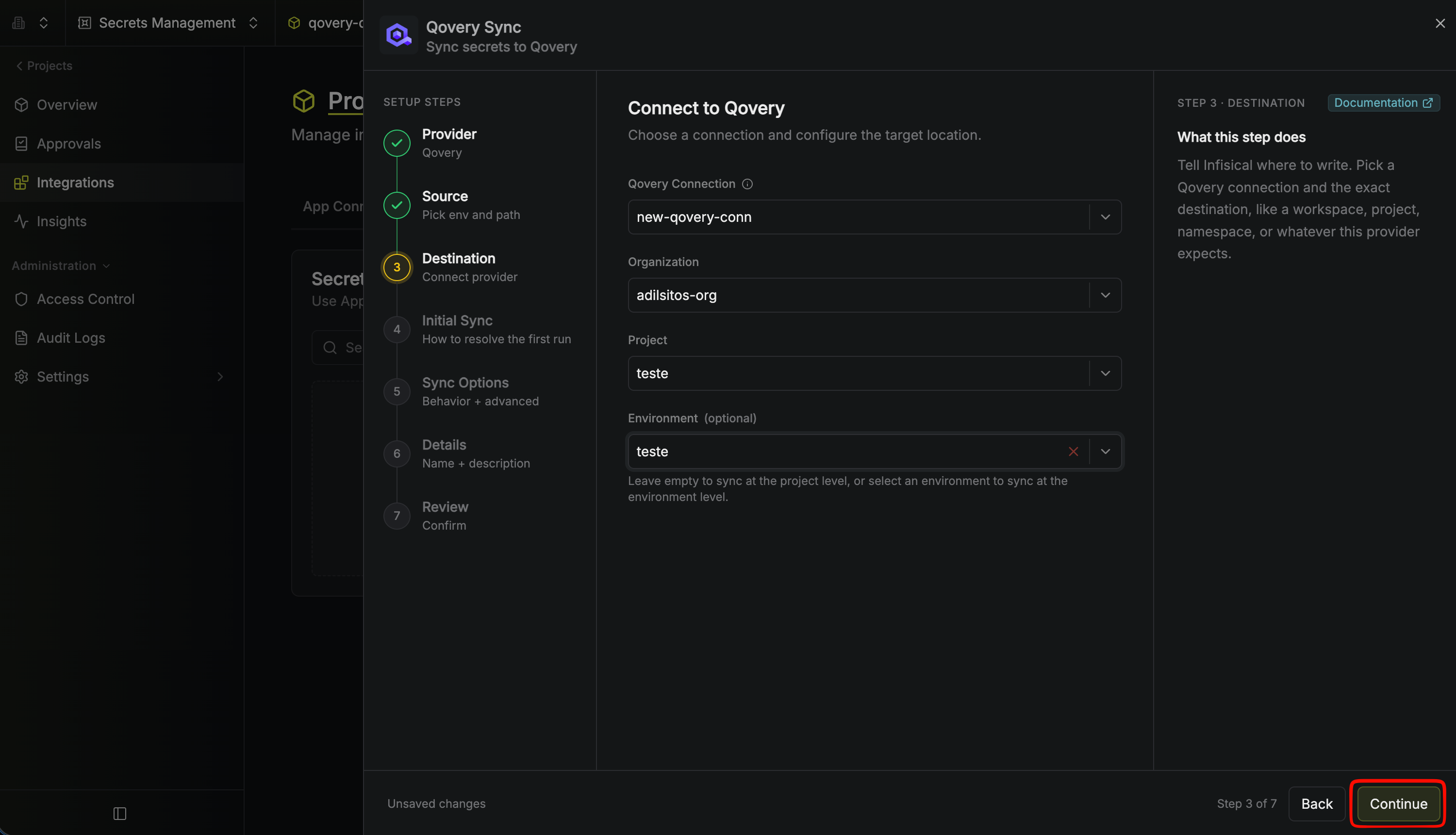
- Qovery Connection: The Qovery App Connection to authenticate with.
- Organization: The organization inside Qovery.
- Project: The Qovery project to sync secrets to.
- Environment (optional): The environment to sync secrets to. Leave empty to sync at the project level, or select an environment to sync at the environment level.
5
Configure initial sync behavior
Choose how Infisical should reconcile existing secrets in Qovery the first time this sync runs, then click Continue.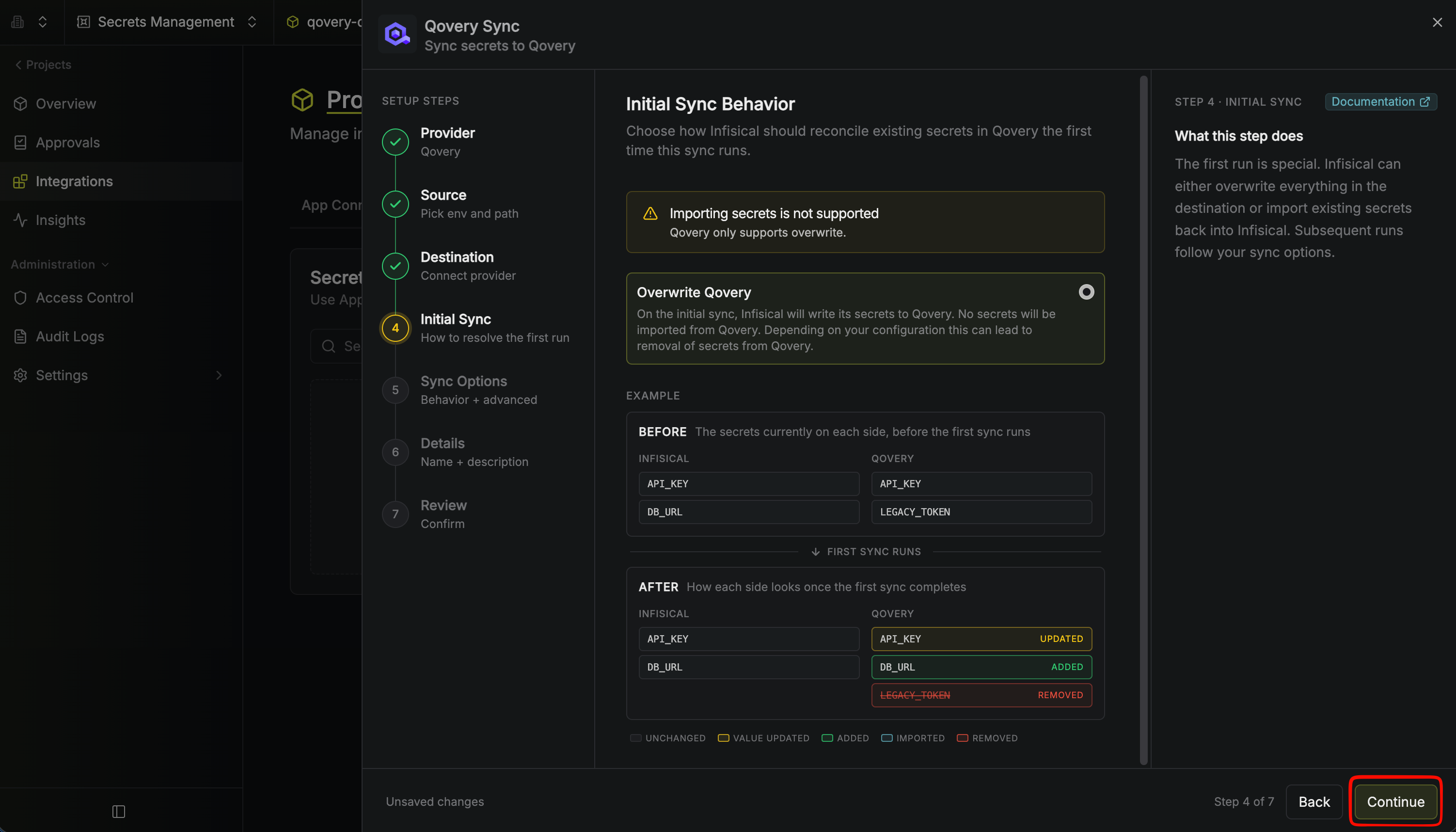
- Overwrite Qovery: On the initial sync, Infisical writes its secrets to Qovery. Depending on your configuration, this can lead to removal of secrets from Qovery.
Qovery does not support importing secrets, as the Qovery API never returns secret values. Overwrite is the only supported initial sync behavior.
6
Configure sync options
Configure the Sync Options to specify how secrets should be synced, then click Continue.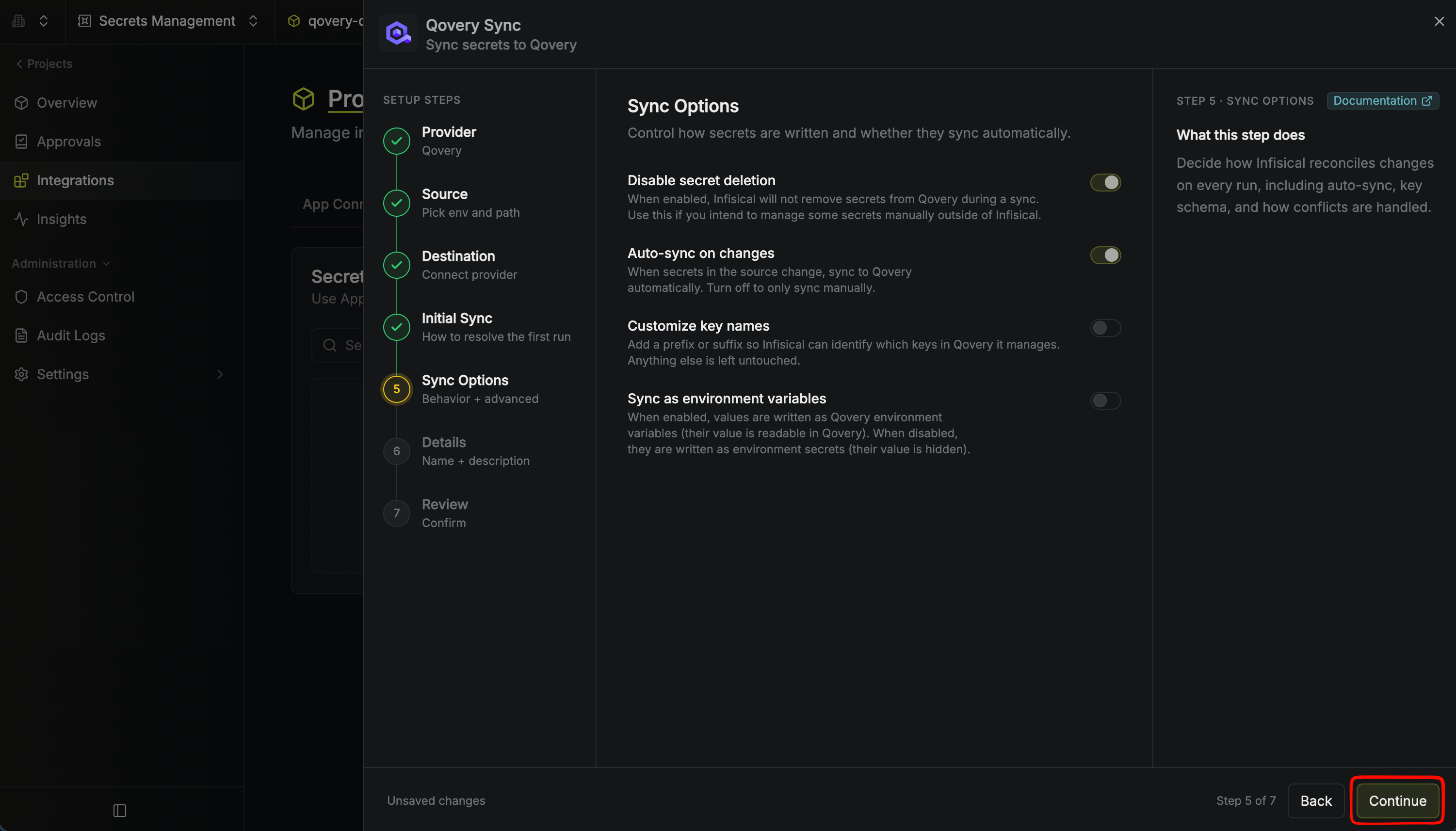
- Disable secret deletion: If enabled, Infisical will not remove secrets from Qovery during a sync. Enable this if you intend to manage some secrets manually outside of Infisical.
- Auto-sync on changes: If enabled, secrets will automatically be synced to Qovery when changes occur in the source. Disable to enforce manual syncing only.
- Customize key names: Add a prefix or suffix so Infisical can identify which keys in Qovery it manages. Anything else is left untouched.
- Sync as environment variables: When enabled, values are written as Qovery environment variables, whose values are readable. When disabled, they are written as environment secrets, whose values are hidden.
We highly recommend customizing key names to ensure that Infisical only manages the specific keys you intend, keeping everything else untouched.
7
Configure details
Configure the Details of your Qovery Sync, then click Continue.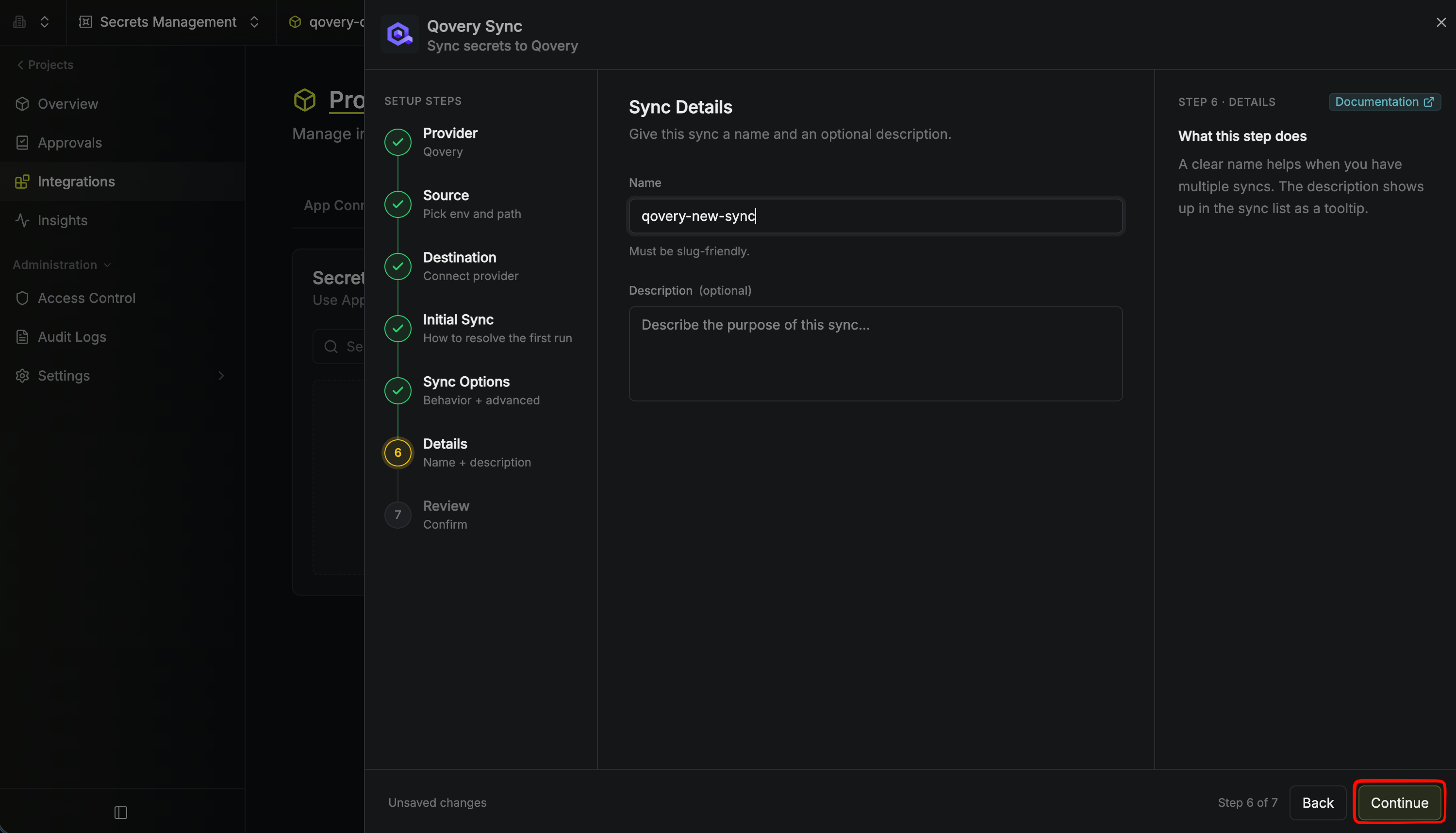
- Name: The name of your sync. Must be slug-friendly.
- Description: An optional description for your sync.
8
Review and create
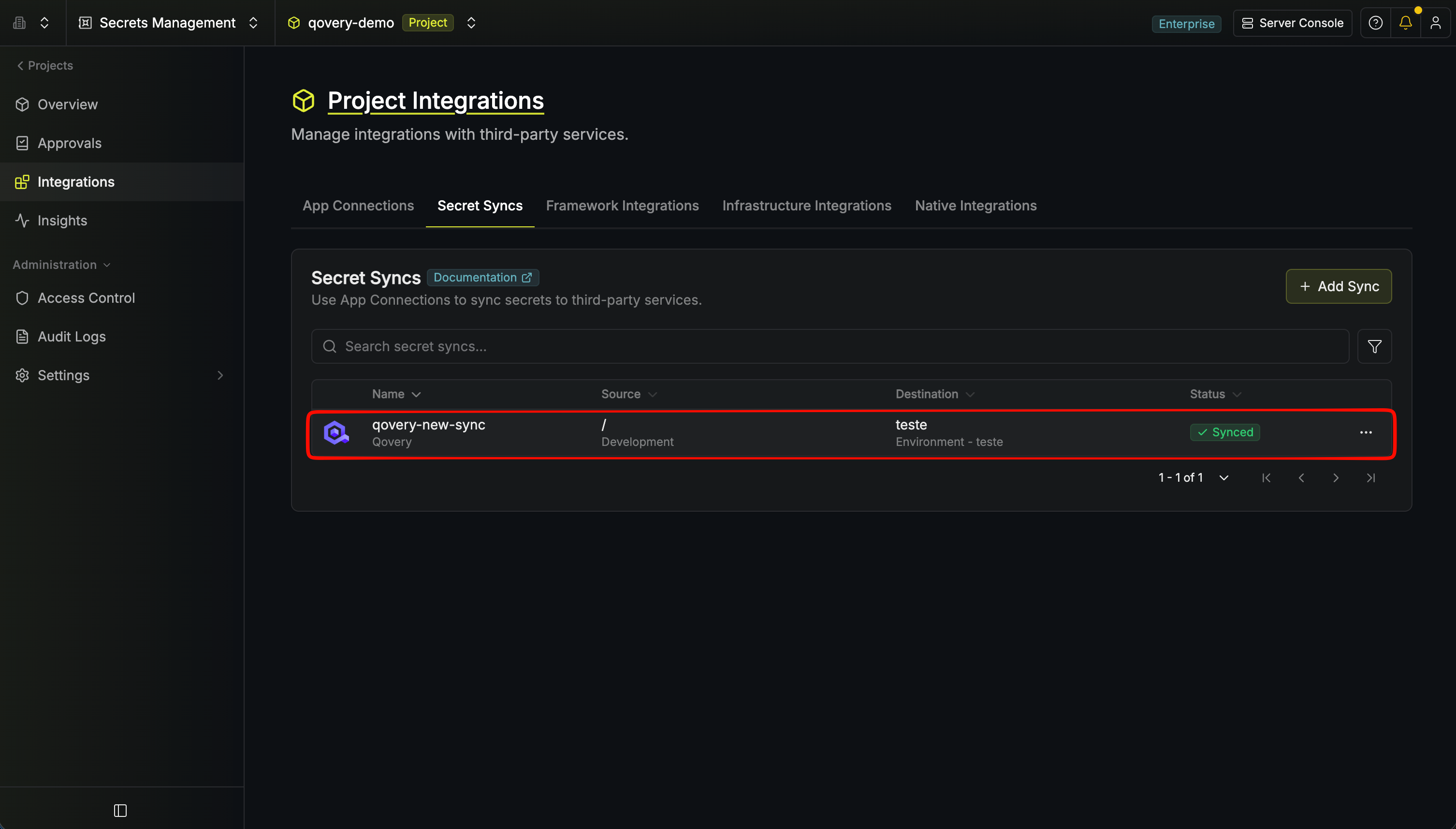
Review your Qovery Sync configuration, then click Create Sync.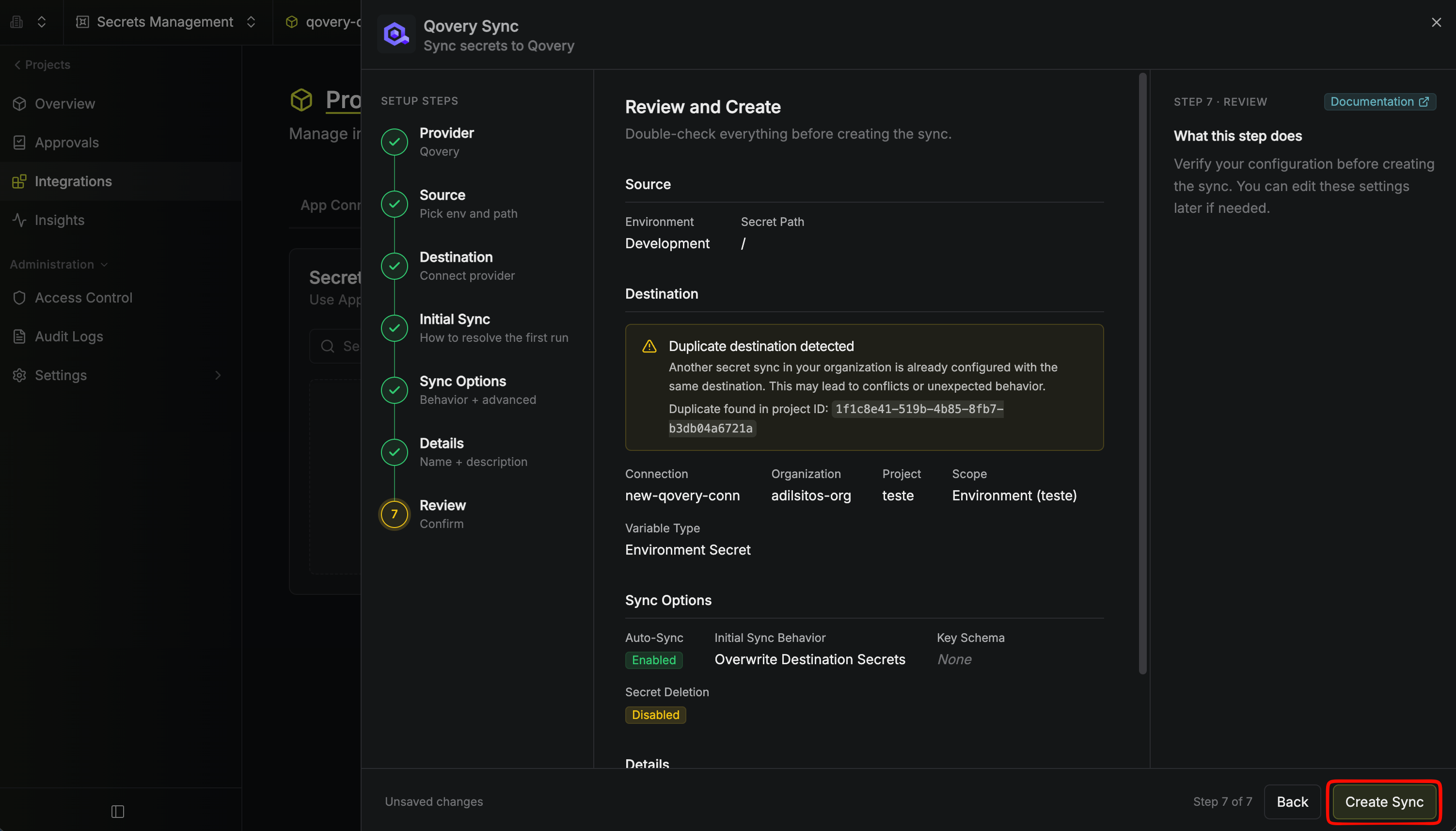
9
Confirm sync behavior
Infisical is the source of truth for synced destinations. Secrets in the destination will be overwritten, and any direct edits there may be overwritten by future syncs. Click I Understand to confirm.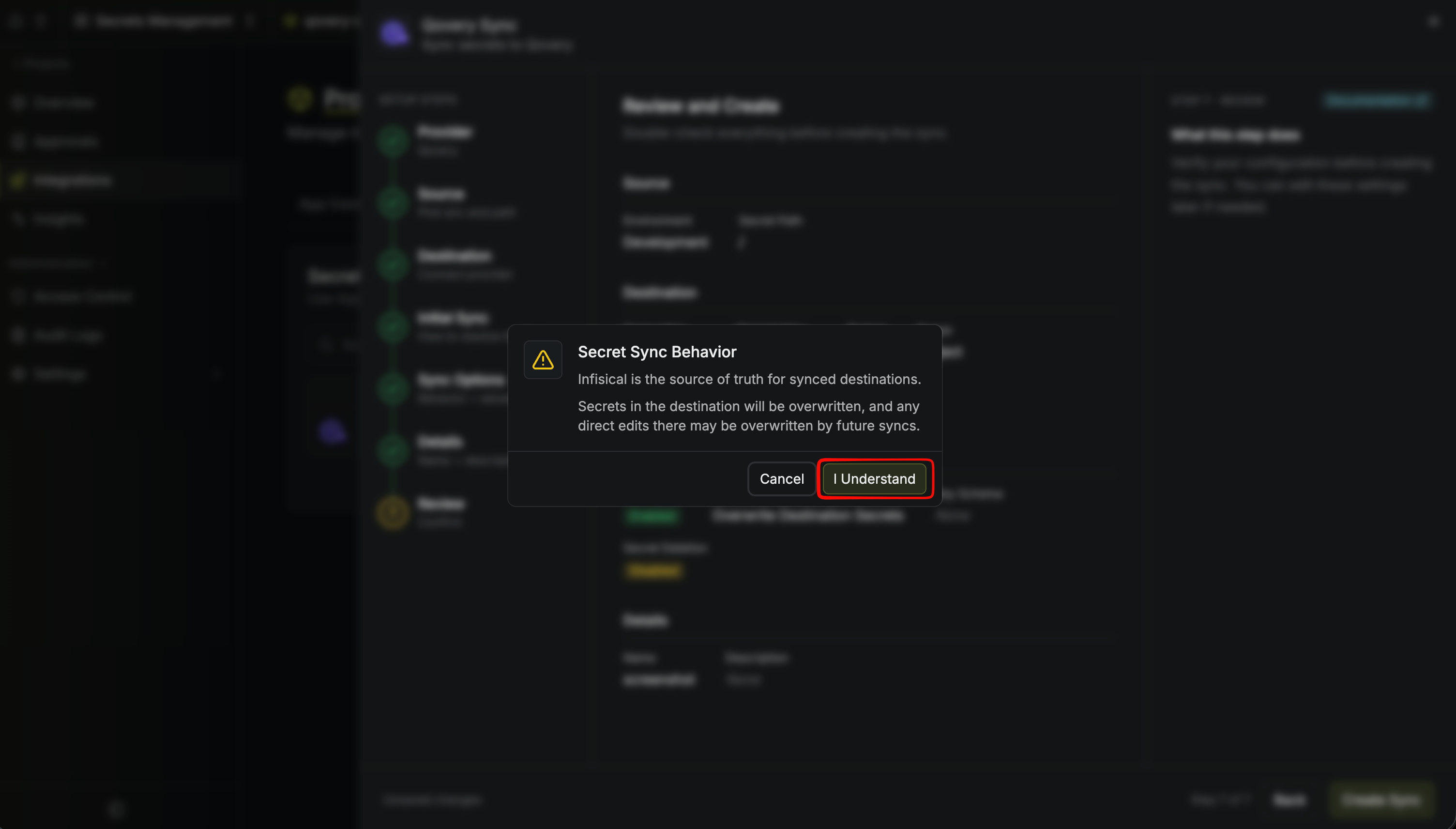
10
Sync created
If enabled, your Qovery Sync will begin syncing your secrets to the destination endpoint.