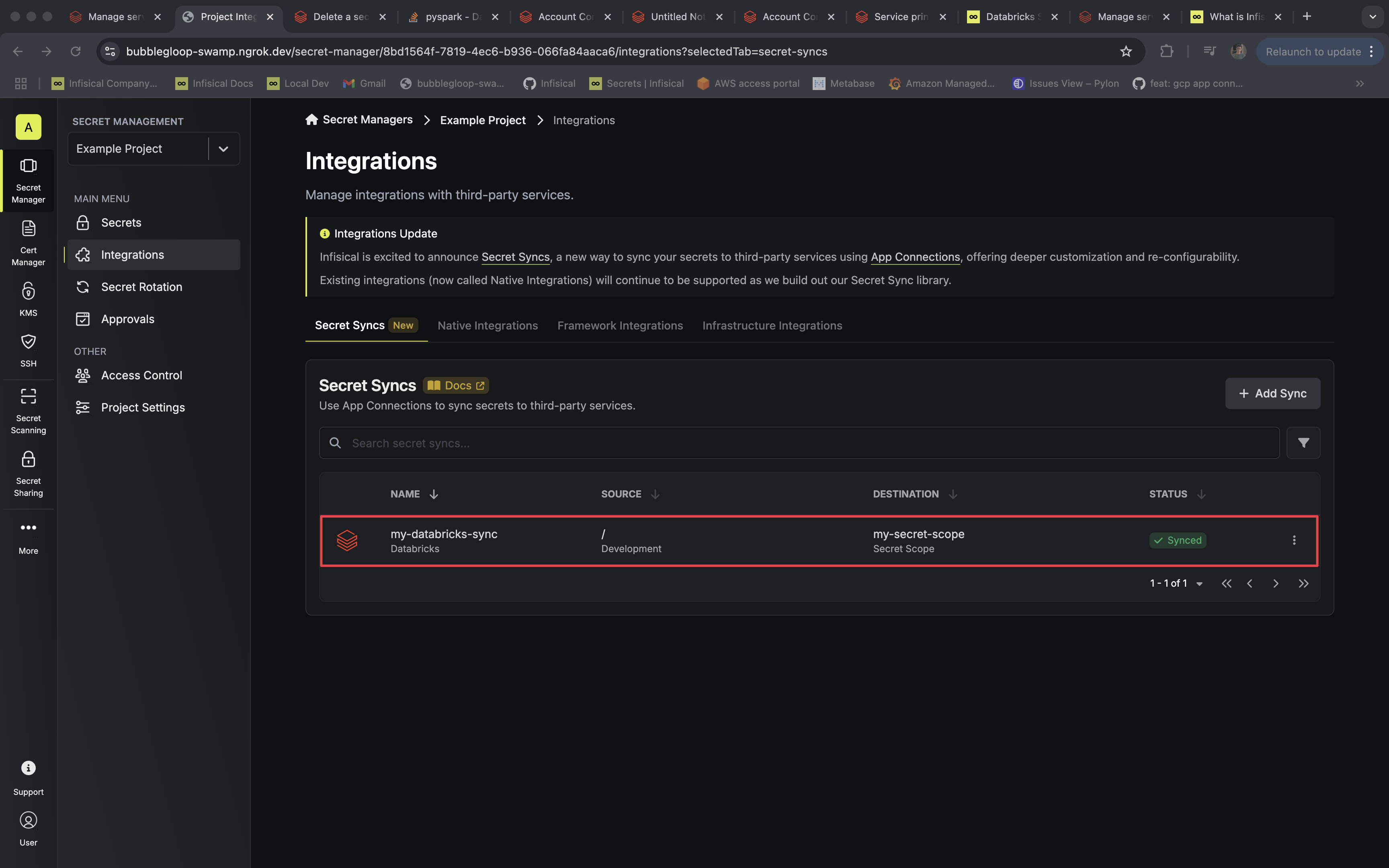
The Databricks Secret Sync requires a Databricks app connection. This guide walks you through creating a project-scoped app connection.
Prerequisites
- A project with secrets configured
- A Databricks secret scope you want secrets synced into. If you don’t have one yet, create a scope in your workspace first.
Step 1: Set up in Databricks
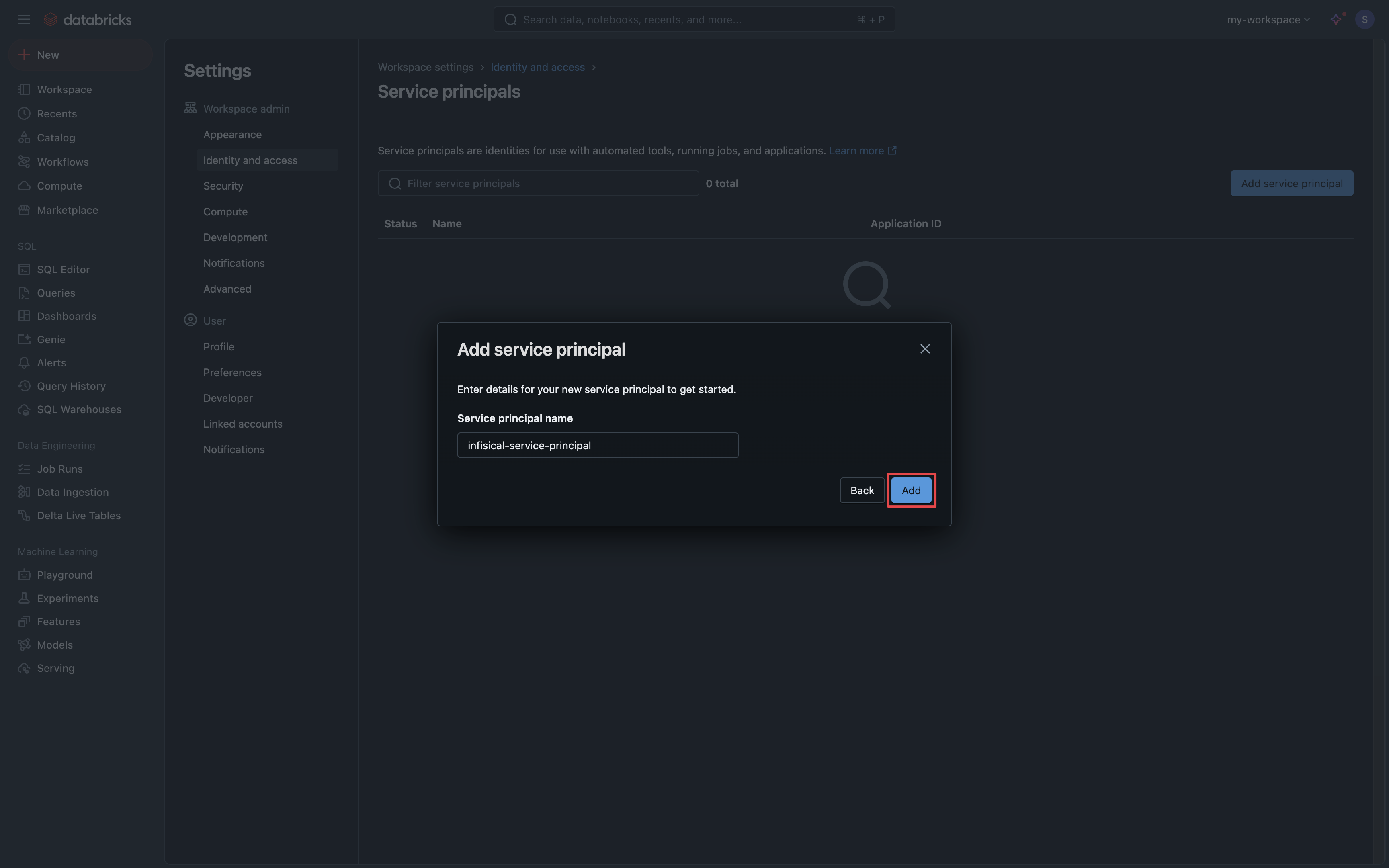
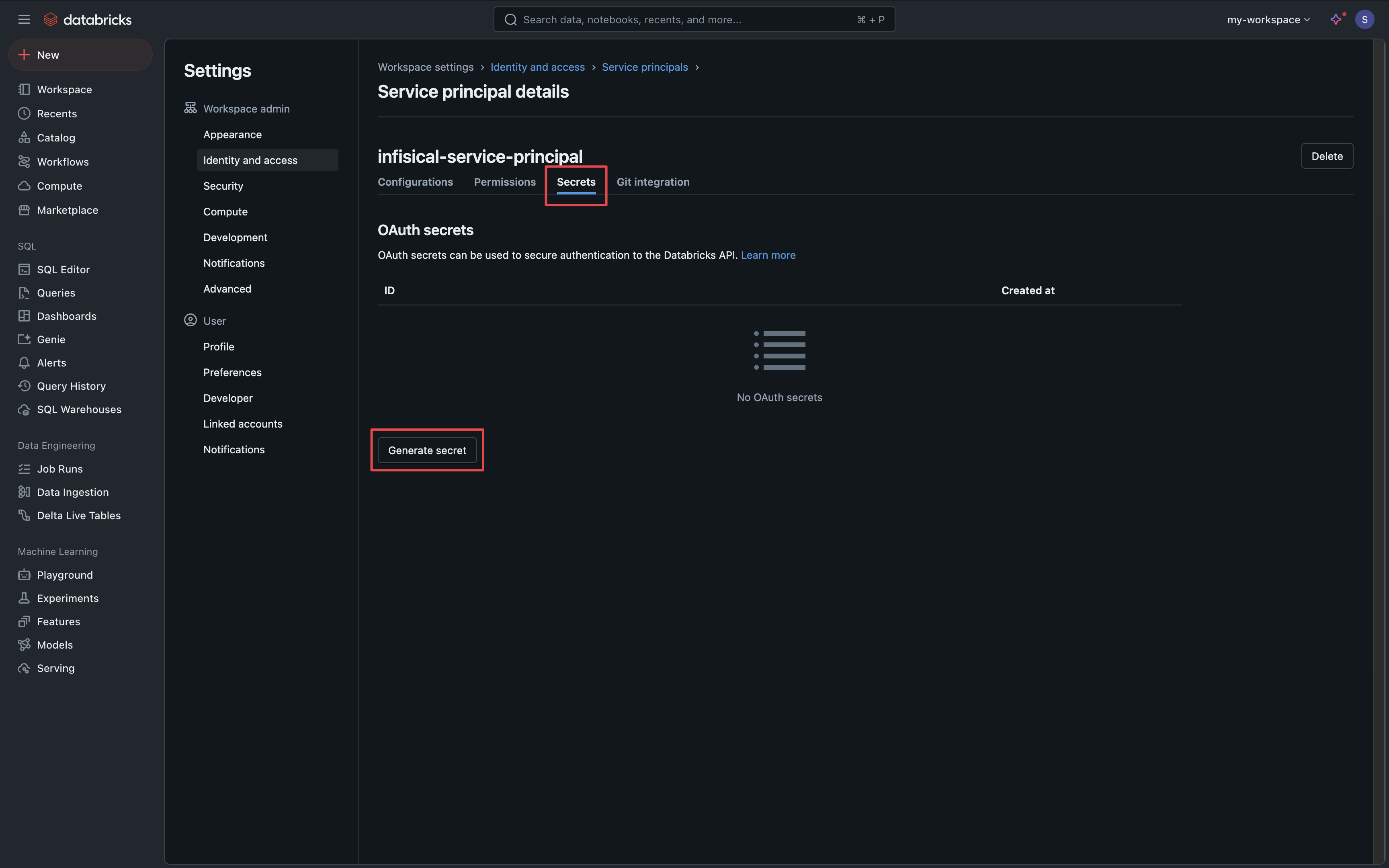
Create a service principal Infisical can use to reach the workspace.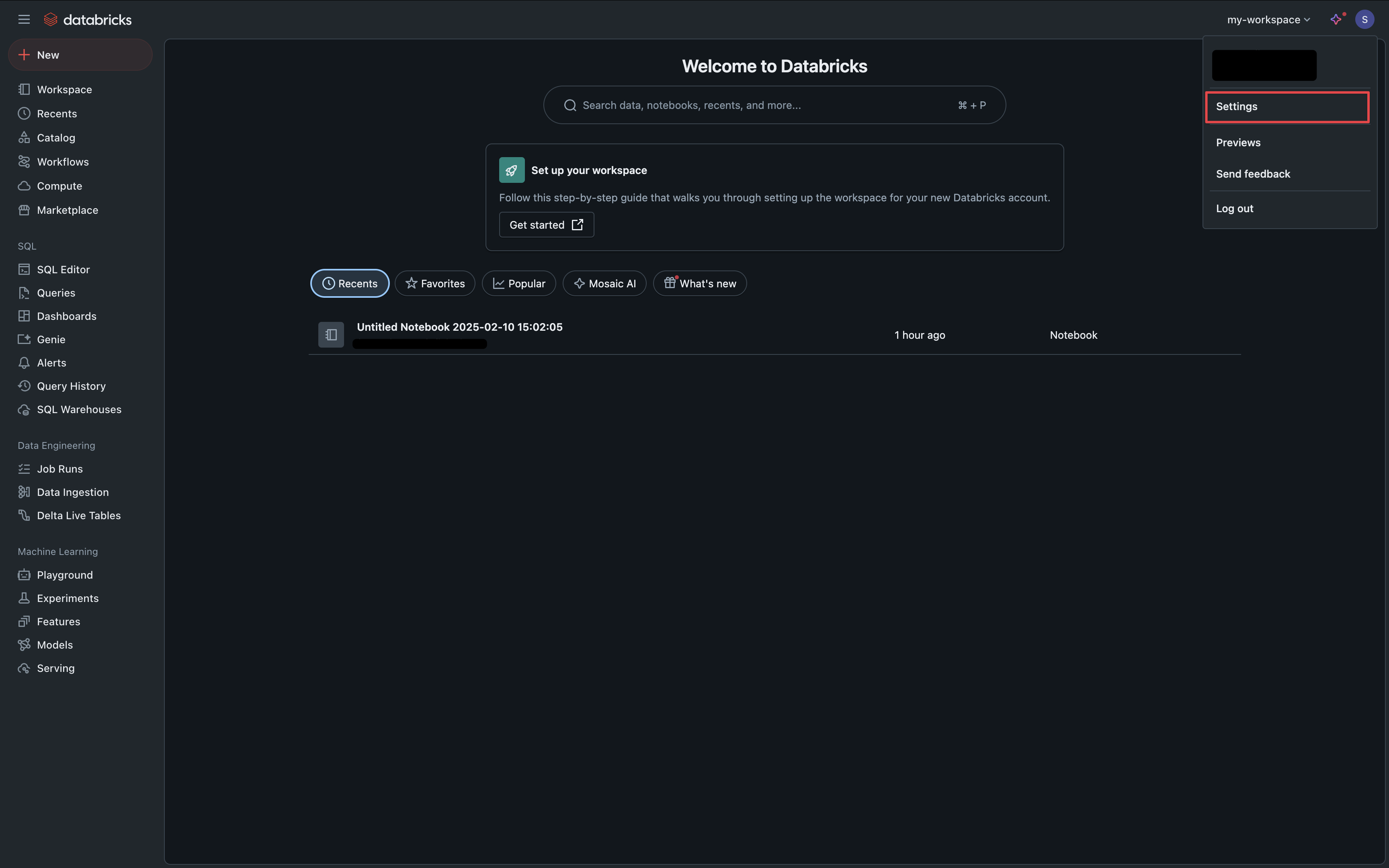
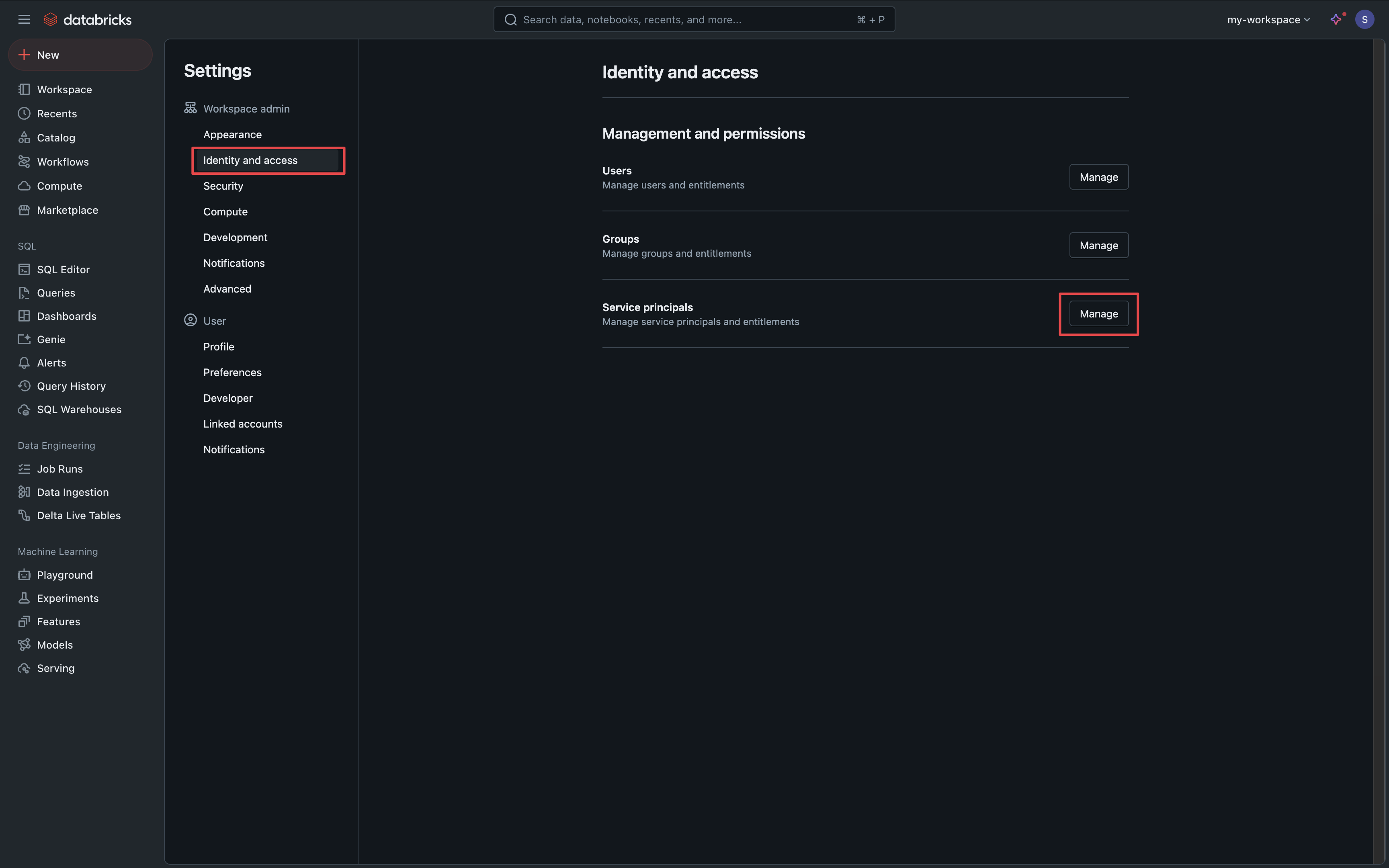
Add a service principal
Select Add Service Principal, then Add New, and create a service principal for Infisical.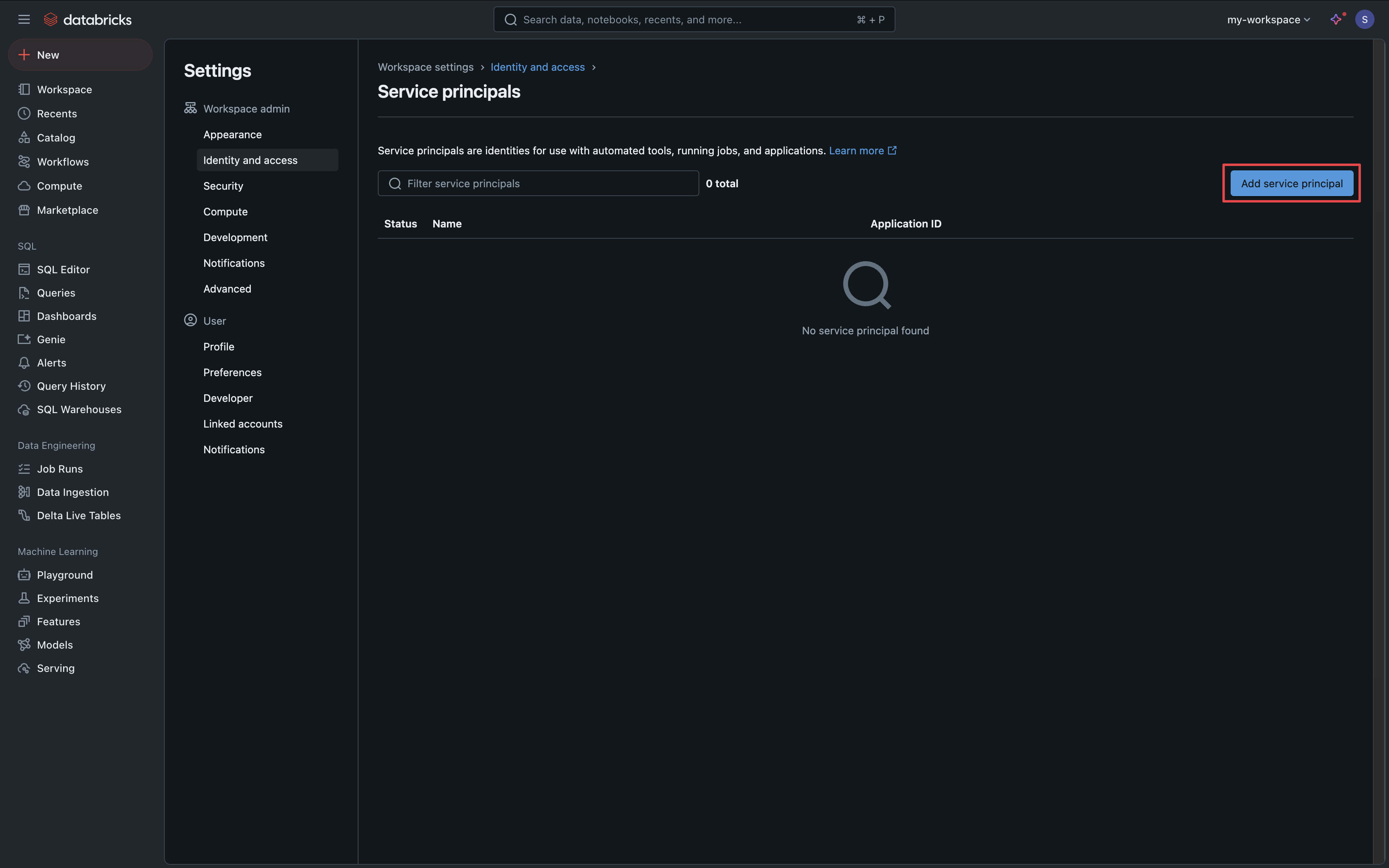
Step 2: Set up the sync in Infisical
Add the sync
In your project, go to Integrations and open the Secret Syncs tab. Select + Add Sync.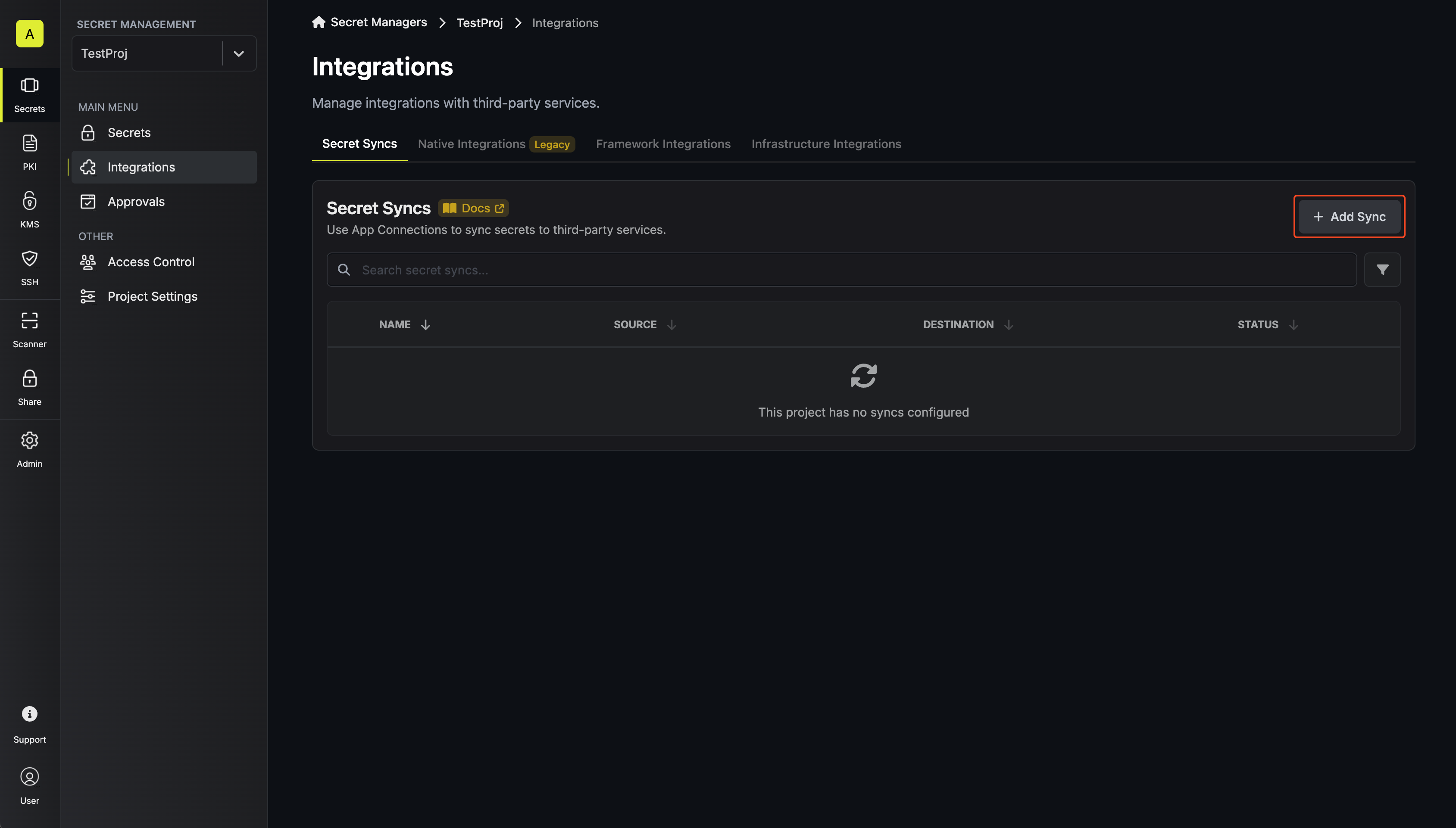 Then, select the Databricks sync.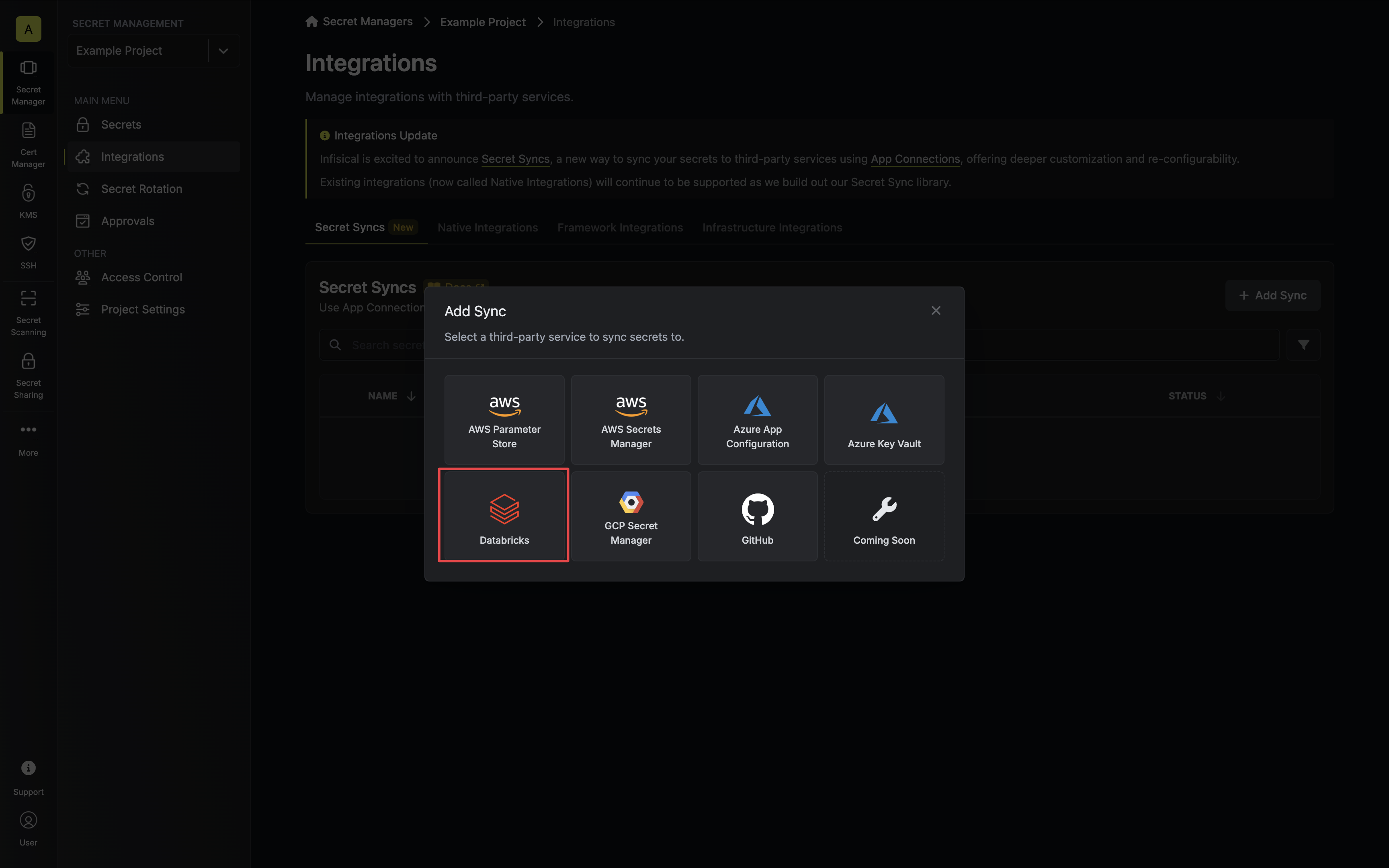
Then, select the Databricks sync.Configure the source
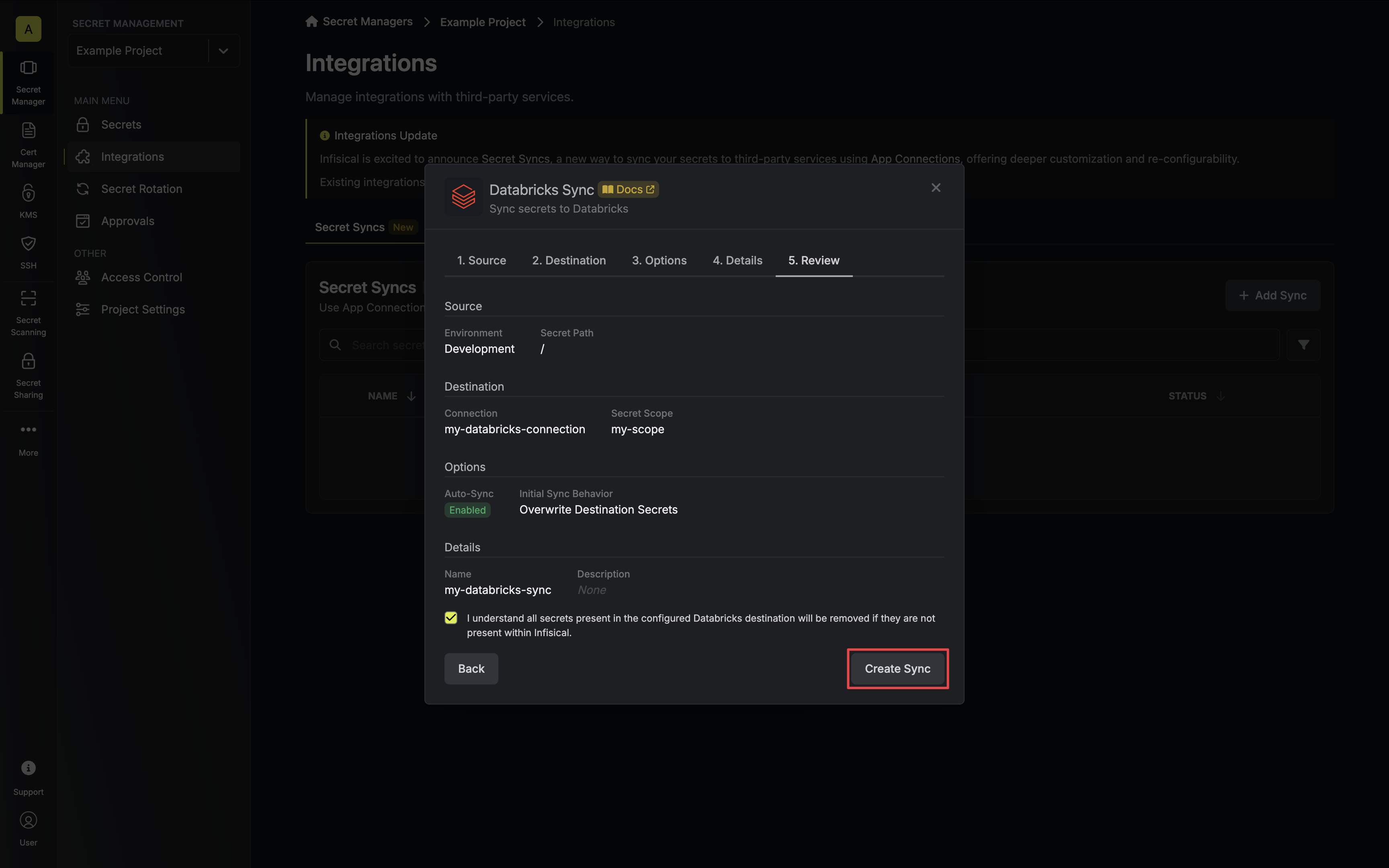
Configure the Source to specify which secrets to sync from Infisical.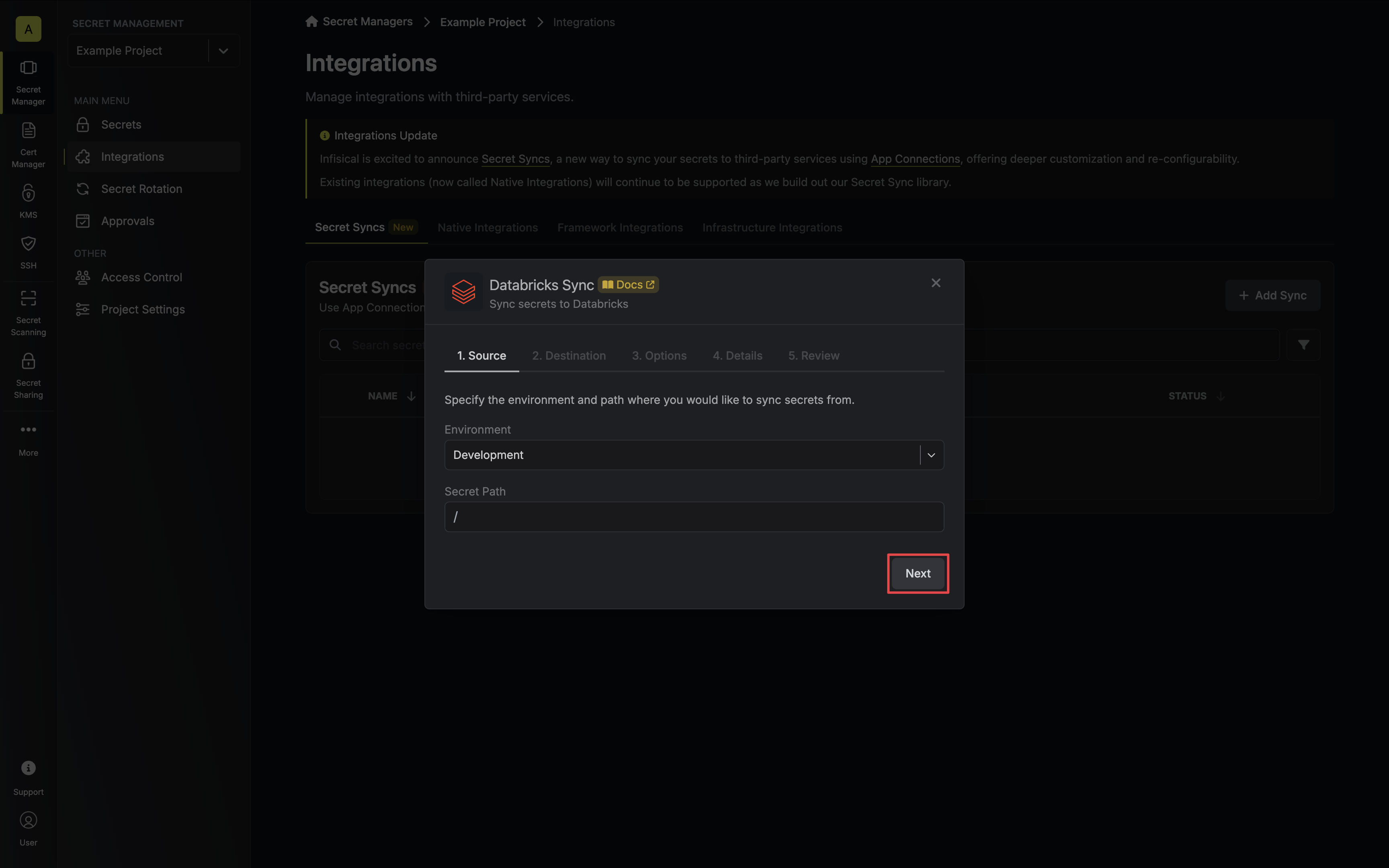
- Environment: The project environment to retrieve secrets from.
- Secret Path: The folder path to retrieve secrets from.
Configure the app connection
Create or select the Databricks app connection the sync will use.
- Create a new app connection
- Use an existing connection
Under Databricks Connection, select Create Connection in the dropdown, then choose Databricks Connection. Select the Service Principal method, then fill in:
- Name: A descriptive name for the connection.
- Description (optional): A note for future reference.
- Workspace URL: The URL of your Databricks workspace.
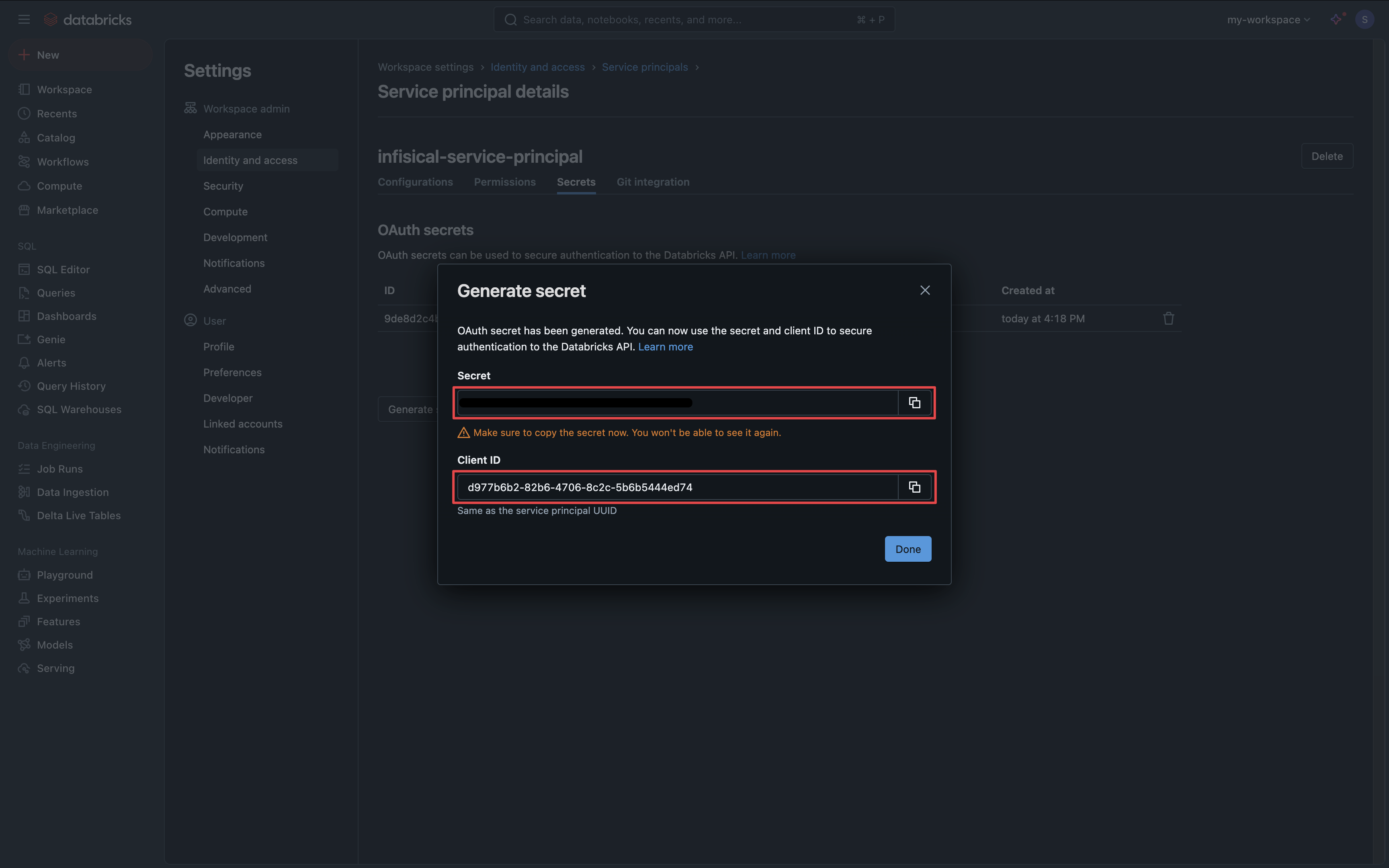
- Client ID: The Client ID of the Databricks service principal created for Infisical.
-
Client Secret: The secret generated for that service principal.
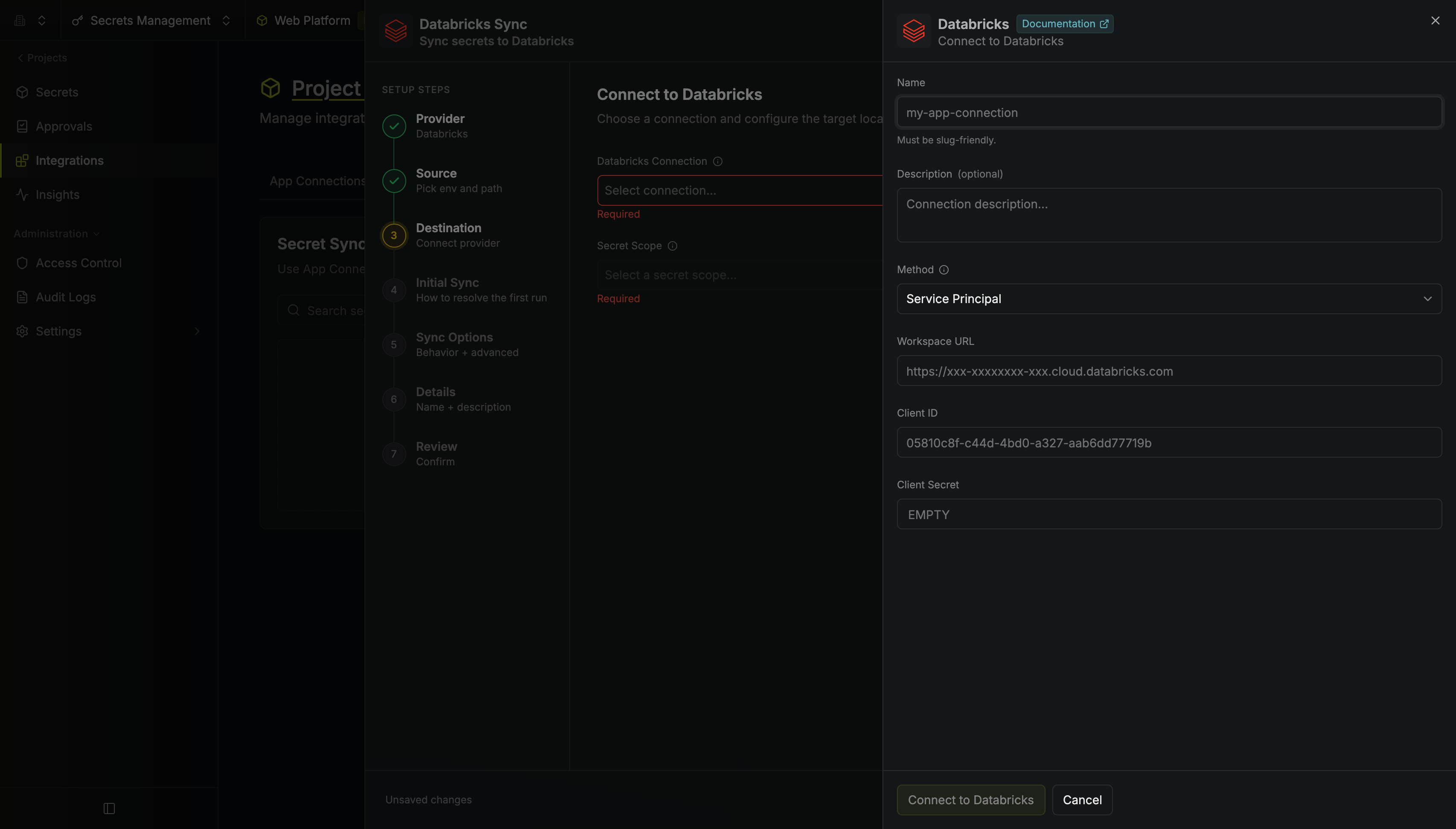
This creates a connection scoped to the current project. To share the connection across other projects, create it at the organization level first, then select it here.
Configure the target scope
Configure the Databricks secret scope where secrets should be deployed.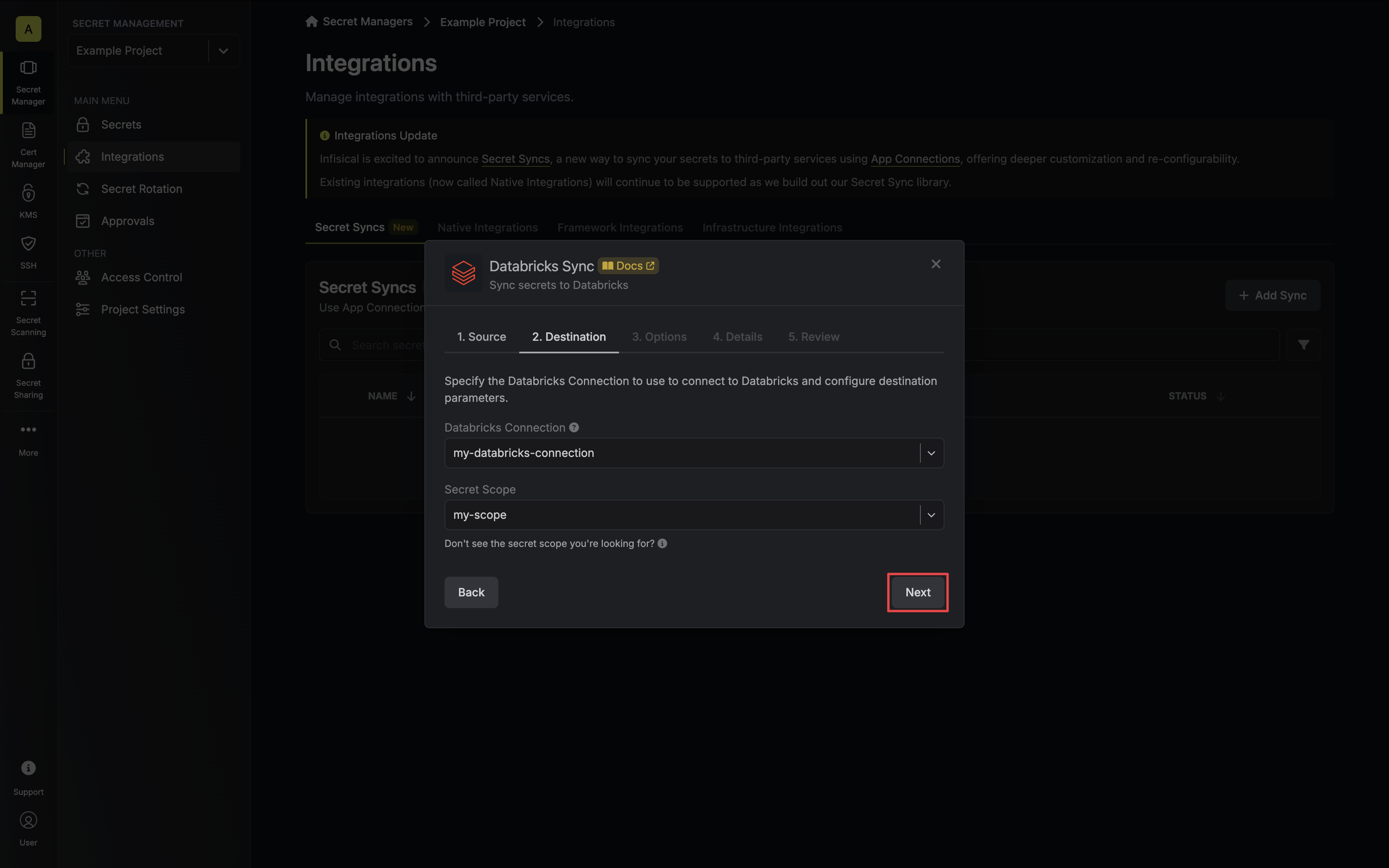 When you’re done, select Next.
- Scope: The Databricks secret scope to sync secrets to.
Ensure your service principal has Write permissions for the specified secret scope. We recommend a designated scope for the sync so it doesn’t remove secrets managed elsewhere.
Configure the sync options
Configure the Sync Options to specify how secrets should be synced.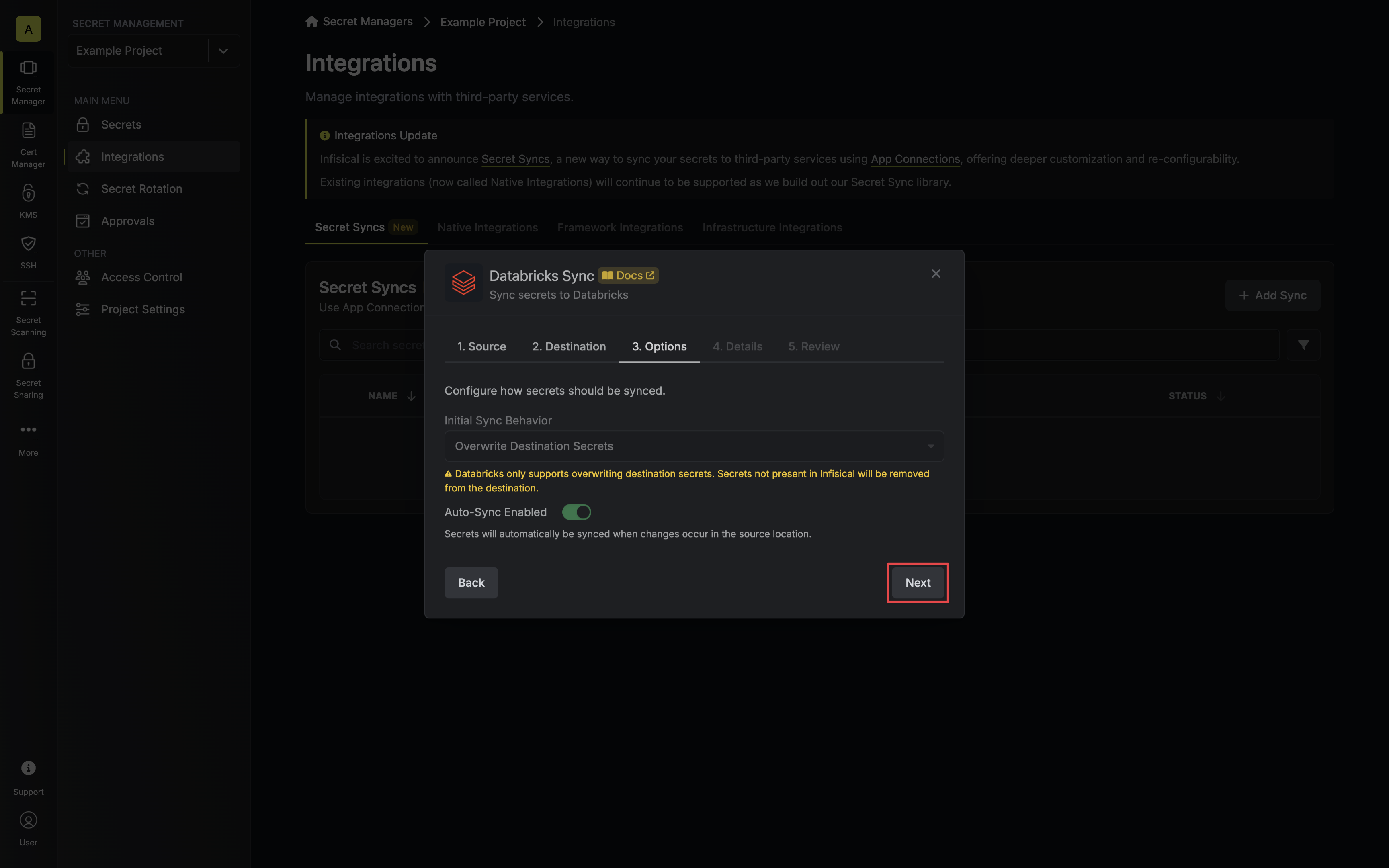
- Initial Sync Behavior: How Infisical resolves the initial sync.
- Overwrite Destination Secrets: Removes any secrets at the destination not present in Infisical.
The Databricks Secret Sync doesn’t support importing secrets. - Key Schema: Template that transforms secret names when syncing. Use
{{secretKey}}for the original secret name and{{environment}}for the environment.Use a Key Schema so Infisical only manages the keys that match the schema, leaving other keys untouched. - Auto-Sync Enabled: When enabled, secrets sync automatically as the source changes. Disable to sync manually only.
- Disable Secret Deletion: When enabled, Infisical doesn’t remove secrets from the destination. Enable this if you intend to manage some secrets manually outside of Infisical.
Configure the details
Give the sync a Name and an optional Description. The name must be slug-friendly.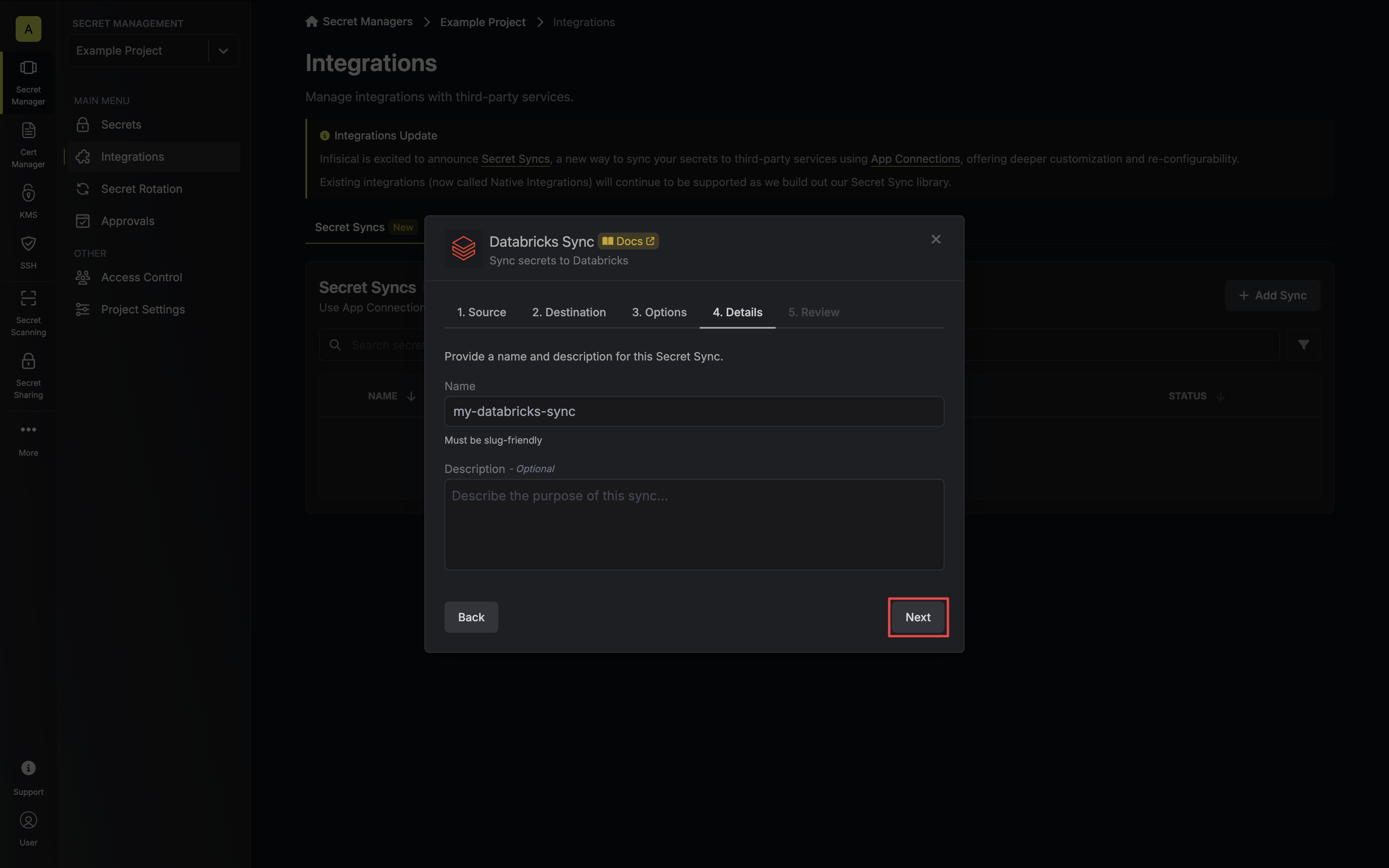 Then select Next.
Then select Next.