

Chef Sync is a paid feature.If you’re using Infisical Cloud, then it is available under the Enterprise Tier. If you’re self-hosting Infisical,
then you should contact [email protected] to purchase an enterprise license to use it.
- Create a Chef Connection
- Infisical UI
- API
1
Add Sync
Navigate to Project > Integrations and select the Secret Syncs tab. Select the Add Sync button.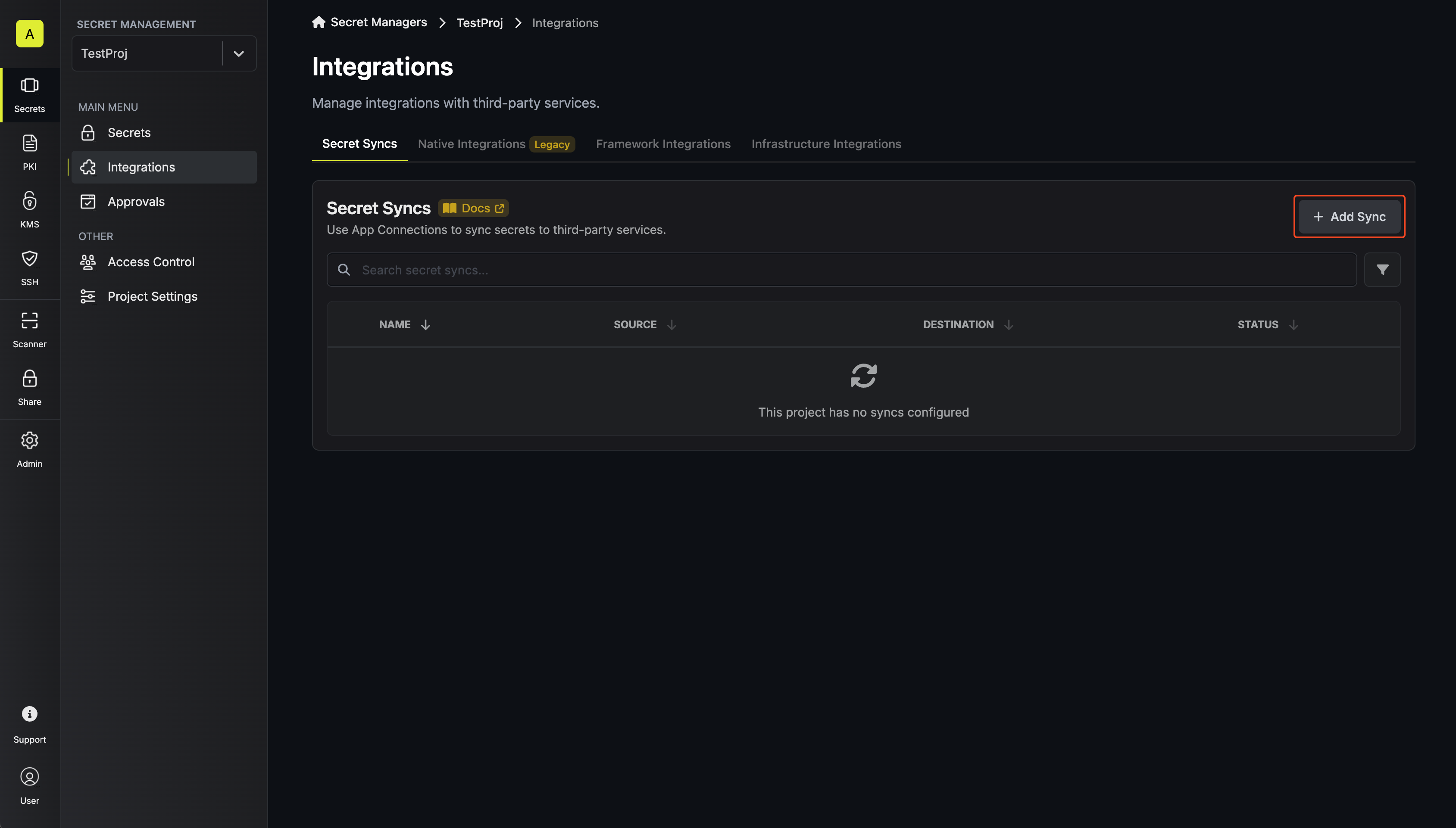
2
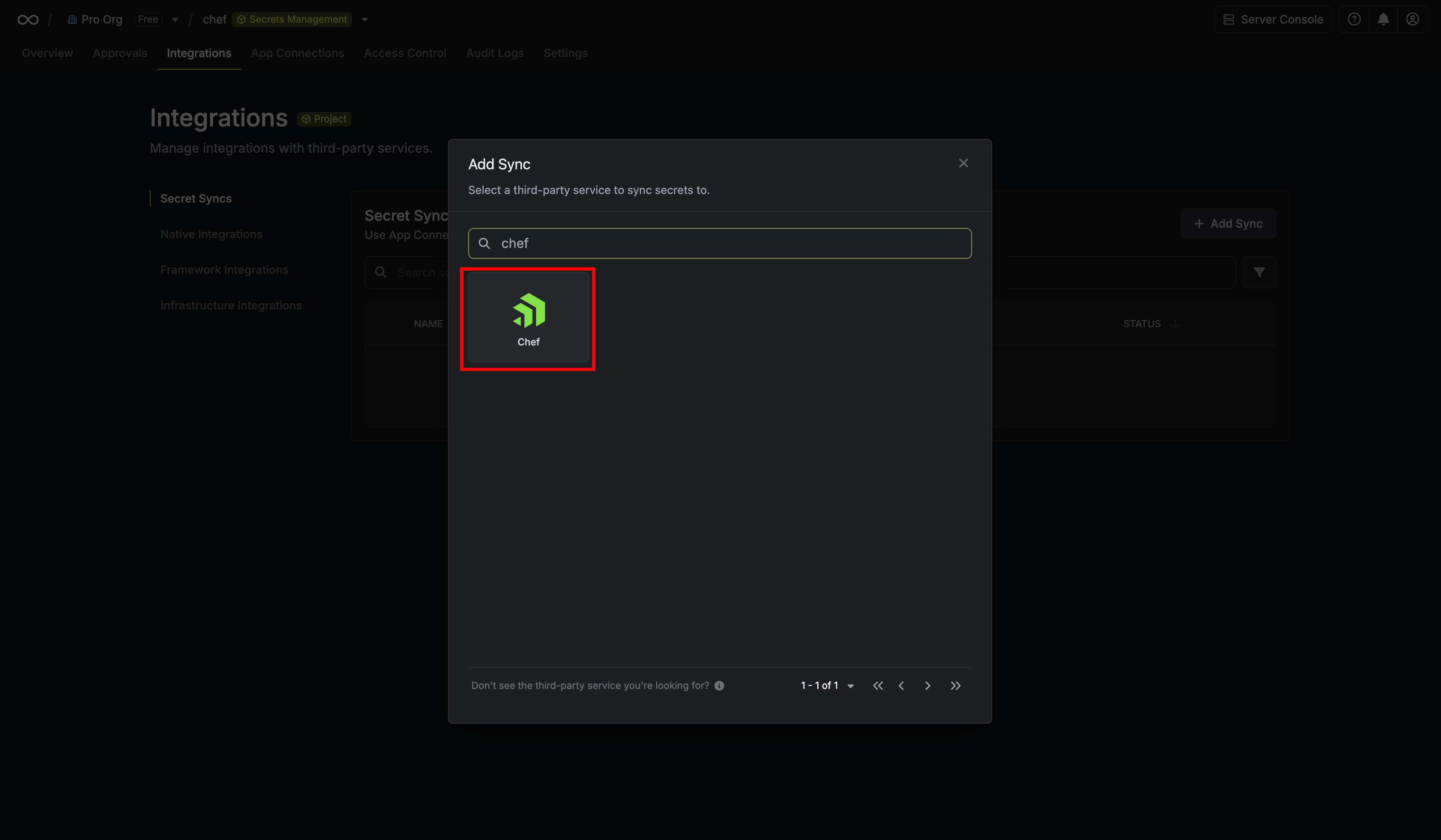
Select 'Chef'
3
Configure source
Configure the Source from where secrets should be retrieved, then click Next.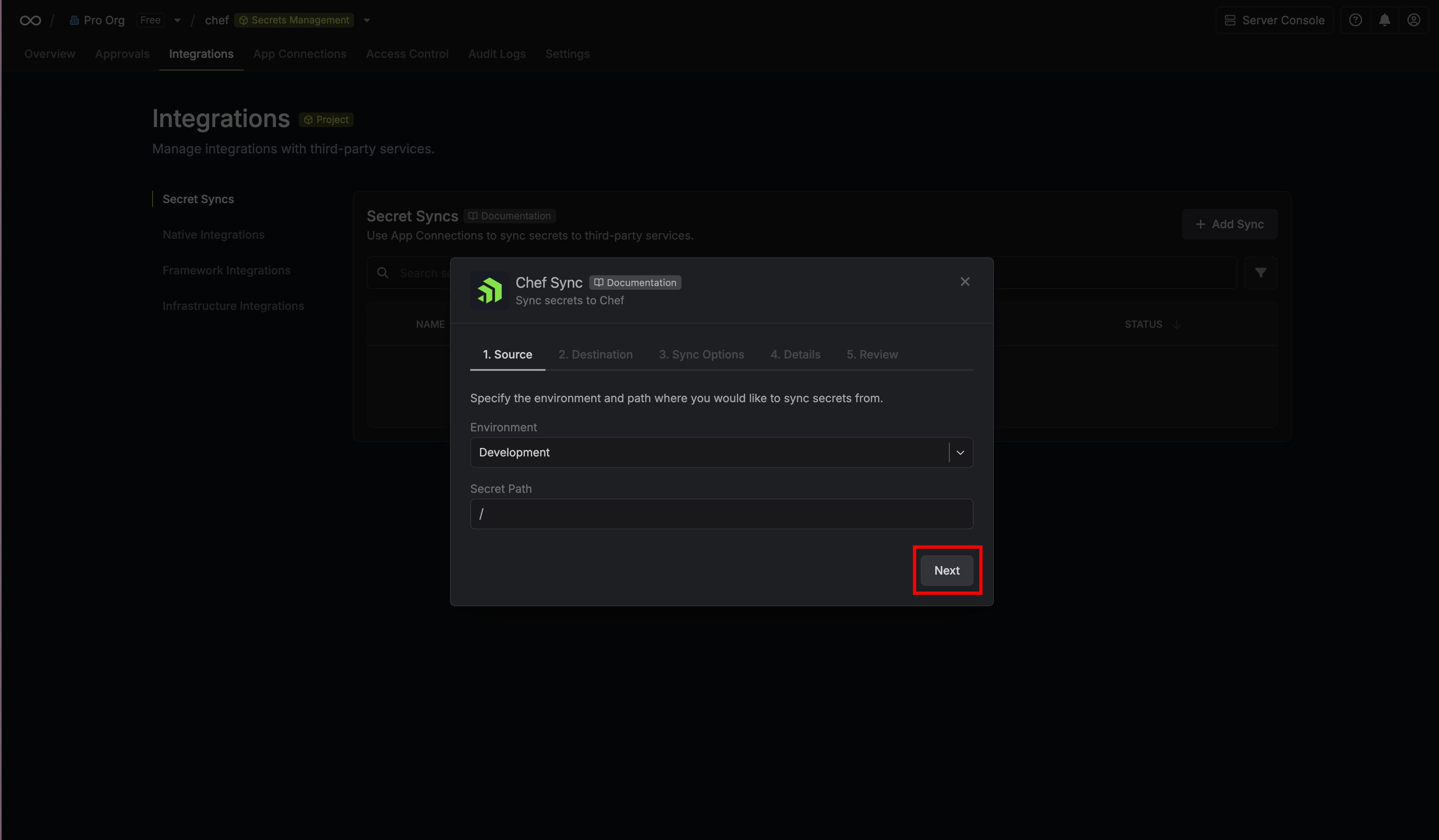
- Environment: The project environment to retrieve secrets from.
- Secret Path: The folder path to retrieve secrets from.
4
Configure destination
Configure the Destination to where secrets should be deployed, then click Next.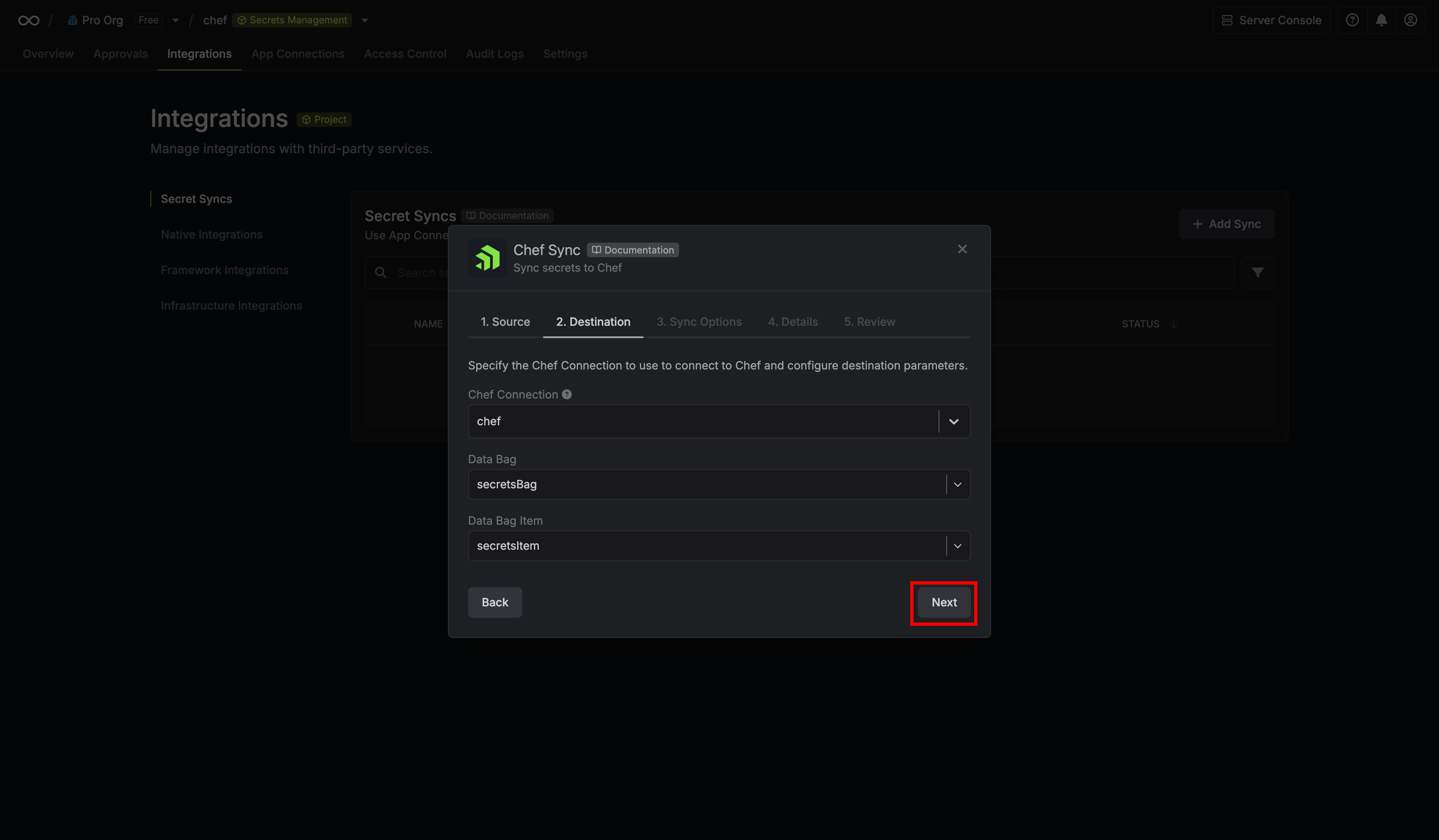
- Chef Connection: The Chef Connection to authenticate with
- Data Bag: The Data Bag to sync secrets to
- Data Bag Item: The Data Bag Item to sync secrets to
- Encrypt Secrets: Whether to write the item as a Chef encrypted data bag item (see Encrypt secrets in Chef)
5
Configure Sync Options
Configure the Sync Options to specify how secrets should be synced, then click Next.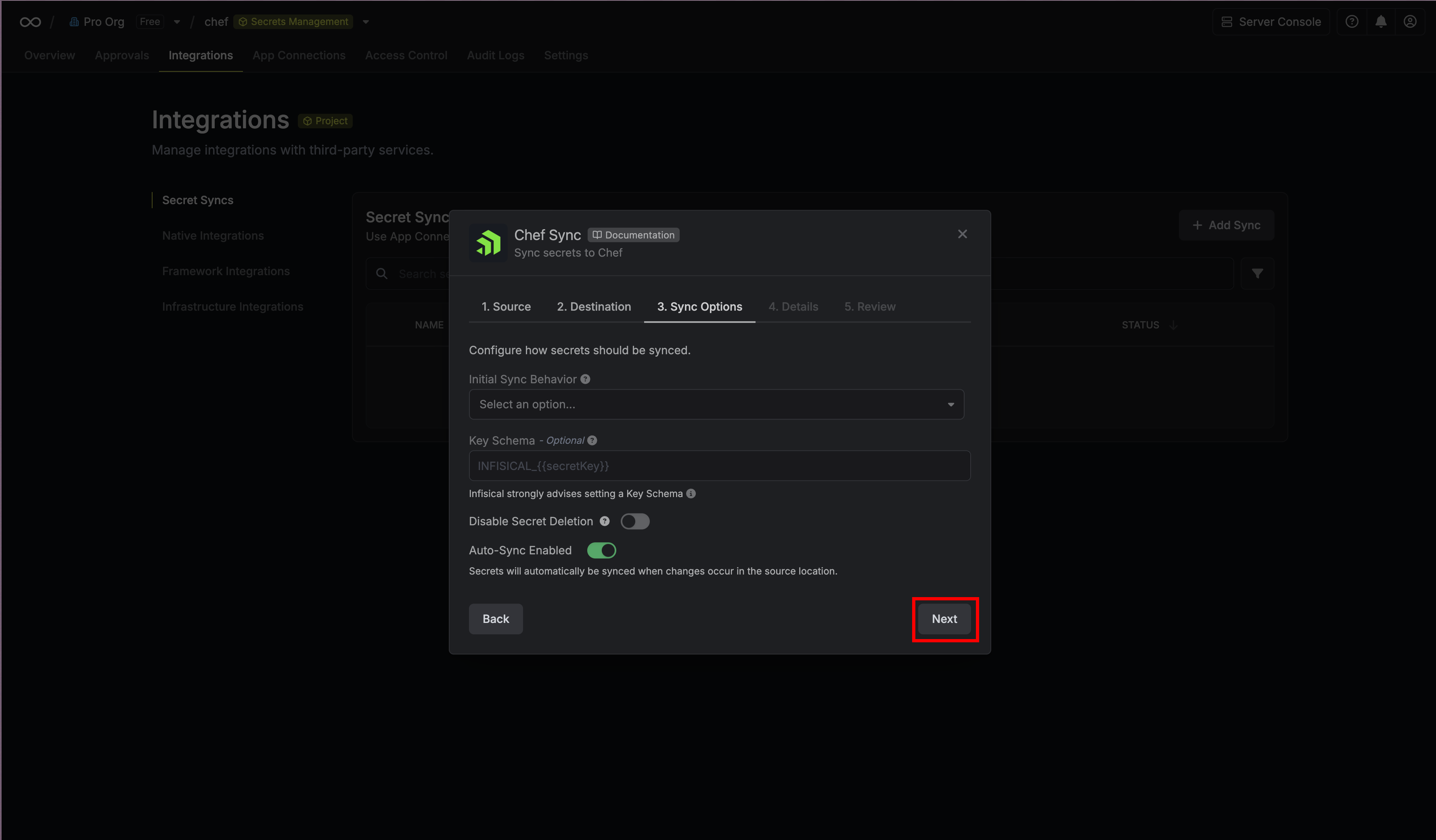
- Initial Sync Behavior: Determines how Infisical should resolve the initial sync.
- Overwrite Destination Secrets: Removes any secrets at the destination endpoint not present in Infisical.
- Import Secrets (Prioritize Infisical): Imports secrets from the destination endpoint before syncing, prioritizing values from Infisical over Chef when keys conflict.
- Import Secrets (Prioritize Chef): Imports secrets from the destination endpoint before syncing, prioritizing values from Chef over Infisical when keys conflict.
- Key Schema: Template that determines how secret names are transformed when syncing, using
{{secretKey}}as a placeholder for the original secret name and{{environment}}for the environment.
We highly recommend using a Key Schema to ensure that Infisical only manages the specific keys you intend, keeping everything else untouched.
- Auto-Sync Enabled: If enabled, secrets will automatically be synced from the source location when changes occur. Disable to enforce manual syncing only.
- Disable Secret Deletion: If enabled, Infisical will not remove secrets from the sync destination. Enable this option if you intend to manage some secrets manually outside of Infisical.
6
Configure details
Configure the Details of your Chef Sync, then click Next.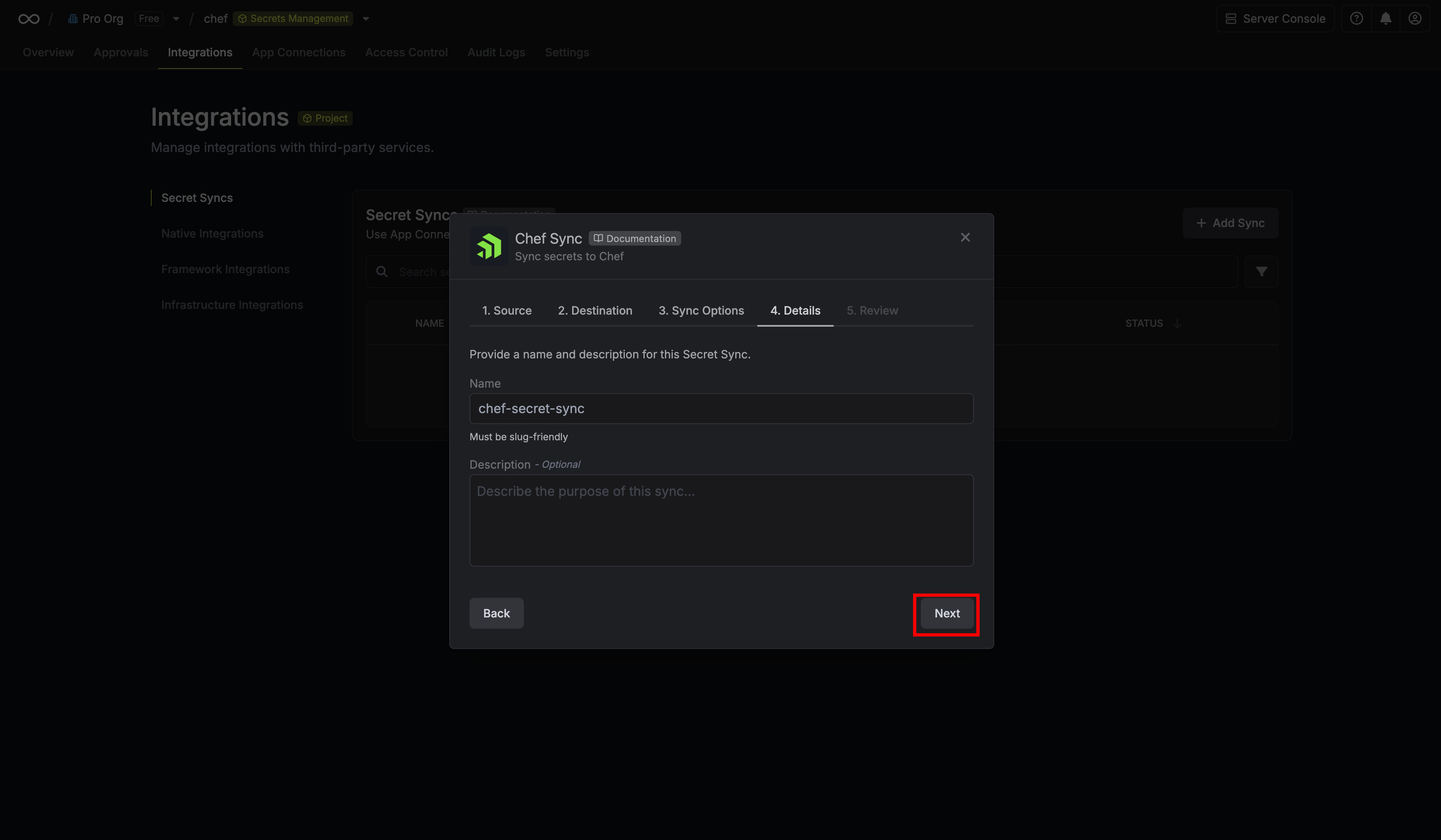
- Name: The name of your sync. Must be slug-friendly.
- Description: An optional description for your sync.
7
Review configuration
Review your Chef Sync configuration, then click Create Sync.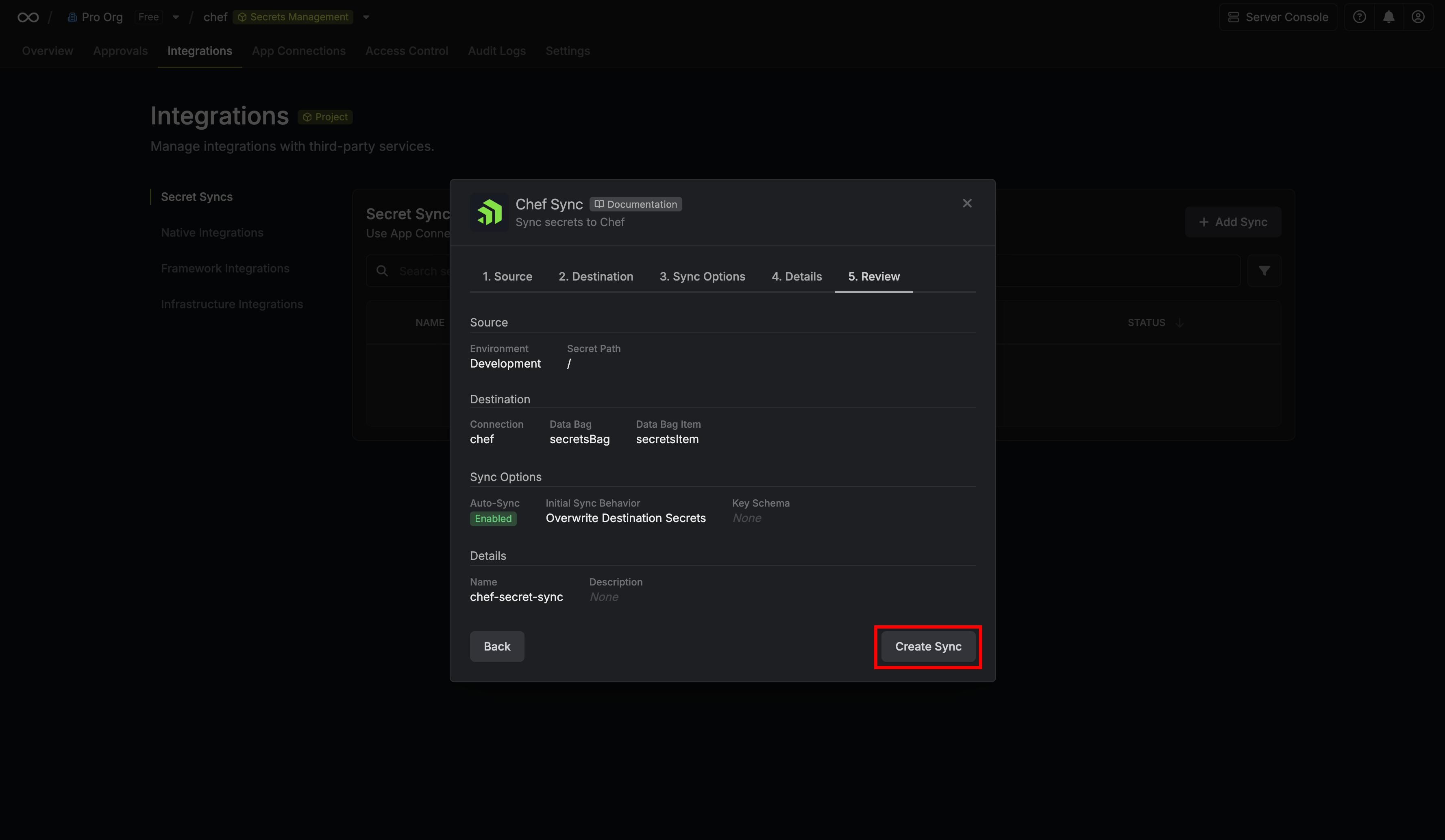
8
Sync created
If enabled, your Chef Sync will begin syncing your secrets to the destination endpoint.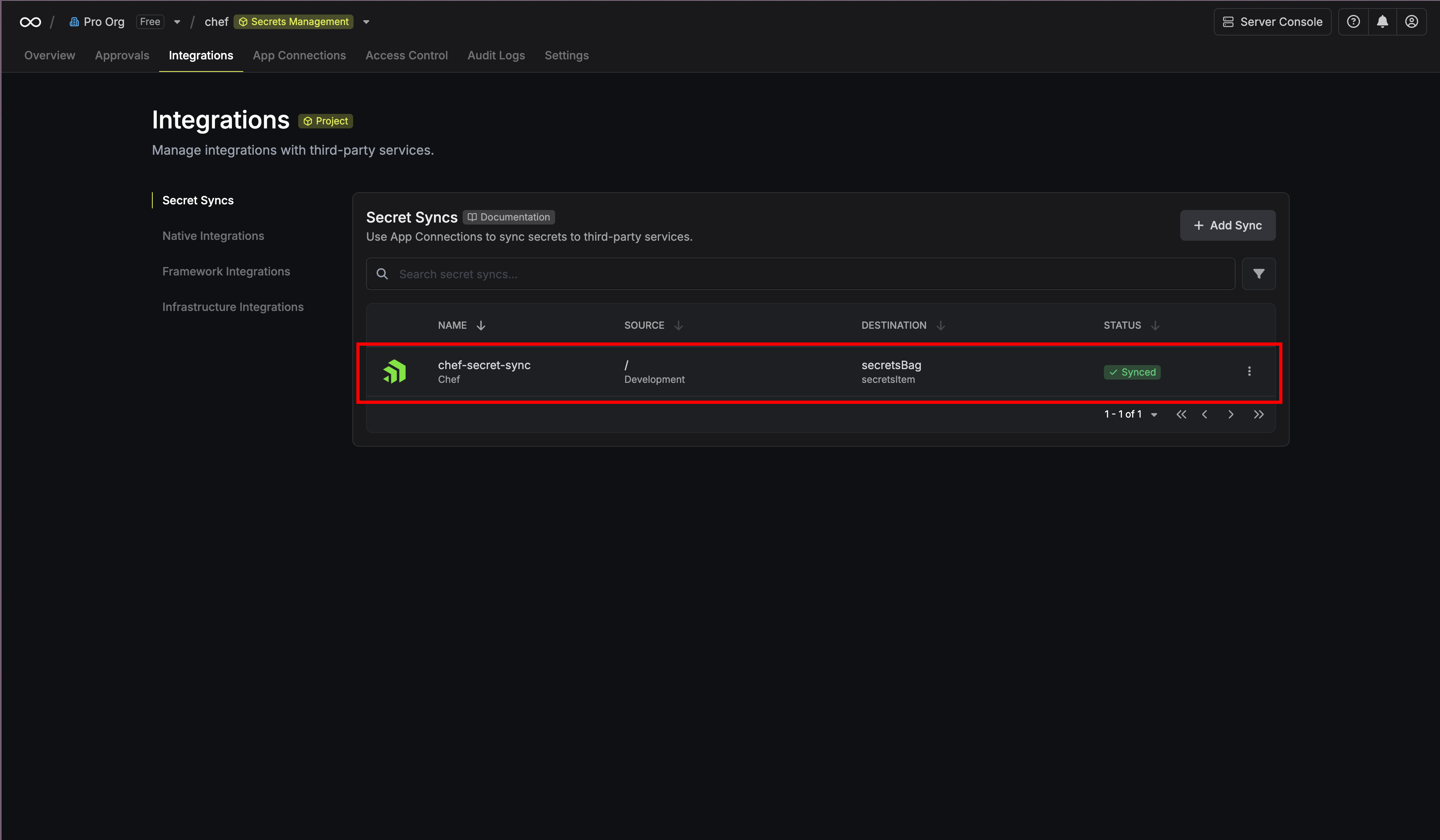
Encrypt secrets in Chef
By default, the sync writes secrets to the data bag item in plain text, so anyone who can read the data bag on your Chef server can read the secrets. If you turn on Encrypt Secrets, the sync writes the item as a Chef encrypted data bag item instead, and only nodes and users that have your data bag secret can read the values.Turn on encryption
1
Copy your data bag secret to every node that reads the data bag item. If a node doesn’t have the secret, the Chef Infra Client run on that node fails when a recipe reads the item.
2
Add the same secret to the sync’s Chef connection. In App Connections, select the three dot menu next to the connection, then select Edit Credentials. Enter the Private Key and the Data Bag Secret, then select Update Credentials.
3
On the sync’s page, select the three dot menu next to Details, then select Edit Sync. Turn on Encrypt Secrets, then select Save.
Read encrypted secrets in Chef
Recipes that read the item withdata_bag_item don’t need to change. If the secret is at the path that encrypted_data_bag_secret sets in the Chef Infra Client configuration (/etc/chef/encrypted_data_bag_secret on Linux by default), data_bag_item decrypts the item automatically.
To read the item from a workstation, pass the secret file to knife: