

The Daytona Secret Sync requires a Daytona app connection. This guide walks you through creating a project-scoped app connection.
Prerequisites
- A project with secrets configured
- A Daytona account with access to create API keys in the organization you want to sync secrets to
Step 1: Create a Daytona API key
Infisical authenticates to Daytona with an API key that can manage secrets in your organization.1
In the Daytona dashboard, go to API Keys in the sidebar, then select Create Key.
2
Give the key a name. Under Permissions, select Restricted, then set Secrets to Manage (or Full Access).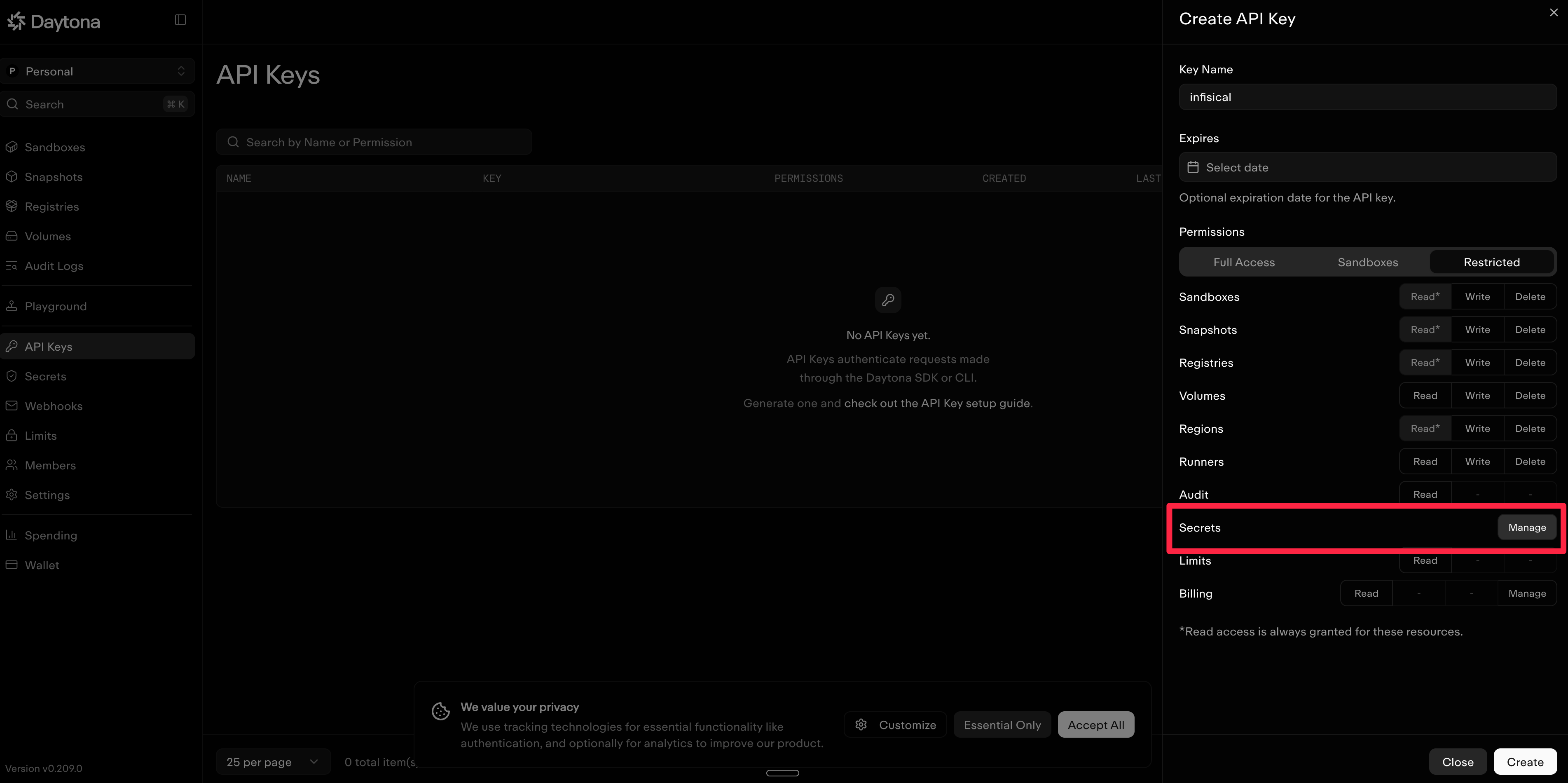
Infisical needs this permission to create, update, and delete secrets. If the key doesn’t have it, Infisical rejects the key when you create the connection.
3
Select Create, then copy the key. Daytona shows the key only once, and you need it to create the connection in Infisical.
Step 2: Set up the sync in Infisical
1
In your project, go to Integrations and open the Secret Syncs tab. Select + Add Sync.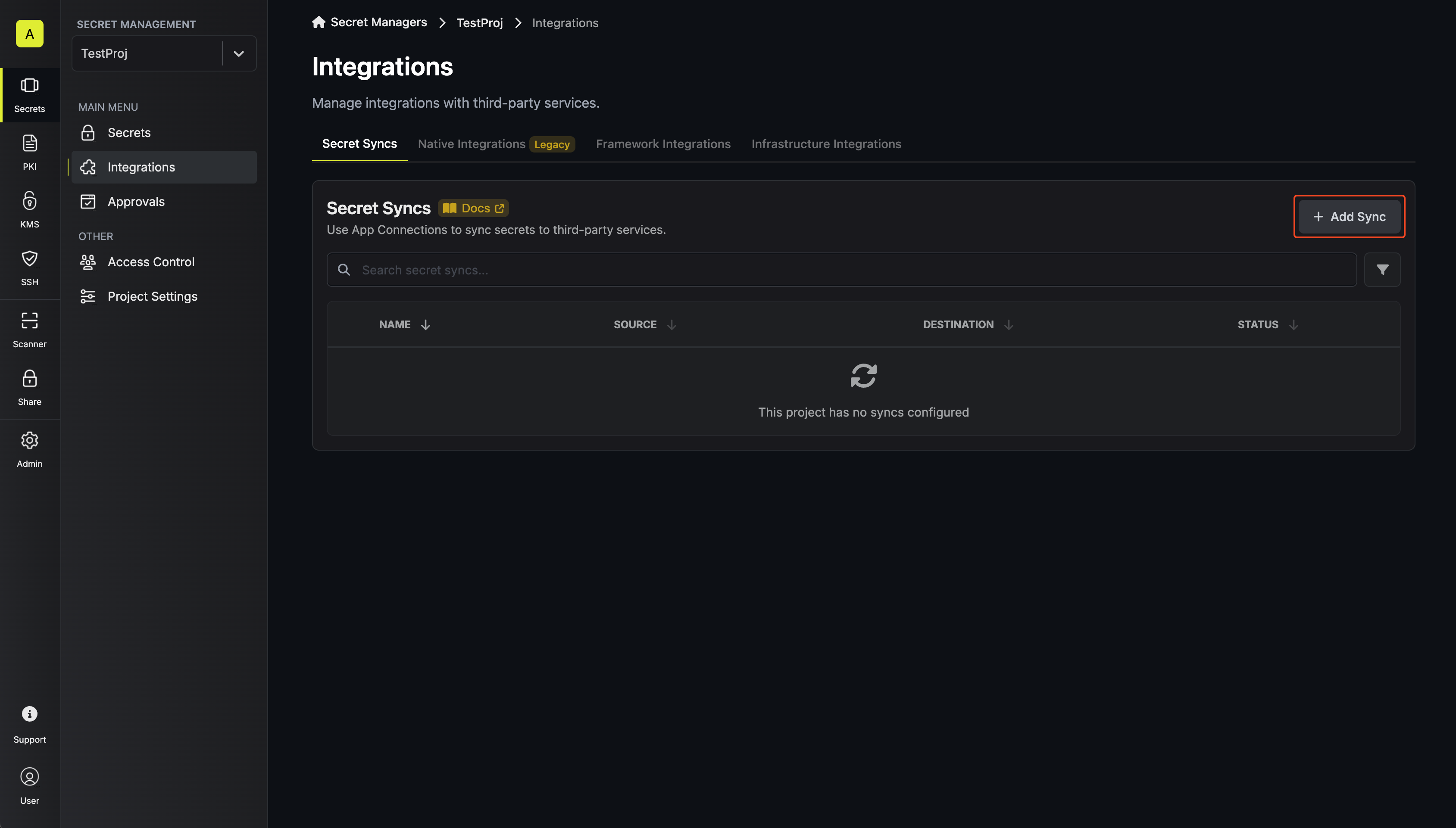 Then, select the Daytona sync.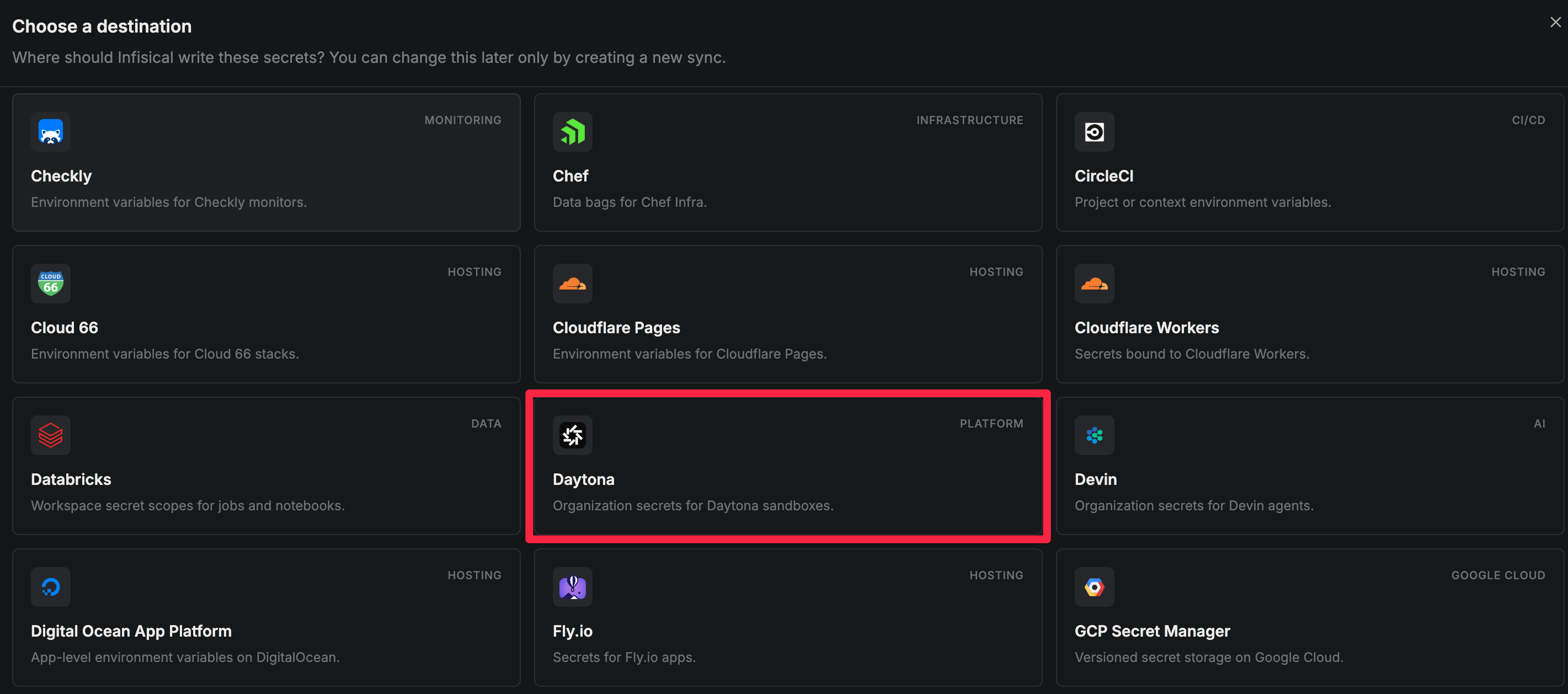
Then, select the Daytona sync.2
Under Source, choose which secrets to sync from Infisical:Then select Continue.
- Environment: The project environment to retrieve secrets from
- Secret Path: The folder path to retrieve secrets from
Daytona secret names must start with a letter or an underscore, and can contain only letters, digits, hyphens, and underscores. If any secret at this path has a name Daytona rejects, the sync fails without writing any secrets, and the error names each rejected key.
3
Under Destination, create or select the Daytona app connection the sync will use. The connection’s API key decides which Daytona organization receives the secrets, so there is nothing else to configure on this screen.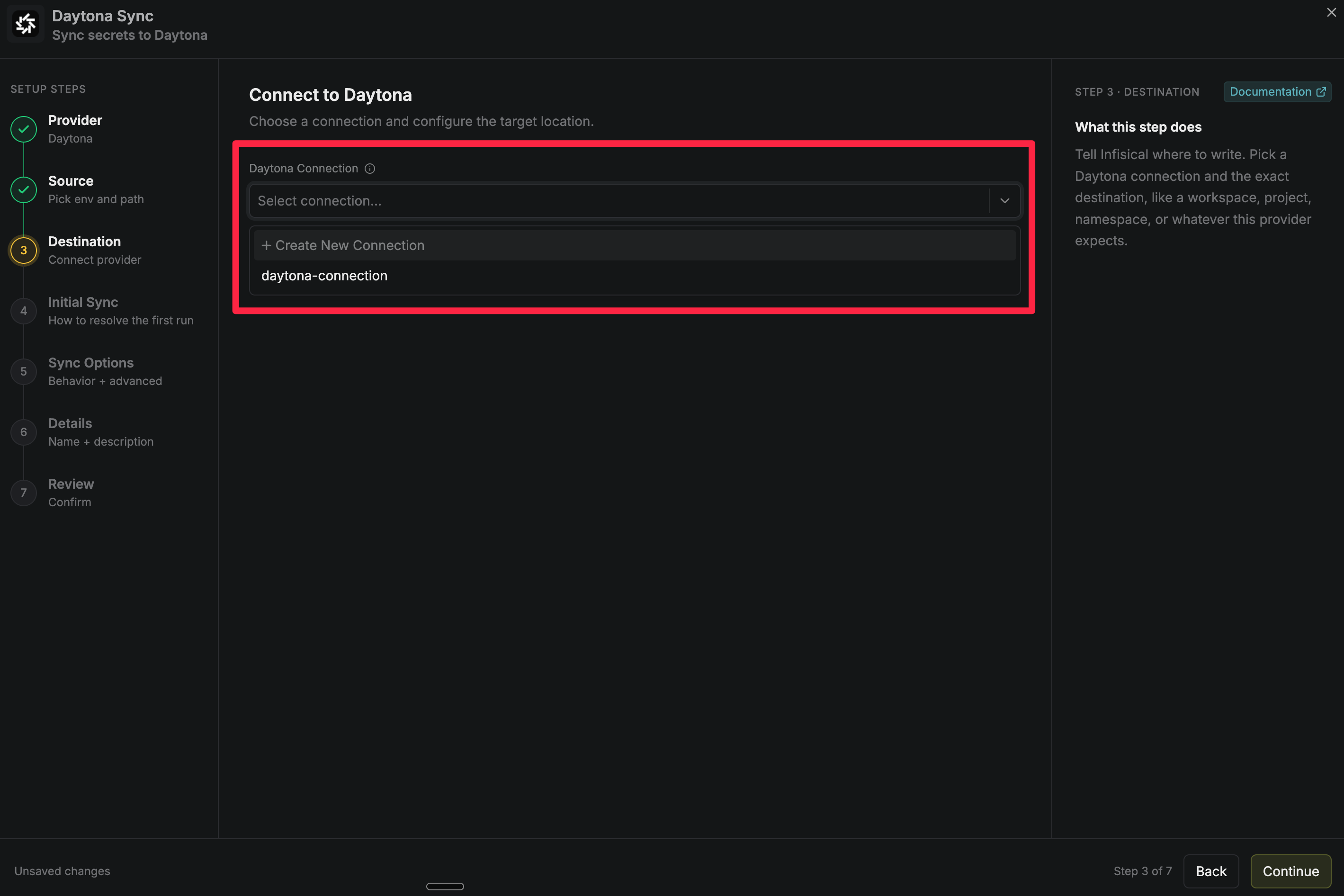 Then select Continue.
- Create a new app connection
- Use an existing connection
Under Daytona Connection, select Create Connection in the dropdown, then fill in:
- Name: A descriptive name for the connection, such as
daytona-prod - Description (optional): A note for future reference
- Method: API Key (selected by default)
- API Key: The key you copied when you created the Daytona API key
This creates a connection scoped to the current project. To share the connection across other projects, create it at the organization level first, then select it here.
Then select Continue.4
Under Initial Sync Behavior, select Overwrite Daytona, then select Continue.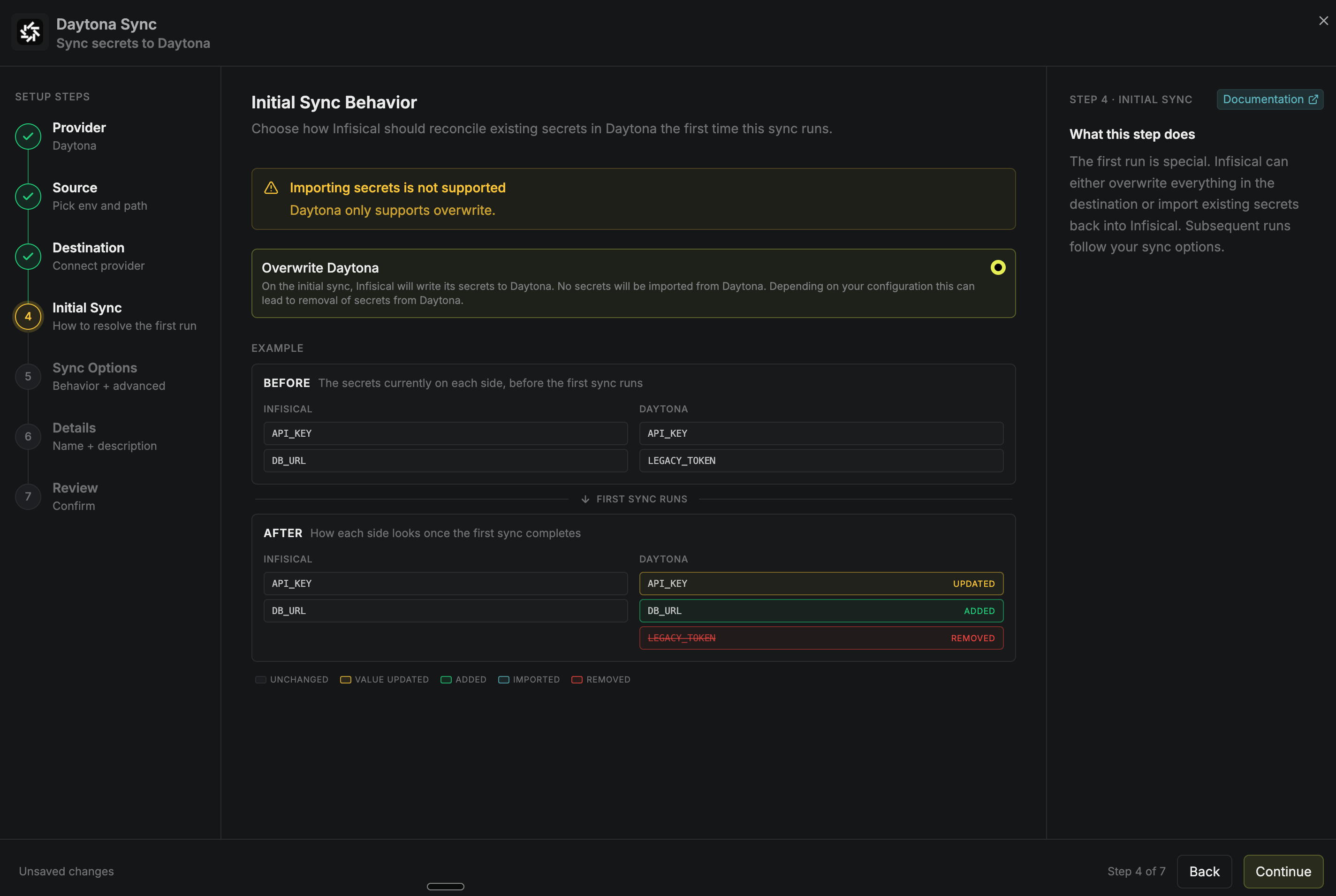
Daytona’s API never returns a secret’s value, so this sync can’t import existing Daytona secrets into Infisical. Overwrite Daytona is the only option.
5
Under Sync Options, choose how secrets are synced: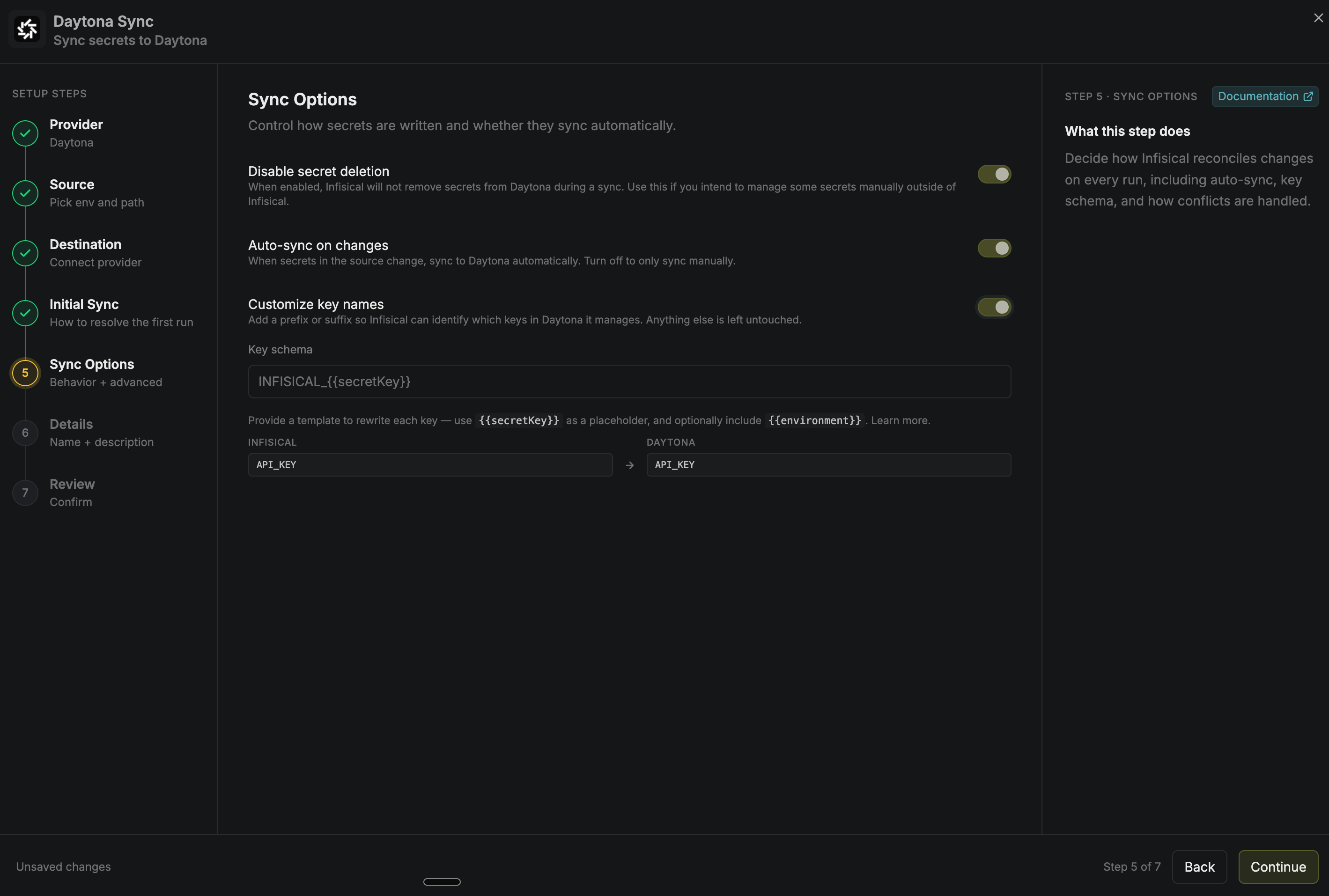 Then select Continue.
- Prevent secret deletion: When enabled, Infisical adds and updates secrets in Daytona but never deletes them; enable this if you manage some Daytona secrets outside of Infisical
- Auto-sync on changes: When enabled, secrets sync to Daytona automatically as the source changes. Turn off to sync manually only
- Customize key names: Adds a prefix or suffix to every synced name, using
{{secretKey}}for the original name and{{environment}}for the environment slug
Then select Continue.6
Give the sync a Name and an optional Description. The name must be slug-friendly.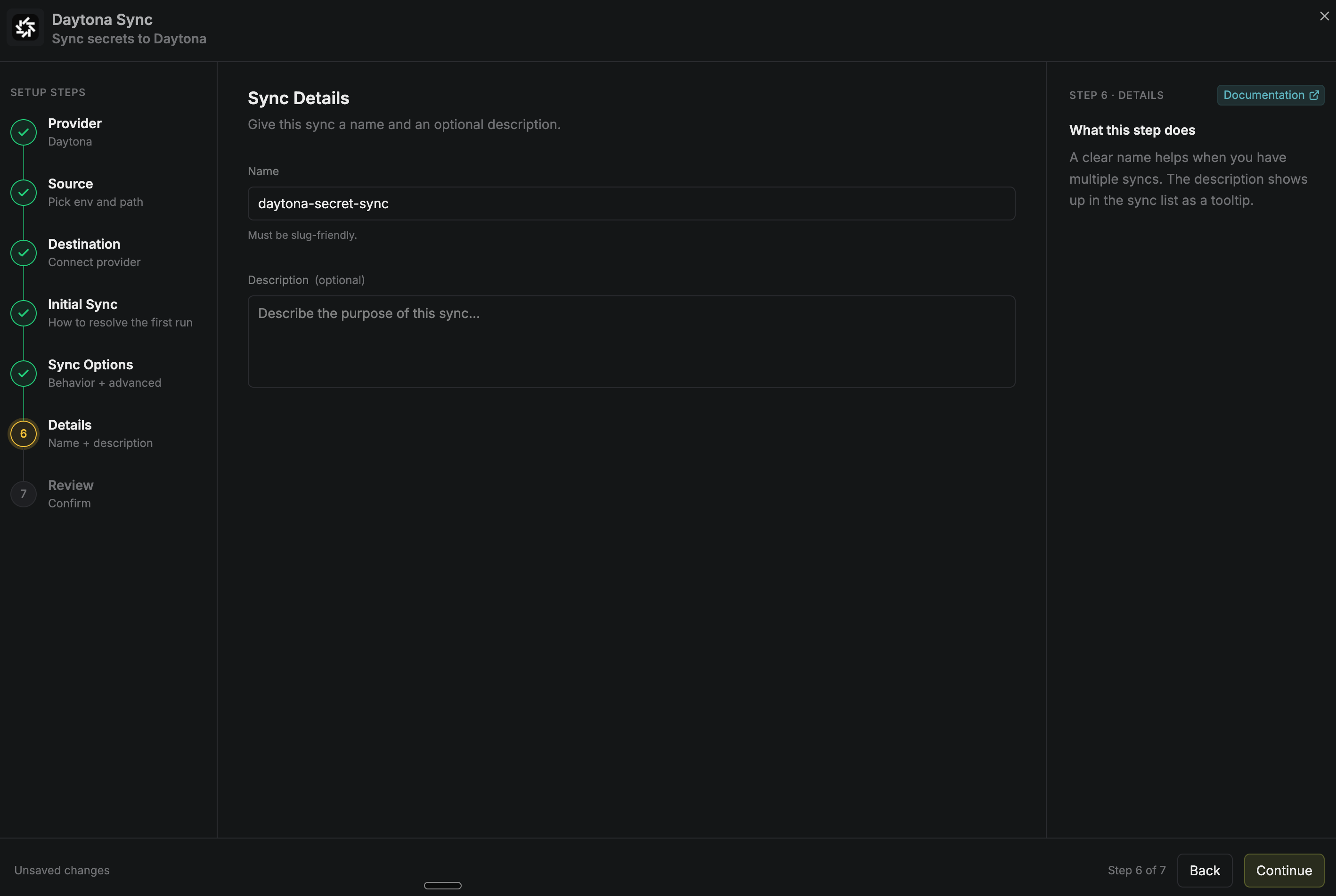 Then select Continue.
Then select Continue.7
Review your Daytona Sync configuration, then select Create Sync.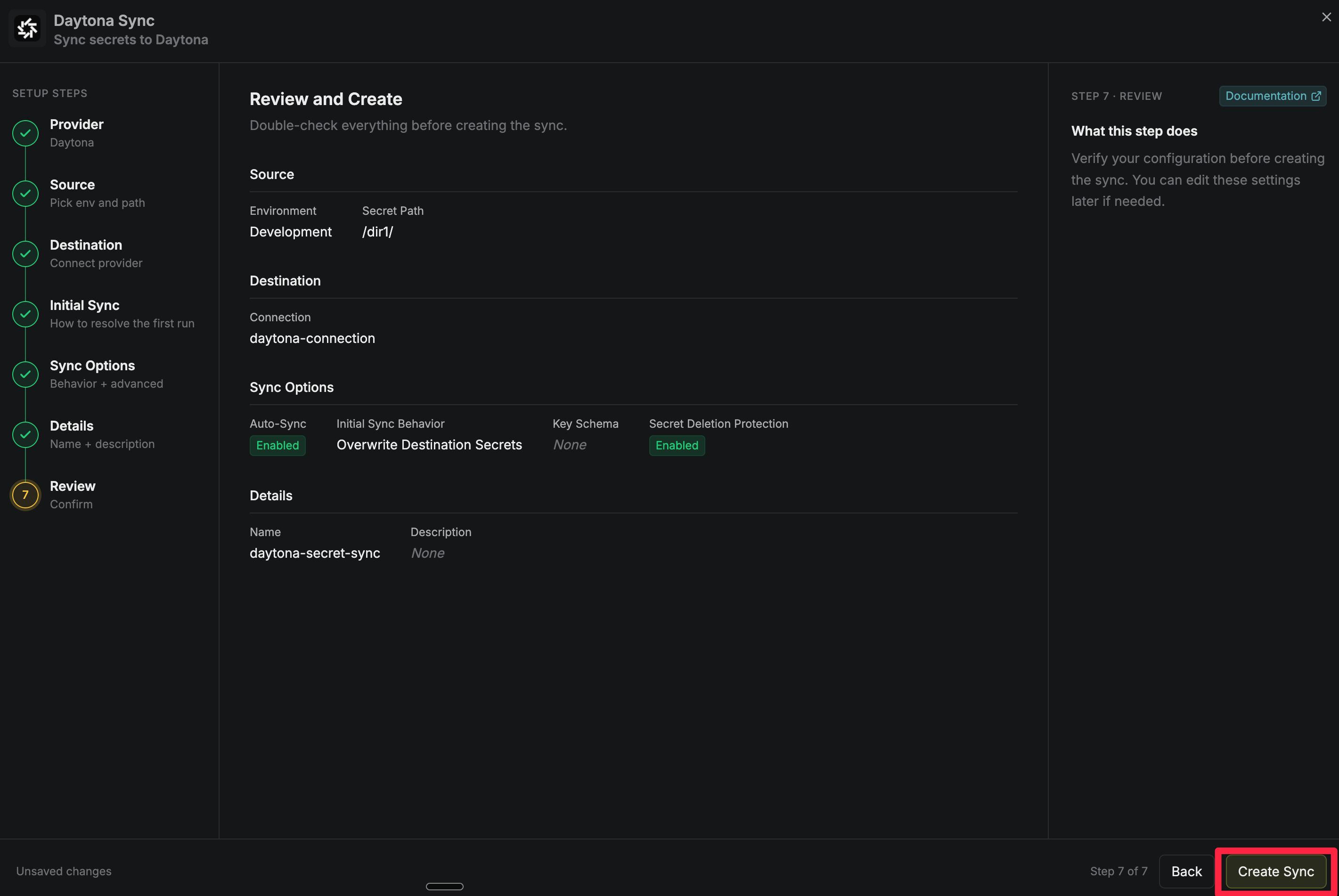
The sync is created. If Auto-sync on changes is enabled, it begins syncing secrets to your Daytona organization right away.
Step 3: Restrict allowed hosts in Daytona
Daytona never places a secret’s value in a sandbox. It sets the environment variable to a placeholder and substitutes the real value in its egress proxy, but only for requests to hosts on that secret’s allowed hosts list. If a secret has no allowed hosts, Daytona substitutes the value in a request to any host.Infisical never sets or changes allowed hosts. When Infisical creates a Daytona secret, it sends only the name and value, and when it updates one, it sends only the value. This means the allowed hosts you set in Daytona stay in place through every later sync.
1
In the Daytona dashboard, go to Secrets in the sidebar. The secrets created by the sync are listed by name, and the Allowed Hosts column shows each one’s current list.
2
Find the secret you want to restrict and select it.
3
In Allowed Hosts, enter a comma-separated list of the hosts the secret may be sent to, such as 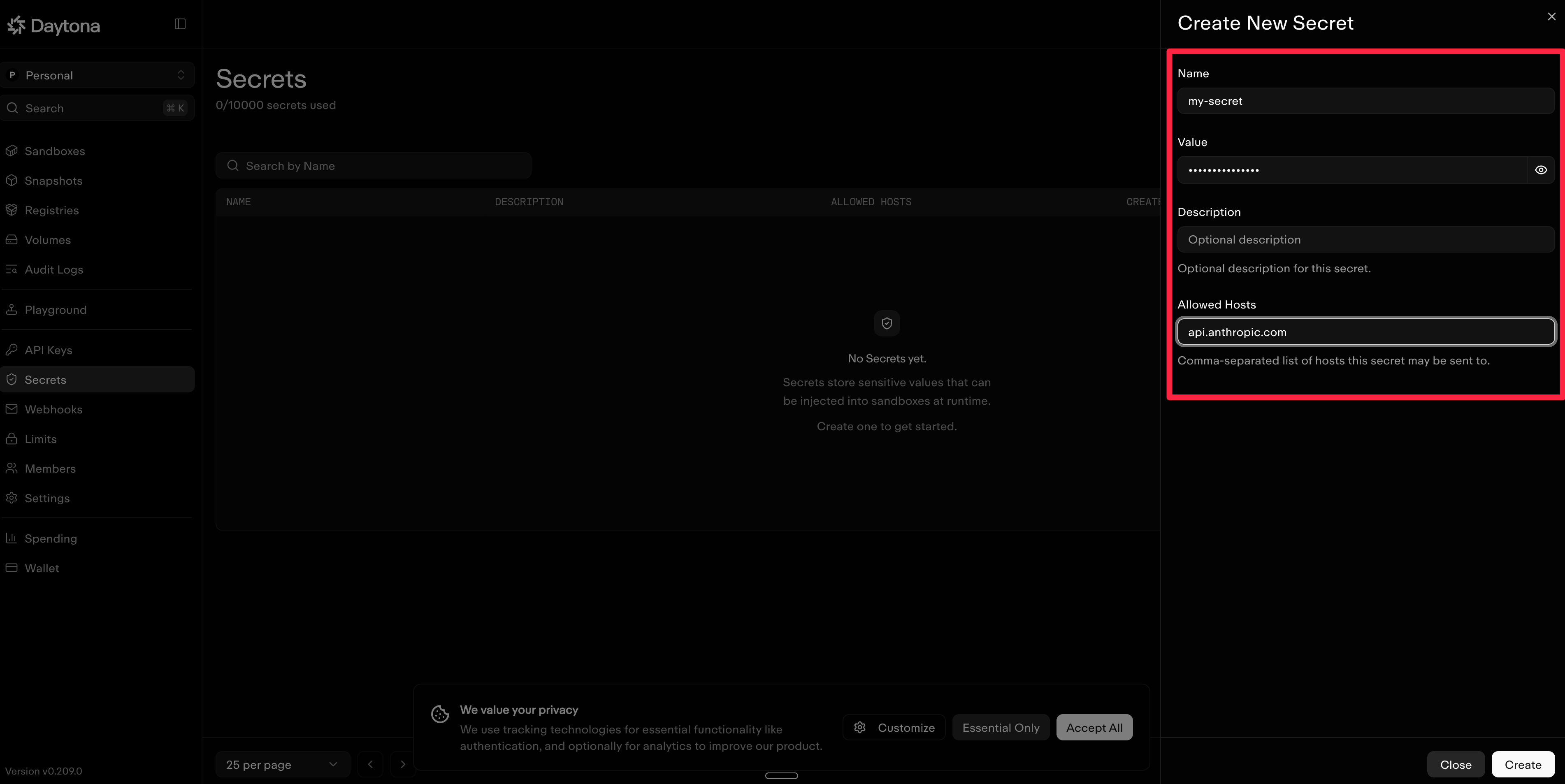
api.anthropic.com. Then save the secret.