

- Set up and add secrets to Infisical Cloud
- Create a GCP Connection with the required Secret Sync permissions
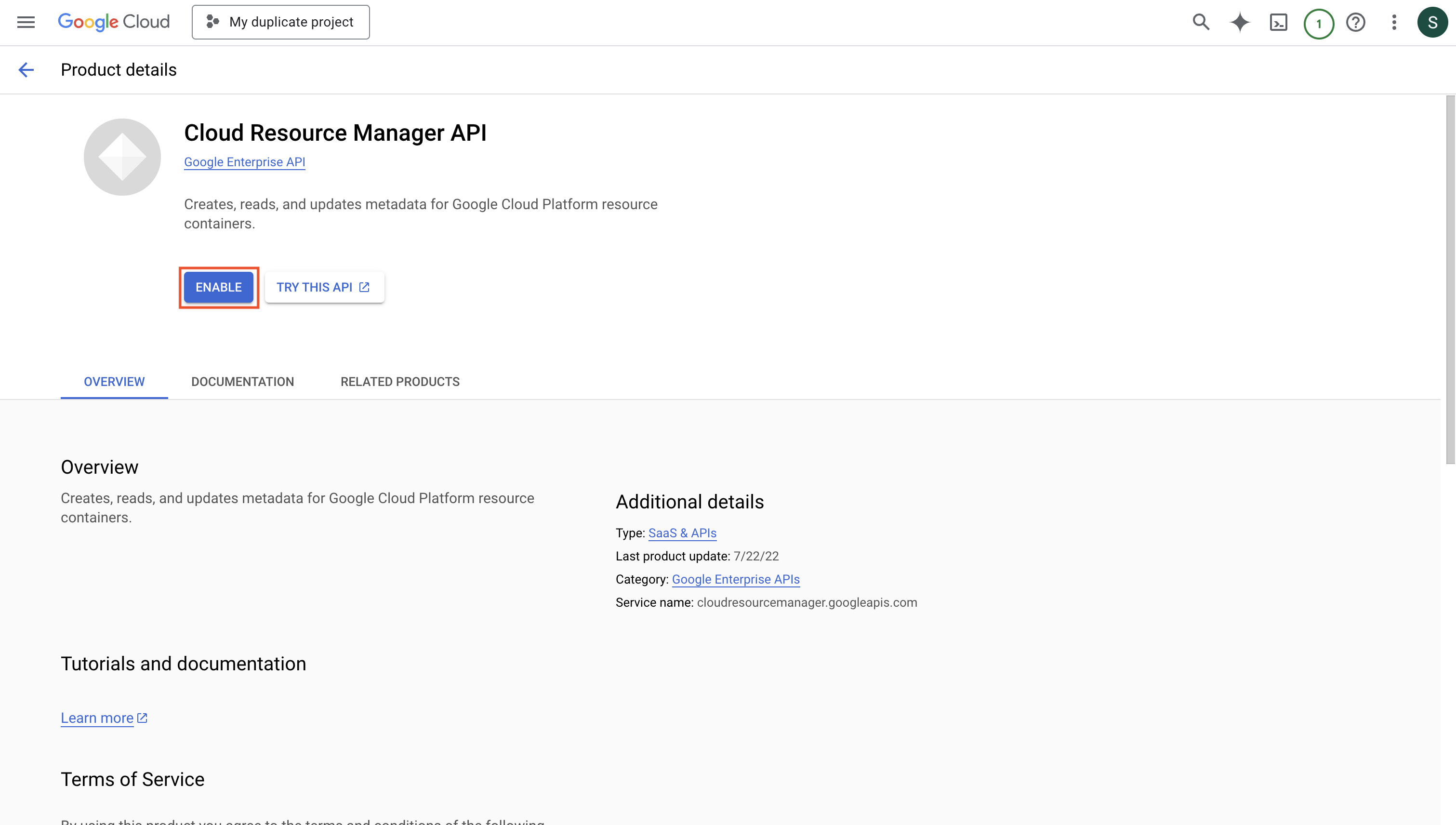
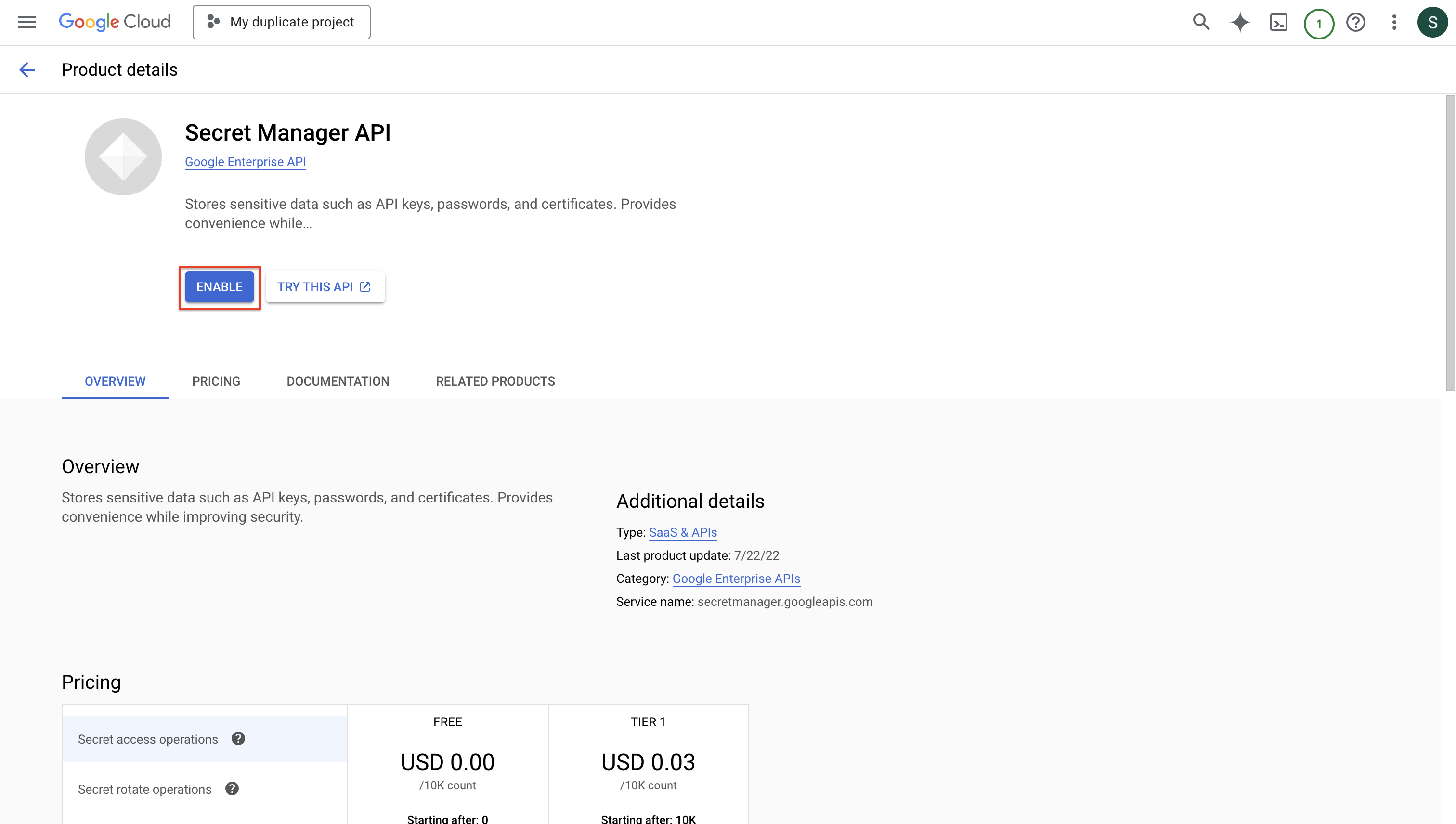
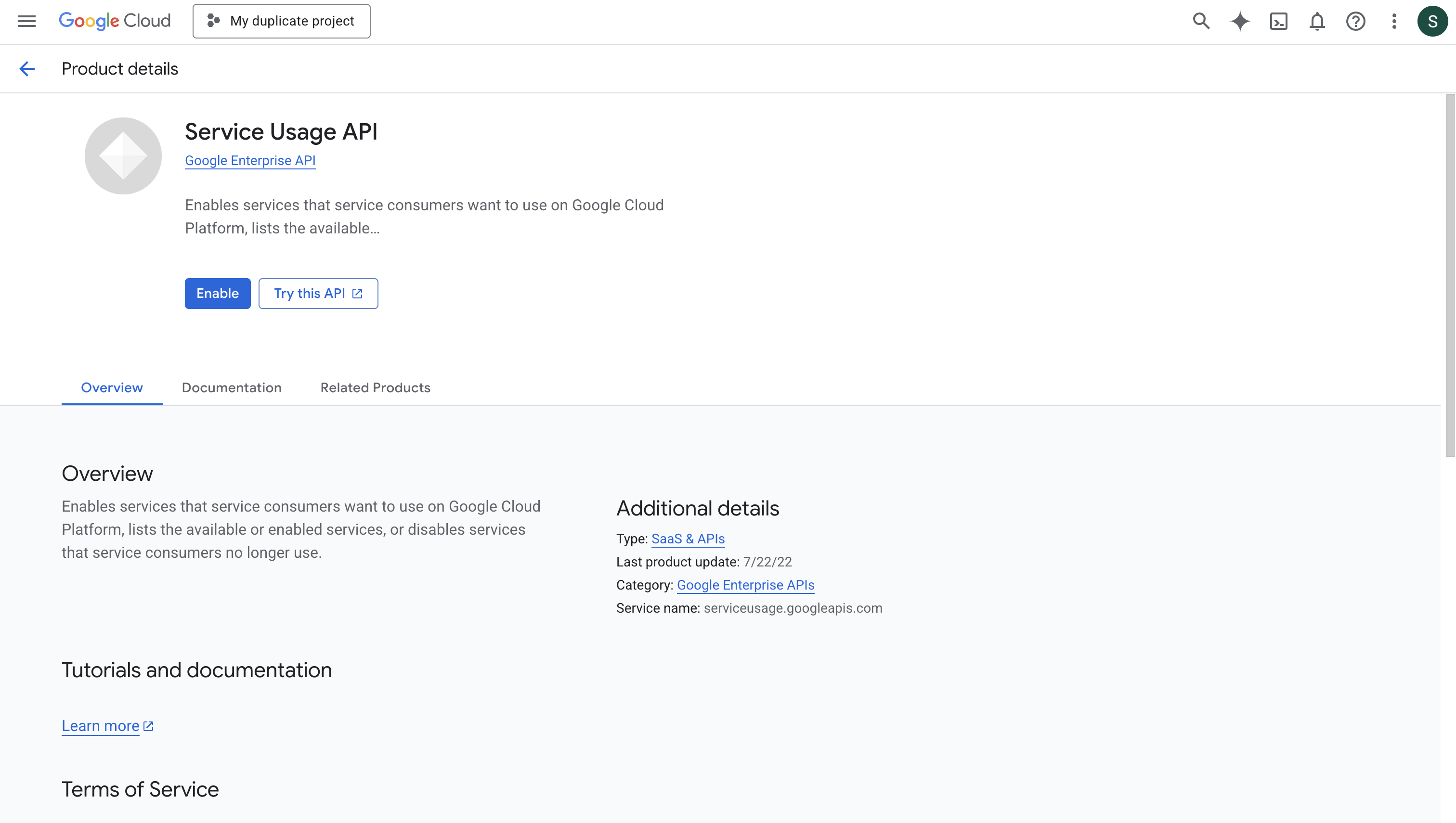
- Enable Cloud Resource Manager API, Secret Manager API, and Service Usage API on your GCP project
- Ensure your network security policies allow incoming requests from Infisical to this secret sync provider, if network restrictions apply.
- Infisical UI
- API
-
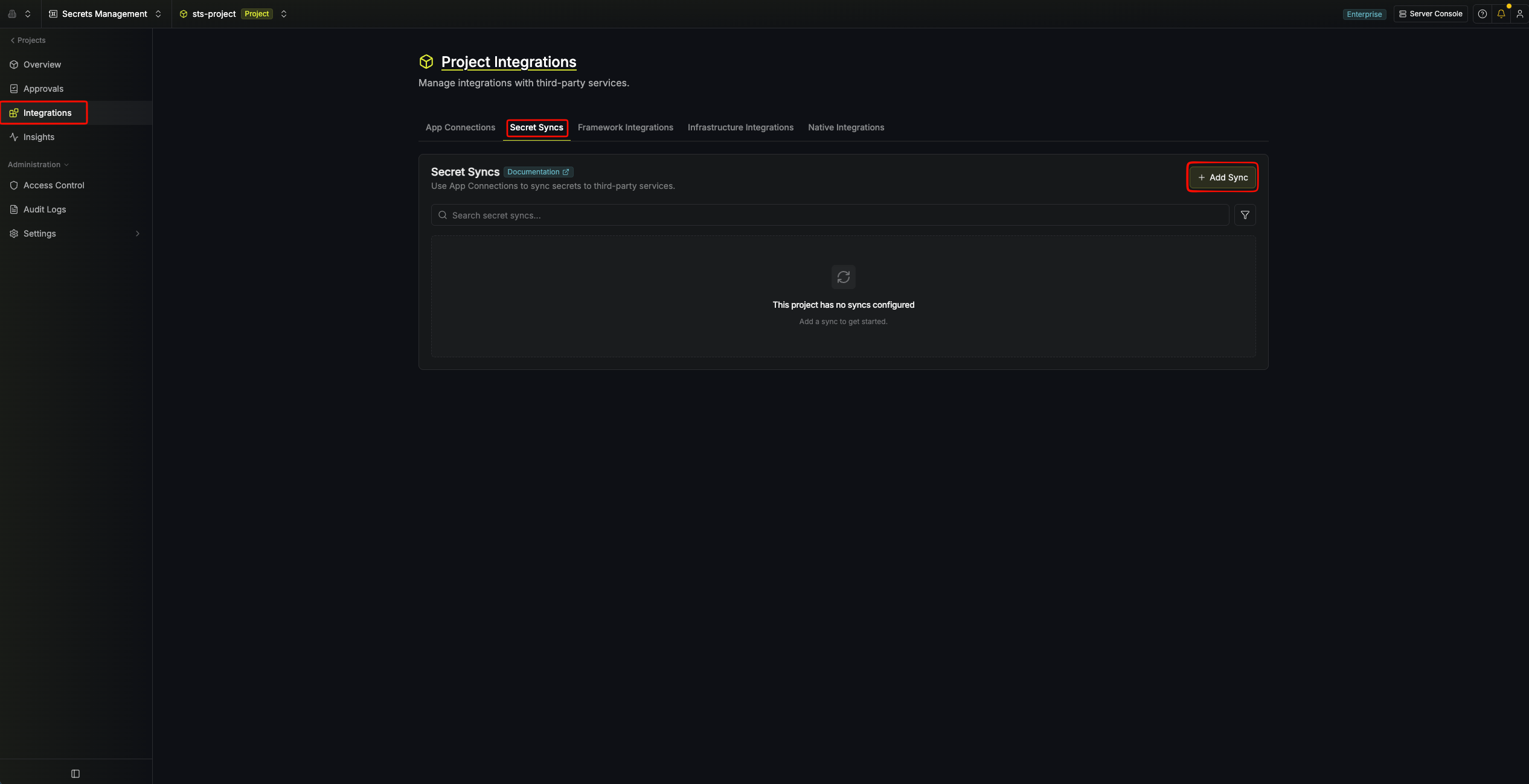
Navigate to Project > Integrations and select the Secret Syncs tab. Select the Add Sync button.
-
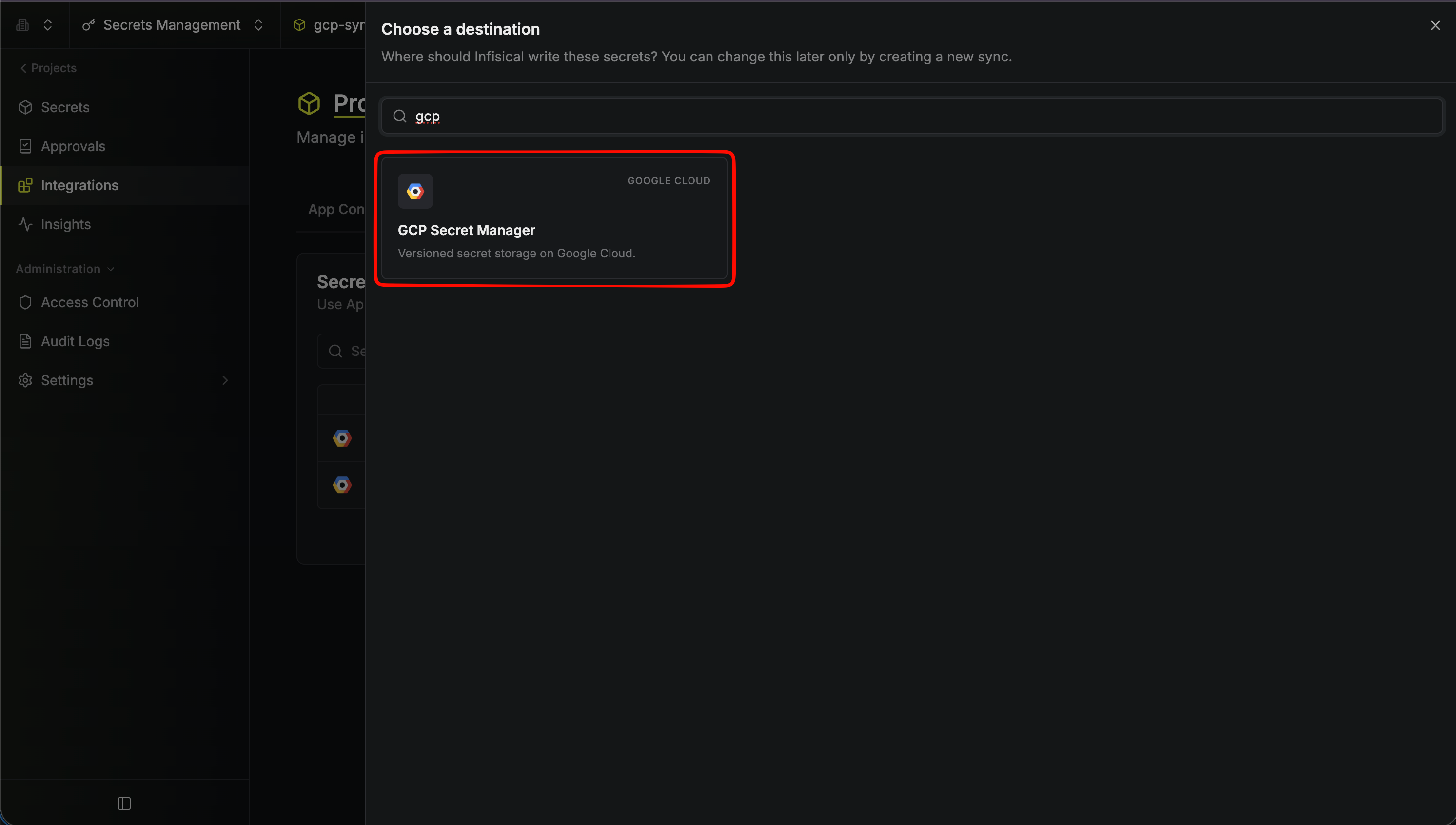
Select the GCP Secret Manager option.
-
Configure the Source from where secrets should be retrieved, then click Next.
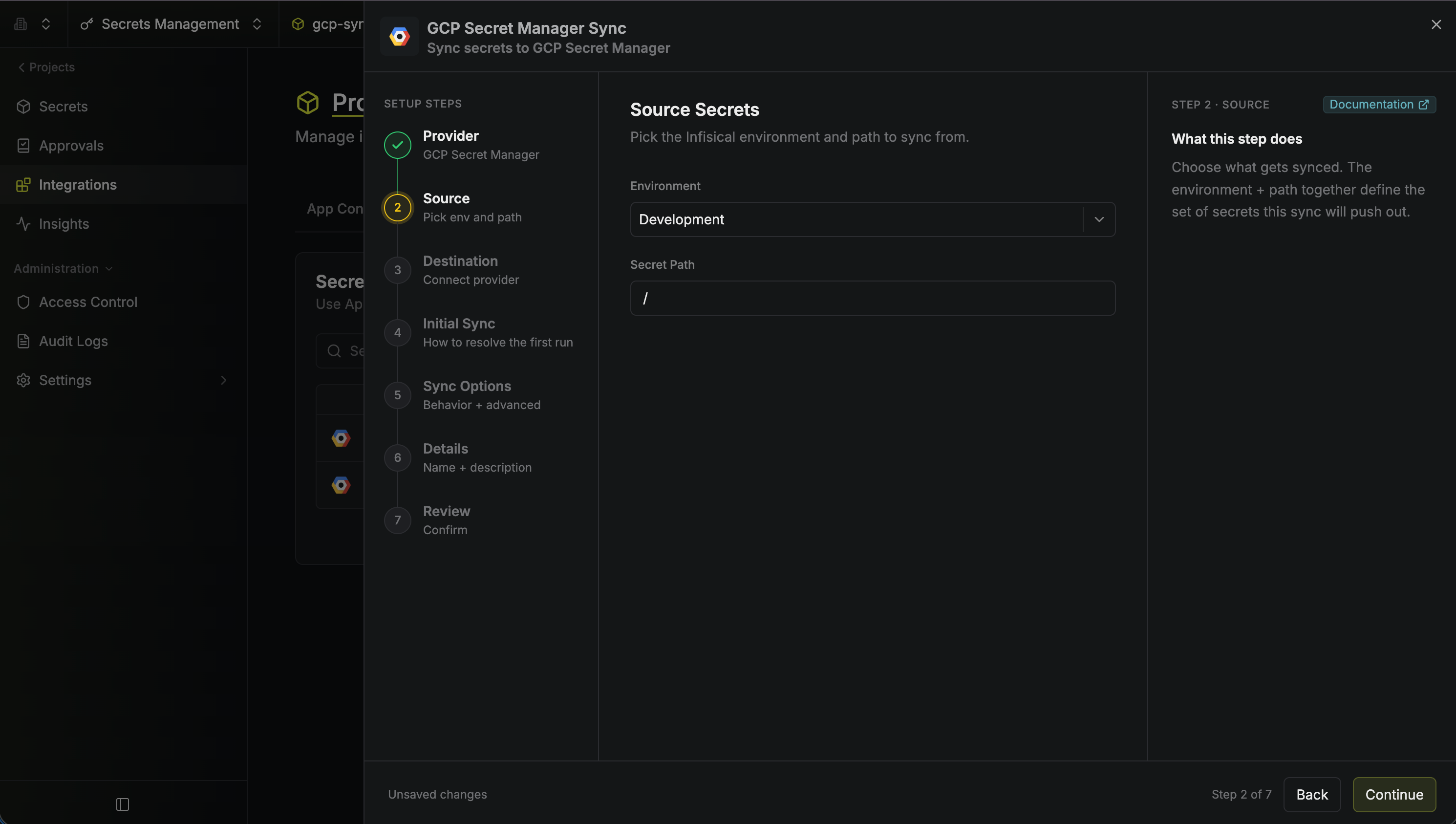
- Environment: The project environment to retrieve secrets from.
- Secret Path: The folder path to retrieve secrets from.
-
Configure the Destination to where secrets should be deployed, then click Next.
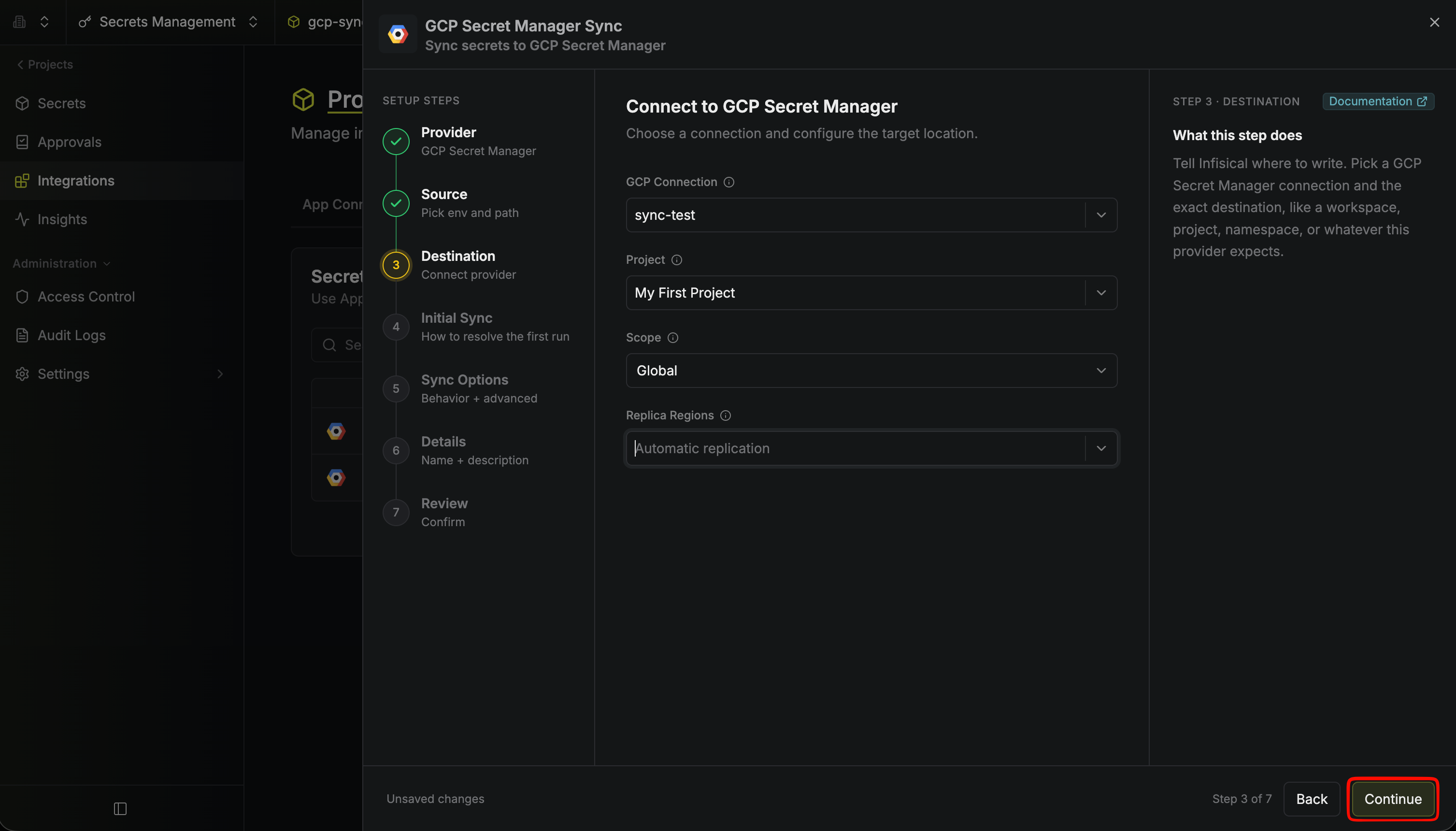
- GCP Connection: The GCP Connection to authenticate with.
- Project: The GCP project to sync with.
- Scope: The GCP project scope that secrets should be synced to:
- Global: Secrets are available across all project regions. By default GCP uses automatic replication. You can optionally pin the data to specific regions using Replica Regions (see below).
- Region: Secrets are stored in a single specified region.
- Replica Regions (Global scope only): An optional list of regions used for GCP user-managed replication. Leave this empty to use GCP automatic replication, or select one or more regions to control where your secrets are stored.
- Region (Region scope only): The single region that secrets should be synced to.
-
Configure the Initial Sync Behavior to determine how Infisical should resolve the first sync, then click Next.
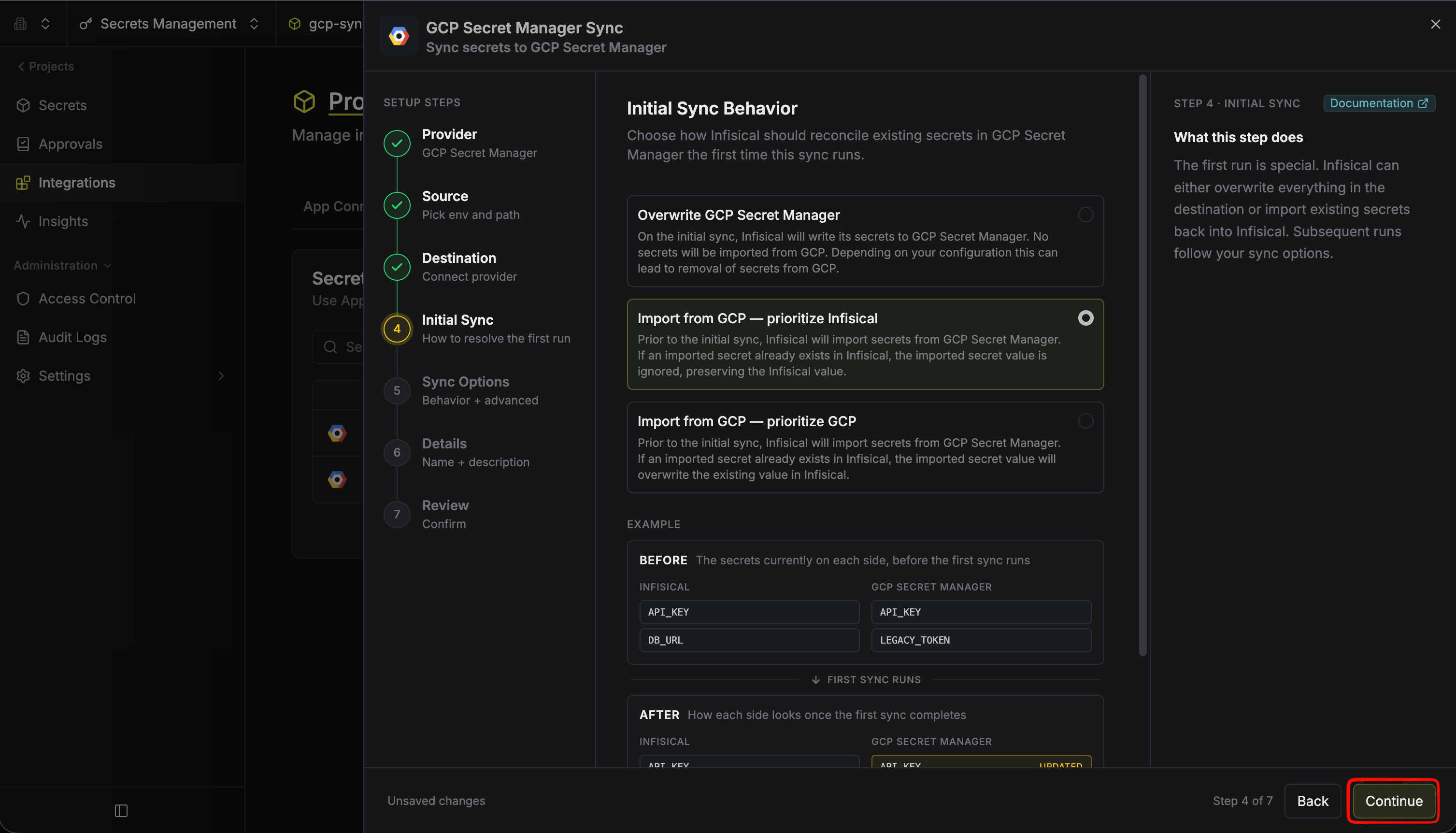
- Overwrite Destination Secrets: Removes any secrets at the destination endpoint not present in Infisical.
- Import Secrets (Prioritize Infisical): Imports secrets from the destination endpoint before syncing, prioritizing values from Infisical over GCP Secret Manager when keys conflict.
- Import Secrets (Prioritize GCP Secret Manager): Imports secrets from the destination endpoint before syncing, prioritizing values from GCP Secret Manager over Infisical when keys conflict.
-
Configure the Sync Options to specify how secrets should be synced, then click Next.
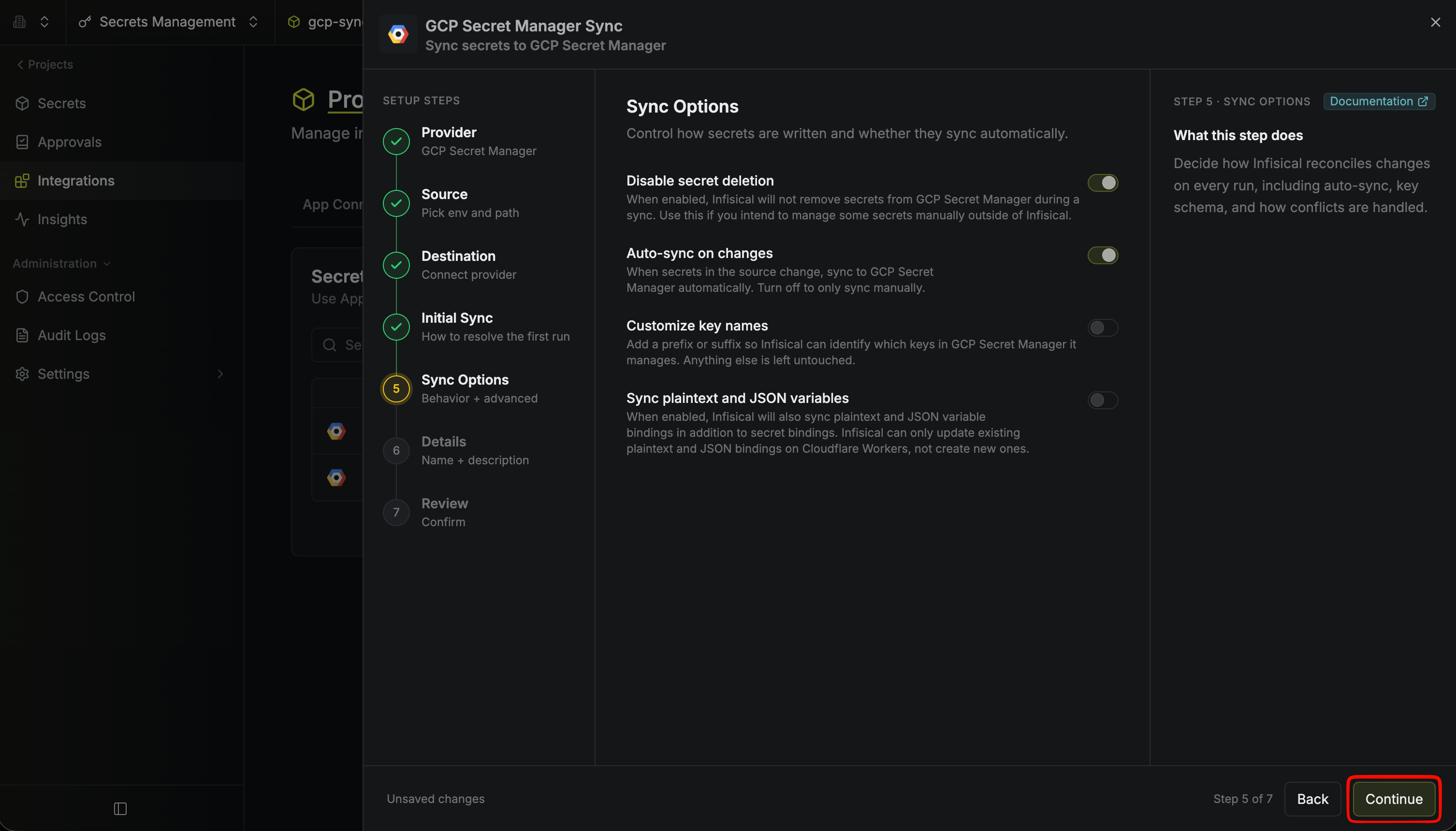
- Key Schema: Template that determines how secret names are transformed when syncing, using
{{secretKey}}as a placeholder for the original secret name and{{environment}}for the environment.
We highly recommend using a Key Schema to ensure that Infisical only manages the specific keys you intend, keeping everything else untouched.- Auto-Sync Enabled: If enabled, secrets will automatically be synced from the source location when changes occur. Disable to enforce manual syncing only.
- Disable Secret Deletion: If enabled, Infisical will not remove secrets from the sync destination. Enable this option if you intend to manage some secrets manually outside of Infisical.
- Key Schema: Template that determines how secret names are transformed when syncing, using
-
Configure the Details of your GCP Secret Manager Sync, then click Next.
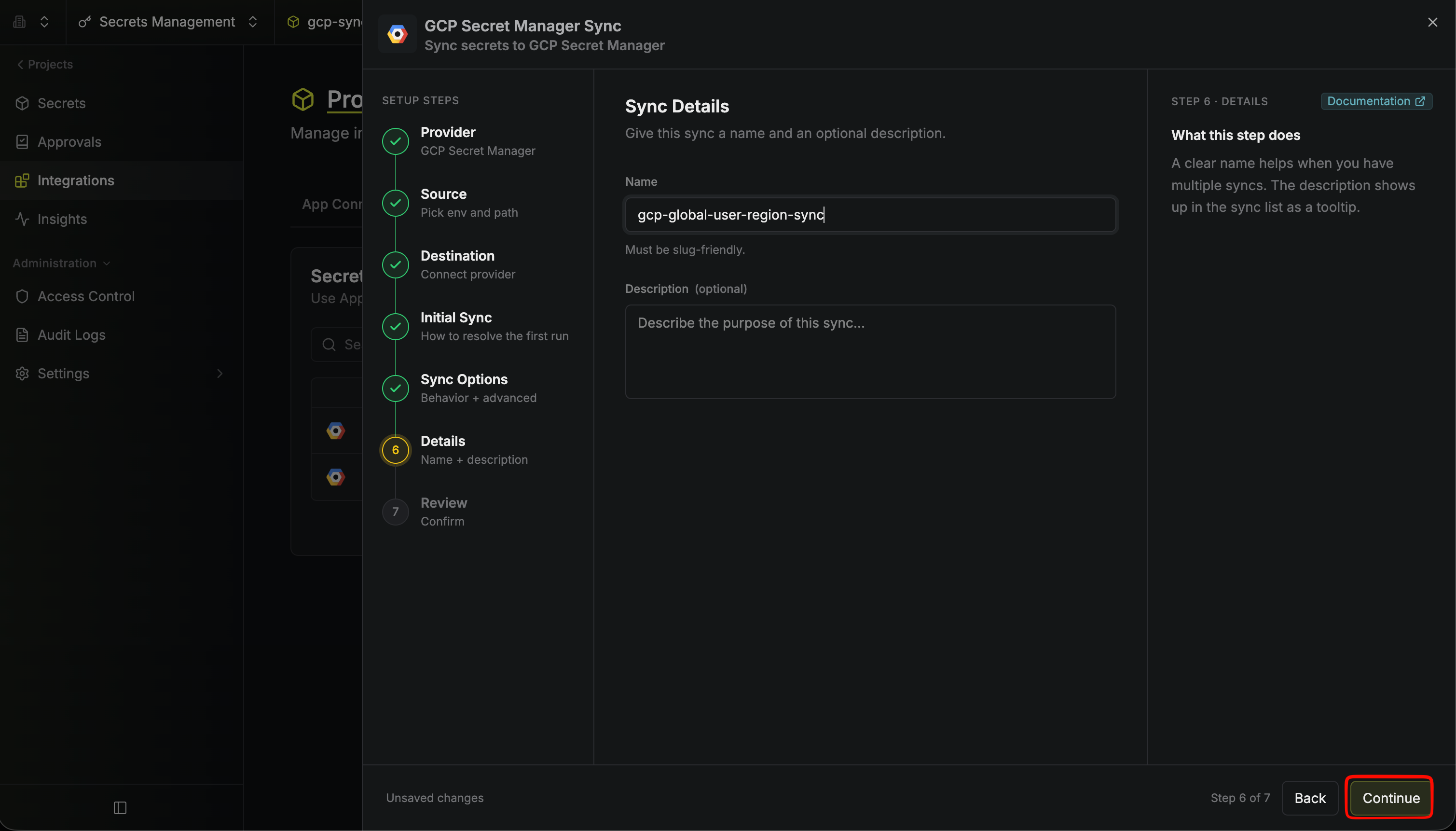
- Name: The name of your sync. Must be slug-friendly.
- Description: An optional description for your sync.
-
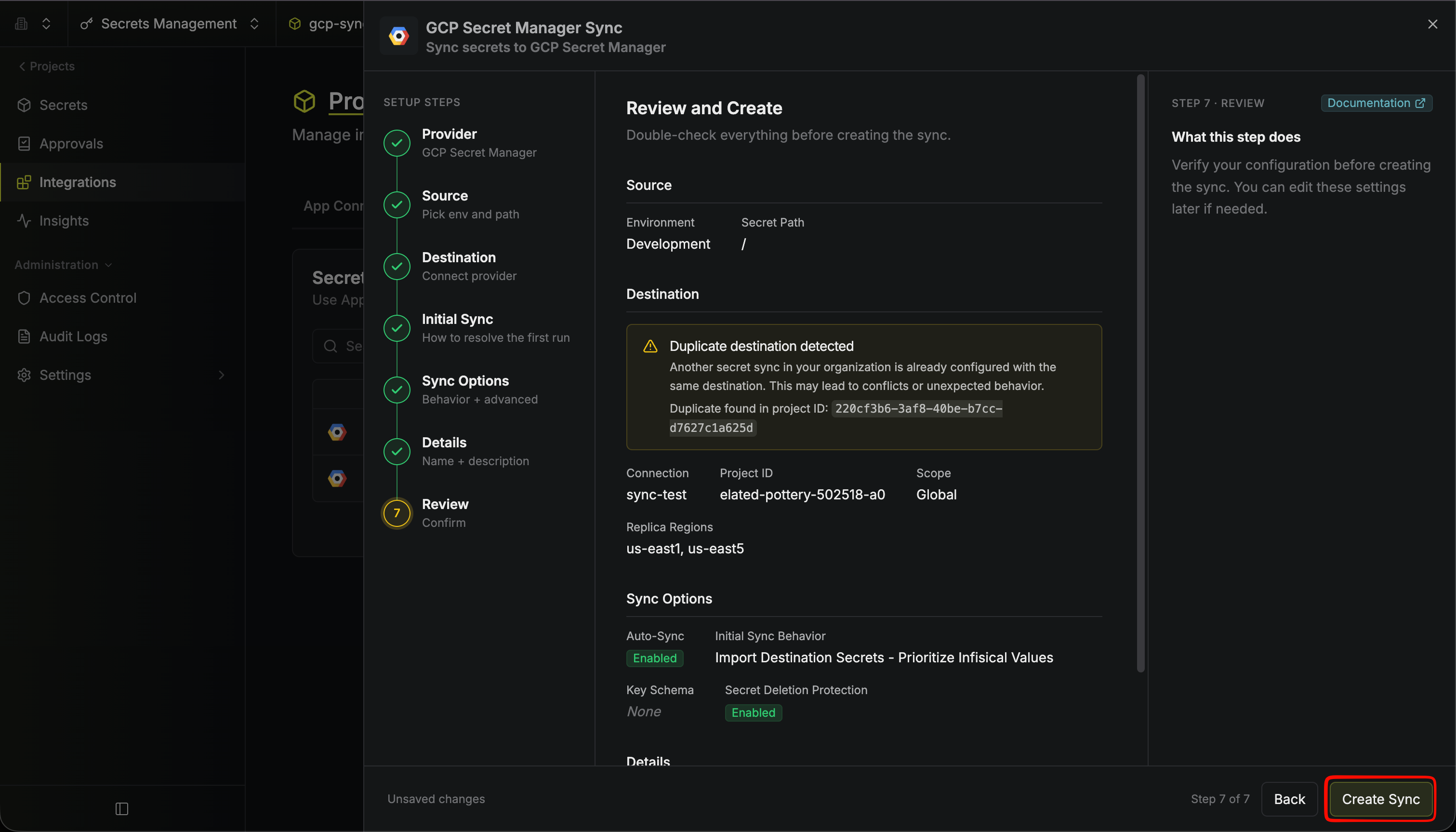
Review your Secret Manager Sync configuration, then click Create Sync.
Least-privilege permissions
The GCP Connection setup grants the service account the Secret Manager Admin role on the whole project. If the sync uses a Key Schema with a fixed prefix, such asINFISICAL_{{secretKey}}, you can limit the service account to the secrets whose names start with that prefix. The sync can still list all secret names and create new secrets, but it can only read, update, and delete secrets with the prefix.
The prefix is the part of the key schema before {{secretKey}}, with {{environment}} replaced by the environment’s slug. For example, if the key schema is {{environment}}-{{secretKey}} and the sync reads from the prod environment, the prefix is prod-.
Replace the service account’s Secret Manager Admin role with two custom roles on the project:
- A role without a condition, with the following permissions:
secretmanager.secrets.listandsecretmanager.secrets.create, which the sync needs to find and create secretsresourcemanager.projects.get,serviceusage.services.get, andsecretmanager.locations.list, which the Infisical UI needs to list your projects and regions when you create the sync
- A role with
secretmanager.versions.access,secretmanager.versions.add, andsecretmanager.secrets.delete, with a condition that matches the prefix.
INFISICAL_ with your prefix:
resourcemanager.projects.get, serviceusage.services.get, and secretmanager.locations.list out of the first role.
Before you rely on this setup, check the following:
- End the prefix with a separator such as
_or-, becauseINFISICALalso matchesINFISICAL2_TOKEN - If the key schema starts with
{{secretKey}}, such as{{secretKey}}_PROD, the condition has no prefix to match, so this setup doesn’t apply - If the sync has no key schema, it manages every secret in the project, so it needs access to all of them
- If the service account has another role that can read secret values, such as Owner or Secret Manager Secret Accessor, on the project or on the folder or organization above it, that role still gives it access to every secret
- Don’t create secrets with the prefix outside Infisical, because the sync overwrites them and, unless Disable Secret Deletion is on, deletes them
- If you change the prefix in the key schema, update the condition to match the new prefix
- Google Cloud can take several minutes to apply IAM changes, so if the first sync fails with a permission error, wait and sync again