Rotation Type: Dual-PhaseThis rotation maintains two active credential sets with overlapping validity, ensuring zero-downtime during rotation cycles. It uses Snowflake’s two public-key slots (
RSA_PUBLIC_KEY and RSA_PUBLIC_KEY_2), alternating between them on each rotation so the retired key pair stays valid until the next cycle.Prerequisites
- Create a Snowflake Connection with the required Secret Rotation permissions.
-
Decide on the target user whose key pair you want to rotate. New users are created as key-pair-only
SERVICEusers.Users created by Infisical aren’t deleted when their credentials are revoked. - Ensure your network security policies allow incoming requests from Infisical to your Snowflake account, if network restrictions apply.
Create a Snowflake user key pair rotation in Infisical
- Infisical UI
- API
-
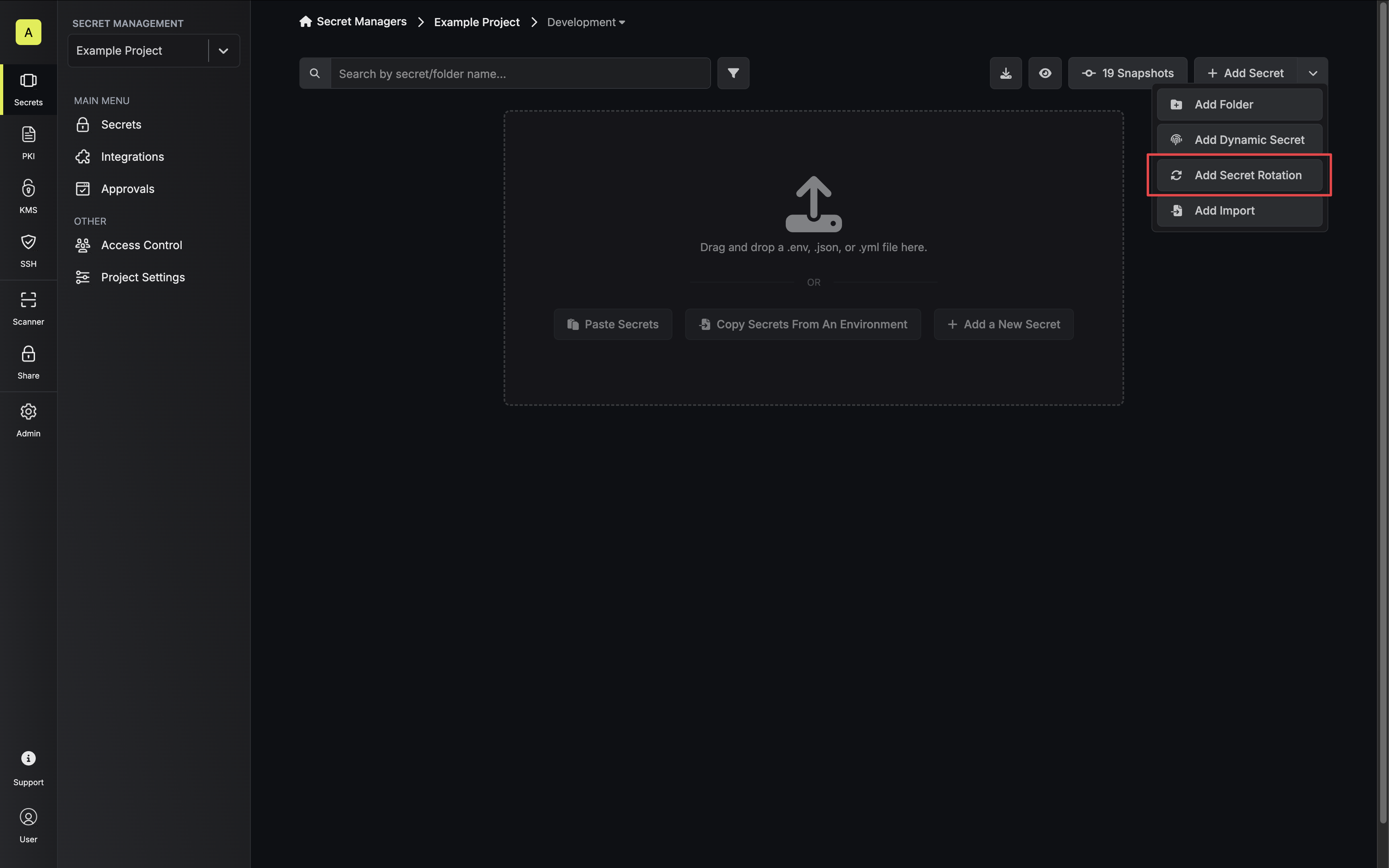
Navigate to your Secrets Manager Project’s Dashboard and select Add Secret Rotation from the actions dropdown.
-
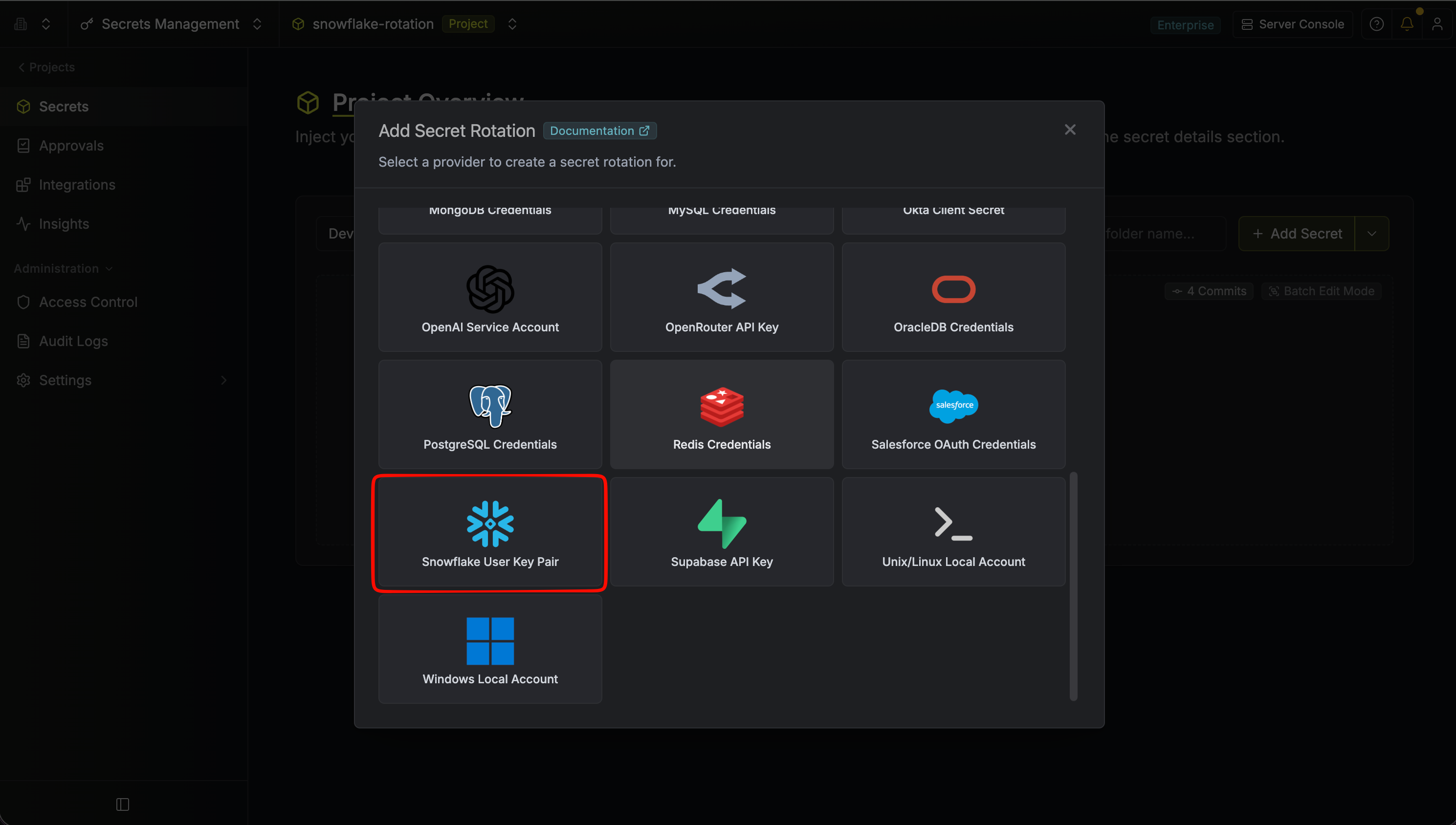
Select the Snowflake User Key Pair option.
-
Select the Snowflake Connection to use and configure the rotation behavior. Then click Next.
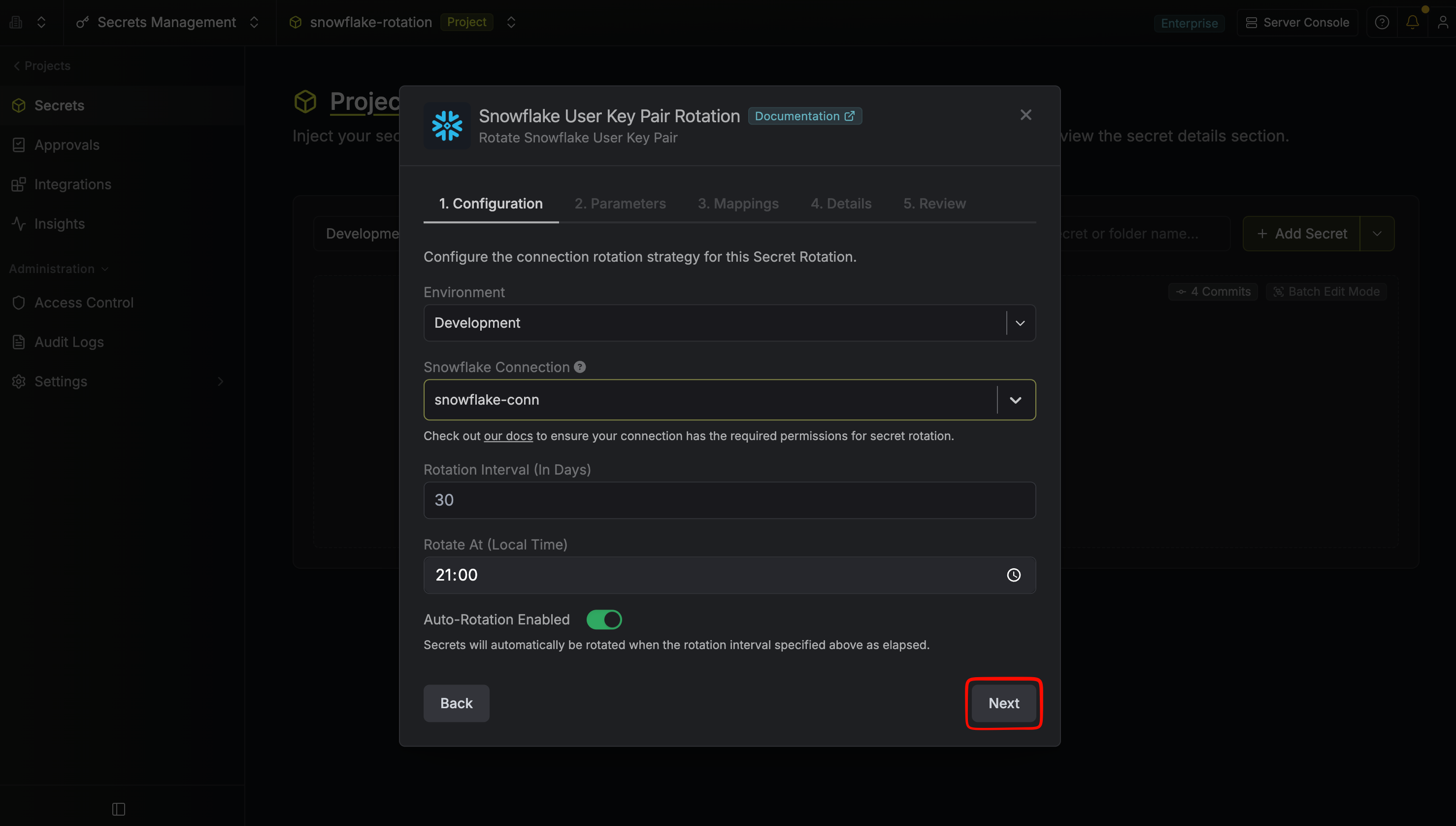
- Snowflake Connection - the connection that will perform the rotation of the target user’s RSA key pair.
- Rotation Interval - the interval, in days, that once elapsed will trigger a rotation.
- Rotate At - the local time of day when rotation should occur once the interval has elapsed.
- Auto-Rotation Enabled - whether secrets should automatically be rotated once the rotation interval has elapsed. Disable this option to manually rotate secrets or pause secret rotation.
-
Select the Snowflake user whose key pair should be rotated (or enter a new username to create one) and choose the RSA Modulus Length. Then click Next.
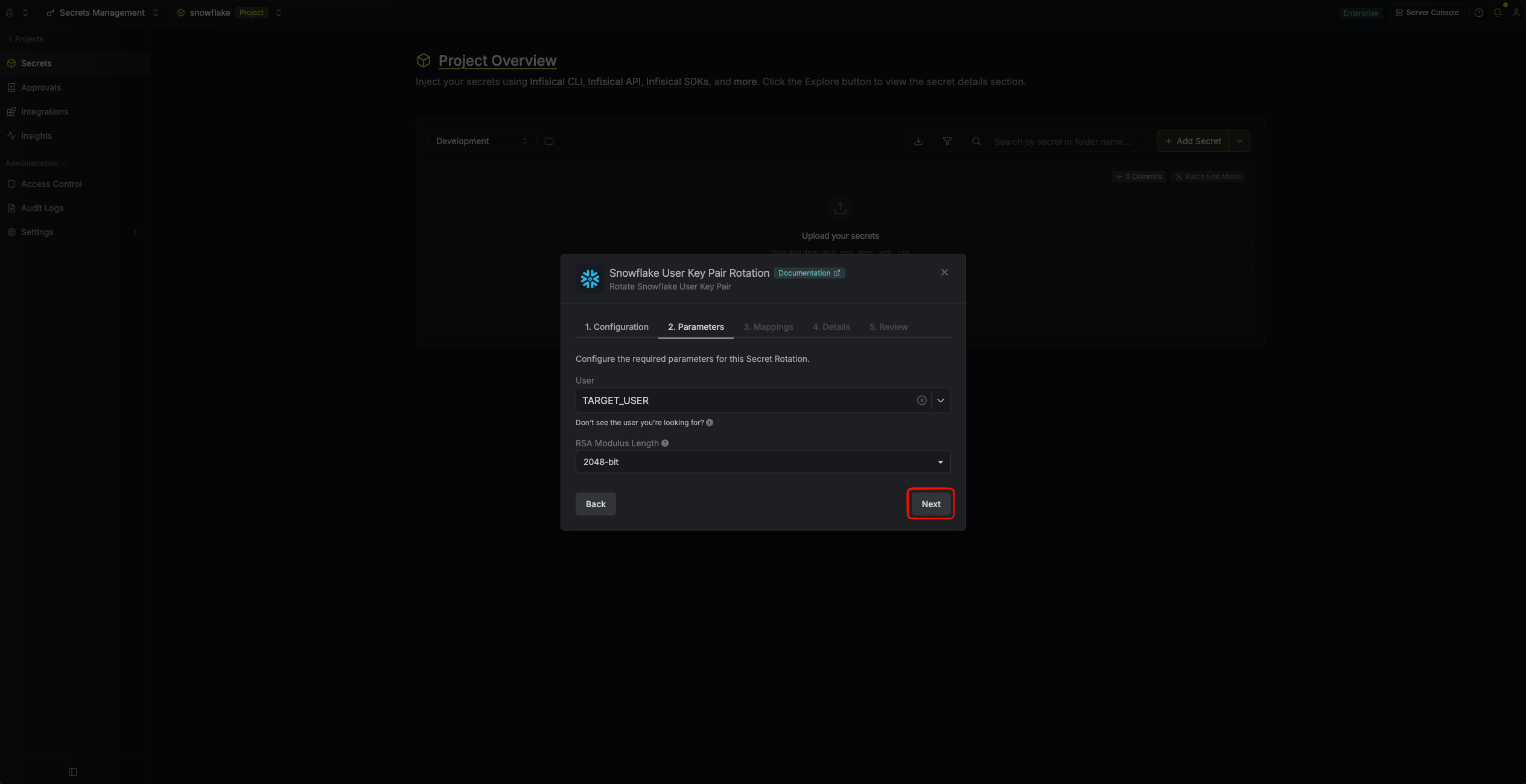
- User - the Snowflake user whose RSA key pair will be rotated. Select an existing user, or type a new username to create one. New users are created as key-pair-only
SERVICEusers. - RSA Modulus Length - the size in bits of the generated RSA key pairs (2048 or 4096). Defaults to 2048. Changing this on an existing rotation only affects keys generated on future rotations.
- User - the Snowflake user whose RSA key pair will be rotated. Select an existing user, or type a new username to create one. New users are created as key-pair-only
-
Specify the secret names that the generated key pair should be mapped to. Then click Next.
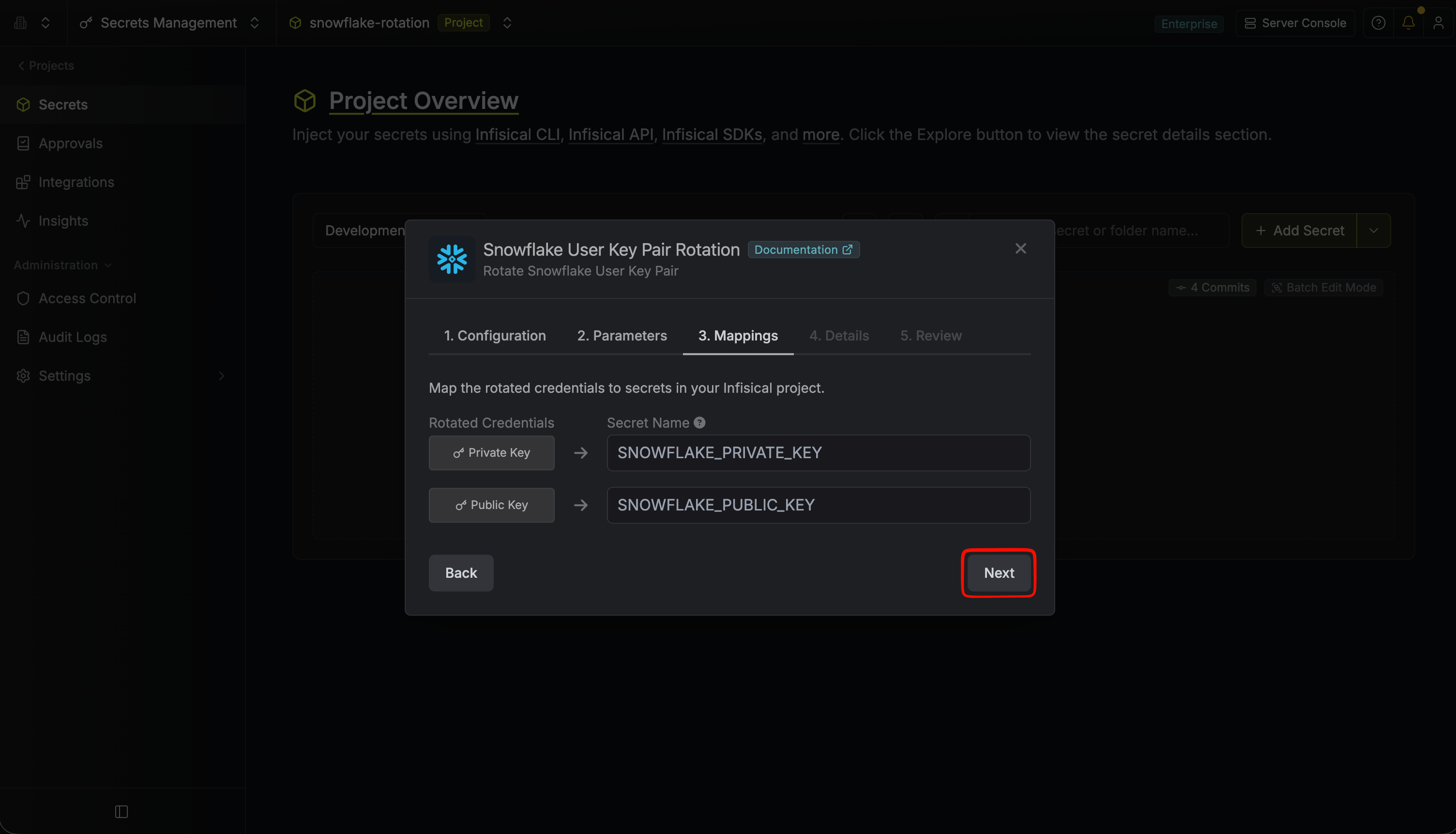
- Private Key - the name of the secret that the generated RSA private key (PKCS#8 PEM) will be mapped to.
- Public Key - the name of the secret that the generated RSA public key (SPKI PEM) will be mapped to.
-
Give your rotation a name and description (optional). Then click Next.
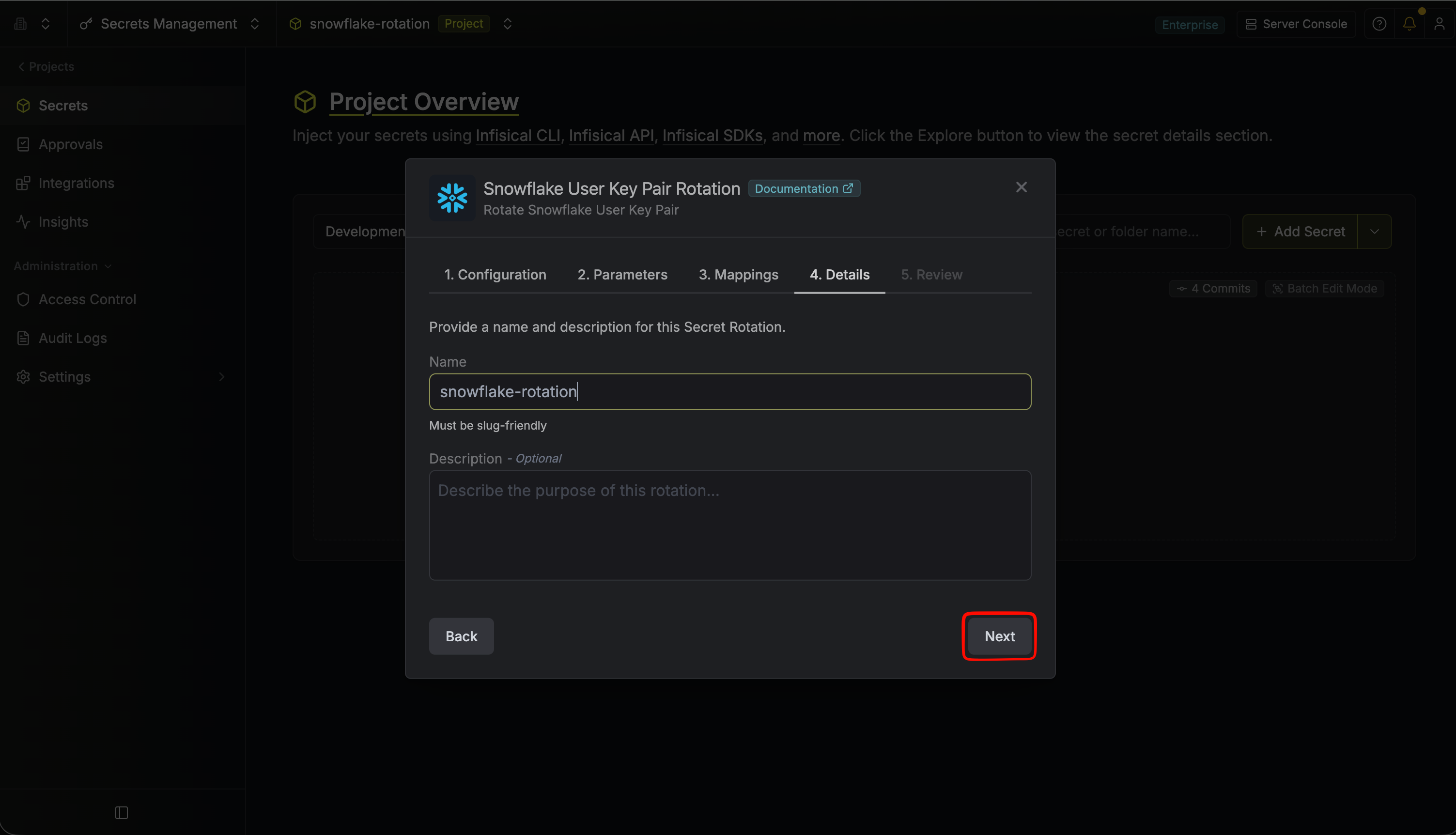
- Name - the name of the secret rotation configuration. Must be slug-friendly.
- Description (optional) - a description of this rotation configuration.
-
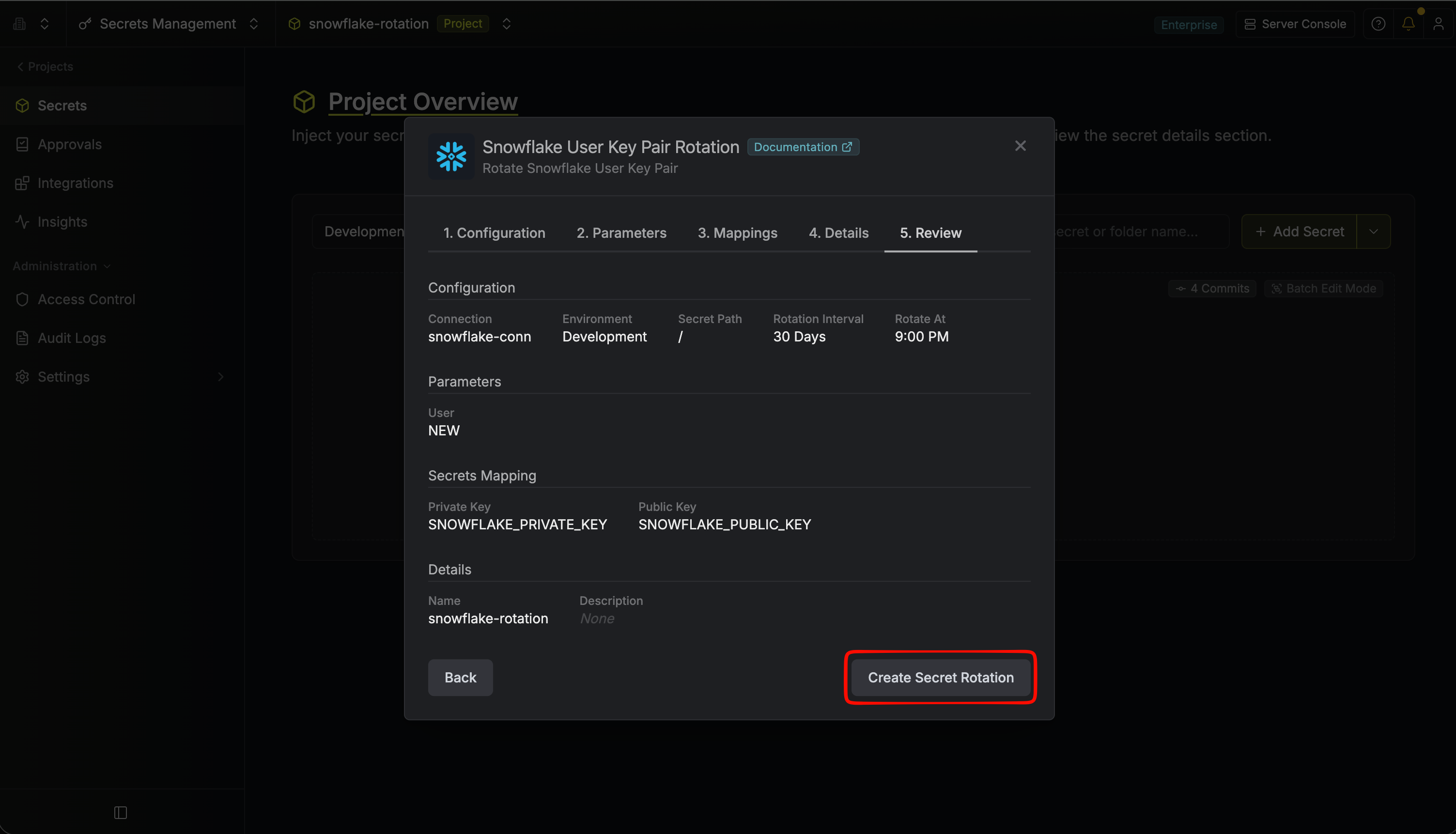
Review your configuration, then click Create Secret Rotation.
-
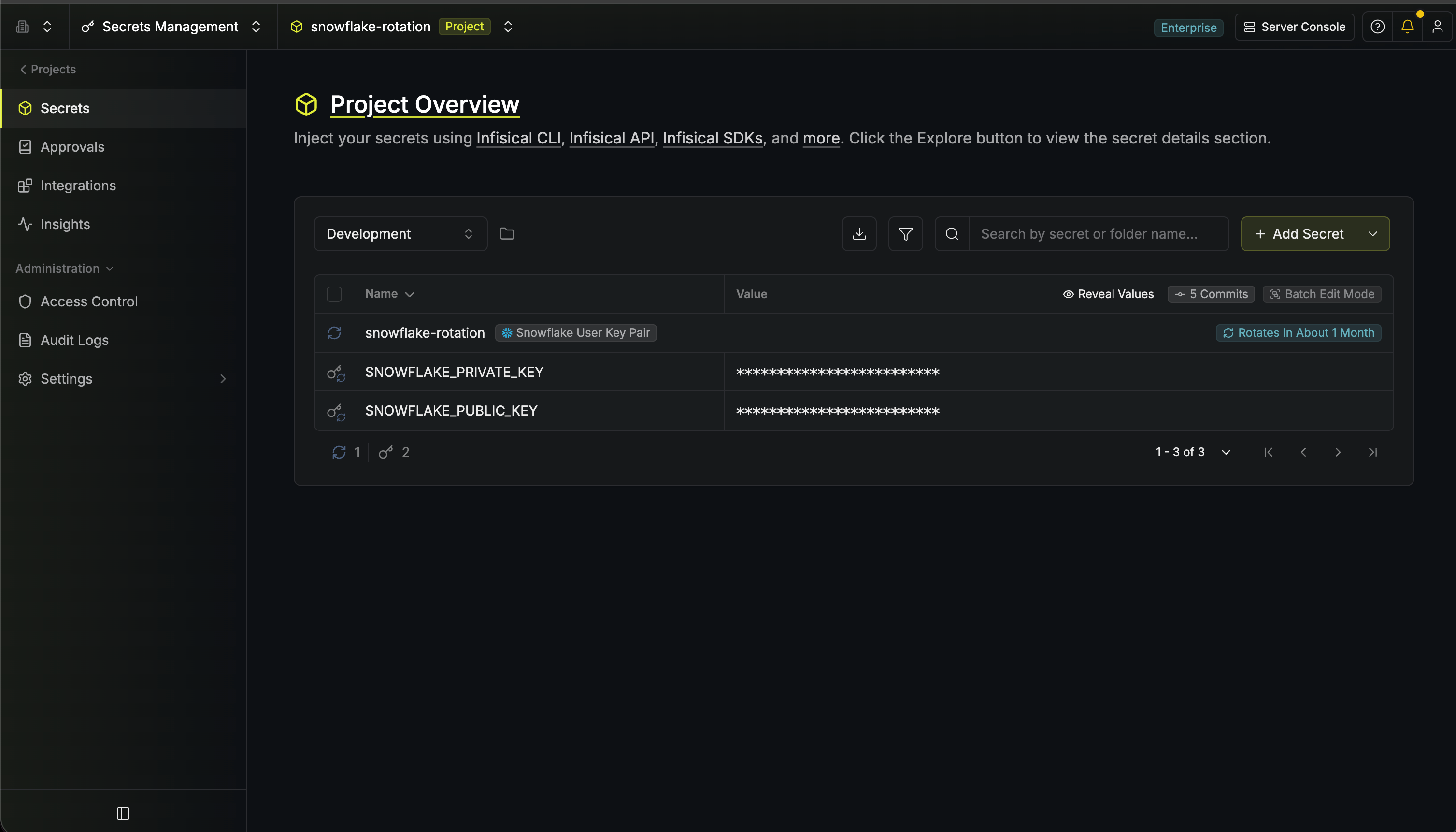
Your Snowflake User Key Pair is now available for use via the mapped secrets.