Rotation Type: Dual-PhaseThis rotation maintains two active credential sets with overlapping validity, ensuring zero-downtime during rotation cycles.
Prerequisites
- Create a Convex Connection with a personal access token
Create a Convex access key rotation in Infisical
- Infisical UI
- API
-
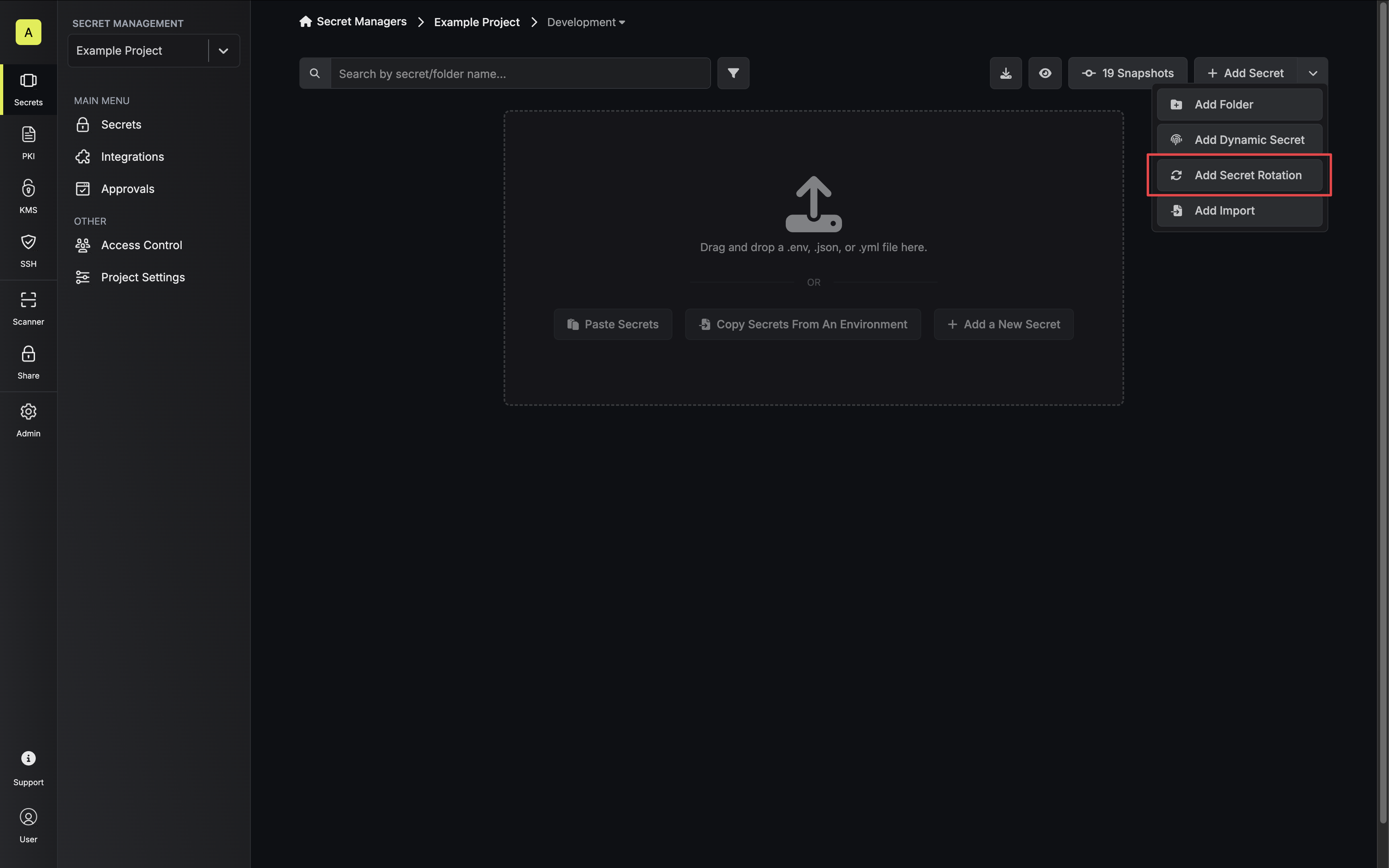
Navigate to your Secrets Manager Project’s Dashboard and select Add Secret Rotation from the actions dropdown.
-
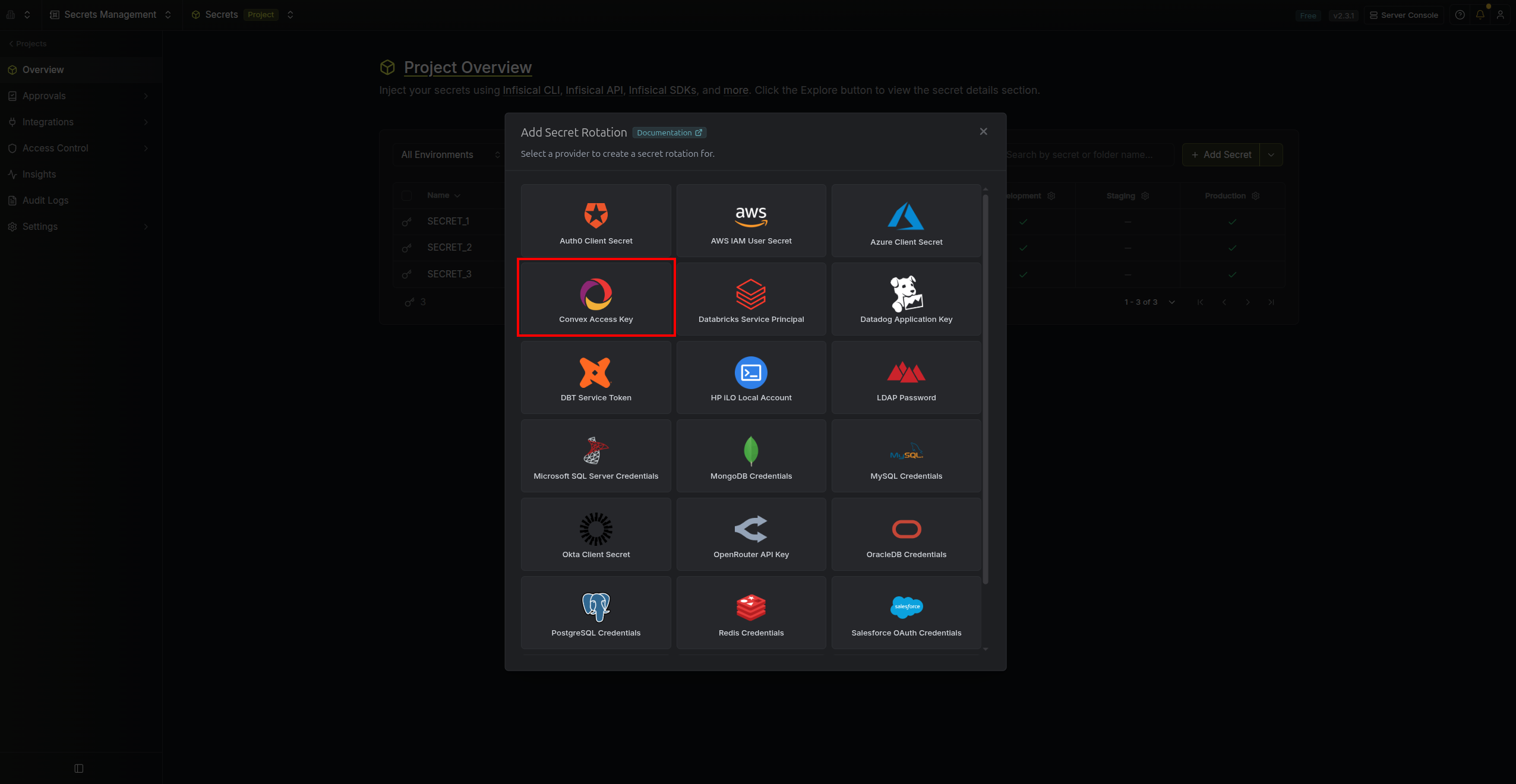
Select the Convex Access Key option.
-
Select the Convex Connection to use and configure the rotation behavior. Then click Next.
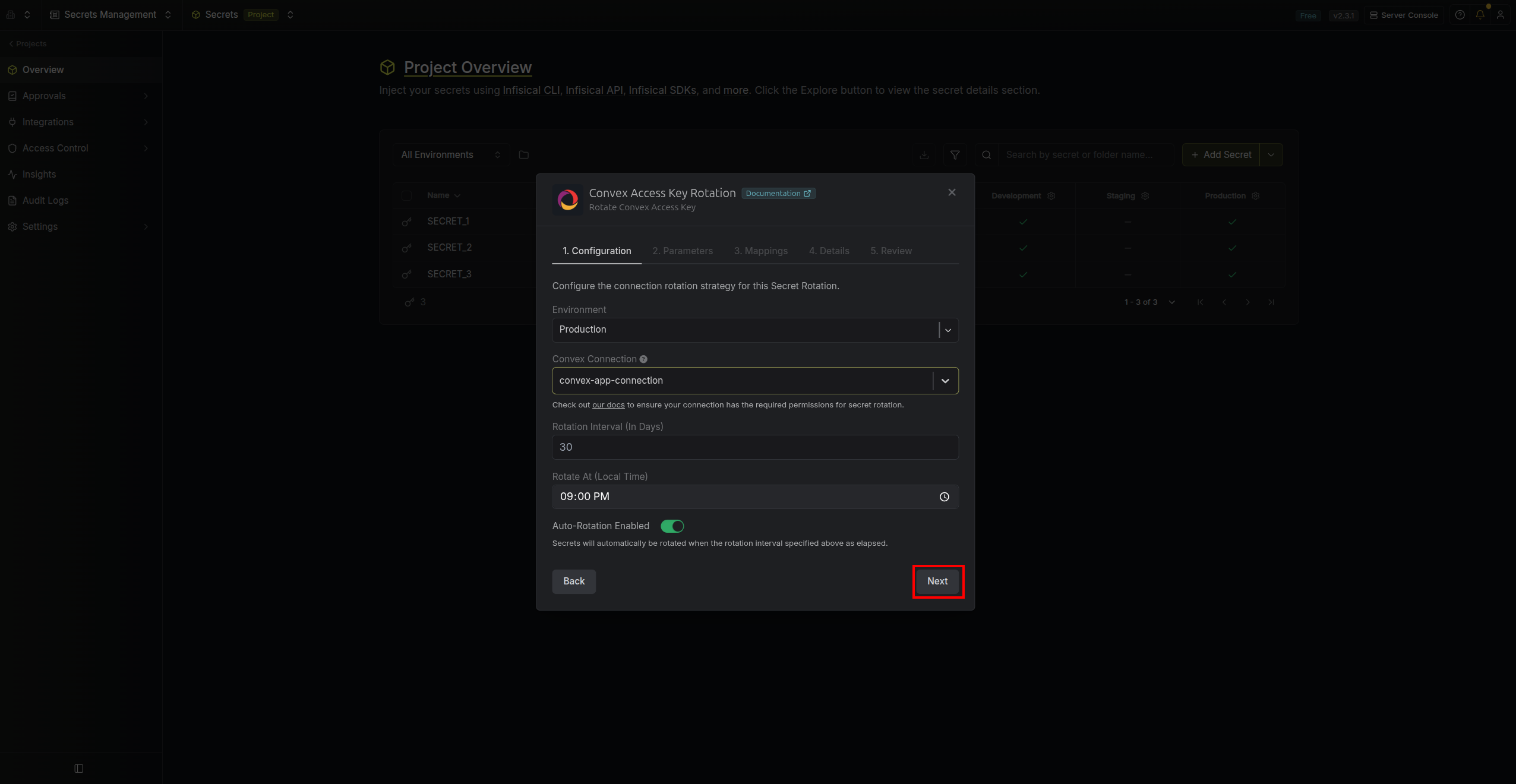
- Convex Connection - the connection that will create and delete access keys during rotation.
- Rotation Interval - the interval, in days, that once elapsed will trigger a rotation.
- Rotate At - the local time of day when rotation should occur once the interval has elapsed.
- Auto-Rotation Enabled - whether secrets should automatically be rotated once the rotation interval has elapsed. Disable this option to manually rotate secrets or pause secret rotation.
-
Set the access key parameters. Then click Next.
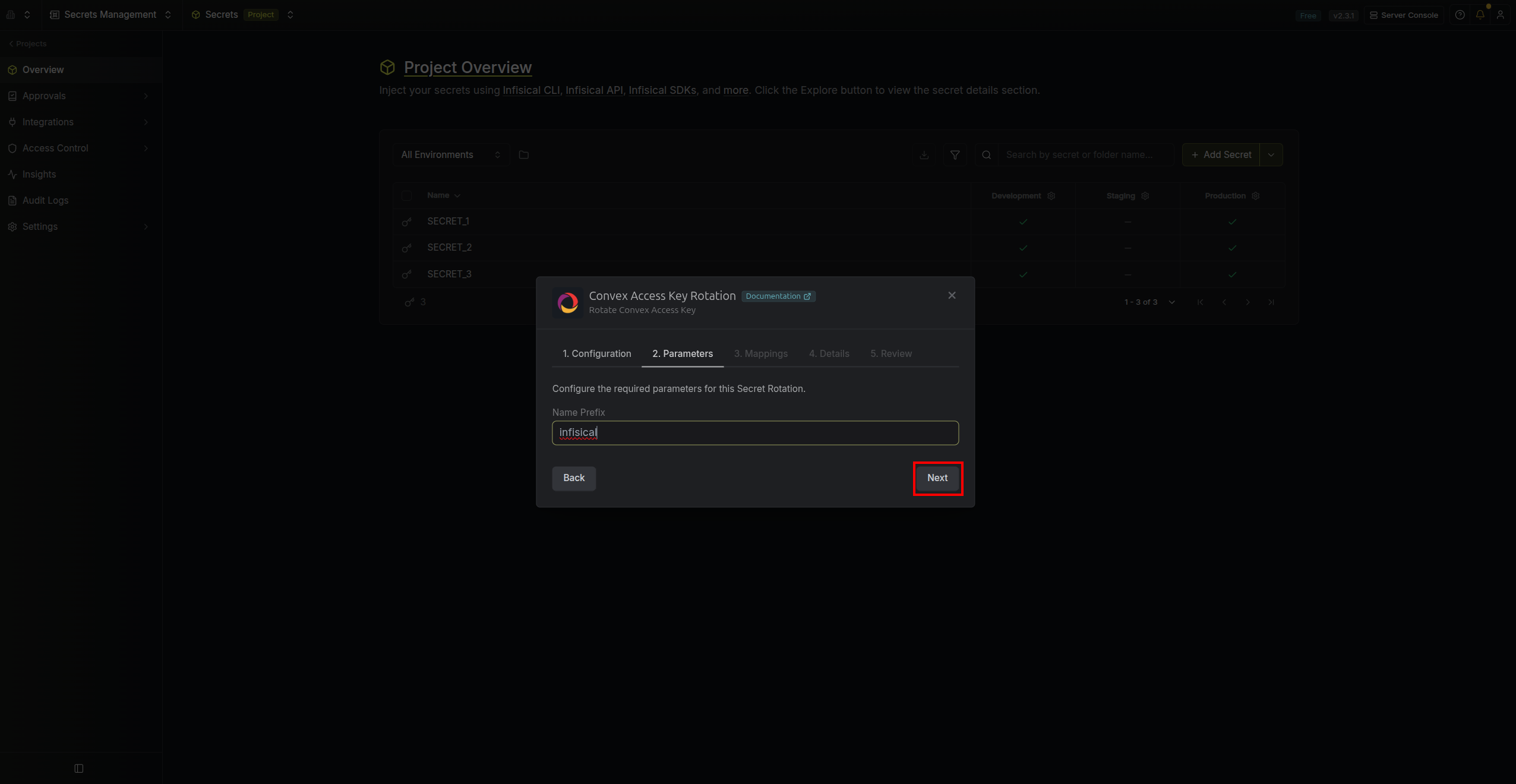
- Name Prefix - a prefix used when naming the generated access keys in Convex (e.g.
infisical). A timestamp is appended to ensure uniqueness.
- Name Prefix - a prefix used when naming the generated access keys in Convex (e.g.
-
Specify the secret name that the rotated access key will be mapped to. Then click Next.
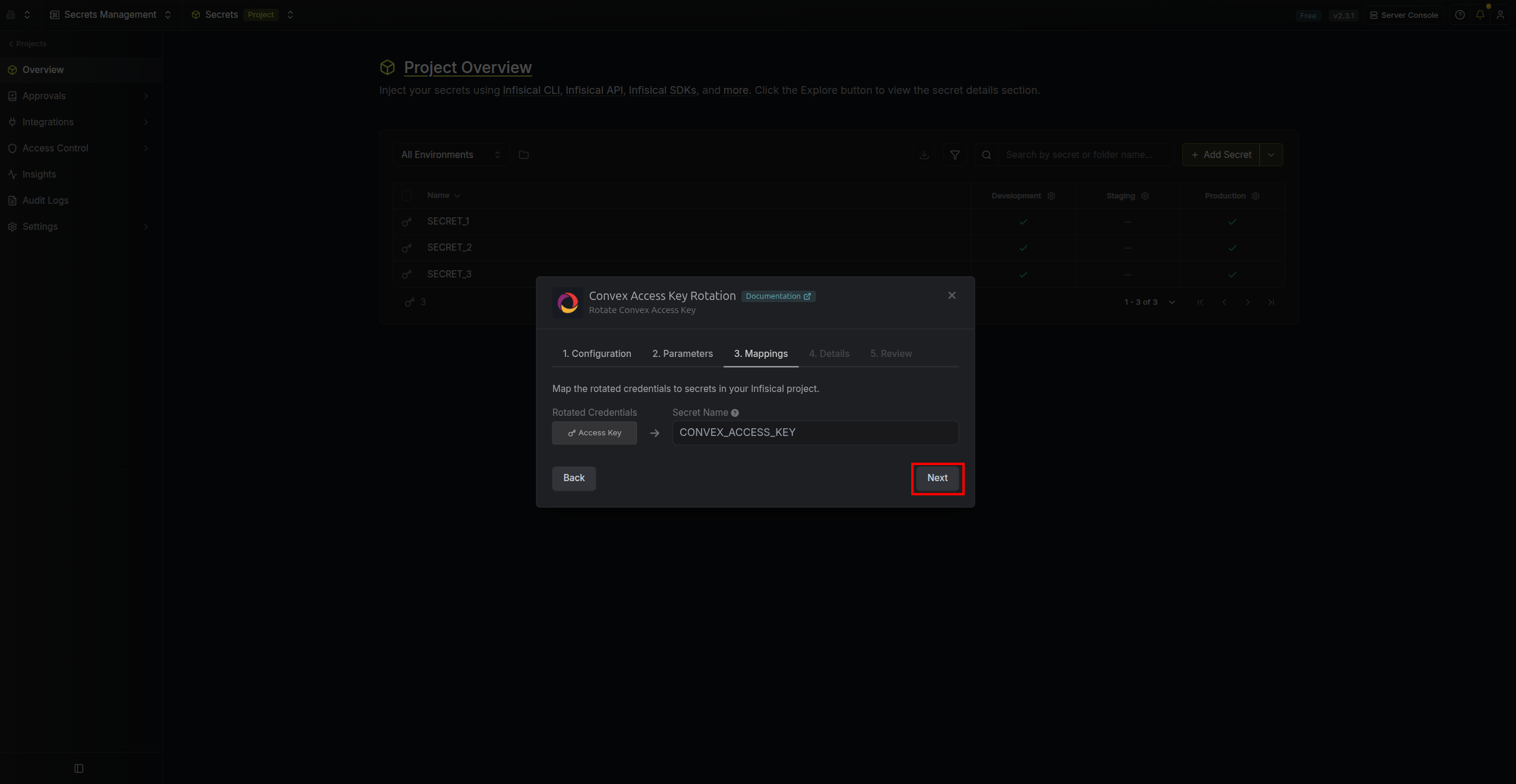
- Access Key - the name of the secret that the rotated Convex access key will be mapped to.
-
Give your rotation a name and description (optional). Then click Next.
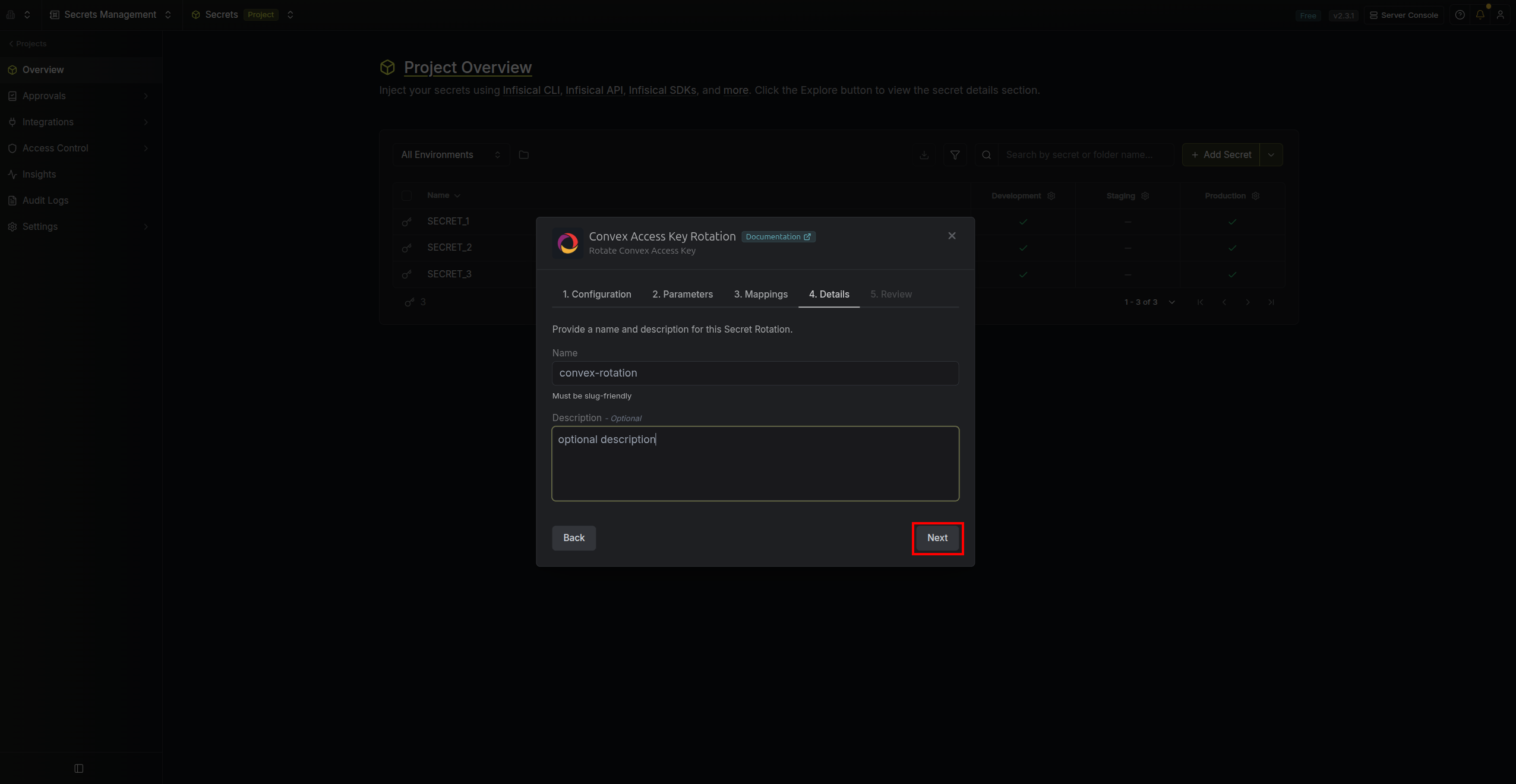
- Name - the name of the secret rotation configuration. Must be slug-friendly.
- Description (optional) - a description of this rotation configuration.
-
Review your configuration, then click Create Secret Rotation.
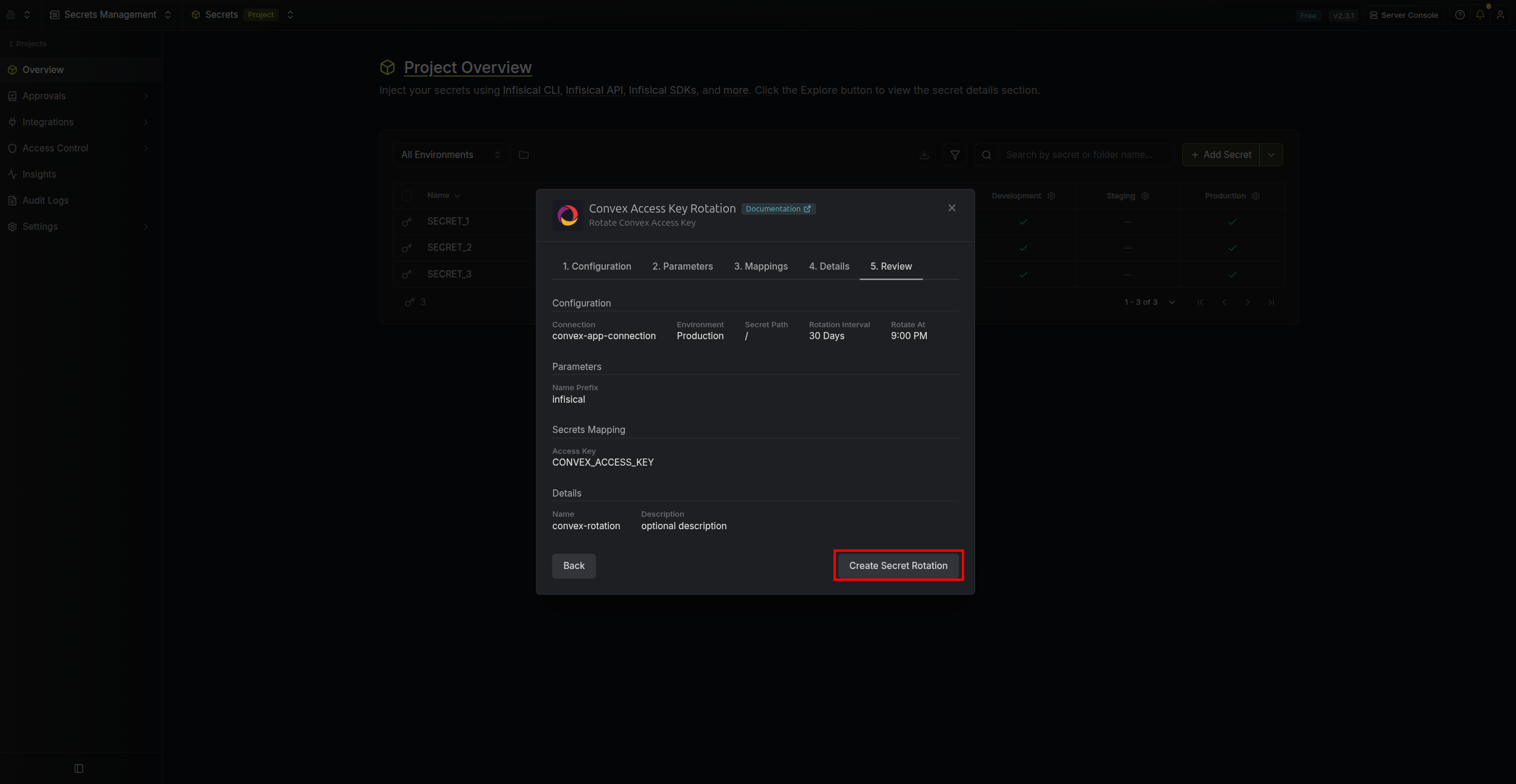
-
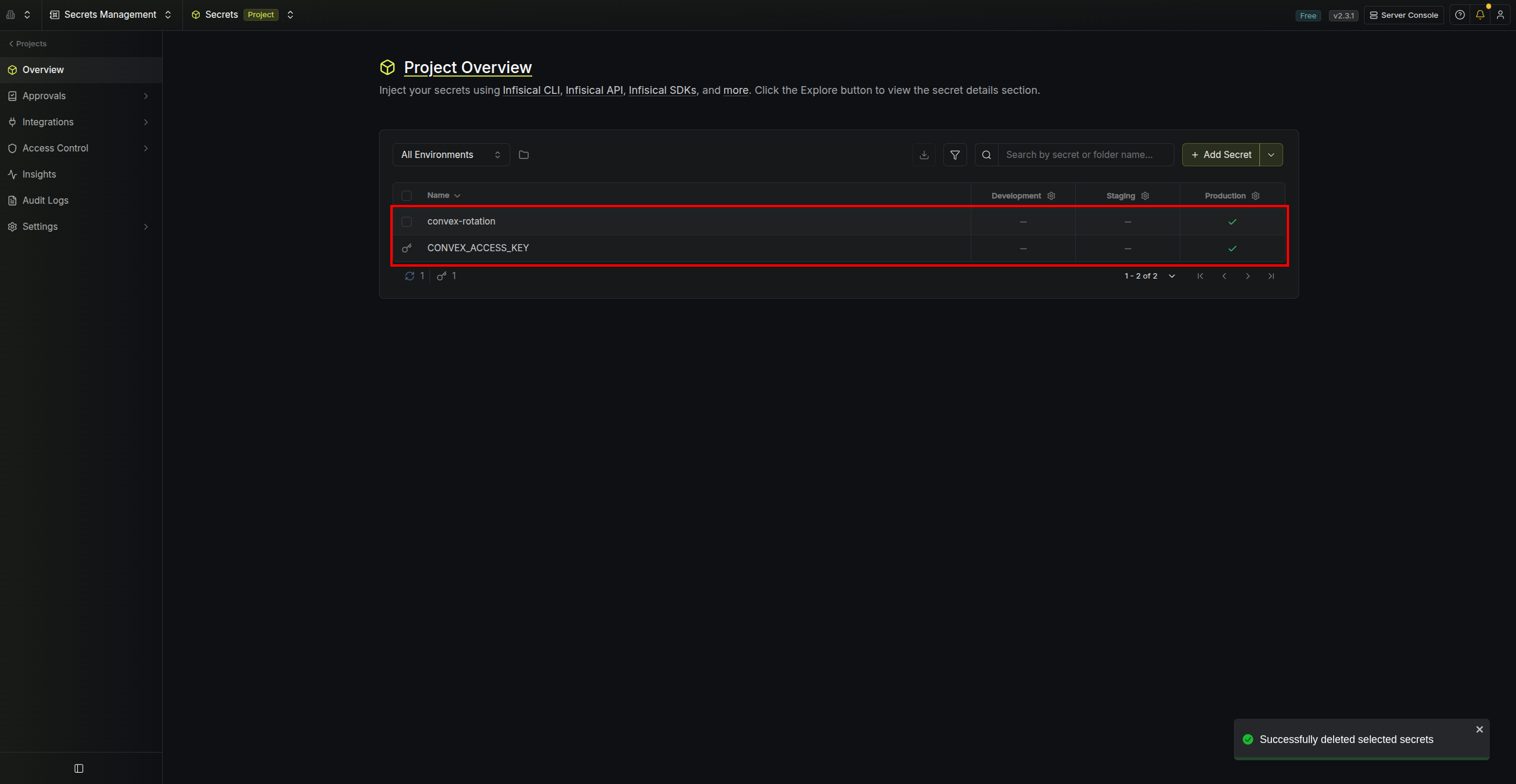
Your Convex Access Key rotation is created. The current access key is available as a secret at the mapped path.