

Rotation Type: Single-PhaseThis rotation updates one set of credentials in place, so the previous password stops working as soon as the rotation finishes. Clients that still use the previous password can’t sign in until they read the new password from Infisical. An iLO account has only one password, so Infisical can’t keep the previous password valid during a rotation.
Choose an app connection
If your server has iLO 7, use an HPE iLO connection, because Infisical can’t rotate iLO 7 passwords over SSH.- SSH connection
- HPE iLO connection (Redfish API)
Infisical signs in to the iLO over SSH and runs the iLO command that sets the target account’s password. Rotation Method decides which account signs in:
- Login As Root: Infisical signs in with the SSH connection’s credentials and changes the target account’s password
- Login As Target: Infisical signs in as the target account with the account’s current password, and the account changes its own password
Prerequisites
- A project with secrets configured
- An iLO local account for the app connection, separate from the account you rotate
- Permission for the app connection’s account to change the rotated account’s password (not needed if you use an SSH connection with Login As Target)
- Network access from Infisical to the iLO, directly or through a Gateway, if network restrictions apply: HTTPS for an HPE iLO connection, or SSH for an SSH connection
Create an HP iLO local account rotation
- Infisical UI
- API
1
In your Secrets Manager project, open the dashboard and select Add Secret Rotation from the actions dropdown.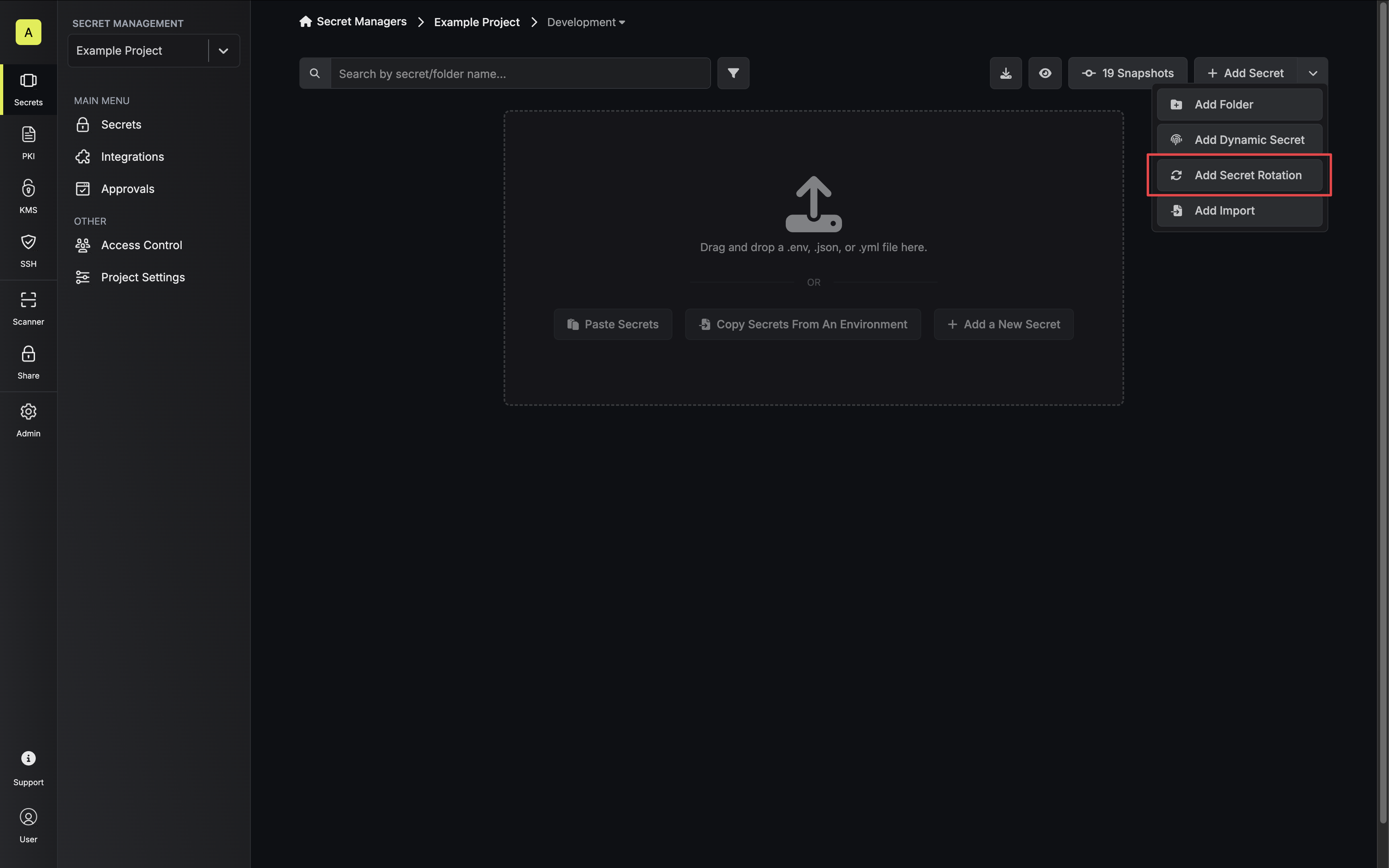 Then, select the HP iLO Local Account option.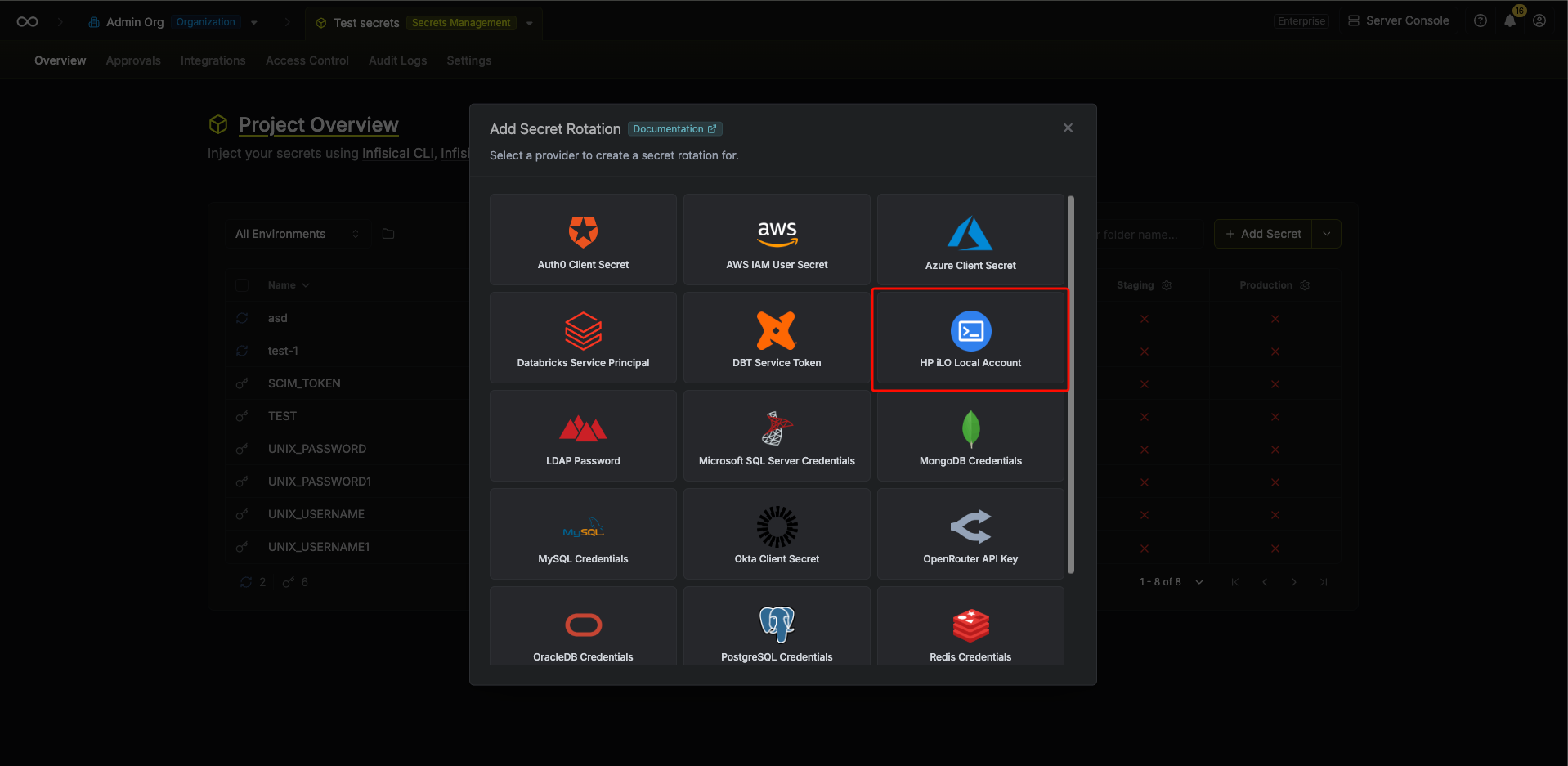
Then, select the HP iLO Local Account option.2
Under Configuration, choose the app connection and when the rotation runs: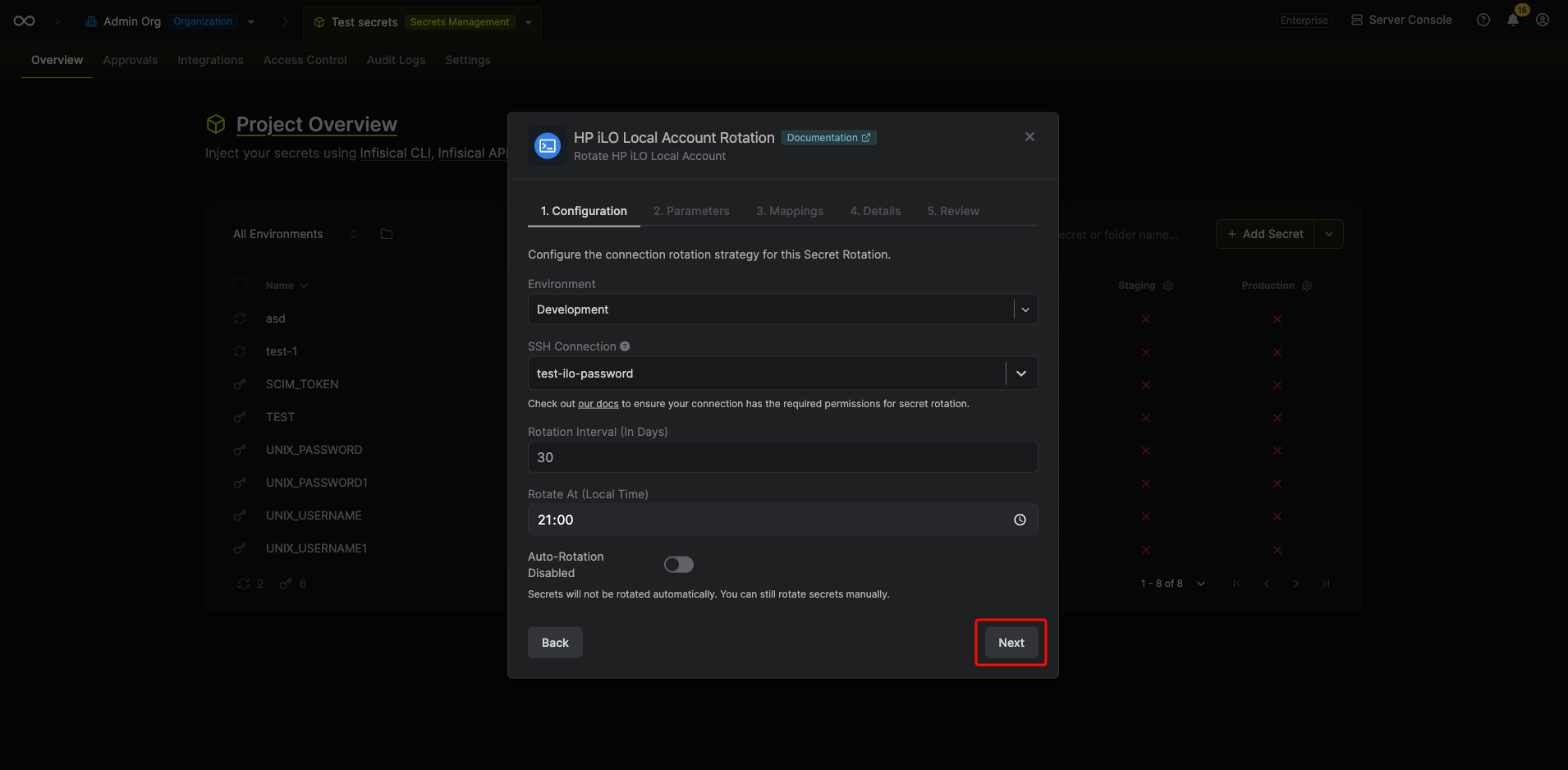 Then select Continue.
- Environment: The project environment the rotated secrets are stored in
- Connection: The HPE iLO connection or SSH connection the rotation uses (the dropdown groups the connections by type)
- Rotation Interval (In Days): The number of days between rotations
- Rotate At (Local Time): The time of day the rotation runs
- Auto-Rotation Enabled: When enabled, the password rotates on the schedule; turn it off to rotate manually only
Because this rotation changes a single password, an automatic rotation can interrupt clients that use the previous password. If you need to avoid interruptions, turn off Auto-Rotation Enabled and rotate manually.
3
Under Parameters, choose the iLO account to rotate. The fields depend on the type of connection you selected:Under Password Requirements, set the rules for generated passwords:
- HPE iLO connection
- SSH connection
-
Target Username: The iLO username of the account whose password Infisical rotates
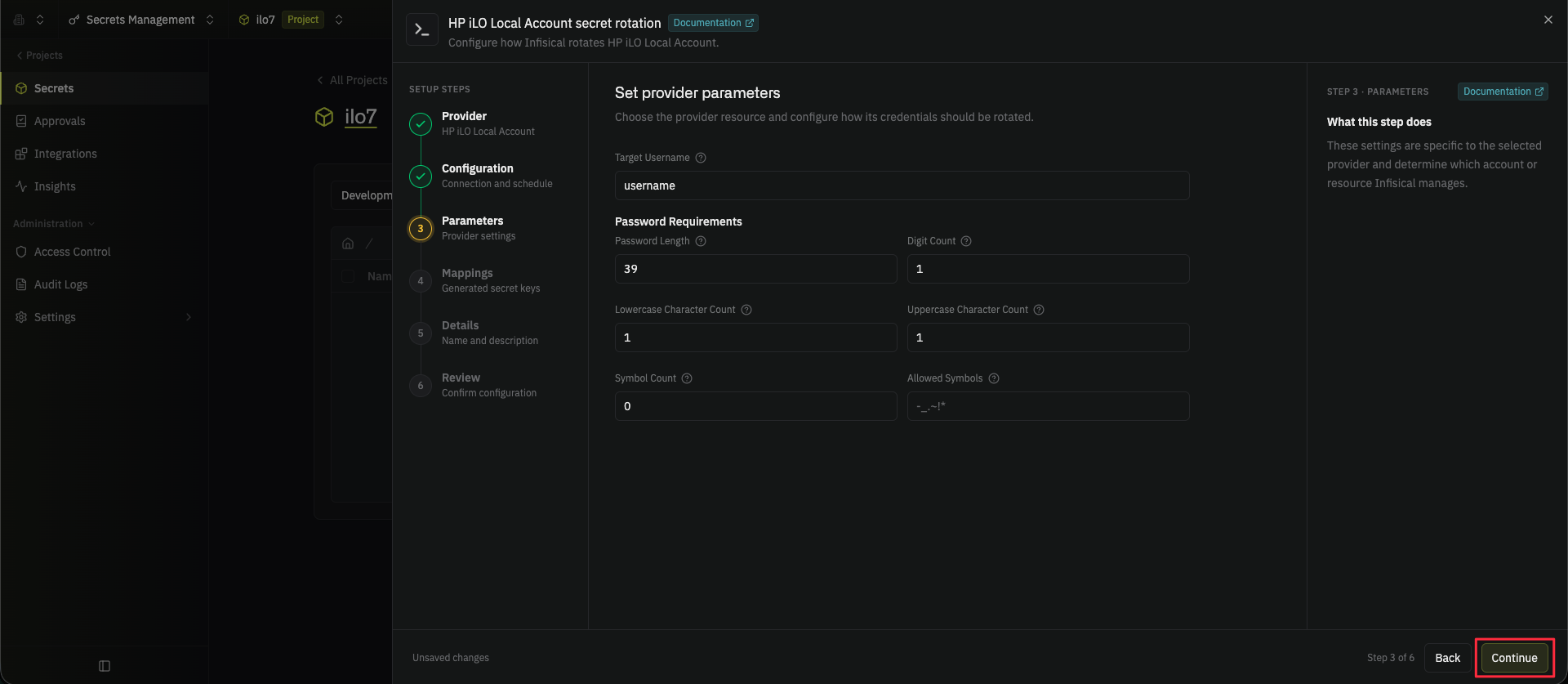
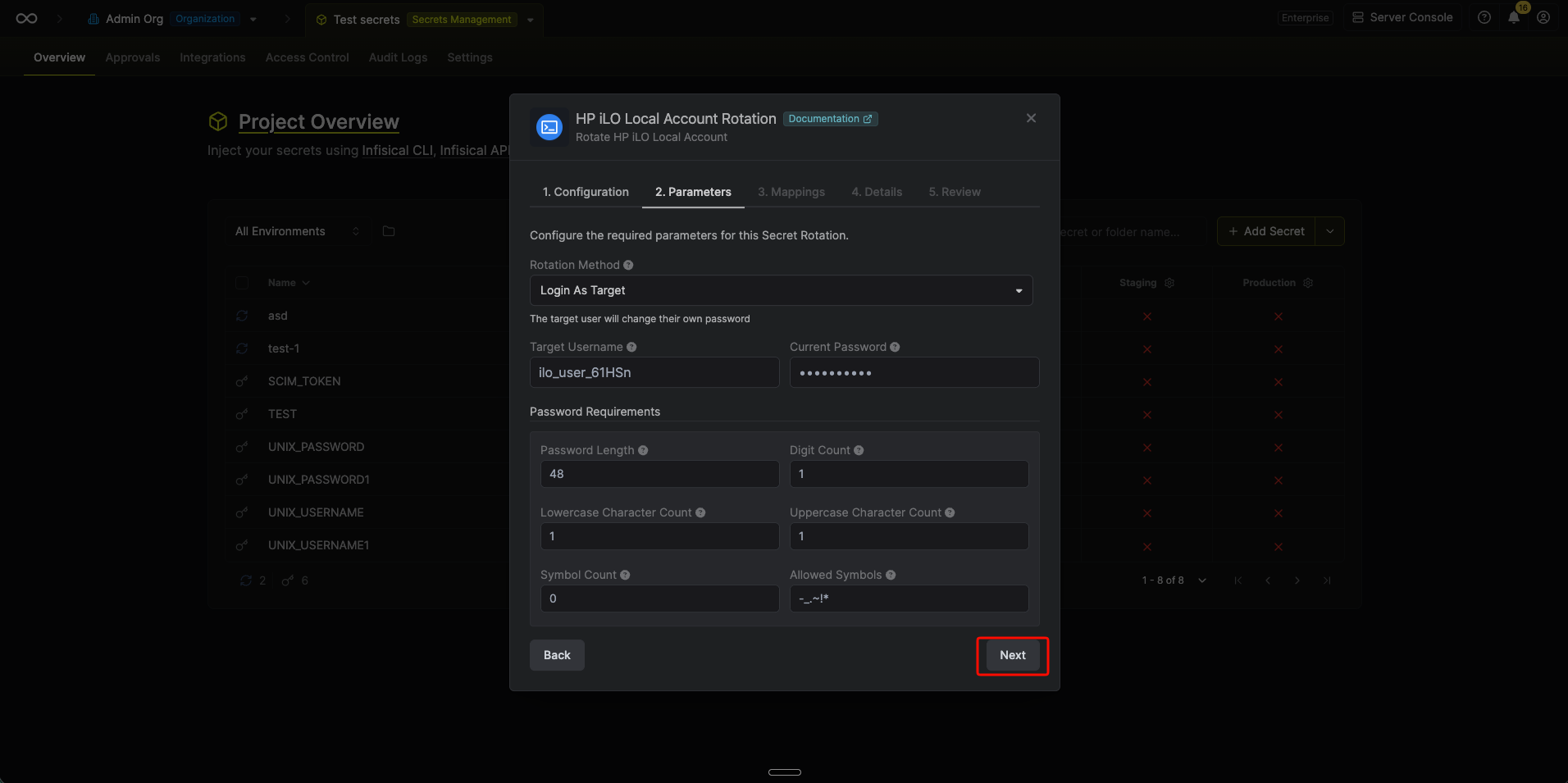
- Password Length: The length of the generated password (39 at most)
- Digit Count: The minimum number of digits
- Lowercase Character Count: The minimum number of lowercase characters
- Uppercase Character Count: The minimum number of uppercase characters
- Symbol Count: The minimum number of symbols
- Allowed Symbols: The symbols a generated password can contain
4
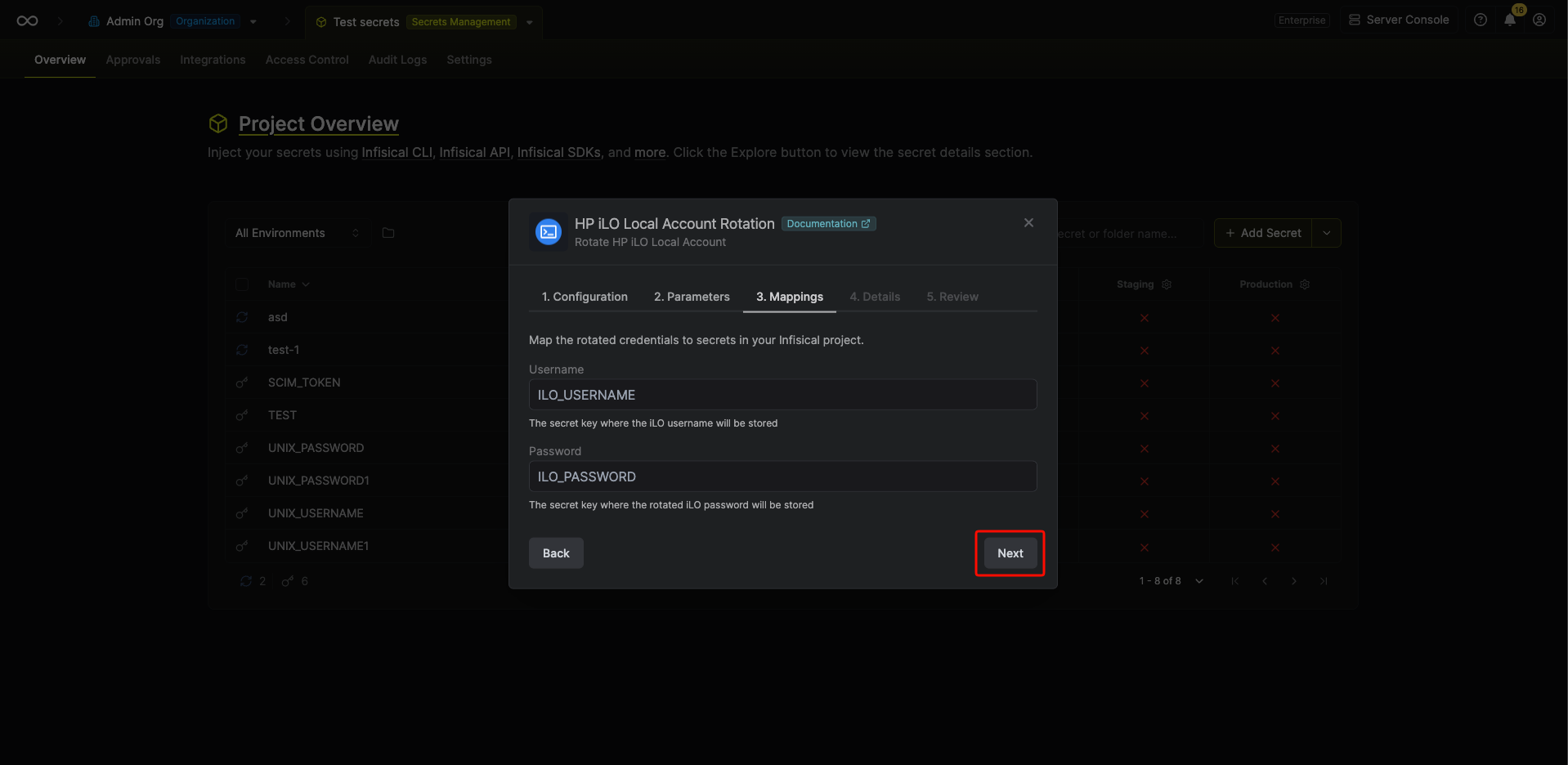
Under Mappings, choose the names of the Infisical secrets that hold the rotated values:
- Username: The name of the secret that holds the iLO username
-
Password: The name of the secret that holds the rotated password
5
Give the rotation a Name and an optional Description. The name must be slug-friendly.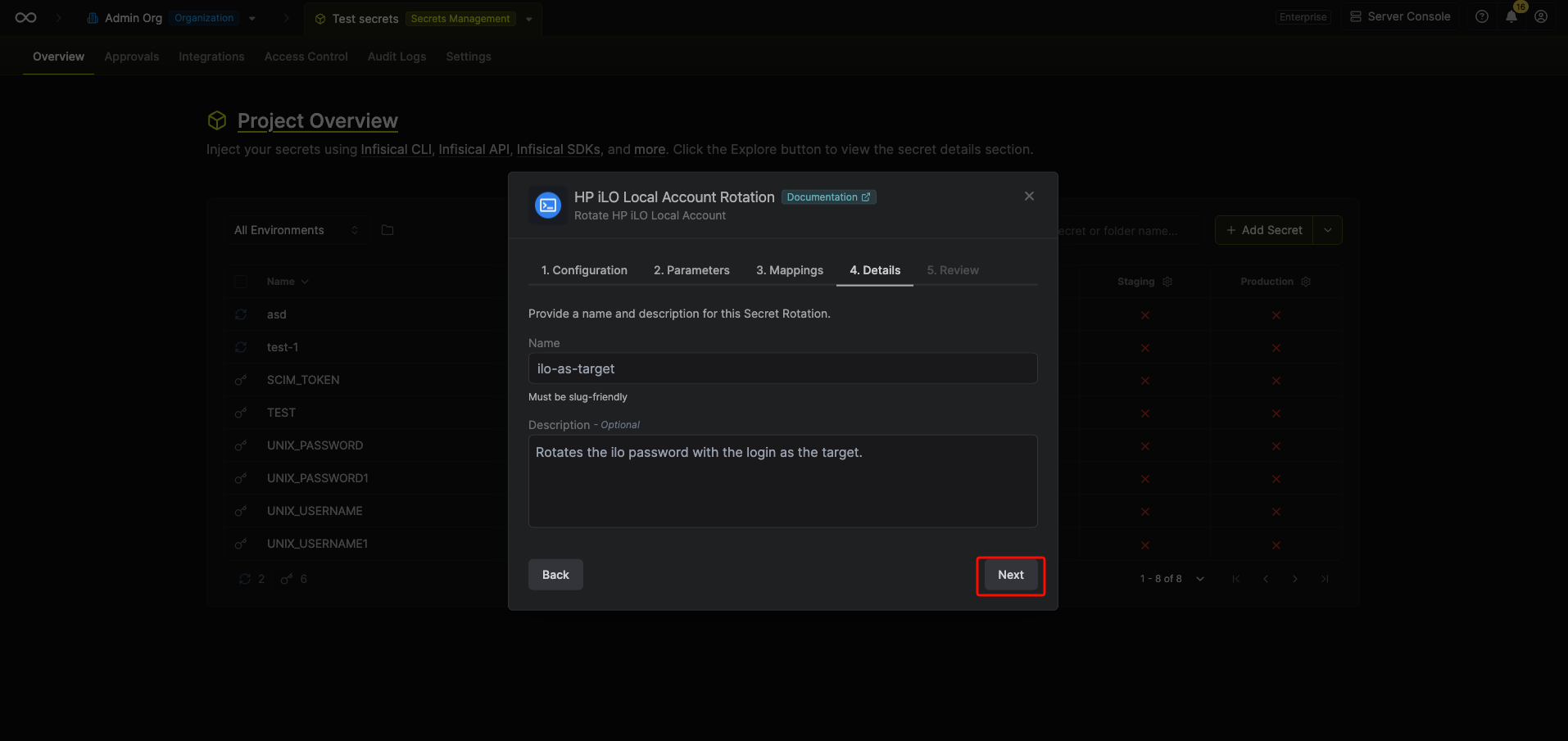 Then select Continue.
Then select Continue.6
Review your HP iLO Local Account Rotation configuration, then select Create secret rotation.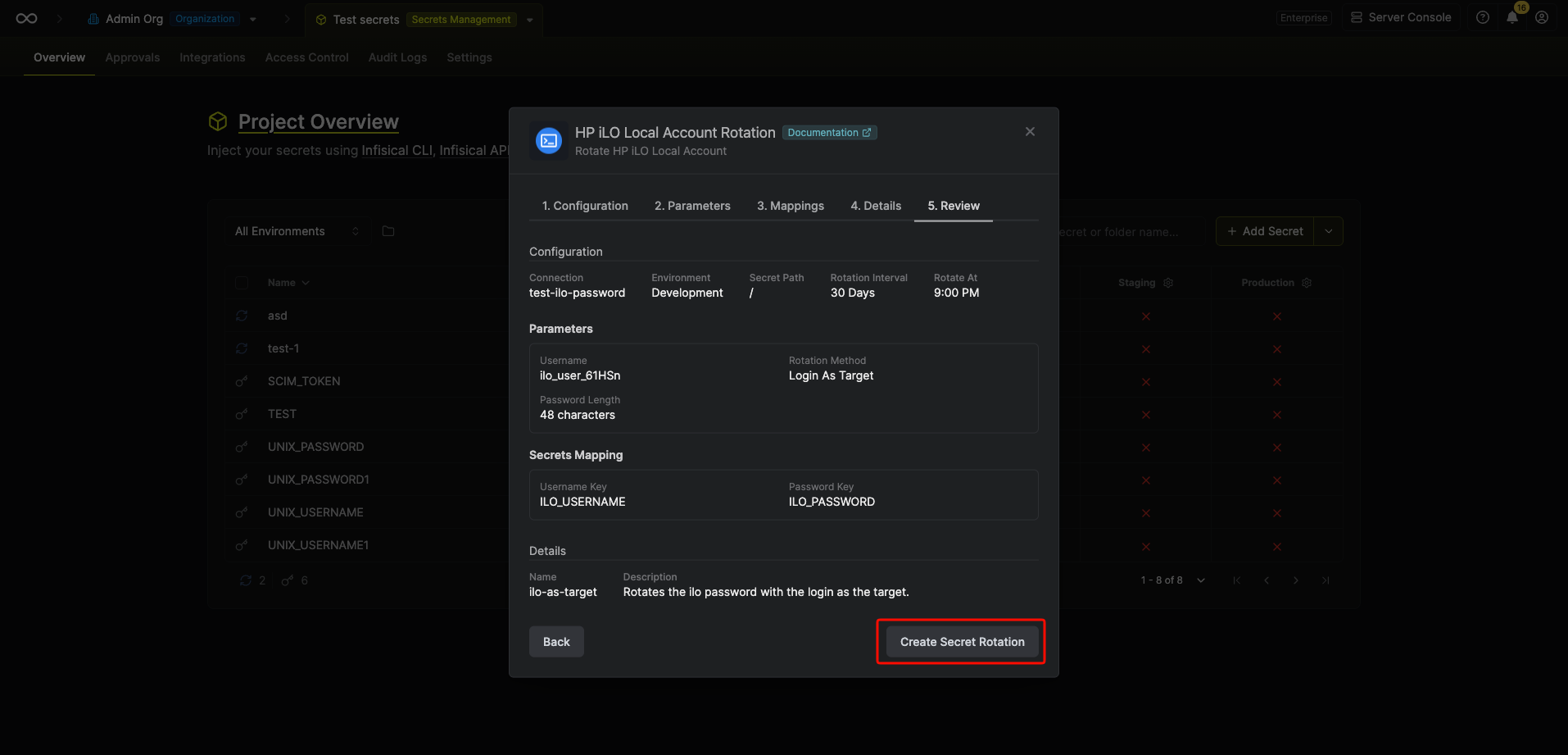
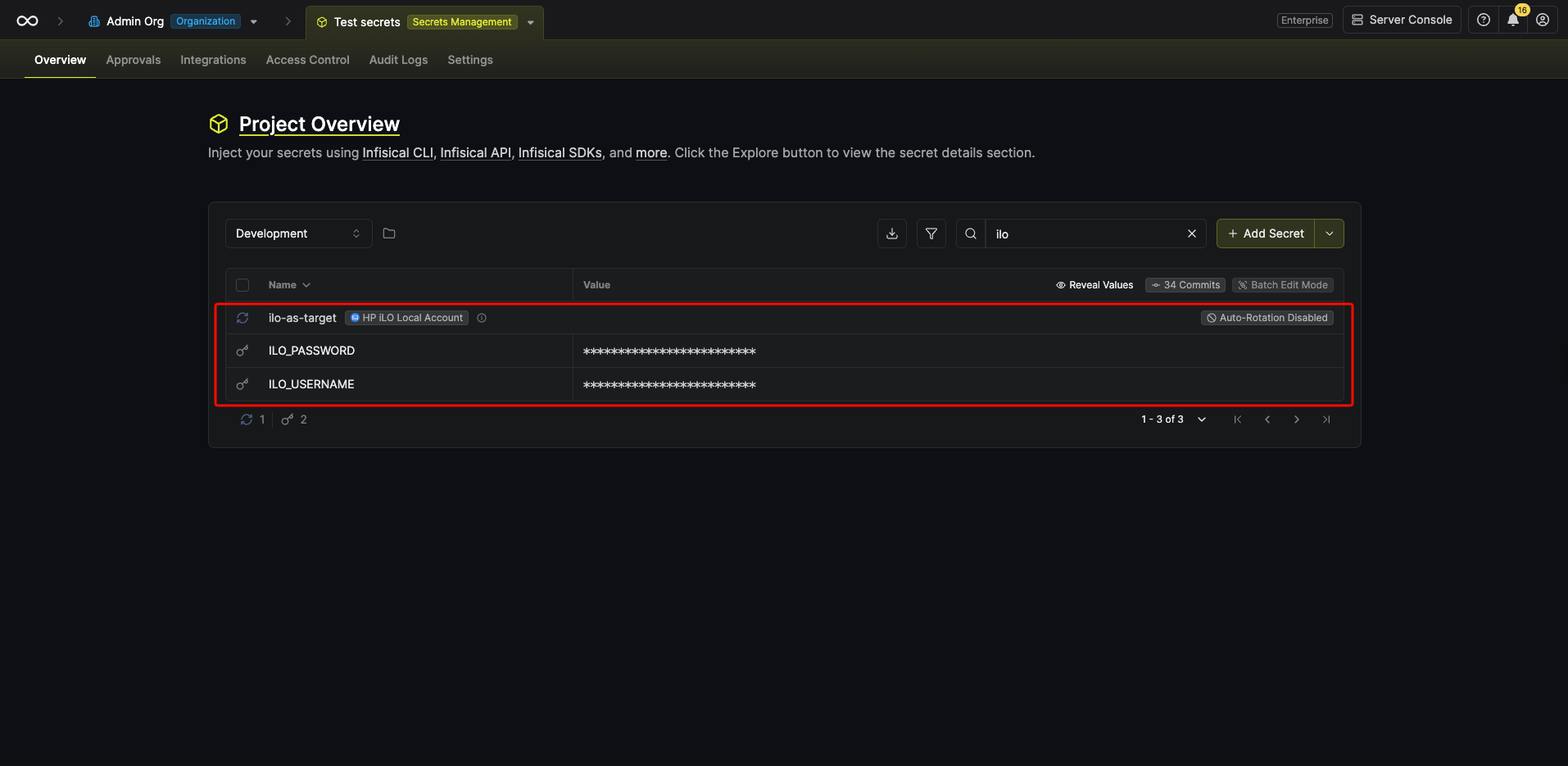
The rotated credentials are now available through the mapped secrets. If auto-rotation is enabled, the password rotates on your configured schedule.
Recover after an outside password change
If a rotation uses an SSH connection with Login As Target and someone changes the target account’s password outside Infisical, the next rotation can’t sign in as the target account. To get the rotation working again, reconcile it:1
In your project’s dashboard, select Reconcile Secret on the rotation.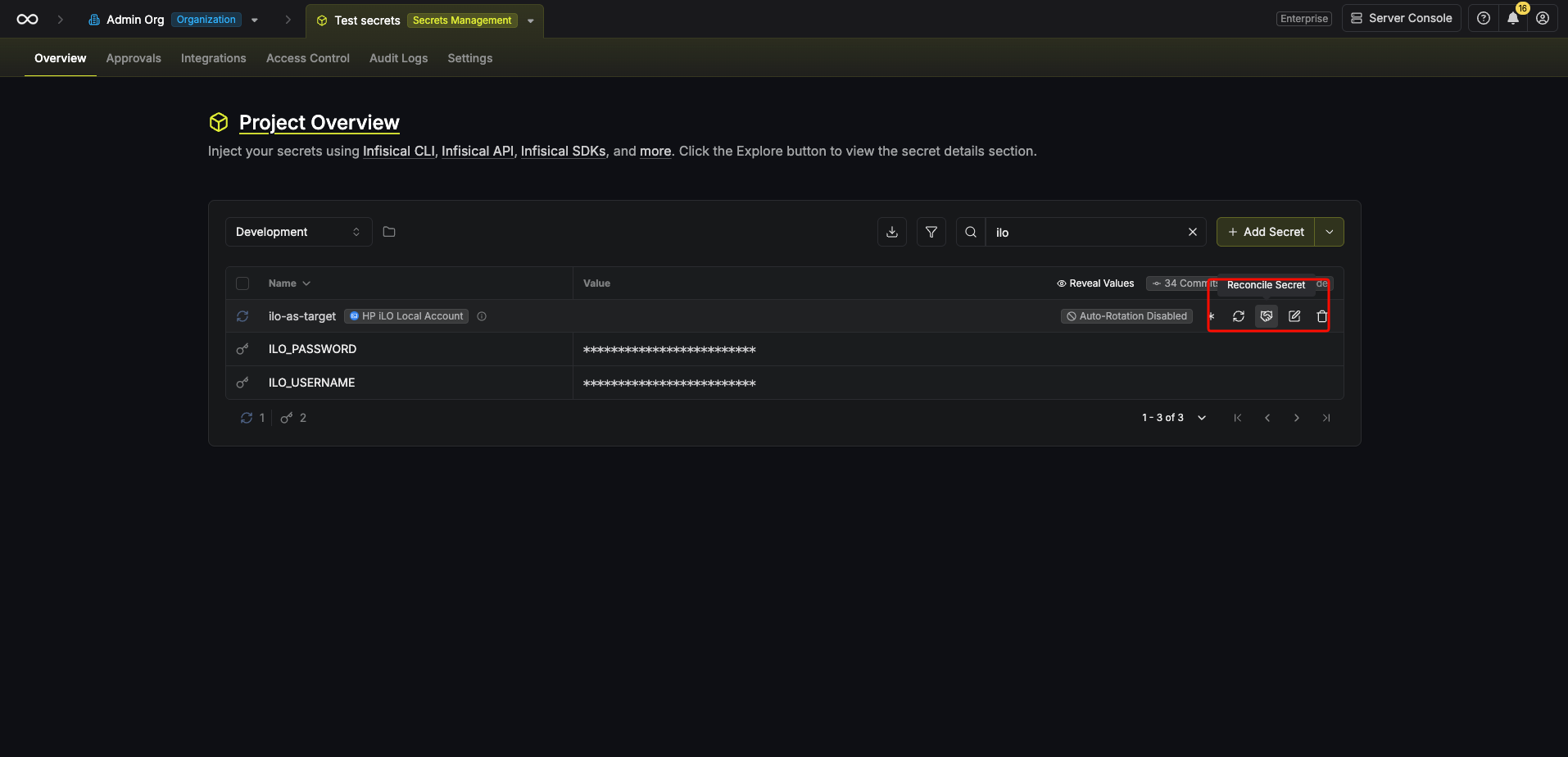
2
In the confirmation dialog, select Reconcile.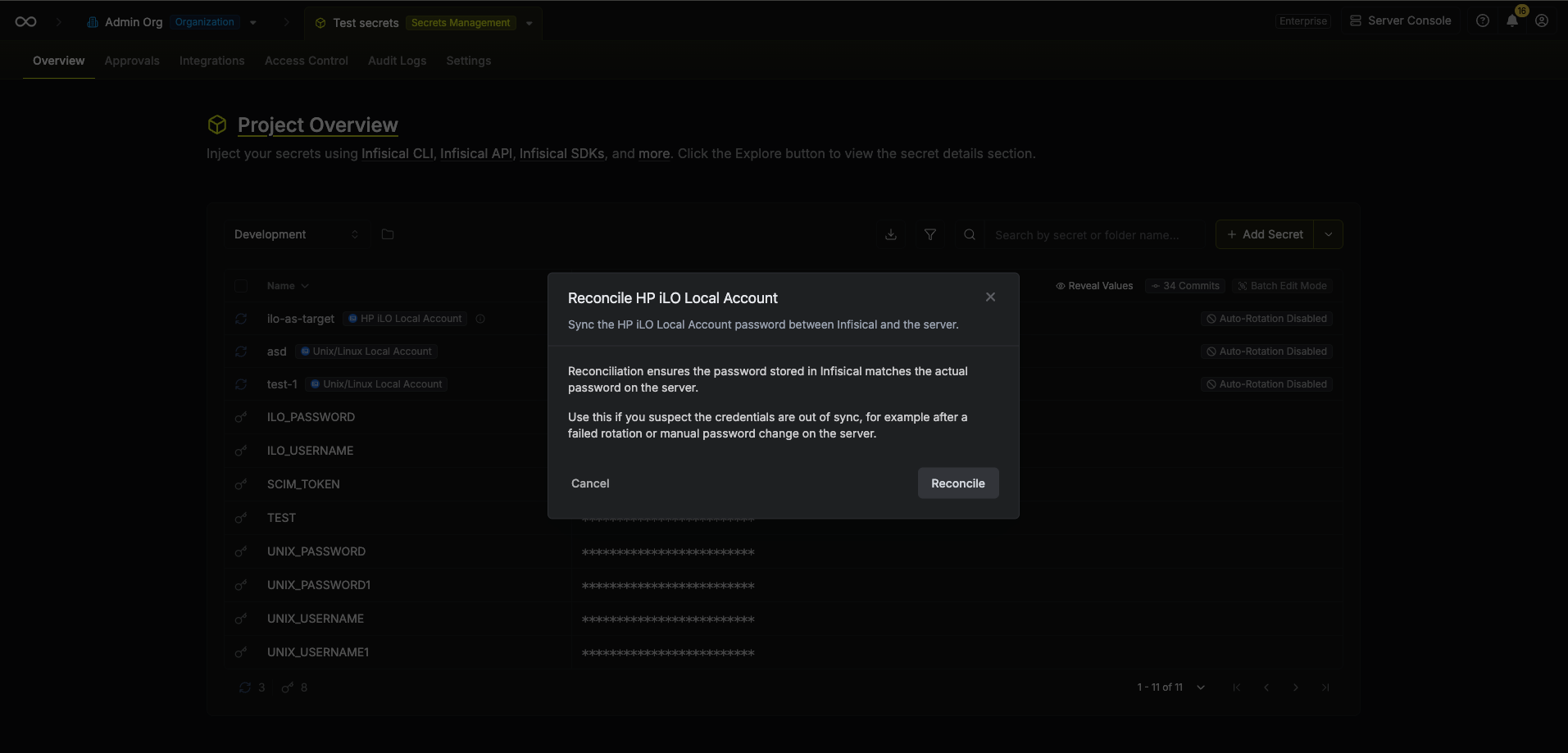
Next steps
HPE iLO
Create an HPE iLO connection for Redfish-based rotations.
Overview
Learn how secret rotation schedules and rotation types work.