

Rotation Type: Dual-PhaseThis rotation maintains two active credential sets with overlapping validity, ensuring zero-downtime during rotation cycles.
This rotation needs a ClickHouse app connection. This guide walks you through creating a project-scoped app connection.
Prerequisites
- A project with secrets configured
- A ClickHouse user that can create users and grant privileges, such as
default - Network access from Infisical to the HTTP interface of your ClickHouse server, or a Gateway that can reach it
Step 1: Create a ClickHouse user for Infisical
Infisical needs a ClickHouse user with theALTER USER privilege, which lets it change the passwords of the users it rotates.
1
Connect to ClickHouse as a user that can create users and grant privileges, such as
default, and create a user for Infisical:2
Grant the user the
ALTER USER privilege:Step 2: Create the users to rotate
Your applications sign in to ClickHouse as one of two users that you create.Rotation alternates between these two users, changing one password per cycle so that the other stays valid while your applications pick up the new credentials. See why two users are required.
1
Create the two users with Infisical can’t change the password of a user defined in a ClickHouse configuration file such as
CREATE USER. Infisical replaces both passwords when you create the rotation, so any temporary password works:users.xml.2
Grant both users the privileges your applications need, such as:
If you self-host a ClickHouse cluster that stores users separately on each server, Infisical changes the password only on the server it connects to. To apply the change on every server, store users in replicated user storage. ClickHouse Cloud already does this.
Step 3: Set up the rotation in Infisical
1
In your Secrets Manager project, open the dashboard and select Add Secret Rotation from the actions dropdown.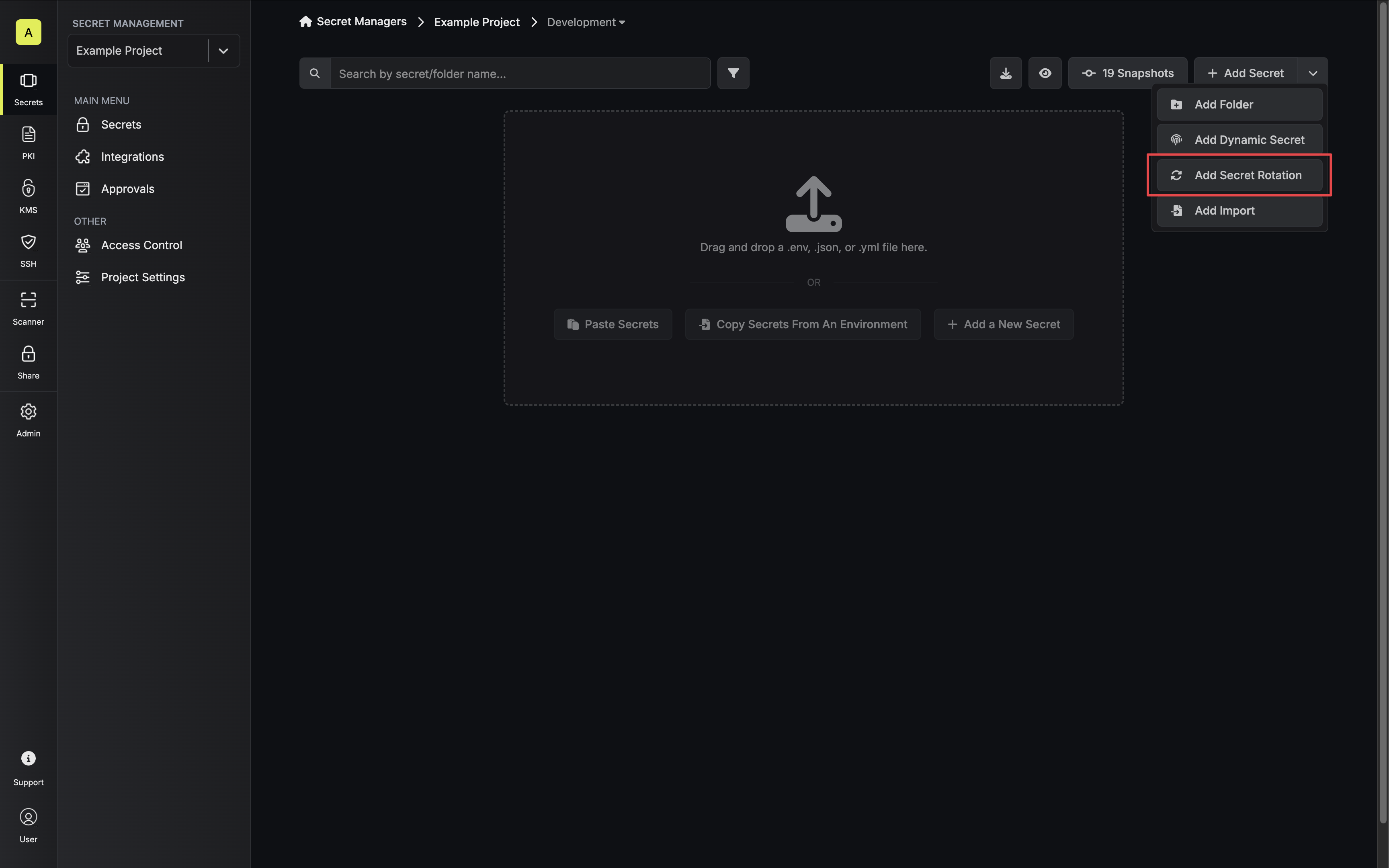 Then, select the ClickHouse Credentials option.
2
Under Configuration, choose the app connection and when the rotation runs:Then select Continue.
- Environment: The project environment the rotated secrets are stored in
- ClickHouse Connection: The app connection the rotation uses
- Rotation Interval (In Days): The number of days between rotations
- Rotate At (Local Time): The time of day the rotation runs
- Auto-Rotation Enabled: When enabled, the passwords rotate on the schedule; turn it off to rotate manually only
- Create a new app connection
- Use an existing connection
Under ClickHouse Connection, select Create ClickHouse Connection in the dropdown, then fill in:
- Name: A descriptive name for the connection
- Description (optional): A note for future reference
- Gateway (optional): The Gateway Infisical connects through, if Infisical can’t reach your ClickHouse server directly, such as when the server is in a private network
- Method: Username & Password
- Host: The hostname or IP address of your ClickHouse server, without
https://or a port, such as<your-service>.us-east-1.aws.clickhouse.cloud - Database Name: The database Infisical connects to, such as
default - Port: The port of the ClickHouse HTTP interface (usually
8443for HTTPS, including ClickHouse Cloud, and8123for HTTP) - Username: The user you created in Step 1
- Password: The password of that user
- Enable SSL: On the SSL tab, whether Infisical connects over HTTPS (on by default; turn it off for an HTTP port such as
8123) - SSL Certificate (optional): On the SSL tab, the CA certificate in PEM format that signed your server’s TLS certificate (ClickHouse Cloud doesn’t need one)
- Reject Unauthorized: On the SSL tab, whether Infisical refuses to connect when it can’t verify the server’s TLS certificate (on by default; for a self-signed certificate, enter its CA certificate in SSL Certificate instead of turning this off)
This creates a connection scoped to the current project. To share the connection across other projects, create it at the organization level first, then select it here.
3
Under Parameters, enter the users you created in Step 2:
- Database Username 1: The first user, such as
infisical_user_1 - Database Username 2: The second user, such as
infisical_user_2
4
Under Mappings, choose the names of the Infisical secrets that hold the rotated values:
- Username: The name of the secret that holds the username of the active user
- Password: The name of the secret that holds the password of the active user
5
Give the rotation a Name and an optional Description. The name must be slug-friendly.Then select Continue.
6
Review your ClickHouse Credentials Rotation configuration, then select Create secret rotation.
The rotated credentials are now available through the mapped secrets. If auto-rotation is enabled, they rotate on your configured schedule.
Next steps
Overview
Learn how rotation schedules work and why database rotations use two users.
ClickHouse
Create a ClickHouse connection that every project in your organization can use.