Rotation Type: Single-PhaseThis rotation updates a single credential set in place. Old credentials become invalid immediately upon rotation. This means that clients using the previous credentials will fail to authenticate until they retrieve the new credentials.This is a limitation of the rotation mechanism and can’t be rectified by Infisical.
Prerequisites
- Windows Server with SMB3 support enabled (must be a member server or standalone machine, not a Domain Controller)
- Create an SMB Connection with administrator credentials
- Ensure your network security policies allow SMB connections from Infisical to this rotation provider
- The target local account must exist on the Windows server before configuring the rotation
This rotation manages local accounts stored in the Windows machine’s local SAM database. Domain Controllers don’t have local accounts — if you need to manage accounts on a Domain Controller, those are domain accounts managed through Active Directory, which isn’t supported by this rotation type.
Open firewall on Windows Defender for SMB connection
Open firewall on Windows Defender for SMB connection
Run the following PowerShell command as Administrator on the Windows server to allow inbound SMB connections:To verify the rule was created:
Create a Windows local account rotation in Infisical
- Infisical UI
- API
-
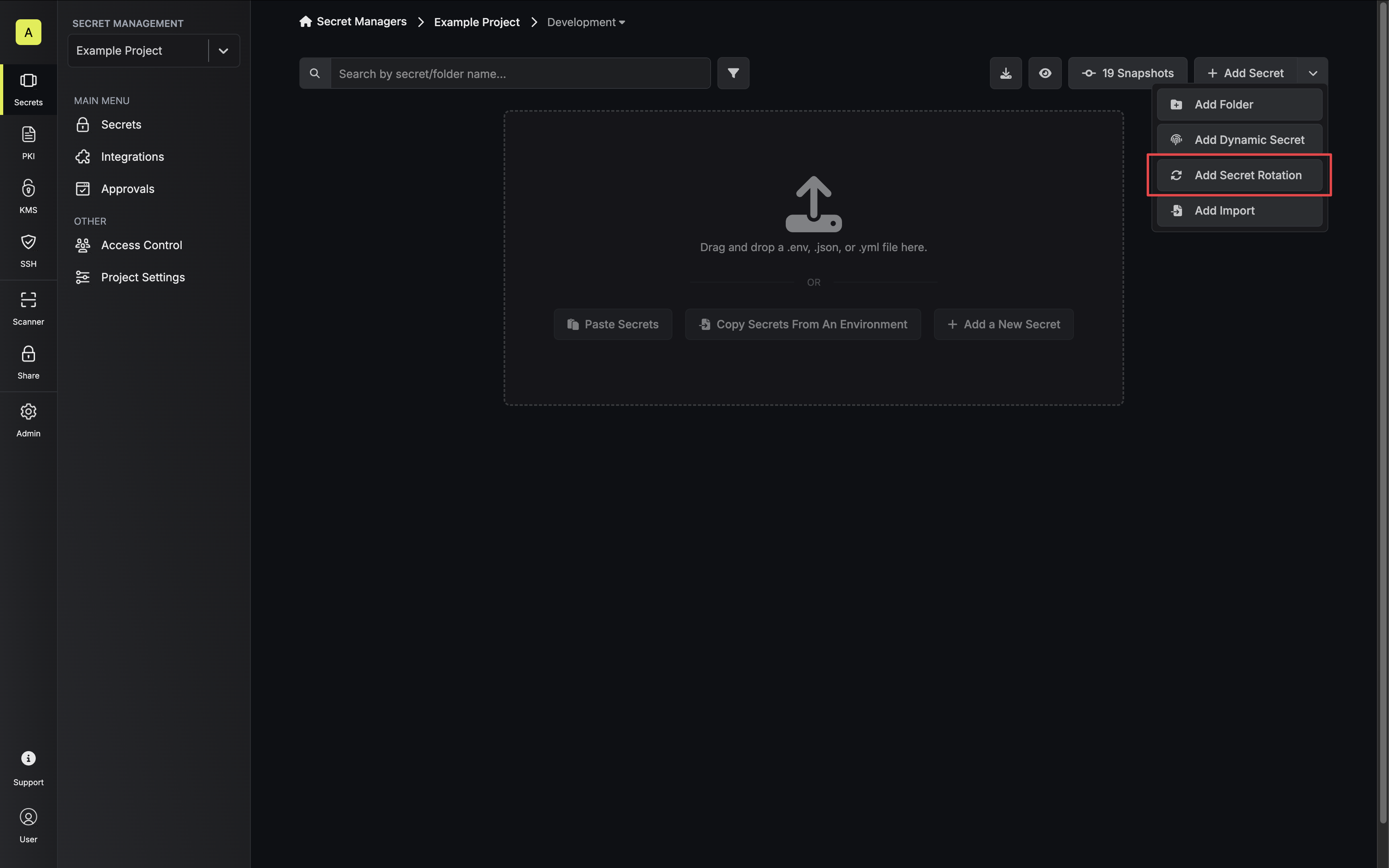
Navigate to your Secrets Manager Project’s Dashboard and select Add Secret Rotation from the actions dropdown.
-
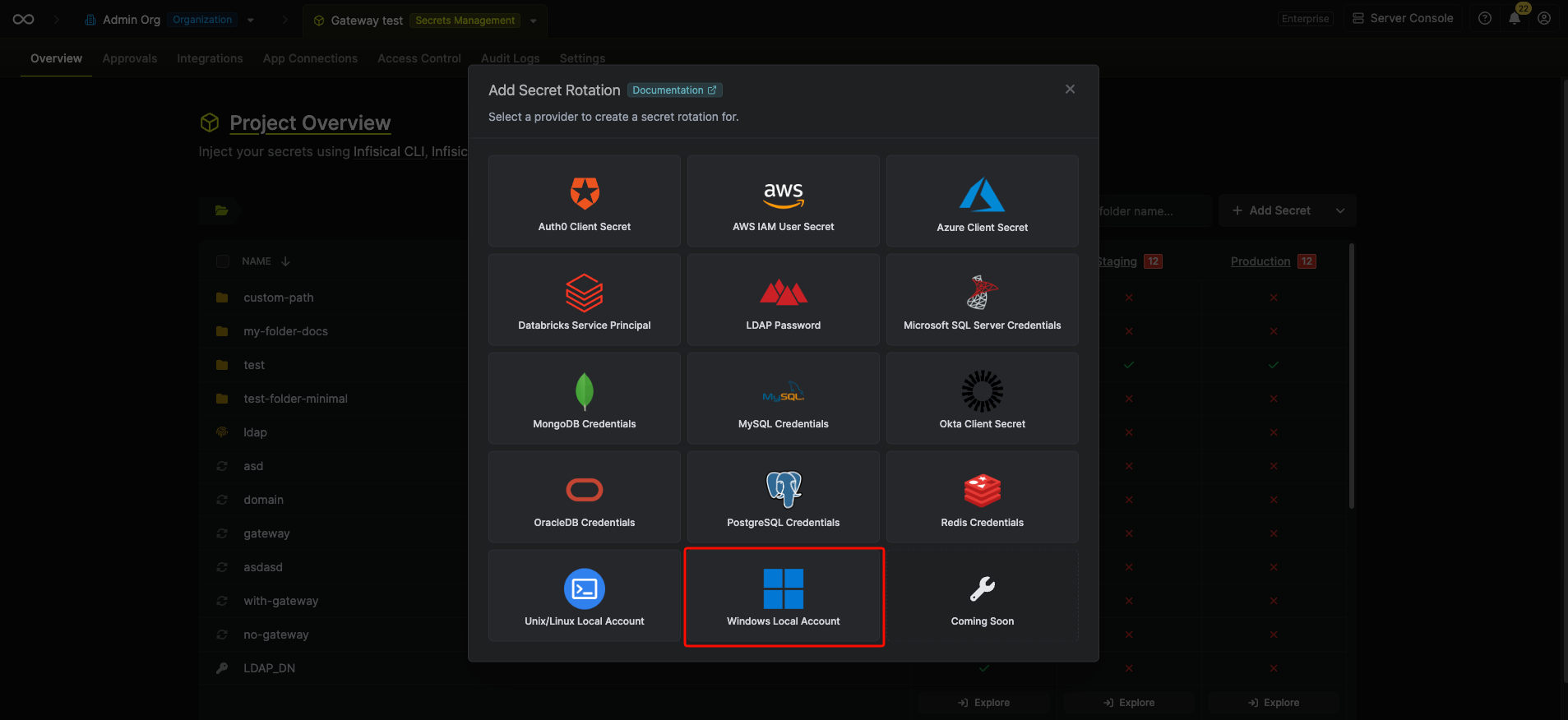
Select the Windows Local Account option.
-
Select the SMB Connection to use and configure the rotation behavior. Then click Next.
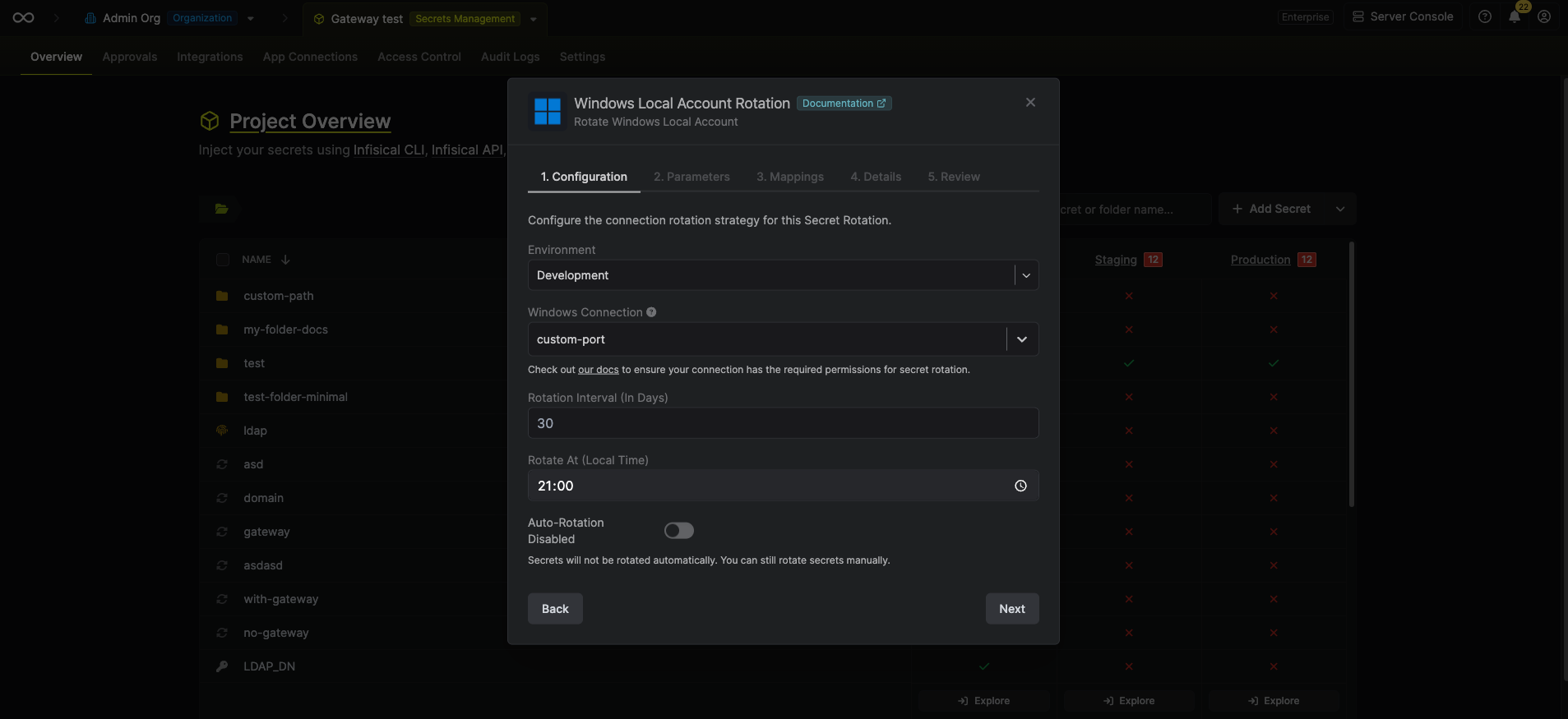
- SMB Connection - the connection that will perform the rotation of the configured user’s password.
- Rotation Interval - the interval, in days, that once elapsed will trigger a rotation.
- Rotate At - the local time of day when rotation should occur once the interval has elapsed.
- Auto-Rotation Enabled - whether secrets should automatically be rotated once the rotation interval has elapsed. Disable this option to manually rotate secrets or pause secret rotation.
Due to Windows Local Account Rotations rotating a single credential set, auto-rotation may result in service interruptions. If you need to ensure service continuity, we recommend disabling this option. -
Configure the required Parameters for your rotation. Then click Next.
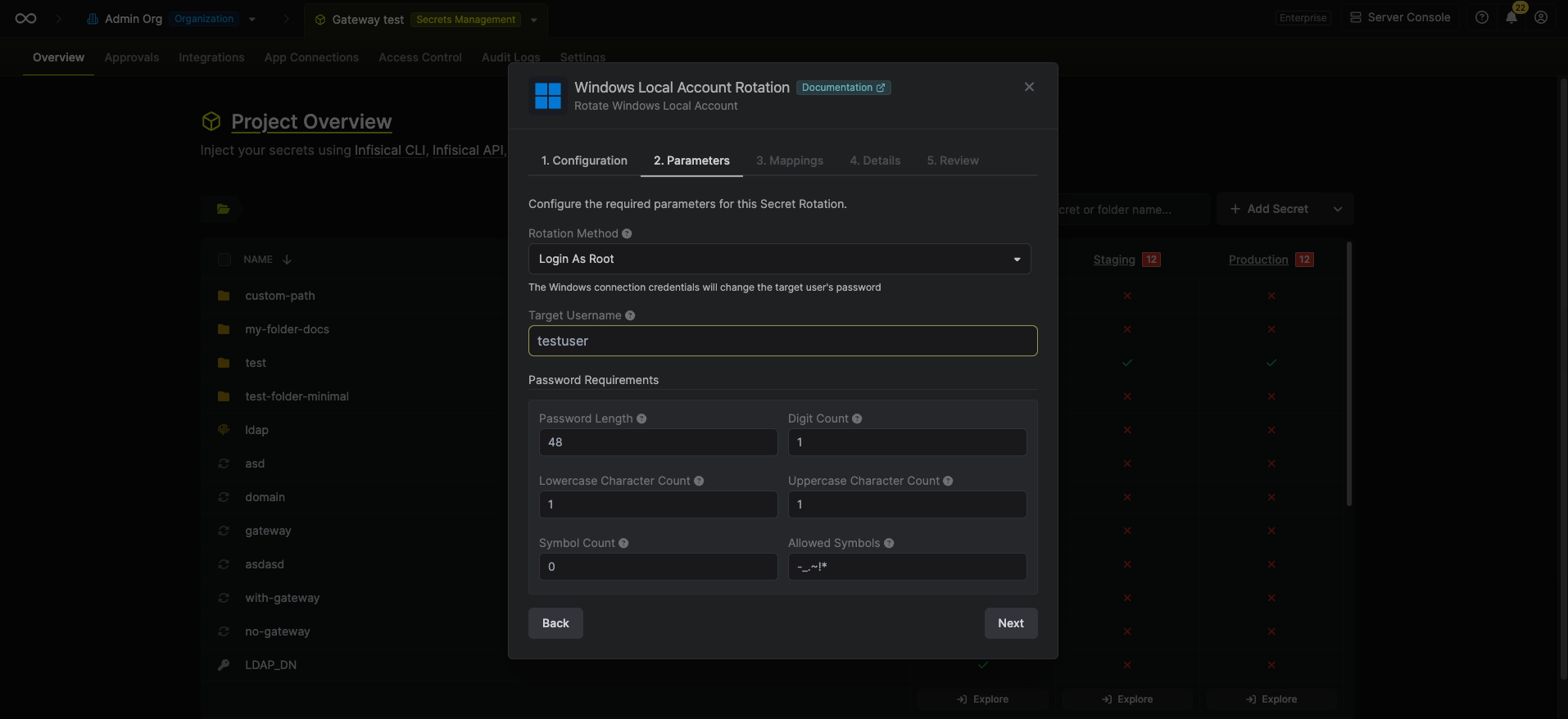
- Rotation Method - The method to use when rotating the target user’s password.
- Login as Target - Infisical will use the target user’s current credentials to authenticate and rotate its own password. See the Login as Target Requirements section below for important configuration details.
- Login as Root - Infisical will use the administrator credentials provided in the SMB Connection to rotate the target user’s password. This is the recommended method for most use cases.
- Username - The target Windows username whose password will be rotated.
- Current Password - The current password of the target user (required when Rotation Method is set to Login as Target).
- Password Requirements - The constraints to apply when generating new passwords.
-
Specify the secret names that the Windows credentials should be mapped to. Then click Next.
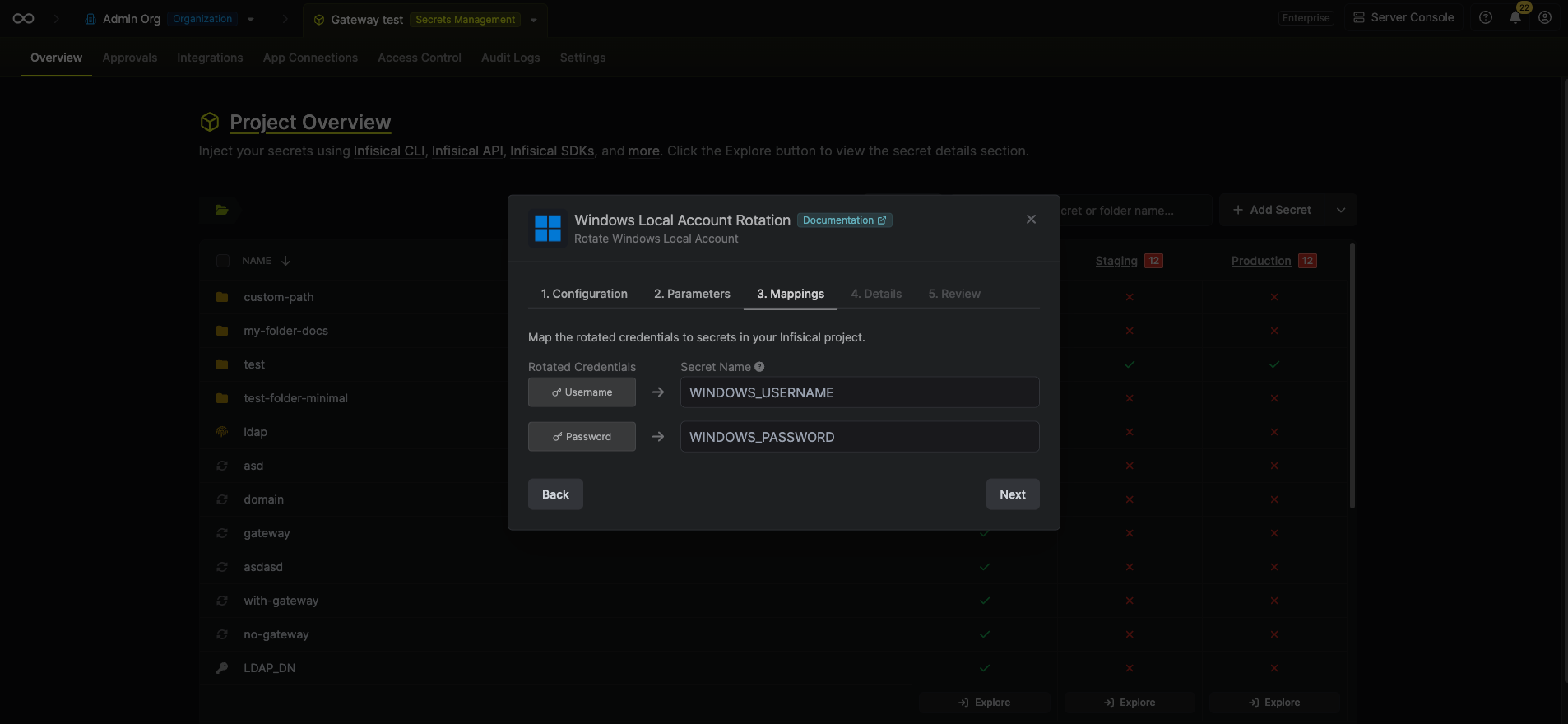
- Username - the name of the secret that the Windows username will be stored in.
- Password - the name of the secret that the rotated password will be stored in.
-
Give your rotation a name and description (optional). Then click Next.
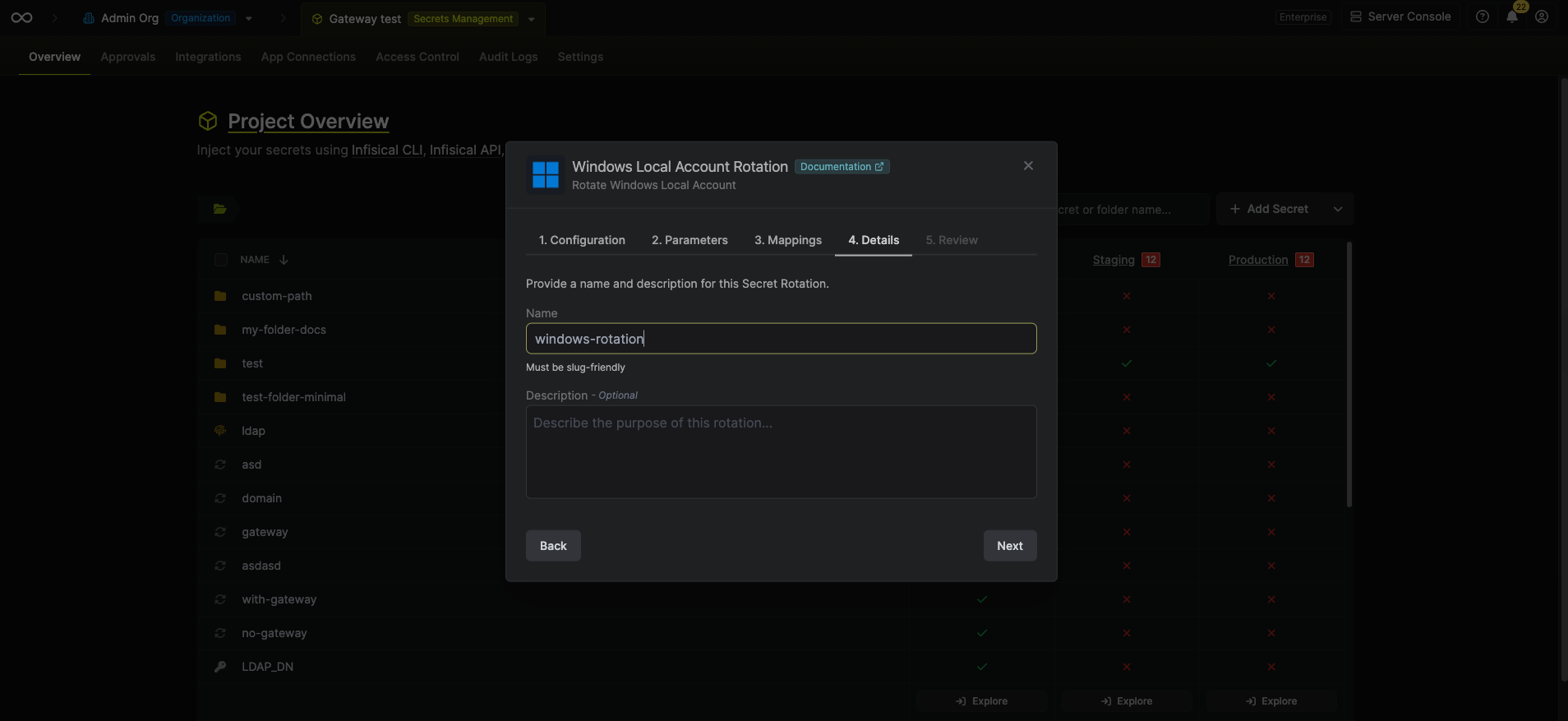
- Name - the name of the secret rotation configuration. Must be slug-friendly.
- Description (optional) - a description of this rotation configuration.
-
Review your configuration, then click Create Secret Rotation.
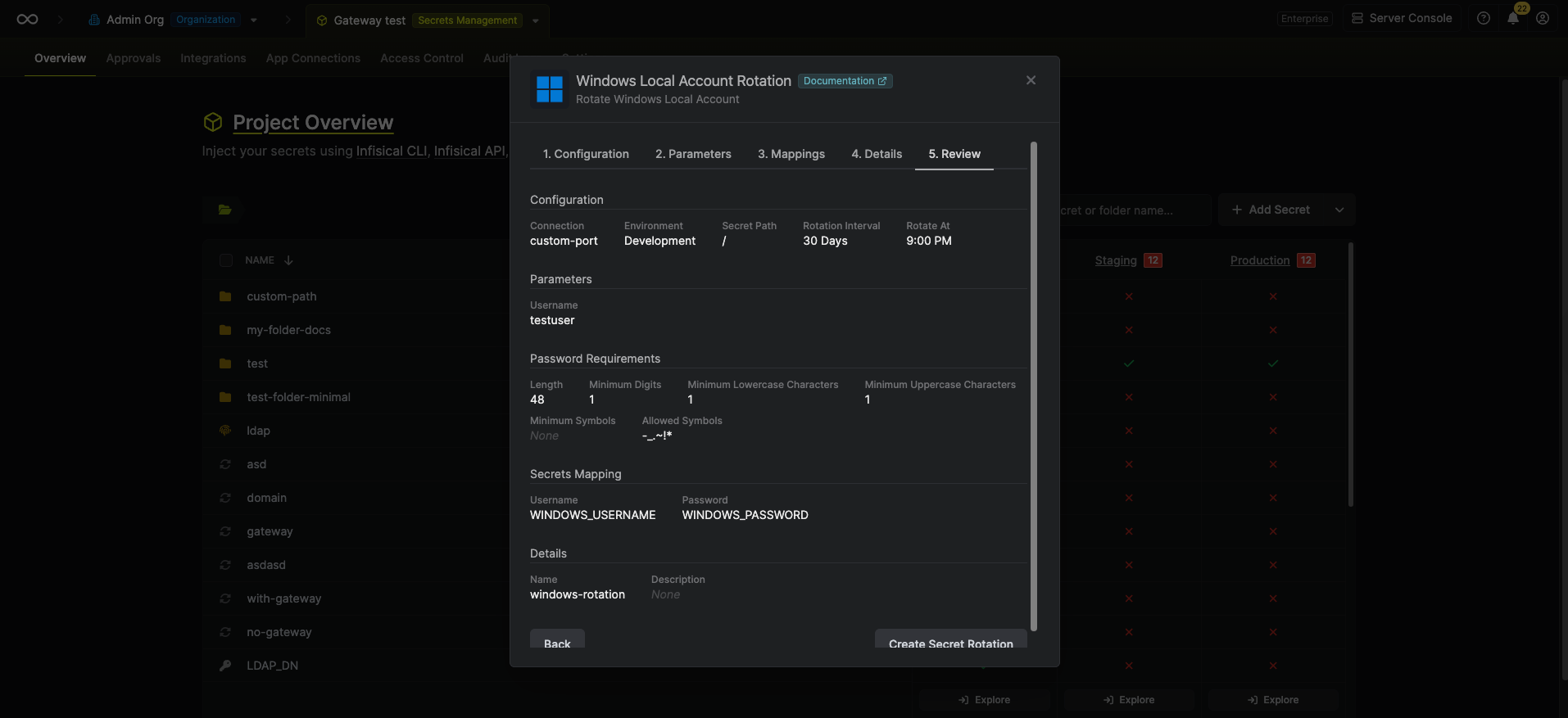
-
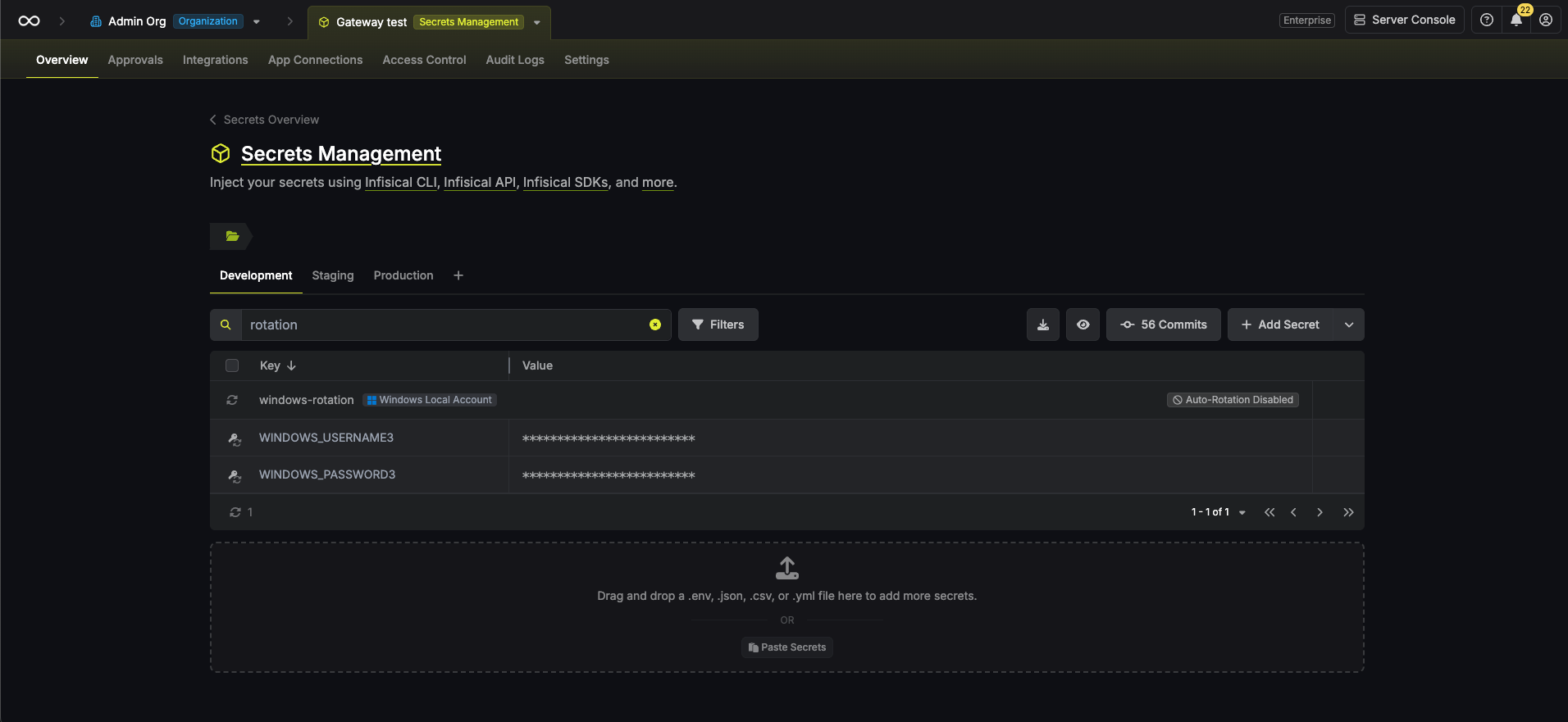
Your Windows Local Account credentials are now available for use via the mapped secrets.
Login as target requirements
The Login as Target method allows a user to rotate their own password without requiring separate administrator credentials in the SMB Connection. However, this method has specific requirements due to Windows security restrictions:-
Local Administrator Privileges - The target user must be a member of the local
Administratorsgroup on the Windows machine. -
Disable Remote UAC Token Filtering - By default, Windows filters administrative tokens for remote connections, even for local administrators. You must disable this by setting the following registry key on the target Windows server:
After setting this, restart the server or the LanmanServer service:
If you cannot or prefer not to disable Remote UAC token filtering, use the Login as Root method instead, which uses domain administrator or built-in Administrator credentials from the SMB Connection.
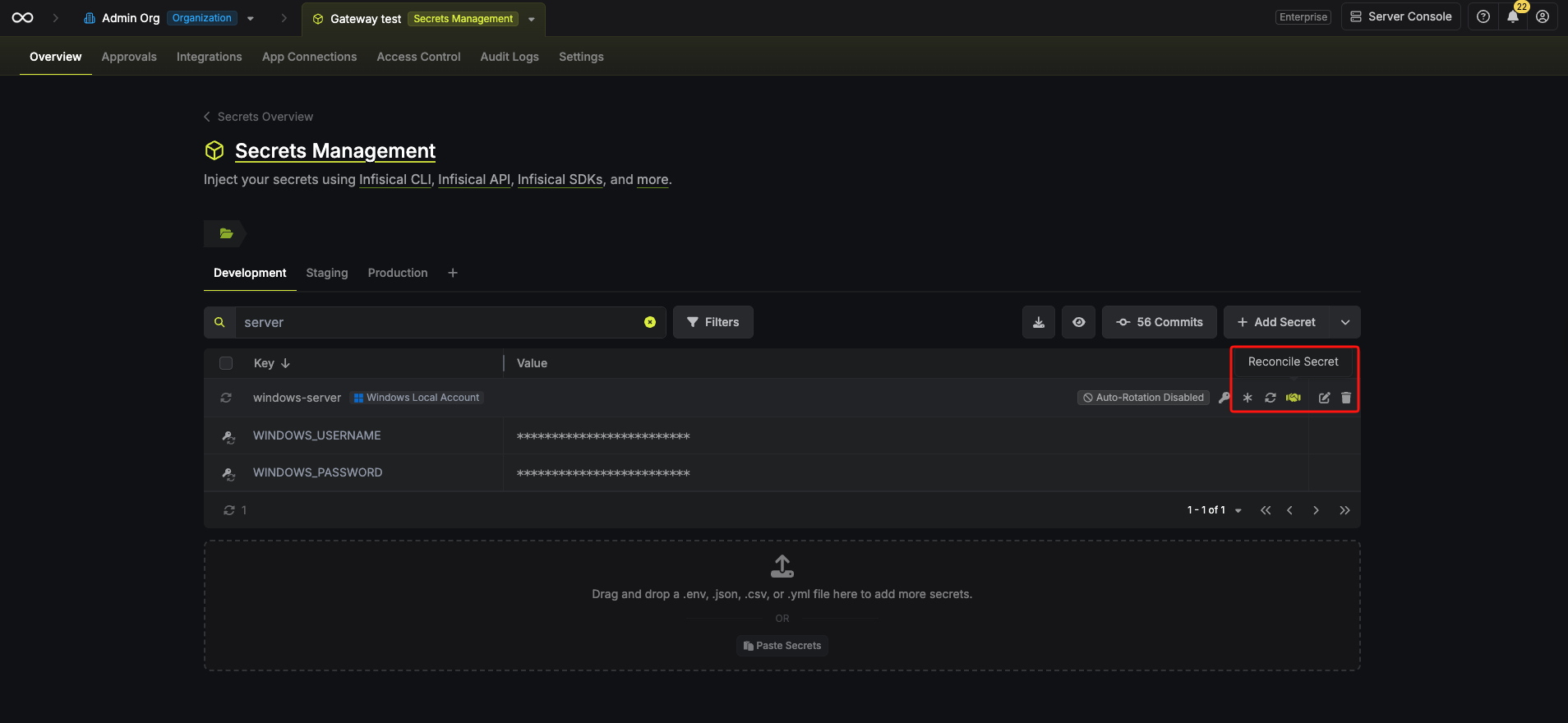
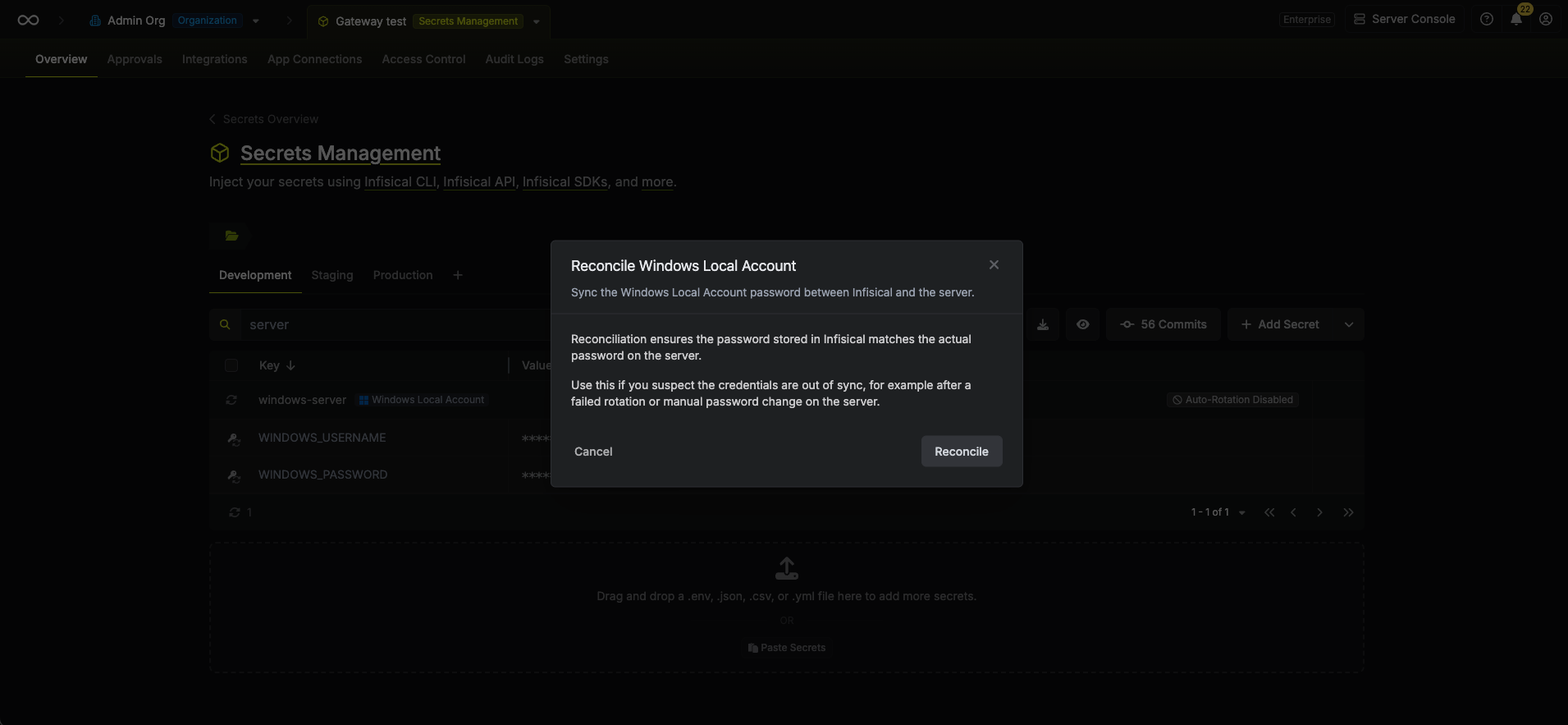
Reconcile Windows local account
If you suspect the credentials are out of sync (for example, after a manual password change on the server), you can regain access by using Reconcile. This will use the configured Windows App Connection’s administrator account to reset the target user’s password and sync it with Infisical.