

Diagram
The following sequence diagram illustrates the SPIFFE Auth workflow for authenticating with Infisical.Concept
At a high level, Infisical authenticates a workload by verifying its JWT-SVID and checking that it meets specific requirements (e.g. its SPIFFE ID matches an allowed pattern, it belongs to the expected trust domain) at the/api/v1/auth/spiffe-auth/login endpoint. If successful, Infisical returns a short-lived access token that can be used to make authenticated requests to the Infisical API.
SPIFFE Auth currently supports JWT-SVID verification only. X.509-SVID (certificate-based) authentication isn’t supported at this time. If you require X.509-SVID support, please open a feature request.
- The workload requests a JWT-SVID from its local SPIRE Agent (via the SPIFFE Workload API).
- The JWT-SVID is sent to Infisical at the
/api/v1/auth/spiffe-auth/loginendpoint. - Infisical verifies the JWT-SVID signature using either:
- Pre-configured JWKS (Static trust bundle profile)
- JWKS fetched from a SPIRE bundle endpoint (HTTPS Web Bundle profile)
- Infisical validates that the token’s trust domain matches the configured trust domain, the SPIFFE ID (
subclaim) matches at least one of the allowed SPIFFE ID patterns, and the audience (audclaim) is in the allowed audiences list. - If all checks pass, Infisical returns a short-lived access token that the workload can use to make authenticated requests to the Infisical API.
For the HTTPS Web Bundle profile, Infisical needs network-level access to the configured SPIRE bundle endpoint. The trust bundle is fetched on-demand at login time and cached. If the cache is older than the configured refresh interval (default: 1 hour), Infisical fetches a fresh bundle before verifying the JWT-SVID. You can also force an immediate refresh via the API without waiting for the cache to expire.
Guide
In the following steps, we explore how to create and use identities to access the Infisical API using the SPIFFE authentication method.1
Creating an identity
To create an identity, go to Access Control > Machine Identities in your organization and select Create. When creating an identity, you specify an organization-level role for it to assume; you can configure roles in Access Control > Roles.
 Input some details for your new identity:
 Since the identity has been configured with Universal Auth by default, you should reconfigure it to use SPIFFE Auth instead. To do this, select the three dot menu next to Universal Auth, then select Remove Auth Method.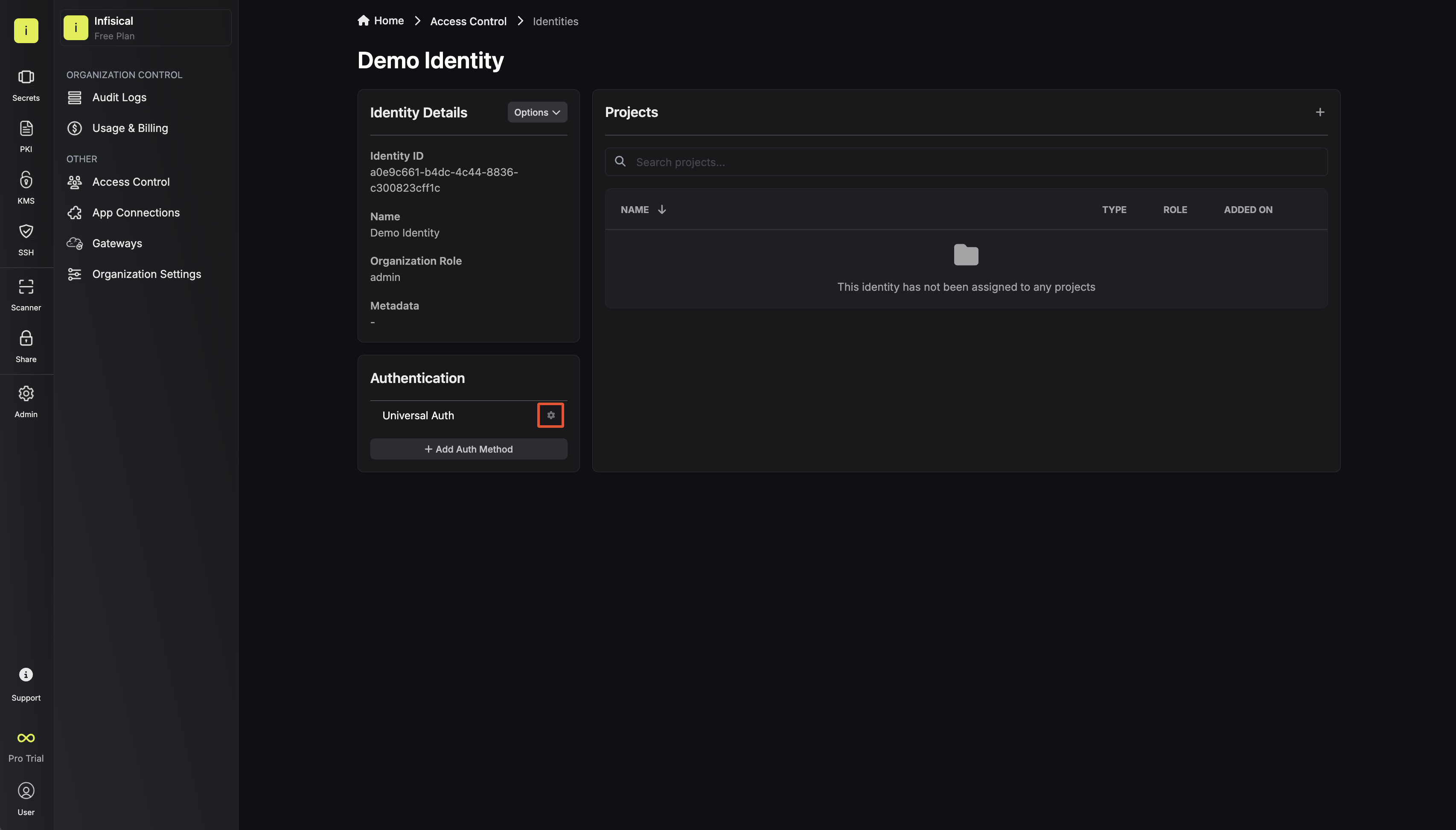
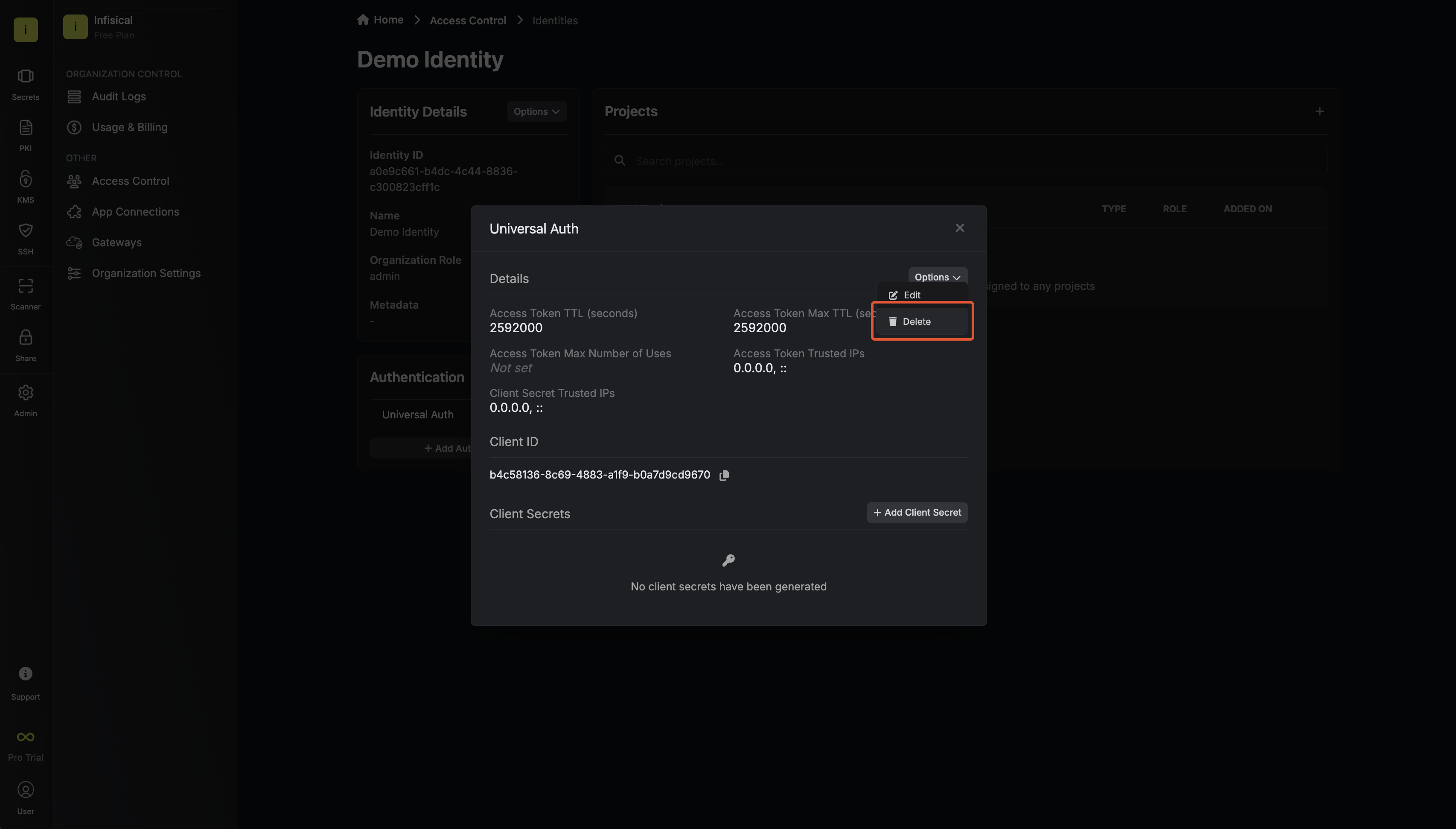 Now create a new SPIFFE Auth Method.Here’s some information about each field:Trust Bundle Profile:Common fields for both configurations:
When creating an identity, you specify an organization-level role for it to assume; you can configure roles in Access Control > Roles.Input some details for your new identity:- Name (required): A friendly name for the identity.
- Role (required): A role from the Organization Roles tab for the identity to assume. The organization role assigned will determine what organization-level resources this identity can have access to.
Since the identity has been configured with Universal Auth by default, you should reconfigure it to use SPIFFE Auth instead. To do this, select the three dot menu next to Universal Auth, then select Remove Auth Method.Now create a new SPIFFE Auth Method.Here’s some information about each field:Trust Bundle Profile:- Static
- HTTPS Web Bundle
Best for air-gapped environments or environments where the trust bundle doesn’t change frequently. You paste your SPIRE server’s trust bundle directly.
- CA Bundle JWKS (required): The output of
spire-server bundle show -format spiffe, which holds the public keys Infisical uses to verify JWT-SVID signatures
spiffe_sequence field.-
Trust Domain (required): The SPIFFE trust domain that authenticating workloads must belong to (e.g.
example.orgorprod.example.com). -
Allowed SPIFFE IDs (required): A comma-separated list of SPIFFE ID patterns that are permitted to authenticate. Supports glob patterns. Note that
*matches within a single path segment (does not cross/), while**matches across multiple segments. -
Allowed Audiences (required): A comma-separated list of allowed audience values. The JWT-SVID’s
audclaim must contain at least one of these values. -
Access Token TTL (default is
2592000equivalent to 30 days): The lifetime for an access token in seconds. This value will be referenced at renewal time. -
Access Token Max TTL (default is
2592000equivalent to 30 days): The maximum lifetime for an access token in seconds. This value will be referenced at renewal time. -
Access Token Max Number of Uses (default is
0): The maximum number of times that an access token can be used; a value of0implies an infinite number of uses. -
Access Token Trusted IPs: The IPs or CIDR ranges that access tokens can be used from. By default, each token is given the
0.0.0.0/0, allowing usage from any network address.
2
Adding an identity to a project
To enable the identity to access project-level resources such as secrets within a specific project, you should add it to that project.To do this, open the project you want to add the identity to, go to Access Control > Machine Identities, and select Add Machine Identity to Project.Next, select the identity you want to add to the project and the project-level role you want to allow it to assume. The project role assigned will determine what project-level resources this identity can have access to.

3
Accessing the Infisical API with the identity
To access the Infisical API as the identity, you need to obtain a JWT-SVID from your SPIRE Agent that meets the validation requirements configured in the previous step.The JWT-SVID must:
- Be signed by a key present in the configured JWKS (static or fetched via HTTPS web bundle).
- Have a
subclaim containing a valid SPIFFE ID that matches one of the allowed SPIFFE ID patterns. - Have an
audclaim containing at least one of the allowed audiences. - Belong to the configured trust domain.
/api/v1/auth/spiffe-auth/login endpoint.Sample code for obtaining a JWT-SVID and authenticating
Sample code for obtaining a JWT-SVID and authenticating
The following example uses Node.js, but you can use any language that supports the SPIFFE Workload API or can obtain a JWT-SVID from your SPIRE Agent.
Using go-spiffe to fetch and authenticate
Using go-spiffe to fetch and authenticate
If your workload uses the go-spiffe library, you can fetch a JWT-SVID directly from the Workload API.
Each identity access token has a time-to-live (TTL) which you can infer from the response of the login operation;
the default TTL is
2592000 seconds (30 days) which can be adjusted in the configuration.If an identity access token exceeds its max TTL or maximum number of uses, it can no longer authenticate with the Infisical API. In this case,
a new access token should be obtained by performing another login operation with a valid JWT-SVID.