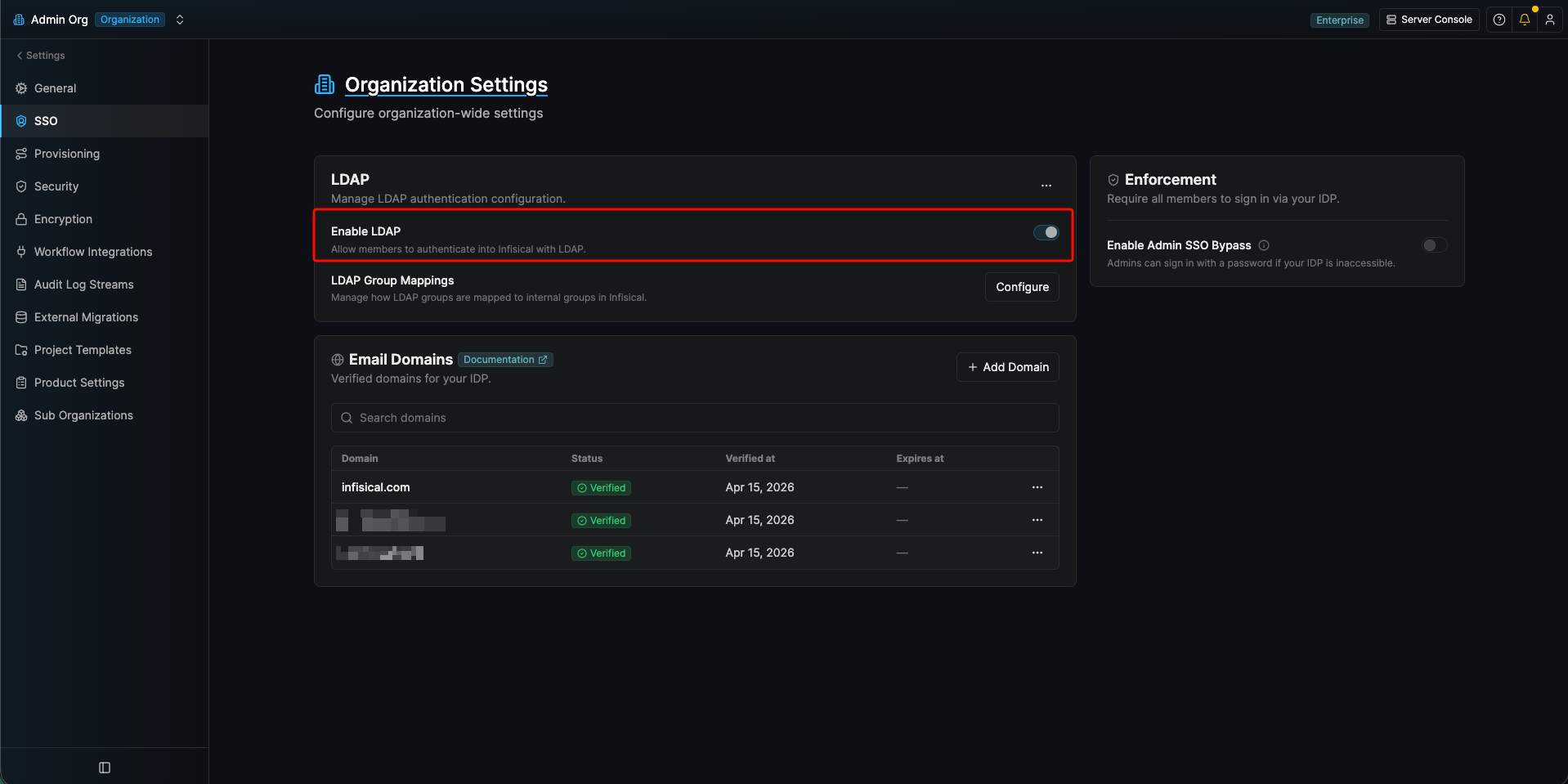
SSO authentication requires Email Domain Verification.
You must verify your organization’s email domain before users can log in via SSO.
LDAP is a paid feature. If you’re using Infisical Cloud, then it’s available
under the Enterprise Tier. If you’re self-hosting Infisical, then you
should contact [email protected] to purchase an enterprise license to use
it.
- You must have an email address to use LDAP, regardless of whether or not you use that email address to sign in.
- Google Workspace’s Secure LDAP service requires mutual TLS (mTLS): in addition to the standard bind DN and bind password, the client must present a TLS certificate and private key during the TLS handshake.
1
Prepare LDAP in Google Workspace
In the Google Admin console, head to Apps > LDAP and select Add Client.Give the client a name and an optional description.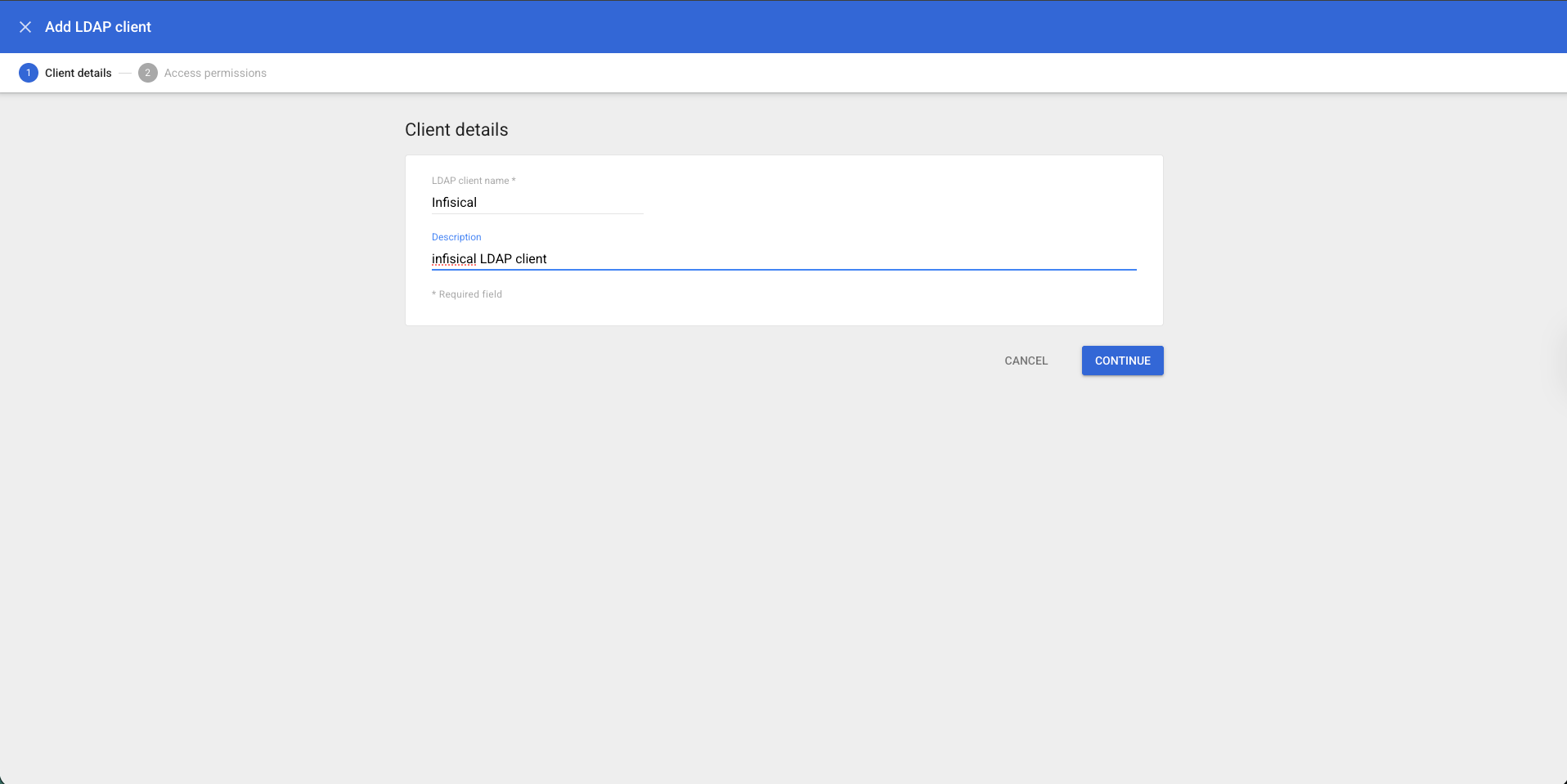 On the next screen, configure the access permissions for the users and groups that should be able to authenticate through this LDAP client. Save the client.
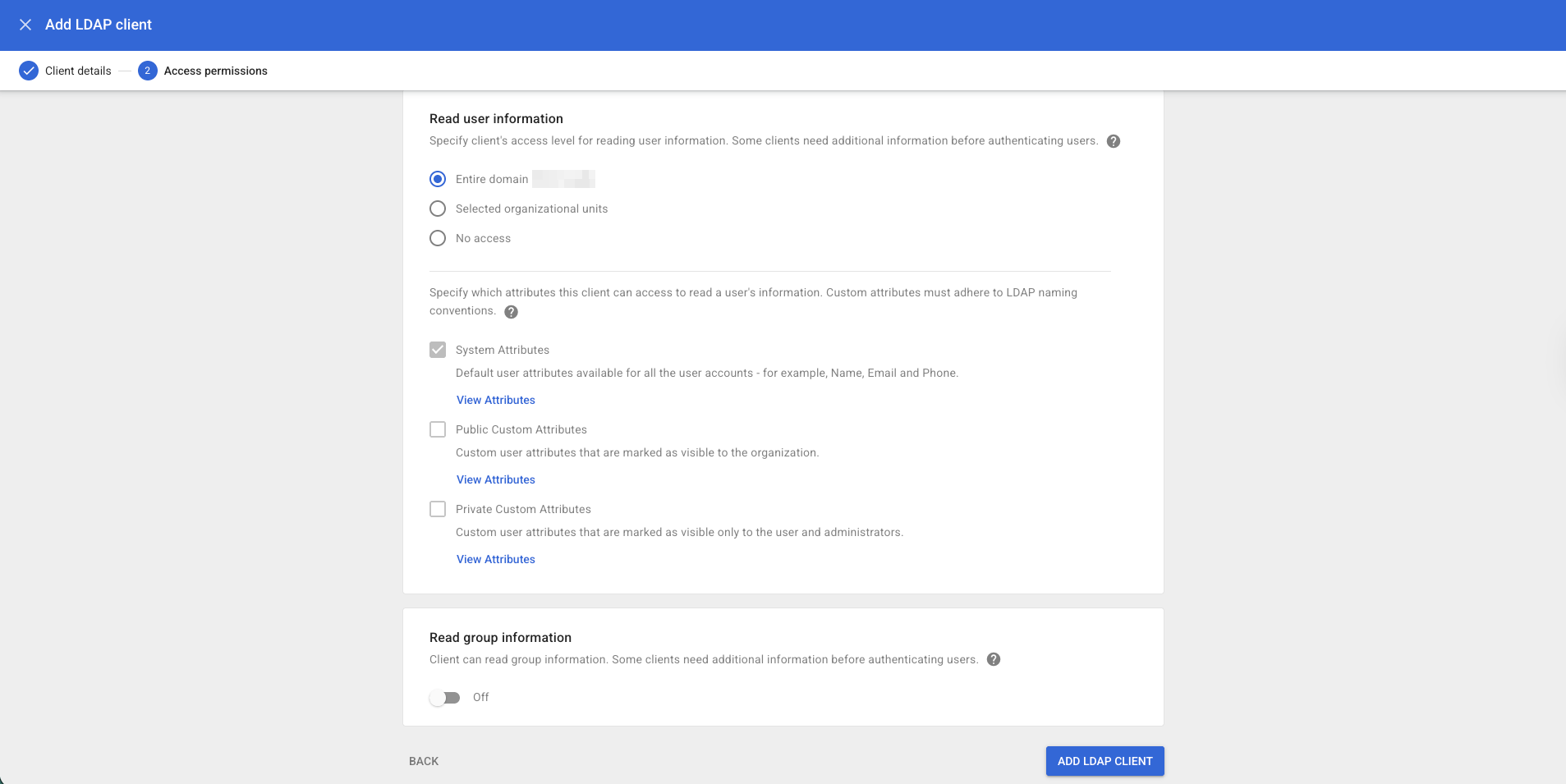 After the client is created, Google generates a certificate and private key. Download the
 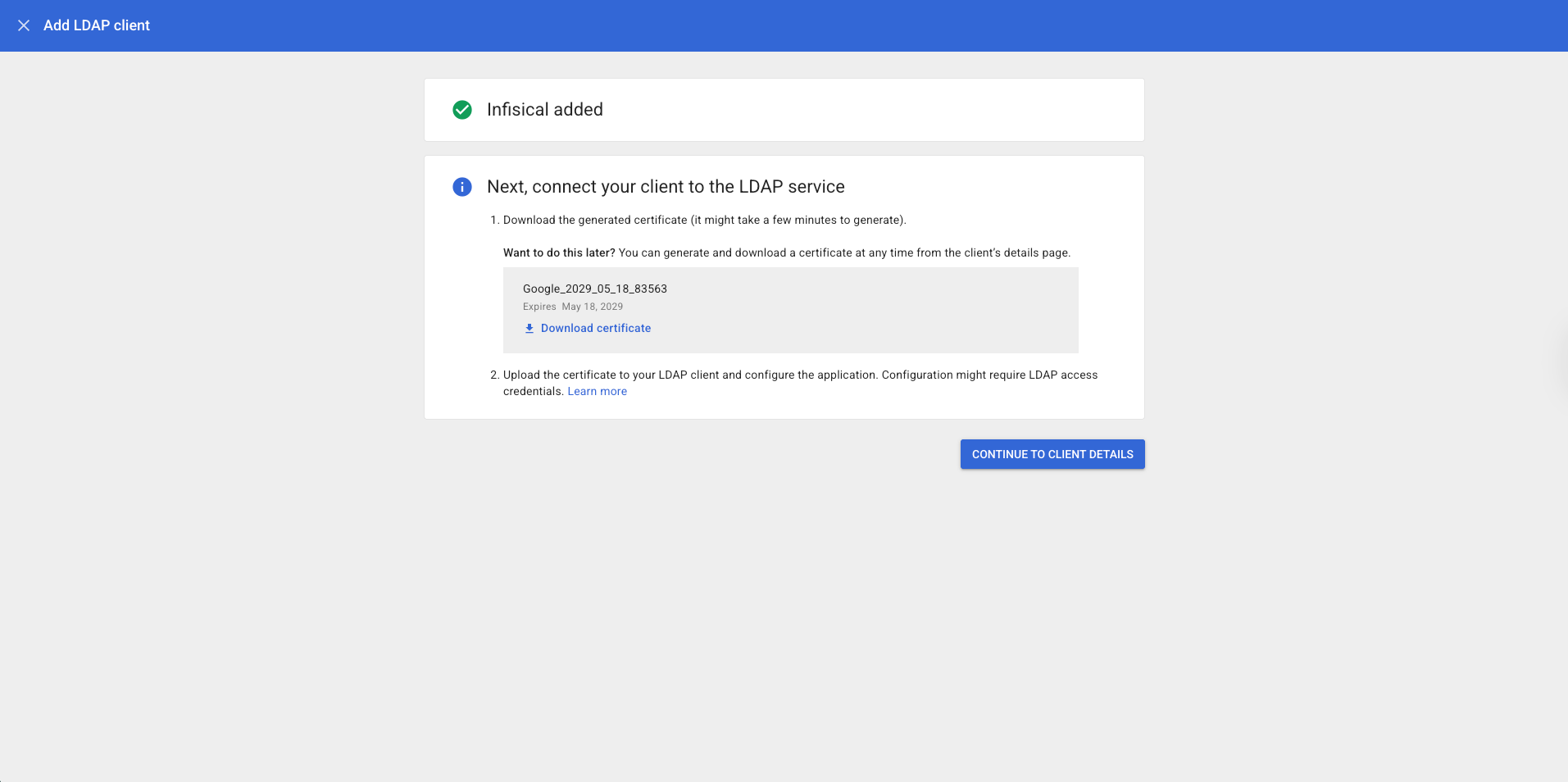 Then click Generate new credentials to create the access credentials (username and password) — these are the bind credentials Infisical will use after the TLS handshake completes.Finally, make sure the client’s Service status is set to ON so that connections are accepted.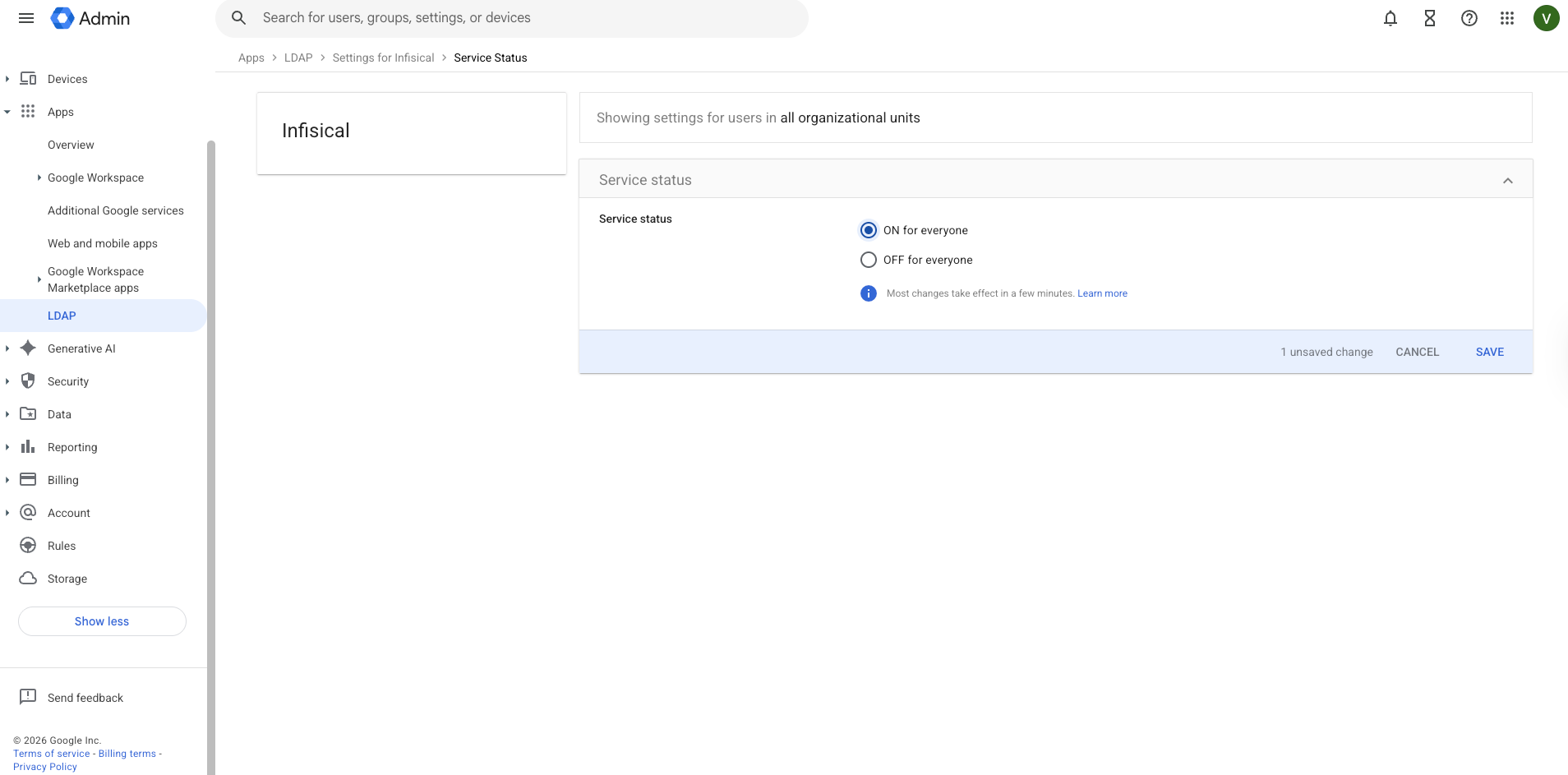
On the next screen, configure the access permissions for the users and groups that should be able to authenticate through this LDAP client. Save the client.After the client is created, Google generates a certificate and private key. Download the .crt and .key PEM files — you will paste their contents into Infisical.Then click Generate new credentials to create the access credentials (username and password) — these are the bind credentials Infisical will use after the TLS handshake completes.Finally, make sure the client’s Service status is set to ON so that connections are accepted.2
Prepare the LDAP configuration in Infisical
In Infisical, head to the Settings page and select the SSO tab. Select Add Provider and LDAP.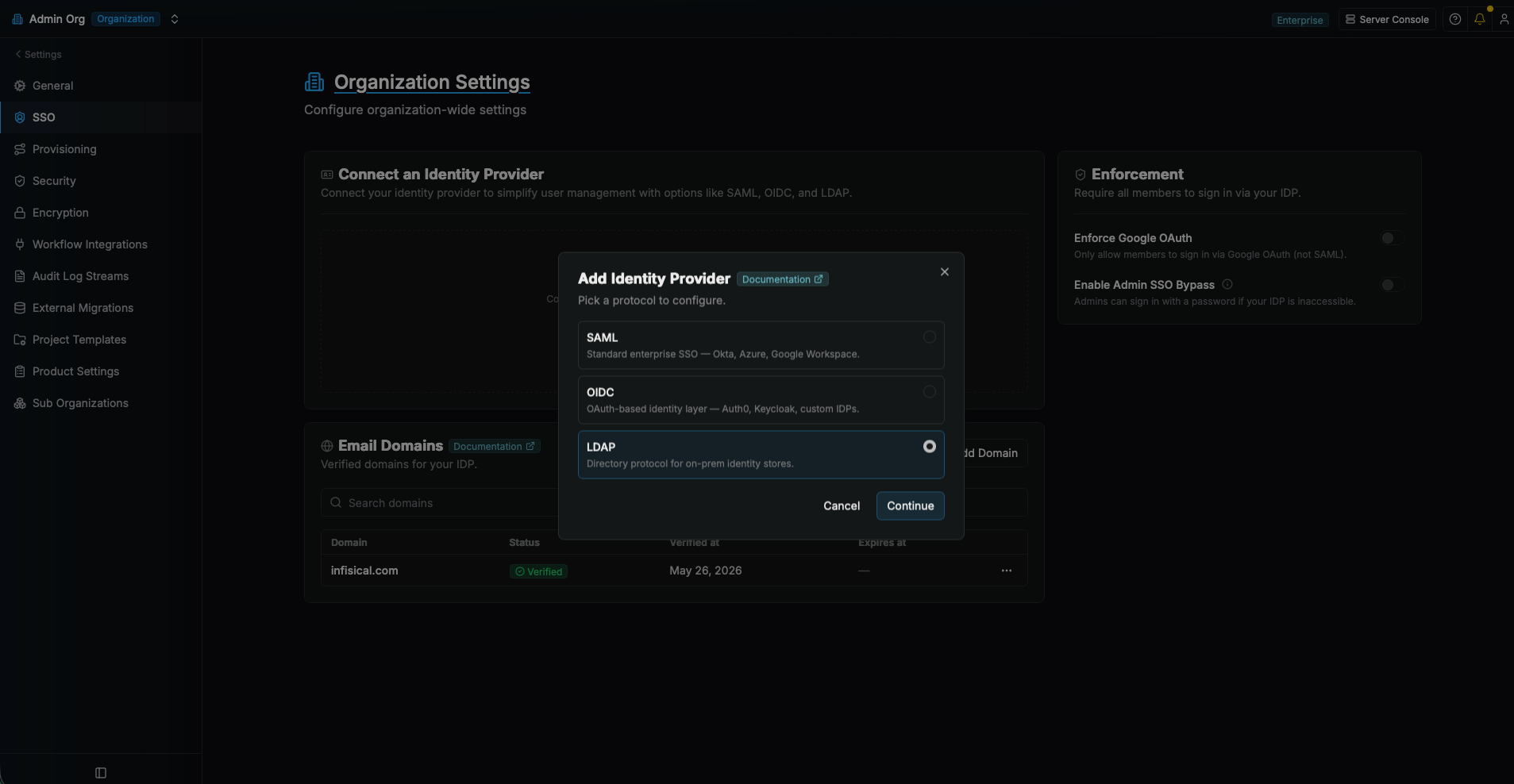 Next, input your Google Workspace LDAP server settings.Here’s some guidance for each field:
Next, input your Google Workspace LDAP server settings.Here’s some guidance for each field:- URL: The LDAP server to connect to (
ldaps://ldap.google.com:636). - Bind DN: The username from Google’s generated access credentials.
- Bind Pass: The password from Google’s generated access credentials.
- User Search Base / User DN: Base DN under which to perform user search (
dc=yourdomain,dc=com, using your verified Google Workspace domain). - Unique User Attribute: The attribute to use as the unique identifier of LDAP users such as
sAMAccountName,cn,uid,objectGUID… If left blank, defaults touidNumber. - User Search Filter (optional): Template used to construct the LDAP user search filter (
(uid={{username}})). - Group Search Base / Group DN (optional): LDAP search base to use for group membership search (
dc=yourdomain,dc=com). - Group Filter (optional): Template used when constructing the group membership query (
(&(objectClass=groupOfNames)(member=uid={{.Username}},ou=Users,dc=yourdomain,dc=com))). - CA Certificate (optional): Leave empty, Google’s LDAP server uses a publicly trusted certificate.
- Client Certificate (optional) : Paste the contents of the
.crtfile downloaded from Google. - Client Private Key (optional) : Paste the contents of the
.keyfile downloaded from Google.
3
Define mappings from LDAP groups to groups in Infisical
In order to sync LDAP groups to Infisical, head to the LDAP Group Mappings section to define mappings from LDAP groups to groups in Infisical.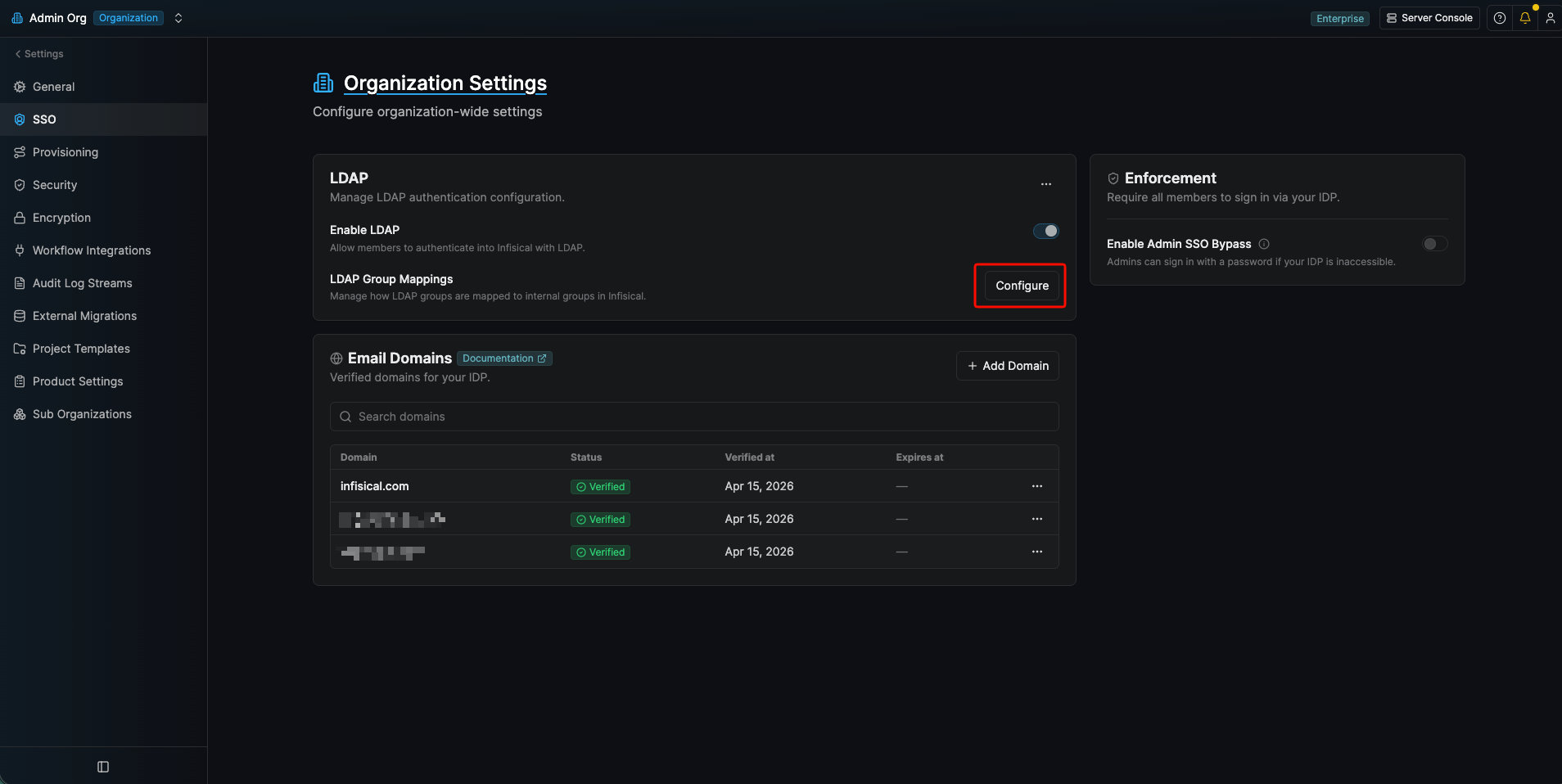 Group mappings ensure that users who log into Infisical via LDAP are added to or removed from the Infisical group(s) that corresponds to the LDAP group(s) they are a member of.
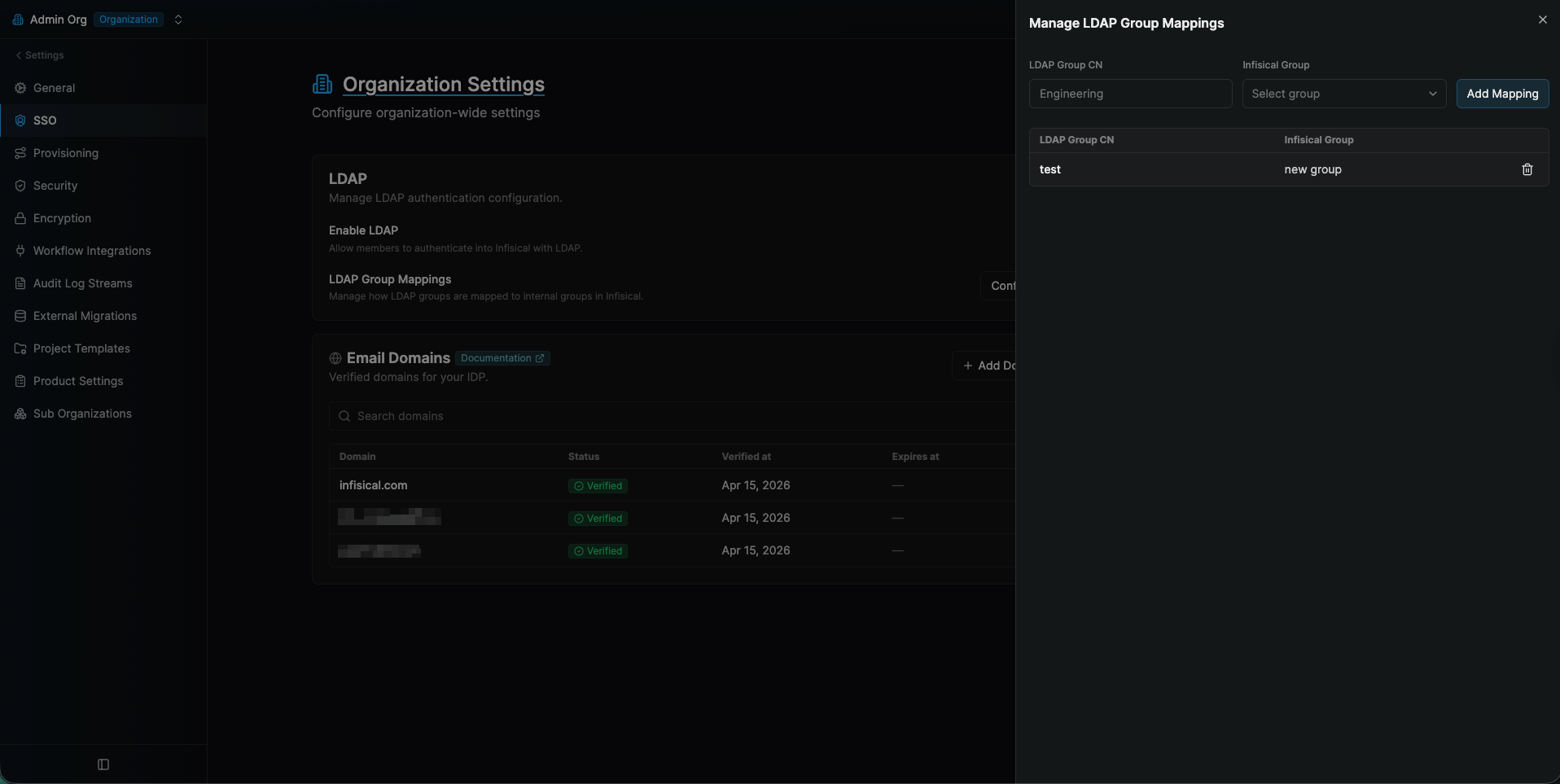 Each group mapping consists of two parts:
Group mappings ensure that users who log into Infisical via LDAP are added to or removed from the Infisical group(s) that corresponds to the LDAP group(s) they are a member of.Each group mapping consists of two parts:- LDAP Group CN: The common name of the LDAP group to map.
- Infisical Group: The Infisical group to map the LDAP group to.
Engineers to the Infisical group Engineers when the user sets up their account with Infisical.In this case, you would specify a mapping from the LDAP group with CN Engineers to the Infisical group Engineers.
Now when the user logs into Infisical via LDAP, Infisical will check the LDAP groups that the user is a part of whilst referencing the group mappings you created earlier. Since the user is a member of the LDAP group with CN Engineers, they will be added to the Infisical group Engineers.
In the future, if the user is no longer part of the LDAP group with CN Engineers, they will be removed from the Infisical group Engineers upon their next login.Prior to defining any group mappings, ensure that you’ve created the Infisical groups that you want to map the LDAP groups to.
You can read more about creating (user) groups in Infisical here.
4
Enable LDAP in Infisical
Enabling LDAP allows members in your organization to log into Infisical via LDAP.