

Email Domain Verification is a paid feature. If you’re using Infisical Cloud,
then it’s available under the Pro Tier. If you’re self-hosting Infisical,
then you should contact [email protected] to purchase an enterprise license
to use it.
Overview
Email Domain Verification allows organizations to prove ownership of their email domains (e.g.,company.com) through DNS verification. Once verified, the domain is exclusively linked to your organization, enabling:
- Secure SSO login — Users can log in via SAML, OIDC, or LDAP using just their work email. Infisical automatically routes them to the correct organization’s identity provider.
- SCIM provisioning — SCIM user provisioning requires a verified email domain to ensure only authorized organizations can manage users.
- Simplified login experience — Users enter their work email to login in via SSO.
How it works
Email domain verification uses DNS TXT records to prove ownership. The flow is:- Add a domain — Enter the domain you want to verify (e.g.,
company.com). - Get a verification code — Infisical generates a unique verification code and DNS record name.
- Add a DNS TXT record — Add the verification record to your domain’s DNS configuration.
- Verify — Infisical checks the DNS TXT record and marks the domain as verified.
DNS record format
Some DNS providers automatically append your domain to the record name. In
that case, enter only
_infisical-verification as the host/name.Setting up email domain verification
1
Navigate to Email Domain Settings
Go to SSO & Provisioning → SSO tab → Email Domains section.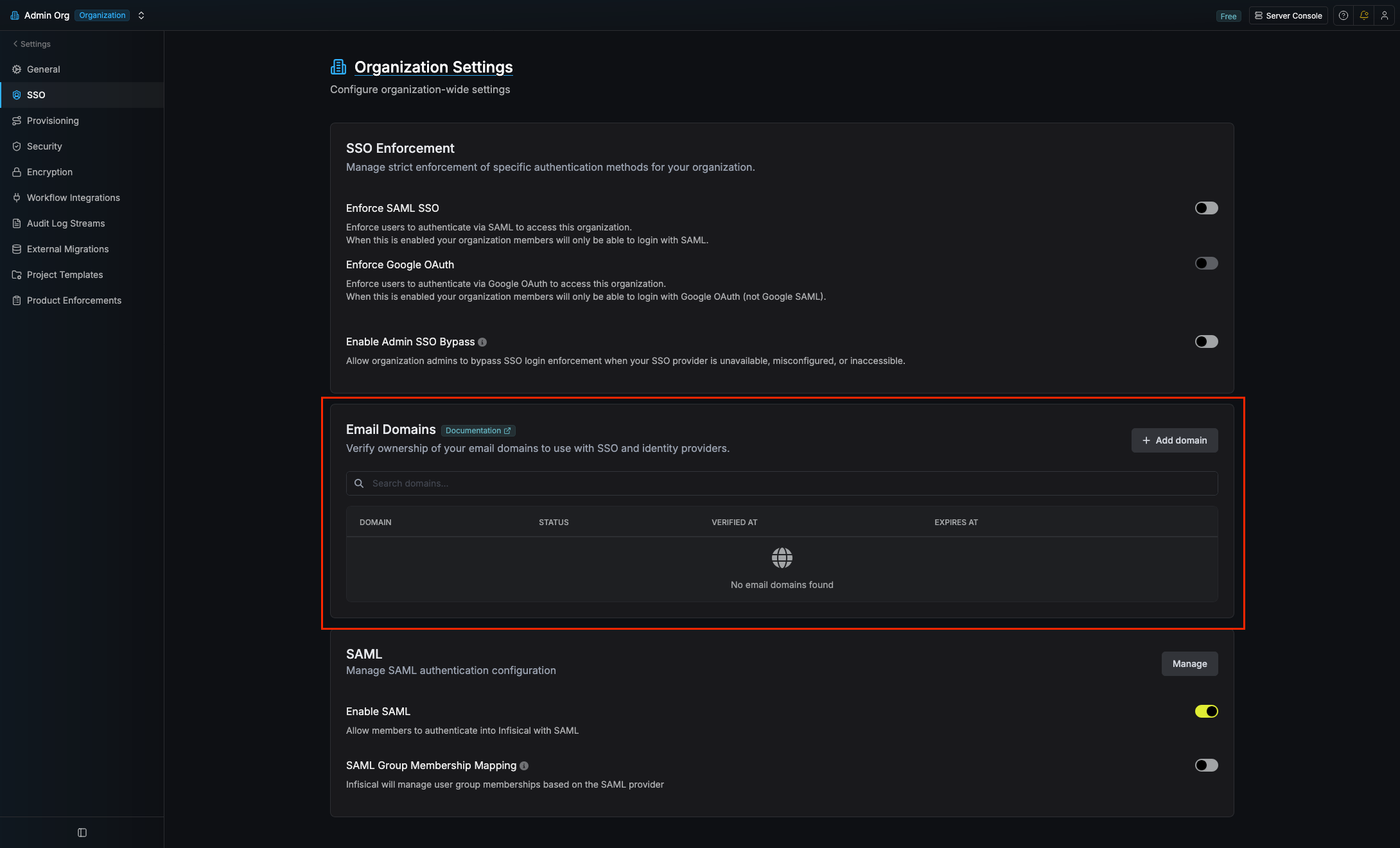
2
Add an Email Domain
Select Add Domain and enter the domain you want to verify (e.g., 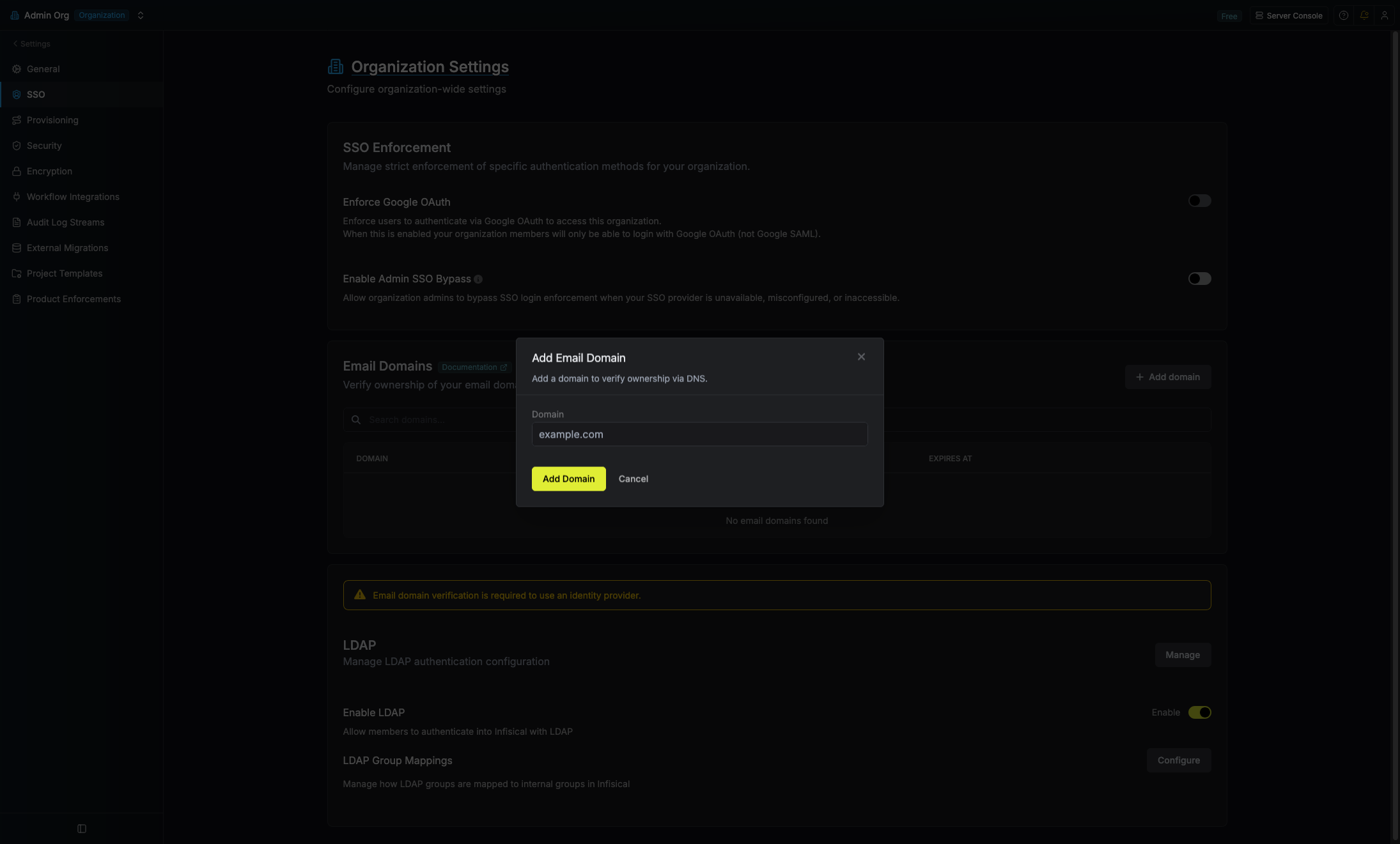 Select Add Domain to create the verification request.
company.com).Select Add Domain to create the verification request.3
Copy DNS Verification Details
After adding the domain, select Verify Domain on the pending domain row.A modal will show you the DNS TXT record details: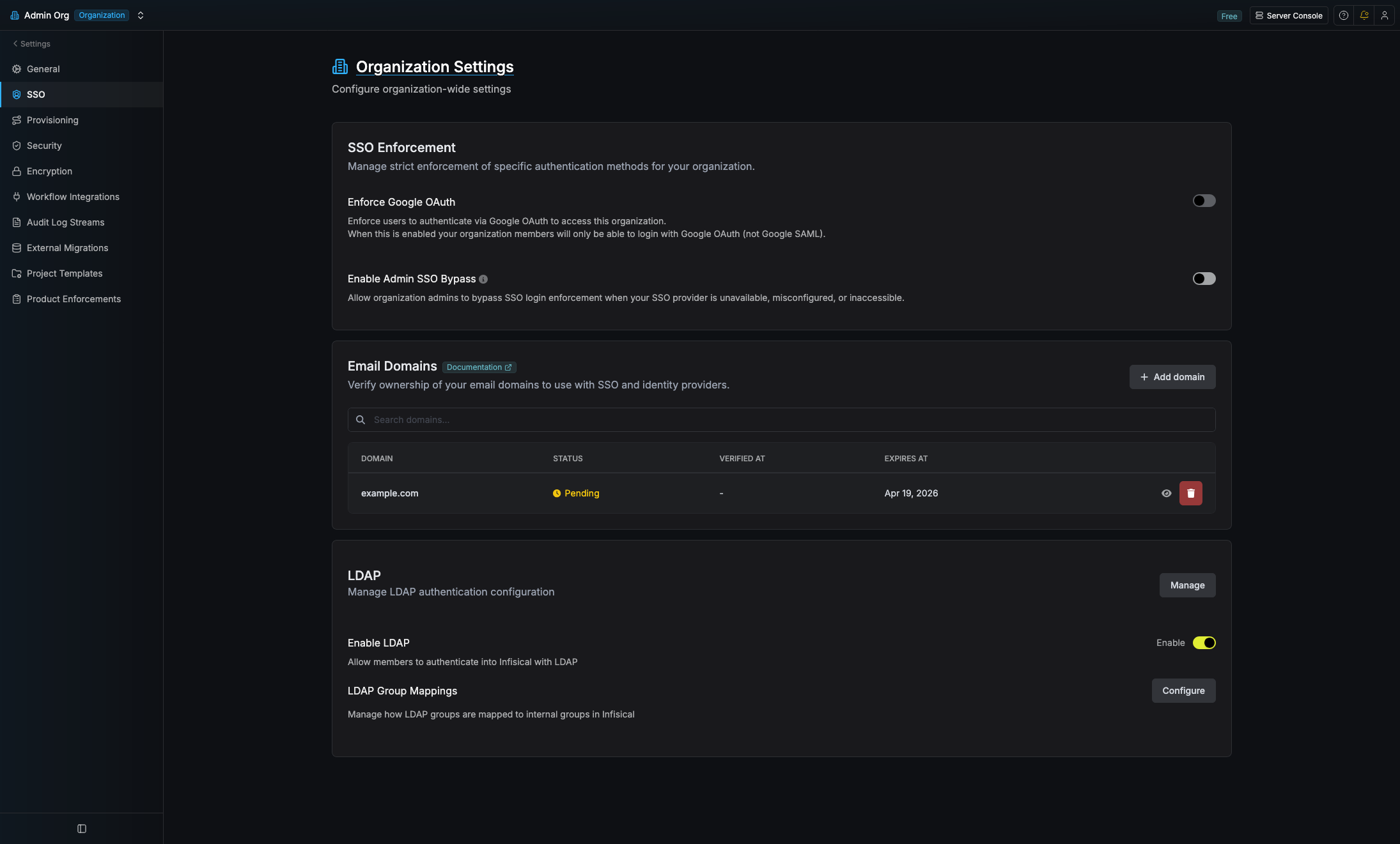
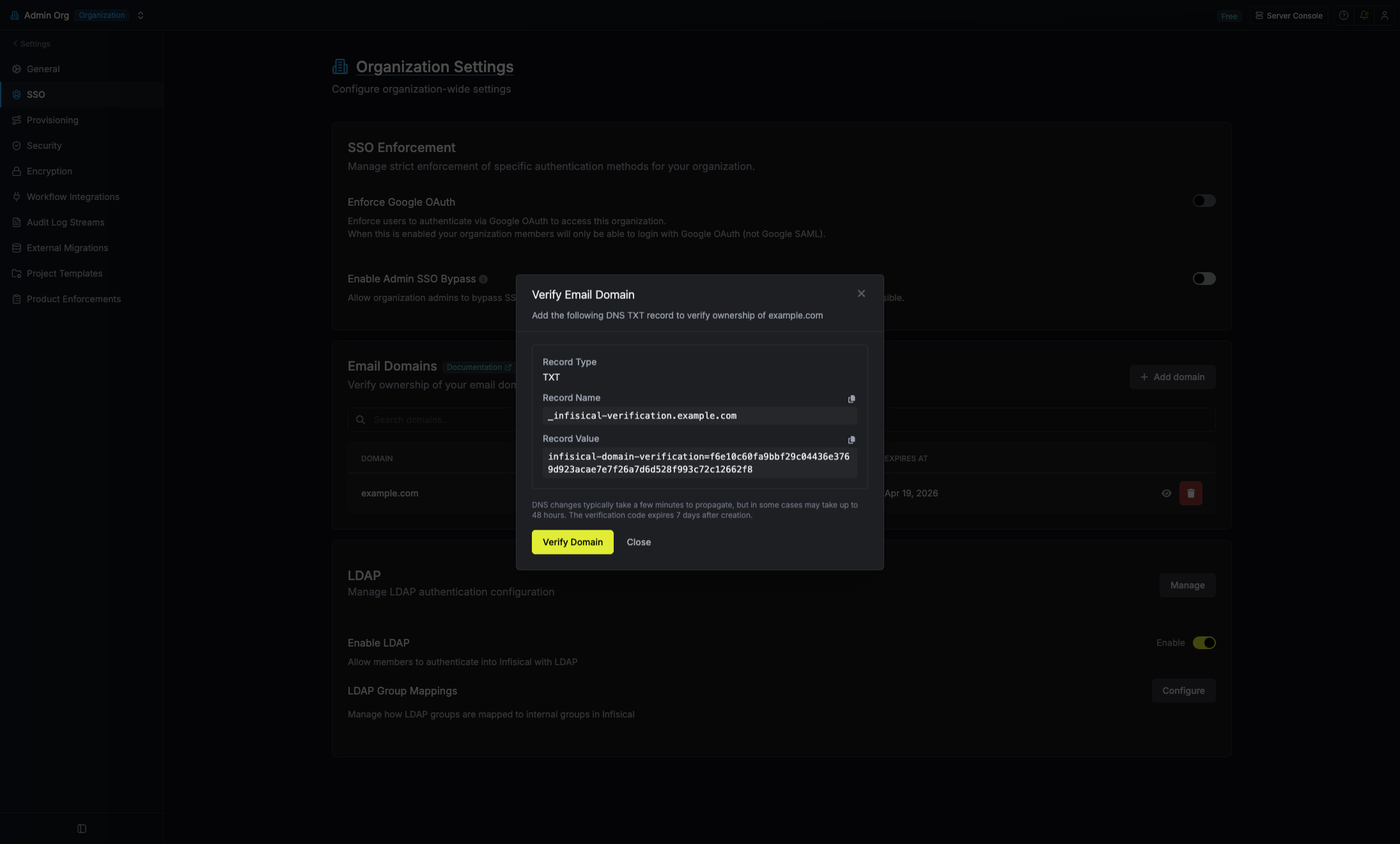
- Record Name — The DNS hostname to add the TXT record to.
- Record Value — The verification string to use as the TXT record value.
4
Add the DNS TXT Record
Go to your domain’s DNS management panel (e.g., Cloudflare, Route 53, GoDaddy) and add a new TXT record with the copied values.
DNS changes can take up to 48 hours to propagate, though most providers update within minutes.
5
Verify the Domain
Return to the Infisical Email Domains section and select Verify Domain on the pending domain row.In the modal that opens, select Verify Domain. Infisical will perform a DNS TXT lookup to confirm the record exists and matches.Once verified, the domain status changes to Verified and it’s exclusively linked to your organization.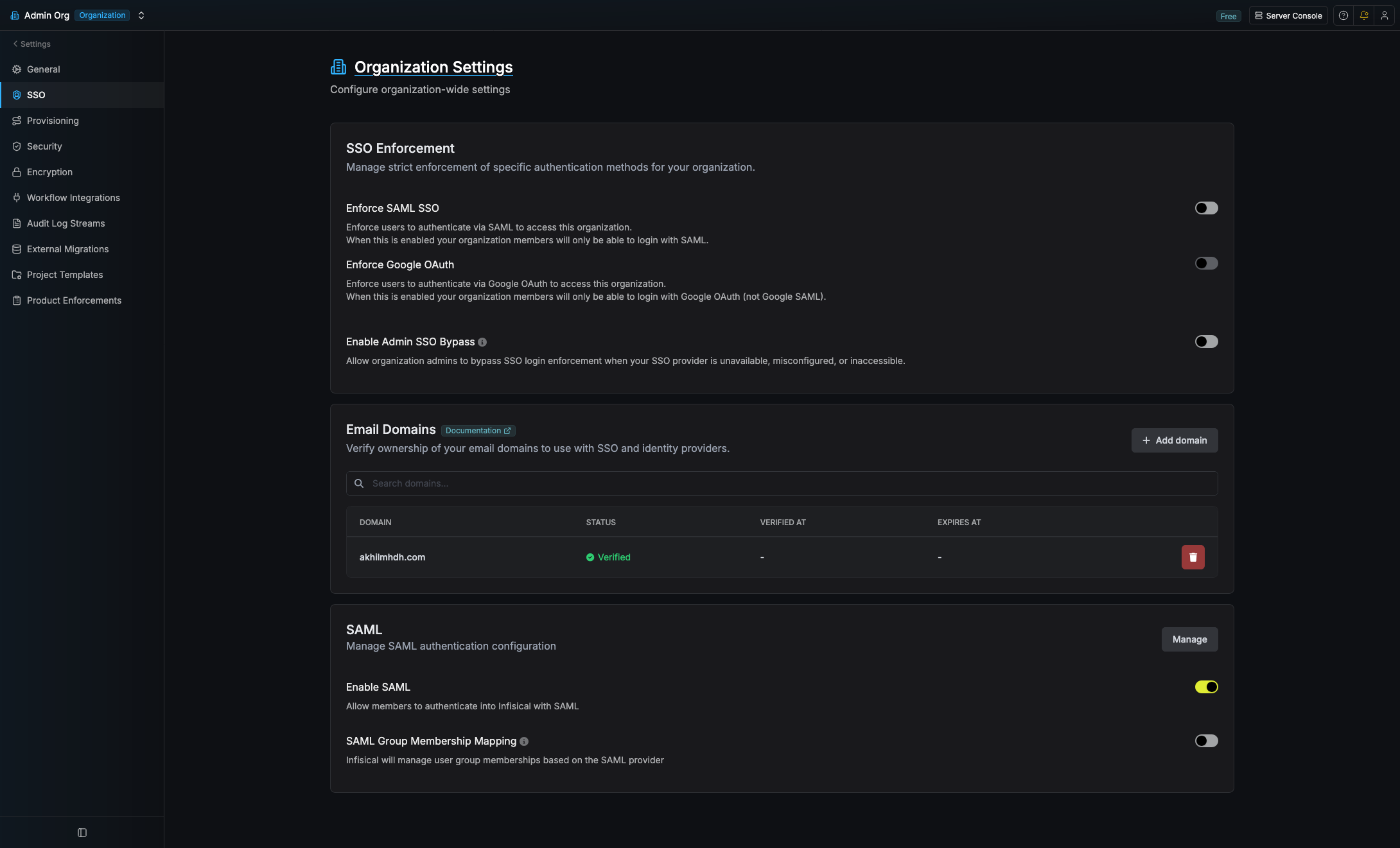
SSO login with email domain
Once your domain is verified, users can log in via SSO by entering their work email instead of an organization slug.1
Go to the Login Page
Navigate to the Infisical login page and select SAML SSO or OIDC SSO.
2
Enter Work Email
Enter your full work email (e.g.,
[email protected]). Infisical extracts the domain and looks up the verified domain to find your organization’s SSO configuration.3
Authenticate via IdP
You’ll be redirected to your organization’s identity provider (Okta, Entra ID, Google Workspace, etc.) to complete authentication.
Domain hierarchy
Email domains are verified at the exact domain level:- Verifying
company.comcovers only[email protected]— not[email protected]. - Each subdomain must be verified separately if you want SSO to work for subdomain email addresses.
- You can verify both a parent domain and its subdomains independently.
Platform-level uniqueness
Each domain can only be verified by one organization across the entire Infisical instance:- If Organization A verifies
company.com, Organization B can’t verify or claim the same domain. - This prevents cross-organization user provisioning attacks where a malicious org could claim users by email domain.
SCIM integration
When SCIM provisioning is enabled, email domain verification is required:- SCIM
POST /Usersrequests are validated against the organization’s verified domains. - If the user’s email domain isn’t verified by the SCIM token’s organization, the request is rejected.
- SCIM
PATCHandPUToperations that change a user’s email are blocked — email is treated as an immutable identifier.
FAQ
What happens if DNS verification fails?
What happens if DNS verification fails?
If the DNS TXT record isn’t found or doesn’t match, verification will fail with an error message.
Common causes include DNS propagation delays (wait and retry), incorrect record name (some providers
auto-append the domain), or extra whitespace/quotes in the record value.
Can I verify a domain that's already verified by another organization?
Can I verify a domain that's already verified by another organization?
No. Each domain is platform-unique. If another organization has already
verified a domain, you’ll receive an error when trying to add it. Contact your
Infisical administrator to resolve domain ownership conflicts.
What happens if I delete a verified domain?
What happens if I delete a verified domain?
Deleting a verified domain removes the domain claim from your organization.
SSO login via that domain will stop working, and SCIM provisioning for users
with that domain will be blocked. Another organization could then verify and
claim the domain.
Do I need to verify domains for email/password login?
Do I need to verify domains for email/password login?
No. Email domain verification is required only for SSO (SAML, OIDC, LDAP) and
SCIM provisioning flows.Note, however, that if your organization enforces SSO,
email & password signup is blocked for your verified domain(s) — new password
accounts can no longer be created for addresses on those domains.
Does verifying a parent domain cover all subdomains?
Does verifying a parent domain cover all subdomains?
No. Each subdomain must be verified independently. Verifying
company.com
doesn’t automatically cover app.company.com or dev.company.com.