

Prerequisites
- An AWS account with permissions to create VPCs, ECS clusters, RDS, ElastiCache, and ALB resources
- Basic knowledge of AWS networking (VPC, subnets, security groups) and ECS concepts
- AWS CLI installed and configured (optional, for CLI examples)
- An Infisical Docker image tag from Docker Hub
System requirements
The following are minimum requirements for running Infisical on AWS ECS:
For production deployments with many users or secrets, increase these values accordingly.
Deployment steps
1
Set up network infrastructure (VPC, subnets, security groups)
Create an AWS Virtual Private Cloud (VPC) network for hosting Infisical:VPC and Subnets:Verify: After creating the VPC, confirm you have:
- Create a VPC spanning at least two Availability Zones
- In each AZ, create one public subnet (for the ALB) and one private subnet (for ECS tasks, RDS, and Redis)
- Configure route tables: public subnets route to an Internet Gateway, private subnets route to a NAT Gateway
- Deploy a NAT Gateway in a public subnet to allow outbound internet access from private subnets
- This is required for pulling container images and sending emails
For additional security, consider placing CloudFront in front of the ALB, using AWS WAF for web application firewall protection, or restricting the ALB security group to specific IP ranges if your users access Infisical from known networks.
- At least 2 public subnets and 2 private subnets across different AZs
- A NAT Gateway with an Elastic IP
- Security groups with the rules described above
2
Provision the database (PostgreSQL) and cache (Redis)
Set up the persistence layers for Infisical:Amazon RDS (PostgreSQL):Amazon ElastiCache (Redis):Verify: Wait for both services to become available:Note the connection endpoints:
- Create a PostgreSQL 14+ database instance in the private subnets
- Enable Multi-AZ deployment for high availability
- Disable public accessibility
- Enable automated backups with at least 7-day retention
- Use the RDS security group created earlier
- Create a Redis replication group in the private subnets
- Enable Multi-AZ with automatic failover
- Enable encryption in-transit and at-rest
- Use the Redis security group created earlier
- Database URI:
postgresql://infisical:<password>@<rds-endpoint>:5432/infisical - Redis URI:
redis://<elasticache-endpoint>:6379
3
Securely store Infisical secrets and configuration
Generate and store the required secrets using AWS Systems Manager Parameter Store or Secrets Manager:Generate secrets:Verify: Confirm secrets are stored:
- Parameter Store (SSM)
- Secrets Manager
4
Set up IAM roles for ECS
Create IAM roles with the necessary permissions for ECS tasks:Task Execution Role (for ECS agent operations):Create a file named Create the role and attach policies:Task Role (for application access to AWS services):Create a file named Create the task role:Enable ECS Exec (for container debugging):Add the following to the task role policy to enable Verify: Confirm roles are created:
ecs-task-execution-trust-policy.json:infisical-task-policy.json:For production environments, scope down the KMS
Resource to specific key ARNs used by SSM Parameter Store in your account instead of using "*". You can find your KMS key ARN in the AWS KMS console or by running aws kms list-keys.aws ecs execute-command:5
Create the ECS cluster and task definition
Create ECS Cluster:Create Task Definition:Create a file named Register the task definition:Verify: Confirm task definition is registered:
infisical-task-definition.json:6
Create the Application Load Balancer
Create ALB:Create Target Group:Create HTTP Listener:Verify: Check ALB is active:Note the ALB DNS name for accessing Infisical:
7
Deploy the ECS service
Create the ECS service with the ALB integration:Verify deployment:Once tasks are running and healthy, access Infisical via the ALB DNS name:
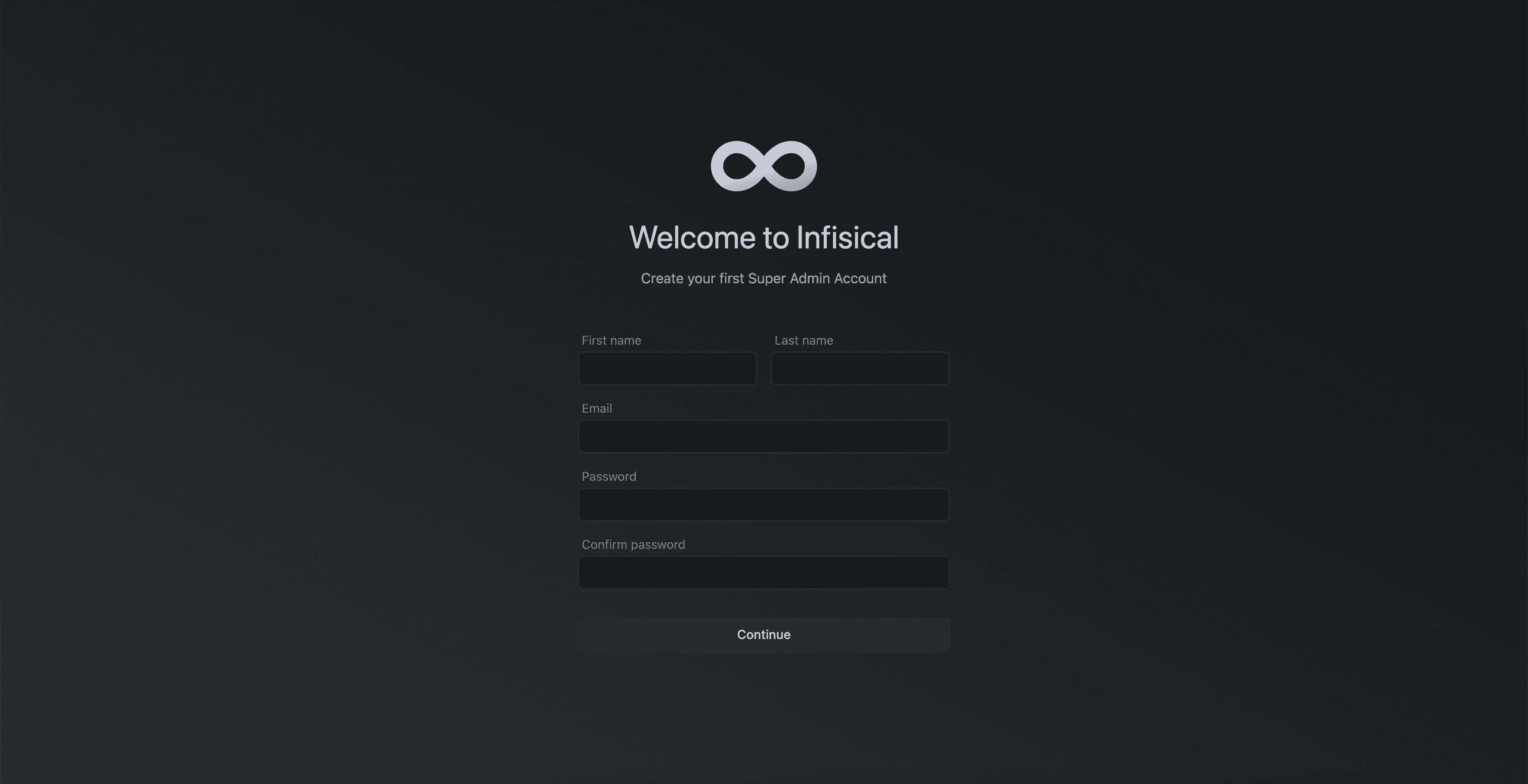
http://<alb-dns-name> to access the Infisical web interface and create your admin account.
Additional configuration
Custom Domain with Route 53 and HTTPS
Custom Domain with Route 53 and HTTPS
Set up a custom domain with SSL/TLS using AWS Certificate Manager and Route 53:1. Request an SSL Certificate:2. Validate the certificate by adding the CNAME record to your DNS (Route 53 or external DNS).3. Create HTTPS Listener:4. Redirect HTTP to HTTPS:5. Create Route 53 Record:6. Update SITE_URL in your ECS task definition to use
https://infisical.example.com.SMTP/Email Configuration (AWS SES)
SMTP/Email Configuration (AWS SES)
Configure AWS SES for sending emails (invitations, password resets, etc.):1. Verify your domain in SES:2. Create SMTP credentials:4. Request production access if you’re in the SES sandbox (limited to verified emails only).
- Go to AWS SES Console > SMTP Settings > Create SMTP Credentials
- Note the SMTP username and password
VPC Endpoints for ECR (Air-Gapped Environments)
VPC Endpoints for ECR (Air-Gapped Environments)
For environments without internet access, configure VPC endpoints to pull container images from ECR:Create VPC Endpoints:Push Infisical image to ECR:Update your task definition to use the ECR image URL.
Database Migrations
Database Migrations
Infisical automatically runs database migrations on startup. For manual migration handling:Check migration status:Run migrations manually:Rollback migrations:
Container Debugging (ECS Exec)
Container Debugging (ECS Exec)
Use ECS Exec to troubleshoot running containers:Prerequisites:Exec into a container:Common debugging commands:
- ECS service must have
--enable-execute-commandflag - Task role must have SSM permissions (included in IAM setup above)
- AWS CLI Session Manager plugin installed locally
Backup Strategy
Backup Strategy
Database Backups:Export to S3 (for cross-region DR):Encryption Key Backup:
Store your
- RDS automated backups are enabled by default (7-day retention recommended)
- Take manual snapshots before upgrades:
ENCRYPTION_KEY in multiple secure locations:- AWS Secrets Manager (already done)
- Offline secure storage (e.g., hardware security module, safe deposit box)
- Secondary AWS region
Upgrade Instructions
Upgrade Instructions
1. Back up the database:2. Update the task definition with the new image tag:3. Update the service:4. Monitor the deployment:5. Verify health:Rollback if needed:
Monitoring and Alerting
Monitoring and Alerting
CloudWatch Logs:CloudWatch Alarms:Enable Container Insights:
- Logs are automatically sent to
/ecs/infisicallog group - Set retention policy:
Auto Scaling
Auto Scaling
Configure ECS Service Auto Scaling to handle load changes:Register scalable target:Create scaling policy (target tracking):
Infrastructure as code
Terraform Example
Terraform Example
A basic Terraform configuration for deploying Infisical on AWS:
This is a simplified example to get you started. For a complete deployment, you’ll need to add ECS task definitions, services, ALB configuration, and target groups. Consider using community Terraform modules for ECS or adapting this example to your infrastructure standards.
CloudFormation Example
CloudFormation Example
A CloudFormation template for deploying Infisical on AWS:Deploy the stack:
Troubleshooting
ECS tasks fail to start
ECS tasks fail to start
Check task status and stopped reason:View CloudWatch logs:Common causes:
- Secrets not found: Verify SSM parameters exist and task role has permissions
- Image pull failed: Check ECR permissions or Docker Hub rate limits
- Insufficient resources: Increase task CPU/memory or check Fargate capacity
- Network issues: Verify NAT Gateway is working and security groups allow egress
Database connection errors
Database connection errors
Test connectivity from ECS task:Check security groups:
- RDS security group must allow inbound 5432 from ECS tasks security group
- ECS tasks security group must allow outbound to RDS
ALB health checks failing
ALB health checks failing
Check target health:Verify health check endpoint:Common causes:
- Health check path is wrong (should be
/api/status) - Security group doesn’t allow ALB to reach ECS tasks on port 8080
- Application is crashing on startup (check logs)
- Health check timeout is too short (increase to 10 seconds)
Cannot access Infisical in browser
Cannot access Infisical in browser
Check ALB is accessible:Verify DNS resolution:Check ALB security group:
- Must allow inbound 80/443 from 0.0.0.0/0
- Must match the URL you’re accessing (including protocol)
Emails not sending
Emails not sending
Check SES sending status:Verify SMTP credentials:Check application logs for email errors:
- Ensure SMTP username/password are correct
- Check if you’re still in SES sandbox (can only send to verified emails)
Performance issues
Performance issues
Check ECS task metrics:Check RDS metrics:Solutions:
- Scale ECS tasks horizontally (increase desired count)
- Scale RDS vertically (larger instance class)
- Enable RDS Performance Insights for query analysis
- Tune the per-task connection pool with
DB_POOL_MAX. Connection pools are per task, soDatabaseConnectionsscales with your task count and rolling deploys briefly double it. LoweringDB_POOL_MAXis usually the cheaper fix. - Offload reads to replicas with
DB_READ_REPLICAS - Consider a connection pooler (RDS Proxy or PgBouncer) only once task count alone pushes you near
max_connections
ECS Exec not working
ECS Exec not working
Verify prerequisites:Check managed agent status:Common fixes:
- Ensure Session Manager plugin is installed locally
- Verify VPC has route to SSM endpoints (via NAT or VPC endpoint)
- Redeploy service after enabling execute-command