Documentation Index
Fetch the complete documentation index at: https://infisical.com/docs/llms.txt
Use this file to discover all available pages before exploring further.
Concept
Infisical allows you to configure alerts for key certificate lifecycle events, keeping your team informed when certificates are issued, renewed, revoked, or approaching expiration. Alerts are configured per project and can be delivered through multiple notification channels.Supported Alert Types
| Alert Type | Trigger | Description |
|---|---|---|
| Certificate Expiration | Scheduled | Notifies when certificates are approaching their expiration date, based on a configurable time window (e.g., 30 days before expiry). |
| Certificate Issuance | Real time | Notifies when a new certificate is issued through a certificate profile (via API, CSR signing, or EST/ACME enrollment). |
| Certificate Renewal | Real time | Notifies when an existing certificate is renewed, either manually or through auto renewal. |
| Certificate Revocation | Real time | Notifies when a certificate is revoked. |
Guide to Creating an Alert
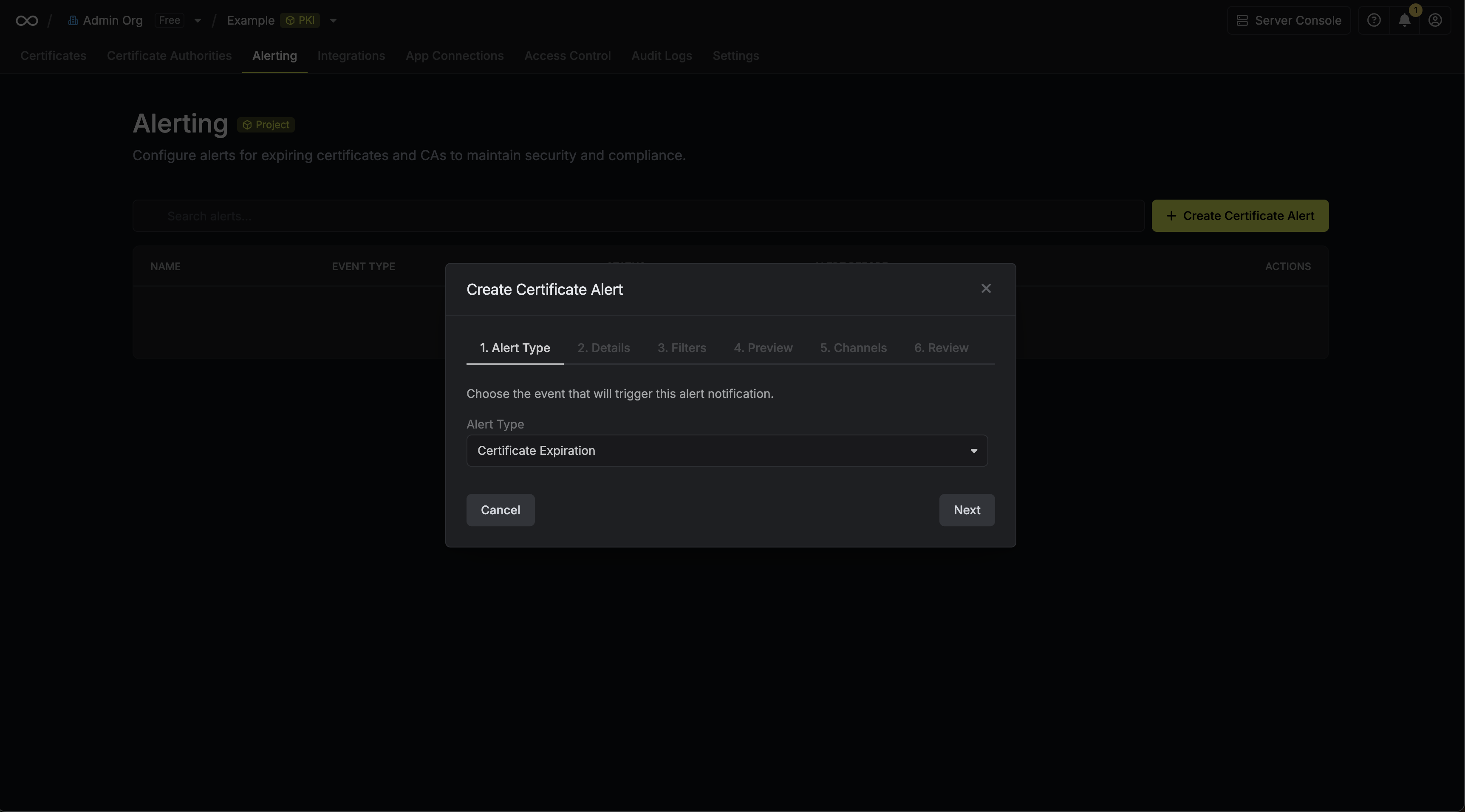
To create an alert, head to your Certificate Management Project > Alerting and press Create Certificate Alert.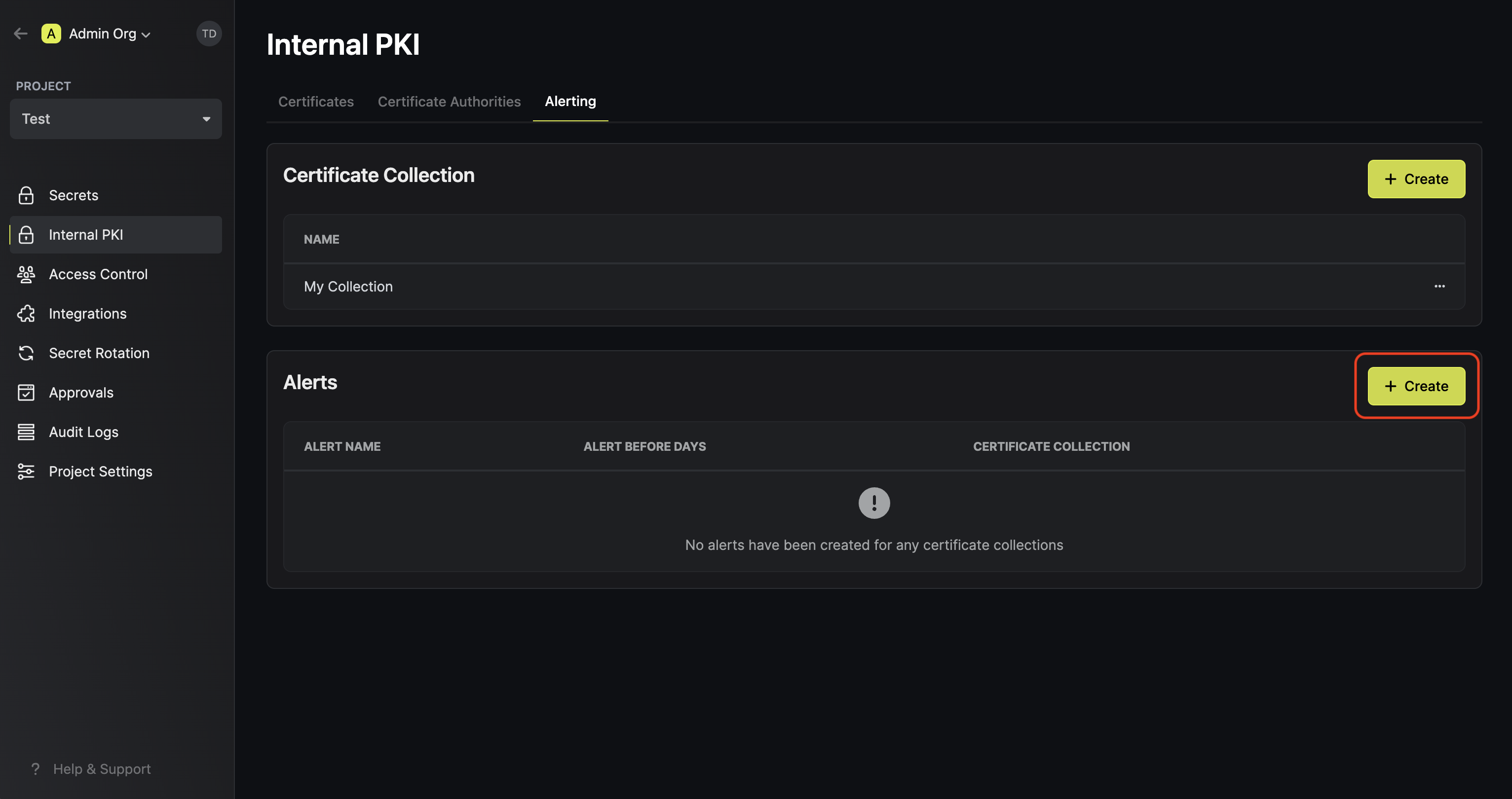
Field Descriptions
Here’s some guidance for each field in the alert configuration sequence:- Alert Type: The type of certificate event to alert on. Options are Certificate Expiration, Certificate Issuance, Certificate Renewal, and Certificate Revocation.
- Alert Name: A slug friendly name for the alert such as
tls-expiry-alertorprod-issuance-notify. - Description: An optional description for the alert.
- Alert Before (Expiration alerts only): The time before certificate expiration to trigger the alert, such as 30 days denoted by
30d. Supported units:d(days),w(weeks),m(months),y(years). - Daily Alerts (Expiration alerts only): Off by default. When enabled, notifications are sent every day until the certificate expires or is renewed. When disabled, a single notification is sent when the threshold is first reached.
- Filters: A list of filters that determine which certificates the alert applies to. Each row includes a Field, Operator, and Value to match against. For example, you can filter for certificates with a common name containing
example.comby setting the field to Common Name, the operator to Contains, and the value toexample.com.
For event driven alert types (Issuance, Renewal, Revocation), notifications are sent in real time when the event occurs. For Expiration alerts, Infisical checks for matching certificates on a daily schedule.
Notification Channels
Alerts can be delivered through one or more notification channels:- Email: Send alert notifications to a list of email recipients. Enter one or more email addresses to notify when the alert triggers.
- Webhook: Send alert notifications to a webhook URL. The URL must use HTTPS. Optionally configure a signing secret to verify the authenticity of webhook payloads. See Webhook Alerts for payload format and signature verification details.
- Slack: Send alert notifications to a Slack channel via an Incoming Webhook. See Slack Alerts for detailed setup steps.
- PagerDuty: Send alert notifications to PagerDuty via the Events API v2. See PagerDuty Alerts for setup instructions.