

Prerequisites
Before setting up AWS PCA integration, ensure you have:- An AWS account with AWS Private CA service access
- An AWS Private CA in ACTIVE status
- An AWS App Connection configured in Infisical with the required IAM permissions (see below)
IAM permissions
Your AWS connection’s IAM role or user needs the following permissions on your Private CA resource(s):acm-pca:DescribeCertificateAuthorityacm-pca:GetCertificateAuthorityCertificateacm-pca:IssueCertificateacm-pca:GetCertificateacm-pca:RevokeCertificate
Resource to that CA’s ARN:
Resource array:
Using a specific CA ARN in
Resource is recommended over "*" to follow the principle of least privilege.Complete workflow: From setup to certificate issuance
1
Copy Your AWS PCA ARN
In the AWS Console, navigate to AWS Private CA and select your certificate authority. Copy the ARN from the CA details page.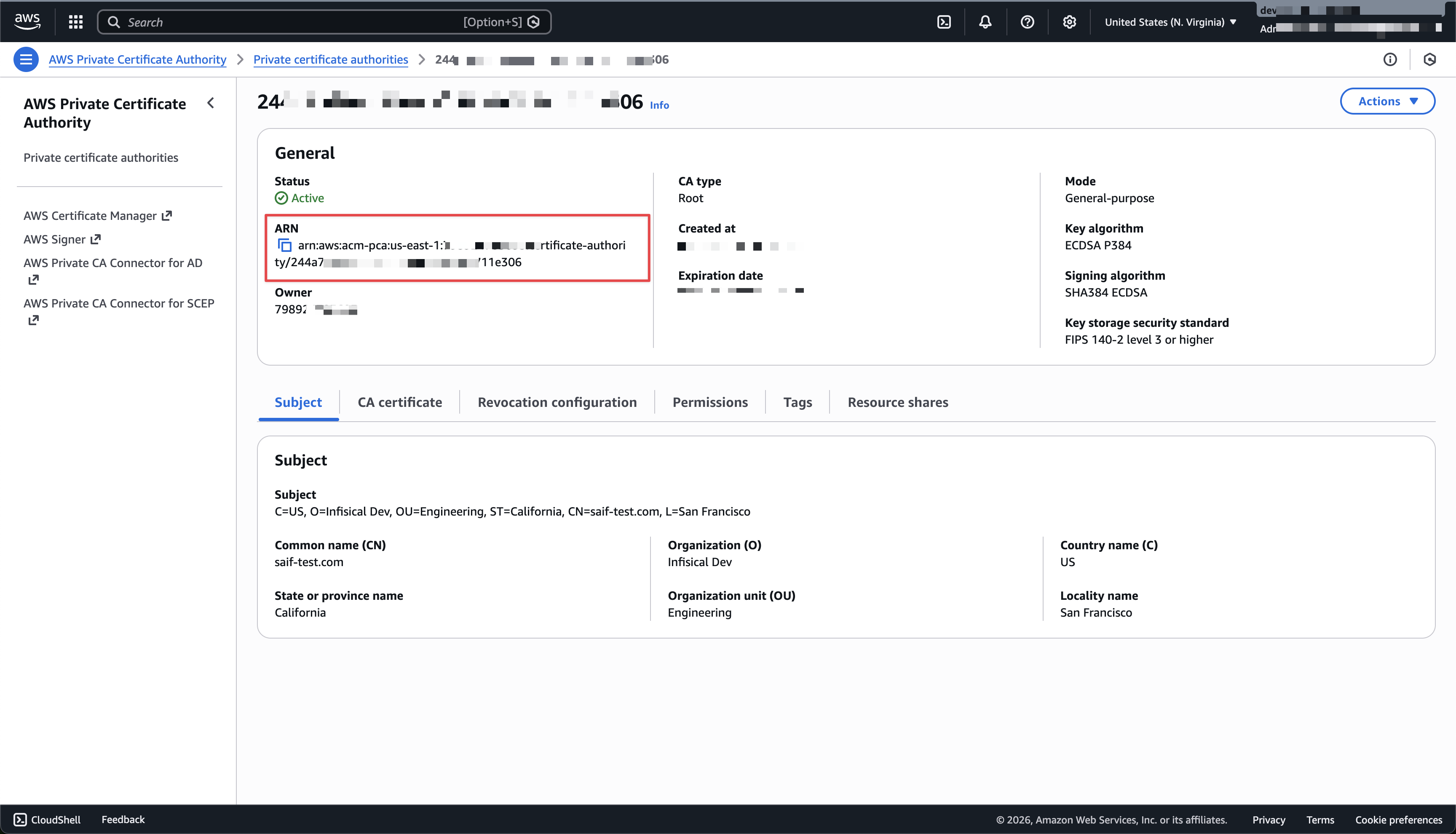
2
Navigate to External Certificate Authorities
In Certificate Manager, go to Certificate Authorities and scroll to the External Certificate Authorities section.
3
Create New AWS PCA Certificate Authority
Select Create CA and configure:
- CA Type: Choose AWS Private CA (PCA)
- Name: A slug name for this CA — lowercase letters, numbers, and hyphens only (e.g., “production-aws-pca”)
- AWS Connection: Select your AWS connection from the dropdown
- Certificate Authority ARN: Paste the ARN copied from the previous step
- Region: Select the AWS region where your PCA is hosted
4
Create a Certificate Profile
Go to Certificate Manager → Certificate Profiles and create a profile with your AWS PCA CA as the issuing CA.
5
Configure an Application and Issue a Certificate
Create an Application, attach the profile, and configure an enrollment method. Then submit a certificate request from within the Application. The request will be sent to AWS PCA and the issued certificate will be available once the order completes.
Issuing CA certificates
To issue a certificate withCA:TRUE, set Basic Constraints to allow CA certificates on the Certificate Policy, then tick Issue as Certificate Authority when requesting one.
AWS Private CA adds a few constraints:
- Path length is required on the request, and must be between
0and3. There is no unlimited option. - Key usages are set by AWS to digital signature, certificate signing and CRL signing, overriding the profile.
- The private CA in AWS must be in general-purpose mode, and its own path length must allow another CA beneath it.
Troubleshooting
CA Not in ACTIVE Status- AWS PCA must be in the ACTIVE state before Infisical can issue certificates. Verify the status in the AWS Console under AWS Private CA.
- Ensure your AWS connection’s IAM role or user has the required
acm-pca:*permissions scoped to the correct CA ARN. See the IAM Permissions section above.
- Double-check the ARN format:
arn:aws:acm-pca:<region>:<account-id>:certificate-authority/<ca-id>.
- Check the path length is between
0and3, the policy’s Basic Constraints allow CA certificates, and the CA is general-purpose. See Issuing CA Certificates.