

Infisical can send PKI certificate alert notifications to PagerDuty using the Events API v2. This guide walks through creating a PagerDuty service and configuring a PagerDuty alert.Documentation Index
Fetch the complete documentation index at: https://infisical.com/docs/llms.txt
Use this file to discover all available pages before exploring further.
Guide to Creating a PagerDuty Alert
Create a PagerDuty Service (or use an existing one)
- Go to PagerDuty → Services → Service Directory → New Service
- Give the service a name (e.g., “Infisical PKI Alerts”)
-
Select Events API v2 as the integration
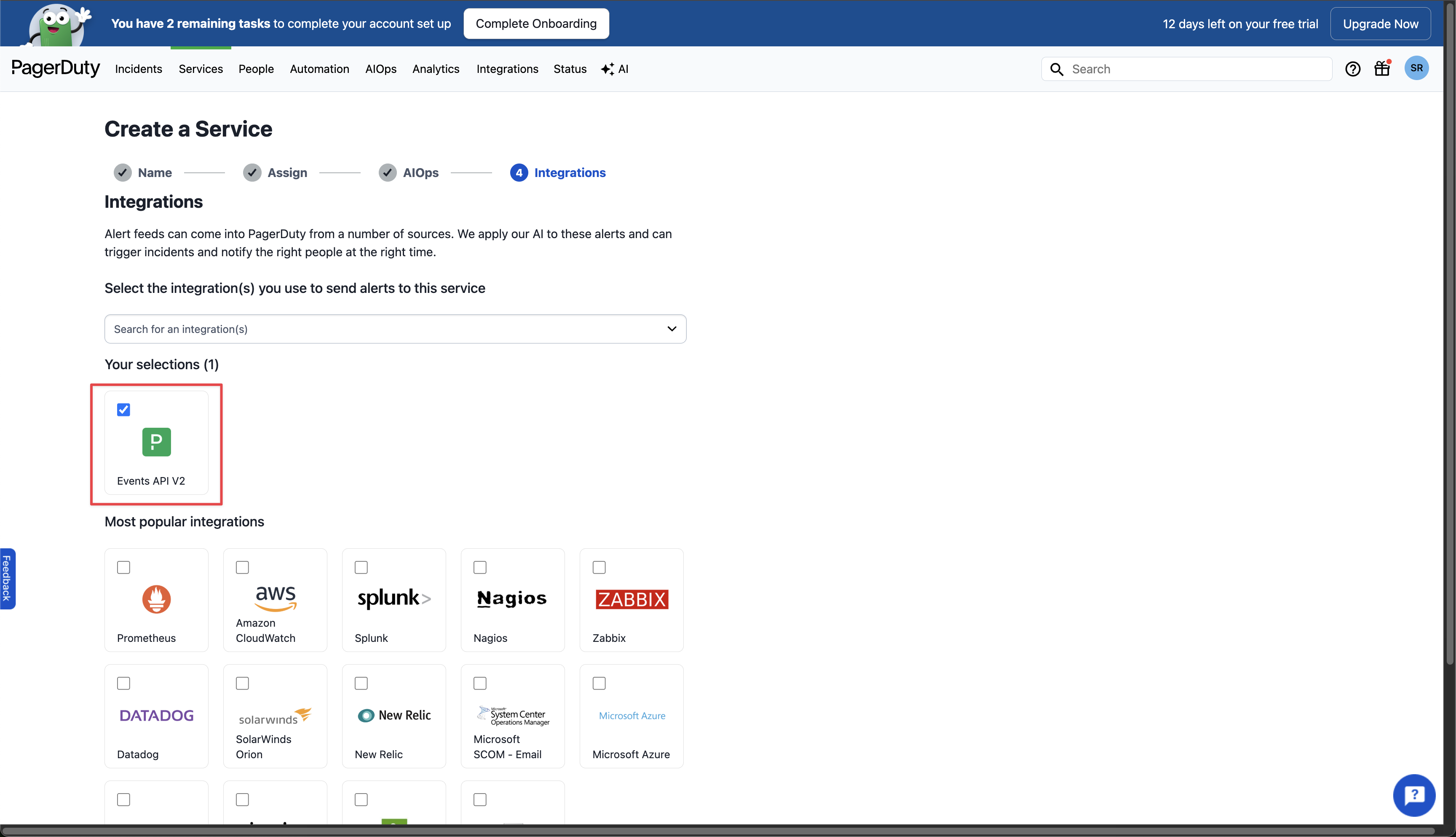
- Click Create Service
Copy the Integration Key
After creating the service (or adding the integration), copy the 32-character Integration Key from the Integrations tab. You’ll need this key to configure the alert in Infisical.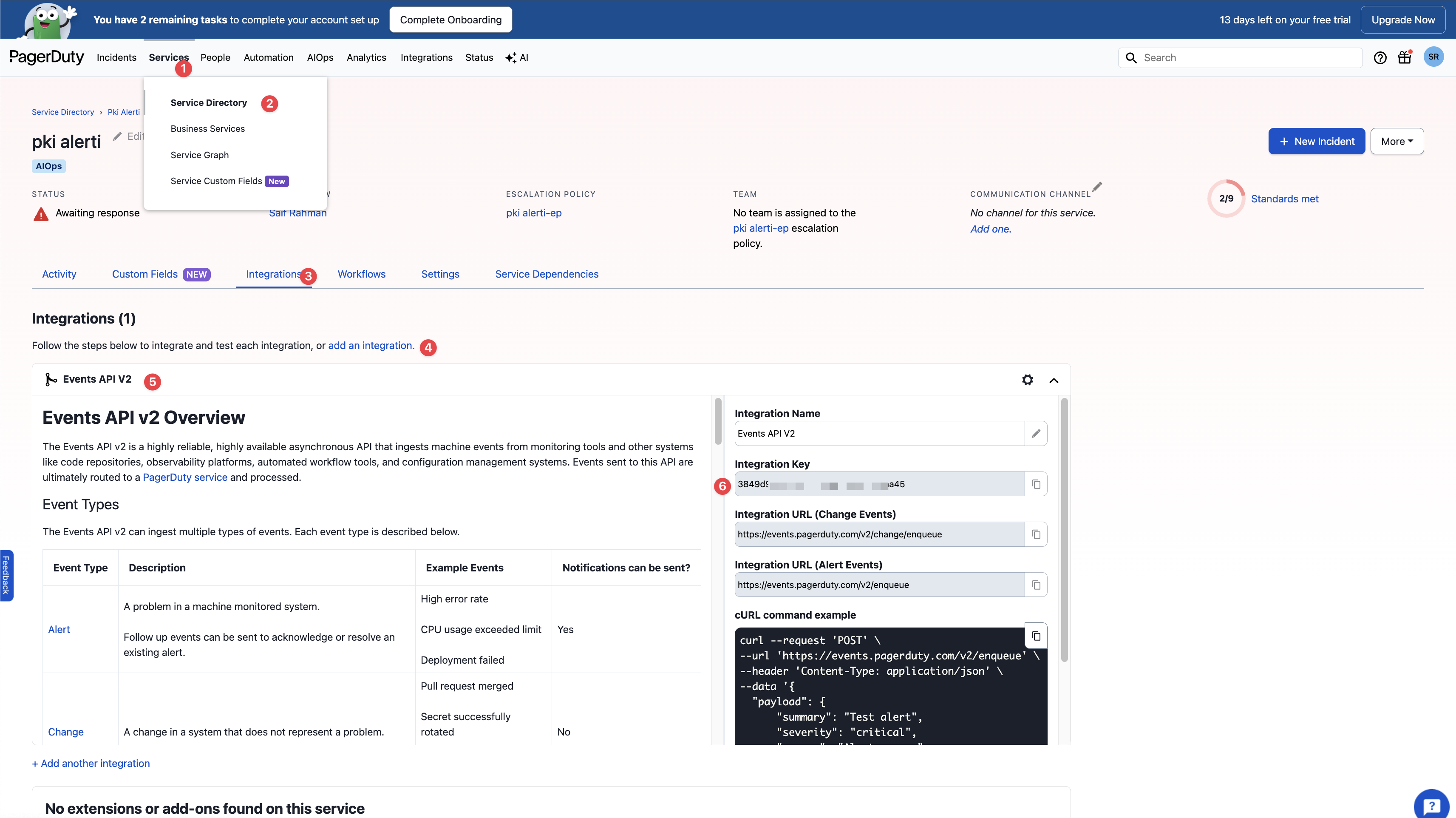
Create the Alert in Infisical
Head to your Certificate Management Project > Alerting and press Create Certificate Alert.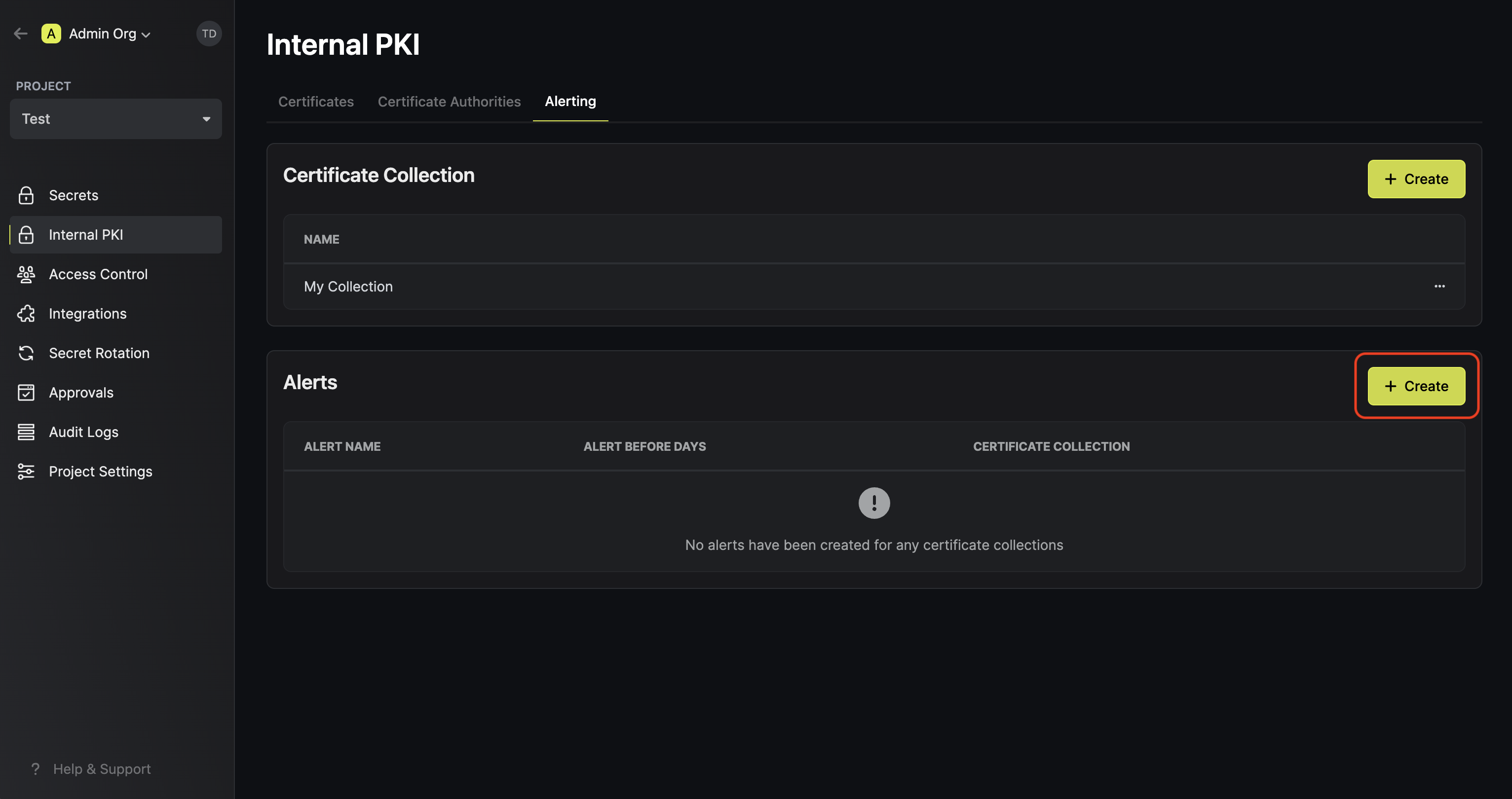
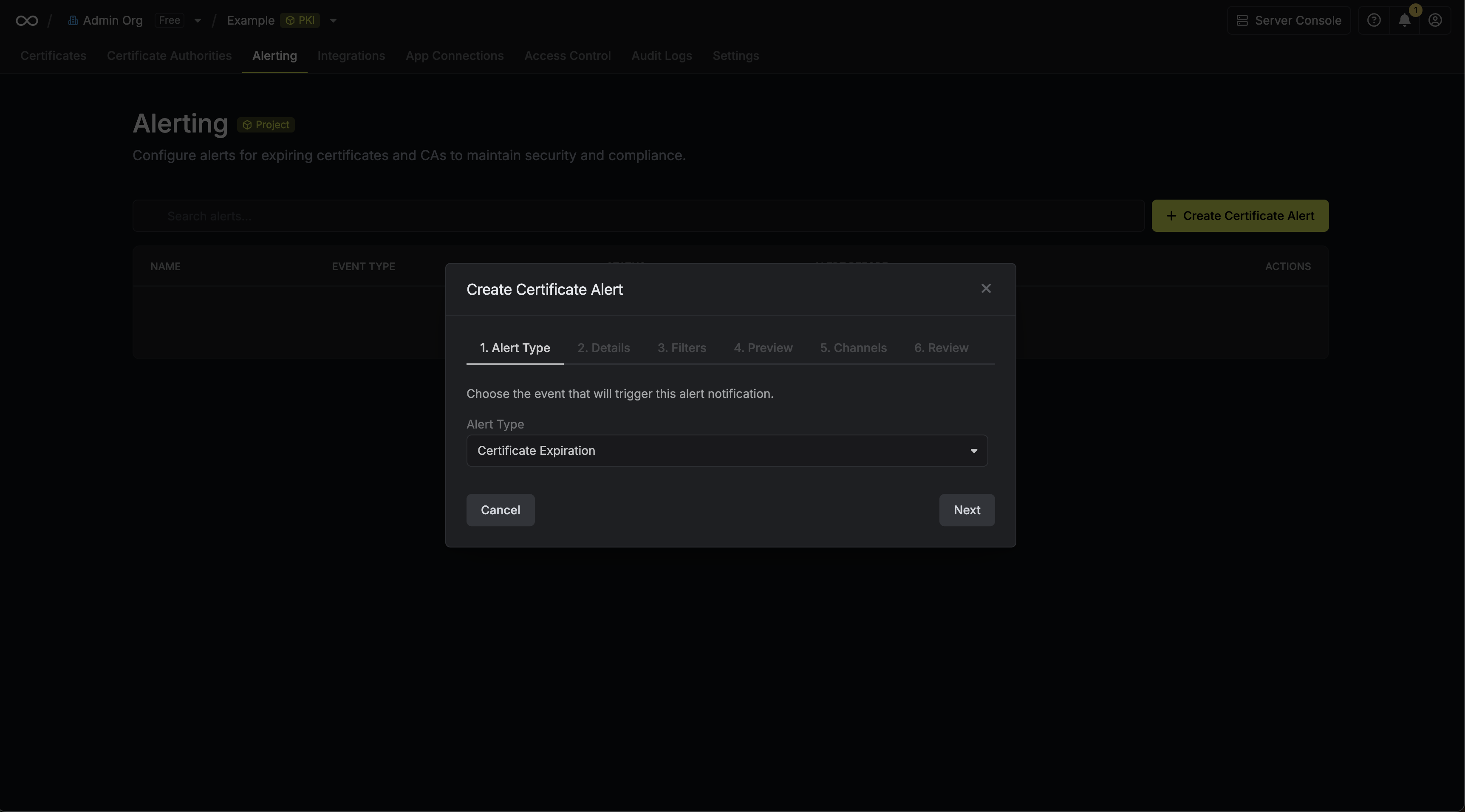 Here’s some guidance for each field in the alert configuration sequence:
Here’s some guidance for each field in the alert configuration sequence:- Alert Type: The type of certificate event to alert on. Options are Certificate Expiration, Certificate Issuance, Certificate Renewal, and Certificate Revocation.
- Alert Name: A slug friendly name for the alert such as
tls-expiry-alert. - Description: An optional description for the alert.
- Alert Before (Expiration alerts only): The time before certificate expiration to trigger the alert such as 30 days denoted by
30d. - Filters: A list of filters that determine which certificates the alert applies to. Each row includes a Field, Operator, and Value to match against. For example, you can filter for certificates with a common name containing
example.comby setting the field to Common Name, the operator to Contains, and the value toexample.com.
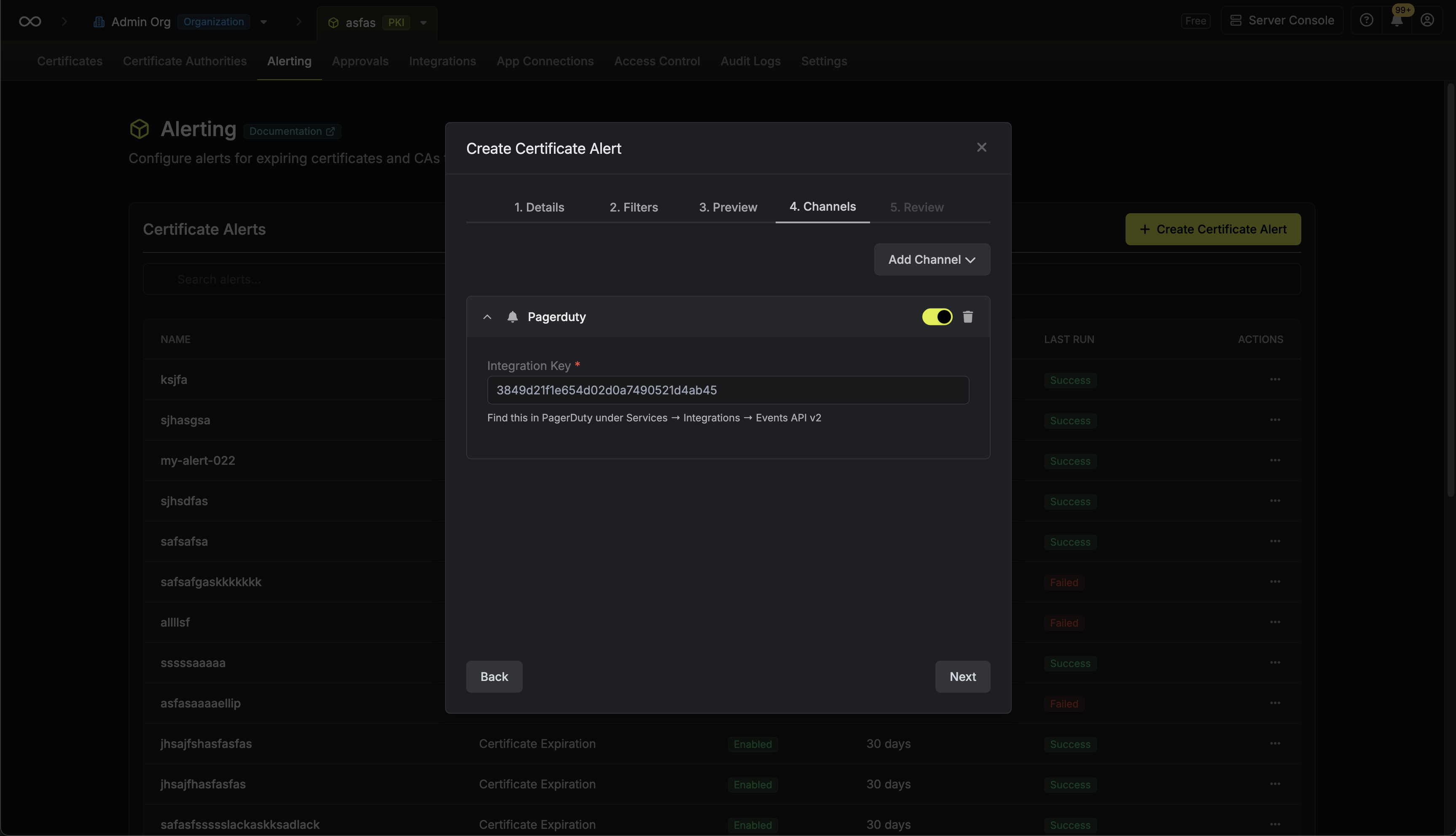
Keep your integration key secure. Anyone with access to it can send events to your PagerDuty service.
Severity Mapping
Expiration Alerts
For expiration alerts, Infisical automatically maps the time remaining until certificate expiry to a PagerDuty event severity:| Time Until Expiry | PagerDuty Severity |
|---|---|
| ≤ 7 days | critical |
| ≤ 14 days | error |
| ≤ 30 days | warning |
| > 30 days | info |
Other Alert Types
| Alert Type | PagerDuty Severity |
|---|---|
| Certificate Issuance | info |
| Certificate Renewal | info |
| Certificate Revocation | warning |
Incident Grouping
Alerts with the same alert ID are grouped into the same PagerDuty incident viadedup_key. This means repeated triggers update the existing incident rather than creating duplicates.