

This setup is performed once per organization by an admin. After
completing these steps, any project member with the appropriate permissions can create honey
tokens without repeating this
process.
Prerequisites
- You must have the organization-level Honey Tokens → Setup permission. By default, only organization Admins have this permission.
- Create an AWS App Connection at the organization level with the following IAM permissions:
The IAM permissions are scoped to users prefixed with
inf_ht_, which is the
naming convention Infisical uses for honey token IAM users.Connect
1
Open Honey Token settings
Go to Organization Settings → Product Settings.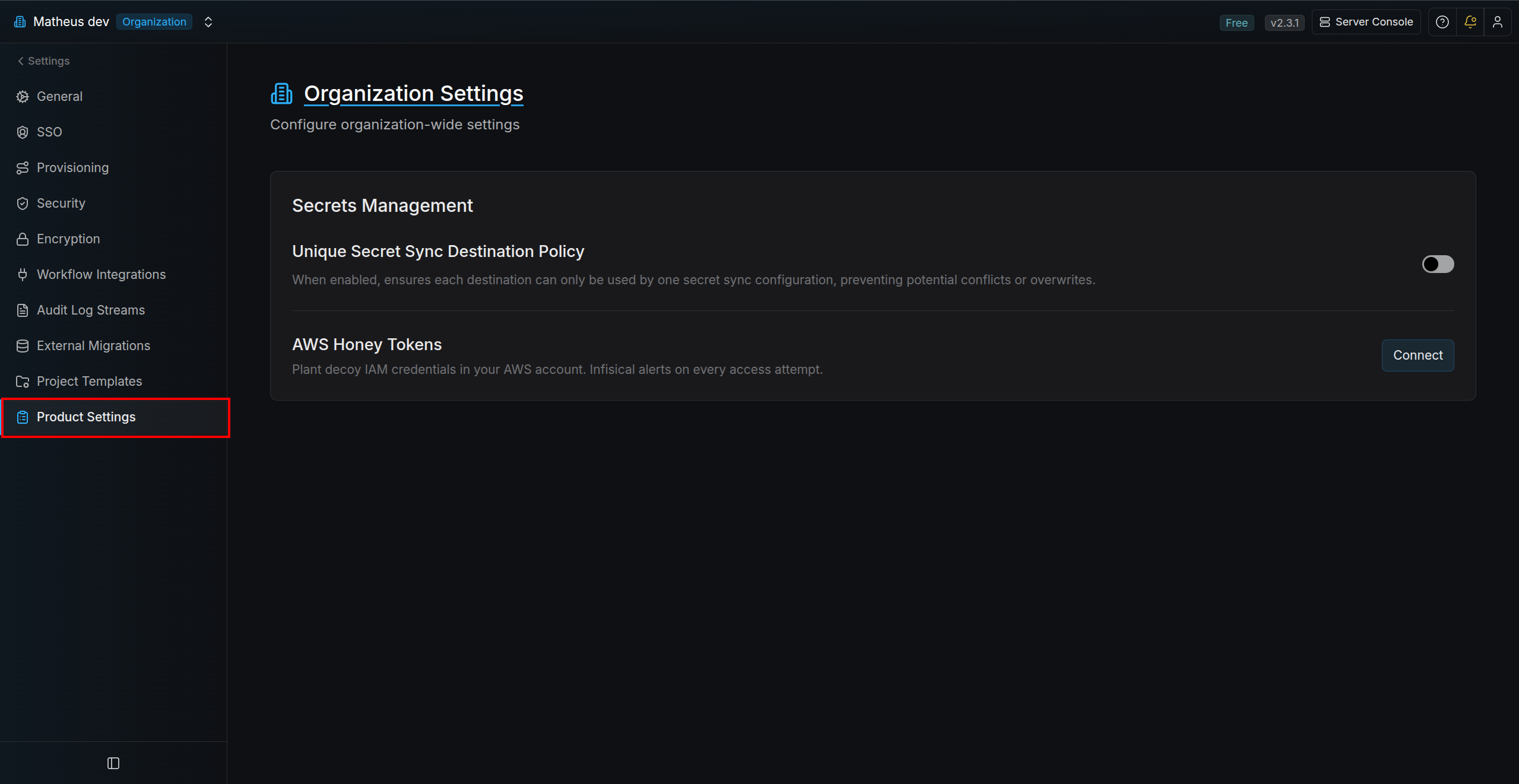
2
Click Connect
Select Connect to open the configuration modal.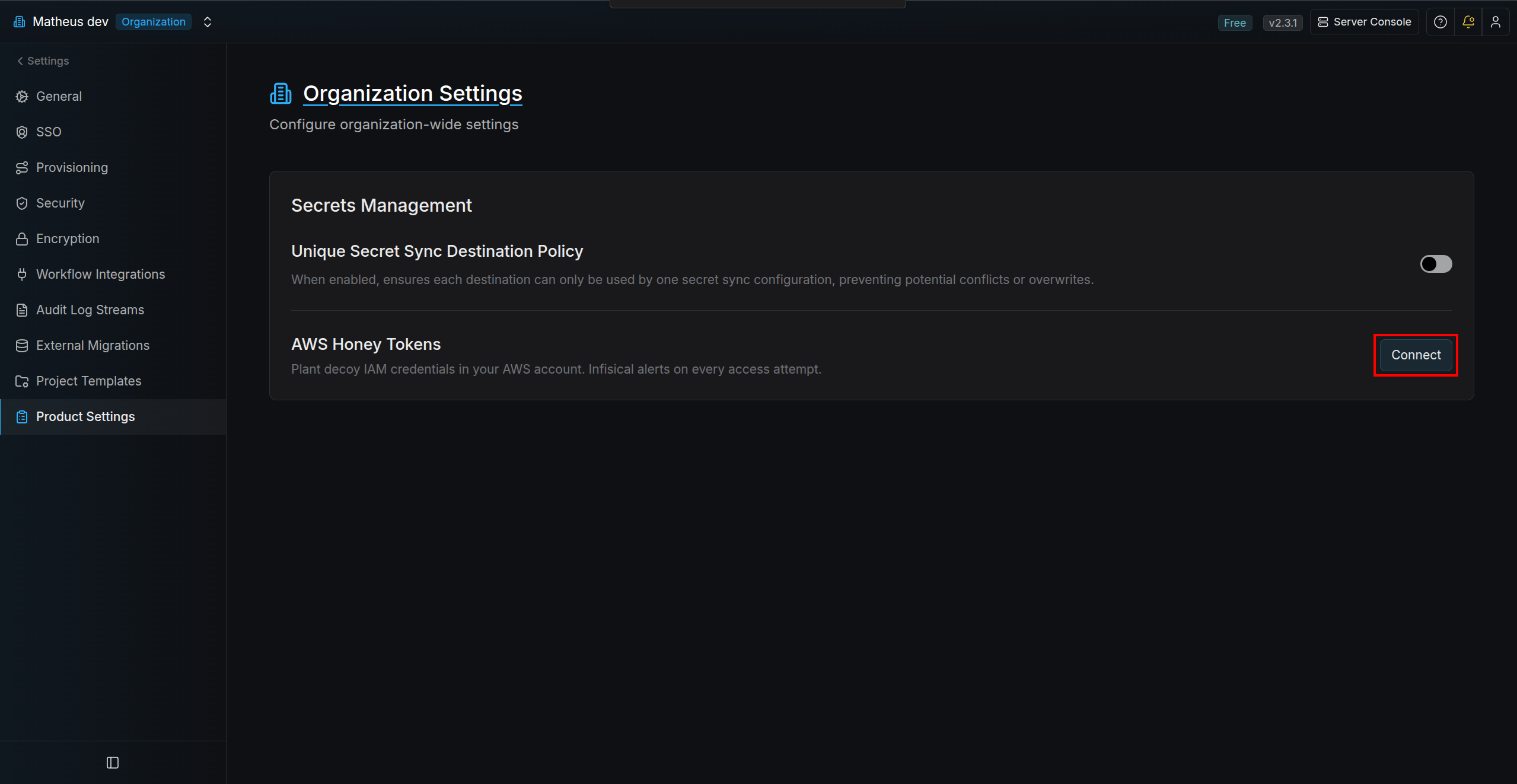
3
Fill required fields and save
Configure: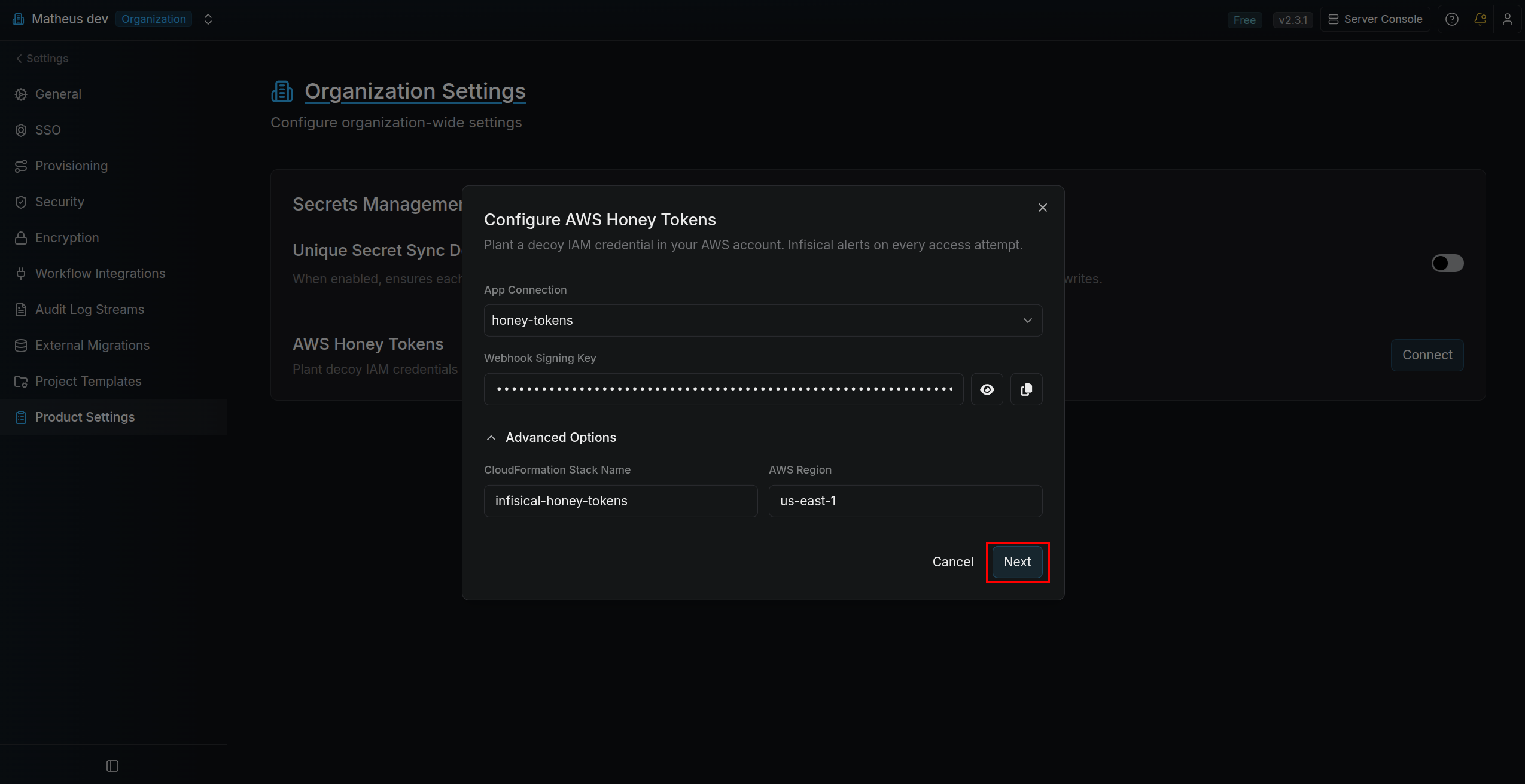
- App Connection — select your AWS App Connection.
- Webhook Signing Key — auto-generated by default; customize it if needed. This key is used to validate webhook calls from AWS.
- CloudFormation Stack Name (default:
infisical-honey-tokens) - AWS Region (default:
us-east-1)
4
Deploy CloudFormation Stack
Copy the command shown under Deploy CloudFormation Stack.Run the command in a terminal with AWS credentials that can deploy CloudFormation stacks in your target account and region.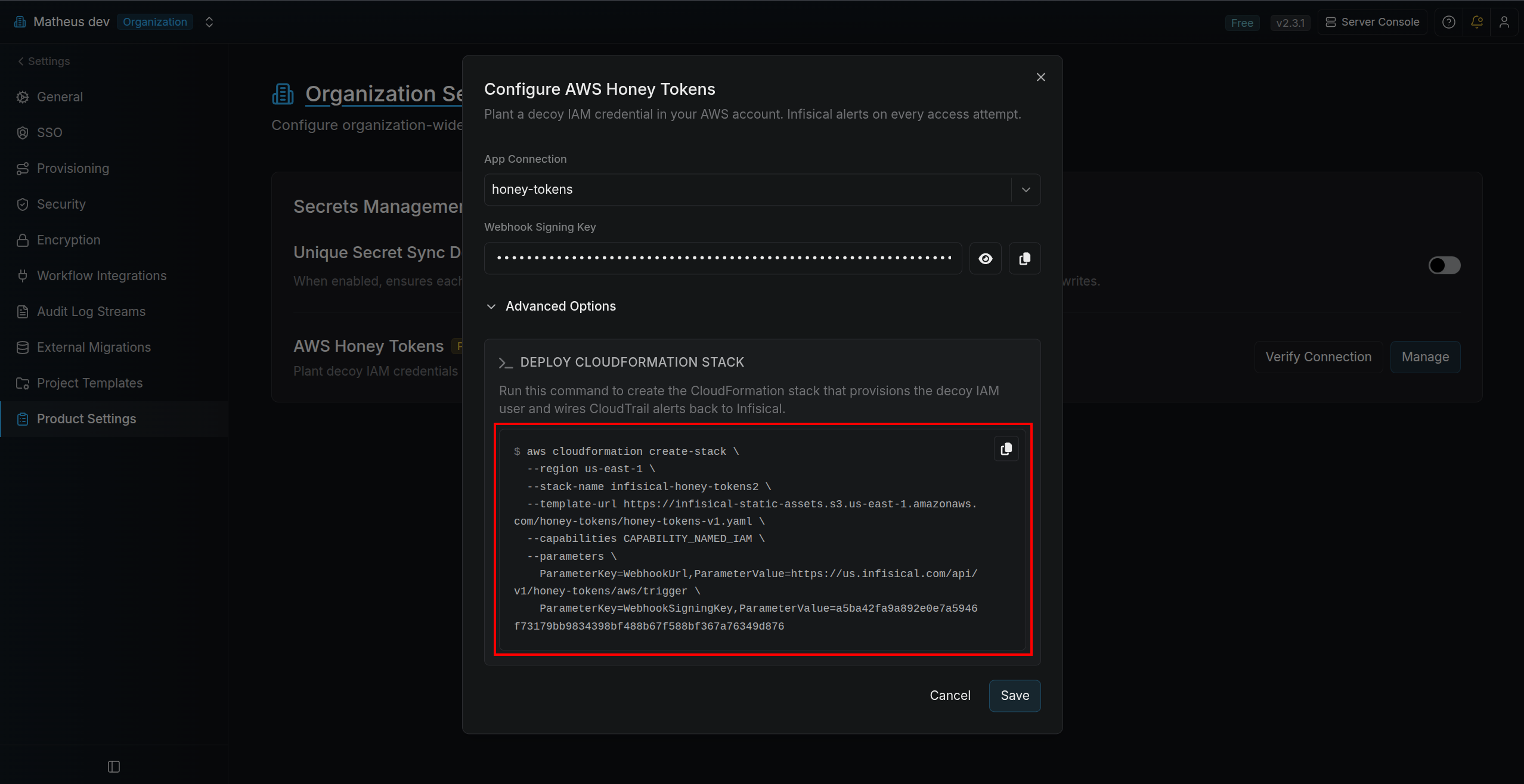
If you already deployed the stack and need to apply the latest Infisical CloudFormation template, run:Replace
--region and --stack-name with the values saved in Infisical if you customized them. UsePreviousValue=true keeps your existing webhook settings so only the template is updated.5
Verify deployment
After the CloudFormation stack finishes deploying, select Verify connection in the AWS Honey Tokens section.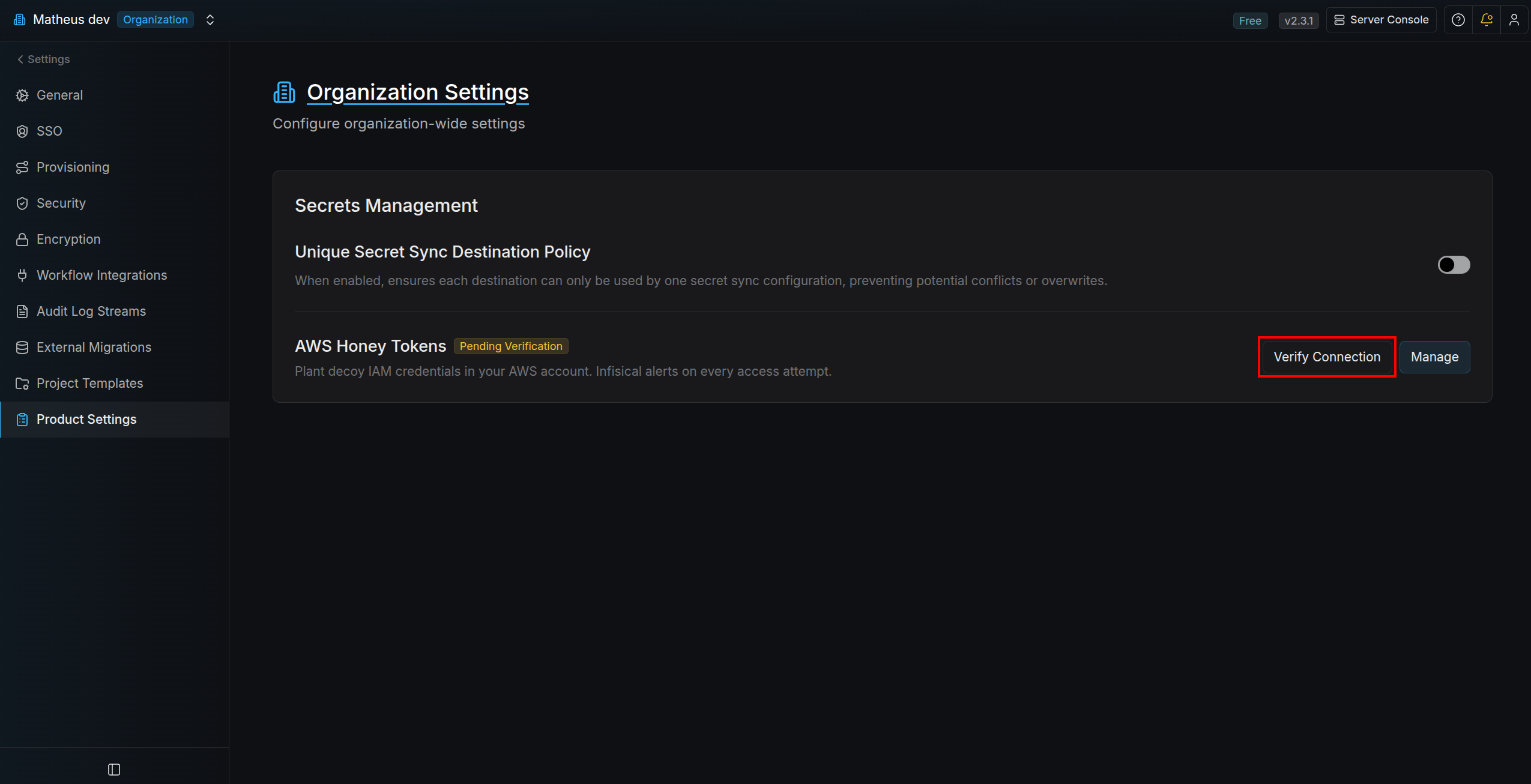 Once verification succeeds, confirm the status badge is updated to Verified.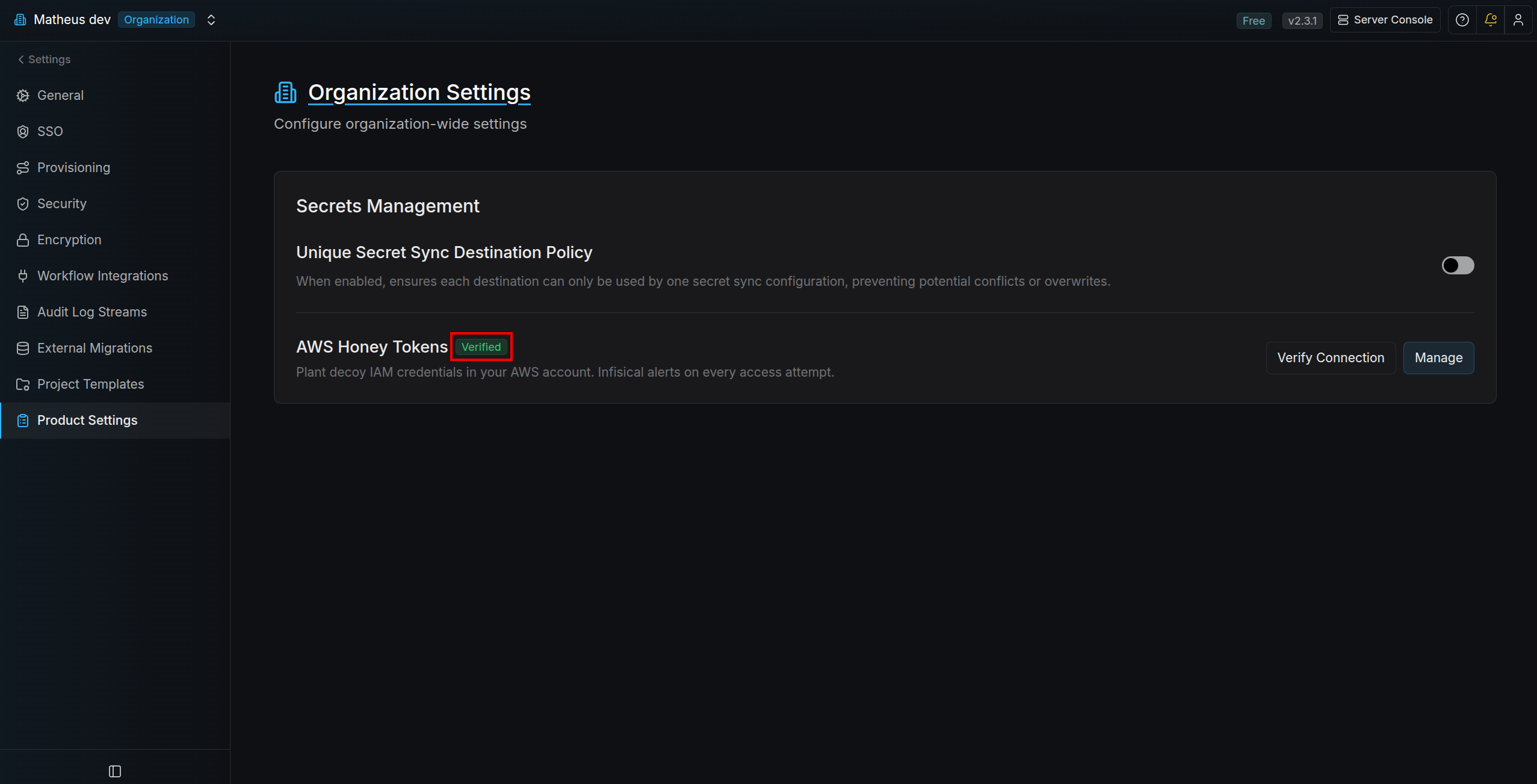
Once verification succeeds, confirm the status badge is updated to Verified.Manage
After setup is saved, the Connect button changes to Manage. Use Manage any time you need to update:- AWS App Connection
- Webhook signing key
- CloudFormation stack name
- AWS region