

- Browser: Connect directly from the Infisical dashboard with a full graphical desktop session. No RDP client installation required.
- Native RDP Client: Use the Infisical CLI to start a local RDP proxy that launches your native RDP client (mstsc, Microsoft Remote Desktop, or FreeRDP). Run
infisical pam rdp accessto start a session.
Connecting via Browser
Navigate to Account
Go to the Resources tab in your PAM project, open the Windows Server resource, and find the account you want to access. Click the Connect button next to the account.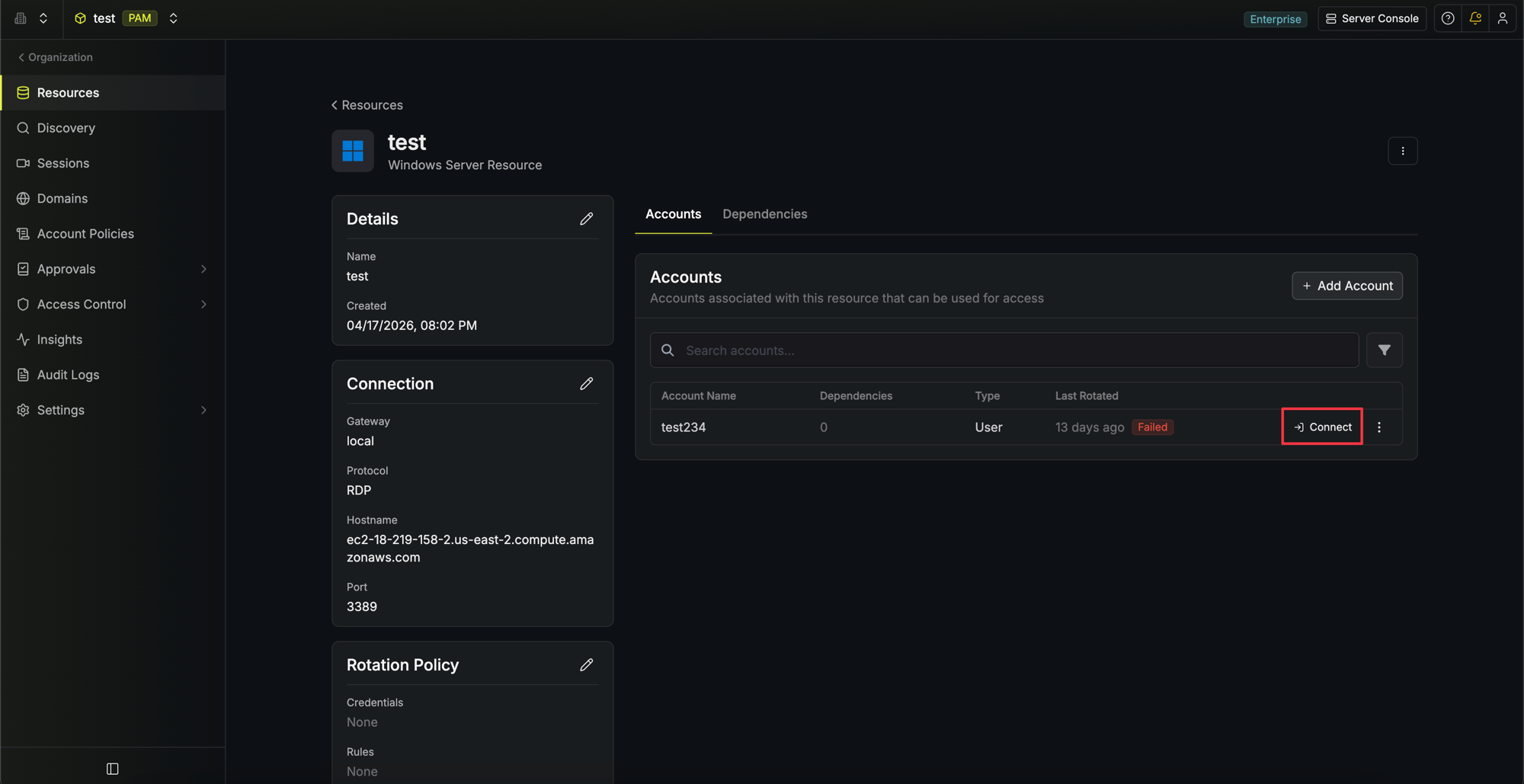 Alternatively, if you are on the account page, click the Access button.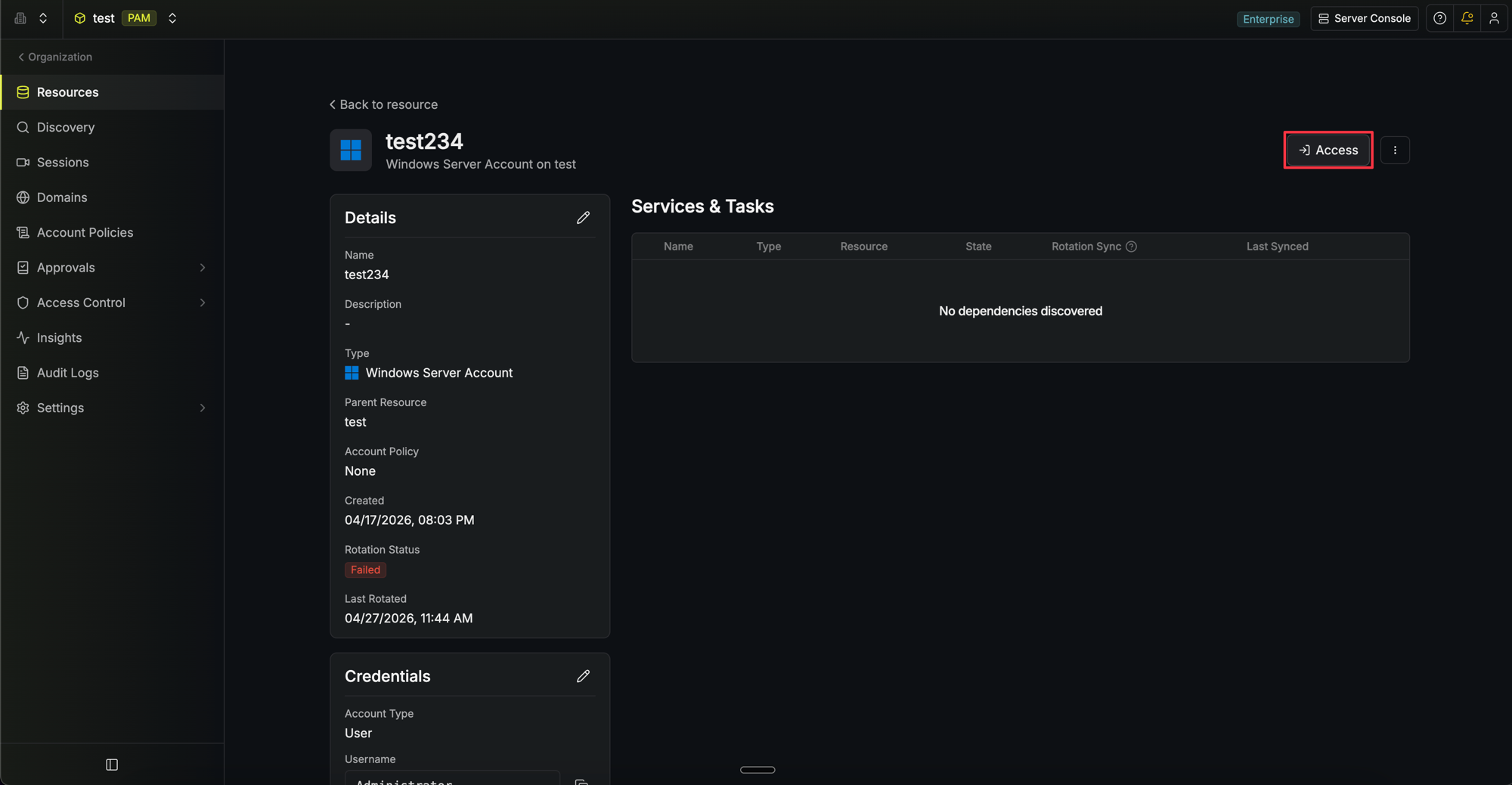
Alternatively, if you are on the account page, click the Access button.Connect in Browser
In the connect modal, click Connect in Browser. A new tab opens and begins establishing the RDP session. A loading indicator is displayed while Infisical sets up the secure tunnel through the Gateway to your Windows server.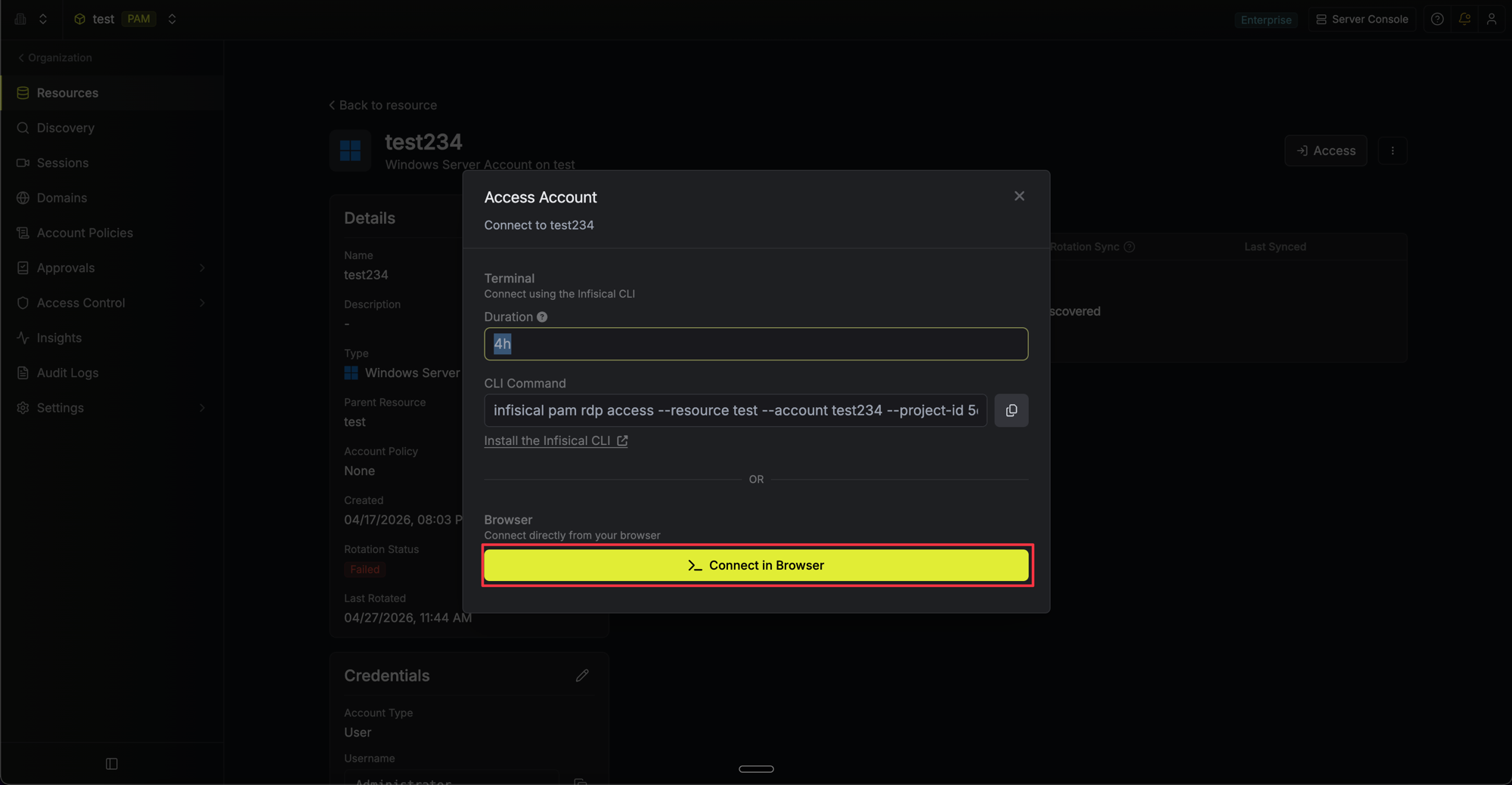
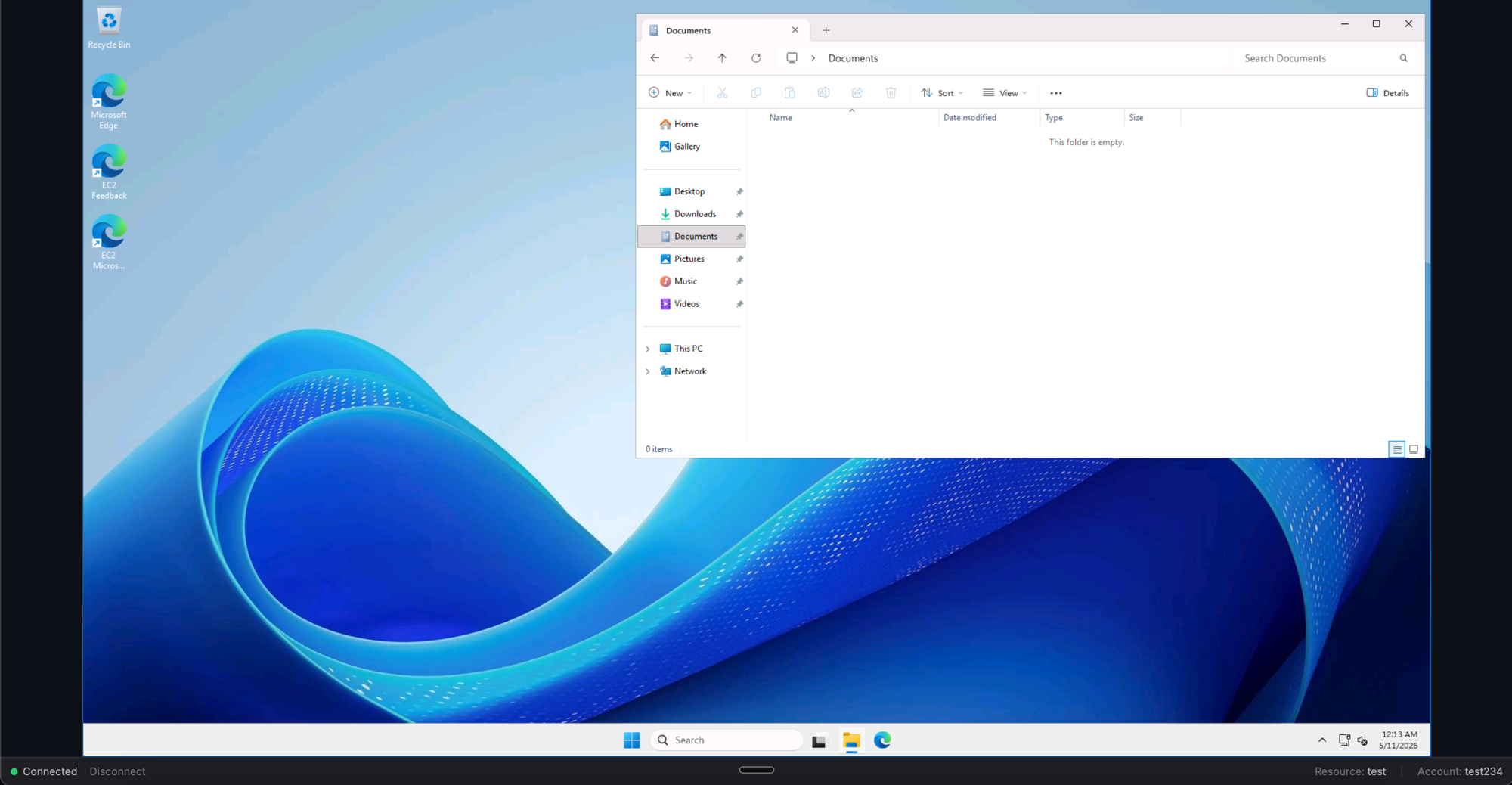
Session Recording
RDP sessions are recorded by the Gateway as a full video capture of the remote desktop, including keyboard input, mouse events, and screen frames with timestamps. Administrators can play back the recording from the Sessions page in the PAM project to review exactly what the user saw and did. See Session Recording for details on how recordings are captured, uploaded, and stored. RDP session recordings require external S3 storage to be configured. See External Storage for setup instructions.Active Directory
Windows Server resources can be associated with an Active Directory domain. When a server is domain-joined, accounts from the AD domain can be used to access the server through RDP web access. The Gateway injects the domain credentials (including the domain name) into the RDP connection automatically. See Windows Server - Domain Join and Active Directory for setup instructions.FAQ
What RDP features are supported in the browser?
What RDP features are supported in the browser?
Keyboard input (including shortcuts like Ctrl+Alt+Del and Alt+Tab), mouse interaction, and screen display with automatic scaling are supported. Clipboard sharing, file/drive redirection, audio redirection, and printer redirection are not currently supported.
What happens if my connection drops?
What happens if my connection drops?
If your browser tab closes or the network connection drops, the session ends. Click Reconnect to start a new session. Sessions cannot be resumed after a disconnect, so any unsaved work on the remote desktop will be lost.
Does the session stay active if I switch to another tab?
Does the session stay active if I switch to another tab?
The session continues running in the background, but it will automatically close after 10 minutes of inactivity. Switch back to the tab periodically to keep the session alive.