

When to Use Approval Workflows
Approval workflows are recommended when:- Separation of duties is required: Your organization requires different people to request and approve access to privileged accounts.
- Sensitive resources need oversight: Access to production databases, critical servers, or administrative accounts requires additional review.
- Compliance mandates review: Regulatory frameworks or internal policies require documented approval before granting access.
- Preventing unauthorized access: You want to ensure privileged access is only granted after proper validation of the request.
Approval Policies
An approval policy defines the workflow that must be completed before access is granted to specific resources and accounts. When an access request matches a policy’s conditions, the request is placed in a pending state until the required approvers review and approve it. Key features of approval policies include:- Condition-based matching: Define which resources and accounts the policy applies to using glob patterns (e.g.
prod-*,{prod,staging}-*,*-admin). - Multi-step workflows: Configure sequential approval steps where each step must be completed before the next begins.
- Flexible approvers: Assign individual users or groups as eligible approvers for each step.
- Required approval count: Specify how many approvals are needed per step (e.g., require 2 out of 5 eligible approvers).
- Access duration constraints: Set maximum access durations for requests matching this policy.
- Bypass Approvals: Optionally allow designated users to self-approve their own request in break-glass situations.
Guide to Creating an Approval Policy
To create an approval policy, navigate to your PAM Project > Approvals > Policies and click Create Policy.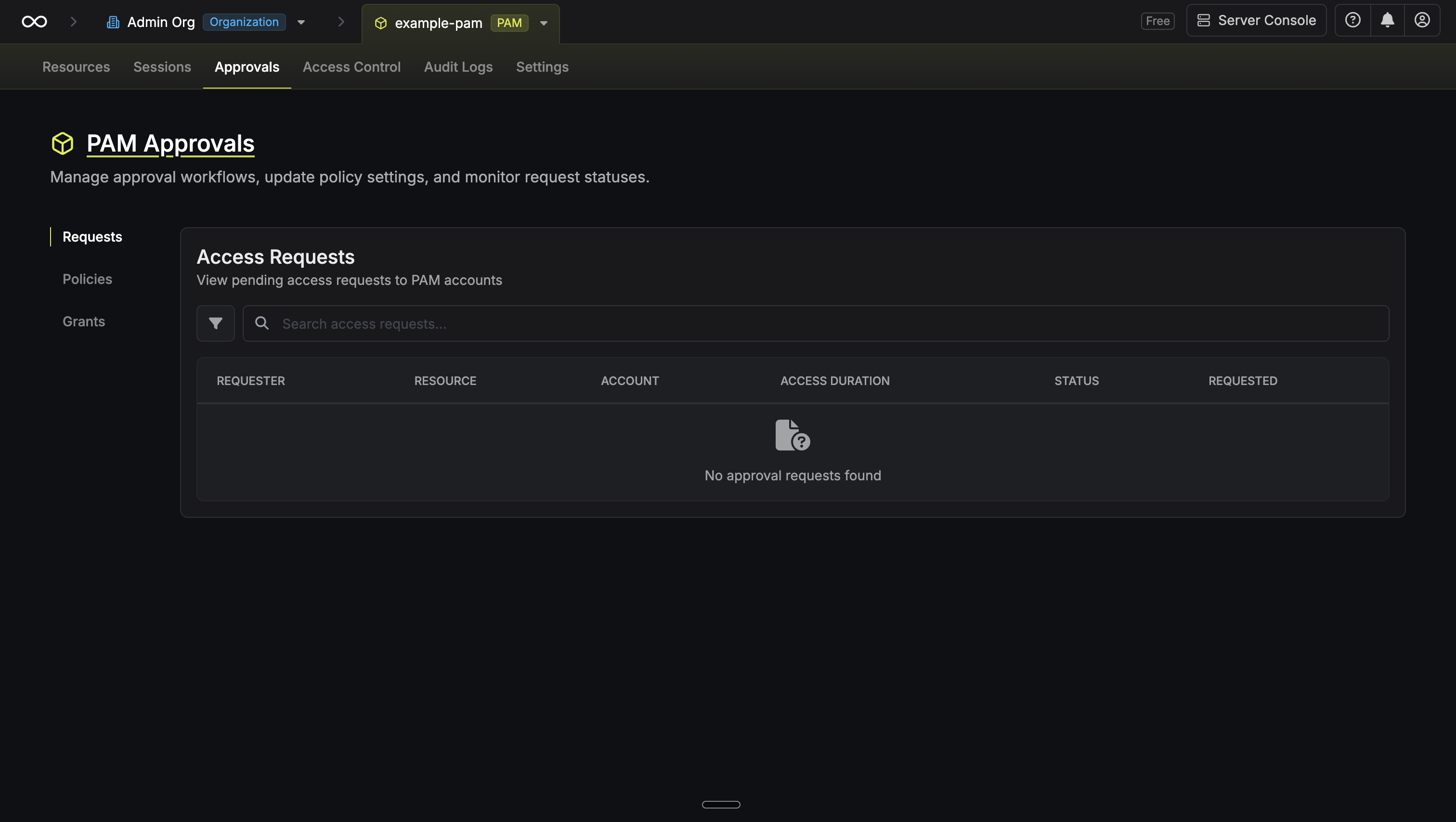
Configuration
Configure the basic policy settings:
-
Policy Name: A descriptive name for the policy such as
production-db-approval. -
Conditions: Define which resources and accounts this policy applies to:
- Resource name: Glob pattern for matching resource names (e.g.
prod-db,*-redis). - Account name: Glob pattern for matching account names (e.g.
admin,*readonly). - At least one of resource name or account name must be specified. If both are provided, they are ANDed together.
- Resource name: Glob pattern for matching resource names (e.g.
- Access Duration: Configure the maximum access duration allowed for requests matching this policy.
-
Bypass Approvals (optional): Allow specific users or groups to self-approve their own request in break-glass situations. See Bypass Approvals below.
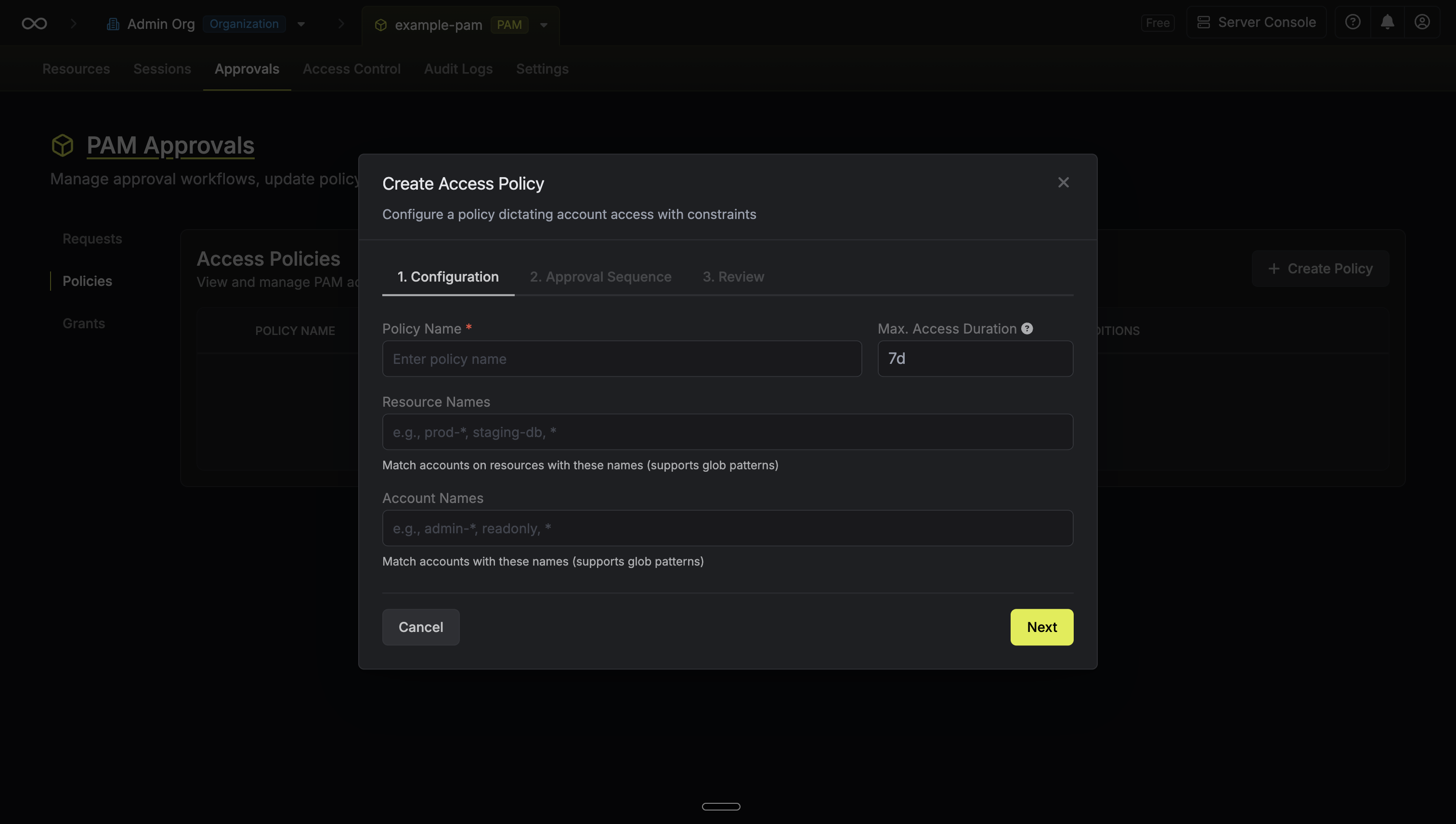
Approval Sequence
Configure the approval steps. Each step defines who can approve and how many approvals are required:
- Step Name: An optional name for the step such as
Manager Review. - Approvers: Select individual users or groups who are eligible to approve this step.
- Required Approvals: The number of approvals needed to complete this step.
- Manager Review: Requires 1 approval from the managers group
- Security Review: Requires 2 approvals from the security team
Bypass Approvals (Break-Glass)
The Bypass Approvals option enables emergency access in break-glass situations:- When enabled, designated users (bypassers) can self-approve their own pending request with a written reason, skipping the configured approver workflow.
- When disabled, all requests must go through the full approval process.
- You can specify which users or groups are allowed to bypass.
pam-access-policy-bypassed audit event and notifies all approvers via in-app notification and email.
Approval Requests
When an access request matches a policy’s conditions, an approval request is created. Approvers can then review and approve or reject the request.Viewing Requests
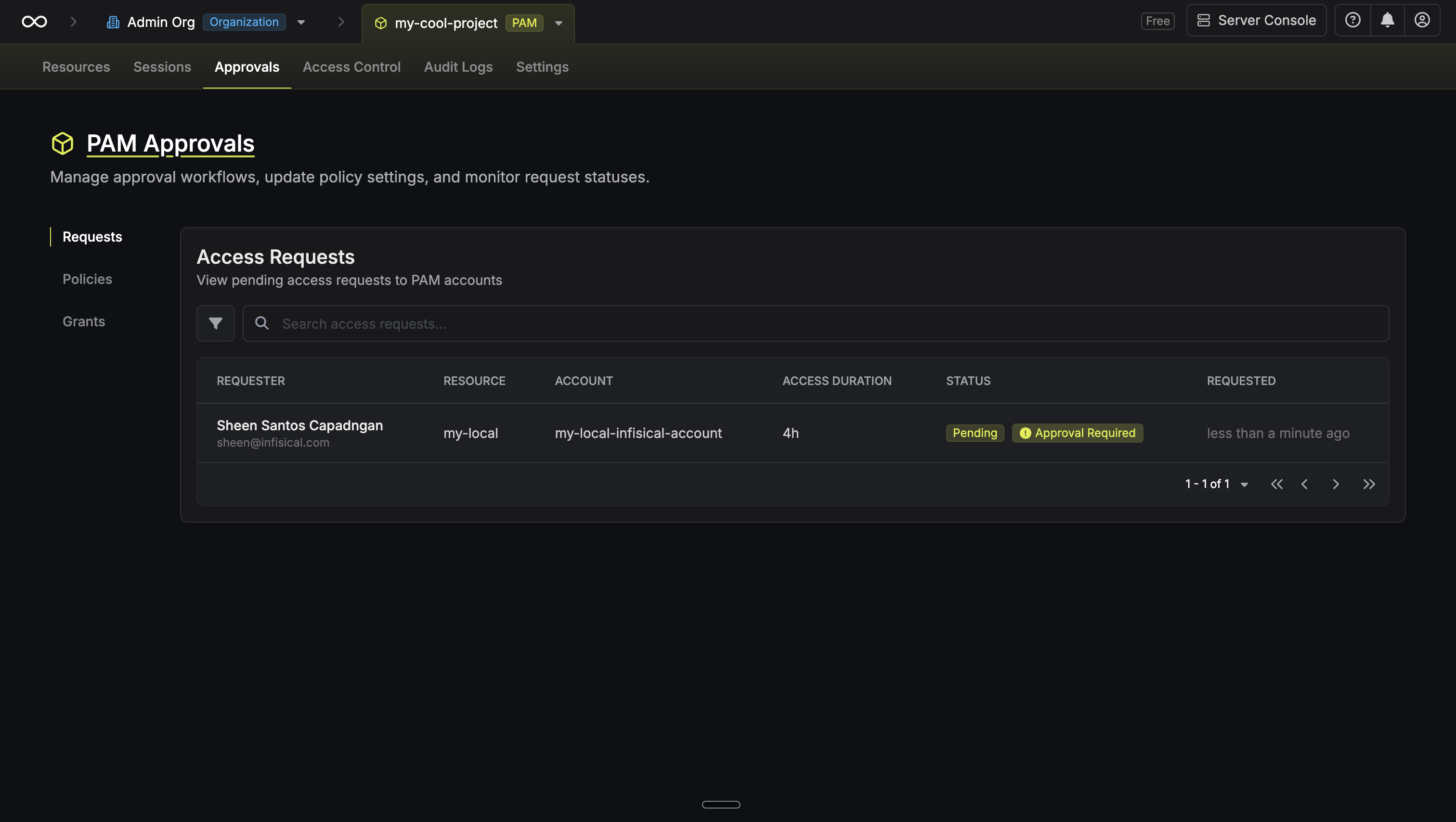 Navigate to your PAM Project > Approvals > Requests to view all approval requests. You can filter requests by status:
- Open Requests: Requests currently pending approval
- Approved: Requests that have been approved and access granted
- Rejected: Requests that were rejected by an approver
- Cancelled: Requests cancelled by the requester
- Expired: Requests that exceeded their maximum TTL
Approving a Request
Review the access details
Review the access request information including:
- Requester name and email
- Resource name and account name
- Requested access duration
- Justification (if provided)
Approve
If you are an eligible approver for the current step, click Approve to approve the request.If the policy has Bypass Approvals enabled and you are a configured bypasser on your own request, you can also tick Approve immediately without approver review (bypass policy), provide a reason, and approve in the same step.
Rejecting a Request
When a request is rejected, the workflow ends and no access is granted.
Role-based Permission Conditions
In addition to approval policies, project roles can scope PAM-account access using CASL conditions (Project > Access Control > Roles > edit role > PAM Accounts). TheresourceName and resourceType conditions behave slightly differently depending on the action:
- Access action: both conditions match the resource the user is connecting through. For local accounts this is the same resource the account belongs to. For domain accounts (Active Directory) it is the Windows host the credentials are being used against, not the account’s domain parent.
- All other actions (read, create, update, delete): both conditions match the resource the account belongs to. Domain accounts have no owning resource, so these conditions don’t apply to them for non-Access actions; use
domainName/domainTypeto scope domain accounts instead.
domainName and domainType match the account’s domain parent in every action, and are only set for domain accounts.
FAQ
I approved a request but access wasn't granted
I approved a request but access wasn't granted
If the approval policy has multiple steps, your approval may have completed only one step. Access is granted only after all approval steps are completed. Check the request details to see which step is currently pending and ensure all required approvers have approved.
I don't see the Approve button on a request
I don't see the Approve button on a request