

Authorization: Bearer <access-token>, and the agent never receives any token.
Use an OAuth variable when several services need the same sign-in, or when an HTTP API needs OAuth. You can create OAuth variables in the Infisical dashboard or through the API.
Only admins of the project can view and update OAuth variables.
Create an OAuth variable
1
In your Agent Vault project, go to Variables, select the Global Variables tab, and select Add Global Variable.
2
Set Type to OAuth, then enter a Key, such as
GOOGLE_DRIVE.3
Enter the Server URL: an MCP server’s URL, such as 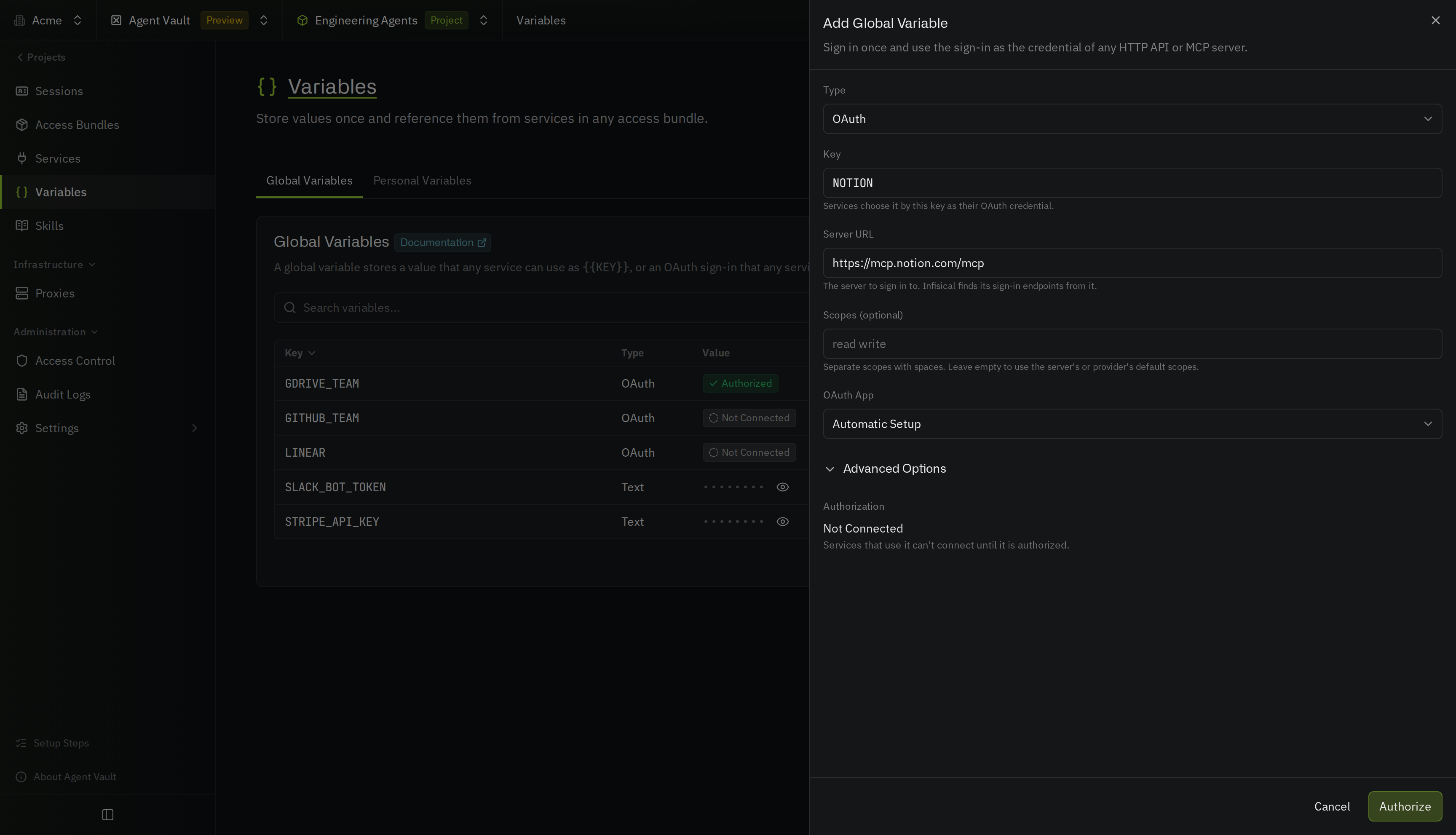
https://mcp.linear.app/mcp, or the provider’s sign-in URL, such as https://accounts.google.com. Infisical looks up the provider’s OAuth endpoints from this URL.If Infisical can’t find the endpoints, the form asks you to enter the Authorization URL, the Token URL, and at least one scope yourself. Infisical fills in any endpoints it found, so check them against the provider’s OAuth documentation.4
If the provider doesn’t let Infisical register itself as an OAuth client, or you entered the endpoints yourself, use an OAuth app of your own: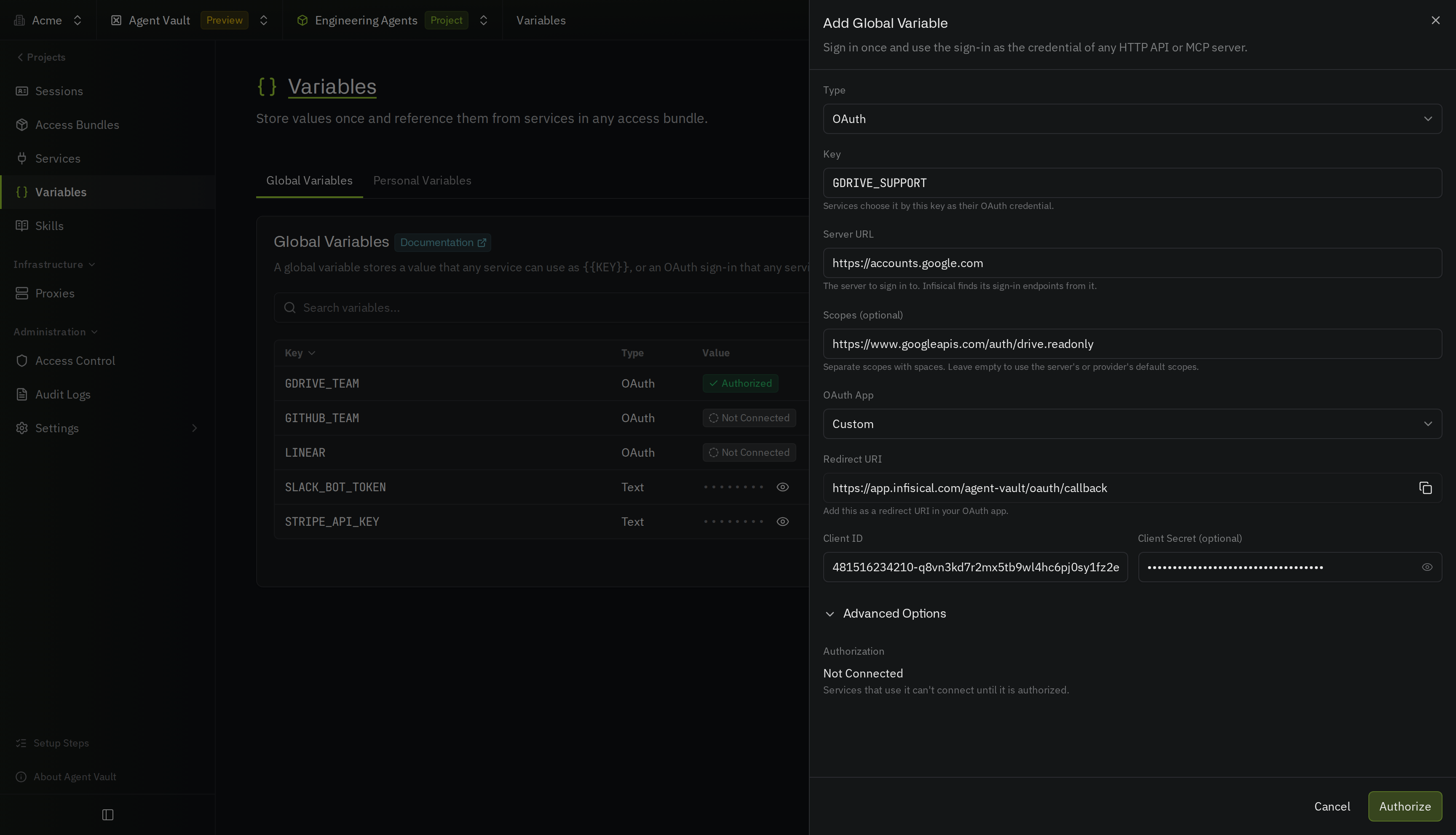
- Under OAuth App, select Custom to show the Redirect URI, Client ID, and Client Secret fields
- Create an OAuth app with the provider, and set its redirect URI to the Redirect URI that Infisical shows
- Enter the app’s Client ID and Client Secret (leave Client Secret empty if the app has no secret)
5
Under Scopes, add the scopes your agents need. Leave Scopes empty to use the server’s or provider’s default scopes.
6
Select Authorize, then sign in to the provider in the pop-up window and approve access. When you approve, the variable shows Authorized.
Use an OAuth variable in a service
To make a service send the variable’s access token:1
Add a service, or open an existing service’s actions menu and select Edit. Then go to the Credential step.
2
Under Credential Type, select OAuth. For an MCP server, also select Use an OAuth Variable.
3
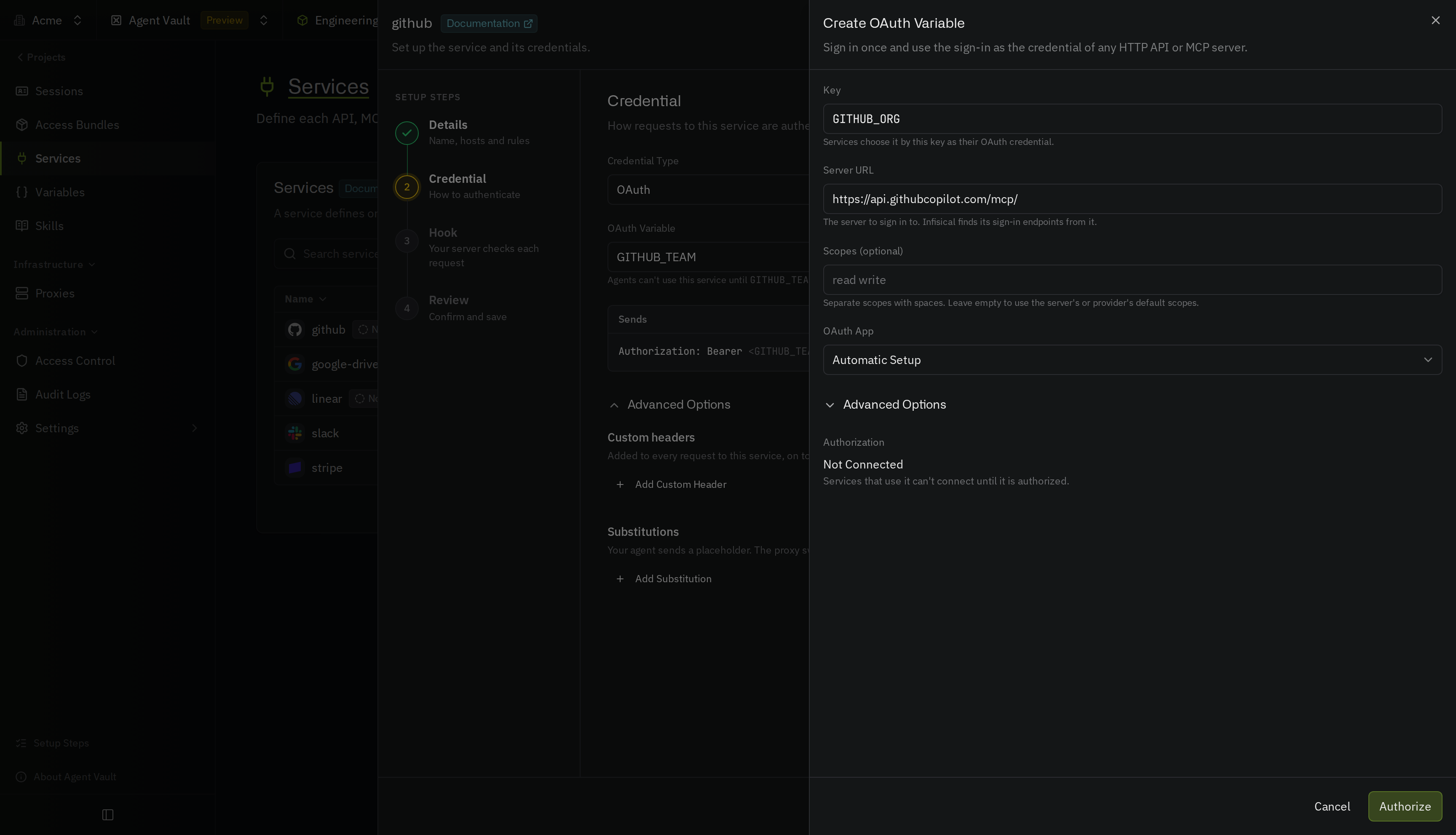
Pick the variable from the list. To create one without leaving the service, select Create OAuth Variable at the end of the list.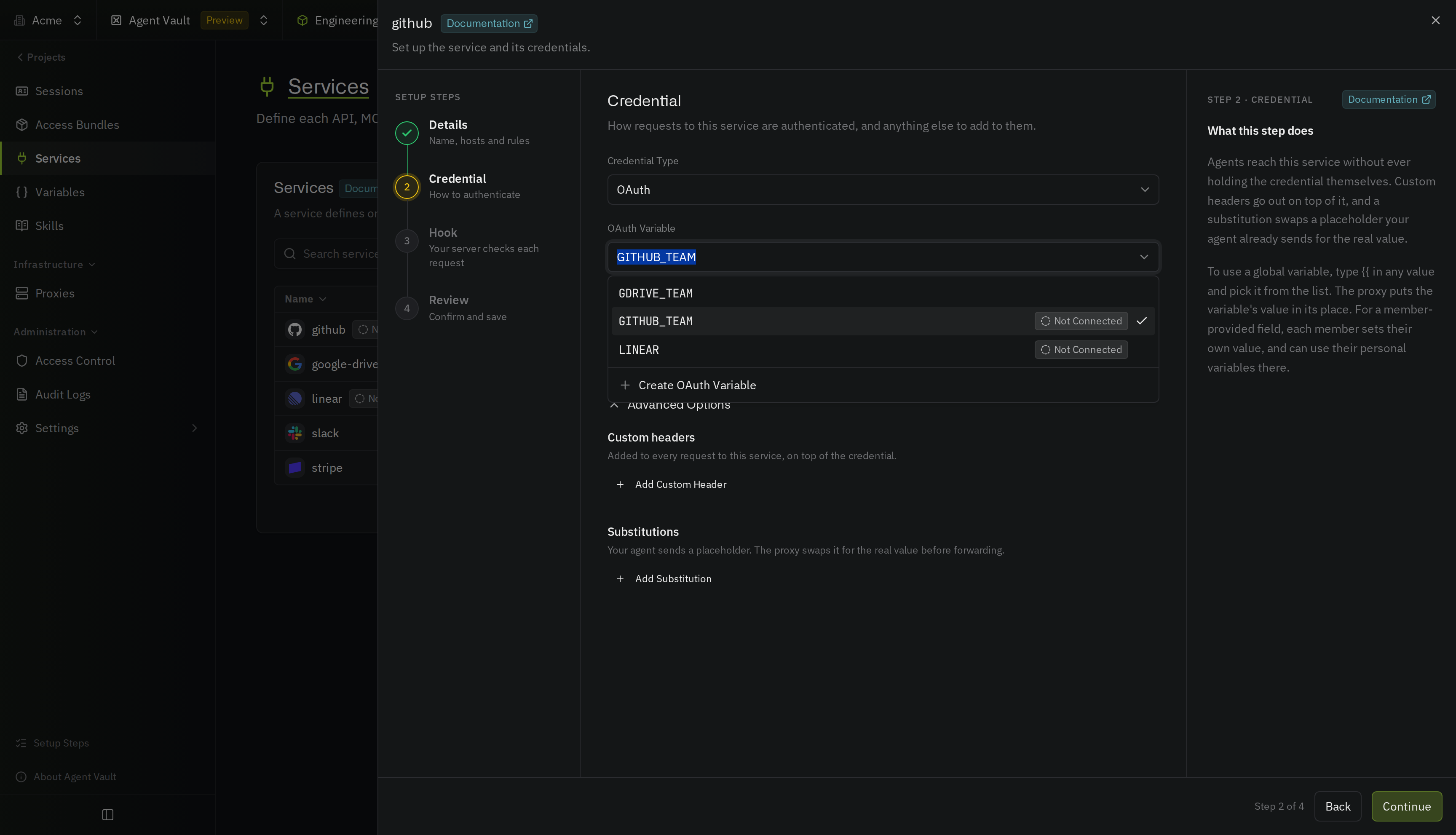 If the variable isn’t authorized yet, the step says that agents can’t use the service until you authorize the variable on the Variables page.
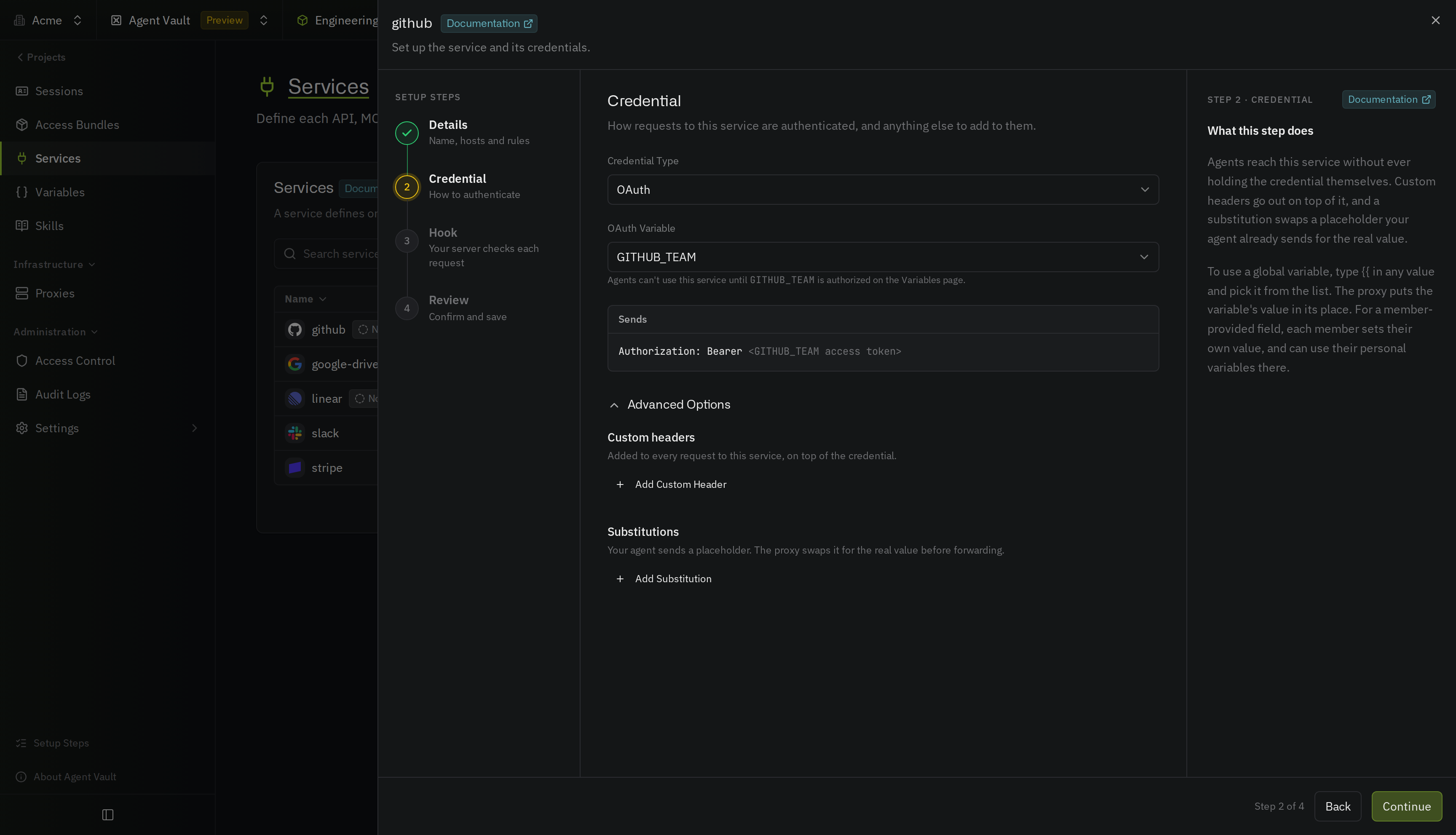 Create OAuth Variable opens the same form as the Variables page, on top of the service. When you create the variable and close the form, the service selects the variable.
4
Continue to the Review step, and select Add Service, or Save if you’re editing the service.
{{GOOGLE_DRIVE}} in a Bearer token.
Check a variable’s status
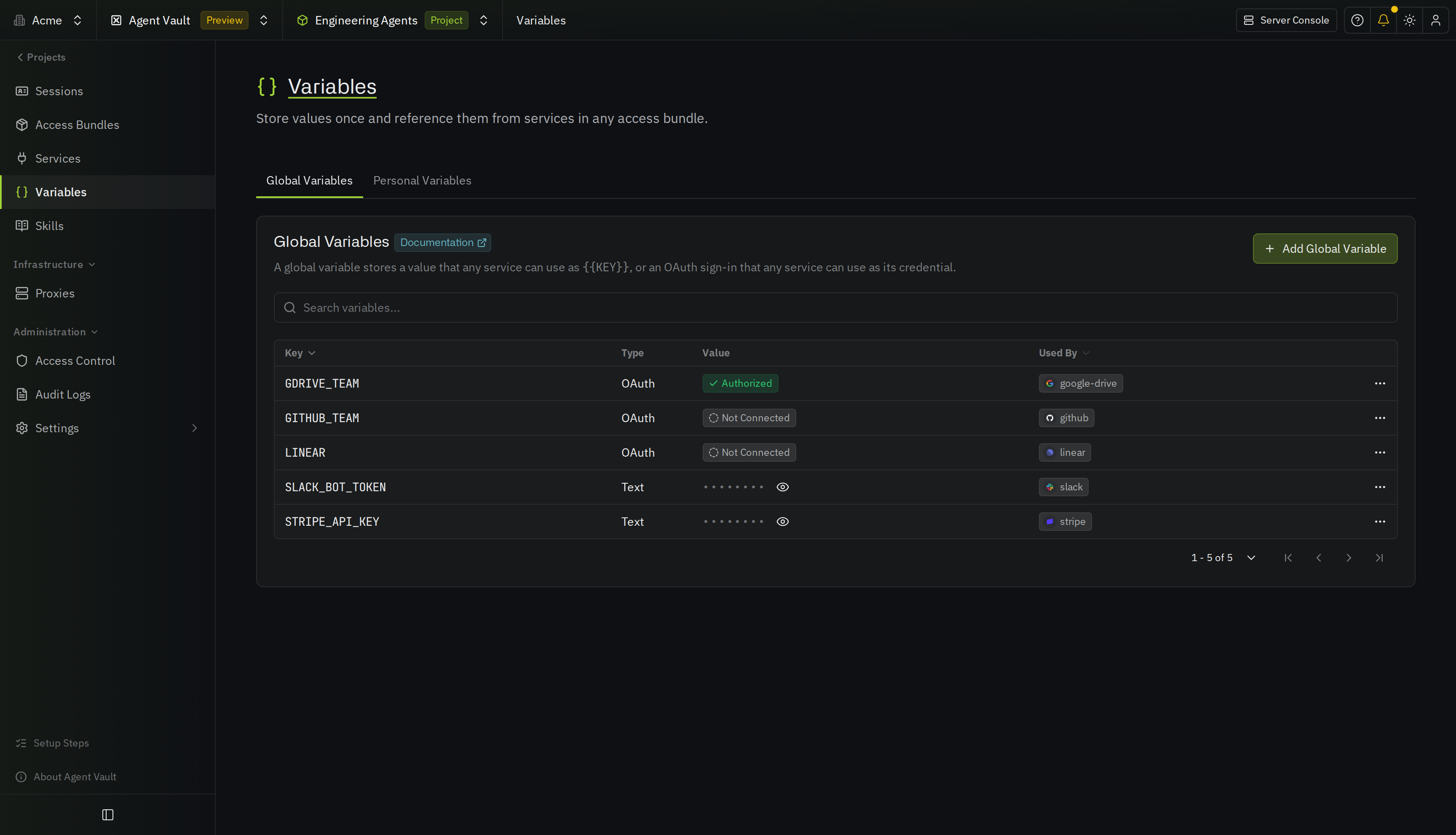
The Value column on the Variables page shows the status of each OAuth variable:- Not Connected: Nobody has signed in yet, or an edit disconnected the variable
- Authorized: Services can use the sign-in
- Needs Reauthorization: The provider no longer accepts the sign-in
- Missing Scopes: A service needs scopes that the sign-in didn’t grant
Reauthorize a variable
If a variable shows Needs Reauthorization or Missing Scopes, sign in again:1
In your Agent Vault project, go to Variables.
2
Open the variable’s actions menu and select Reauthorize.
3
Sign in to the provider in the pop-up window and approve access.
Edits that disconnect a variable
The tokens belong to the provider and OAuth app the variable signed in with. If you change any of these settings, Infisical deletes the tokens and the client secret, and the variable shows Not Connected until you authorize it again with the client secret:- Server URL
- Authorization URL or Token URL
- Issuer
- Token Auth Method
- Client ID
Manage OAuth variables through the API
Your backend can create OAuth variables and send people through the provider’s sign-in, for example one variable for each user of your app. The person signs in on your OAuth app’s consent screen and comes back to a page in your app. You need:- A machine identity with the Admin role in the Agent Vault project, and an access token for it (set it up and log in as the API tab of Create a session describes, but choose Admin in Role)
- An OAuth app with the provider, whose redirect URI points at a page of your app, such as
https://app.example.com/oauth/google/callback
Create a variable and start the sign-in
Call the Create variable endpoint with the provider’s settings andsignIn:
redirectUriis the page in your app where the provider sends the person back (a machine identity must set it)signIn.clientSecretis your OAuth app’s client secret, which Infisical never returns
variable.id in your own records, then redirect the person’s browser to signIn.authorization.authorizeUrl. The link works for 10 minutes, so create it when the person asks to connect.
If the provider lets apps register themselves as OAuth clients, as many MCP servers do, you can send serverUrl set to the provider’s URL instead of the endpoints and clientId. Infisical then finds the endpoints and registers a client for each sign-in. If signIn.authorization in the response is null, Infisical couldn’t start the sign-in:
registrationRequiredistrueif the provider doesn’t let apps register (set your own OAuth app’sclientId)manualSetupRequiredistrueif Infisical couldn’t find endpoints it can trust (check the endpoints inprefill, and set them yourself)
Complete the sign-in from your callback
After the person approves access, the provider redirects them to yourredirectUri with code, state, and sometimes iss in the query string. Your callback must:
- Require the person to be logged in to your app
- Take the variable ID from your own records for that person, never from the request
- Send the query string’s values to the Complete OAuth sign-in endpoint, with the same machine identity that started the sign-in
iss exactly as the provider sent it, and leave it out if the redirect had none. If the redirect carried error and error_description instead, send {"state": "<state>", "error": "<error>", "errorDescription": "<error_description>"}.
The response has the variable with oauth.status set to connected. If the endpoint returns a 400 or 404 response, the sign-in failed or expired, so start a new one.
Use the variable in a session
Call the Create session endpoint, and add an inline service toservices whose credential names the variable:
Reconnect a variable
To check a variable’s status, call the List variables endpoint with the variable’s key inkeys and scope set to global. If oauth.status is needs-reauthorization or needs-additional-scopes, send the person through the sign-in again:
- Call the Start OAuth sign-in endpoint
- Redirect the person to
authorization.authorizeUrlfrom the response - Complete the sign-in from your callback
Import tokens you already have
If your app already holds tokens for an account, store them instead of sending the person through the sign-in. Sendtokens instead of signIn to the Create variable endpoint, or send tokens to the Update variable endpoint to replace an existing variable’s tokens:
authorizationEndpoint, tokenEndpoint, and clientId set, as in the Create variable example. Without a refreshToken, the variable stops working when the access token expires.
Limits
- An OAuth variable counts toward the project’s limit of 500 global variables
- OAuth variables are always global, so personal values can’t use them
- You can’t change a variable’s type after you create it
- If the provider is on a private network and you self-host Infisical on that network, set
ALLOW_INTERNAL_IP_CONNECTIONStotrue, since Infisical connects to the provider to sign in and to renew tokens
Next steps
Create a session
Create a session for each agent run from your own code.
Inline services
Send a service that uses an OAuth variable with a session.