

Prerequisites
- An access bundle with a service for each API the agent calls, and a grant on the bundle for whoever creates the session (admins of the project can use any of its bundles)
- A running proxy in the same project as the access bundle, which the agent’s machine can reach
- The ID of your Agent Vault project, if you create the session with the CLI, the API, or an SDK (see Find the project ID)
- The Infisical CLI on the agent’s machine, if you start the agent with the CLI
- To create sessions as a machine identity, the Admin role in the Agent Vault project to set up the machine identity, or an admin of the project who can set it up for you
Create the session
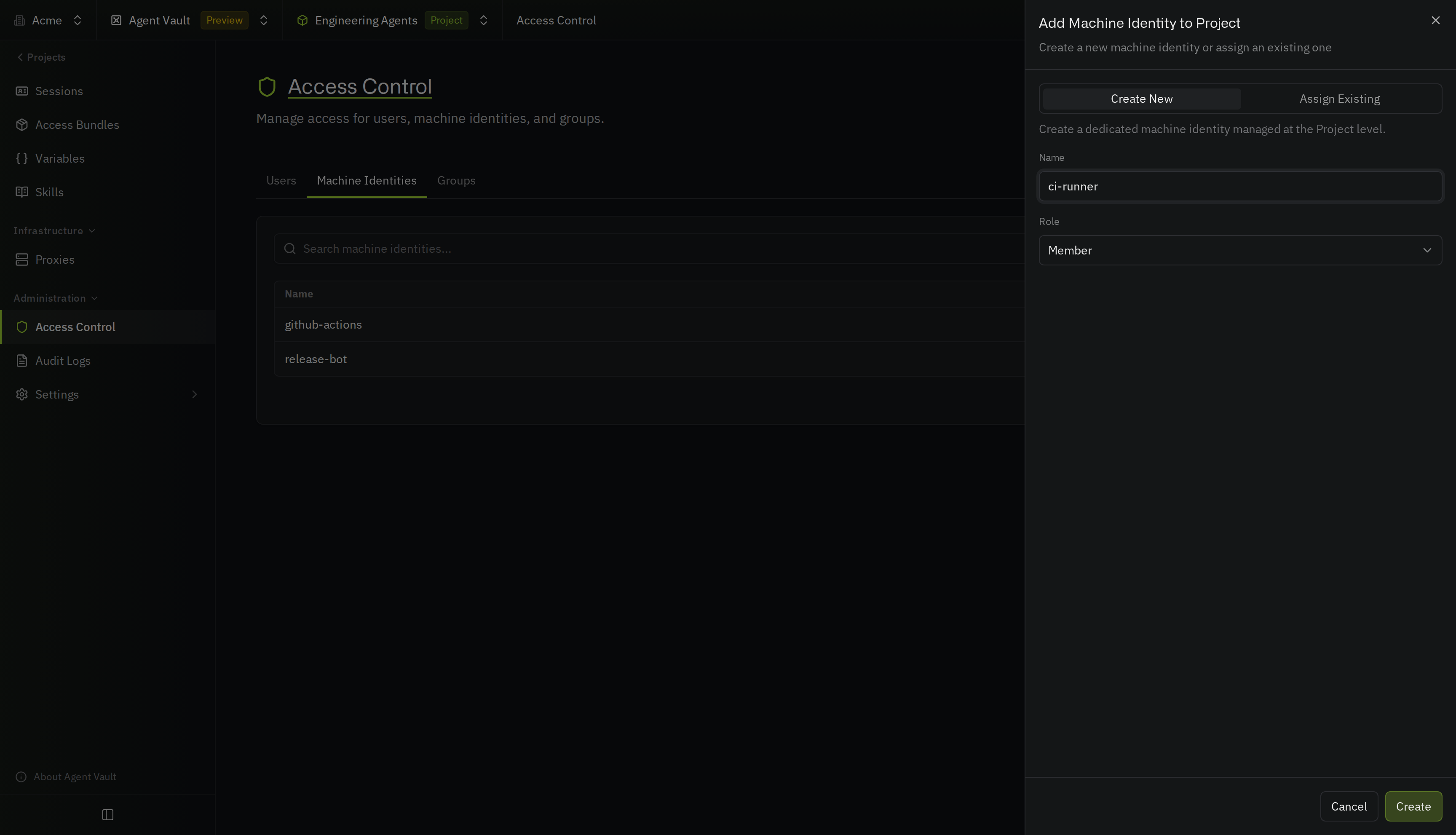
If a scheduled job, CI, or your own code creates sessions, it creates them as a machine identity, so the sessions don’t depend on a person’s account. Every tab except Dashboard includes the steps to set up the machine identity.- Dashboard
- CLI
- API
- Python SDK
- Node.js SDK


Duration
The duration sets when the session expires. Set a duration of at least one minute, such as30m, 8h, or 7d, or set never for a session that lasts until someone revokes it. If you leave out the duration, the session lasts:
7dif you create it through the API or an SDK1hif you create it on behalf of a userneverif you create it with the CLI, so set a duration with--ttlunless you always revoke the session
Start the agent
If you created the session withinfisical agent-vault run --access-bundle, the agent is already running. Otherwise, pass the session token to the agent:
- With the CLI
- Without the CLI
infisical agent-vault run, and pass the session token and the proxy’s address:infisical agent-vault sessions revoke.Create a session for each run automatically
To give an agent a new session every time it runs, start the agent as a machine identity with therun-agent.sh script from the CLI tab. The systemd and container examples run infisical agent-vault run --access-bundle instead, so the CLI revokes the session when the service or container stops. Pick the tab for the place that starts your agents:
- Schedule (cron)
- Service (systemd)
- Container
- CI (GitHub Actions)
/etc/agent-vault/agent.env with mode 0600:Verify the session works
In your Agent Vault project, go to Sessions. If you’re an admin of the project, select All Sessions to see sessions that other users and machine identities created. Find the session by its label. Its Status is Active until it expires or someone revokes it. View the session’s logs to check which requests the agent made. If the proxy attached a credential to a request, the request’s outcome is Brokered.Troubleshooting
Creating the session fails with "No access bundle named ... is granted to you"
Creating the session fails with "No access bundle named ... is granted to you"
Creating the session fails with "You can't use a service called ..."
Creating the session fails with "You can't use a service called ..."
Creating the session fails with 422 and "More than one service in this session is named ..."
Creating the session fails with 422 and "More than one service in this session is named ..."
Creating the session fails with "You can't use a skill called ..."
Creating the session fails with "You can't use a skill called ..."
Creating the session fails with 422 and "More than one skill in this session is named ..."
Creating the session fails with 422 and "More than one skill in this session is named ..."
SKILL.md has the same name. Remove one of the two, or rename the skill you send.The CLI hangs or fails before the agent starts
The CLI hangs or fails before the agent starts
INFISICAL_UNIVERSAL_AUTH_CLIENT_ID and INFISICAL_UNIVERSAL_AUTH_CLIENT_SECRET are set in the job’s environment. Cron starts jobs with an almost empty environment, so load the variables in the cron job, as the cron example shows.The CLI stops because no Agent Vault project is set
The CLI stops because no Agent Vault project is set
INFISICAL_AGENT_VAULT_PROJECT_ID to the project’s ID in the job’s environment, or pass --project-id <project-id>. If neither is set, the CLI reads the project from INFISICAL_PROJECT_ID.Creating the session fails after the CLI reads the project from INFISICAL_PROJECT_ID
Creating the session fails after the CLI reads the project from INFISICAL_PROJECT_ID
INFISICAL_PROJECT_ID might hold the ID of a Secrets Management project. Set INFISICAL_AGENT_VAULT_PROJECT_ID to the ID of your Agent Vault project, which the CLI reads first.The CLI fails with "the proxy address is required"
The CLI fails with "the proxy address is required"
INFISICAL_AGENT_VAULT_PROXY_ADDRESS, or pass --proxy <proxy-host>:17323.Requests fail with "the session is no longer valid, or it belongs to a different Agent Vault project" as soon as the agent starts
Requests fail with "the session is no longer valid, or it belongs to a different Agent Vault project" as soon as the agent starts
Creating a session fails with 401 after your code has run for a while
Creating a session fails with 401 after your code has run for a while
The agent loses access to APIs partway through a run
The agent loses access to APIs partway through a run
CONNECT tunnel failed, response 403, the session expired before the agent finished. Set a longer duration.Requests to a service fail with "needs your own credential or sign-in" or "needs your personal values"
Requests to a service fail with "needs your own credential or sign-in" or "needs your personal values"
- A user sets up their values on the Services page of the Agent Vault project, as described in set up your personal values
- A machine identity sets its values with the Set personal values endpoint, but it can’t sign in to an OAuth service, so create the session on behalf of a user who has signed in