- PostgreSQL Database
- MCP Server
- Linux Server
- Web Application
Prerequisites
Before you can create a resource, you must have an Infisical Gateway deployed that is able to reach the target resource over the network. The Gateway acts as a secure bridge, allowing Infisical to reach your private infrastructure without exposing it to the public internet. When creating a resource, you will be asked to specify which Gateway should be used to connect to it. Read the Gateway Deployment GuideCreating a Resource
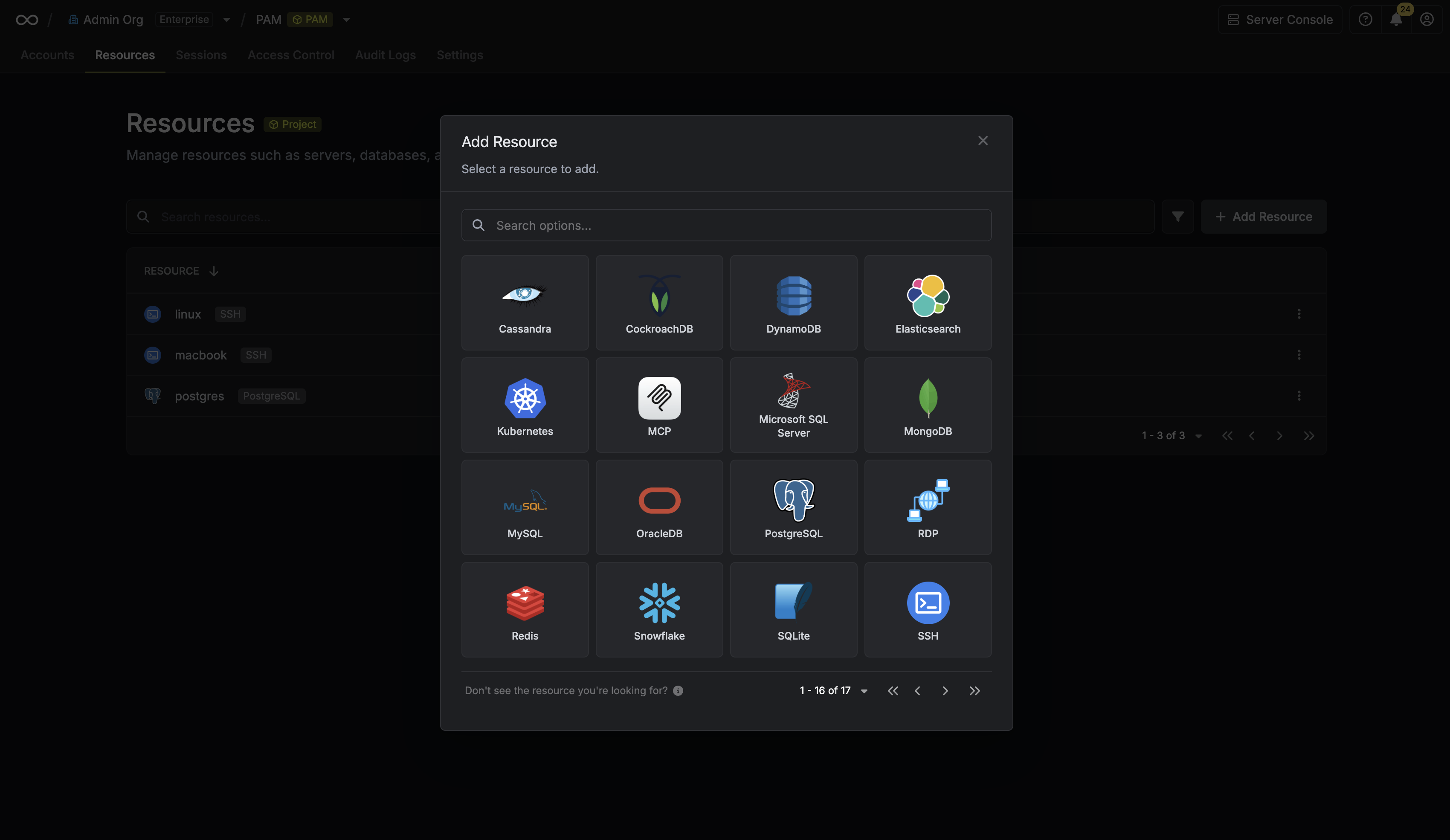
To add a resource, navigate to the Resources tab in your PAM project and click Add Resource.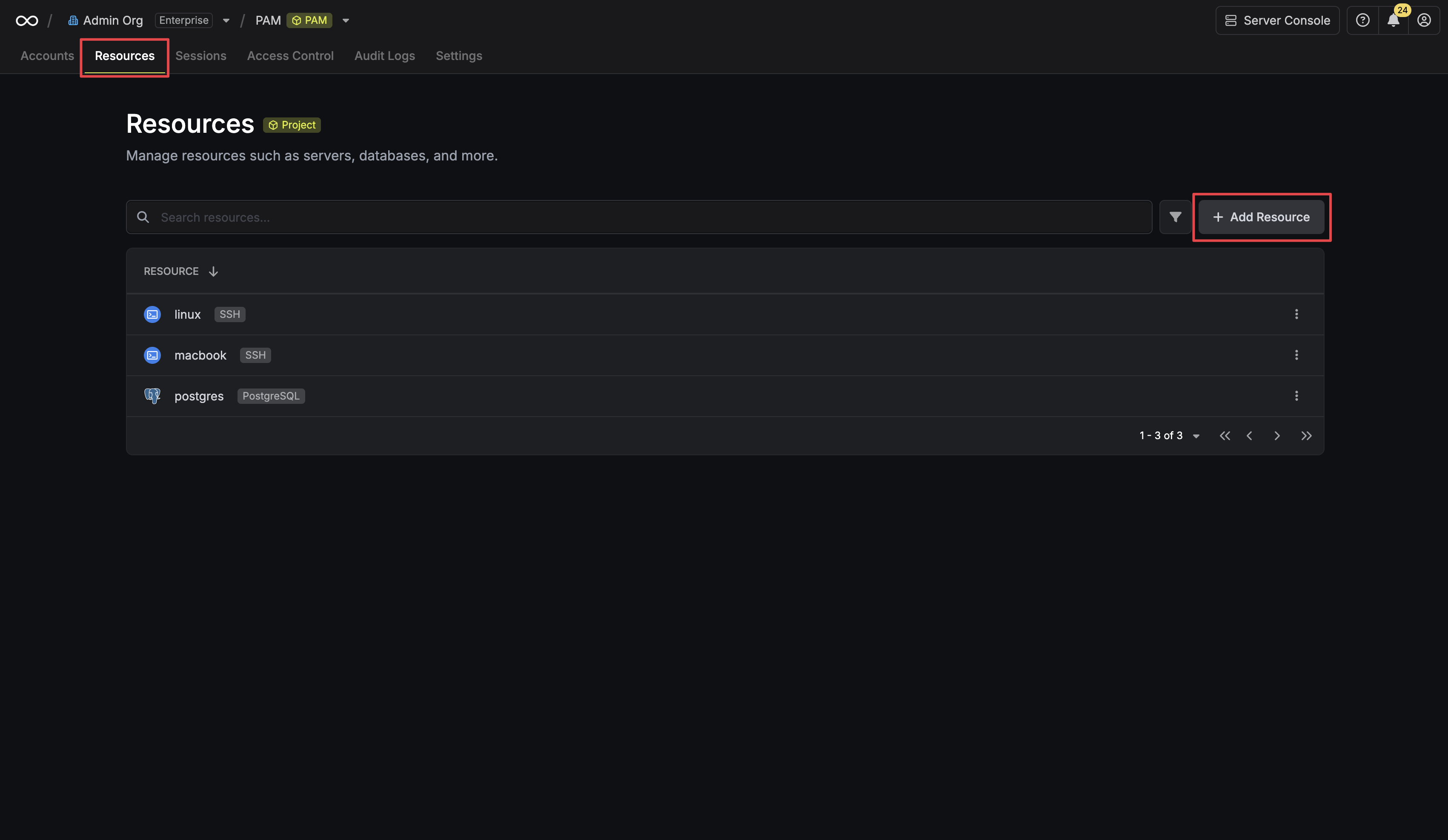 Next, select the type of resource you want to add.
 After selecting a resource type, provide the necessary connection details. The required fields vary depending on the resource type.
Important: You must select the Gateway that has network access to this resource.
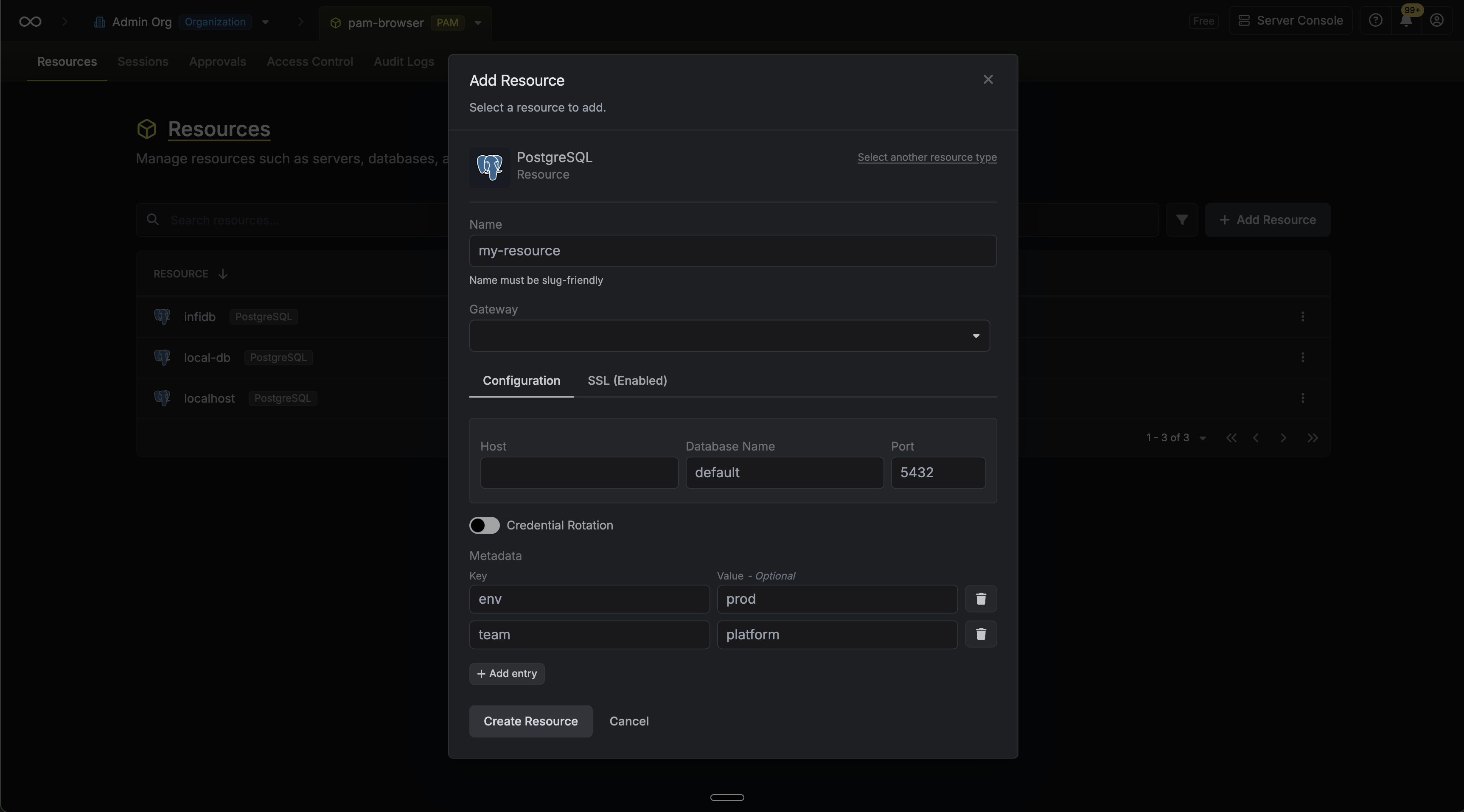
In this PostgreSQL example, you provide details such as host, port, gateway, and database name.
After selecting a resource type, provide the necessary connection details. The required fields vary depending on the resource type.
Important: You must select the Gateway that has network access to this resource.
In this PostgreSQL example, you provide details such as host, port, gateway, and database name.
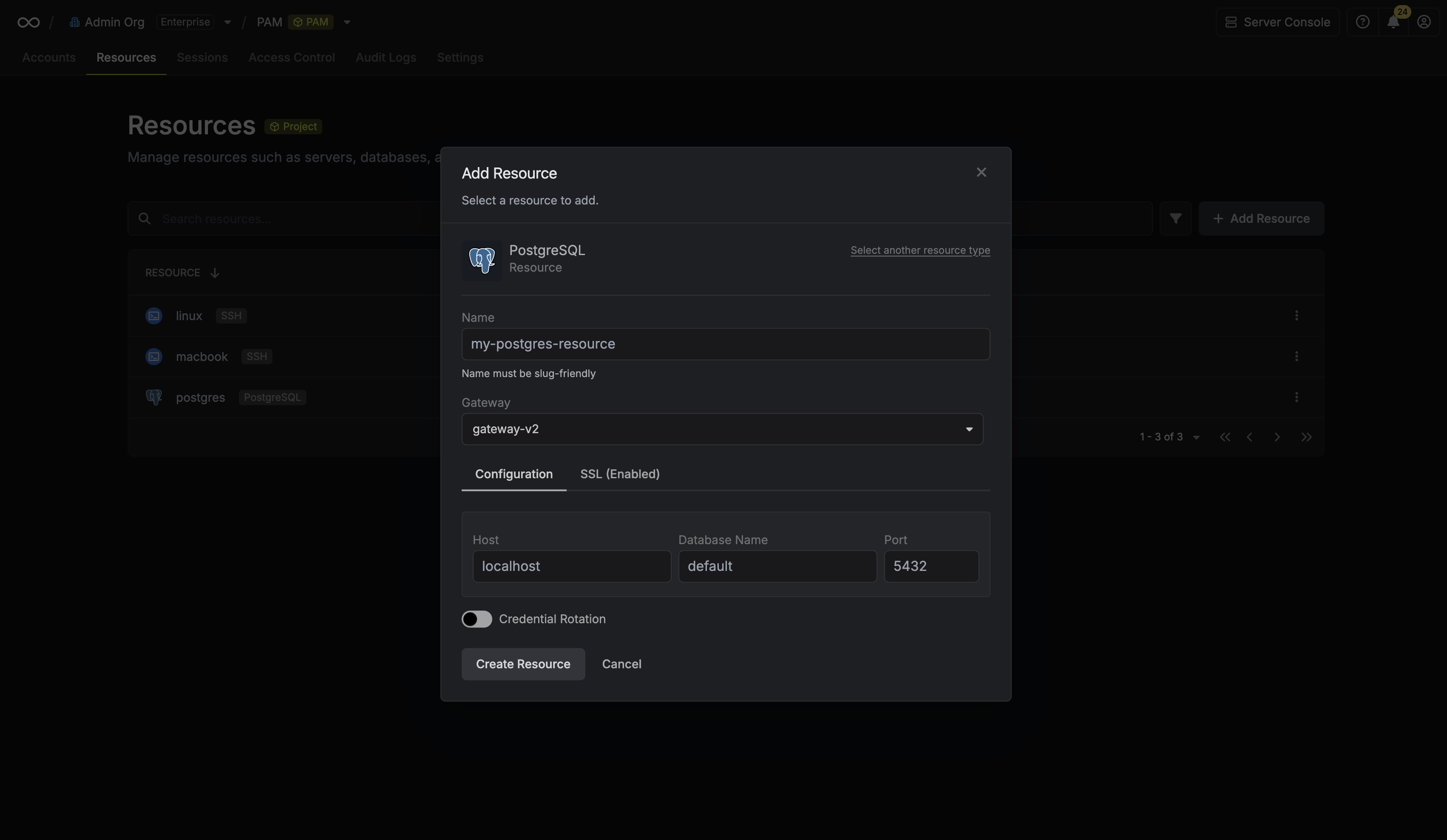 Clicking Create Resource will trigger a connection test from the selected Gateway to your target resource. If the connection fails, an error message will be displayed to help you troubleshoot (usually indicating a network firewall issue between the Gateway and the Resource).
Resource Metadata
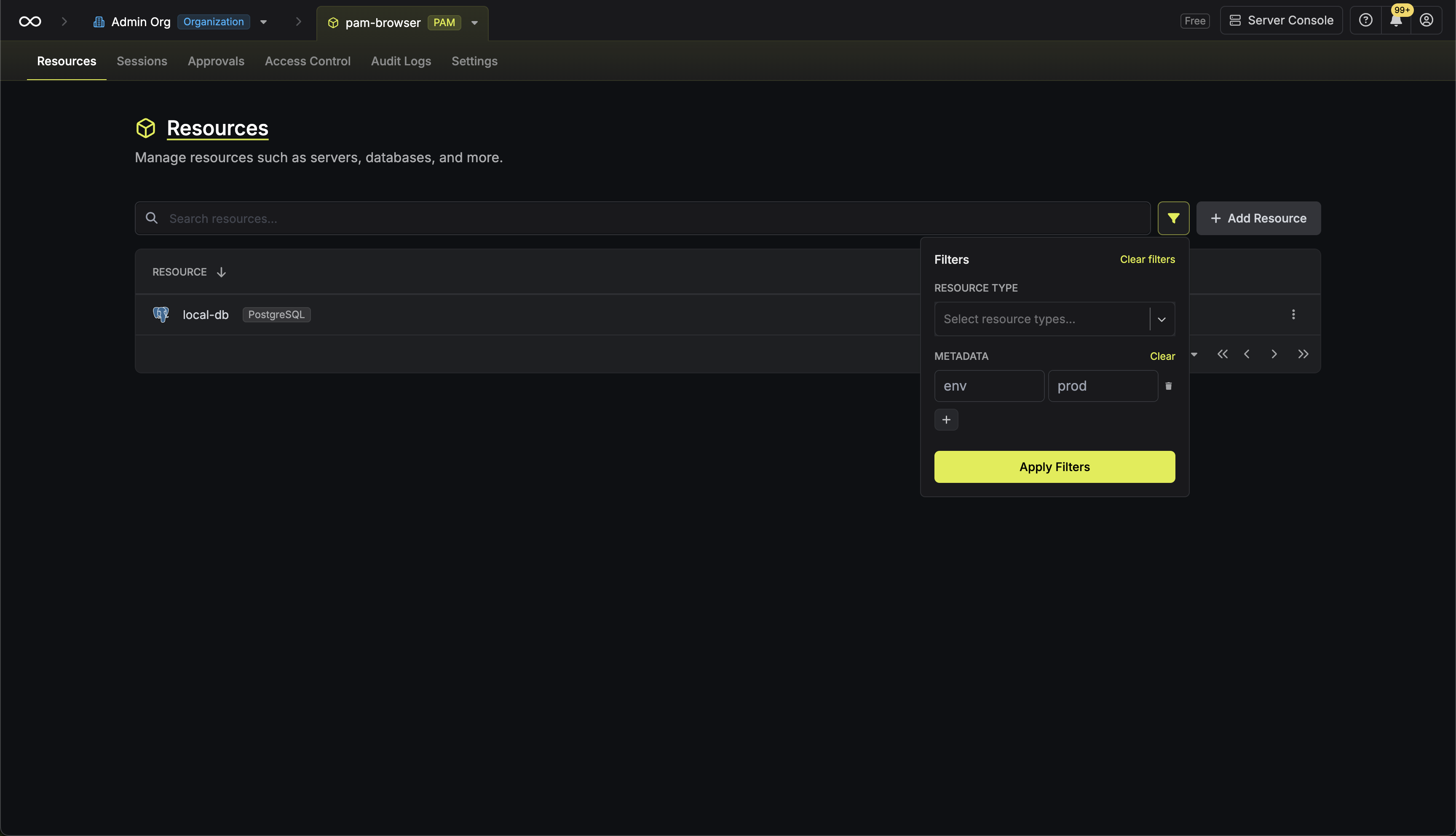
Resources support custom key-value metadata that can be used to organize and classify your infrastructure. Common use cases include environment labels, cost centers, compliance tags, and team ownership.-
At creation: You can attach metadata key-value pairs when creating a resource through the creation modal.
-
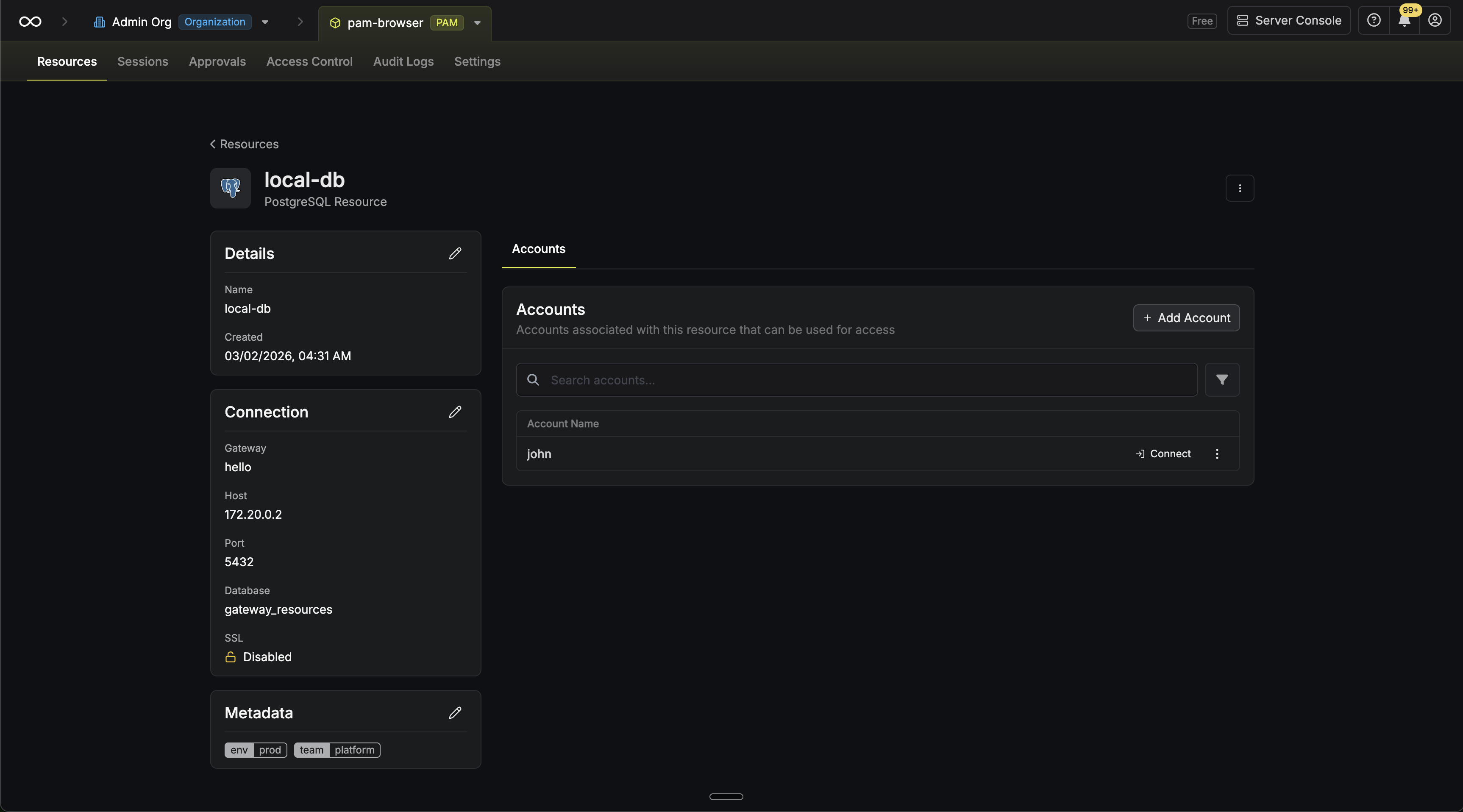
On the details page: After creation, resource metadata can be viewed and edited from the resource details page.
-
Filtering: You can filter the resources list view by metadata key-value pairs.