

Concept
Infisical can be used to issue SSH credentials to clients to provide short-lived, secure SSH access to infrastructure; this improves on many limitations of traditional SSH key-based authentication via mitigation of private key compromise, static key management, unauthorized access, and SSH key sprawl. The following concepts are useful to know when working with Infisical SSH:- SSH Certificate Authority (CA): A trusted authority that issues SSH certificates.
- Certificate Template: A set of policies bound to an SSH CA for certificates issued under that template; a CA can possess multiple templates, each with different policies for a different purpose (e.g. for admin versus developer access).
- SSH Certificate: A short-lived, credential issued by the SSH CA granting time-bound access to infrastructure.
Client Workflow
The following sequence diagram illustrates the client workflow for accessing a remote host using an SSH certificate (and optionally key pair) supplied by Infisical. At a high-level, Infisical issues a signed SSH certificate to a client that can be used to access a remote host. To be more specific:- The client authenticates with Infisical; this can be done using a user or machine identity authentication method or a user authentication method.
- The client makes an authenticated request for an SSH certificate via either the
/api/v1/ssh/issueor/api/v1/ssh/signendpoints. Note that if the client wishes to use an existing SSH key pair, it can use the/api/v1/ssh/signendpoint; otherwise, it can use the/api/v1/ssh/issueendpoint to have Infisical issue a new SSH key pair along with the certificate. - The client uses the issued SSH certificate (and potentially SSH key pair) to temporarily access the host.
Note that the workflow above requires an operator to perform additional
configuration on the remote host to trust SSH certificates issued by
Infisical.
Guide to Configuring Infisical SSH
In the following steps, we explore how to configure Infisical SSH to start issuing SSH certificates to clients as well as a remote host to trust these certificates as part of the SSH operation.1
Configuring an SSH CA for client key signing
1.1. Start by creating an SSH project in the SSH tab of your organization. 1.2. Next, create an SSH CA in the Certificate Authorities tab of the
project; this CA will be used for client key signing.
1.2. Next, create an SSH CA in the Certificate Authorities tab of the
project; this CA will be used for client key signing.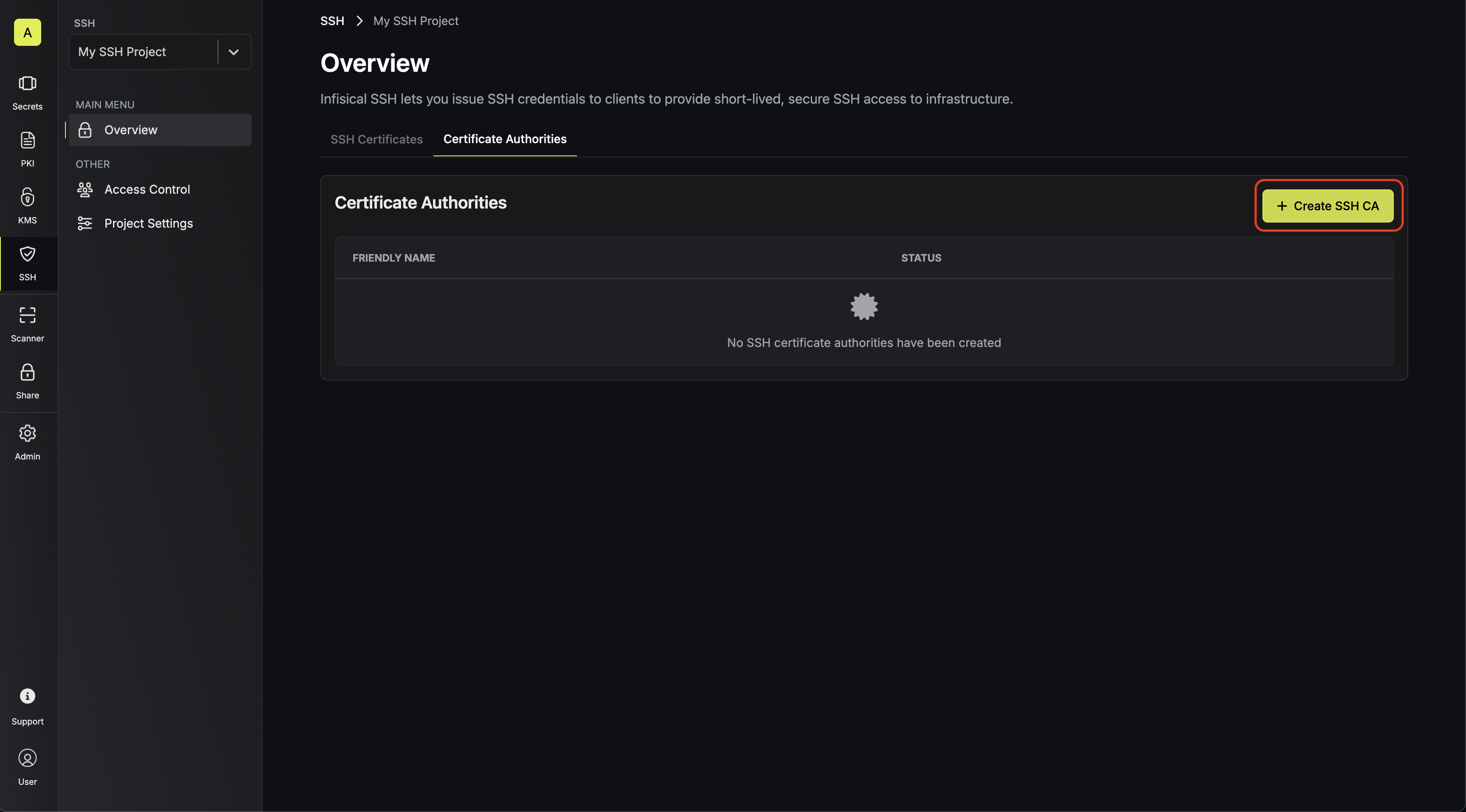
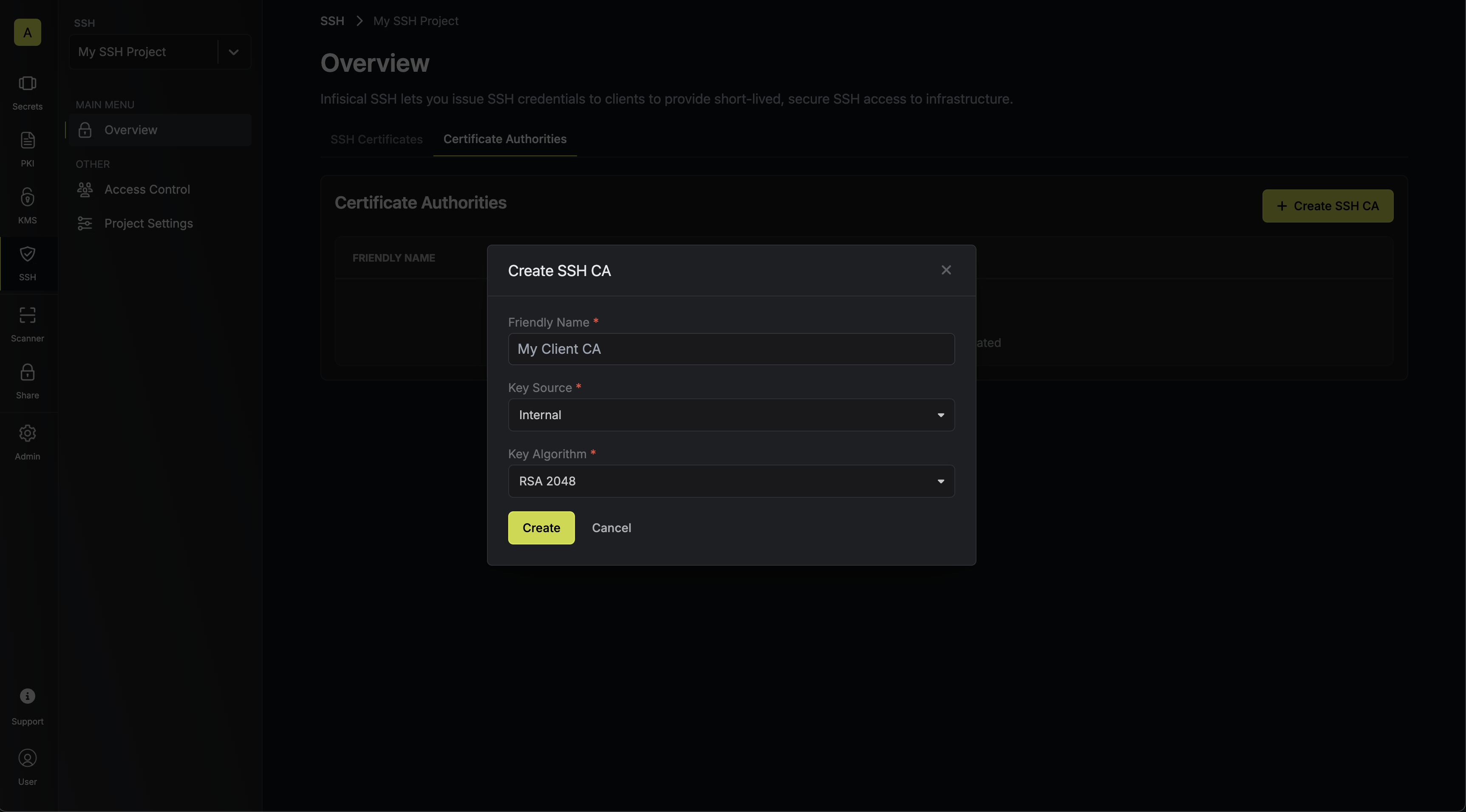 Here’s some guidance on each field:
1.2. Next, create an SSH CA in the Certificate Authorities tab of the
project; this CA will be used for client key signing.Here’s some guidance on each field:- Friendly Name: A friendly name for the CA; this is only for display.
- Key Source: Whether the CA’s key pair should be generated internally or supplied from an external source. Select Internal.
- Key Algorithm: The type of public key algorithm and size, in bits, of the key pair for the CA. Supported key algorithms are
RSA 2048,RSA 4096,ECDSA P-256, andECDSA P-384with the default beingRSA 2048.
2
Configuring a certificate template on the CA
2.1. Next, create a certificate template in the Certificate Templates section of the newly-created CA.A certificate template is a set of policies for certificates issued under that template; each template is bound to a specific CA.With certificate templates, you can specify, for example, that certificates issued under a template are only allowed for users with a specific username like 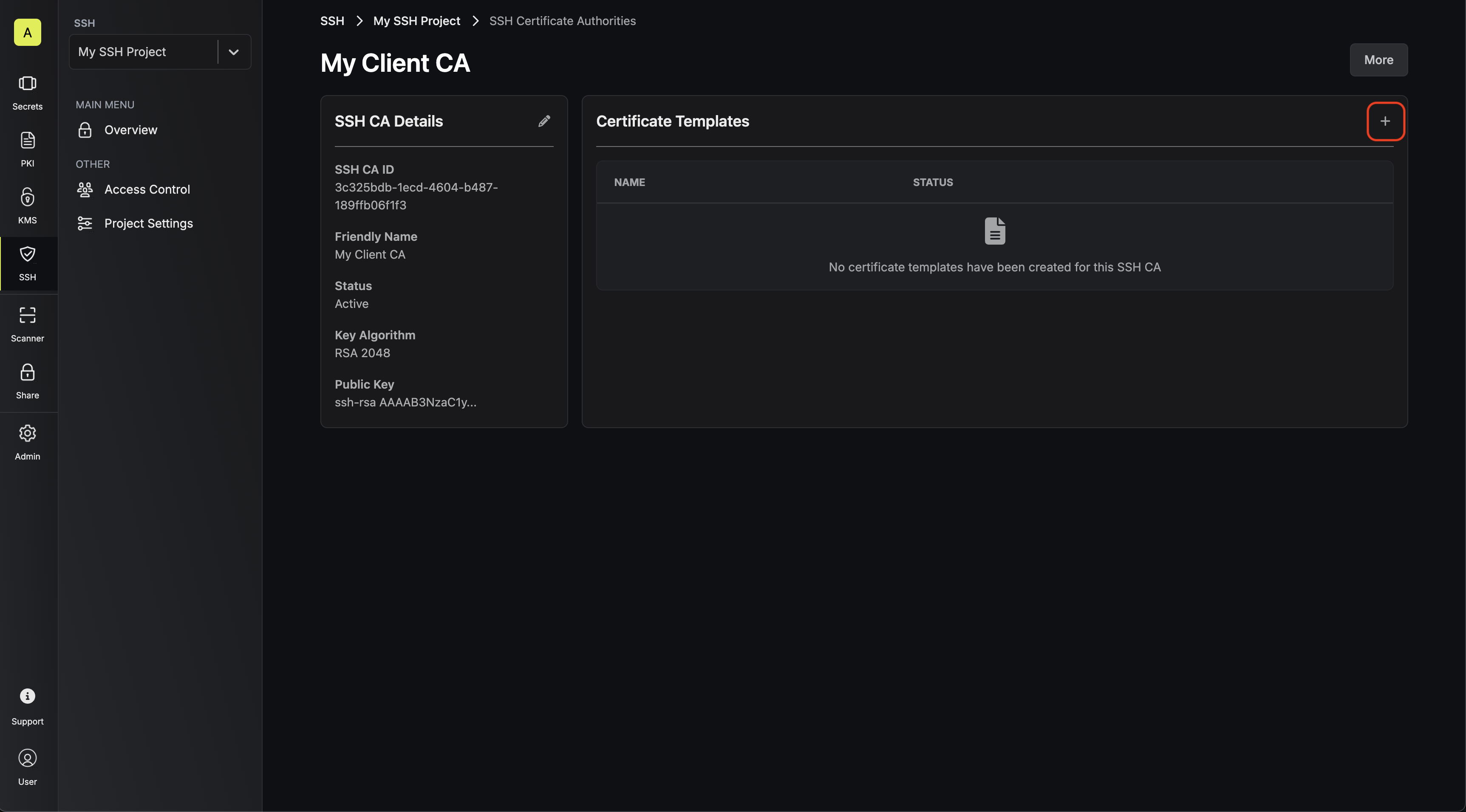
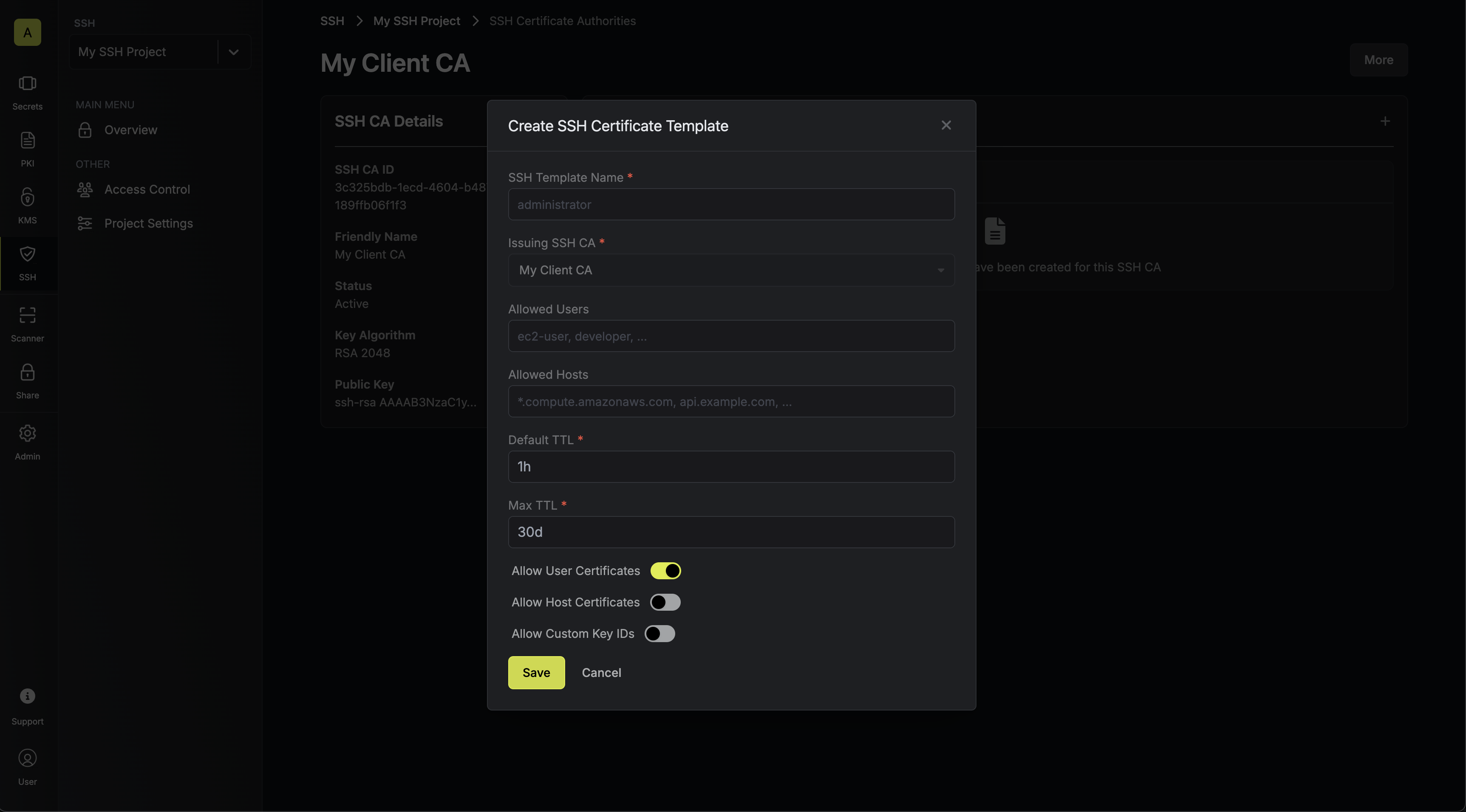 Here’s some guidance on each field:
ec2-user or perhaps that the max TTL requested cannot exceed 1 hour.Here’s some guidance on each field:- SSH Template Name: A name for the certificate template; this must be a valid slug.
- Allowed Users: A comma-separated list of valid usernames (e.g.
ec2-user) on the remote host for which a client can request a certificate for. If you wish to allow a client to request a certificate for any username, set this to*; alternatively, if left blank, the template will not allow issuance of certificates under any username. - Allowed Hosts: A comma-separated list of valid hostnames/domains on the remote host for which a client can request a certificate for. Each item in the list can be either a wildcard hostname (e.g.
*.acme.com), a specific hostname (e.g.example.com), an IPv4 address (e.g.192.168.1.1), or an IPv6 address. If left empty, the template will not allow any hostnames; if set to*, the template will allow any hostname. - Default TTL: The default Time-to-Live (TTL) for certificates issued under this template when a client does not explicitly specify a TTL in the certificate request. We recommend setting a shorter Default TTL for client certificates such as
30m. - Max TTL: The maximum TTL for certificates issued under this template.
- Allow User Certificates: Whether or not to allow issuance of user certificates; this should be set to
true. - Allow Host Certificates: Whether or not to allow issuance of host certificates; this is not relevant for this step.
- Allow Custom Key IDs: Whether or not to allow clients to specify a custom key ID to be included on the certificate as part of the certificate request.
3
Configuring the remote host to trust the client
3.1. Begin by downloading the client CA’s public key from the CA’s details section.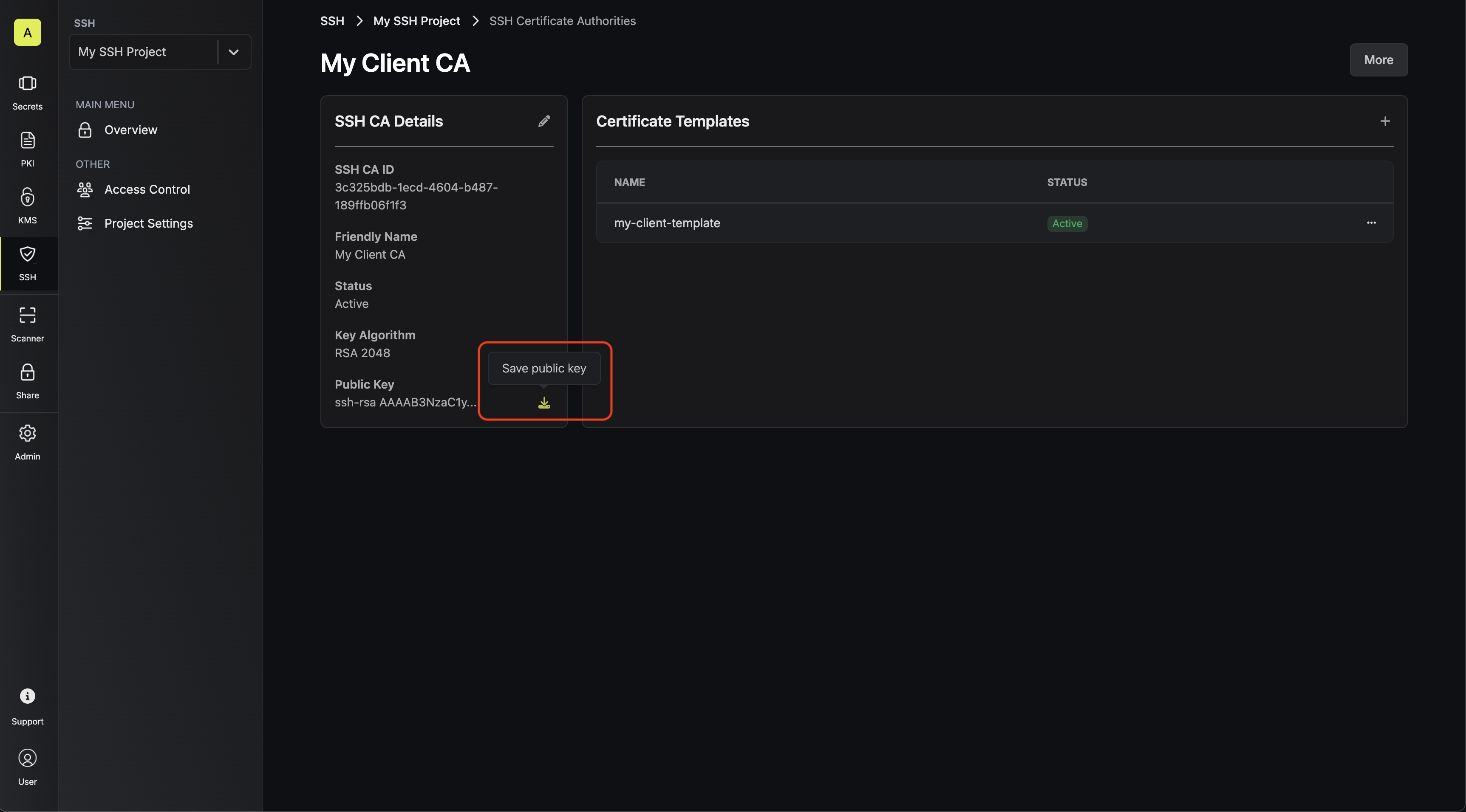 3.2. Next, create a file containing this public key in the SSH folder of the remote host; we’ll call the file 3.4. Finally, reload the SSH daemon on the remote host to apply the changes.At this point, the remote host is configured to trust SSH certificates issued by the Infisical SSH CA.
The CA’s public key can also be retrieved programmatically via API by making a
GET request to the endpoint here.ca.pub.This would result in the file at the path /etc/ssh/ca.pub.3.3. Next, add the following lines to the /etc/ssh/sshd_config file on the remote host.Guide to Using Infisical SSH to Access a Host
In the following steps, we show how to obtain an SSH certificate and use it for a client to access a host via CLI:The subsequent guide assumes the following prerequisites:
- SSH Agent is running: The
ssh-agentmust be actively running on the host machine. - OpenSSH is installed: The system should have OpenSSH installed; this includes
both the
sshclient andssh-agent. SSH_AUTH_SOCKenvironment variable is set; theSSH_AUTH_SOCKvariable should point to the UNIX socket thatssh-agentuses for communication.
1
Authenticate with Infisical
2
Obtain an SSH certificate for the client and load it into the SSH agent
Run the Here’s some guidance on each flag:
infisical ssh issue-credentials command, specifying the --addToAgent flag to automatically load the SSH certificate into the SSH agent.certificateTemplateId: The ID of the certificate template to use for issuing the SSH certificate.principals: The comma-delimited username(s) or hostname(s) to include in the SSH certificate.
3
SSH into the host
Finally, SSH into the desired host; the SSH operation will be performed using the SSH certificate loaded into the SSH agent.
Note that the above workflow can be executed via API or other client methods
such as SDK.
Guide to Configuring Host Key Signing
In the following steps, we show how to configure host key signing for clients to verify the identity of a remote host before attempting the SSH operation; this is recommended to reduce the probability of a client accessing a malicious machine.This guide expects that the remote host already has an existing SSH key pair (typically found in the
/etc/ssh/ folder at /etc/ssh/ssh_host_<algo>_key and .pub).If the remote host does not have an existing SSH key pair, you can generate a new key pair using the ssh-keygen command: ssh-keygen -t rsa -b 4096 -f /etc/ssh/ssh_host_rsa_key -N ''. This will generate:- A private key:
/etc/ssh/ssh_host_rsa_key. - A public key:
/etc/ssh/ssh_host_rsa_key.pub.
1
Configuring an SSH CA for host key signing
1.1. In the same SSH project, create another SSH CA in the Certificate Authorities tab; this CA will be used for host key signing.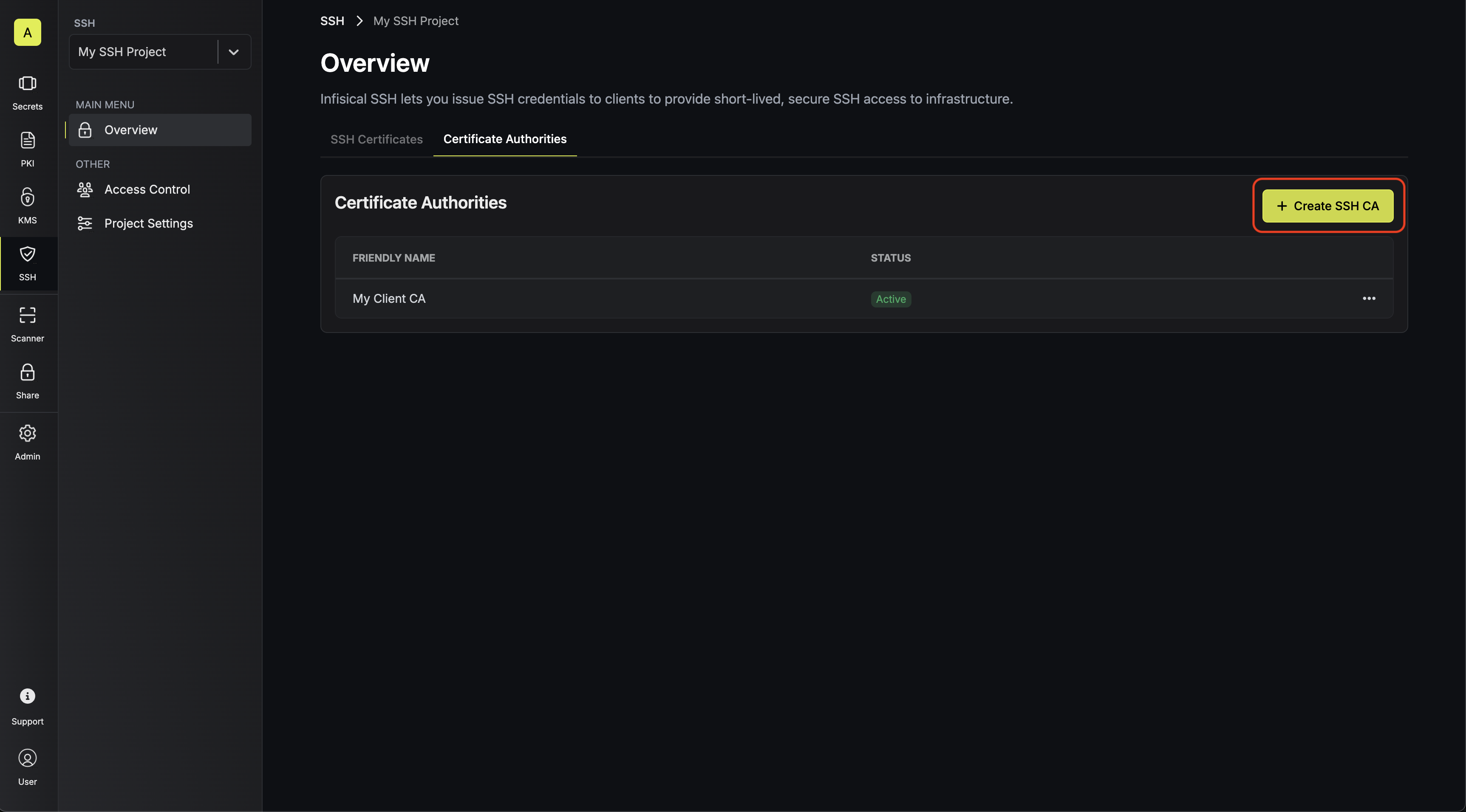
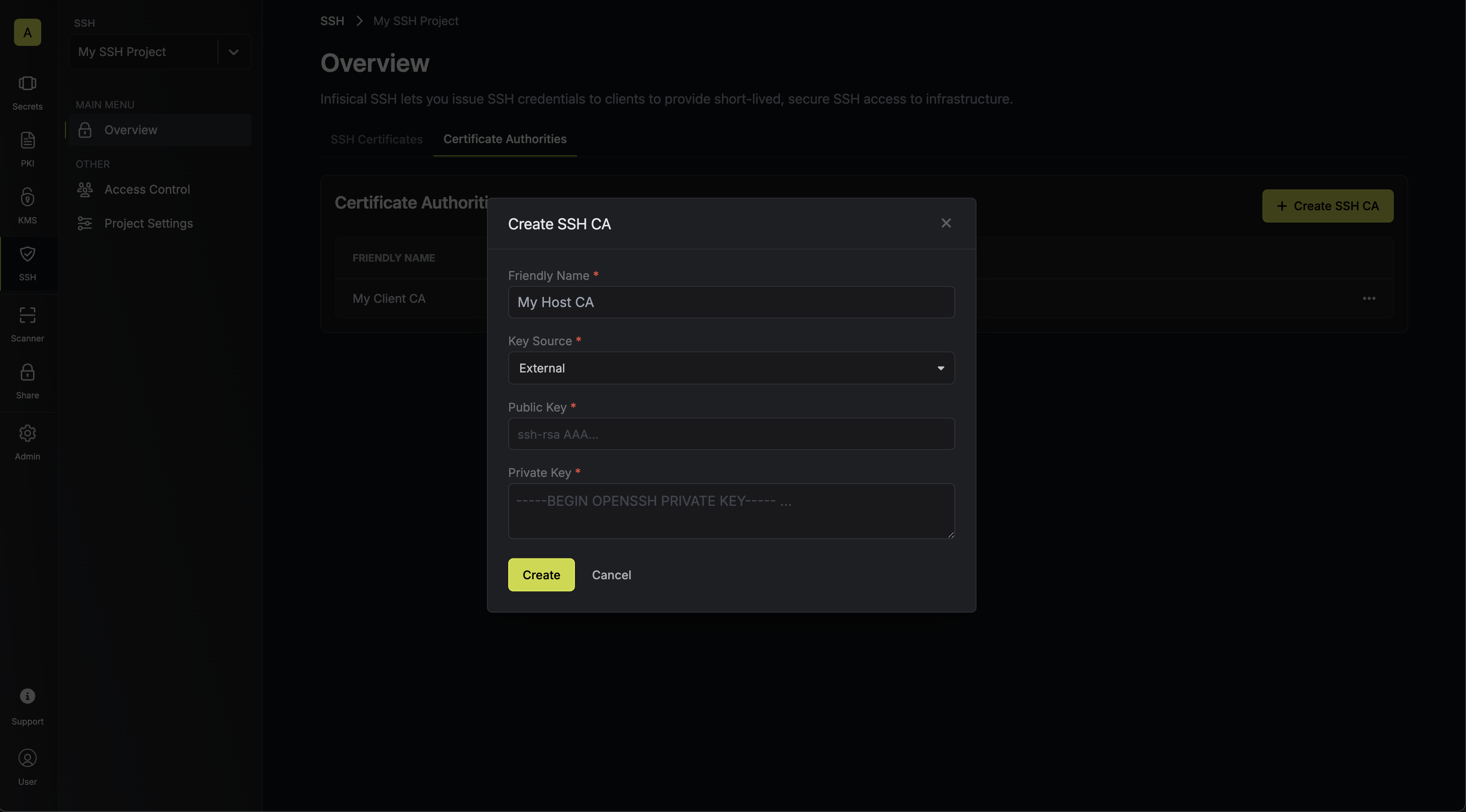 Here’s some guidance on each field:
Here’s some guidance on each field:- Friendly Name: A friendly name for the CA; this is only for display.
- Key Source: Whether the CA’s key pair should be generated internally or supplied from an external source. Select External.
- Public Key: The public key for the CA (i.e. the host’s SSH public key).
- Private Key: The private key for the CA (i.e. the host’s SSH private key).
2
Configuring a certificate template on the CA
2.1. Next, create a certificate template in the Certificate Templates section of the newly-created CA.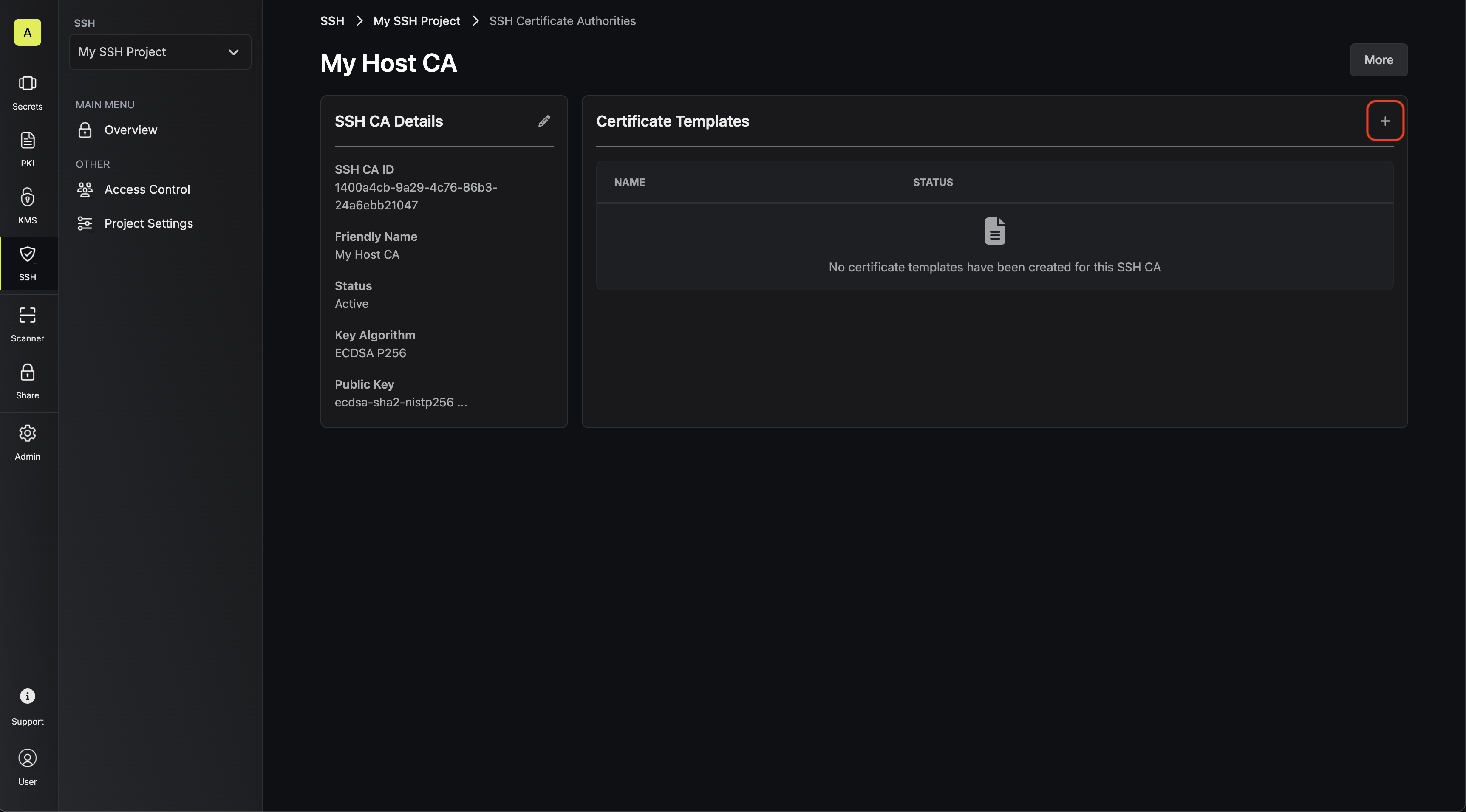
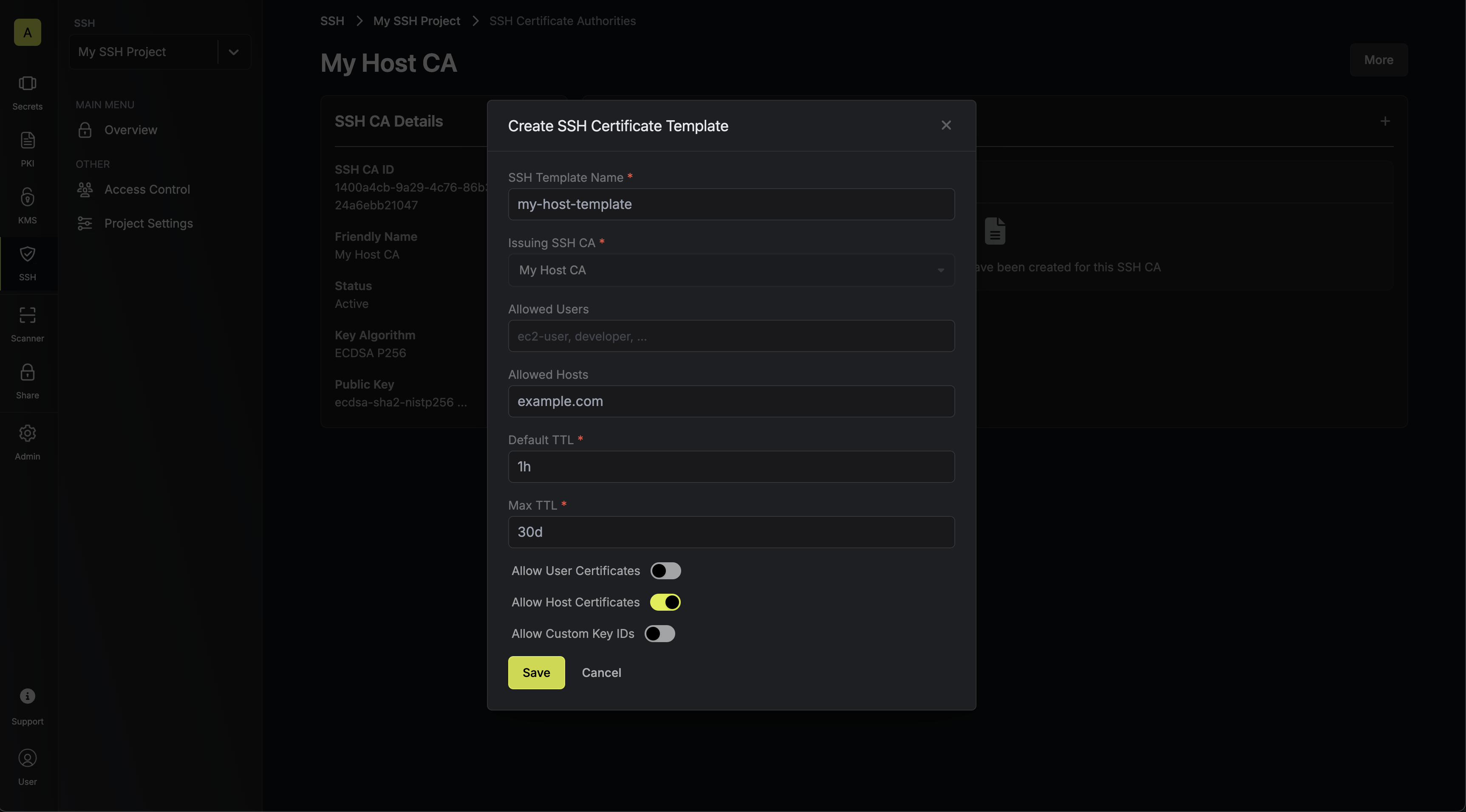 Here’s some guidance on each field:
Here’s some guidance on each field:- SSH Template Name: A name for the certificate template; this must be a valid slug.
- Allowed Users: A comma-separated list of valid usernames (e.g.
ec2-user) on the remote host for which a client can request a certificate for. If you wish to allow a client to request a certificate for any username, set this to*; alternatively, if left blank, the template will not allow issuance of certificates under any username. - Allowed Hosts: A comma-separated list of valid hostnames/domains on the remote host for which a client can request a certificate for. Each item in the list can be either a wildcard hostname (e.g.
*.acme.com), a specific hostname (e.g.example.com), an IPv4 address (e.g.192.168.1.1), or an IPv6 address. If left empty, the template will not allow any hostnames; if set to*, the template will allow any hostname. - Default TTL: The default Time-to-Live (TTL) for certificates issued under this template when a client does not explicitly specify a TTL in the certificate request. We recommend setting a longer Default TTL for host certificates such as
2y. - Max TTL: The maximum TTL for certificates issued under this template.
- Allow User Certificates: Whether or not to allow issuance of user certificates; this is not relevant for this step.
- Allow Host Certificates: Whether or not to allow issuance of host certificates; this should be set to
true. - Allow Custom Key IDs: Whether or not to allow clients to specify a custom key ID to be included on the certificate as part of the certificate request.
3
Configuring the remote host with an SSH certificate
3.1. Obtain an SSH certificate for the host by requesting one from the Certificates tab.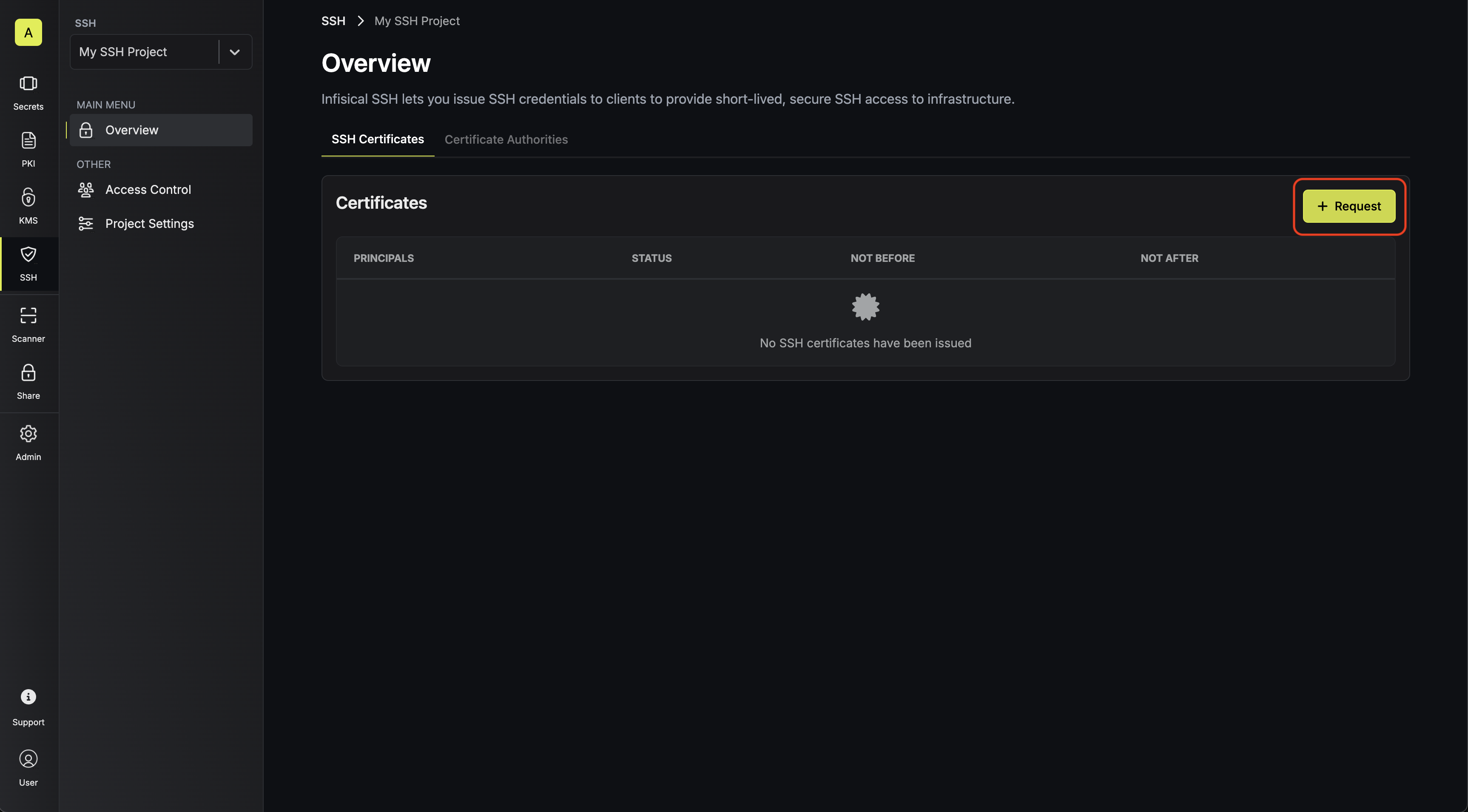
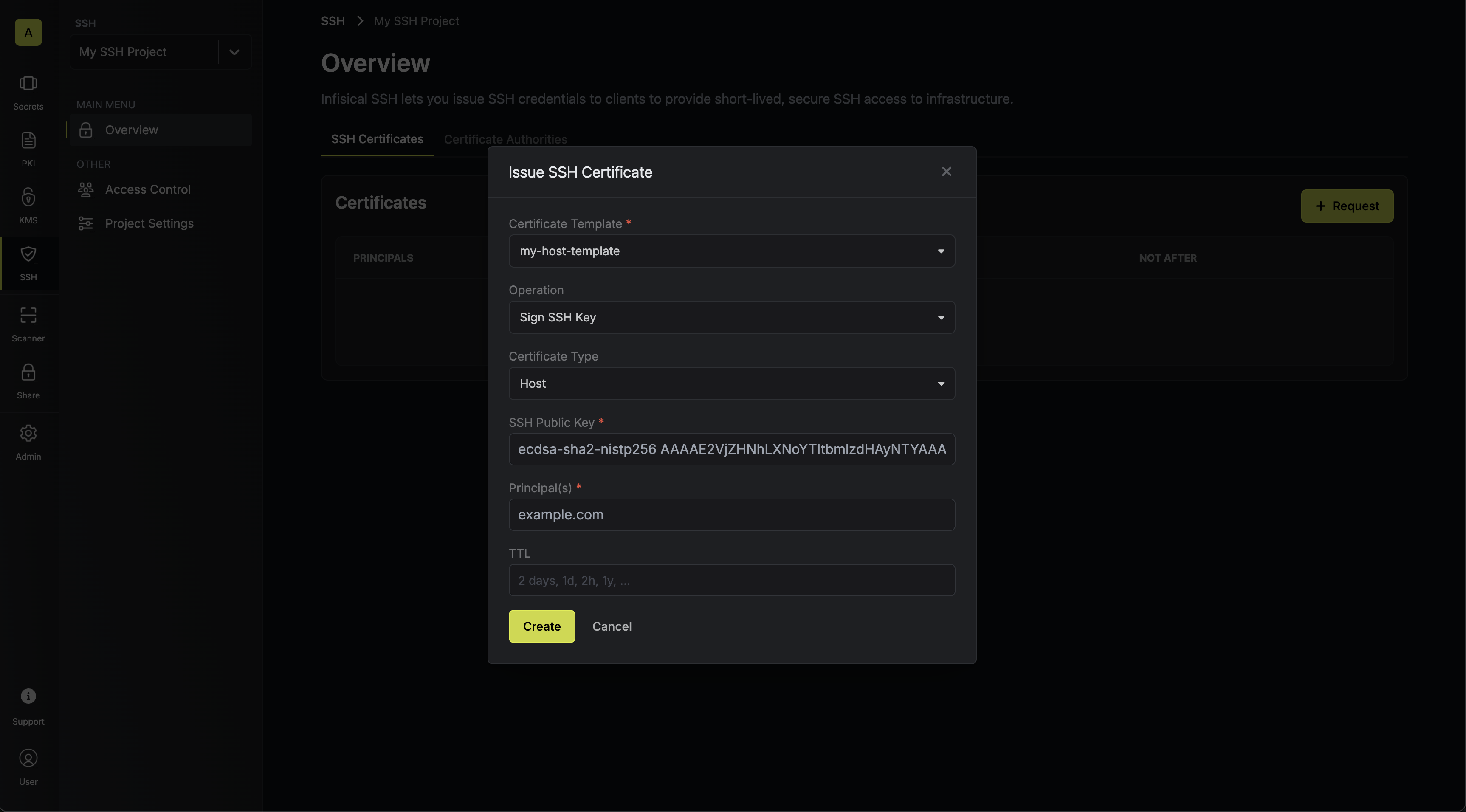
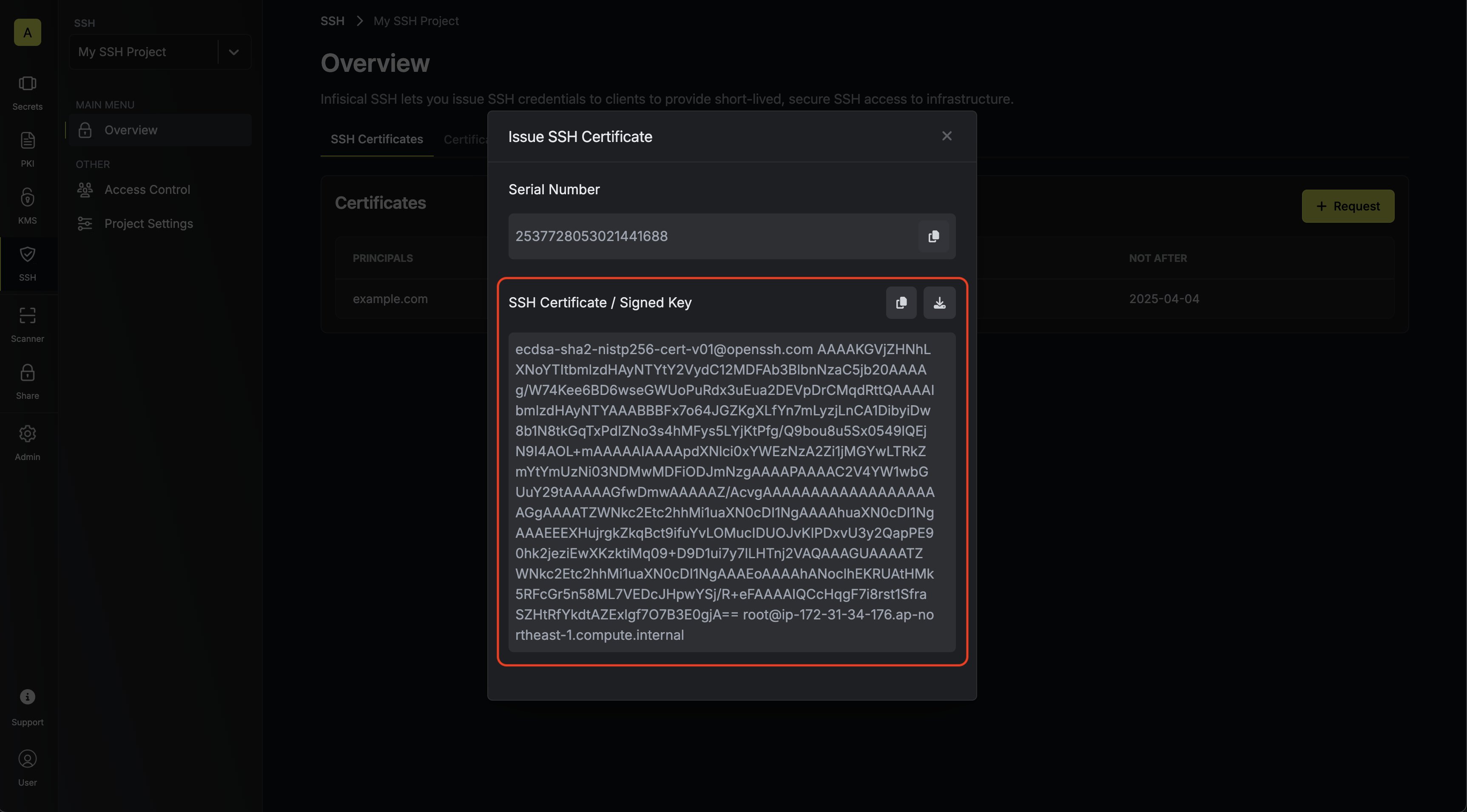 3.2. Create a file containing the certificate in the SSH folder of the remote host; we’ll call it 3.4. Next, add the following lines to the 3.5. Finally, reload the SSH daemon on the remote host to apply the changes.
You should select Sign SSH Key under the Operation field.Then input your host’s SSH public key under the SSH Public Key field and hostname under the Principal(s) field; the host’s public key should be in the
/etc/ssh folder of the host as used in step 1.3.2. Create a file containing the certificate in the SSH folder of the remote host; we’ll call it ssh_host_key-cert.pub.3.3. Set permissions on the certificate to be 0640:/etc/ssh/sshd_config file on the remote host.You should adjust the
HostKey directive to match the path to the host’s SSH private key as used in step 1.4
Configuring the client to trust the remote host
4.1. Begin by downloading the host CA’s public key from the CA’s details section.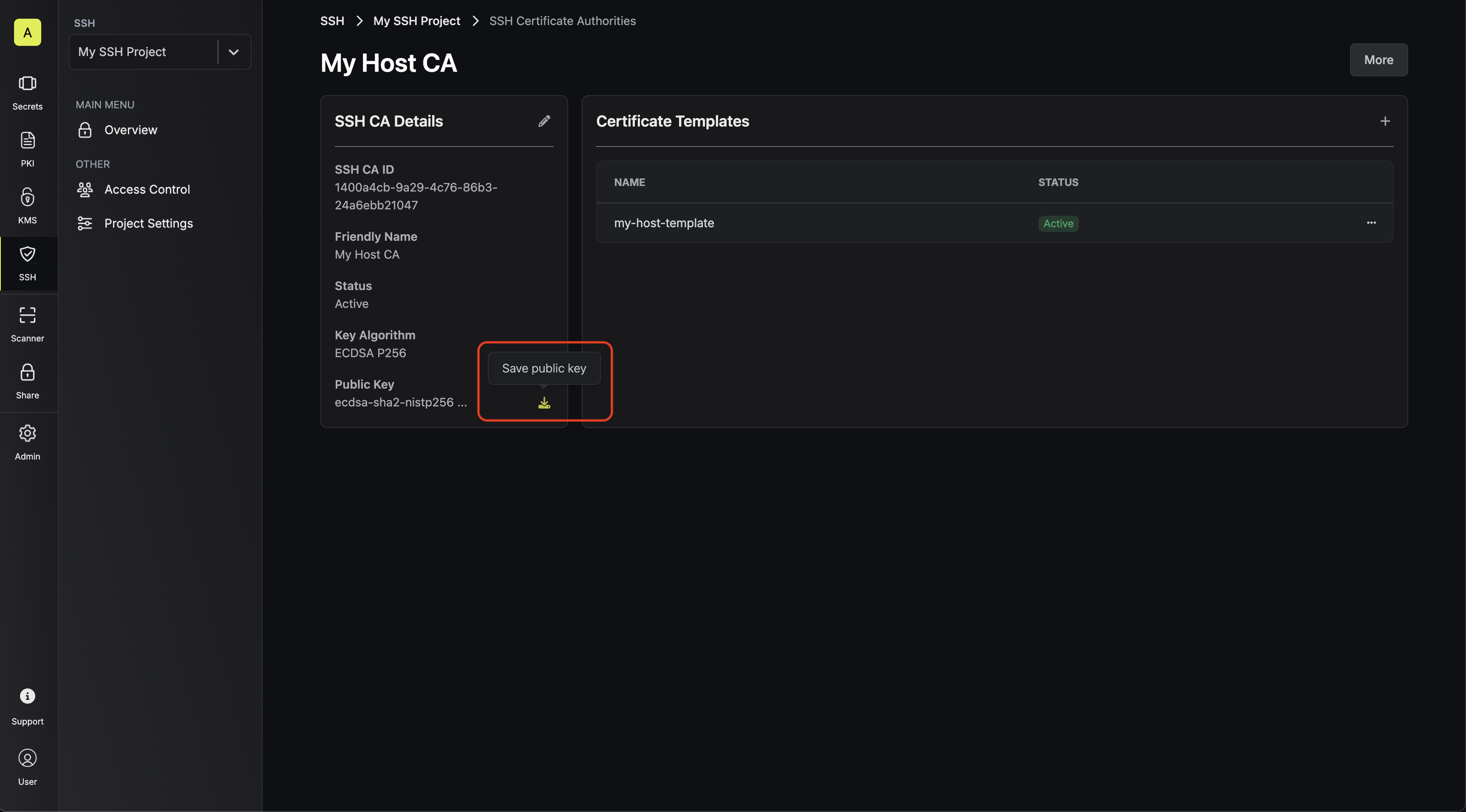 4.2. Next, add the resulting public key to the
The CA’s public key can also be retrieved programmatically via API by making a
GET request to the endpoint here.known_hosts file on the client machine (e.g. at the path ~/.ssh/known_hosts).5
SSH into the host
Finally, SSH into the desired host as usual; the SSH operation will now also include client-side host verification.
FAQ
How can I confirm if the Infisical SSH workflow is working?
How can I confirm if the Infisical SSH workflow is working?
After configuring Infisical SSH, you can add the You should see output from the SSH client that includes the following if both client key signing and host key signing are working:Host certificate was verified and trusted:You authenticated with your user certificate:
-vvv flag as part of the
SSH operation to see verbose output from the SSH client.