Prerequisites
- Permission to create honey tokens in the project, which only project Admins have by default
- If you self-host Infisical, your own AWS account connected to Infisical
Creating a honey token
1
Go to your project’s secrets overview and open the secret path where you want to plant the honey token.
2
Select Add New > Add Honey Token.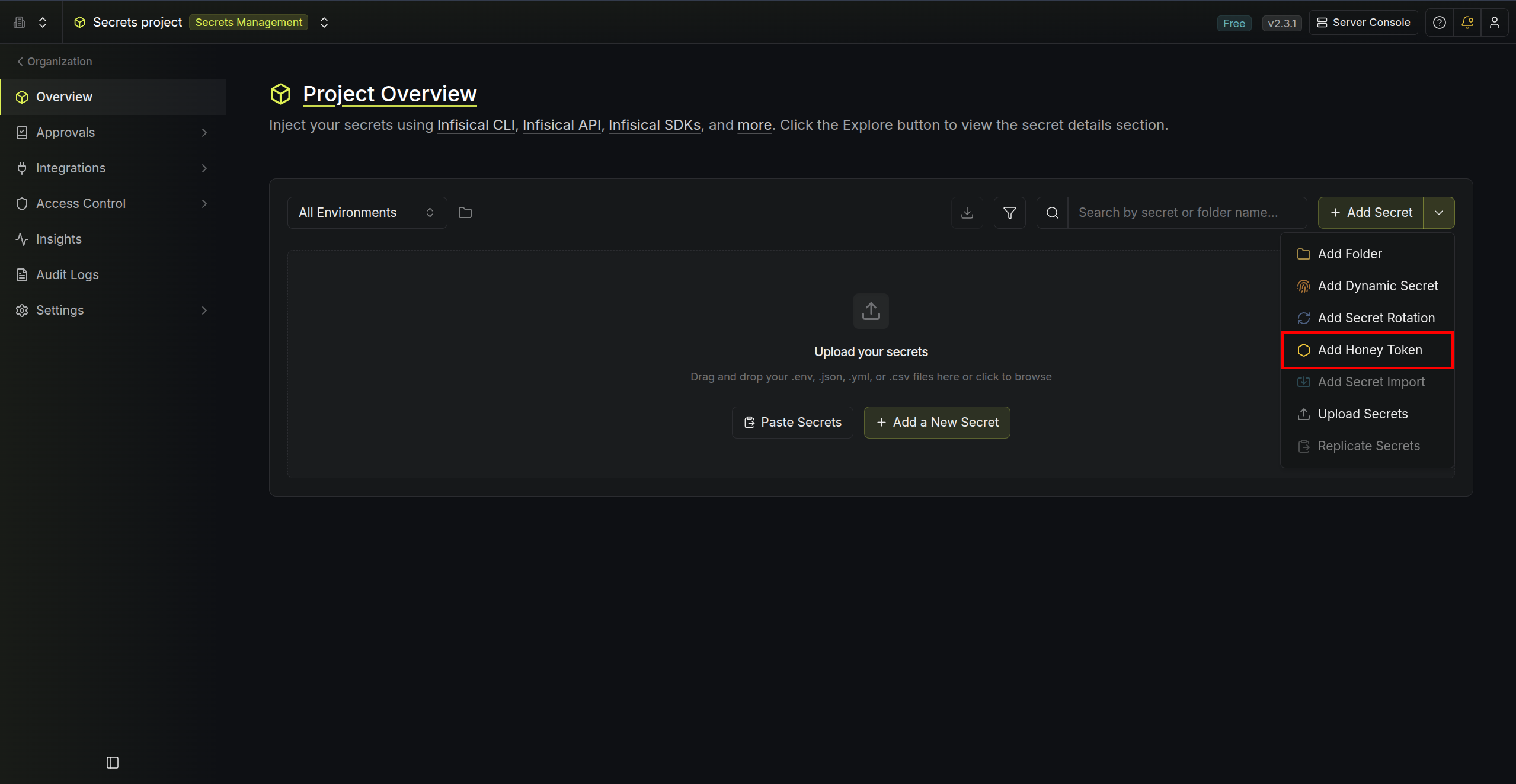
3
Select the type of honey token you want to create.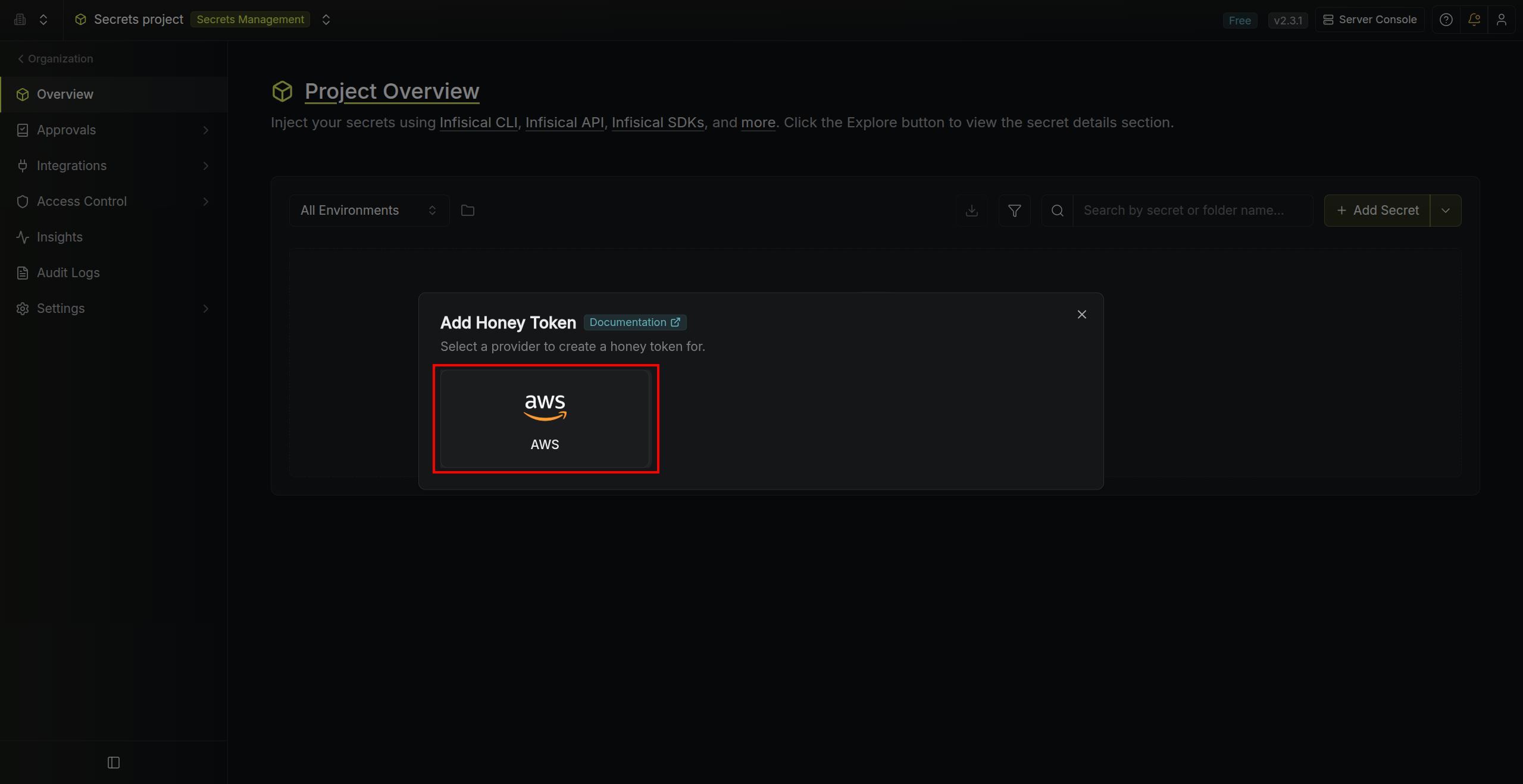
4
In the Configuration step, choose the Environment to plant the honey token in. Infisical uses the secret path you’re currently in.For AWS account, select Infisical Managed. To use your organization’s own AWS account, or if you self-host Infisical, select Self hosted.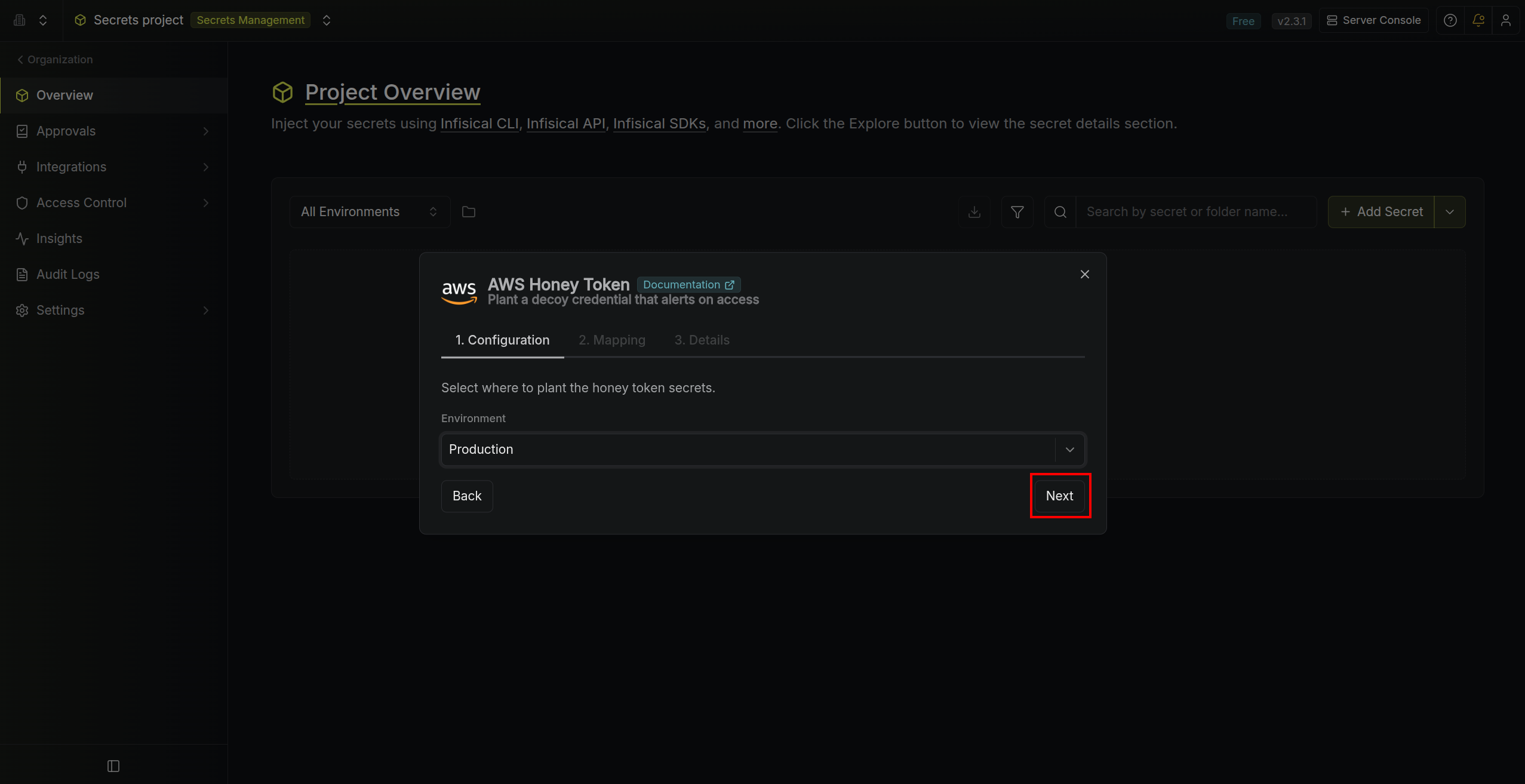
5
In the Mapping step, enter the names of the secrets that hold the decoy credentials. Infisical creates these secrets in the selected environment and path.
-
Access Key ID: the secret name for the AWS access key ID, such as
AWS_ACCESS_KEY_ID. -
Secret Access Key: the secret name for the AWS secret access key, such as
AWS_SECRET_ACCESS_KEY.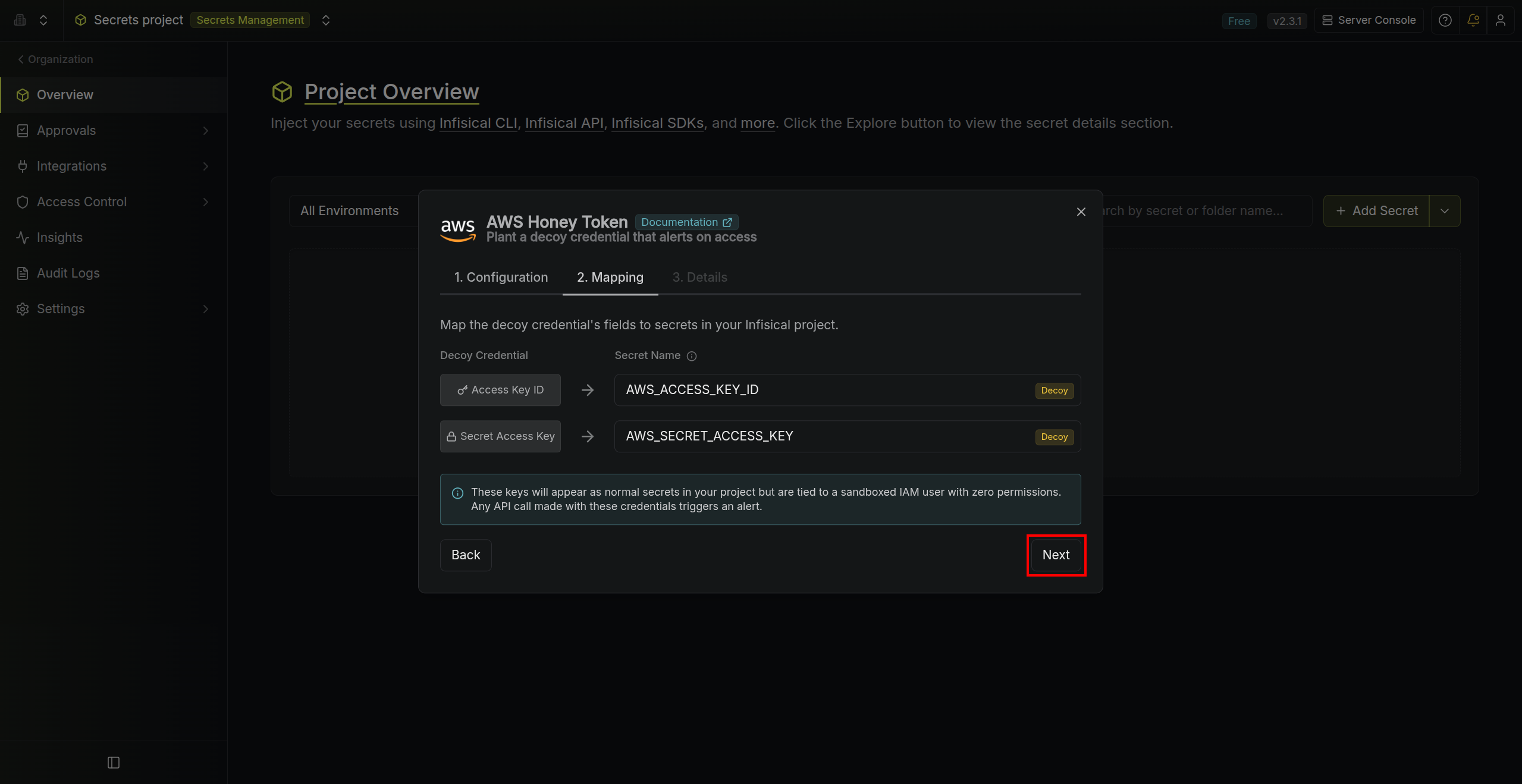
6
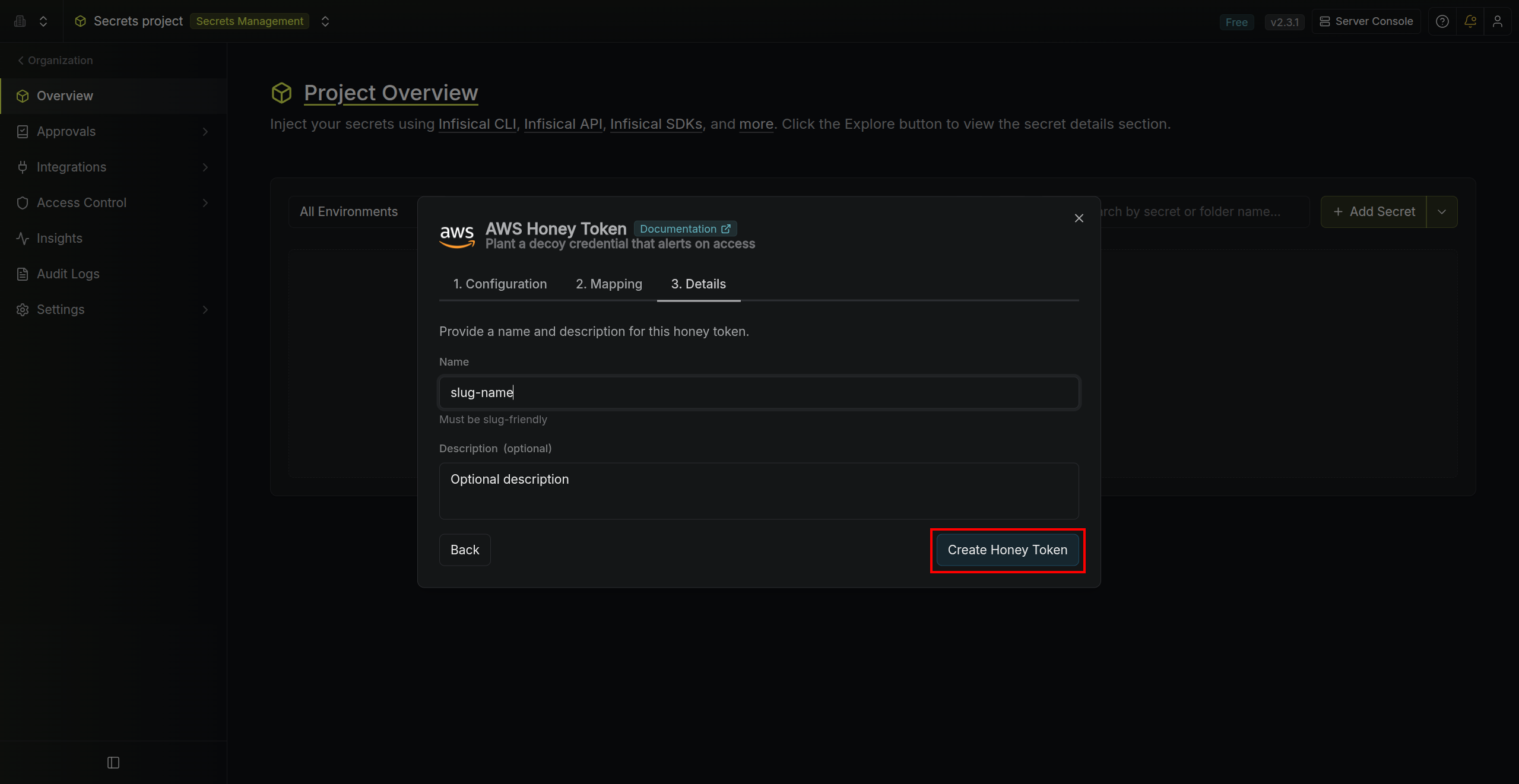
In the Details step, enter details that help you identify the honey token later.
- Name: a slug-friendly identifier, unique within the selected folder.
-
Description (optional): context for this honey token.
7
In the Alerts step, choose who Infisical notifies when someone uses the honey token. By default, Alert When Triggered is on, with an email to the project’s admins. To change the recipients or add channels, see Get alerted when a honey token is triggered.
8
Select Create Honey Token. Infisical provisions the decoy credentials in the selected AWS account and stores them as secrets in the selected environment and path.
Get alerted when a honey token is triggered
When someone uses a honey token’s credentials to make an AWS API call, Infisical marks the honey token as Triggered, records the event, and sends the honey token’s alert to your team by email, Slack, webhook, or PagerDuty. Project admins also get an in-app notification, even if the honey token has no alert. The alert includes:- The name, environment, and path of the honey token
- The AWS API call that was made, such as
GetUserorListBuckets - The source IP address and AWS region
- The time AWS recorded the call, and the time Infisical received it
- A link to the honey token in Infisical
To avoid alert fatigue, Infisical sends at most one alert and one in-app
notification per honey token every 24 hours. Infisical still records every use of the credentials in the
event log.
1
For a new honey token, go to your project’s secrets overview and select Add New > Add Honey Token. For an existing honey token, open the menu on the honey token’s row and select Edit.
2
Go to the Alerts step and make sure Alert When Triggered is on.
3
Select Add channel and set up at least one notification channel. The Project Admins recipient emails members who have the Admin role directly on the project, and All Project Members emails everyone in the project. If someone is an admin only through a group, add the group as a recipient too.
4
Select Create Honey Token for a new honey token, or Update Honey Token for an existing one.
secret.honey-token as the resource type, the honey token’s ID as the resource ID, and secret.honey-token.triggered as the event.
Managing honey tokens
Viewing events
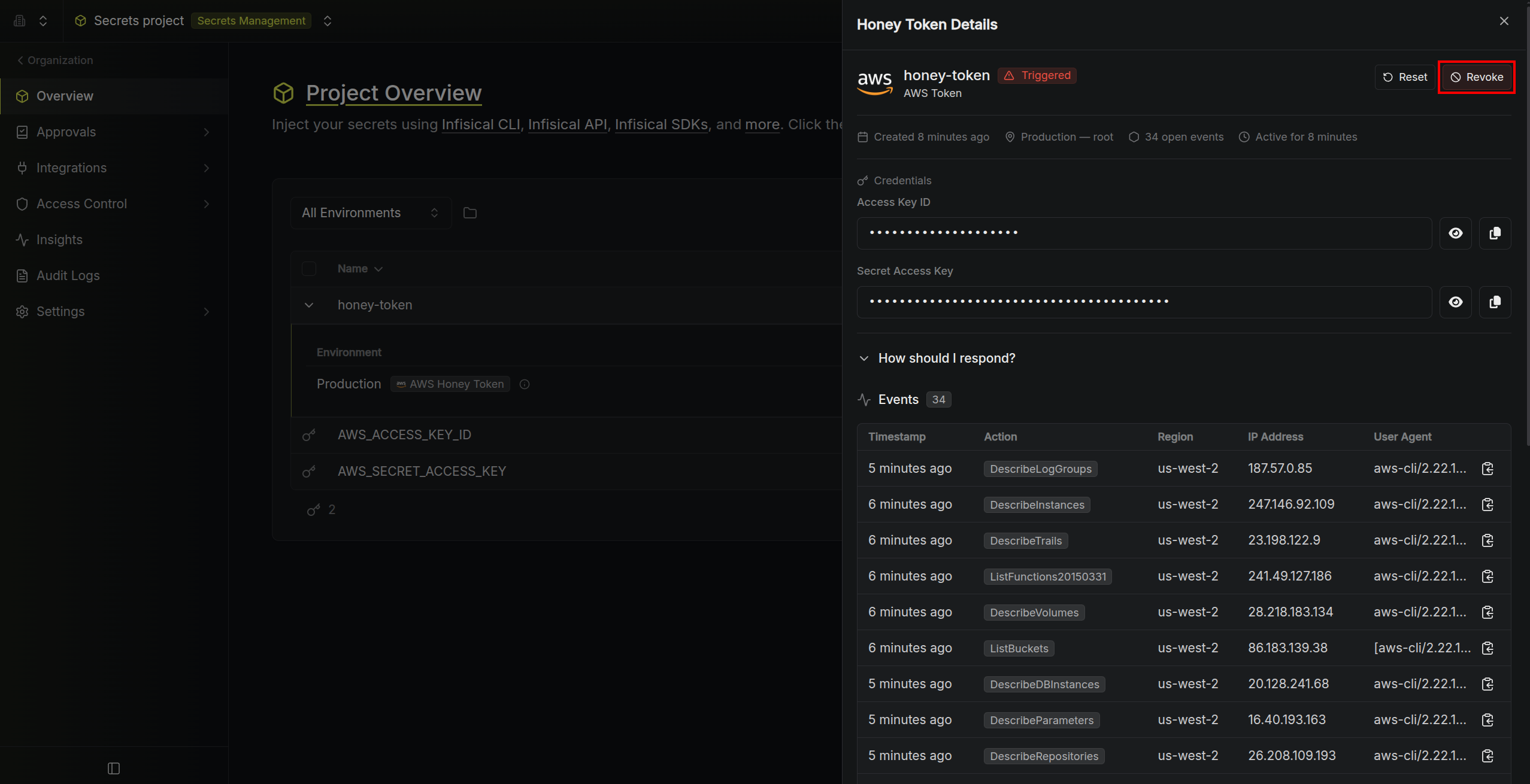
Open a honey token’s detail page to see a chronological log of all trigger events since the last reset. Each event shows the AWS API call, source IP, region, and timestamp.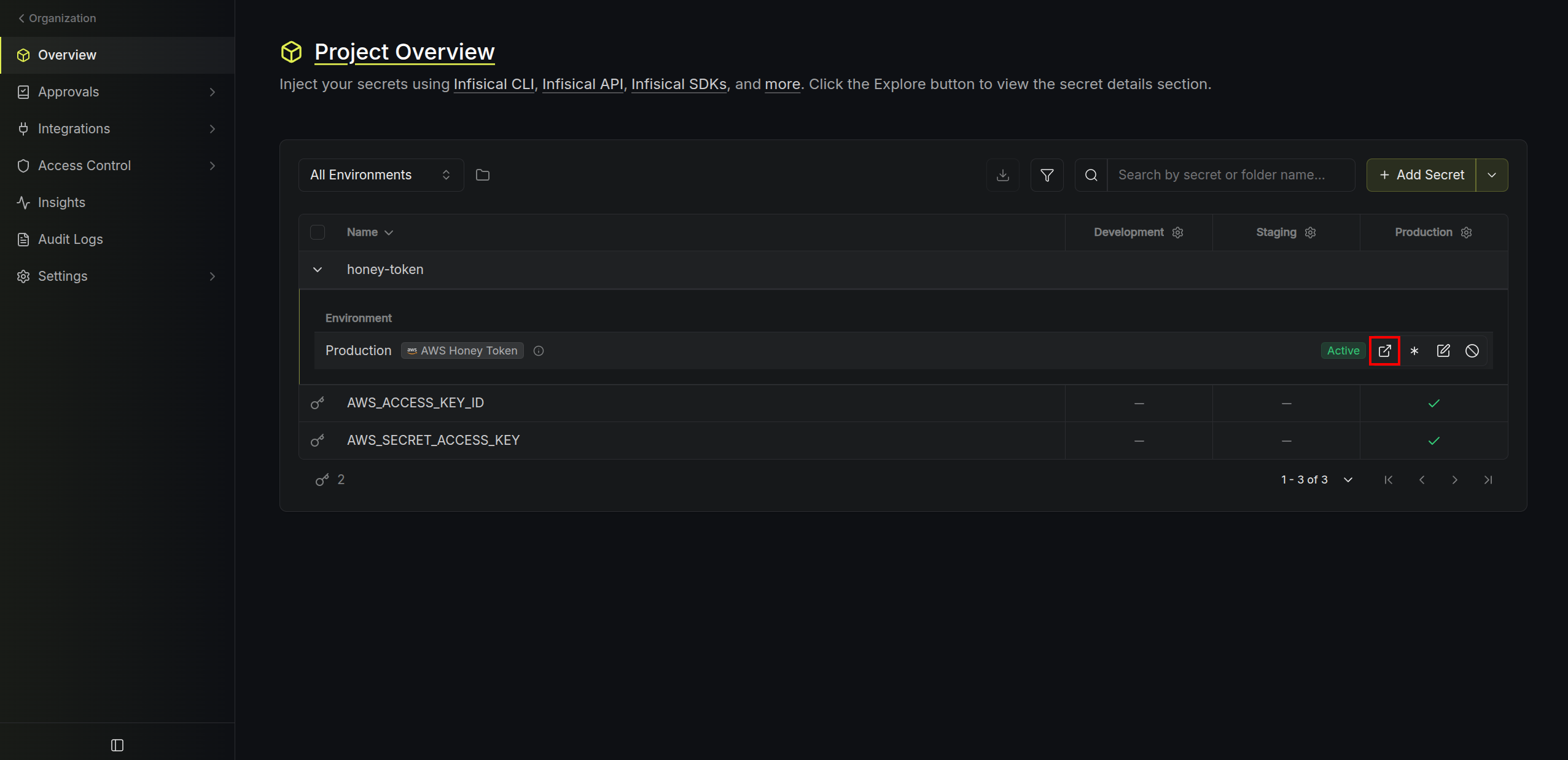
Resetting a triggered token
If a honey token is in Triggered status and you’ve addressed the incident, select Reset to return it to Active status. This hides previous events from the event log view (events are still stored in the database), and Infisical sends an alert the next time someone uses the credentials, without waiting out the 24-hour limit.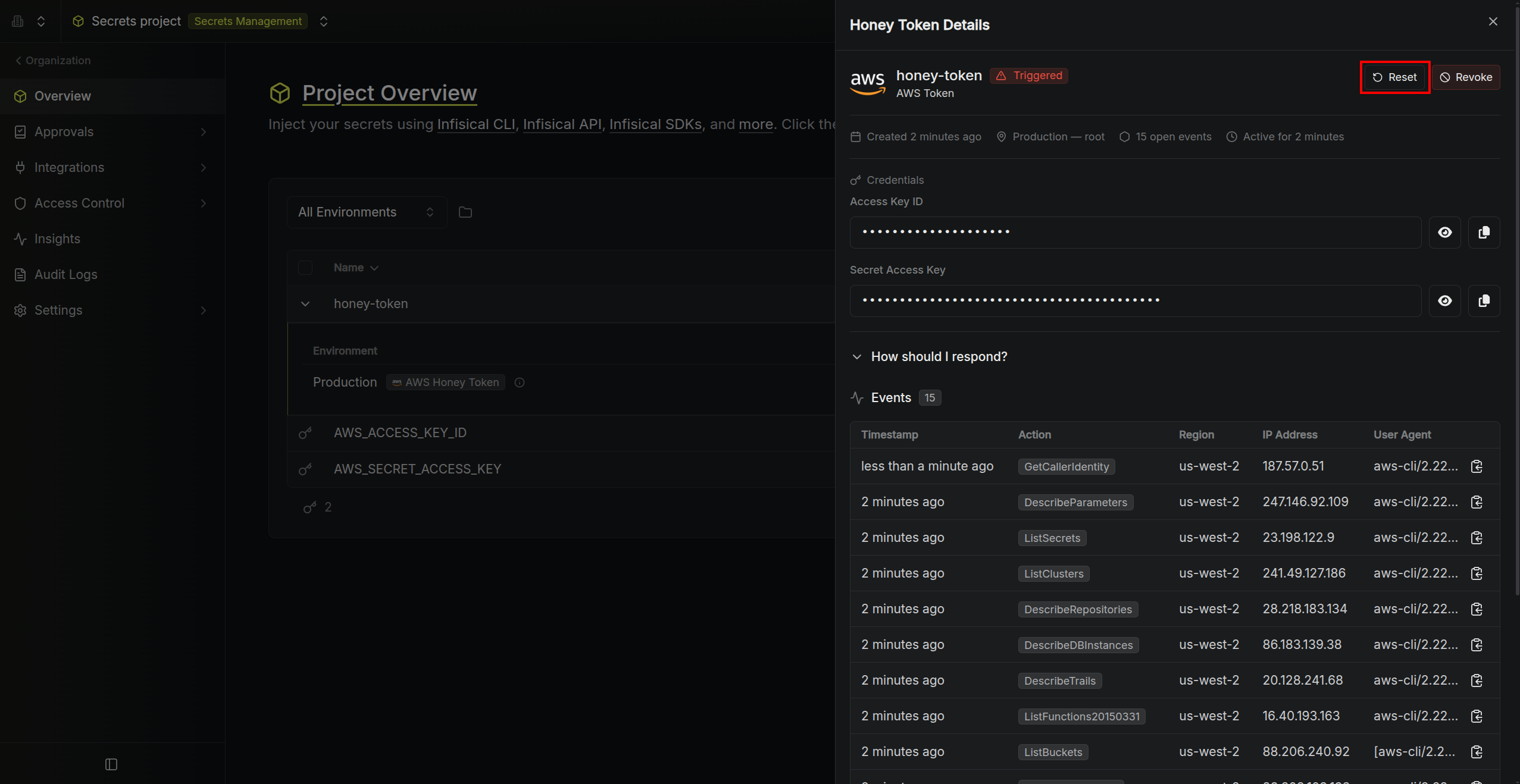
Revoking a honey token
To permanently deactivate a honey token, select Revoke. This will:- Delete the IAM user and access key from AWS
- Remove the decoy secrets from the project
- Mark the honey token as Revoked
- Delete the honey token’s alert