What Is SCEP? A Guide to Device Certificate Enrollment

A new employee joins your company. New swag, new desk, new laptop. But they need more than the Wi-Fi name to get connected. If your company uses certificate-based authentication, that laptop needs a certificate your network will accept.
SCEP, the Simple Certificate Enrollment Protocol, is how devices get those certificates without anyone handling each one. Your mobile device management (MDM) system tells each device where to enroll, and the device requests its own certificate and renews it before it expires.
Without automated enrollment, you'd do the work by hand. You'd generate a key pair and a certificate request on each device, send the request to your certificate authority (CA), and install the certificate it returns. That's a few minutes for one laptop. For a few hundred laptops and phones, it's a never-ending job, and if a renewal is missed, that device can't connect.
What is SCEP?
The Simple Certificate Enrollment Protocol lets devices request certificates over HTTP. A device sends a certificate request to a SCEP server, and if the server accepts it, the device gets a certificate signed by a CA.
A SCEP enrollment involves four parts:
| Part | What it does |
|---|---|
| Device | Generates a key pair, requests a certificate, and then uses the certificate with its private key. |
| MDM | Sends the device its SCEP settings. Intune also confirms each request. |
| SCEP server | Receives the request and decides whether to accept it. |
| Certificate authority | Signs the certificate if the request meets its policy. |
The SCEP server and the CA can be the same product. Infisical Certificate Manager is both. It runs your private CA, and when you enable SCEP for a certificate profile, that profile gets its own SCEP server URL.
What is a SCEP certificate?
A SCEP certificate is an X.509 certificate that was issued through SCEP. Nothing inside it is protocol-specific, and a Wi-Fi network or VPN treats it like any other client certificate.
The CA's policy and the settings your MDM sends decide what goes into the certificate:
- The name identifies the device, for example,
laptop-042.example.comor the device's ID in your directory. - The permitted use, for a device, is client authentication, which lets it sign in to Wi-Fi or a VPN.
- The lifetime is how long the certificate stays valid, such as 90 days or one year.
The name comes from your MDM, which sends each device its SCEP settings. Those settings include the name the device should use, and the device puts that name in its certificate request. Intune is Microsoft’s MDM for Windows, Apple, and Android devices, and Jamf Pro is an MDM for Apple devices. Intune calls the settings a SCEP certificate profile, and Jamf Pro calls them a SCEP payload.
The CA adds the permitted use and the lifetime when it signs the certificate. In Infisical, you set both on the certificate profile.
What does a SCEP server do?
A SCEP server is where devices send their requests. It tells each device which algorithms it supports, gives the device the certificate it needs to encrypt a request, checks the request, and passes approved requests to the CA.
Microsoft's SCEP server is Network Device Enrollment Service (NDES), a role in Active Directory Certificate Services (AD CS). Hosted CA services such as Microsoft Cloud PKI and Infisical run their own SCEP servers, and open-source PKI software such as OpenXPKI includes one.
How does the SCEP protocol work?
Say your MDM has just sent a SCEP profile to a new laptop. The profile contains the SCEP server's URL, the name the laptop should request, and a challenge that the server will check.
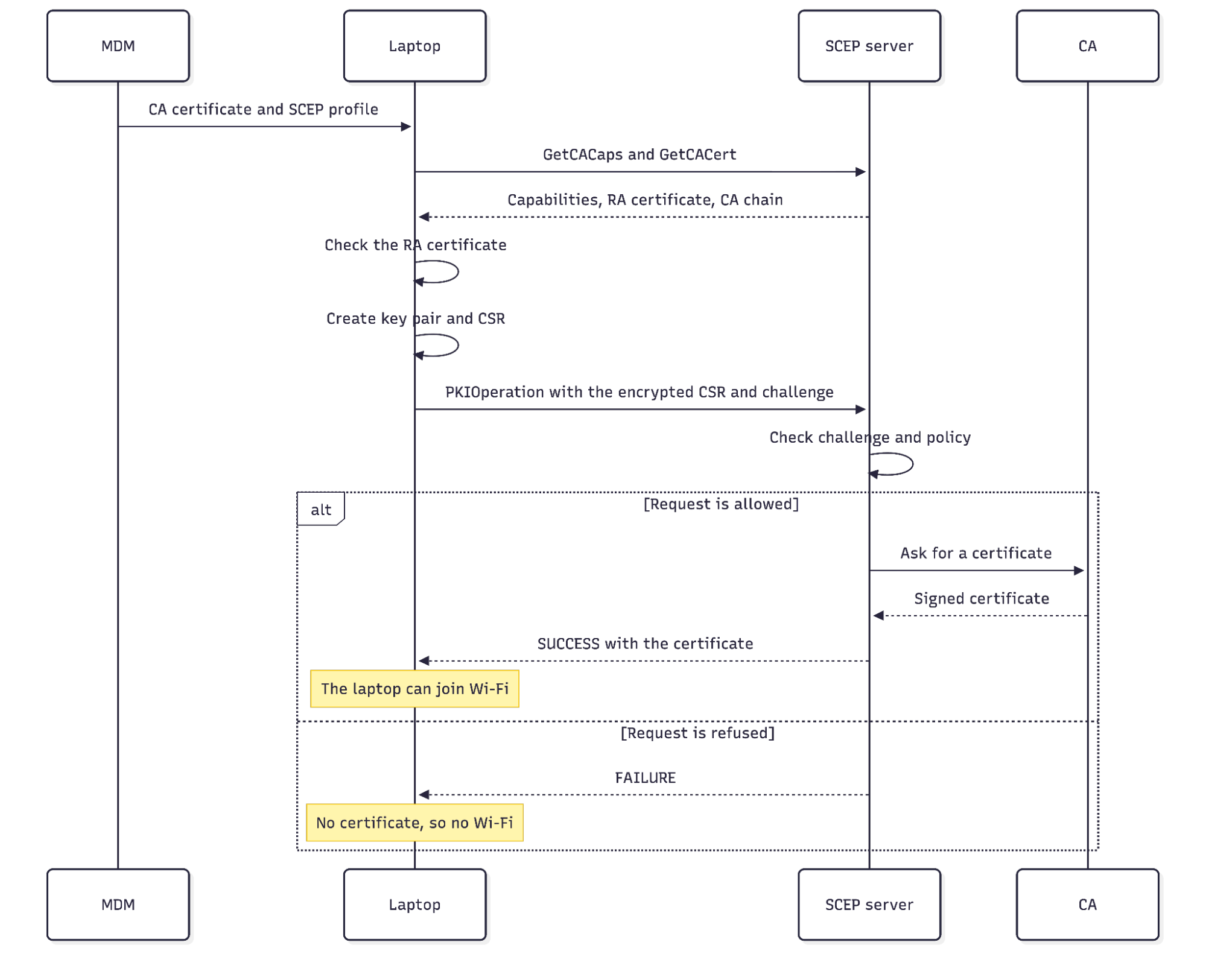
Every request the laptop sends is an HTTP request to the SCEP server's URL, with an operation parameter that names the step.
Ask what the SCEP server supports and check its identity
The laptop starts with two requests:
GetCACapsasks which algorithms and features the SCEP server supports.GetCACertasks for the certificates the laptop will need for the rest of the exchange.
Infisical answers GetCACert with a registration authority (RA) certificate and the CA chain. The RA certificate is Infisical's identity as a SCEP server. Infisical generates it when you enable SCEP on a profile and keeps the private key.
Neither answer is encrypted or signed, because the laptop and the server haven't exchanged keys yet. So the laptop checks the certificate it received against something it already has: either the CA certificate your MDM installed or a fingerprint included in the SCEP profile.
Create the key pair and certificate request
Next, the laptop generates a key pair. The private key stays on the laptop and is never sent anywhere.
The laptop then builds a certificate signing request (CSR) in PKCS #10 format. The CSR contains the public key, the name from the SCEP profile, and the challenge, which goes in as an attribute called challengePassword.
Send the request and get the SCEP certificate
The laptop encrypts the CSR so that only the SCEP server, which holds the RA certificate's private key, can decrypt it. Then it signs the encrypted message. Both use Cryptographic Message Syntax (CMS), the successor to PKCS #7. Because the CSR is encrypted before it's sent, nobody can read the challenge in transit, even over plain HTTP.
A laptop enrolling for the first time has no certificate yet, so it signs with a temporary self-signed certificate made from its new key pair. Anyone can make a self-signed certificate, so the server uses the challenge in the request to decide whether to accept it.
The message goes to the server as a PKIOperation. The server decrypts it, checks the challenge, checks the request against the certificate profile's policy, and answers with one of three results:
SUCCESSmeans the CA signed the certificate, and the response contains it.FAILUREmeans the request was refused, and the laptop gets no certificate.PENDINGmeans the server hasn’t finished processing the request.
On SUCCESS, the laptop installs the certificate alongside its private key, and from that point it can join the Wi-Fi network. It authenticates with EAP-TLS. The network's RADIUS server checks that your CA issued the laptop's certificate, and the laptop checks the RADIUS server's certificate in return. A laptop whose request failed has no certificate to present, so the RADIUS server refuses it.
How does a SCEP server decide which devices can enroll?
Anything that can reach the SCEP server's URL can send it a request. The challenge is how the server tells your devices apart from everything else.
A challenge is a shared secret, so anyone who copies one can use it, and SCEP has no way to prove which physical device sent a request. The damage is limited by how many devices share a challenge and how long it stays valid. Infisical supports three challenge types:
- Static. You set one password on the profile, and every device sends the same one. Infisical requires at least eight characters and stores only a hash, so you can't look the password up later. Anyone who gets hold of it can request a certificate until you change it. Make it a long random string so it can't be guessed, and keep it for network devices and test setups.
- Dynamic. Infisical generates a new challenge each time your MDM asks for one, and the challenge works once and then expires. This is the kind of challenge the SCEP specification recommends. Jamf Pro fetches one through a webhook before it sends a device its SCEP profile, and it authenticates to Infisical with a machine identity token.
- Microsoft Intune. Intune creates a challenge for each device and adds the subject and subject alternative name (SAN) that the device is allowed to request. Infisical sends every request to Intune, which confirms the challenge and the names before Infisical issues a certificate.
Only the Intune challenge says which name a device may request. A static or dynamic challenge only shows that a request is allowed, so a laptop with a valid challenge could request a certificate in another device's name. With those two types, the profile's certificate policy is the only limit on names. Set it to allow only the common names and SANs that match your device naming pattern, for example, names ending in .devices.example.com.
How does Intune SCEP work with NDES or a third-party CA?
Intune's part in SCEP is to send each device a SCEP certificate profile and a challenge. The certificate comes from a SCEP server and CA that you provide, and which SCEP server that is depends on your CA.
With AD CS, the SCEP server is NDES. Microsoft's NDES setup for Intune needs several things running on your network:
- The NDES role runs on a Windows server that's joined to your domain and separate from the issuing CA.
- IIS runs on that server with a TLS certificate.
- The Certificate Connector for Microsoft Intune is installed on the same server.
- A reverse proxy publishes the NDES URL so that devices outside your network can reach it.
- An NDES service account has Read and Enroll permissions on a certificate template that you create on the CA.
With a third-party CA, there's no NDES server or connector. The device sends its request to the CA's own SCEP server, and that server asks Intune to validate the challenge before the CA issues the certificate. Infisical works this way.
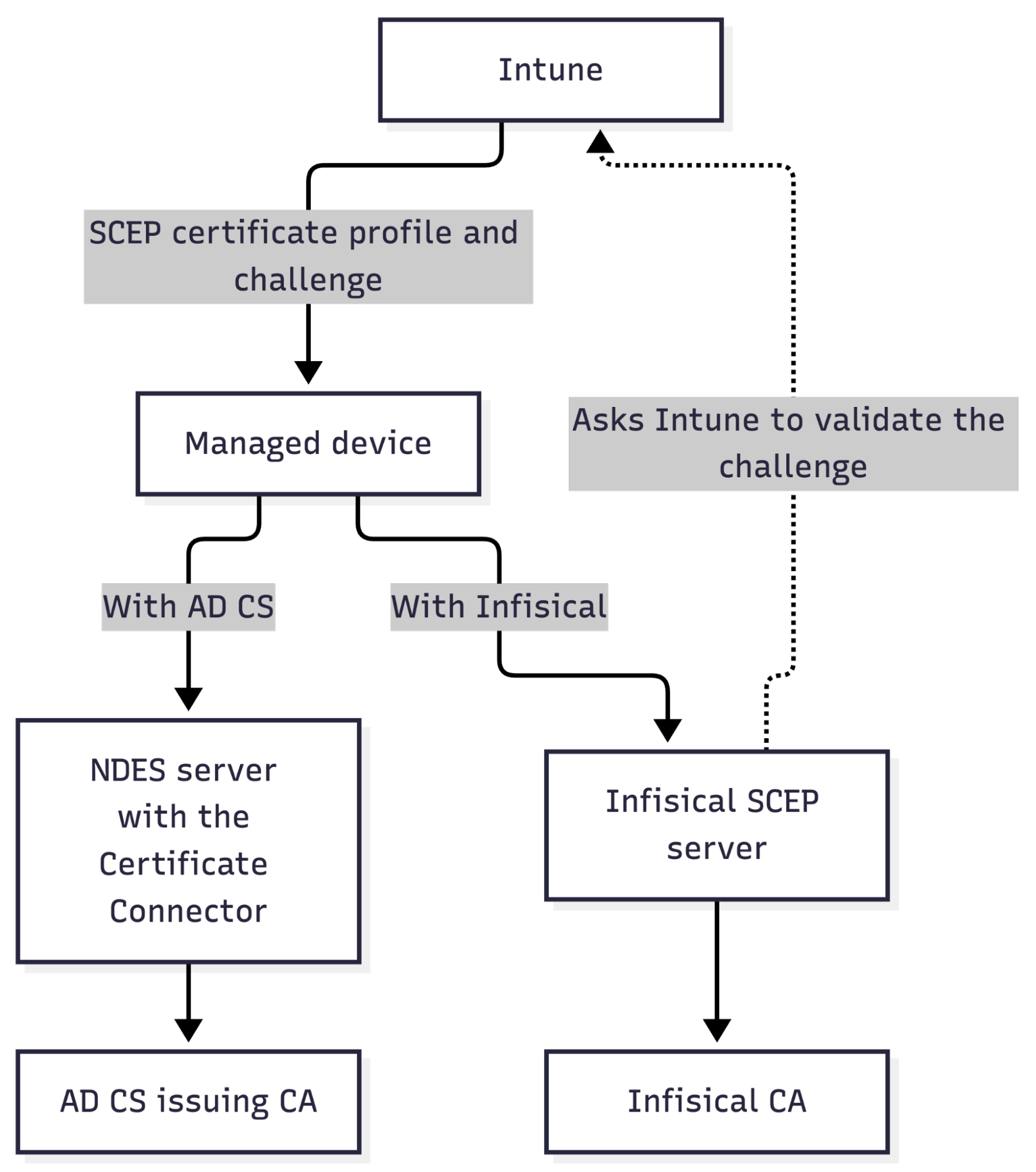
Intune expects an answer within a single exchange, so a request can't wait for approval. An Infisical profile used with Intune has to meet these conditions:
- The profile's CA is an internal CA, because external CAs issue asynchronously.
- No approval policy is attached.
- Sign RA certificate with the CA is enabled. Enable this so the device can validate the RA certificate against the CA certificate distributed through Intune.
- Allow cert-based renewal is disabled because a renewal signed with an existing certificate skips the challenge that Intune validates.
- The challenge type is Microsoft Intune, which uses a Microsoft Intune App Connection and needs a paid Infisical plan.
- Other SCEP clients use a separate profile because a profile set to Intune validation only accepts challenges from Intune.
Infisical rejects a SCEP configuration that breaks either of the first two. The setup itself takes an Entra app registration, the SCEP configuration in Infisical, and two Intune profiles per platform.
How do you configure SCEP enrollment in Infisical?
Infisical checks every certificate request against a certificate policy before the CA signs it. A certificate profile combines a policy with a CA, and you enable SCEP for a profile inside an Application. So you need the policy first, then the profile, then an Application with the profile attached.
SCEP enrollment is part of Infisical’s Enterprise plan. A Product Admin creates the CA, policy, profile, and Application, and an Application Admin configures enrollment.
1. Create the CA, certificate policy, and profile
In Certificate Manager:
- Go to Certificate Authorities and select Create Internal CA. Enter a name and a common name, and on the Key & Validity step, change Key algorithm to RSA_2048.
- Go to Certificate Policies and select Create Policy. Enter a name and leave Policy Preset on Custom. On the Constraints step, enable Set maximum validity and enter the longest lifetime a device certificate should have, such as 365 days.
- Go to Certificate Profiles and select Create Profile. Enter a name, then select your CA and your policy. Under Certificate Defaults, set Time to Live (TTL) in Days to the lifetime you want, such as 365, and select Client Auth under Extended Key Usages.
Client Auth is the usage devices need to authenticate to Wi-Fi or a VPN. If you leave the TTL blank, certificates get the 90-day default.
2. Create the Application and add SCEP
- Go to Applications and select Create Application. Enter a name, select your profile under Certificate Profiles, and select Create Application.
- On the Application’s Settings tab, select Configure for the profile.
- Select Add enrollment method and choose SCEP.
- Set Challenge type and the advanced options. For a static challenge, enter a Challenge password.
- Select Enable and copy the SCEP endpoint URL.
Choose the SCEP settings as follows:
| Setting | What to choose |
|---|---|
| Challenge type | Choose Dynamic for Jamf Pro, Microsoft Intune for Intune, and Static for network devices and tests. |
| Sign RA certificate with the CA | Enable it for Apple devices and Intune, which only accept an RA certificate that chains to a trusted CA. |
| Include CA cert in response | Leave it enabled, so devices get the CA chain along with the RA certificate. |
| Allow cert-based renewal | It's enabled by default and lets a device renew with its current certificate and no new challenge. Turn it off for Intune. |
Decide on RA signing before any device enrolls. Only internal CAs can sign the RA certificate, and changing the setting later means setting SCEP up again, which creates a new RA certificate and breaks enrollment for every device that trusts the old one.
3. Give your MDM the SCEP server URL
The SCEP endpoint URL is the SCEP server URL your MDM needs, and it belongs to this one Application and profile. With dynamic challenges, you also get a Challenge endpoint URL, which you enter in your MDM’s webhook settings.
- In Jamf Pro, the SCEP server URL goes in a SCEP payload.
- In Intune, it goes in the SCEP Server URLs field of a SCEP certificate profile.
Set the subject name to the identifier your RADIUS server or VPN uses to match devices. If the RADIUS server looks up devices by directory ID and the certificate contains the hostname, Infisical issues the certificate, and the network still refuses it.
How do you test SCEP enrollment with sscep?
sscep is an open-source command-line SCEP client. With it, you can run each enrollment step by hand and see where a failing setup breaks, without waiting for an MDM to sync.
As of sscep 0.10.0, the client only accepts URLs that start with http://. Here, we’re using a local Infisical instance that’s served over plain HTTP at http://127.0.0.1:8080, so sscep can call its SCEP endpoint URL directly.
The SCEP endpoint URL from Infisical Cloud starts with https://. For that, you can run a reverse proxy such as Caddy on your own machine that accepts HTTP from sscep and forwards it to Infisical over HTTPS. Put your own SCEP endpoint URL in place of the one in the commands.
Start by asking the SCEP server for its certificates:
sscep getca \
  -u "http://127.0.0.1:8080/scep/applications/{application-id}/profiles/{profile-id}/pkiclient.exe" \
  -c ca.pem
sscep writes the RA certificate to ca.pem-0 and the CA certificate to ca.pem-1. It doesn’t verify these certificates itself. You can compare ca.pem-1 with the CA certificate you download from Infisical to check.
Next, create a key and a CSR that contains the challenge. That’s the profile’s password for a static challenge, or a value you first request from the Challenge endpoint URL for a dynamic one. The last command creates the temporary self-signed certificate that signs a first request:
cat > device-csr.cnf << 'EOF'
[req]
default_bits = 2048
prompt = no
distinguished_name = dn
attributes = req_attributes

[dn]
CN = laptop-042.example.com

[req_attributes]
challengePassword = your-challenge-password
EOF

openssl genrsa -out device.key 2048
openssl req -new -key device.key -out device.csr -config device-csr.cnf

openssl x509 -req -in device.csr -signkey device.key \
  -out device-selfsigned.pem -days 1
Now enroll:
sscep enroll \
  -u "http://127.0.0.1:8080/scep/applications/{application-id}/profiles/{profile-id}/pkiclient.exe" \
  -c ca.pem-0 \
  -k device.key \
  -r device.csr \
  -l device-cert.pem \
  -K device.key \
  -O device-selfsigned.pem \
  -E aes256 \
  -S sha256
-cis the RA certificate-Kand-Oare the key and certificate that sign the request-Eand-Sselect AES-256-CBC encryption and a SHA-256 digest
If Infisical accepts the request, sscep prints pkistatus: SUCCESS and writes the certificate to device-cert.pem, and the certificate appears on the Application’s Certificate Inventory tab. Delete device-csr.cnf when you’re done, because it holds the challenge in plain text.
How do you renew and revoke SCEP certificates?
Renewing a SCEP certificate means enrolling again for a new one, and your MDM decides when that happens.
Renew before the certificate expires
A device can authorize a renewal request in two ways:
- It sends a new challenge, as it did the first time.
- It signs the request with the certificate it already holds. Infisical accepts these requests when Allow cert-based renewal is enabled.
Intune uses the first way. The Intune SCEP certificate profile has a renewal threshold, the percentage of the certificate’s lifetime remaining when the device starts renewing. At 20, a one-year certificate starts renewing after about ten months, and Intune sends the device a new challenge for the request.
An iPhone, iPad, or Mac must be unlocked while it syncs with Intune, or the renewal won’t happen. If the certificate expires first, Intune stops trying, and the expired certificate stays on the device until you exclude the device from the SCEP profile and add it back.
Infisical’s expiration alerts report certificates that are close to expiring by email, Slack, PagerDuty, or webhook. That gives you a list to check against the devices that should have renewed.
You can test certificate-based renewal with sscep. sscep sends the same PKCSReq message as a first enrollment and signs it with the current certificate. Infisical treats that PKCSReq as a renewal only when:
- The profile uses an internal CA.
- The certificate was issued through the same Application and profile.
- The CSR has the same subject and SANs as the certificate.
Create a new CSR with no challenge and sign the request with the certificate Infisical issued earlier:
openssl req -new -key device.key -out device-renew.csr \
  -subj "/CN=laptop-042.example.com"

sscep enroll \
  -u "http://127.0.0.1:8080/scep/applications/{application-id}/profiles/{profile-id}/pkiclient.exe" \
  -c ca.pem-0 \
  -k device.key \
  -r device-renew.csr \
  -l device-renewed.pem \
  -K device.key \
  -O device-cert.pem \
  -E aes256 \
  -S sha256
-O now points at device-cert.pem, and sscep writes the new certificate to device-renewed.pem. The Application’s Certificate Inventory tab now lists both certificates:
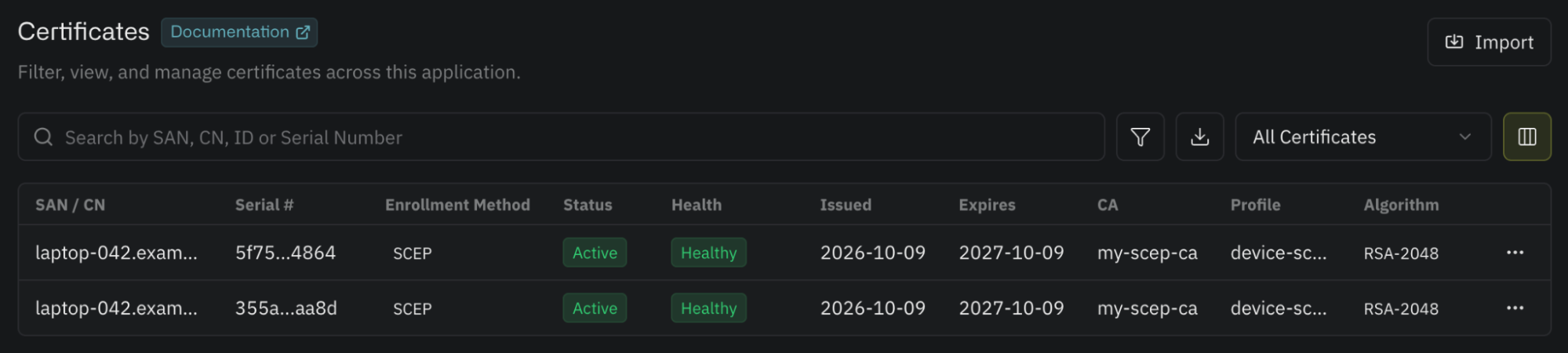
Both show SCEP as the enrollment method, and each expires 365 days after it was issued because the profile’s TTL is 365.
Revoke certificates for lost or retired devices
The SCEP protocol has no message for revoking a certificate, so the CA handles revocation. In Infisical, open the certificate in the Application's inventory and choose Revoke with a reason code. Infisical adds it to the CA's certificate revocation list (CRL).
Do this even after you've removed the device from your MDM. Removing a lost laptop from the MDM only deletes its certificate the next time the laptop checks in with the MDM. If it never does, the certificate stays valid until it expires, and revocation is what makes your RADIUS server refuse it.
That only works if the RADIUS server checks for revoked certificates. Certificates from an Infisical internal CA include the address of the CRL, and the CA can answer OCSP queries if you've enabled OCSP. Confirm that your RADIUS server or VPN uses one of the two.
What should you check when SCEP enrollment fails?
Start with how far the device got.
| What you see | What to check |
|---|---|
| The device can't reach the SCEP server | Check the SCEP server URL in the MDM profile, DNS, and network access from the device. A self-hosted Infisical instance has to be reachable from wherever devices enroll. |
The SCEP server returns 400 Bad Request | Check the response body. If it identifies an unsupported cipher OID, configure the client to use AES-256-CBC. |
| The SCEP server rejects the request | The challenge may be wrong, expired, or already used. A failed dynamic-challenge enrollment needs a new challenge. Also compare the requested name and extended key usage with the certificate policy. |
| Intune enrollments worked for months and then stopped | The client secret on the Entra app registration has probably expired. |
| The device rejects the SCEP server's certificate | Check Sign RA certificate with the CA, whether the CA chain is included in the response, and whether the CA certificate reached the device. |
| The certificate is issued, but Wi-Fi or VPN refuses it | Compare the subject name and extended key usage with what your RADIUS server or VPN expects. Intune doesn't compare the Intune SCEP certificate profile with the certificate it receives. |
With Intune, Infisical's audit log records what Intune answered for each validation request, so you can see whether Intune or Infisical refused.
When should you use SCEP, EST, or ACME?
Use SCEP for devices that enroll through an MDM and for network equipment with a built-in SCEP client. Other clients have protocols that suit them better:
| Protocol | How a request is authorized | Fits |
|---|---|---|
| SCEP | A challenge password, or a valid existing certificate for renewal. | MDM-managed laptops and phones, network devices |
| EST | Client certificate authentication, HTTP authentication, or both, over TLS. | IoT and network devices that ship with a manufacturer certificate |
| ACME | Proof that the client controls the domain name | Web servers and Kubernetes |
Infisical runs all three against the same certificate profile, so the CA your laptops trust can also issue certificates to your servers and clusters.
Start with one device
Assign the SCEP profile to a single laptop first. Check that it joins Wi-Fi with its new certificate, then wait for the renewal window and confirm that a replacement arrives without anyone touching the laptop. A test profile with a seven-day TTL gets you through a full renewal in under a week. After that, rolling out means widening the MDM assignment.
Device certificates are one part of what Infisical Certificate Manager handles. It also issues and renews certificates on your servers and Kubernetes clusters, where public TLS lifetimes are dropping to 47 days by 2029, and it covers discovery, deployment, and revocation.