> ## Documentation Index
> Fetch the complete documentation index at: https://infisical.com/docs/llms.txt
> Use this file to discover all available pages before exploring further.
# Google Cloud Run
> Reference architecture for self-hosting Infisical on Google Cloud Run.
## Overview
This guide outlines a reference architecture for deploying Infisical in a self-hosted configuration using Google Cloud Run.
It is intended to provide a scalable, secure, and production-ready baseline for organizations choosing Google Cloud Platform (GCP) as their infrastructure provider.
## Core Components
* **Cloud Run:** Infisical service is containerized and deployed as fully managed Cloud Run services.
* **Cloud SQL:** Infisical uses Postgres as its persistence layer. As such, Cloud SQL for PostgreSQL is used.
* **MemoryStore for Redis:** To schedule jobs, process audit logs and cache performance, Infisical requires Redis.
## Securing Infisical's root credential
* **Secrets Manager:** To secure Infisical’s root credentials (database connection string, encryption key, etc.),
we highly recommend that you use Google Secrets Manager and only allow the tasks running Infisical to access them.
## High Availability and Scalability
This architecture leverages Google Cloud's managed services to achieve high availability and scalability out of the box:
**Cloud Run:**
* Automatically scales the number of container instances up or down based on incoming request volume.
* Supports rapid scaling during traffic spikes, ensuring low latency.
* Configurable minimum and maximum instances to handle baseline and peak loads.
**Cloud SQL:**
* Provides high availability configurations (regional instances with automatic failover) to ensure database uptime.
* Automated backups, point-in-time recovery, and maintenance.
**MemoryStore:**
* Offers highly available Redis configurations with replication.
* Fully managed with automatic scaling and patching.
**Cloud Load Balancer:**
* Distributes user traffic across available Cloud Run instances.
* Provides SSL termination, global load balancing, and health checks.
**Note:** To further improve performance and availability, consider enabling multi-region deployment strategies,
regional VPC Connectors, and database replicas for read-heavy workloads.
## Configuration
**Cloud SQL (PostgreSQL):**
* Create a Cloud SQL instance.
* Under `Zonal availability`, select the `Multiple zones` option to ensure High Availability.
* Configure private IP access.
**MemoryStore (Redis):**
* Deploy a Redis instance.
* Configure VPC access.
Visit [Docker Hub](https://hub.docker.com/r/infisical/infisical/tags) and select a version of Infisical image you would like to deploy.
Then, within Cloud Run, paste the URL of the specific Infisical Docker image you would like to use within the `Container image URL` field.
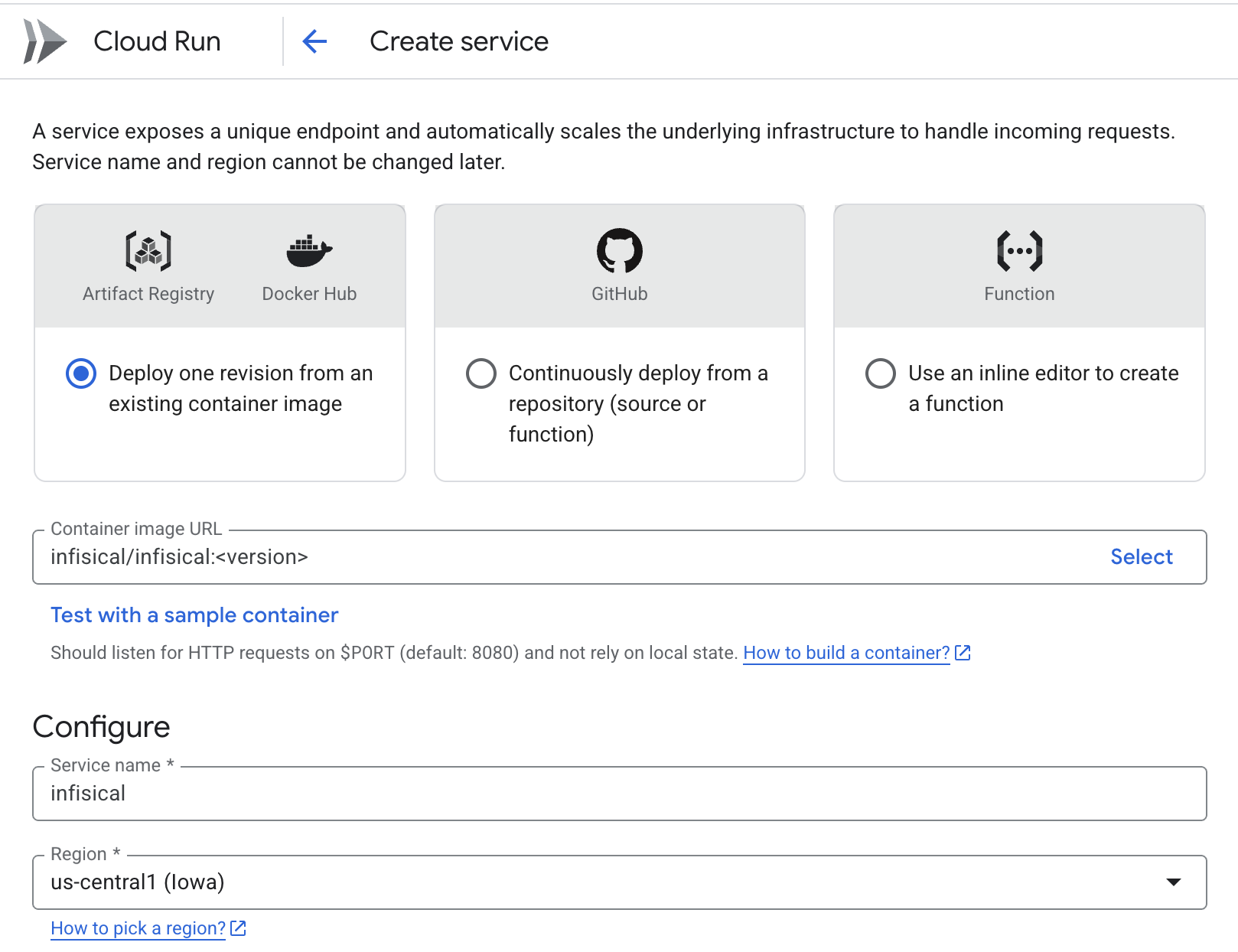 Remember to replace `` with the docker image tag of your choice.
For a minimal installation of Infisical, you must configure the following environment variables:
```bash theme={"dark"}
ENCRYPTION_KEY=
AUTH_SECRET=
DB_CONNECTION_URI=""
SITE_URL=""
REDIS_URL=""
```
[View all available configurations](/self-hosting/configuration/envars).
You will want to setup Postgres and Redis within Google Cloud Platform to connect to Infisical.
Once you have added the required environment variables to the `Environment Variables` section within Cloud Run,
create the container to get Infisical up and running.
Remember to replace `` with the docker image tag of your choice.
For a minimal installation of Infisical, you must configure the following environment variables:
```bash theme={"dark"}
ENCRYPTION_KEY=
AUTH_SECRET=
DB_CONNECTION_URI=""
SITE_URL=""
REDIS_URL=""
```
[View all available configurations](/self-hosting/configuration/envars).
You will want to setup Postgres and Redis within Google Cloud Platform to connect to Infisical.
Once you have added the required environment variables to the `Environment Variables` section within Cloud Run,
create the container to get Infisical up and running.
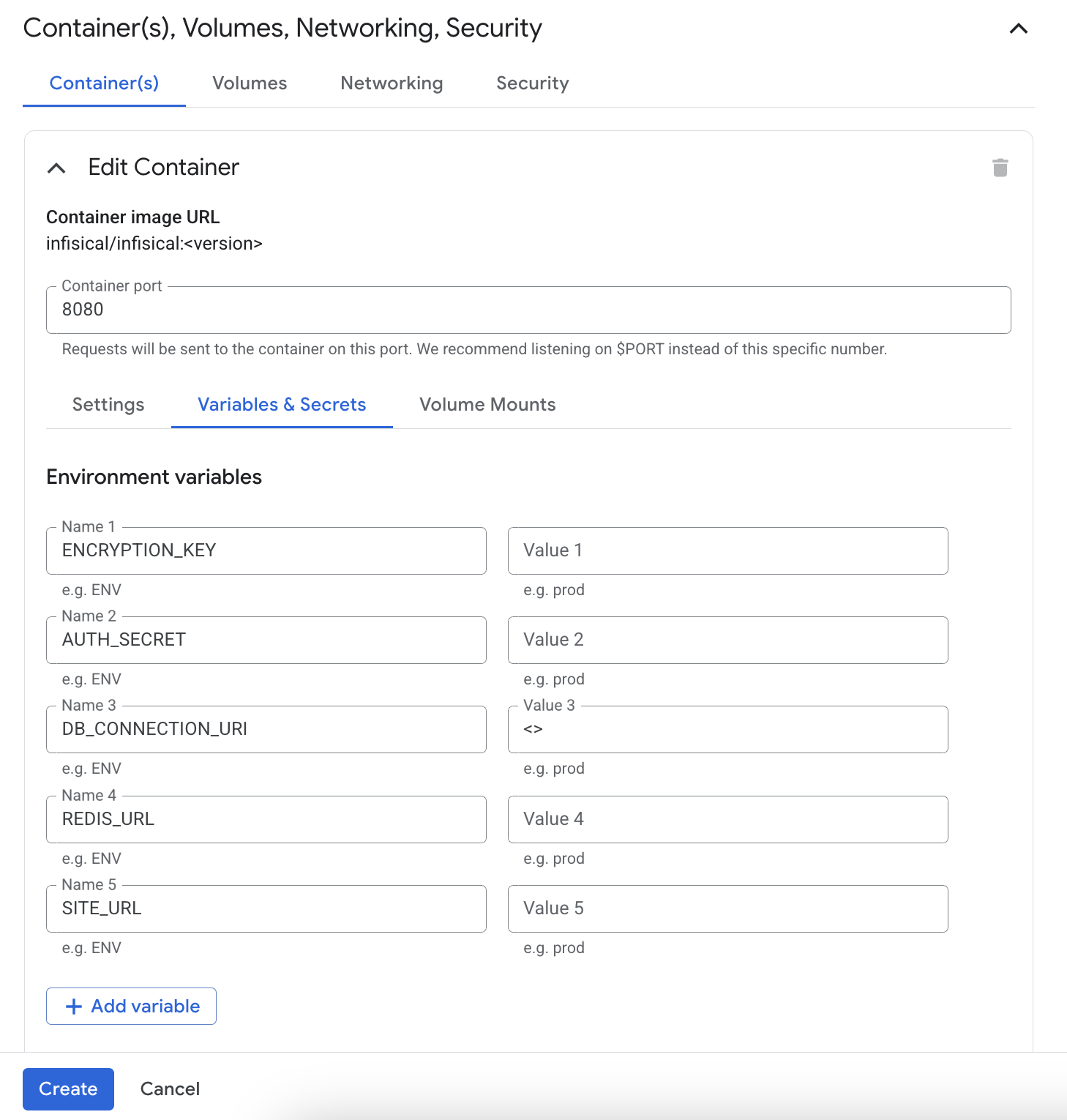 The above environment variable values are only to be used as an example and should not be used in production
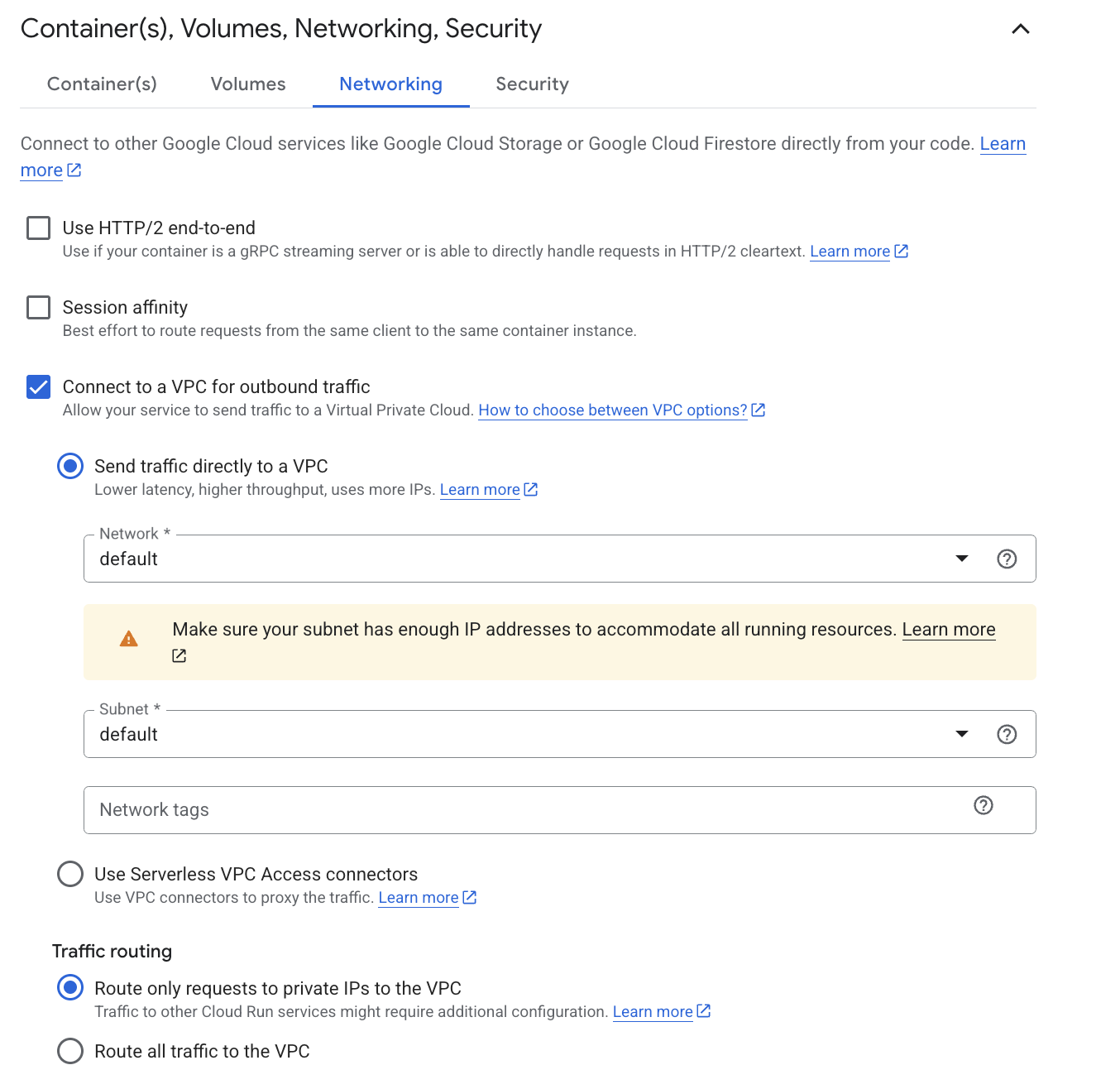
Enable `Connect to a VPC for outbound traffic`: This enables the service to talk to private resources (e.g., a Cloud SQL database, Redis instance on a private IP) inside your Google Cloud VPC network.
Select `Send traffic directly to a VPC`: It gives lower latency and better performance, but uses more IPs from the subnet.
Your Cloud Run revision must be in the same VPC network
The above environment variable values are only to be used as an example and should not be used in production
Enable `Connect to a VPC for outbound traffic`: This enables the service to talk to private resources (e.g., a Cloud SQL database, Redis instance on a private IP) inside your Google Cloud VPC network.
Select `Send traffic directly to a VPC`: It gives lower latency and better performance, but uses more IPs from the subnet.
Your Cloud Run revision must be in the same VPC network
 Once the container is running, verify the installation by opening your web browser and navigating to the Site URL.